How to fix
Taskeng error
on Windows
Resolve Taskeng errors effortlessly on Windows 10 and Windows 11. Follow our expert-tested solutions and get your system running smoothly again.

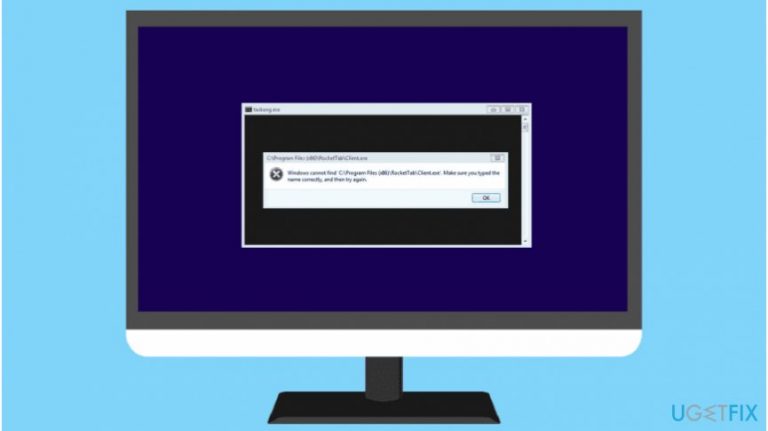
What causes How to fix Taskeng error?
- Malicious programs masquerading as Taskeng.exe
- System misconfiguration
- Outdated registries
- Useless files
- Virus damage after infection
Repairs Windows system files, removes malware, and restores a clean OS state — without reinstalling.
Recently, I have started seeing these Taskeng.exe pop-up windows which appear randomly. It became annoying, and I'm not sure if my computer is not infected. Could you please help me fix Taskeng error on Windows 10?
Taskeng is a part of the Microsoft[ref en-2] Windows operating system and stands for Task Scheduler Engine. This component allows users to make a schedule of when to launch programs and scripts. The time might be predetermined or set as an interval. Taskeng.exe monitors the criteria which are chosen by the user and executes the program or script[ref en-1] once the requirements are met.
The easiest example of how Taskeng application works is that you can use it to turn off the computer at a specific time, when the task is registered, or when a particular system event occurs. For example, if you leave your computer on overnight to complete a scan, you can use Taskeng.exe to turn it off automatically for you.
Although Taskeng is a legitimate system process, people have started receiving random Taskeng.exe pop-up windows. The reports about this error stated that it usually appeared on Windows 10[ref en-3]. Although, Taskeng process might be seen on Windows 7, 8, and XP as well.
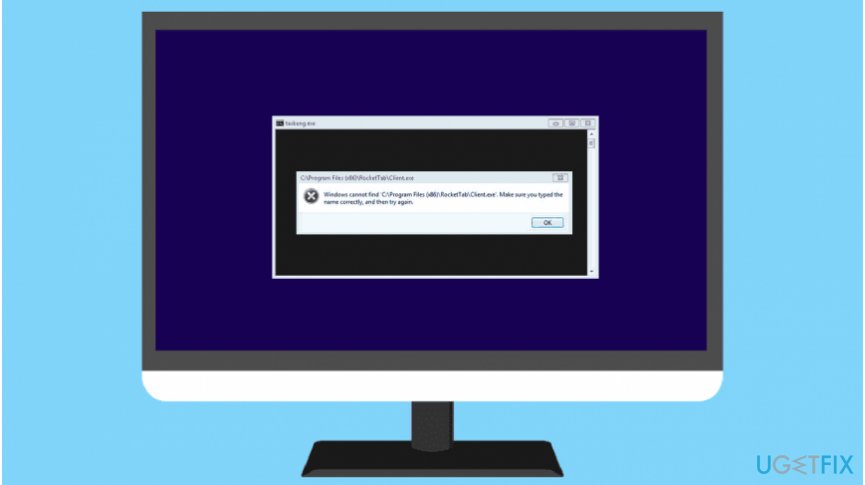
Unfortunately, experts warn that some malicious programs might be regarded as Taskeng virus since they use the same name as the legitimate process to remain undetected for long periods of time. In this case, you need to scan your computer with a professional antivirus immediately.
If you believe that you are not infected with Taskeng virus and merely encountering problems due to system misconfiguration, you can follow the guidelines below and learn how to fix Taskeng error manually. There are multiple ways to get rid of pop-up windows, and we encourage trying them all for the best results.
Simple ways to fix Taskeng error on Windows 10
Before you start trying to fix Taskeng.exe error manually, you should run a full system scan with a professional system optimization software. We recommend using [rev=id"Reimage"] as it will clean outdated registries and useless files. Additionally, it might help you fix virus damage after infection.
Here is the video with the information for solving this problem:
[youtube WTlykk0c_s4]
Method 1. Use System File Checker
- Type Command Prompt in the Menu search;
- Right-click on Command Prompt and select Run as Administrator;
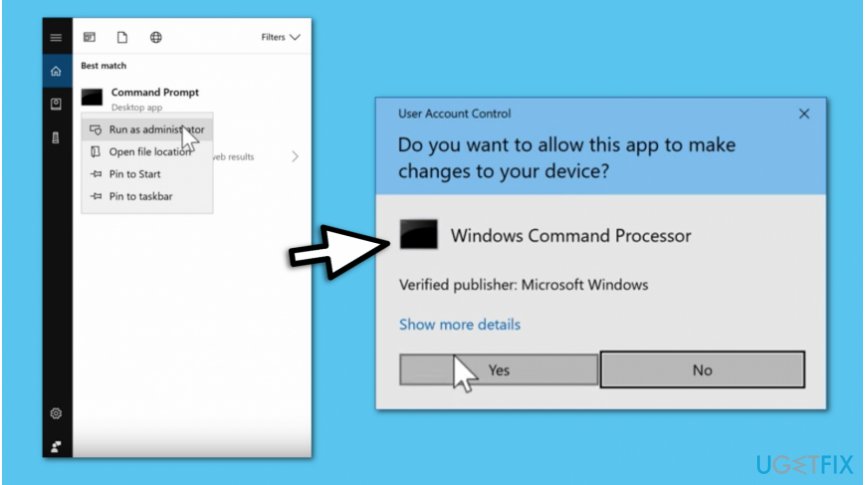
Open command prompt - Click Yes in the User Account Control (UAC) window;
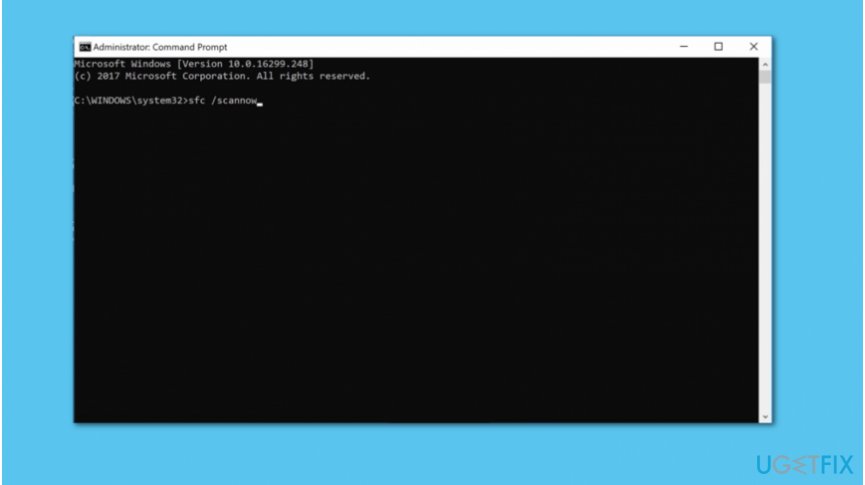
Run sfc scannow command - Type sfc /scannow command and hit Enter afterward;
- Wait for the scan to complete and restart your PC.
Method 2. Try Disk Cleanup Tool
- Search for Command Prompt in the Menu search;
- Right-click on it and select Run as Administrator;
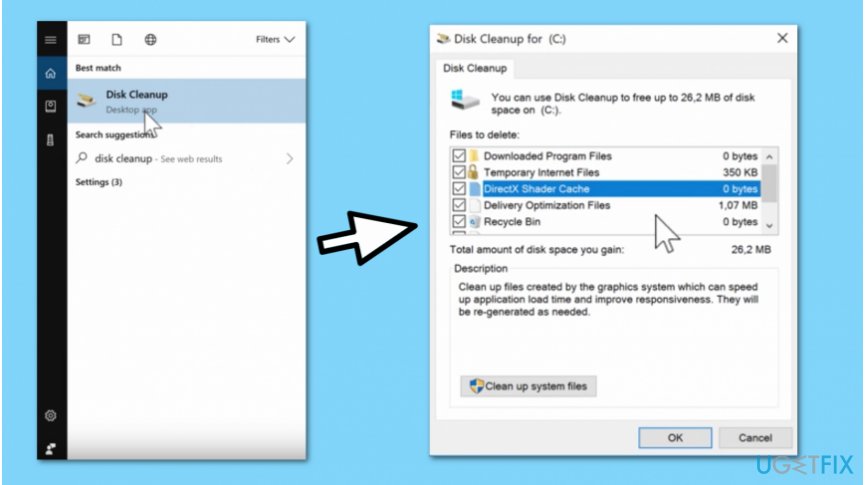
Fix taskeng error with disk cleanup tool - Type cleanmgr and hit Enter;
- In the new window choose the programs and files you want to delete;
- Press Clean up System Files;
- Reboot your computer.
Method 3. Get rid of suspicious and unnecessary software
- Type Run in the Menu search and open Run dialog box;
- Submit appwiz.cpl and click OK;
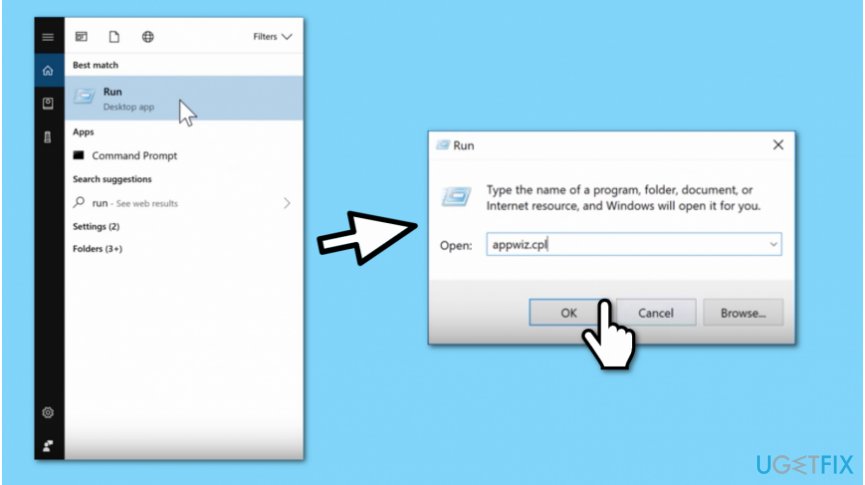
Uninstall suspicious programs - Right-click on the programs you want to uninstall in the Programs and Features window;
- Select Uninstall;
- Restart your PC.
Method 4. Make sure that Windows OS is up-to-date
- Submit Check for Updates in Menu search;
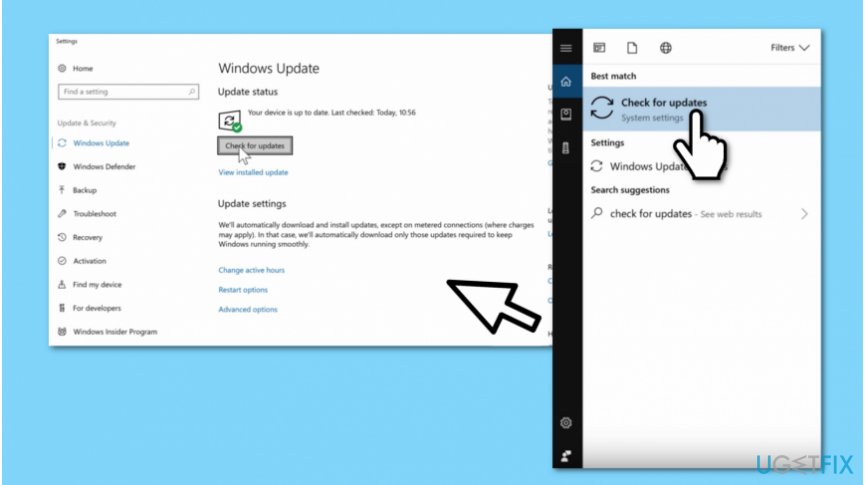
Update windows to fix taskeng error - Click on Check for Updates button;
- If there are any updates, install them and reboot your system.
Method 5. Use DISM to update your Windows OS
- Open Command Prompt with Administrative rights;
- Type DISM /Online /Cleanup-Image /RestoreHealth command and hit Enter;
- Restart your computer afterward.
Method 6. Use Restore Points to fix errors
- Click Windows key + R to open Run dialog box;
- Type rstrui.exe and click OK;
- Select Yes in the User Account Control (UAC) window;
- Follow on-screen instructions and select your restore point to finish the procedure.
Bottom line
To fix the Taskeng error, you should run a full system scan with professional antivirus software and consider using system optimization tools like Reimage to clean outdated registries and files. If these solutions do not resolve the issue, further investigation into potential malware or system settings may be necessary.
Frequently asked questions
The Taskeng error typically occurs when the Task Scheduler encounters issues executing tasks, often leading to error messages related to task execution failure.
To troubleshoot the Taskeng error on Windows 10, you can try running the System File Checker tool to repair corrupted files and ensure that the Task Scheduler service is running properly.
To prevent the Taskeng error in Windows 11, regularly update your system, check for malware, and ensure that your scheduled tasks are configured correctly without any conflicting settings.




Report an issue
What's wrong with this guide? We review every report and update or remove content.
Report received — thank you. We'll review and fix it.
You need a free account to submit a report.
Be the first to comment