How to recover
Restore files encrypted by GandCrab 5
from Windows
Recover your files encrypted by GandCrab 5 effortlessly on Windows 10 or Windows 11. Trusted solutions inside to restore your data with zero traces left.

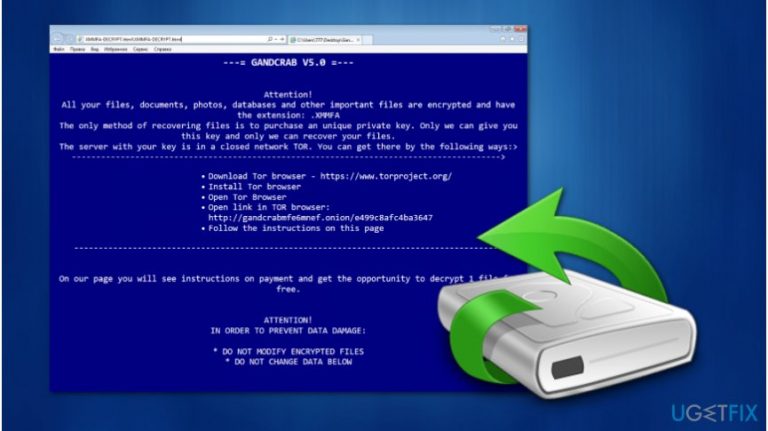
What leads to How to restore files encrypted by GandCrab 5?
- Ransomware infection by GandCrab 5
- Files encrypted using Salsa20 and RSA 2048 ciphers
- Randomly generated file extensions added to encrypted files
- Ransom note provided with instructions to contact hackers via TOR
- Lack of reliable backup solutions
Repairs Windows system files, removes malware, and restores a clean OS state — without reinstalling.
Hello, my computer recently got infected with GandCrab 5 ransomware, and all files are encrypted! Hackers demand to pay the ransom. Although, I'm not willing to support ransomware attacks and pay the money. Are there any other ways how to restore files encrypted by GandCrab 5? I would really appreciate your help. Thank you.
GandCrab 5 is a variant of the infamous GandCrab ransomware virus[ref en-2]. Even though the original version of the malware was discovered only in January 2018, it already has numerous new versions. This particular variant is also extremely dangerous and can encrypt all files stored on the system.
According to the researchers, GandCrab 5 encrypts data using Salsa20 and RSA 2048[ref en-1] ciphers. Encoded files are appended with a randomly generated extension of five letters. It is essential to understand that once the files are encrypted, they become unusable unless decrypted.
Victims receive [randomly_generated_extension]-DECRYPT.html ransom note which includes information about GandCrab 5 ransomware attack. As usual, criminals demand to pay a specific ransom, but users must first contact them via TOR browser[ref en-3]. Such actions help hackers remain anonymous.
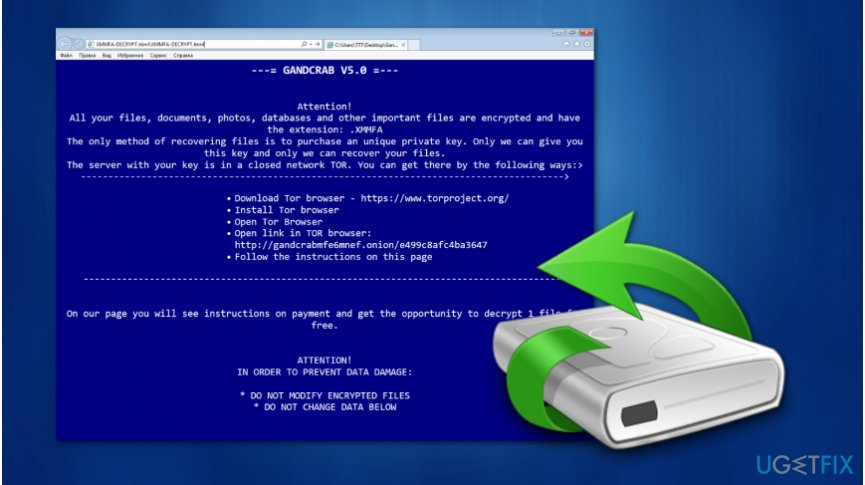
However, as any IT experts would say, you should NEVER pay the ransom. If you follow the demands of the crooks, you only finance and support future cyber attacks. We know it might seem that there is no other possible way to decrypt files encrypted by GandCrab 5 ransomware.
Luckily, our cybersecurity experts have prepared an easy step-by-step guide showing how to restore files encrypted by GandCrab 5 virus. You can find it at the end of this article. Note that the instructions consist of multiple methods, so try them all for the best results.
Ways to restore files encrypted by GandCrab 5
After you remove GandCrab 5 ransomware with a reliable antivirus software, we recommend scanning your system with [d1]. This system optimization tool is designed to help ransomware victims repair the virus damage and improve computer's performance.
Method 1. Use official GandCrab decryptor
Security researchers at Bitdefender released yet another decryption tool that is capable of decrypting all GandCrab variants up to version 5.2. Simply download the application for the official blog here and perform the following:
- Run the executable file.
- Agree to terms and conditions.
- Click on Scan Entire System or select a specific folder you want the tool to decrypt files from.
Method 2. Restore files using backups
If you have backups stored on an external device, make sure that GandCrab 5 is removed from the computer before plugging it in. Otherwise, the malware will encrypt data on the external device as well.
- Plug in your external flash drive or another device;
- Once it is detected, select all files by pressing Ctrl + A;
- Click Ctrl + C to copy the data and paste it using Ctrl + V.
Method 3. Get Data Recovery Pro software
- Download and install Data Recovery Pro;
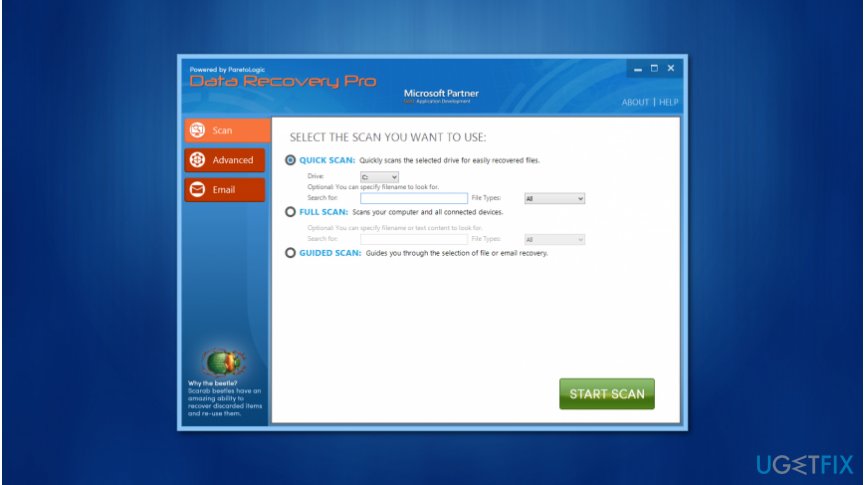
Data recovery pro - Open the application and select Full Scan;
- Click Start Scan;
- Once it is finished, press the Recover button.
Method 4. Get your files back with Windows Previous Versions feature
Note that this method only works if you have enabled System Restore function before GandCrab 5 ransomware attack.
- Find an encrypted file and right-click on it;
- Select Properties and then go to the Previous Versions tab;
- Find the version before the attack and click Restore.
Method 5. Retrieve data with ShadowExplorer
Before you start, check if GandCrab 5 hasn't deleted Shadow Volume Copies from your system.
- Download and install ShadowExplorer;
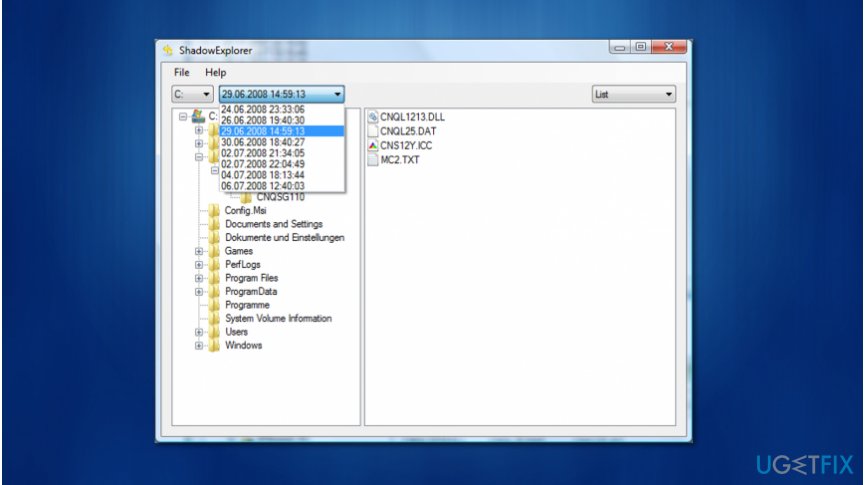
Shadow explorer - Open the application and find your drive;
- Select it and choose a location to export restored files;
- Click Export.
Bottom line
To restore files encrypted by GandCrab 5, you can use the official GandCrab decryptor provided by Bitdefender, and ensure you remove the ransomware with reliable antivirus software. Additionally, consider using a system optimization tool to repair any damage. If these methods do not work, further assistance from cybersecurity experts may be necessary.
Frequently asked questions
Begin by isolating the infected computer to prevent further encryption, then use a reputable anti-malware tool to remove the GandCrab ransomware. Afterward, check for available decryption tools specifically designed for GandCrab 5.
Windows 10 and Windows 11 offer File History and Previous Versions, which may allow you to restore earlier versions of your files if they were backed up before the encryption occurred.
Yes, you can attempt to use decryption tools provided by cybersecurity organizations, or restore your files from backups if available, avoiding the need to pay the ransom.




Report an issue
What's wrong with this guide? We review every report and update or remove content.
Report received — thank you. We'll review and fix it.
You need a free account to submit a report.
Be the first to comment