How to fix
Retrieving information from server RH-01 Play Store error
on Windows
Resolve the RH-01 error on Windows 10 and Windows 11 effortlessly. Follow our expert-tested solutions for a seamless Play Store experience, fixed in min…


What causes How to fix Retrieving information from server RH-01 Play Store error?
- Using a custom ROM
- Buggy or corrupt GApps package
- Pre-installed app package issues
- Device settings misconfiguration
- Outdated software
Repairs Windows system files, removes malware, and restores a clean OS state — without reinstalling.
Hello. I am using an Android device, and have been experiencing some problems with the Play Store recently. Every time I open it, I see "Error retrieving information from server. [RH-01]" and I can't do anything. Is there a solution to this problem?
Recently, many users reported that they are experiencing Error retrieving information from server RH-01 when they are trying to use Play Store, resulting in them not being able to update or download apps. This issue is quite critical to resolve, as software updates are essential for the device's security and should never be overlooked.[ref en-1] Thus, our team compiled a few methods that could help you fix Retrieving information from server RH-01 error.
There are several reasons for the error to occur. Most commonly, however, the issue arises for users who are using a custom ROM[ref en-2] (Read Only Memory). This type of memory is not accessible for general users and only can be altered with the firmware[ref en-3] change. Also, ROM holds the operating system, as well as pre-installed apps that cannot be removed by the user either. However, they can be disabled.
In some cases, ROM's pre-installed app package can be buggy or corrupt GApps package. Several actions need to be performed to fix Retrieving information from server RH-01 error. Please follow the steps below one after another.

Alternatively, users can rely on an automatic Android device repair software [d1]. This is especially useful for those who are less tech-savvy and would prefer to fix Retrieving information from server RH-01 error automatically. Additionally, the app is equipped with several cleaning tools that can increase the speed of your device.
Finally, some users reported that restarting their device or changing the date was all that was needed to fix Error retrieving information from server RH-01. Since these are one of the most straightforward solutions, let's start from those.
This video holds all the information needed to resolve this issue:
[youtube RyPQoQ7cf-c]
Fix 1. Restart your phone
If you encountered Error retrieving information from server RH-01, or any other on your device, make sure you restart it as your first remedy. This also applies to many PC, printer, gaming platforms, etc. If, for some reason you are not sure how to restart your phone, simply hold down the Power button until Power off shows up, and then press on it. Some devices offer Restart function as well.
Fix 2. Set the correct time and date
This solution might come as a surprise to many. However, date and time settings are quite important for many phone functions. Thus, in case the date is set to 70s, your phone will struggle to perform normal tasks correctly:
- Tap on Settings
- Scroll down and locate Date & Time (located under System)
- If the Automatic date & time switch is turned on and is showing incorrect date, switch it off
- Set the date manually
- In case the Automatic date & time is off and manually set date is wrong, turn it on
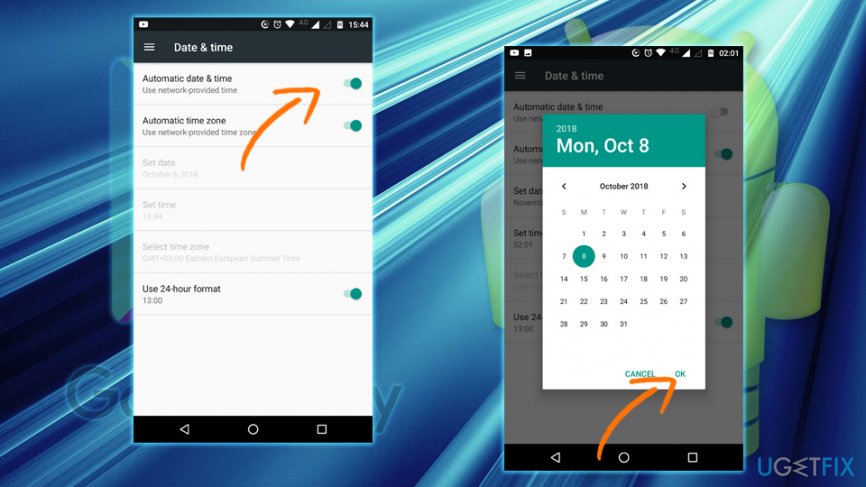
Retrievin information from server rh 01 set correct date
Fix 3. Clear Play Store's Cache and Data
- Go to Settings and find Apps and select All Apps
- Scroll down and locate Google Play Store
- Press Force Stop and then OK when prompted
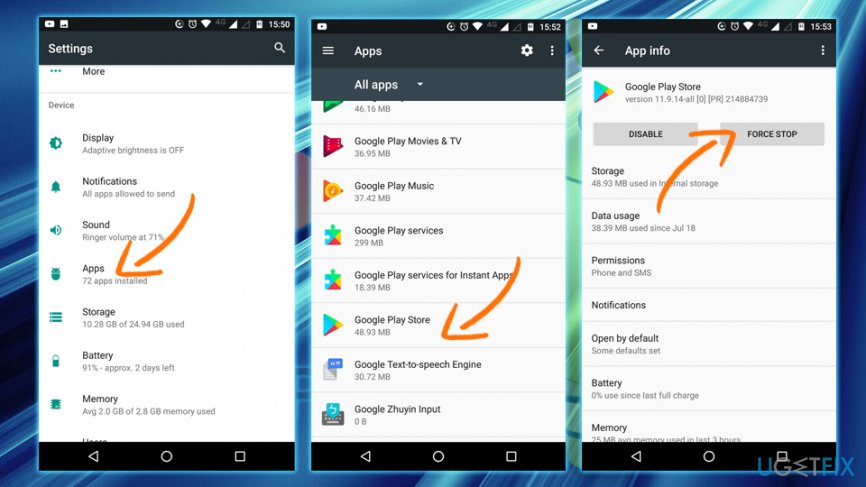
Retrievin information from server rh 01 force stop - Now, go to Storage and select Clear Cache and Clear Data
- Restart your device
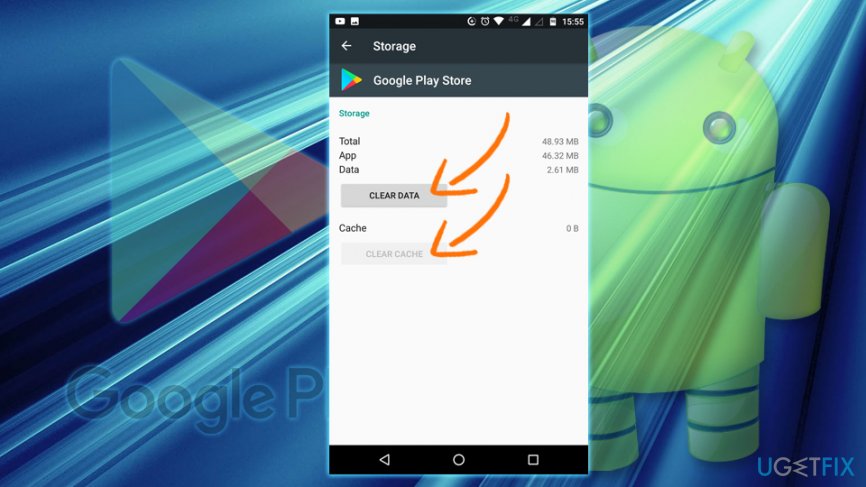
Retrievin information from server rh 01 clear data cache - Check if Google Play works
Repeat the same process with Google Play Services. Then reboot your device and Error retrieving information from server RH-01 should be fixed.
Fix 4. Reset App Preferences
- Go to Settings > Apps and select All Apps
- At the top-right corner you will see three dots, press them
- Pick Reset app preferences
- Restart your device
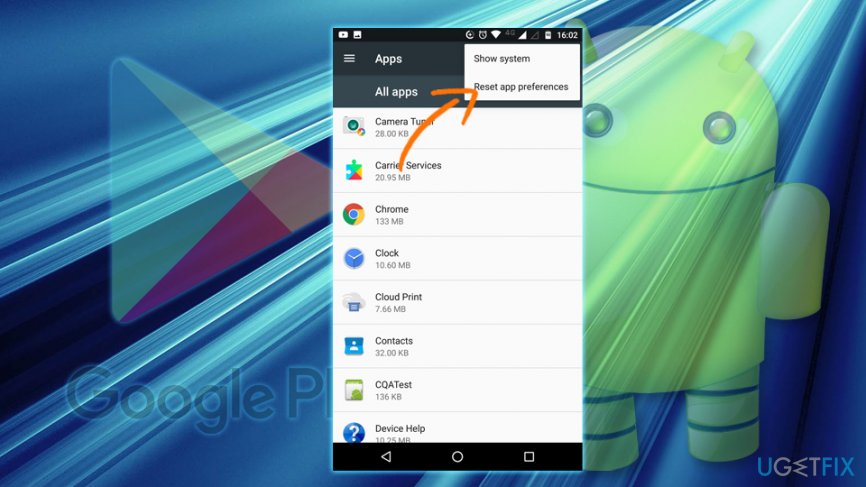
Retrievin information from server rh 01reset app preferences
You will not lose application data, as only the settings will be reset.
Fix 5. Remove and add Google Account
Some users reported that Retrieving information from server RH-01 error was fixed after they re-added their Google Account. Follow these steps:
- Go to Settings and pick Accounts
- Select Google
- Now, tap on menu button (three vertical dots) on the top-right
- Select Remove account
Now you can re-add your account:
- Go to Accounts > Add account
- Select Google and type in your email address and password
- You should receive a code from Google
- Enter it and and you should be set up to use Google Play again
Bottom line
To fix the Retrieving information from server RH-01 error, you can try restarting your phone, changing the date, or using automatic Android device repair software. If these solutions do not work, consider checking for software updates or seeking further assistance.
Frequently asked questions
The RH-01 error typically occurs due to issues with your Google account or network connectivity on Windows 10. Ensuring your account is properly synced and your internet connection is stable may resolve the issue.
To clear the cache for the Play Store on Windows 11, navigate to Settings, select Apps, then find Google Play Store, and choose the option to clear cache. This can help eliminate temporary data issues causing the RH-01 error.
Reinstalling the Play Store can be effective in resolving the RH-01 error on Windows, as it ensures that you have the latest version and that all components are correctly installed. Be sure to back up your data before proceeding.




Report an issue
What's wrong with this guide? We review every report and update or remove content.
Report received — thank you. We'll review and fix it.
You need a free account to submit a report.
Be the first to comment