How to fix
File Explorer becomes unresponsive when clicking on it
on Windows
Resolve File Explorer issues in Windows 11 quickly and effectively. Enjoy seamless navigation with expert-tested solutions that fix it in minutes.

![[Fix] File Explorer becomes unresponsive when clicking on it in Windows 11](https://ugetfix.com/wp-content/uploads/articles/askit/fix-file-explorer-becomes-unresponsive-when-clicking-on-it-in-windows-11_en-768x432.jpg)
What causes [Fix] File Explorer becomes unresponsive when clicking on it in Windows 11?
- Corrupted system files
- Conflict with a third-party app
- Low disk space
- Outdated drivers
- Buggy Windows update
Repairs Windows system files, removes malware, and restores a clean OS state — without reinstalling.
Hi there. I was wondering if you could help me with the problem I have to deal with for the past few weeks. When I open File Explorer, everything works fine - or at least it seems so. However, as soon as I click anywhere (for example, I want to search something using the search bar), File Explorer becomes unresponsive, and I need to shut it down though the Task Manager and re-open it again, only for the problem to repeat itself. Is there anything I can do? I'm using Windows 11.
File Explorer has been a key part of Windows for many years. It started as a simple tool called "File Manager" in the early days of Windows, like Windows 3.1, to help you manage files and folders. Over time, it evolved into Windows Explorer in Windows 95, adding more features and a better look. With Windows 11, it became File Explorer again, bringing a modern design and new options like tab support. Through all these changes, it remains an essential tool for navigating your computer.
Even with its long history, File Explorer isn’t perfect, and you might run into problems. One issue some of you face is that when you click on File Explorer, it becomes unresponsive. It might freeze, not open properly, or show a loading circle that never stops. Interestingly, it can still open fine in other ways, like using the Windows + E shortcut. Online, people often say File Explorer is not responding randomly, and sometimes the whole screen freezes for a few seconds before recovering.
So, why does this happen? There could be a few reasons. It might be due to corrupted system files that mess up how File Explorer works. Another possibility is a conflict with a third-party app you recently installed, which interferes with it. Low disk space or outdated drivers, especially for your graphics card, could also cause this issue. Even a buggy Windows update might be to blame.
If this happens to you, don’t worry - there are ways to fix it. You can try restarting your computer, checking for Windows updates, or looking into system files that might need repair. Full instructions are below. For an easy solution, consider using [d1] PC repair tool - it can automatically fix underlying Windows issues for you.
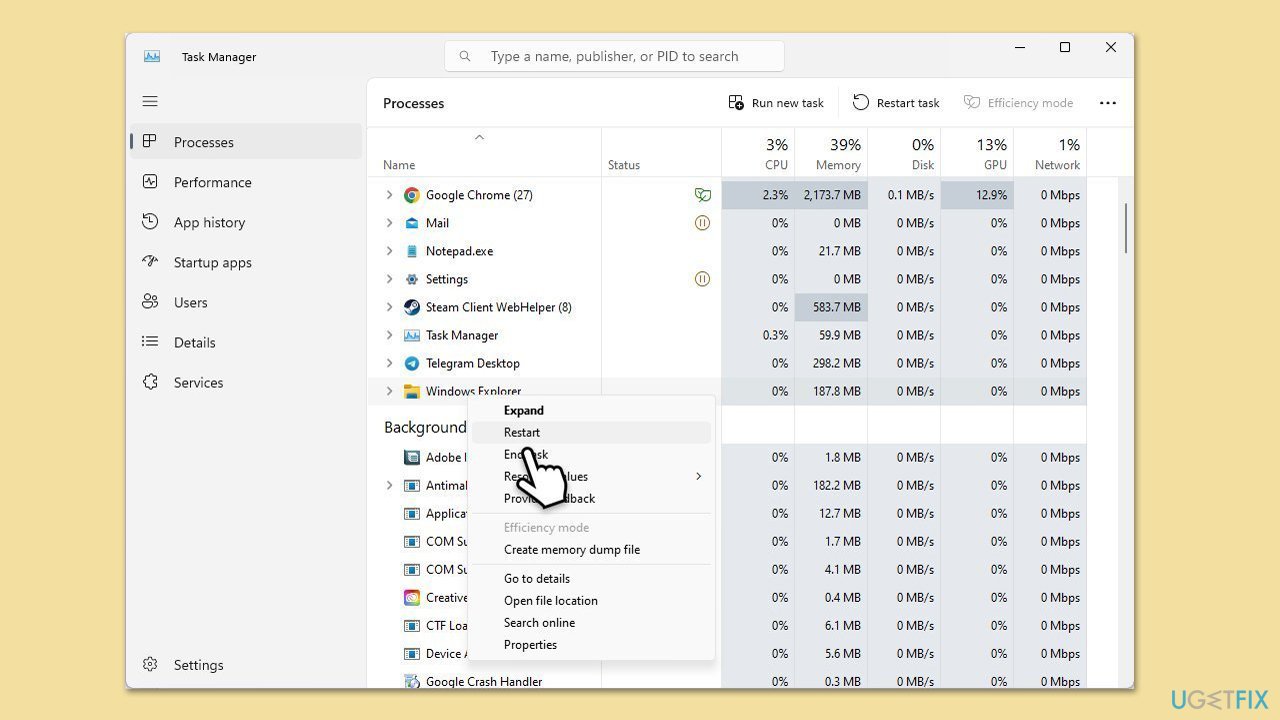
Fix 1. Restart Windows Explorer via Task Manager
Let's start with a quick baseline fix, though it's fairly standard.
- Press Ctrl + Shift + Esc to open Task Manager.
- Locate Windows Explorer in the list of processes.
- Right-click on it and select Restart.
- Check if the taskbar buttons appear on all taskbars after the restart.
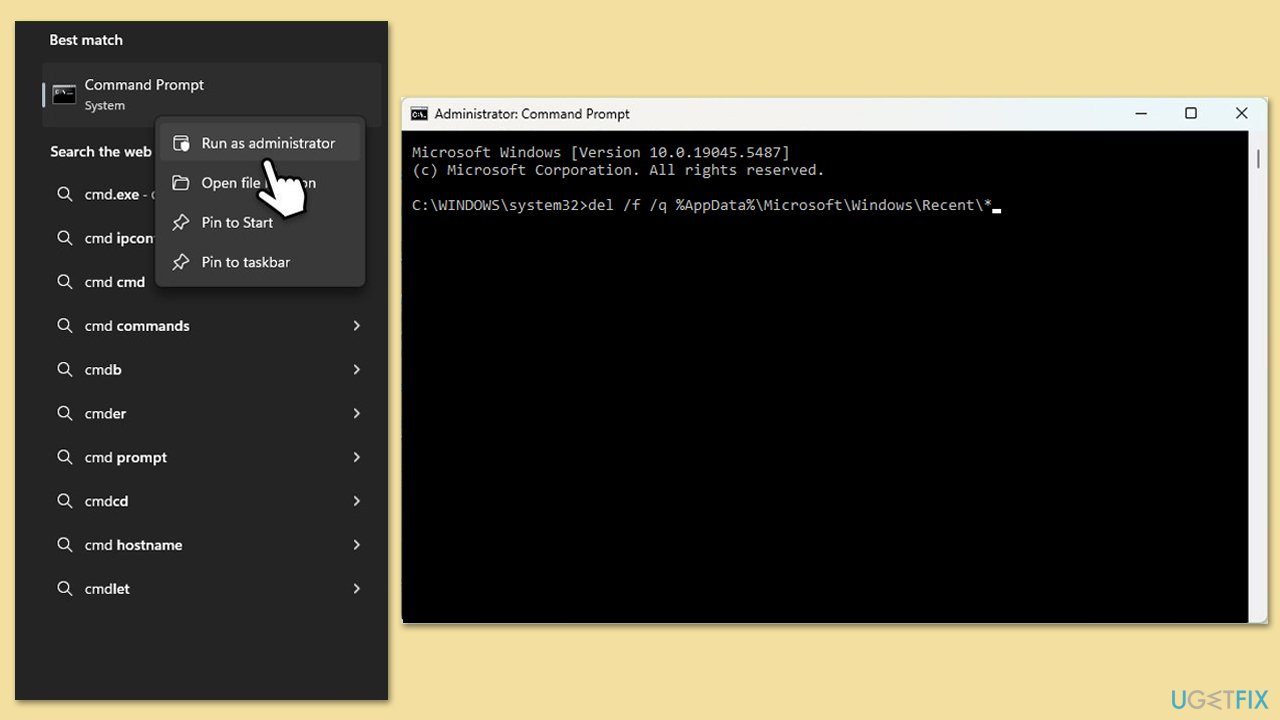
Fix 2. Clear File Explorer cache manually via Command Line
Clearing the File Explorer cache is a known fix, but doing it through a command-line interface adds a technical twist. Here’s how:
- Type in cmd in Windows search.
- Right-click the Command Prompt result and pick Run as administrator.
- User Account Control will ask whether you want to allow changes - click Yes.
- Type in the following command and press Enter:
del /f /q %AppData%\Microsoft\Windows\Recent\* - Close down Command Prompt and restart your PC.
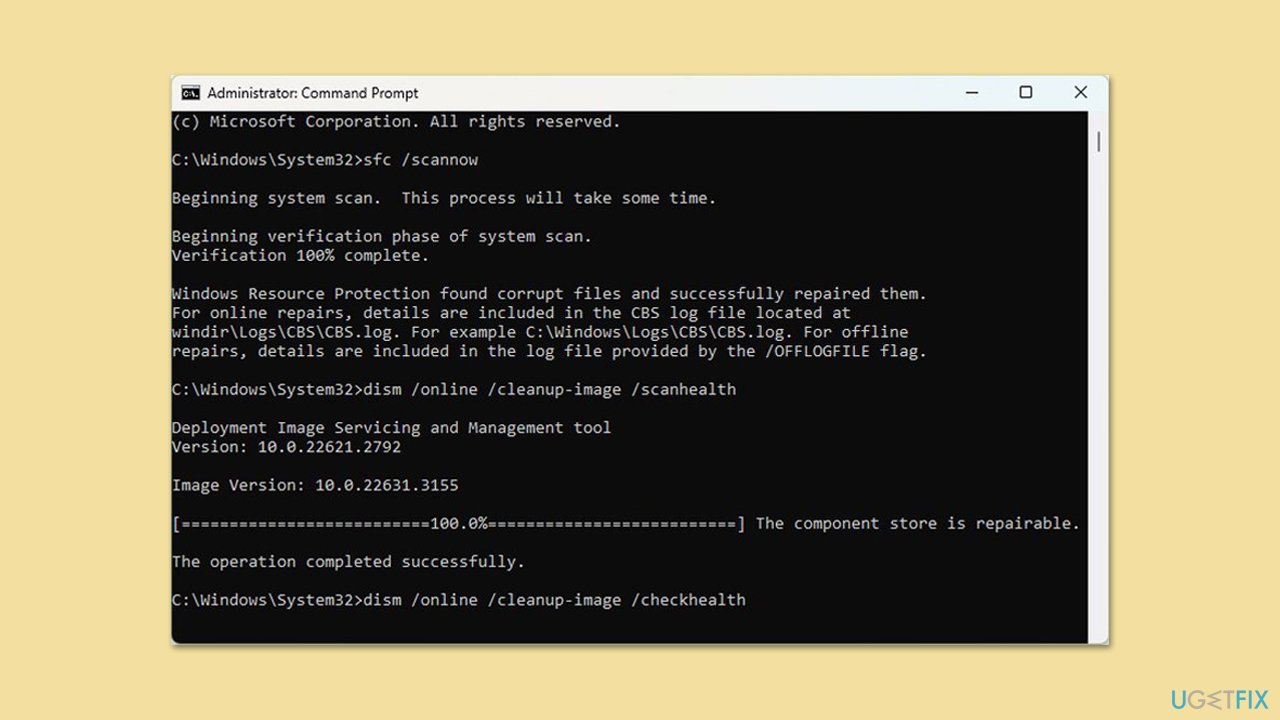
Fix 3. Run SFC and DISM
If File Explorer becomes unresponsive after clicking it, it might be caused by corrupted system files.
- Open Command Prompt as administrator.
- In the Command Prompt window, paste the following command and press Enter:
sfc /scannow - Wait for the scan to complete.
- Once the SFC scan is finished, run the following set of DISM commands, pressing Enter after each one:
DISM /Online /Cleanup-Image /CheckHealth
DISM /Online /Cleanup-Image /ScanHealth
DISM /Online /Cleanup-Image /RestoreHealth
(Note: if you get an error executing this last command, add /Source:C:\RepairSource\Windows /LimitAccess to it and try again). - After executing these commands, restart your system.
Fix 4. Tweak File Explorer Options
Adjusting File Explorer settings can sometimes fix responsiveness issues:
- Open File Explorer, click the three dots in the menu bar, and select Options.
- In the General tab, change Open File Explorer to from "Quick Access" to This PC.
- Uncheck Show recently used files in Quick Access and Show frequently used folders in Quick Access.
- Go to the View tab and click Restore Defaults to reset any bad configurations.
Fix 5. Scan for malware
Malware can disrupt File Explorer, and while you can try third-party tools, Windows Security should be sufficient:
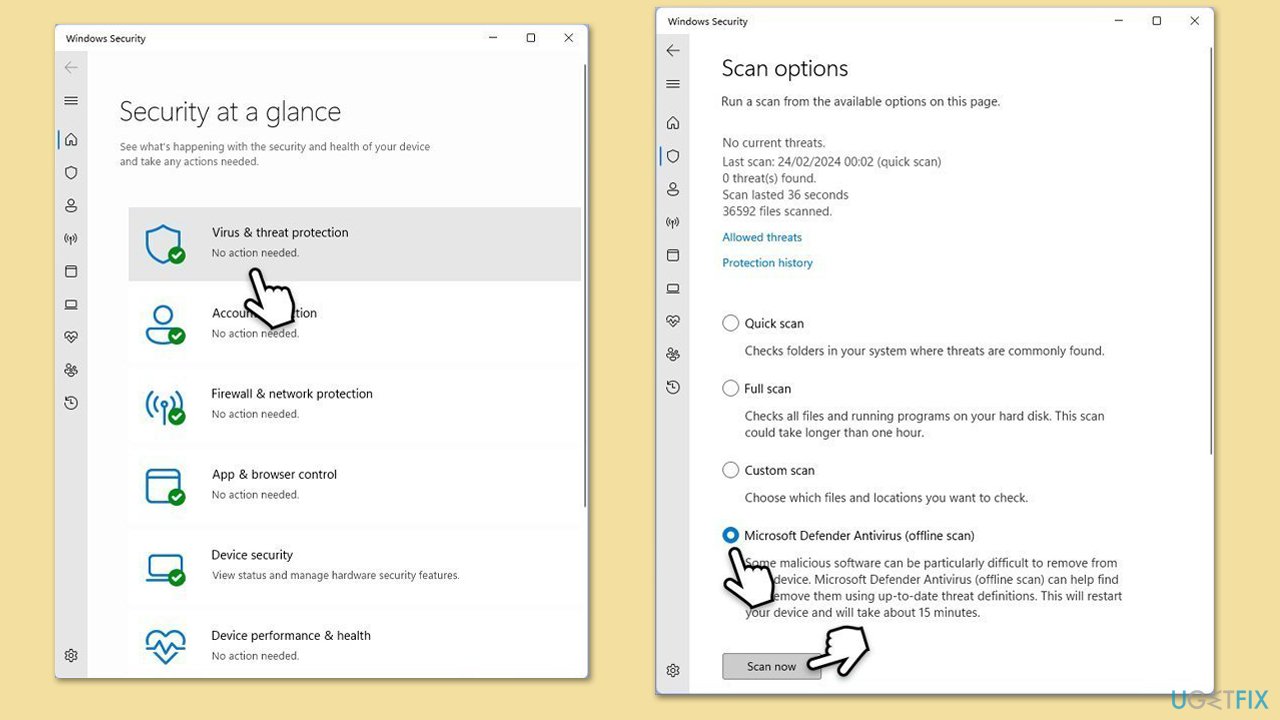
- Type Windows Security in the Windows search bar and hit Enter.
- Select Virus & threat protection.
- Pick Scan options.
- Choose Microsoft Defender Offline scan and click Scan now.
- Your computer will immediately restart to begin a deep scan.
Fix 6. Optimize Virtual Memory settings
If your system is resource-strapped, File Explorer might lag. Adjust virtual memory for a performance boost:
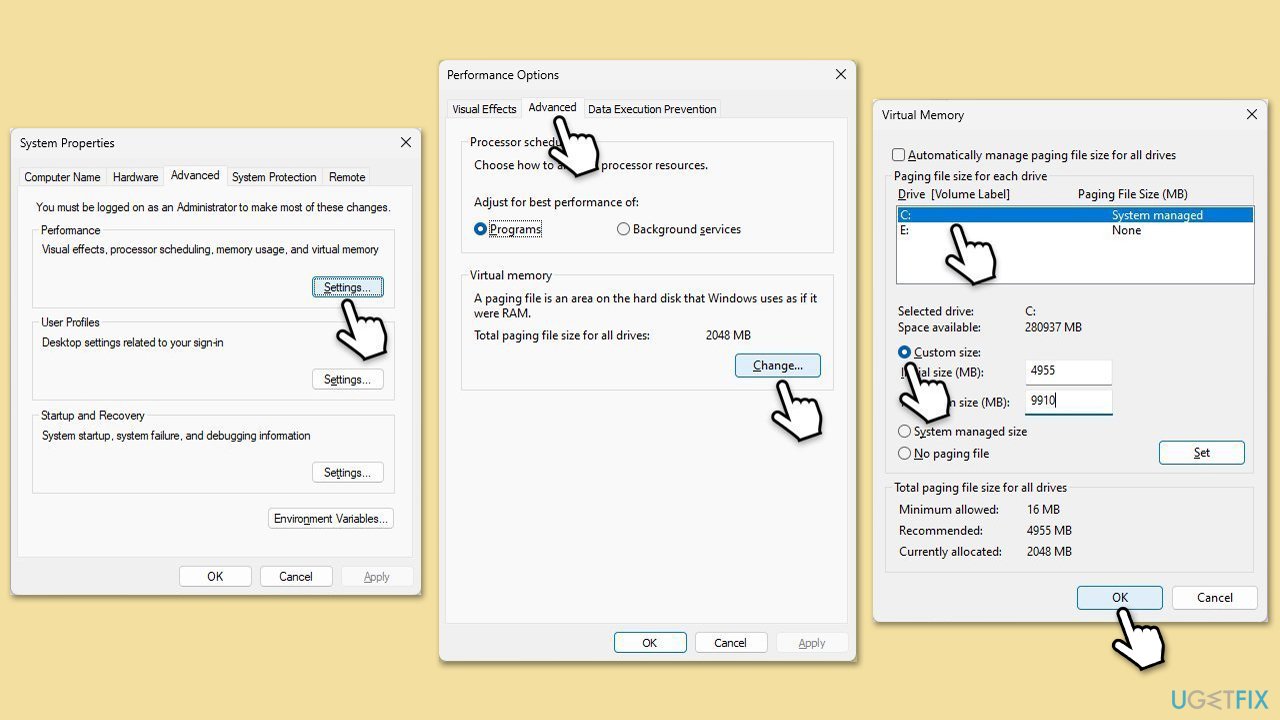
- In Windows search, type in Advanced system settings and press Enter.
- Under the Performance section, click Settings.
- Go to the Advanced tab.
- Under Virtual Memory, select Change.
- Untick the Automatically manage paging size for all drives option (make sure your main drive is selected - C: is the default).
- Select Custom size.
- At the bottom, check the Recommended memory size and type it into the Initial size (MB) field.
- In the Maximum size (MB) field, enter double size than that in the Initial size section.
- Click Set and OK.
Fix 7. Perform Check Disk
Hardware issues like a failing drive can make File Explorer unresponsive. Run a thorough disk check:
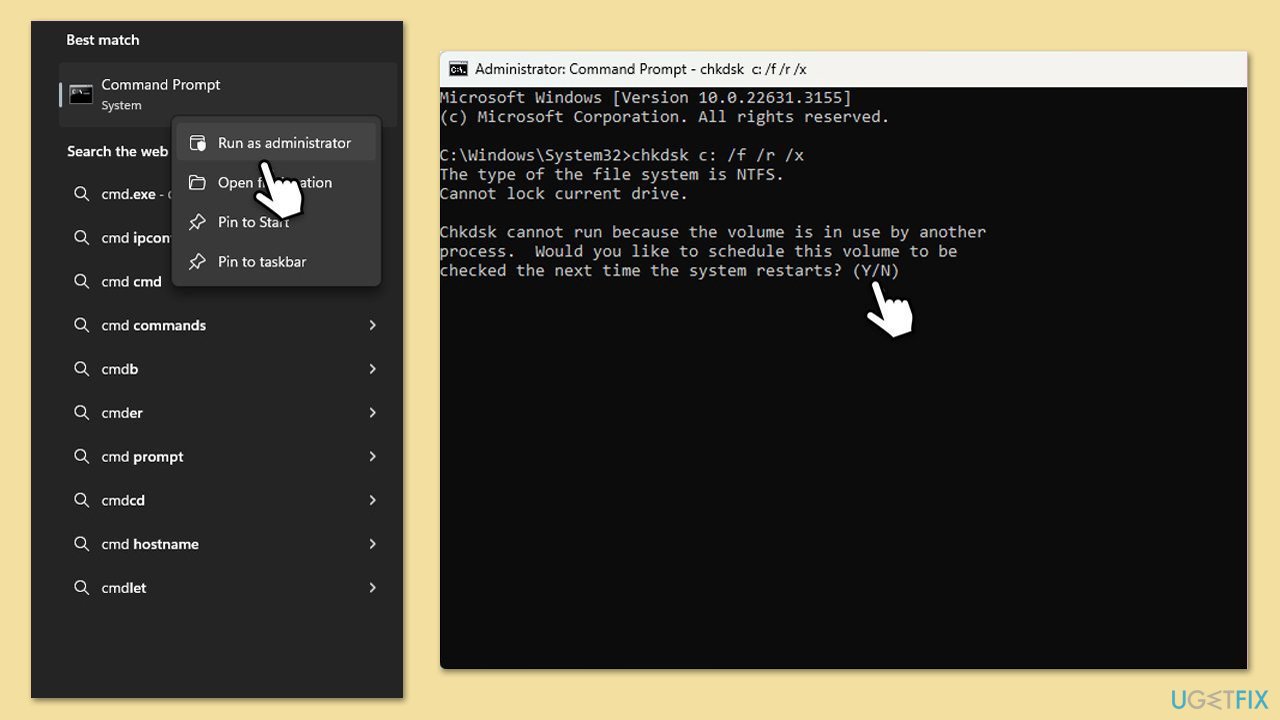
- Open Command Prompt as administrator.
- When User Account Control shows up, click Yes.
- In the new window, type in the following command and press Enter after:
chkdsk c: /f
(Note: use chkdsk c: /f /r /x command if you are using SSD as your primary partition) - If you receive an error, type in Y, close down Command Prompt and restart your device.
- Wait until the scan is finished - you can find the results in the Event Viewer.
Fix 8. Create a new user profile
A corrupted user profile could be the culprit. Test this by creating a new account:
- Right-click on Start and pick Settings.
- Go to Accounts then Family/Family & other users.
- Under Other users, click Add account/Add someone else to this PC.
- Follow the prompts to create a new user account. If you don't have Microsoft account details, you can choose I don't have this person's sign-in information followed by Add a user without a Microsoft account.
- Assign a username and password for the new account and complete the setup.
- Then go back to the Accounts section. Under Family/Family & other users, select the newly created account and click Change account type.
- Under Account type, pick Administrator and click OK.

Fix 9. Reset Windows
Some users said that they managed to fix File Explorer not responding issues by resetting Windows.
- Right-click on Start and then select Settings.
- Go to Update & Security and pick Recovery on the left side of the window.
- Find Reset this PC section and click Get Started.
- Select Keep my files and Cloud download.
- Next, pick whether you want to reinstall the apps.
- Click Reset.
- Your system will restart, and Windows reset process will begin.
Bottom line
To resolve the issue of File Explorer becoming unresponsive, you can try restarting your computer, checking for updates, or using the Windows + E shortcut. If these steps do not work, consider further troubleshooting or seeking additional support.
Frequently asked questions
Try restarting Windows Explorer from the Task Manager to see if that resolves the issue. If the problem persists, consider running the System File Checker to repair any corrupt system files.
Yes, ensure that your Windows 11 is updated to the latest version, and check for any conflicting third-party applications that may interfere with File Explorer.
You can troubleshoot by clearing File Explorer history, resetting the Folder Options, or performing a clean boot to identify potential software conflicts.




Report an issue
What's wrong with this guide? We review every report and update or remove content.
Report received — thank you. We'll review and fix it.
You need a free account to submit a report.
Be the first to comment