How to fix
Network and connection issues after installing 24H2 update
on Windows
Resolve network and connection issues after the 24H2 update on Windows 10 and 11. Get expert-tested solutions for a seamless experience. Fixed in minutes!

![[Fix] Network and connection issues after installing 24H2 update](https://ugetfix.com/wp-content/uploads/articles/askit/fix-network-and-connection-issues-after-installing-windows-24h2-update-copy_en-768x432.jpg)
What causes [Fix] Network and connection issues after installing 24H2 update?
- Interaction of the 24H2 update with DHCP services
- Devices failing to obtain proper IP addresses
- Devices receiving incorrect or non-functional addresses
- Changes in operating system communication with protocols
- Conflicts with some drivers or configurations
Repairs Windows system files, removes malware, and restores a clean OS state — without reinstalling.
Since I updated my system to Windows 11 24H2, I have been facing continuous network problems. My devices can't get online properly; it seems like they receive wrong IP addresses. How can I solve these connection issues?
Since the update to Windows 11 version 24H2, several users have been complaining about their network and internet connectivity. You might realize, after installing this update, that you have trouble maintaining an Internet or network connection with your device—of course, this applies if you are using a wired or wireless connection.
This issue has particularly surfaced in cases where devices fail to obtain proper IP addresses, defaulting to a 169.x.x.x format, which points to a DHCP (Dynamic Host Configuration Protocol) failure.
Understanding the issue
The main cause behind these network disruptions seems to stem from how the 24H2 update interacts with DHCP services on both wired and wireless connections.
Devices that rely on automatic IP address assignment can end up receiving incorrect or non-functional addresses, resulting in no connectivity. This is particularly frustrating for users who rely on stable network connections for work, browsing, or streaming.
In short, it is related to changes in how the operating system communicates with protocols. These changes can conflict with some drivers or configurations, resulting in problems with DHCP and IP assignment.
Reported solutions and workarounds
While an official fix may still be pending from Microsoft, various users have tried different methods to regain their network access. One workaround that has been noted involves manually assigning static IP addresses to affected devices.
This method bypasses the dependency on DHCP and restores network functionality in many cases. Additionally, network administrators have reported success by adjusting DHCP server settings, such as disabling specific options like DHCP Option 43, which may interfere with IP assignment after the update.
For users experiencing recurring issues, rolling back to a previous Windows version, such as 23H2, has also been a temporary measure to restore network stability. However, this is not always ideal as it may involve losing access to new features and updates included in 24H2.
What can be done?
In the meantime, until a patch from Microsoft, you can also take some steps to mitigate the problems caused by network resets and updated drivers. Others have reported that disabling DHCP settings or using static IP addresses temporarily helps.
To those seeking automatic help, [d1] is an all-in-one solution that can be used to diagnose and fix various problems with Windows, including network issues. It identifies and replaces corrupted system files for better performance and connectivity.
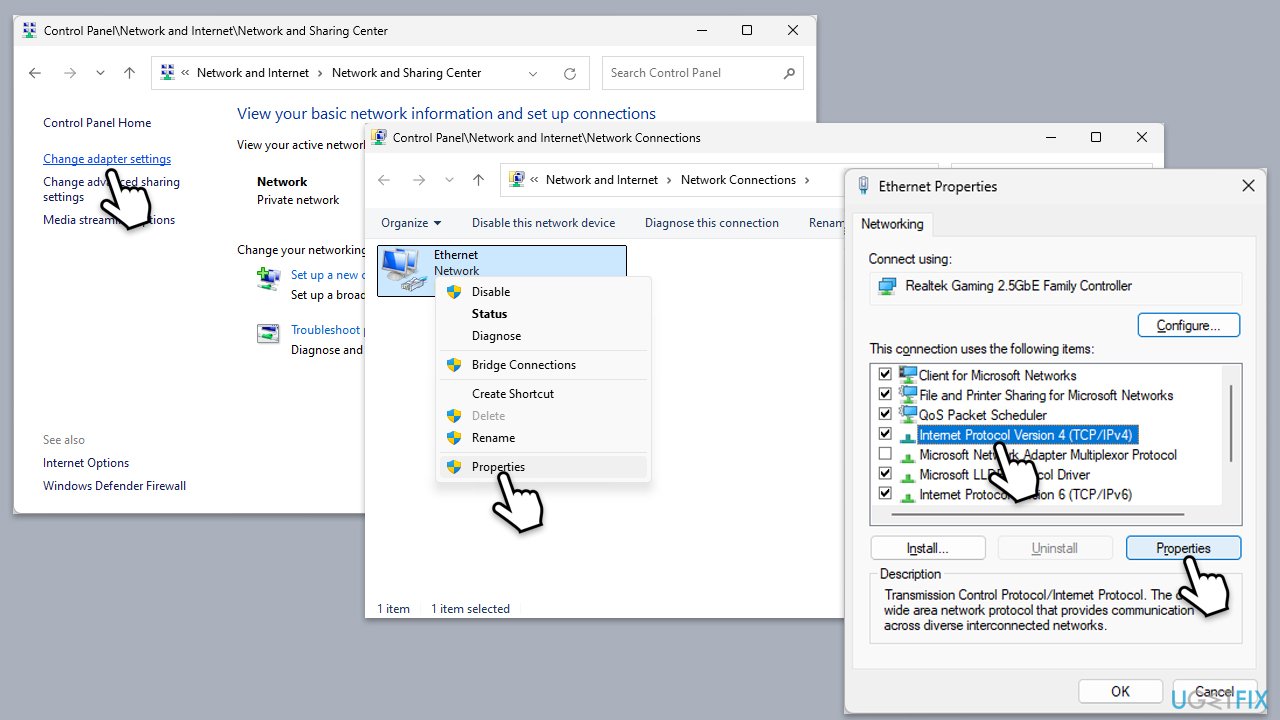
Fix 1. Assign a static IP address
This will bypass the DHCP server by assigning a fixed IP directly to your device. Try if your system is having a problem obtaining a valid IP from the DHCP server.
- Open the Control Panel and go to Network and Internet > Network and Sharing Center.
- Select Change Adapter Settings.
- Right-click on your active network connection and choose Properties.
- Select Internet Protocol Version 4 (TCP/IPv4) and click Properties.
- Choose Use The Following IP Address and enter an appropriate IP address, subnet mask, and default gateway.
- Input the Preferred DNS Server and Alternate DNS Server if needed.
- Click OK to apply the changes and restart your computer.
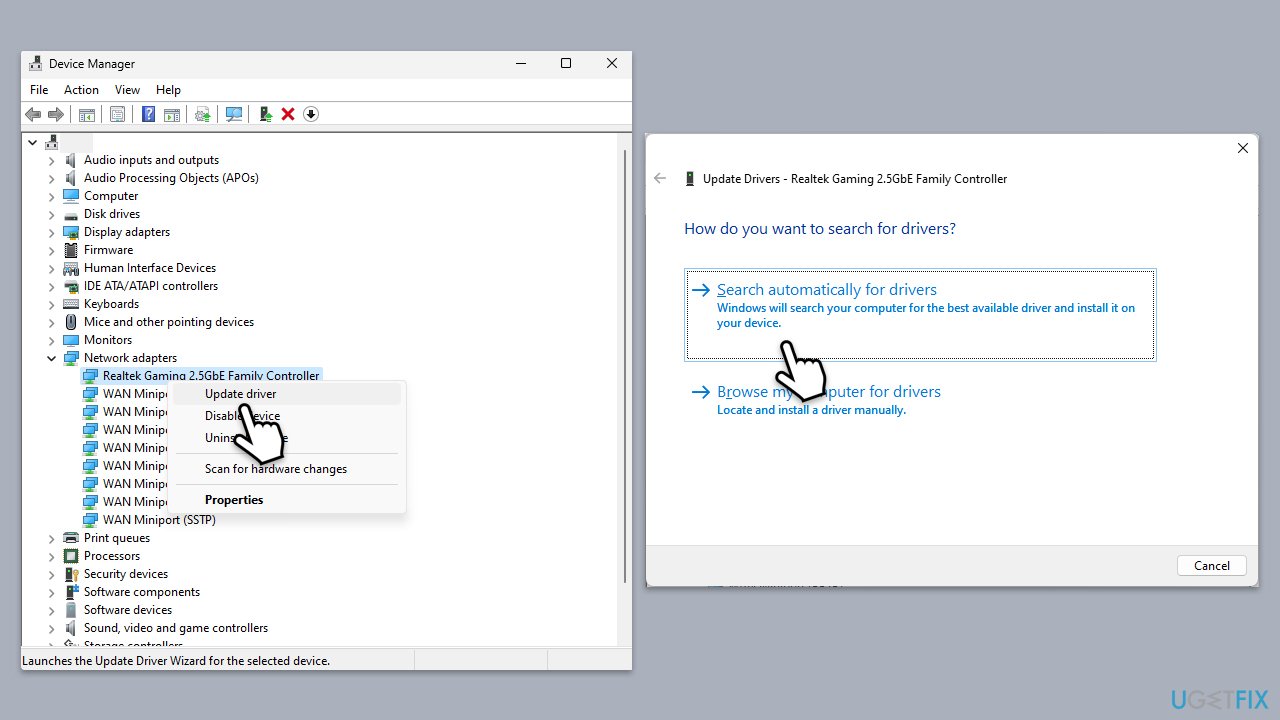
Fix 2. Update network drivers
Outdated or incompatible network drivers can cause issues with IP assignment and connectivity. Updating them ensures your system can communicate with network protocols effectively. If you do not want to be bothered with manually updating drivers, you can always rely on powerful software such as [rev id="DriverFix"].
- Right-click on the Start menu and select Device Manager.
- Expand the Network adapters section.
- Right-click on your network adapter and choose Update driver.
- Select Search automatically driver.
- Follow the prompts to complete the driver update and restart your system.
Fix 3. Disable DHCP Option 43 on the server
This option is generally used for vendor-specific information and may interfere with DHCP operations on Windows 11 version 24H2. Disabling it can restore normal IP assignment behavior.
- Access the DHCP server management interface.
- Navigate to the specific DHCP scope that affects your device.
- Find Option 43 under the DHCP options and uncheck or disable it.
- Save the changes and restart the DHCP server.
- Reboot your computer and check the connection.
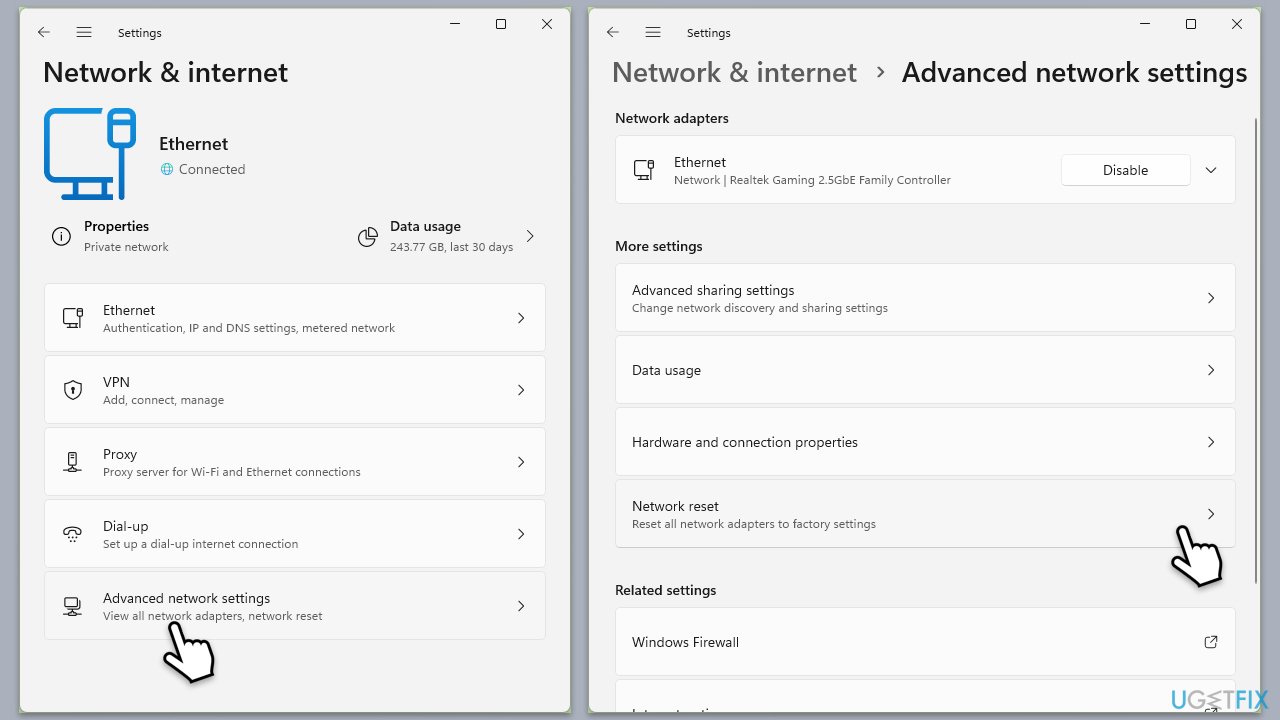
Fix 4. Perform a network reset
Resetting your network can refresh network configurations and remove any existing issues related to connectivity, restoring default network settings.
- Right-click on Start and pick Settings.
- Go to Network & Internet.
- Under Advanced network settings, click Network reset.
- Click Reset Now.
- Confirm the action and then restart your system.
Fix 5. Roll back to Windows 11 version 23H2
Rolling back to a previous version can help if the 24H2 update is causing significant connectivity issues. This will revert your system to the prior stable version.
- Right-click on Start and select Settings.
- Go to System and select Recovery.
- Under Recovery options, click Go back.
- Follow the prompts to complete the rollback process.
- Restart your computer and check if the network connection is restored.
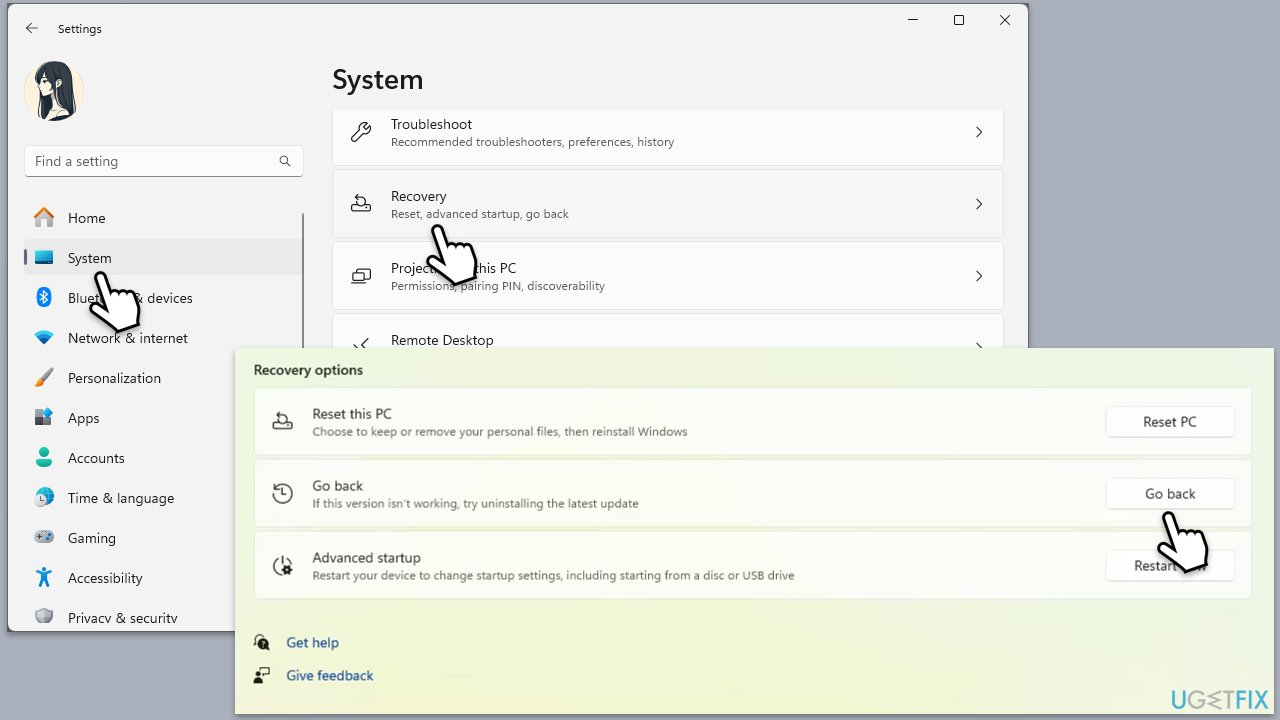
The "Go back" option could be not present or grayed out. If that's the case, you have gone past the 10-day period that Microsoft allows users to revert to the previous version. In such case, you should either download version 23H2 manually (not recommended, as you won't find it on the official Microsoft website) or use System Restore.
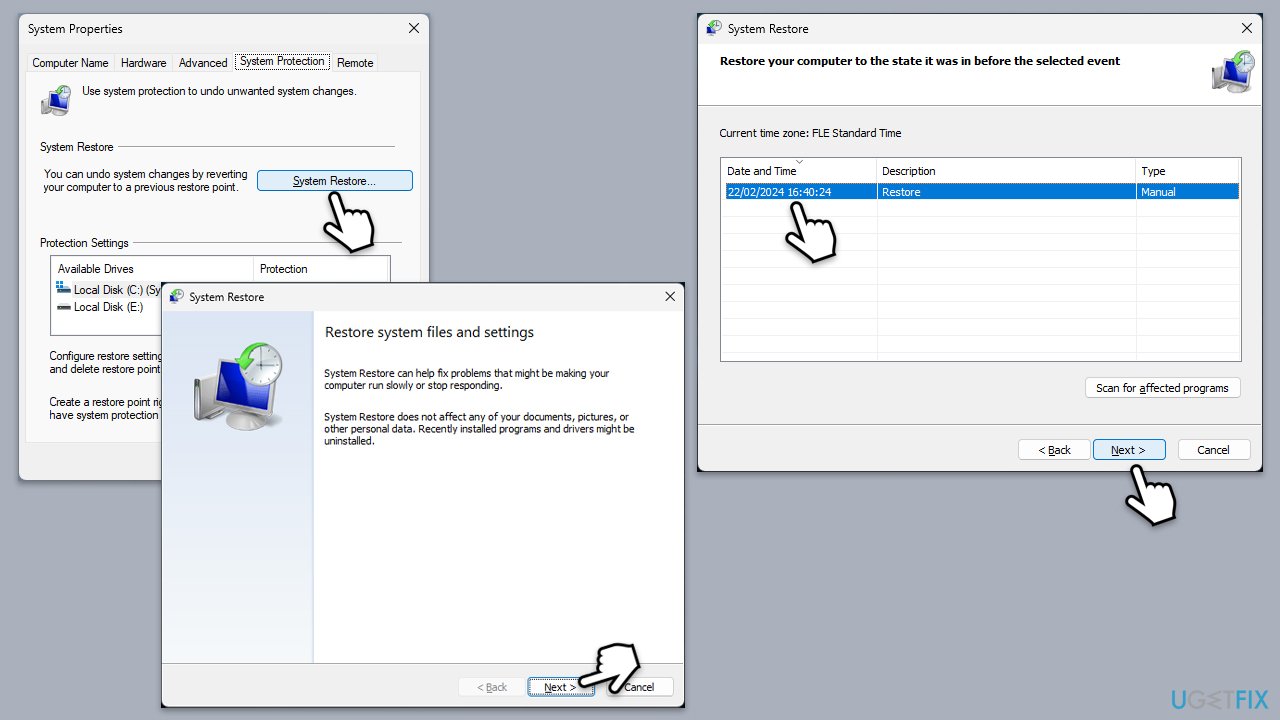
Fix 6. Use System Restore
- Type in Create a restore point in Windows search and hit Enter.
- In the System Protection tab, pick System restore.
- Click Next.
- Click Show more restore points (if available).
- Pick the time before the problem occurred and click Next.
- Your computer will reboot.
Bottom line
Users can try manually assigning static IP addresses to affected devices or adjusting DHCP server settings, such as disabling DHCP Option 43. Rolling back to a previous Windows version like 23H2 may also restore network stability. If none of these solutions work, users should await an official fix from Microsoft.
Frequently asked questions
Try resetting your network adapter by going to Settings > Network & Internet > Status, then click on 'Network reset.' This can often resolve connectivity issues introduced by the update.
Check your Ethernet cable and try plugging it into a different port or router. If that doesn't work, run the Network Troubleshooter under Settings > Update & Security > Troubleshoot.
Yes, you can roll back the update by going to Settings > Update & Security > Recovery and selecting 'Go back to the previous version of Windows.' However, ensure that you back up your data before proceeding.




Report an issue
What's wrong with this guide? We review every report and update or remove content.
Report received — thank you. We'll review and fix it.
You need a free account to submit a report.
Be the first to comment