How to fix
“A critical error has occurred” Valorant error
on Windows
Resolve the "A critical error has occurred" in Valorant on Windows 10 and 11 effortlessly. Quick fixes and expert-tested solutions await you!

What causes How to fix “A critical error has occurred” Valorant error on Windows?
- Outdated or corrupt drivers
- Conflicts with security software
- Issues related to full-screen optimization
- Compatibility settings in Windows
Repairs Windows system files, removes malware, and restores a clean OS state — without reinstalling.
I can't open Valorant because I keep receiving the "System error - A critical error has occurred and the process must be terminated" message. Please help me fix this since I'm unable to play Valorant at all due to this as of recently.
Valorant, developed and published by Riot Games, has established itself as one of the premier first-person shooter games in the gaming community. Known for its tactical gameplay and vibrant graphics, Valorant offers a competitive environment for players around the world. However, despite its widespread popularity and acclaim, players often encounter technical issues that can disrupt their gaming experience. One such notable problem is the "A critical error has occurred" error message, which presents a significant inconvenience for many players.
The "A critical error has occurred" error typically manifests with the full message, "System error - A critical error has occurred and the process must be terminated." It can occur at varying points during gameplay, abruptly forcing the game to shut down, much to the frustration of players. In more severe cases, this error prevents Valorant from launching altogether, effectively barring players from accessing the game. There are even instances where this error leads to a Blue Screen of Death (BSOD), signaling a more serious issue within the system.
The root causes of the "A critical error has occurred" in Valorant can be diverse. One common factor could be outdated or corrupt drivers, especially those related to your graphics card. Drivers are crucial for the smooth functioning of games, and any mismatch or corruption can lead to such errors. Another potential cause might be conflicts with security software.
Antivirus programs, in their effort to protect the system, can sometimes mistakenly identify game files as threats, leading to such critical errors. Additionally, issues related to full-screen optimization and compatibility settings in Windows can also trigger this error. These settings, while intended to enhance gaming performance, can sometimes backfire, resulting in unexpected shutdowns or crashes.
If you are encountering this error, addressing these areas might offer a resolution. Ensuring that your drivers are up to date, configuring or temporarily disabling security software, and tweaking full-screen optimization and compatibility settings are steps you can consider.
In conclusion, while the "A critical error has occurred" error in Valorant can be a source of significant inconvenience, understanding its possible causes is the first step towards finding a solution. For those seeking an automated approach to resolve underlying Windows issues that might be contributing to this error, using a reliable PC repair tool like [d1] can be a beneficial strategy. This tool aims to streamline the troubleshooting process, potentially offering a hassle-free resolution to such technical glitches.
Fix 1. Update GPU drivers
Updating your graphics card drivers can fix the "A critical error has occurred" issue in Valorant. Outdated or corrupt drivers can cause conflicts and errors in games like Valorant. Follow these steps.
- In Windows search, type Device Manager, then press Enter.
- In the Device Manager window, expand the Display adapters category to reveal your graphics card.
- Right-click on your graphics card and select Update driver.
- Choose the option to Search for drivers automatically. Windows will search for and install the latest drivers for your graphics card.
- Follow the on-screen instructions to complete the driver update process.
- After the update is finished, restart your computer.
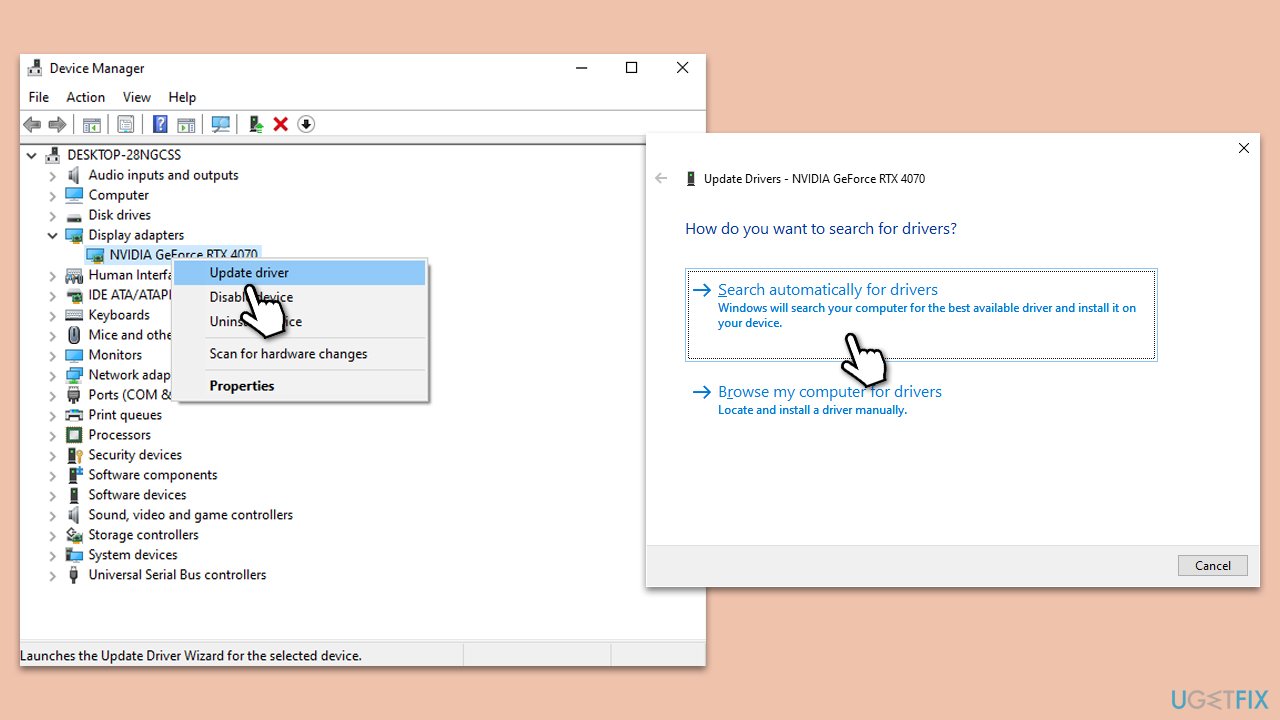
Note that Windows might fail to find the latest driver updates. In this case, we recommend using an automatic driver updater such as [rev id="DriverFix"] or downloading them manually from the official website.
Fix 2. Disable or configure security software
Security software like antivirus programs can sometimes mistakenly identify Valorant files as threats, leading to critical errors. To address this, you can disable or configure your security software.
- Locate your antivirus or security software icon in the system tray (usually in the bottom-right corner of the screen).
- Right-click on the icon and look for an option like Disable or Pause Protection. Select it and choose a time frame (e.g., 30 minutes or until restart).
- Try launching Valorant to see if the error is resolved. If it is, you may need to configure your security software to exclude Valorant files from scans.
Fix 3. Adjust full-screen optimization settings
Windows offers a feature called full-screen optimization, which can sometimes lead to game-related errors. To adjust this setting for Valorant, follow these steps.
- Locate the Valorant shortcut on your desktop or in the Start menu.
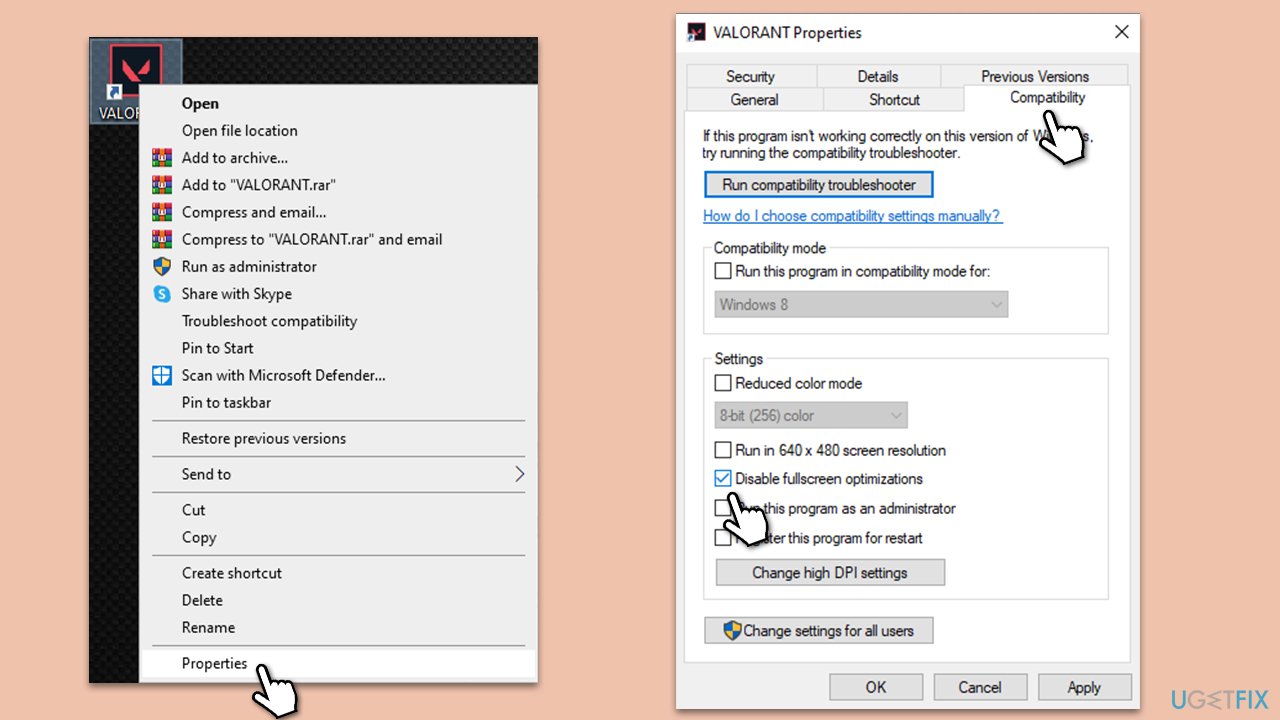
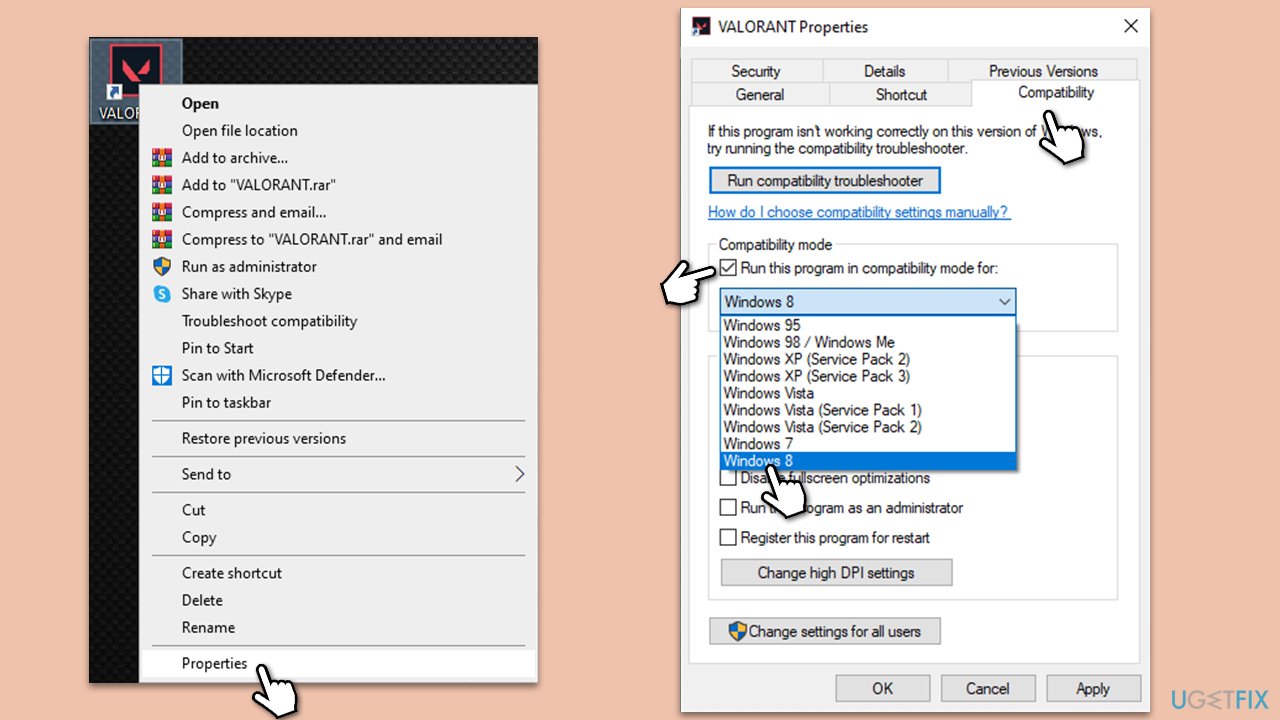
- Right-click on the Valorant shortcut and select Properties.
- In the Properties window, go to the Compatibility tab.
- Check the box that says Disable full-screen optimizations.
- Click Apply and then OK.
Fix 4. Change compatibility settings
Compatibility settings can affect how Valorant runs on your system. To change these settings, do the following.
- Right-click on the Valorant shortcut (on your desktop or in the Start menu).
- Select Properties.
- Navigate to the Compatibility tab.
- Check the box that says Run this program in compatibility mode for.
- In the drop-down menu below, select an earlier version of Windows (e.g., Windows 7 or Windows 8).
- Click Apply and then OK.
- If your game was already running in the compatibility mode, undo this change.
Fix 5. Repair Valorant files
Valorant may encounter critical errors if its game files are corrupted. To repair the game files, follow these steps.
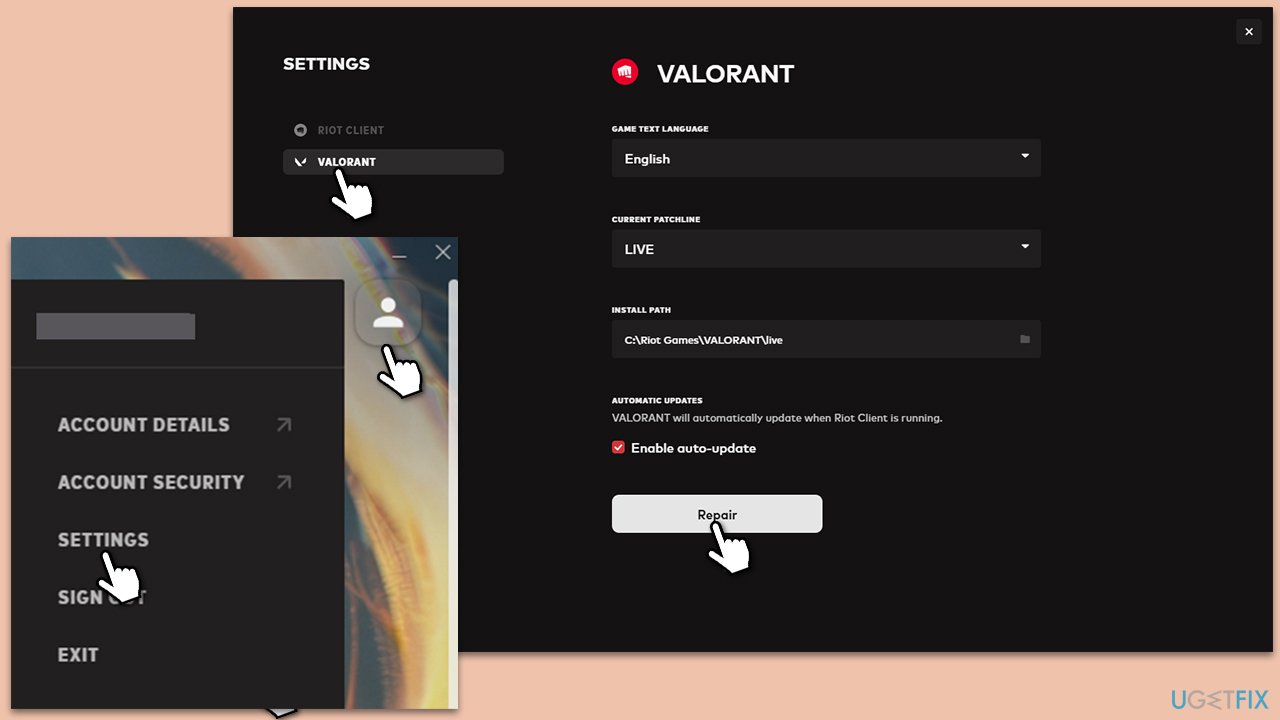
- Open Riot Launcher.
- On the top-right corner of the window, click on your Profile picture.
- Select Settings.
- Pick Valorant from the list of games.
- Click Repair and wait till the game is fixed.
Fix 6. Check for Windows Updates
Outdated Windows installations can sometimes cause compatibility issues. To ensure your system is up to date, follow these steps.
- In Windows search, type Check for updates, then press Enter.
- In the Windows Update settings, click on Check for updates and let Windows search for available updates.
- If updates are found, click Download and install to install them. Make sure you install optional updates as well.
- After the updates are installed, restart your computer.
Fix 7. Perform a System File Check (SFC)
Corrupted system files can lead to various errors, including the critical error that has occurred in Valorant. To check and repair system files, use the System File Checker.
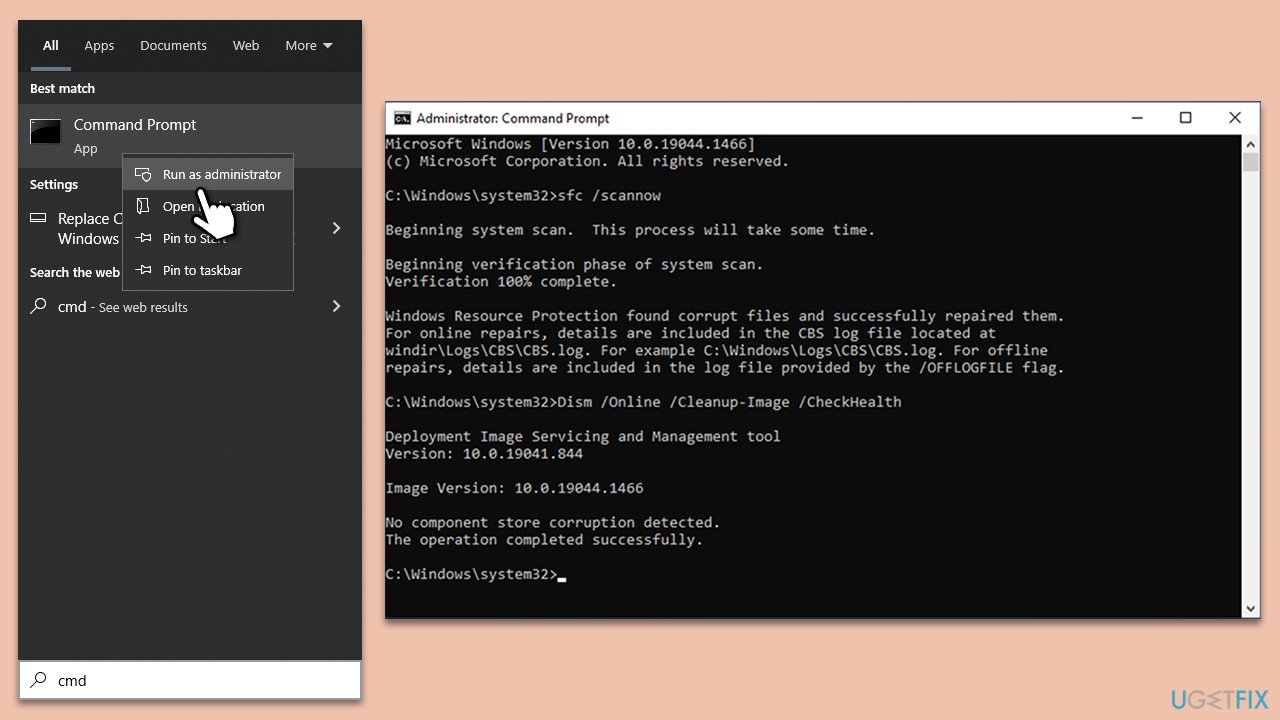
- Type cmd into Windows search.
- Right-click on Command Prompt and select Run as administrator.
- When the User Account Control (UAC) window shows up, click Yes.
- Next, type in the following command and press Enter:
sfc /scannow - When done, run the following commands as well:
dism /online /cleanup-image /scanhealth
dism /online /cleanup-image /checkhealth
dism /online /cleanup-image /restorehealth
(Note: if you get an error executing the last command, add /Source:C:\RepairSource\Windows /LimitAccess to it and try again.) - Restart your device.
Bottom line
To fix the 'A critical error has occurred' error in Valorant, consider updating your graphics drivers, checking your antivirus settings, and adjusting full-screen optimization and compatibility settings. If these solutions do not resolve the issue, further troubleshooting may be necessary.
Frequently asked questions
You can try restarting your computer, ensuring that your graphics drivers are updated, and running Valorant as an administrator to resolve the issue.
Check for Windows updates, verify the integrity of game files through the Riot client, and disable any conflicting software to fix this error.
To prevent future occurrences, keep your system and graphics drivers updated regularly and avoid running unnecessary background applications while playing.




Report an issue
What's wrong with this guide? We review every report and update or remove content.
Report received — thank you. We'll review and fix it.
You need a free account to submit a report.
Be the first to comment