How to fix
Can’t log in to Microsoft Sudoku
on Windows
Resolve Microsoft Sudoku login issues on Windows 10 and 11 effortlessly. Get expert-tested solutions for a seamless gaming experience, fixed in minutes.


What causes How to fix can’t log in to Microsoft Sudoku?
- Software upgrade causing bugs
- Corrupted data
- Malfunctioning program settings
- Outdated operating system
- Outdated connected programs
Repairs Windows system files, removes malware, and restores a clean OS state — without reinstalling.
There used to be no problems with Microsoft Sudoku before but suddenly it won't let me log in through the Xbox app and it says I'm a "Guest" instead. This results in my progress not being saved at all. What is happening and how can I fix it?
Popular online puzzle game Microsoft Sudoku gives players an entertaining method to assess their logical reasoning and problem-solving abilities right from their PC or mobile device. This game, which can be downloaded from the Microsoft Store, requires users to sign in using their Microsoft or Xbox app accounts and works well with Microsoft's ecosystem.
In addition to enabling a customized gaming experience, this login procedure makes sure that each player's progress is maintained and synchronized between devices. However, it has come to our notice that a few gamers have been having trouble logging into their Microsoft Sudoku accounts as of late. They are thus forced to play in the guest mode, where their progress is not tracked.
A multitude of technical problems may result in issues where users can't log in to Sudoku. A software upgrade that has been known to produce unforeseen bugs or incompatibilities is one of the most typical causes. Similar to this, corrupted data or program settings can cause the Sudoku software itself to malfunction over time. These issues may hinder successful authentication and interfere with the game's general operation.
If this is a problem for you, there are a few different ways you could go about solving it. Initially, little bugs or corruptions could be fixed by trying to reset or repair the Microsoft Sudoku app via the system settings. Furthermore, it's imperative to make sure your operating system and any connected programs are up to date because updates frequently include fixes for bugs that have been identified.
Using a PC repair tool [d1] could be a good tactic for anyone looking for a more comprehensive approach to not only the Microsoft Sudoku login issues but possibly other underlying Windows issues as well.
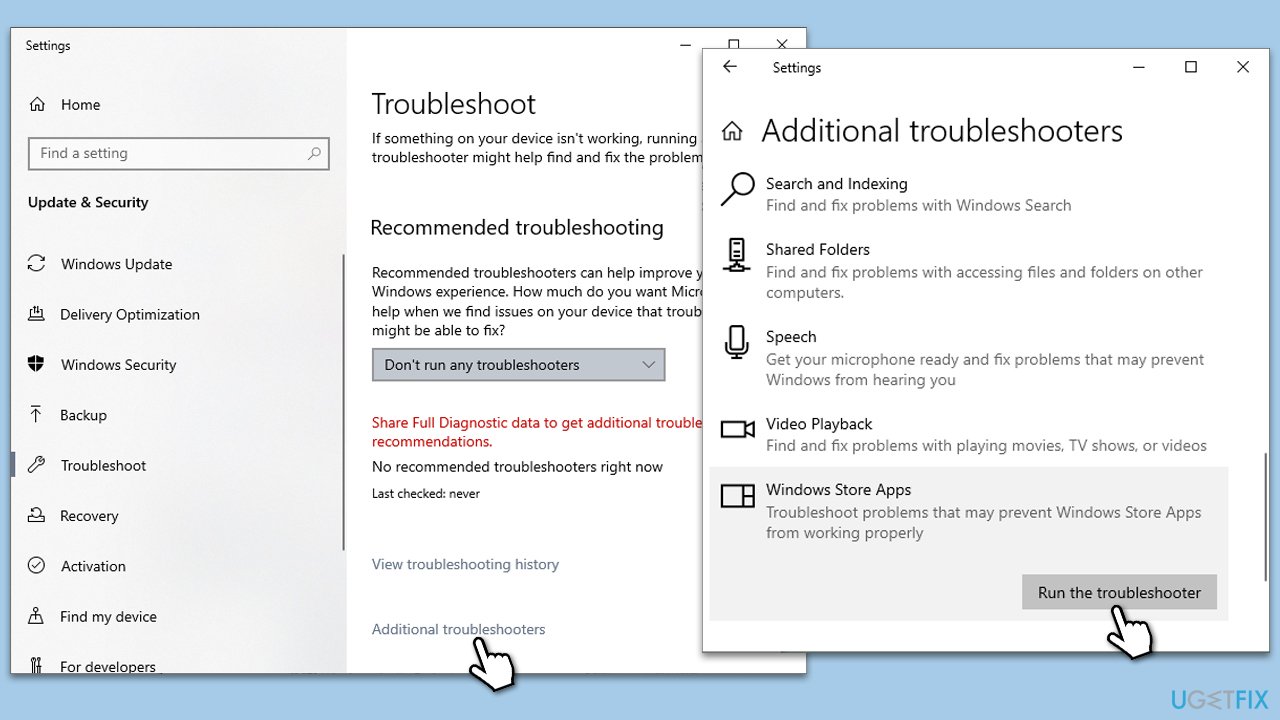
Fix 1. Run Windows Store apps troubleshooter
Running this troubleshooter can resolve issues preventing Microsoft Sudoku from logging in by repairing app-specific errors or configuration problems.
- Type troubleshoot in Windows search and press Enter.
- On the right, choose Additional troubleshooters/ Other troubleshooters.
- Find Windows Store Apps and click Run the troubleshooter.
- Wait till the process is finished and apply the suggested changes.
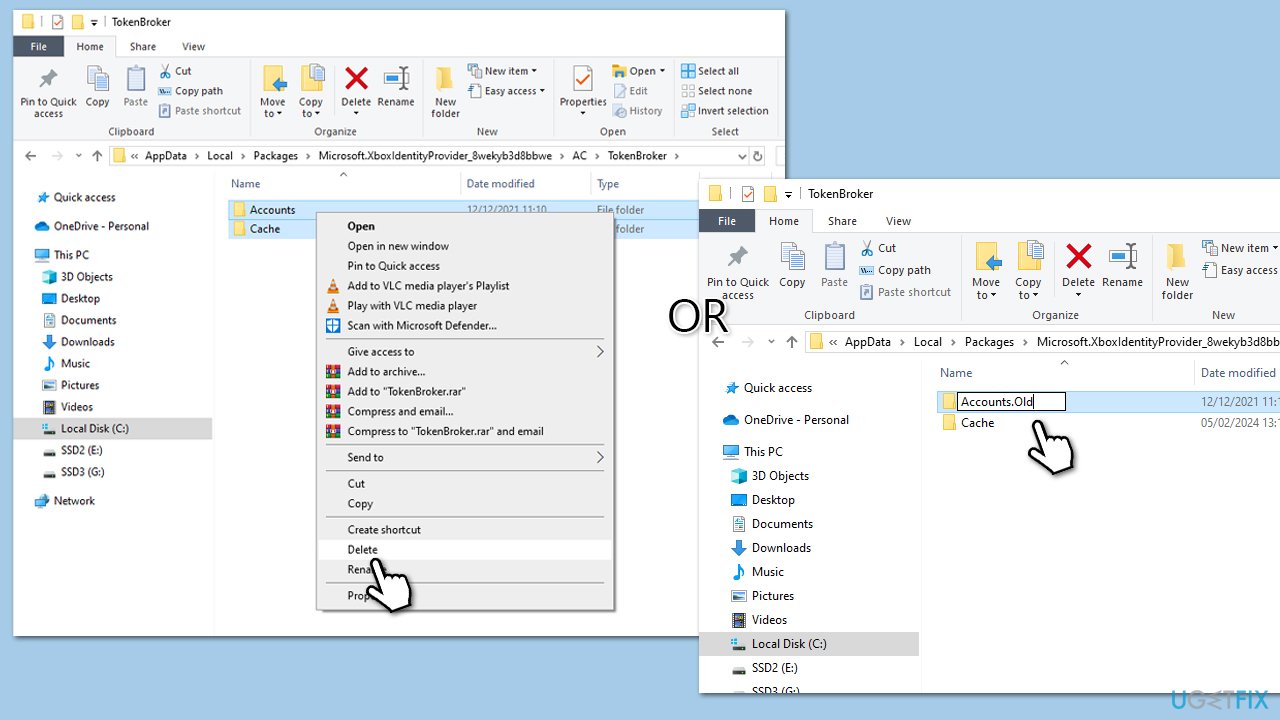
Fix 2. Rename or remove Accounts and cache folders in the TokenBroker folder
The TokenBroker folder in Windows contains data related to account tokens and cache, which are used for signing into various services. Renaming or removing these folders can force Windows to create new, error-free tokens and cache data, potentially resolving login issues.
- Press Win + E on your keyboard to open File Explorer.
- Navigate to the following location: C:\Users[YourUsername]\AppData\Local\Packages\Microsoft.XboxIdentityProvider_8wekyb3d8bbwe\AC\TokenBroker
- If you can't find it, use this path instead:
C:\Users[YourUsername]\AppData\Local\Packages\Microsoft.XboxIdentityProvider_cw5n1h2txyewy\AC\TokenBroker
(note that this path might slightly differ) - Rename the Accounts and Cache folders (for example, to Accounts.old and Cache.old). If you prefer, you can delete them, but renaming is safer as it allows for recovery.
- Restart your computer and try logging into Microsoft Sudoku again.
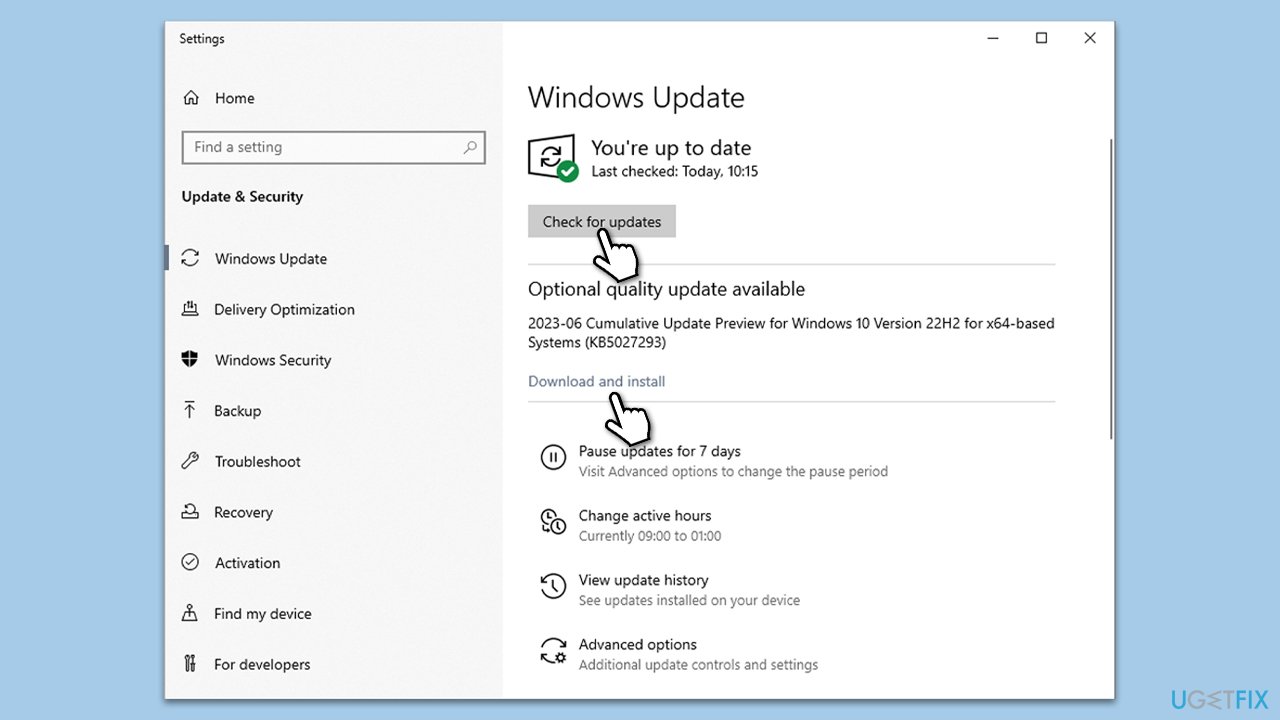
Fix 3. Install all Windows updates
Keeping Windows up to date is crucial for the smooth operation of applications, including Microsoft Sudoku. Updates often include patches for security vulnerabilities, bug fixes, and improvements that can resolve existing issues and enhance overall system stability.
- Type Updates in Windows search and press Enter.
- When the new window opens, click Check for updates and wait.
- If there are optional updates available, install them as well.
- After updating, restart your computer and attempt to log in to Microsoft Sudoku.
Fix 4. Repair or reset the Sudoku app
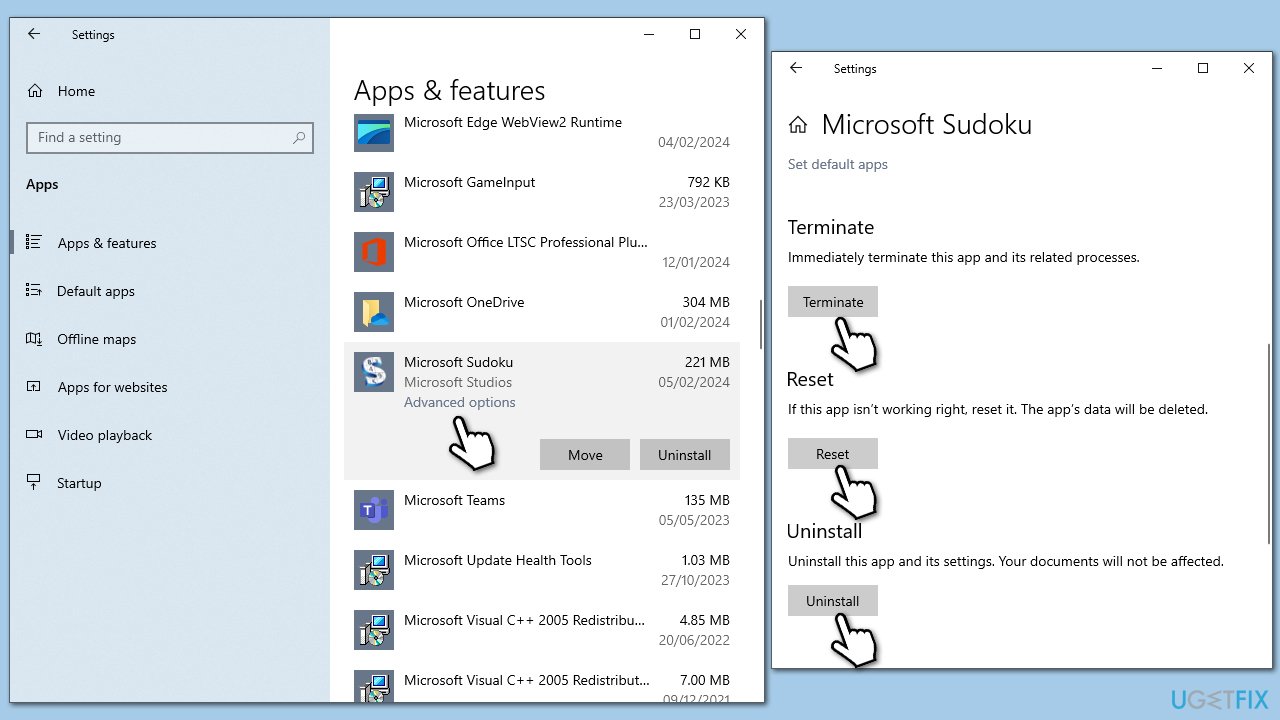
Repairing or resetting the Microsoft Sudoku app can fix issues by restoring the app to its default state without affecting game progress, as this is stored with your Microsoft account.
- Right-click on Start and select Apps & Features.
- Scroll down to find Microsoft Sudoku and click Advanced options.
- Scroll down again and click Terminate and Repair.
- If that did not work, try using Reset.
Fix 5. Run SFC and DISM
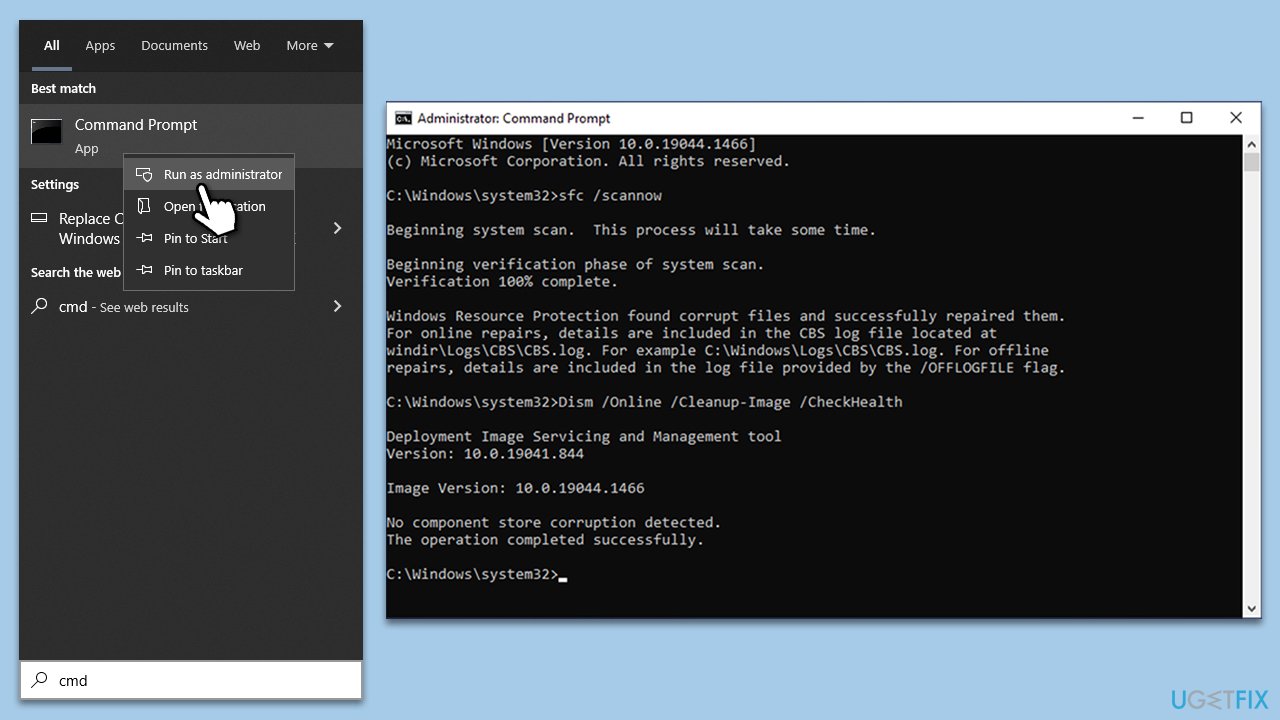
SFC and DISM can indirectly fix problems with apps by repairing any corrupted system files that they rely on.
- To run an elevated Command Prompt, type in cmd in Windows search.
- Right-click the Command Prompt result and pick Run as administrator.
- User Account Control will ask whether you want to allow changes - click Yes.
- Type this command and press Enter:
sfc /scannow - Wait for the scan to finish.
- Then, use the following commands, pressing Enter after each:
Dism /Online /Cleanup-Image /CheckHealth
Dism /Online /Cleanup-Image /ScanHealth
Dism /Online /Cleanup-Image /RestoreHealth - Reboot your device.
Fix 6. Create a new user profile
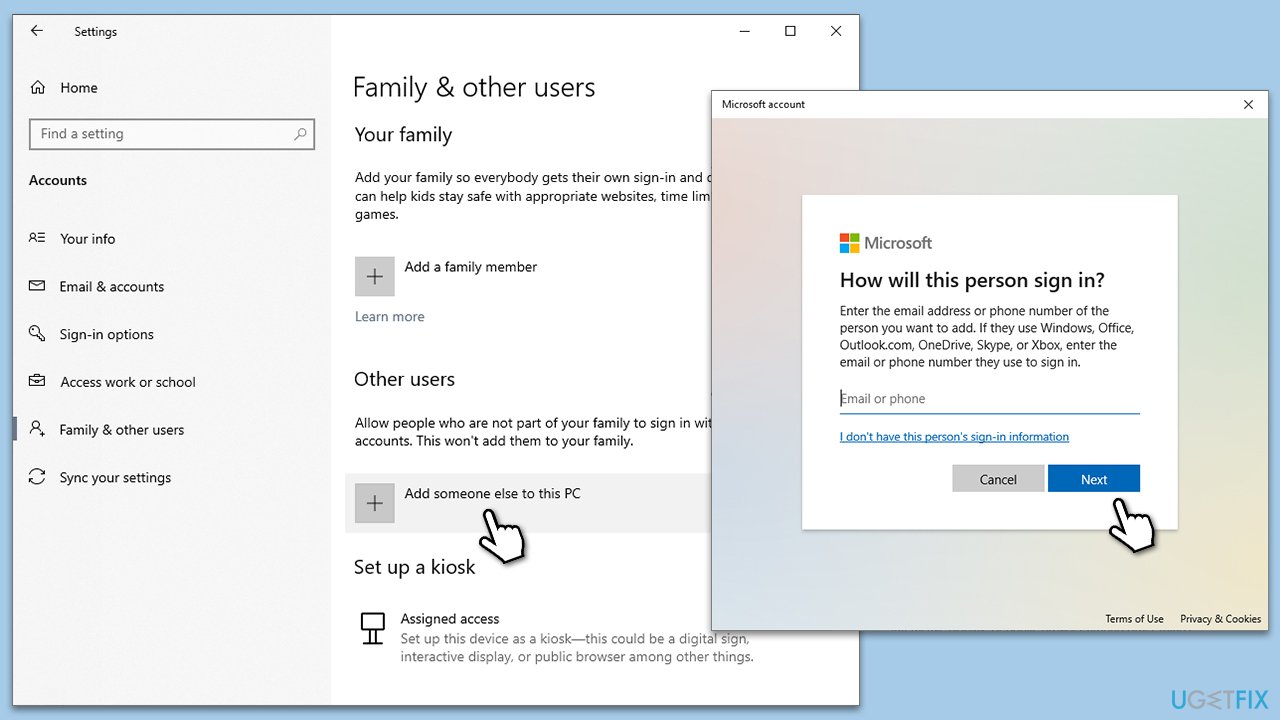
Sometimes, the problem could be with your Windows user profile. Creating a new profile can resolve these issues by providing a fresh environment for apps to operate in.
- Right-click on Start and pick Settings.
- Go to the Accounts section.
- Select Family & other users on the left.
- Under Other users, click Add someone else to this PC.
- Select I don't have this person's sign-in information > Add a user without a Microsoft account.
- Enter the required information and click Next.
- Restart your device once done.
- Log out from the current account and log into the new account.
Bottom line
To fix the login issue with Microsoft Sudoku, you can try resetting or repairing the app through system settings, and ensure your operating system and connected programs are up to date. If these solutions do not resolve the problem, consider using a PC repair tool for a more comprehensive approach.
Frequently asked questions
If you're unable to log in to Microsoft Sudoku on Windows 10, check your internet connection and ensure that your Microsoft account credentials are correct. You may also need to update the app or reset it through the Windows settings.
If Microsoft Sudoku isn't recognizing your account on Windows 11, try signing out of the app and then signing back in. Additionally, ensure that your Windows is updated and that there are no issues with your Microsoft account.
To troubleshoot login issues with Microsoft Sudoku on your Windows PC, first restart the app and your computer. If the problem persists, consider reinstalling the app or checking for any pending Windows updates.




Report an issue
What's wrong with this guide? We review every report and update or remove content.
Report received — thank you. We'll review and fix it.
You need a free account to submit a report.
Be the first to comment