How to fix
Discord error “A fatal Javascript error occurred”
on Windows
Resolve the "A fatal Javascript error" in Discord on Windows 10 or 11 effortlessly. Get expert-tested solutions that fix the issue in minutes.


What causes How to fix Discord error “A fatal Javascript error occurred” in Windows?
- Problems with Discord’s local installation files
- Corrupted cache data
- Conflicts with other software
- Interference from antivirus software
- Residual files in AppData or LocalAppData folders
Repairs Windows system files, removes malware, and restores a clean OS state — without reinstalling.
Every time I try to open Discord on my PC, I get a pop-up saying "A fatal JavaScript error occurred." Is this something wrong with Windows or Discord?
If you’ve run into the "A fatal JavaScript error occurred" message while launching Discord on Windows, you’re not alone. This issue is fairly common and usually points to problems with Discord’s local installation files, corrupted cache data, or conflicts with other software on the system. While it may sound severe, the error rarely indicates anything wrong with your system’s core functionality.
The error typically shows up as a dialog box right when you try to open Discord. In most cases, Discord fails to launch entirely, leaving users unable to access their servers or messages. For some, the issue appeared after a system update or a crash, while others noticed it following an incomplete uninstallation or system cleanup.
What makes Discord’s JavaScript error frustrating is that it keeps returning even after reinstalling the app, often because residual files in AppData or LocalAppData folders remain untouched and carry over corrupted configurations. Another possible reason could be interference from antivirus software that falsely flags or blocks certain parts of the Discord app.
In some instances, background services or damaged update files may be to blame. If multiple failed updates pile up, the app may eventually stop working entirely. Some users also report problems when switching between Windows user accounts or moving Discord between drives.
Fortunately, there are several solutions to this issue. Manual steps for removing leftover files, reinstalling Discord properly, and adjusting conflicting software settings will be outlined below. For users struggling to pinpoint the exact cause, [d1] repair tool may help uncover hidden problems affecting Discord’s ability to launch normally.

Fix 1. Run Discord as administrator
Sometimes, Discord fails to access necessary system files or folders unless given elevated permissions.
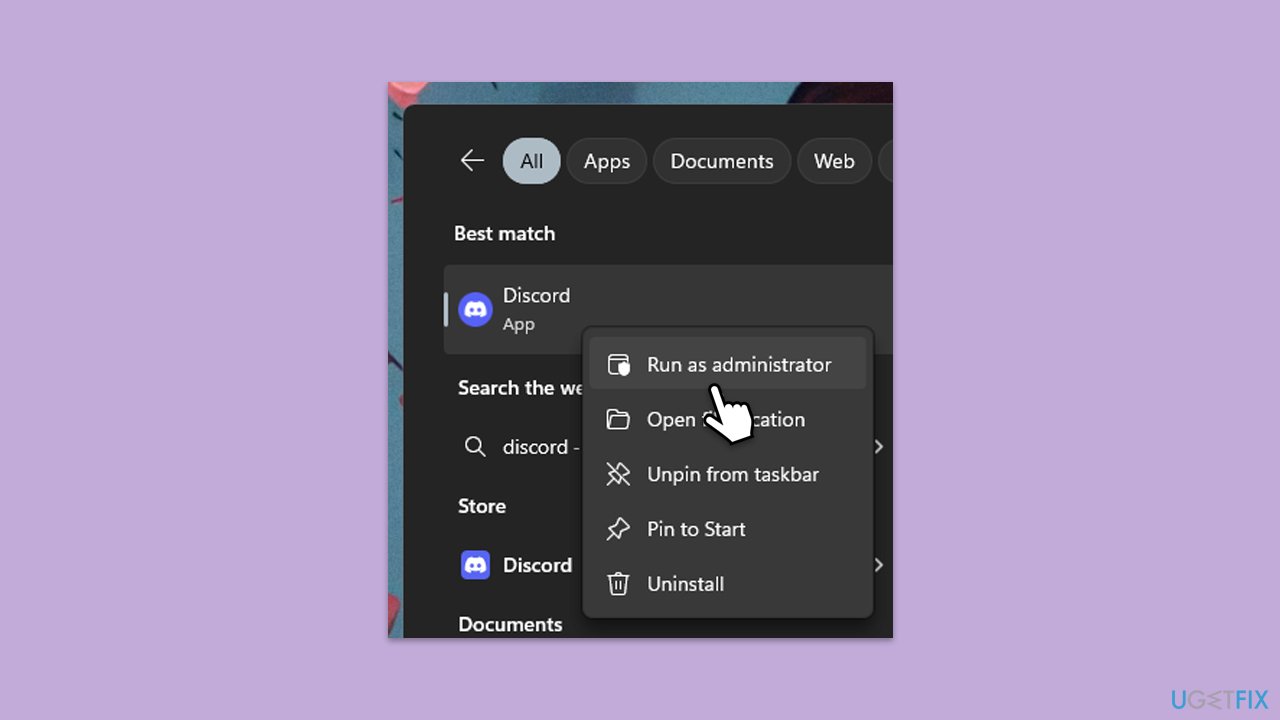
- Right-click the Discord shortcut on your desktop or Start Menu.
- Click Run as administrator.
- If prompted by User Account Control, click Yes.
- Check if Discord works properly.
Fix 2. Clear cache files
Corrupted cache and leftover files from previous installations can cause the error to reappear.
- Press Ctrl + Shift + Esc on your keyboard.
- Click More details if necessary.
- Locate Discord under Apps section.
- Right-click the app and select End Task.
- Scroll down and do the same with any other Discord background processes still running.
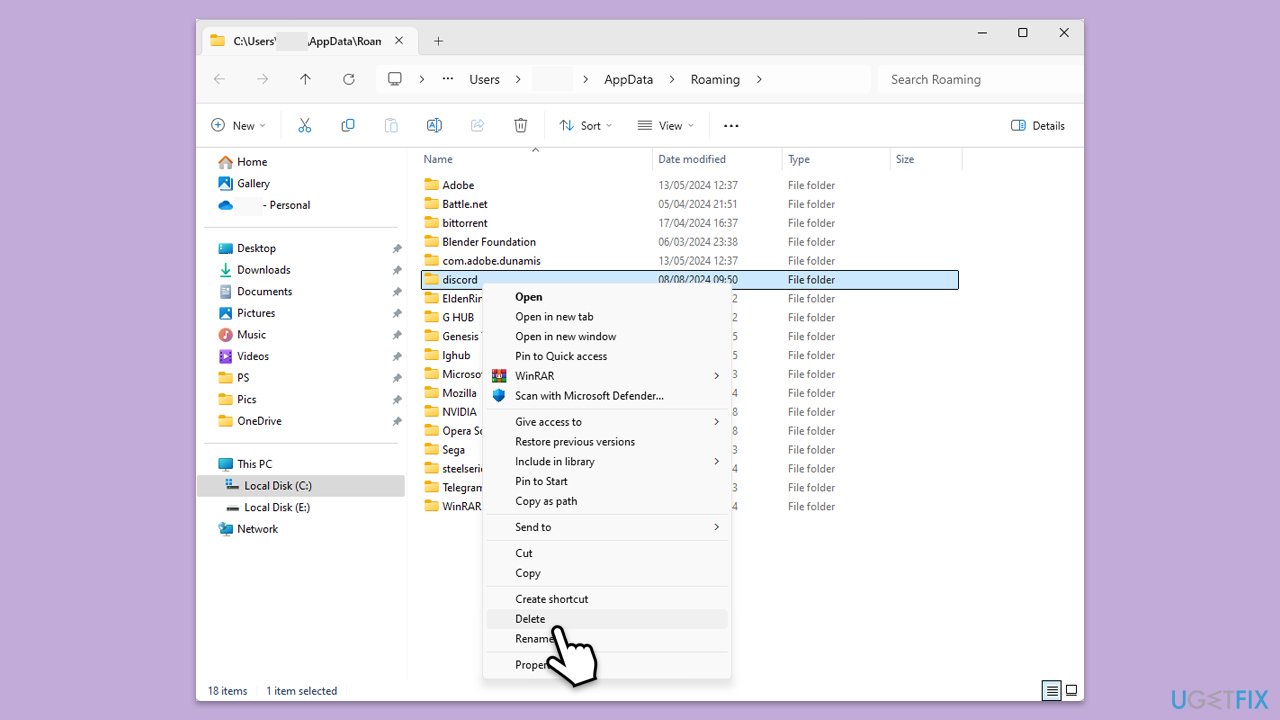
- Type %AppData% in Windows search and press Enter.
- Find the Discord folder, mark it, and press Shift + Del on your keyboard to delete it.
- Next, type in %LocalAppData% in Windows search and press Enter.
- Delete the Discord folder the same way
- Start the app and see if that helped.
Fix 3. Clear the Discord installer cache
If the installer gets corrupted during previous attempts, it may cause repeated failures.
- Type %localappdata%\SquirrelTemp in Windows search and then press Enter.
- If the folder exists, delete all its contents.
- Try reinstalling Discord after clearing this folder.

Fix 4. Disable antivirus
Some antivirus programs block Discord’s JavaScript modules or related services.
- Temporarily disable your antivirus software using its system tray icon.
- Launch Discord again to check if the issue persists.
- If it works, add Discord as an exception in your antivirus settings.
Fix 5. Perform a clean reinstall of Discord
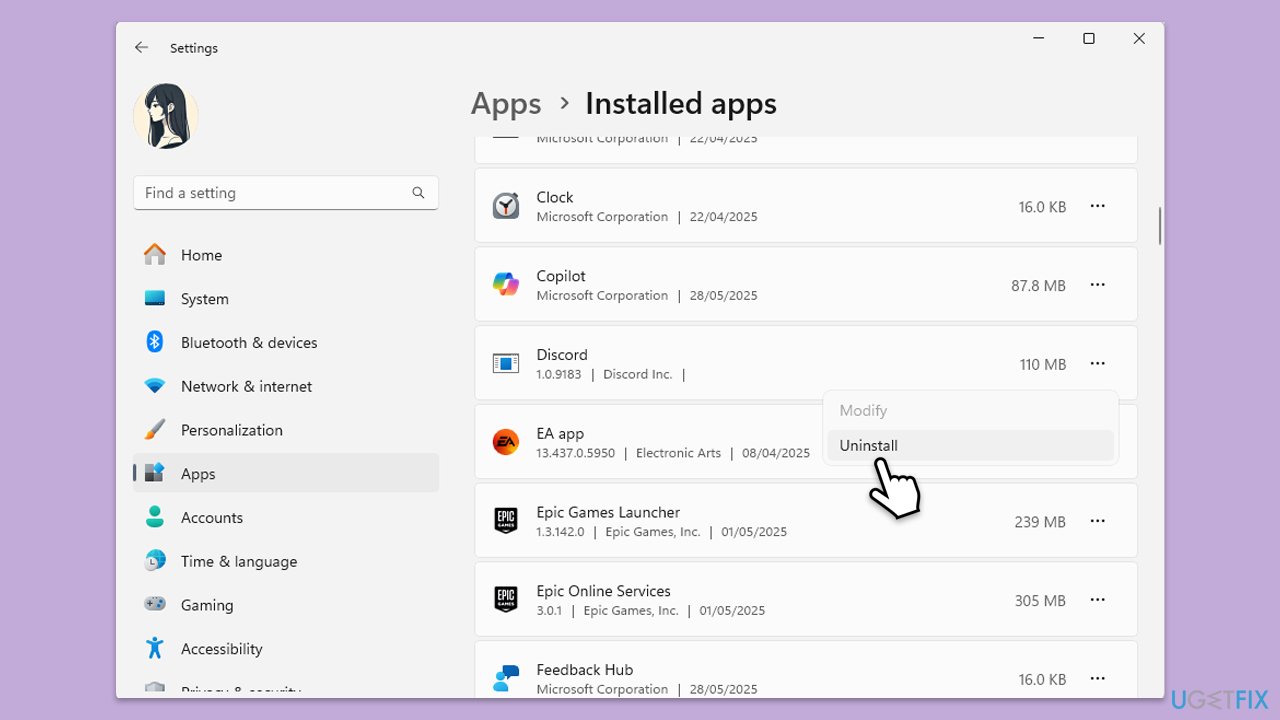
- Right-click on Start and pick Apps and Features/Installed apps.
- Scroll down to find Discord.
- Click Uninstall and follow up with Uninstall again to confirm it.
- Follow on-screen instructions to remove the app.
- Make sure you have completed Fix 2 before continuing.
- Download it from the official website and install it anew.
- Install Discord and log in to your account.
Fix 6. Install Discord in a different folder
Changing the installation path may help if permissions or old files are interfering.
- During installation, choose a custom install path.
- Install Discord in a different directory (e.g., C:\DiscordApp instead of the default).
- Check if that solved the problem.
Fix 7. Create a new Windows user profile
Corrupted user profile data can interfere with certain apps like Discord.
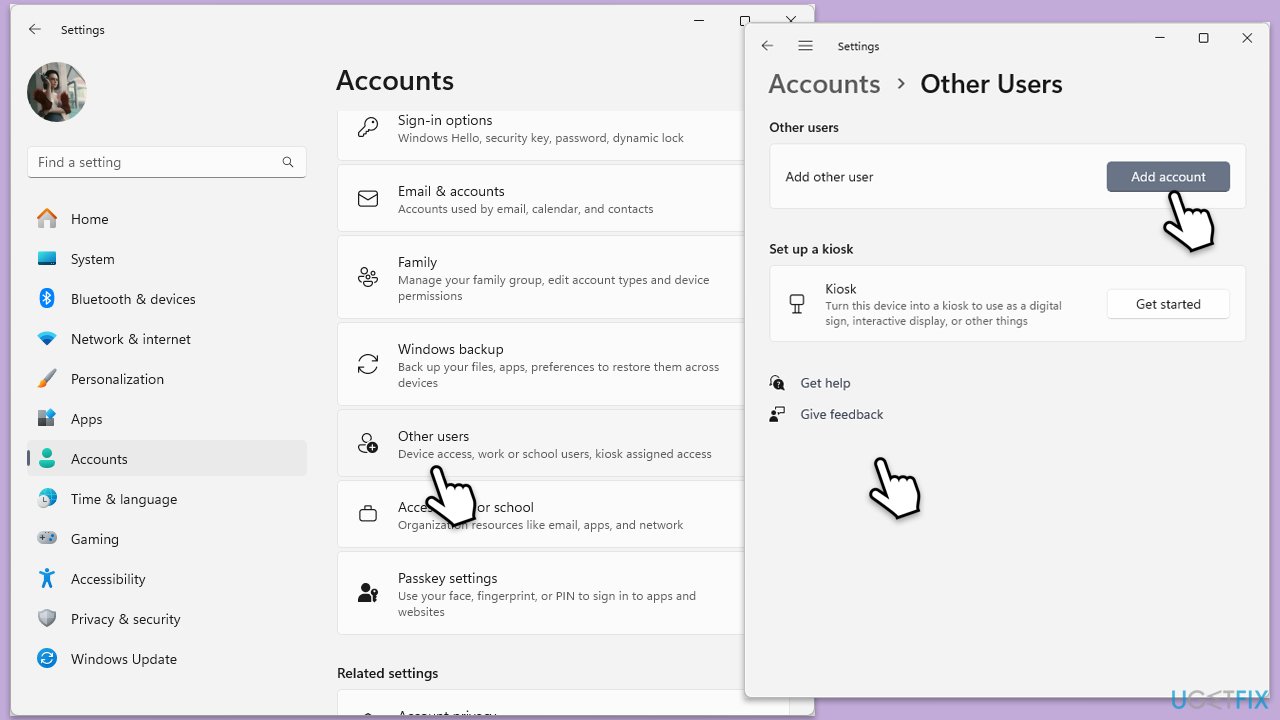
- Right-click on Start and pick Settings.
- Go to Accounts, then Family/Family & other users.
- Under Other users, click Add account/Add someone else to this PC.
- Follow the prompts to create a new user account. If you don't have Microsoft account details, you can choose I don't have this person's sign-in information followed by Add a user without a Microsoft account.
- Assign a username and password for the new account and complete the setup.
- Then go back to the Accounts section. Under Family/Family & other users, select the newly created account and click Change account type.
- Under Account type, pick Administrator and click OK.
Bottom line
To fix the 'A fatal JavaScript error occurred' issue in Discord, you can try running Discord as an administrator, removing leftover files, and properly reinstalling the app. If these solutions do not resolve the issue, consider using a repair tool to uncover hidden problems.
Frequently asked questions
Try clearing the Discord cache by deleting the 'Cache' and 'Local Storage' folders located in the Discord app data directory. Restart Discord after clearing these files to see if the error persists.
Ensure that your Windows 11 is fully updated and consider reinstalling Discord to fix any corrupted files that may be causing the Javascript error.
You can try running Discord as an administrator, which may resolve permission issues causing the Javascript error.




Report an issue
What's wrong with this guide? We review every report and update or remove content.
Report received — thank you. We'll review and fix it.
You need a free account to submit a report.
Be the first to comment