How to fix
Discord volume keeps resetting
on Windows
Struggling with Discord volume resetting on Windows 10 or 11? Discover quick solutions to regain control and enjoy seamless communication, expert-tested.

What causes How to fix Discord volume keeps resetting in Windows?
- Software conflicts
- Internal app settings malfunction
- Interference from Windows audio enhancements
- Outdated drivers
- Corrupted Discord installation files
Repairs Windows system files, removes malware, and restores a clean OS state — without reinstalling.
So, something happened to Discord volume recently. I join a call with my buddy and after around 5 minutes, the volume jumps from a normal 75% to 180% and it really hurts my ears. The problem is that if I modify the volume, it goes back to being super loud again. Please help.
Discord is a versatile platform that allows you to connect with others through text chat, voice calls, video conferencing, and even live streaming. It has become a popular tool for both casual users and professionals who rely on seamless communication. However, a frustrating issue reported by some involves the app’s volume settings.
You might notice that during voice or video calls, the volume of participants fluctuates unexpectedly, resetting to a different percentage. For instance, the volume might drop from 100% to 50% or spike to 200% within a few minutes, and even after manually adjusting it, the changes persist. This behavior can occur after a Discord update but is not exclusively tied to updates - sometimes, it appears without any identifiable trigger.
Why Discord volume keeps changing automatically
The reason for Discord volume resetting in Windows is often linked to a mix of software conflicts and internal app settings. One possibility is that Discord's volume adjustment feature, designed to optimize call clarity, is not functioning as intended. Another potential cause is interference from Windows audio enhancements, which can override Discord’s volume settings.
Additionally, outdated drivers, corrupted Discord installation files, or issues with app updates might contribute to this behavior. In some cases, using Discord on multiple devices, such as switching between desktop and mobile, can create synchronization problems, resulting in volume fluctuations.
What can be done to fix this
If Discord volume keeps resetting or changing automatically, several approaches may help resolve the issue. Updating Discord and Windows to the latest versions is often recommended to address compatibility problems. Adjusting volume settings through the Discord mobile app can sometimes prevent these resets.
You might also try resetting Discord’s voice settings, disabling Windows audio enhancements, or reinstalling the app entirely to clear corrupted files. Other potential solutions include checking your audio drivers, running Discord as an administrator, or switching to another audio input/output device to see if the problem persists.
Below, you will find detailed instructions on these fixes. Using [d1] PC repair tool can also help address any underlying Windows issues automatically.
Fix 1. Update Discord and Windows
Ensuring that both Discord and Windows are updated can resolve many compatibility issues. Updates often include bug fixes that might address the volume resetting problem.
Update Discord
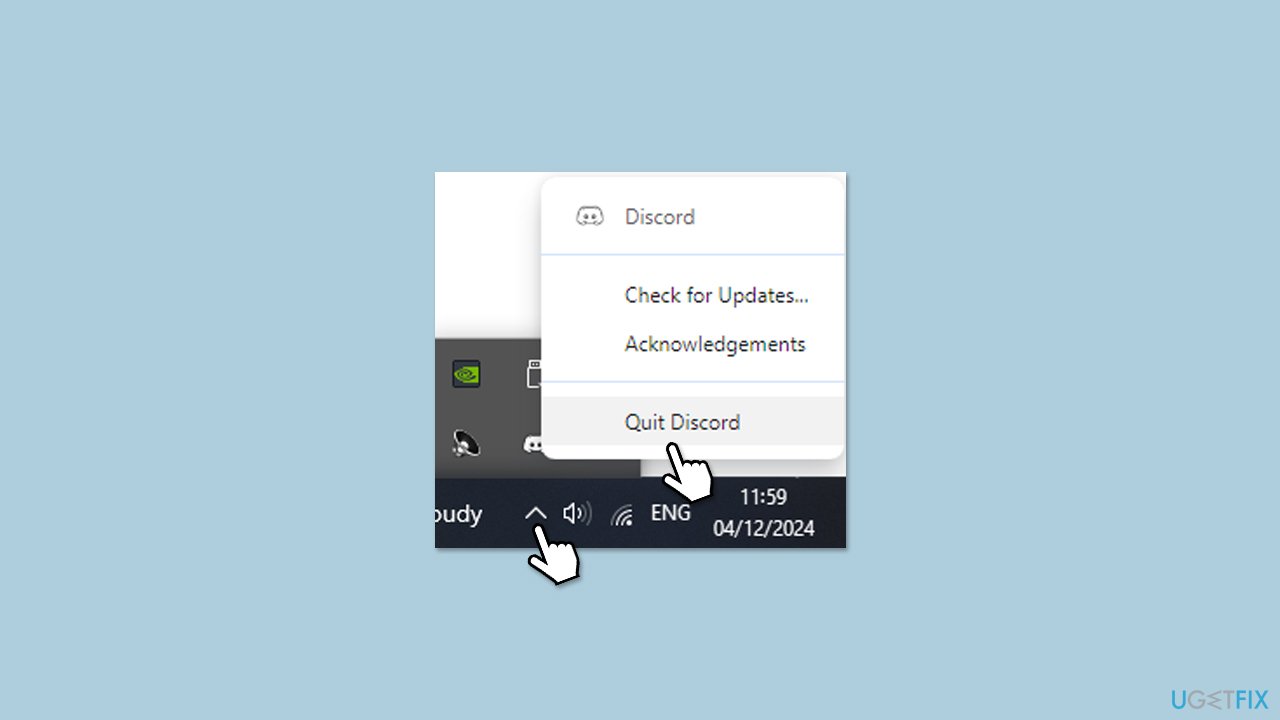
- To update Discord, you have to simply restart it.
- Right-click on the Discord icon in the system tray and select Quit.
- Re-launch the app to update it.
Update Windows
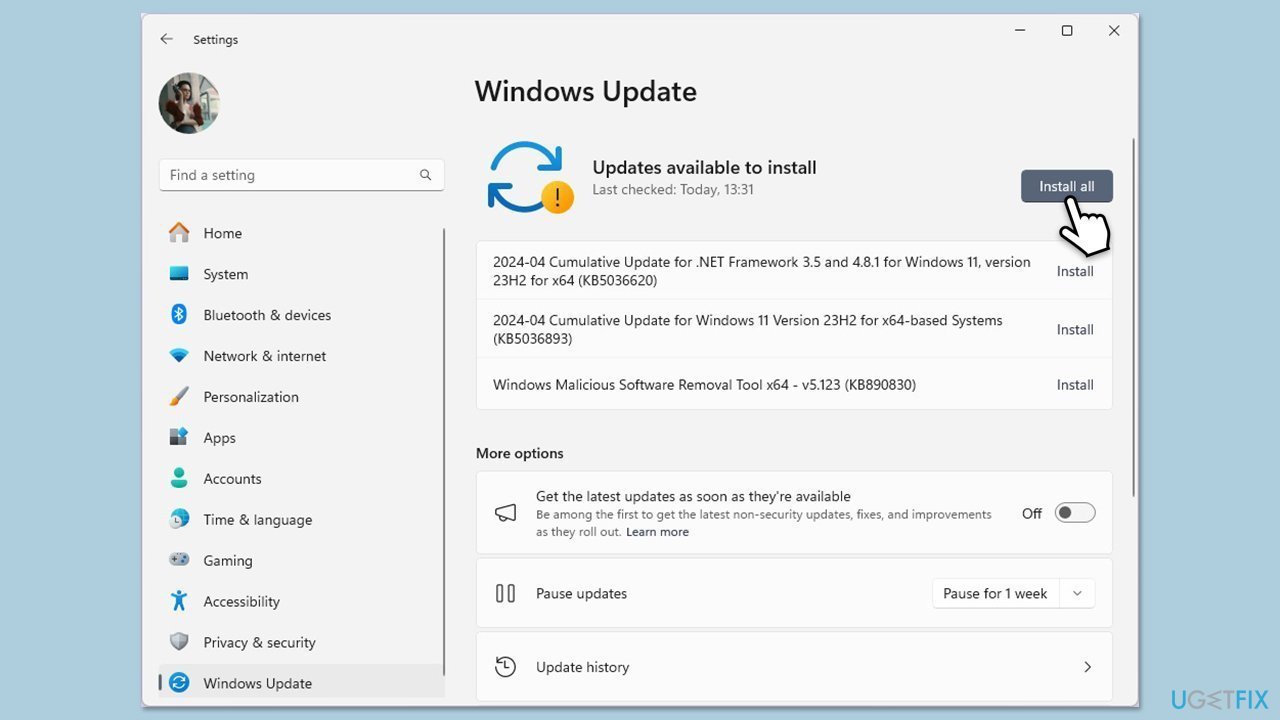
- In Windows search, type Updates and hit Enter.
- In the new window, click Check for updates/Install all and wait till everything is installed.
- Make sure you also install any available optional updates.
- When done, restart your device to implement the changes.
Fix 2. Adjust volume settings on the mobile app
Making changes to volume settings on the mobile version of Discord can sometimes sync properly across devices, resolving the issue.
- Open the Discord app on your mobile phone.
- Join a call or voice channel.
- Tap on the participant whose volume you want to adjust.
- Move the slider to set the desired volume.
- Exit the app and check if the volume stabilizes on the desktop version.
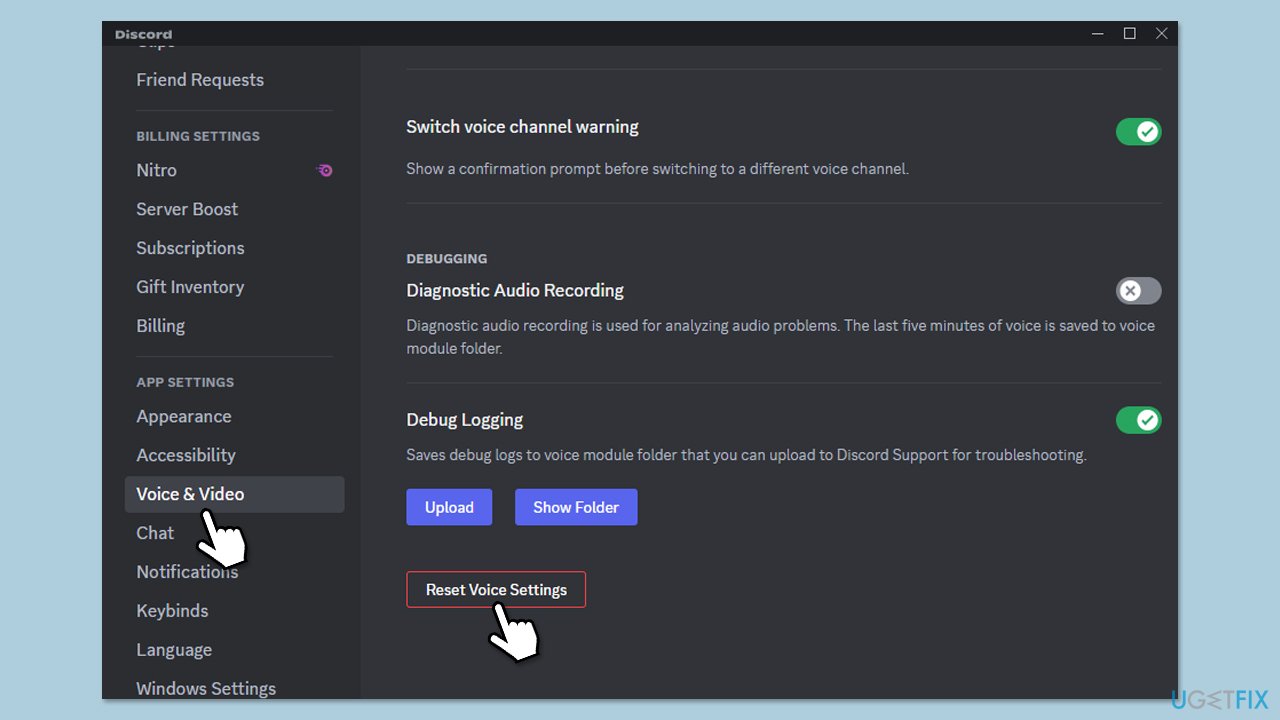
Fix 3. Reset voice settings in Discord
Resetting voice settings restores Discord’s default configuration, eliminating any conflicting settings causing volume changes.
- Open Discord on your PC.
- Click the gear icon next to your username to open Settings.
- Select Voice & Video from the sidebar.
- Scroll down and click Reset Voice Settings.
- Confirm when prompted and restart Discord.
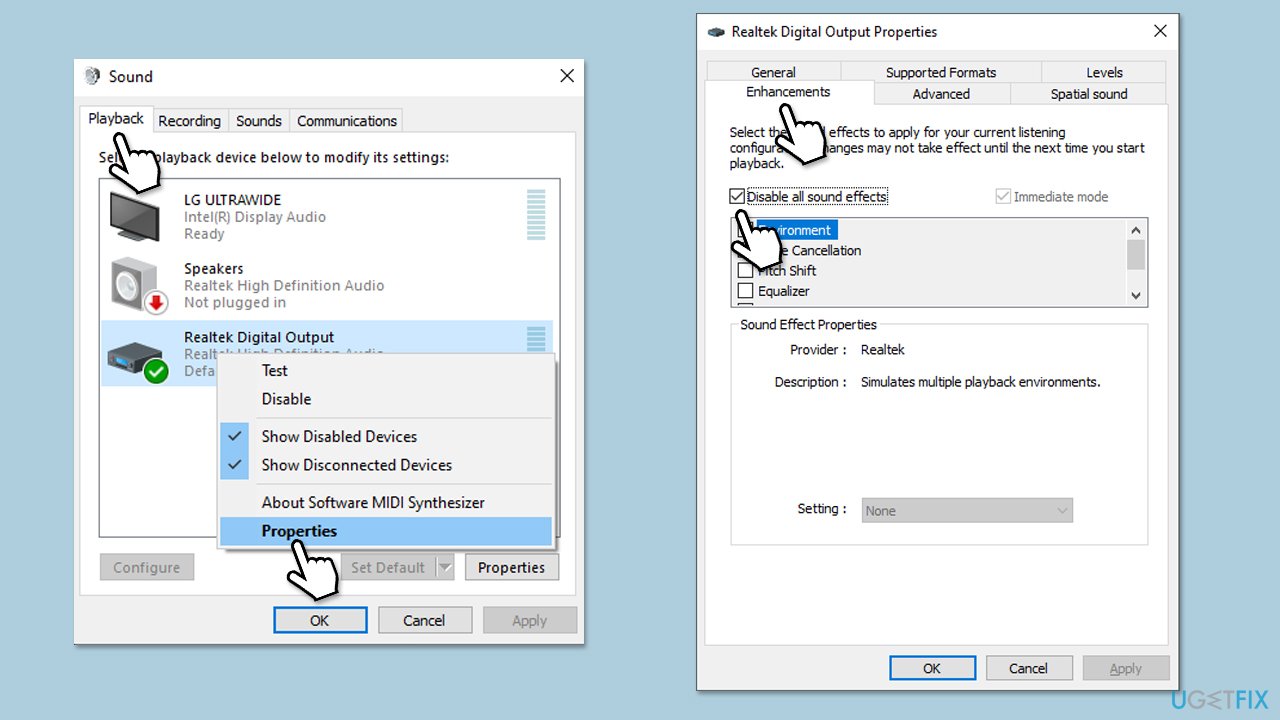
Fix 4. Disable Windows audio enhancements
Windows audio enhancements can interfere with Discord’s volume settings, causing fluctuations. Disabling these enhancements might resolve the issue.
- Right-click on the speaker icon on your taskbar and select Sounds.
- Go to the Playback tab.
- Right-click your default playback device (like Speakers) and choose Properties.
- Navigate to the Enhancements tab.
- Check Disable all enhancements or Disable all sound effects.
- Click Apply, then OK.
Fix 5. Clear Discord cache files
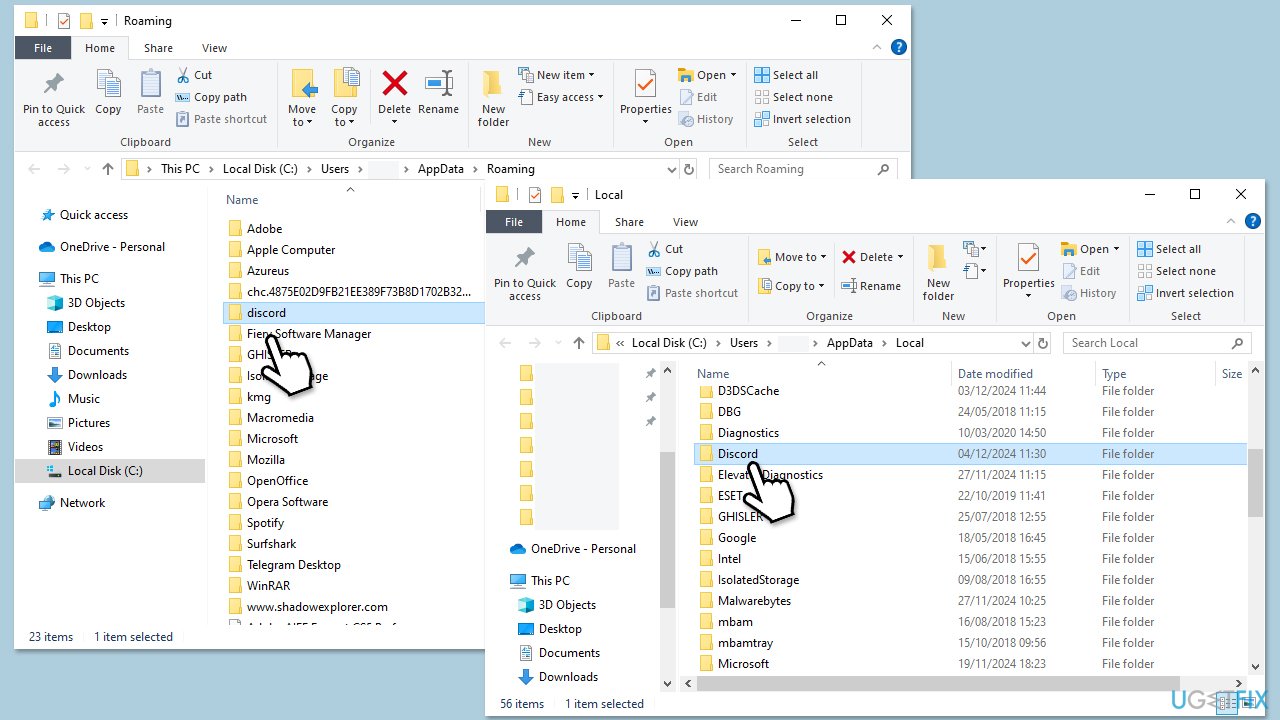
Cache files can sometimes become corrupted, leading to unexpected behavior in Discord, including volume resetting. Clearing these files helps Discord regenerate fresh, error-free data.
- Press Ctrl + Shift + Esc on your keyboard.
- Click More details if necessary.
- Locate Discord under Apps section.
- Right-click the app and select End Task.
- Scroll down and do the same with any other Discord background processes still running.
- Type %AppData% in Windows search and press Enter.
- Find the Discord folder, mark it, and press Shift + Del on your keyboard to delete it.
- Next, type in %LocalAppData% in Windows search and press Enter.
- Delete the Discord folder the same way
- Start the app and see if that helped.
Fix 6. Reinstall Discord
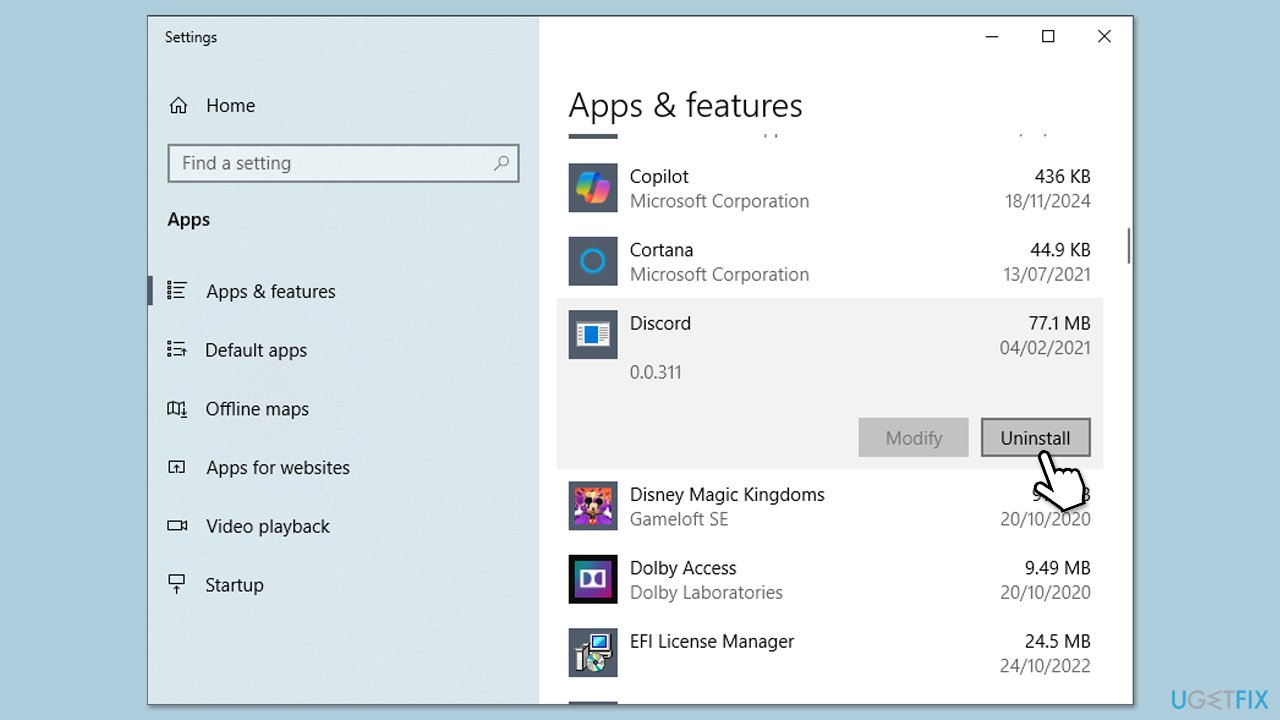
Reinstalling Discord can fix issues caused by corrupted installation files.
- Right-click on Start and pick Apps and Features/Installed apps.
- Scroll down to find Discord.
- Click Uninstall and follow up with Uninstall again to confirm it.
- Follow on-screen instructions to remove the app.
- Download it from the official website and install it anew.
- Install Discord and log in to your account.
Fix 7. Update or reinstall audio drivers
Outdated or corrupted audio drivers can cause issues with volume controls in Discord. Updating or reinstalling them ensures they work correctly.
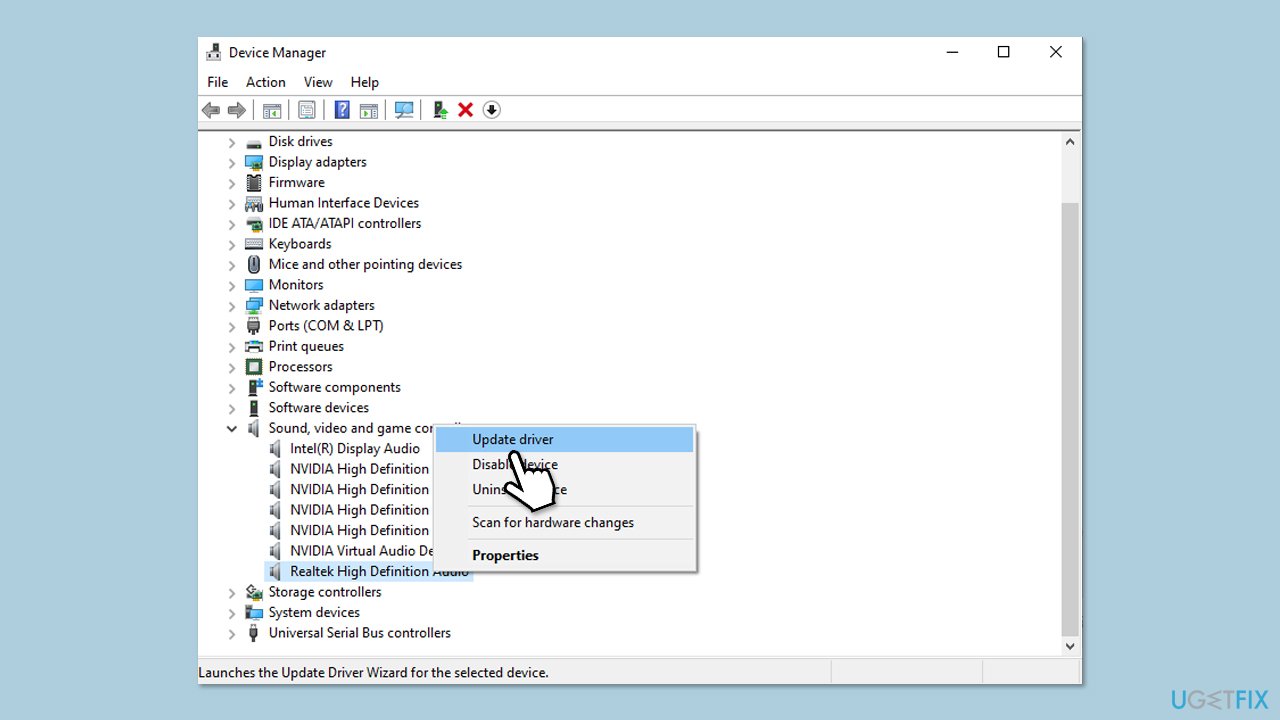
- Right-click on Start and select Device Manager.
- Expand the Sound, video, and game controllers section.
- Right-click your audio device and select Update driver.
- Choose Search automatically for drivers and follow the prompts.
- If the issue persists, right-click the device again and select Uninstall device.
- Restart your computer, and Windows will reinstall the driver automatically.
- If it doesn't install automatically, you can rely on tools like [rev id="DriverFix"] or install it from the official website.
Bottom line
To fix the issue of Discord volume resetting, consider updating both Discord and Windows, adjusting volume settings through the mobile app, resetting Discord’s voice settings, disabling Windows audio enhancements, or reinstalling the app. If these solutions do not resolve the problem, further investigation into device synchronization or additional software conflicts may be necessary.
Frequently asked questions
This issue can occur due to conflicting audio settings or outdated audio drivers in Windows. Additionally, Discord's own settings might not be properly configured.
You can try adjusting the volume in Discord's user settings under 'Voice & Video' and ensuring that the 'Automatically determine input sensitivity' option is turned off. Also, check your Windows sound settings to make sure Discord has the desired volume level.
If the issue arises after a Windows update, consider reinstalling Discord or updating your audio drivers. It's also useful to check for any new audio enhancements added by the update that may interfere with Discord's settings.




Report an issue
What's wrong with this guide? We review every report and update or remove content.
Report received — thank you. We'll review and fix it.
You need a free account to submit a report.
Be the first to comment