How to fix
Email error code 0x800c0005
on Windows
Resolve email error code 0x800c0005 in Windows 10 and 11 effortlessly. Get expert-tested solutions to fix your issues in minutes, with screenshots.

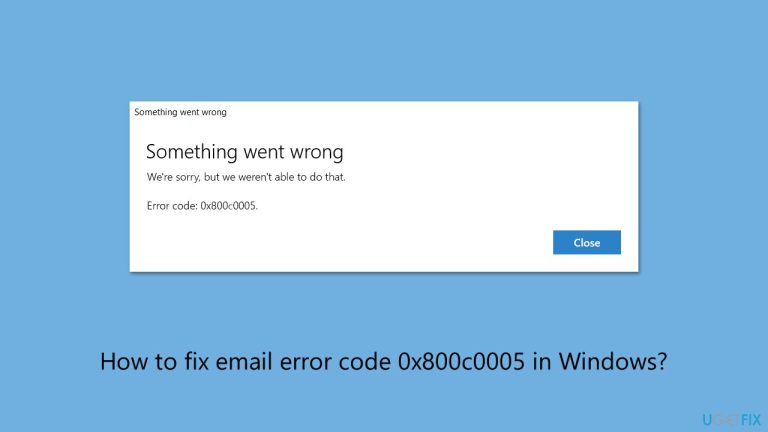
What causes How to fix email error code 0x800c0005 in Windows?
- Incorrect account configurations
- Wrong setup within email settings
- Poor or unstable internet connection
- Corrupted system files
- Interference from third-party software
Repairs Windows system files, removes malware, and restores a clean OS state — without reinstalling.
So I am trying to add Google email to the Mail app and it never succeeds because of the error code 0x800c0005. Could you please help me with this? I am using Windows 11.
Error code 0x800c0005 is one of the more irritating problems that Windows users have to face while sending/receiving emails via any of the email clients, such as Microsoft Outlook, Windows Mail, or similar applications. It blocks communication because it doesn't allow synchronizing respective email accounts properly.
While the message accompanying the error may vary, the underlying problem often involves difficulties with network connectivity, incorrect account configurations, or interference from third-party software.
Some of the main reasons which constitute the emergence of the 0x800c0005 error has to do with wrong setup or configuration within the email settings, including incorrectly specified SMTP or IMAP addresses, incorrect port numbers, and authentication errors.
The other thing that may cause this problem to pop up is a poor or unstable internet connection since your email client cannot adequately connect to the server. Some users have reported encountering this error after recent software updates, which may alter settings or introduce compatibility problems.
In more severe cases, the 0x800c0005 error can result from corrupted system files, outdated email clients, or even interference from security software like antivirus programs. This is particularly frustrating as the error may persist despite seemingly correct configurations, leaving users unable to determine the root cause.
Resolving the issue often requires reviewing account settings, ensuring stable network access, and eliminating software conflicts. However, for users unsure where to start, tools like the [d1] automatic Windows repair tool can offer a streamlined approach to address system file corruption and configuration errors, making it easier to resolve the 0x800c0005 error.

Fix 1. Repair corrupted system files
Start with checking for system file corruption:
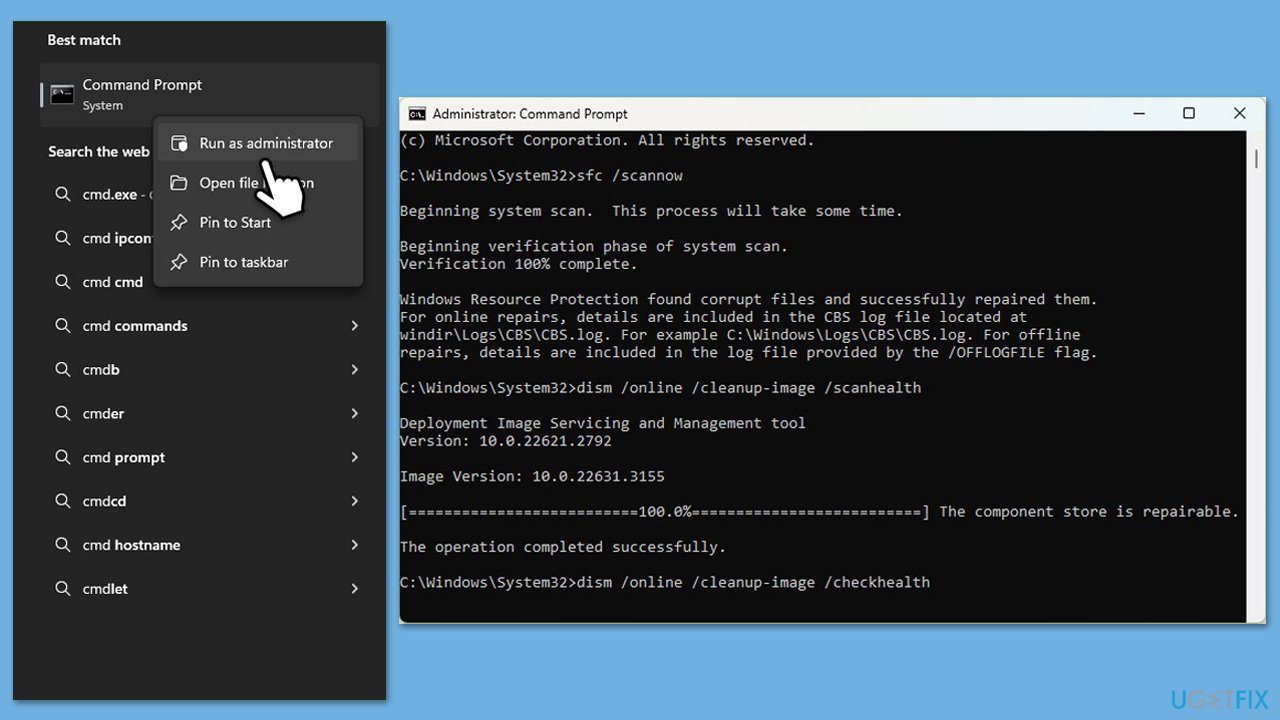
- Type in cmd in Windows search.
- Right-click on Command Prompt and select Run as administrator.
- User Account Control will ask you whether you allow making changes to the system - click Yes.
- In the Command Prompt window, paste the following command and hit Enter:
sfc /scannow - Next, use the following commands, pressing Enter each time:
Dism /Online /Cleanup-Image /CheckHealth
Dism /Online /Cleanup-Image /ScanHealth
Dism /Online /Cleanup-Image /RestoreHealth - Reboot your computer.
Fix 2. Adjust SSL/TLS settings
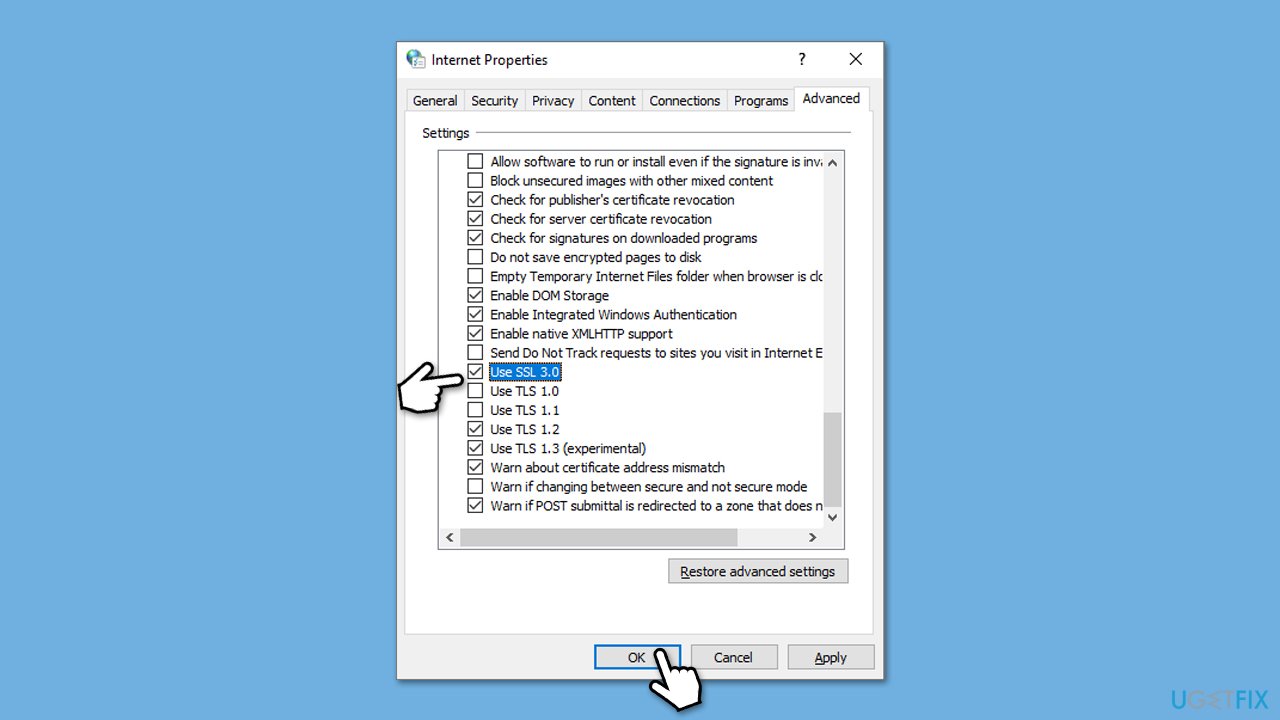
make sure that components such as SSL and TLS are enabled in the Internet options section.
- Type Internet Options in Windows search and press Enter.
- Go to the Advanced tab.
- Scroll down to the Security section.
- Find the following sections: Use SSL 3.0, Use TLS 1.1, Use TLS 1.2, and Use TLS 1.3.
- Check or uncheck the boxes next to these protocols based on your troubleshooting needs. For security, it’s recommended to keep only TLS 1.2 and 1.3 enabled.
- Click Apply and then OK.
- Restart your computer.
Check the settings in your email client:
- Open your email client and navigate to Account Settings or Manage Accounts.
- Locate the settings for the incoming and outgoing servers (IMAP/POP and SMTP).
- Ensure that SSL or TLS is enabled for both incoming and outgoing mail servers.
- Verify the port numbers are correct:
- IMAP: 993 (SSL/TLS)
- POP3: 995 (SSL/TLS)
- SMTP: 465 or 587 (SSL/TLS)
- Save the changes and test sending or receiving emails to confirm the issue is resolved.
Fix 3. Perform Clean Boot
Conflicts between startup programs and the email client can trigger the error. A clean boot minimizes such conflicts.
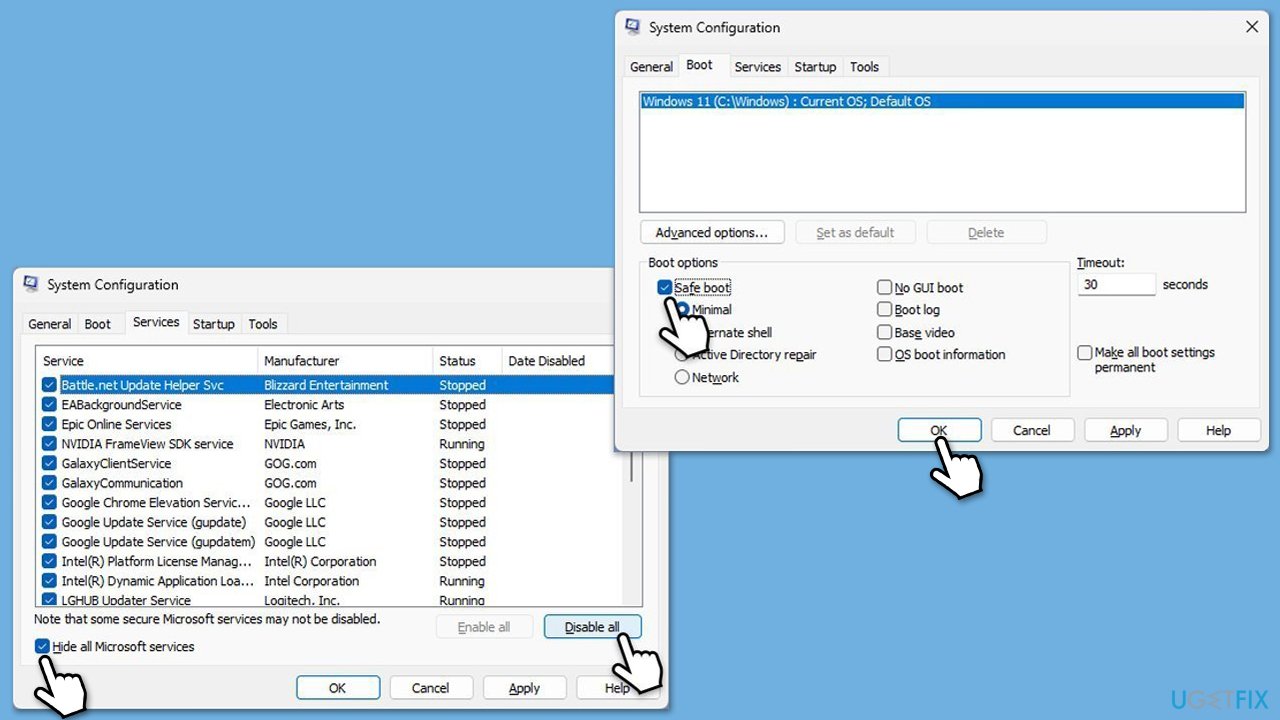
- Type msconfig in the Windows search box and press Enter.
- Pick the Services tab.
- Mark Hide all Microsoft services and select Disable all.
- Select the Startup tab and click Open Task Manager.
- In the Task Manager, right-click on each of the items and select Disable, then close the Task Manager.
- Go to the Boot tab, mark the Safe Boot option, then click Apply and OK.
- On the System Configuration window, click OK.
- To find out which app(s) is causing conflicts, enable each of the processes (or you can do it in groups), restart, and see if the problem persists. Repeat until you find the faulty app, then either update or uninstall it.
Fix 4. Check your antivirus and firewall settings
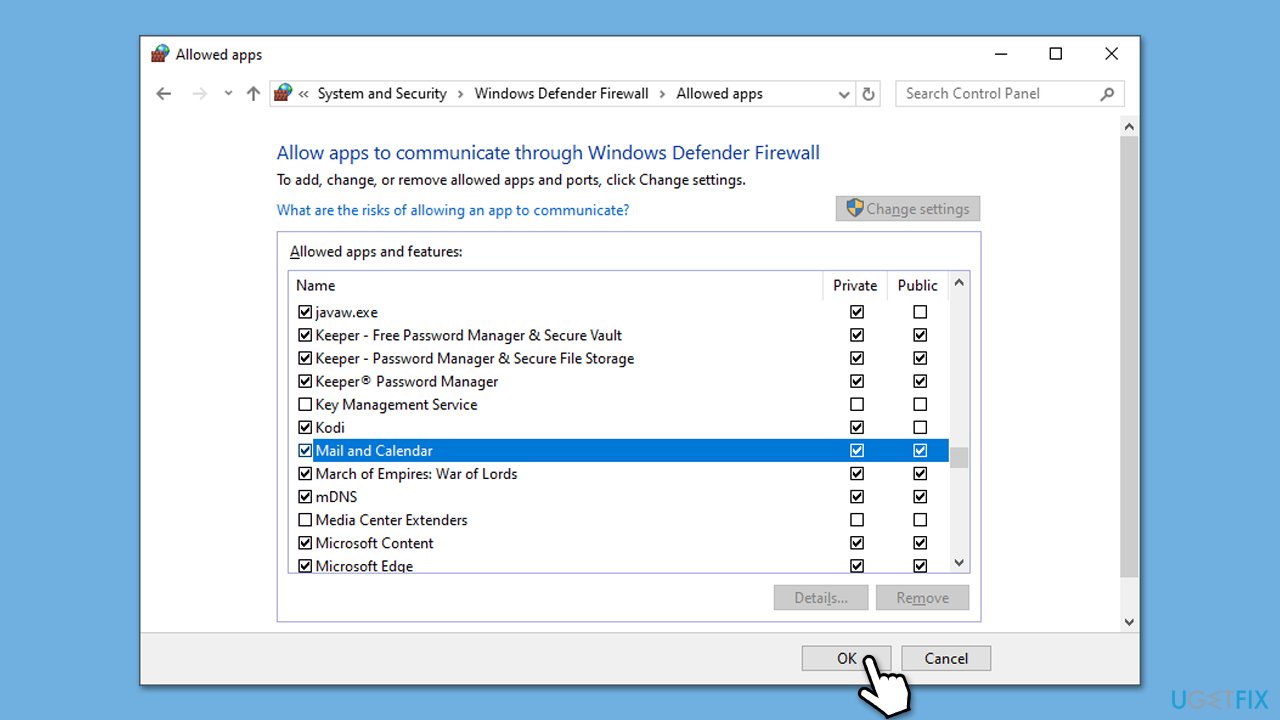
Firewall restrictions may block the email client from accessing the internet, leading to this error.
- Temporary disable or uninstall your third-party anti-malware software.
- Type in Control Panel in Windows search and press Enter.
- Go to System and Security and click on Windows Defender Firewall.
- On the left side of the window, click Allow an app or feature through Windows Defender Firewall.
- Click Change settings (if you are not on an administrator account, you will be asked to enter a password).
- Scroll down and enable Private and Public access to your email app, for example, Outlook.
- Finally, click OK.
Fix 5. Reinstall the email client
If all else fails, reinstalling the email client can resolve issues caused by corrupted application files.
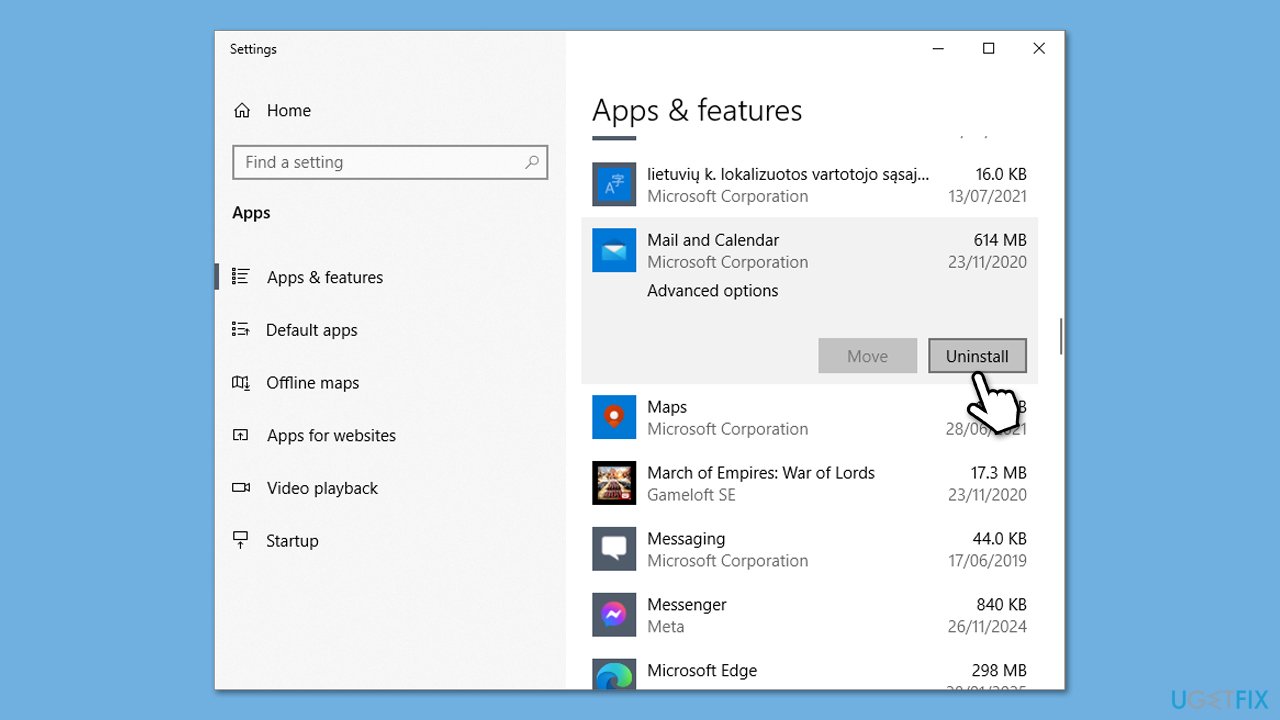
- Right-click on Start and select Installed apps/Apps & features.
- Locate your email client in the list, select it, and choose Uninstall.
- Download the latest version of the client from the official website and reinstall it.
Fix 6. Scan your system for malware
Malware infections can interfere with email client functionality, causing unexpected errors. You can use Microsoft Safety Scanner or the built-in Windows Defender:
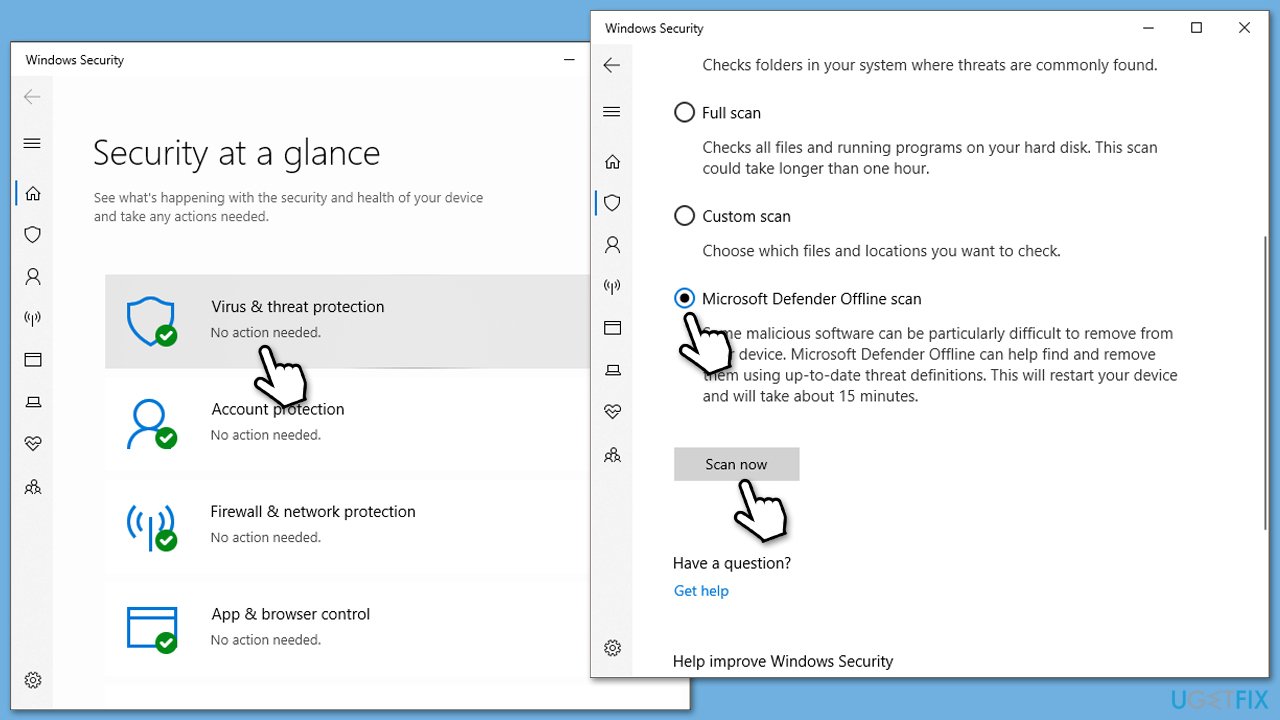
- Type Windows Security in the Windows search bar and hit Enter.
- Select Virus & threat protection.
- Pick Scan options.
- Choose Microsoft Defender Offline scan and click Scan now.
- Your computer will immediately reboot and begin a deep scan.
Bottom line
To fix the email error code 0x800c0005, start by repairing corrupted system files and checking your account settings for accuracy. Ensure you have a stable internet connection and consider disabling any interfering security software. If these steps do not resolve the issue, consider using automatic repair tools or seeking further assistance.
Frequently asked questions
The error code 0x800c0005 in Windows 10 is often caused by issues with your internet connection, corrupted email account settings, or conflicts with security software.
To troubleshoot this error in Windows 11, check your internet connection, reset your email account settings, and temporarily disable any antivirus software to see if it resolves the issue.
Yes, you can fix the error code 0x800c0005 in Windows without reinstalling by running the Windows Troubleshooter for email, repairing your email client, or checking for Windows updates that may fix underlying issues.




Report an issue
What's wrong with this guide? We review every report and update or remove content.
Report received — thank you. We'll review and fix it.
You need a free account to submit a report.
Be the first to comment