How to fix
File Explorer navigation pane missing
on Windows
Restore the missing navigation pane in File Explorer on Windows 10/11 quickly and easily. Troubleshooting tips you can trust, fixed in minutes!


What causes How to fix File Explorer navigation pane missing in Windows?
- File Explorer options turned off from settings
- Corrupt system files due to updates or system crashes
- Botched caches interfering with the way the pane loads
- Registry keys related to folder views getting out of sync
- Adjustments by third-party programs interfering
Repairs Windows system files, removes malware, and restores a clean OS state — without reinstalling.
Hey, the navigation pane on the left side of File Explorer is suddenly missing in my Windows 11 - it's just blank or not there at all. How can I get it back?
If you have noticed the missing navigation pane in File Explorer in Windows, you might find it awkward and time-consuming to locate your files because the left sidebar plays a key role in being able to access drives, folders, and Quick Access items swiftly.
This problem usually has users looking at a blank or missing pane, interrupting regular activities such as searching for documents or storage management. Let's check what could be behind the missing File Explorer navigation pane and look at some solutions to fix it.
The File Explorer navigation pane typically disappears following a system update, folder setting malfunction, or transient glitch in the Explorer process. It can be missing completely, not opening properly, or have Quick Access but lack regular tree view of drives and folders.
This problem arises on Windows releases like 10 and 11, and although it's not as in a state of calamity, it does bog you down if you rely on that pane for efficient file surfing.
Common causes the File Explorer navigation pane is absent are File Explorer options turned off from settings, corrupt system files due to updates or system crashes, or botched caches interfering with the way the pane loads. Registry keys related to folder views may also get out of sync, or adjustments by third-party programs will interfere. At times, it is as easy as restarting the process or switching the options, but issues like file corruption need more work.
In attempting to correct File Explorer navigation pane missing, you can start by checking and enabling the navigation pane under View settings, clearing File Explorer history, or even restarting the Explorer process. System scans to fix files, resetting folder options, or ensuring Windows is updated are other appropriate steps.
To have an easy-to-use fix, a piece of software like [d1] comes in handy, using its intelligent scan to locate and fix system problems, broken files, and settings issues that affect File Explorer.

Fix 1. Enable navigation pane in View Settings
The pane might simply be disabled in File Explorer options, and toggling it back on can restore it instantly.
- Open File Explorer.
- Click the View tab at the top.
- In the Show section, check Navigation pane if it's unchecked.
- Check if the pane appears.

Fix 2. Clear File Explorer history
A cluttered history cache can prevent the pane from loading properly, and clearing it resets the view without losing data.
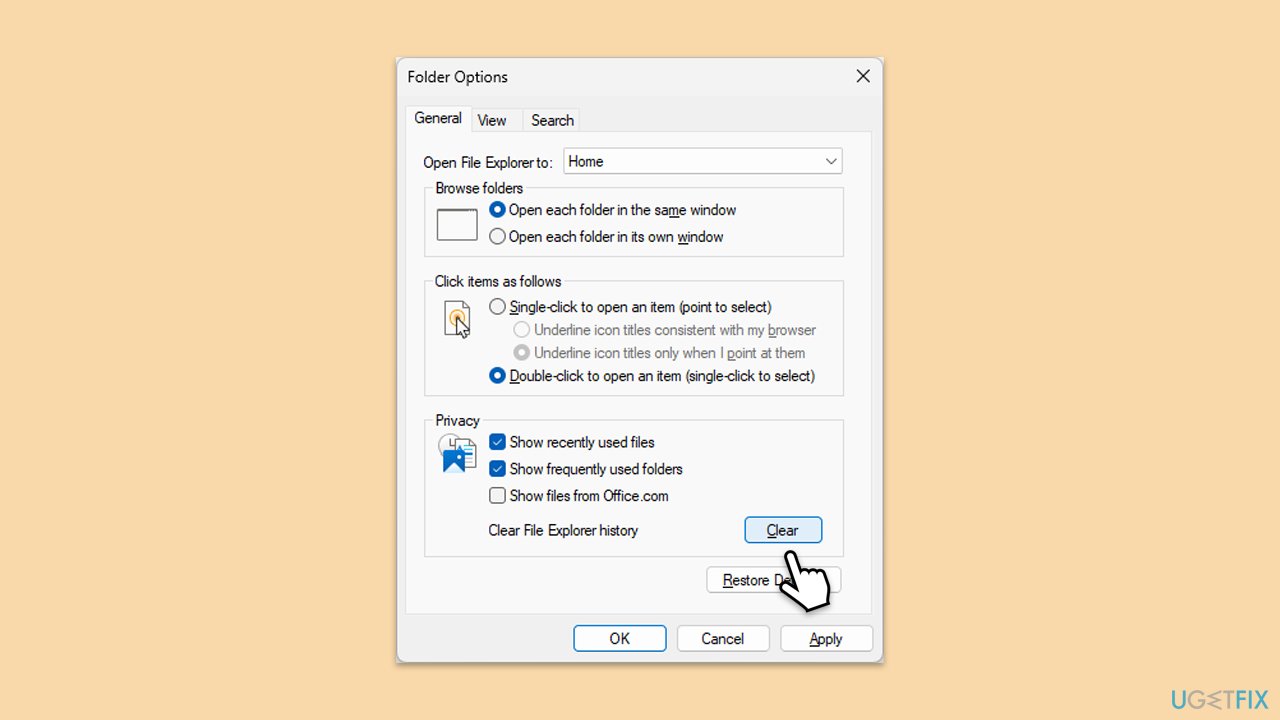
- Press Win + E to open File Explorer.
- Click on the View tab, then select Options to open Folder Options.
- In the General tab, under Privacy, click on the Clear button next to Clear File Explorer history.
- Click OK to apply the changes.
Fix 3. Restart Windows Explorer process
Temporary glitches in the Explorer process can hide the pane, and restarting it refreshes the interface.
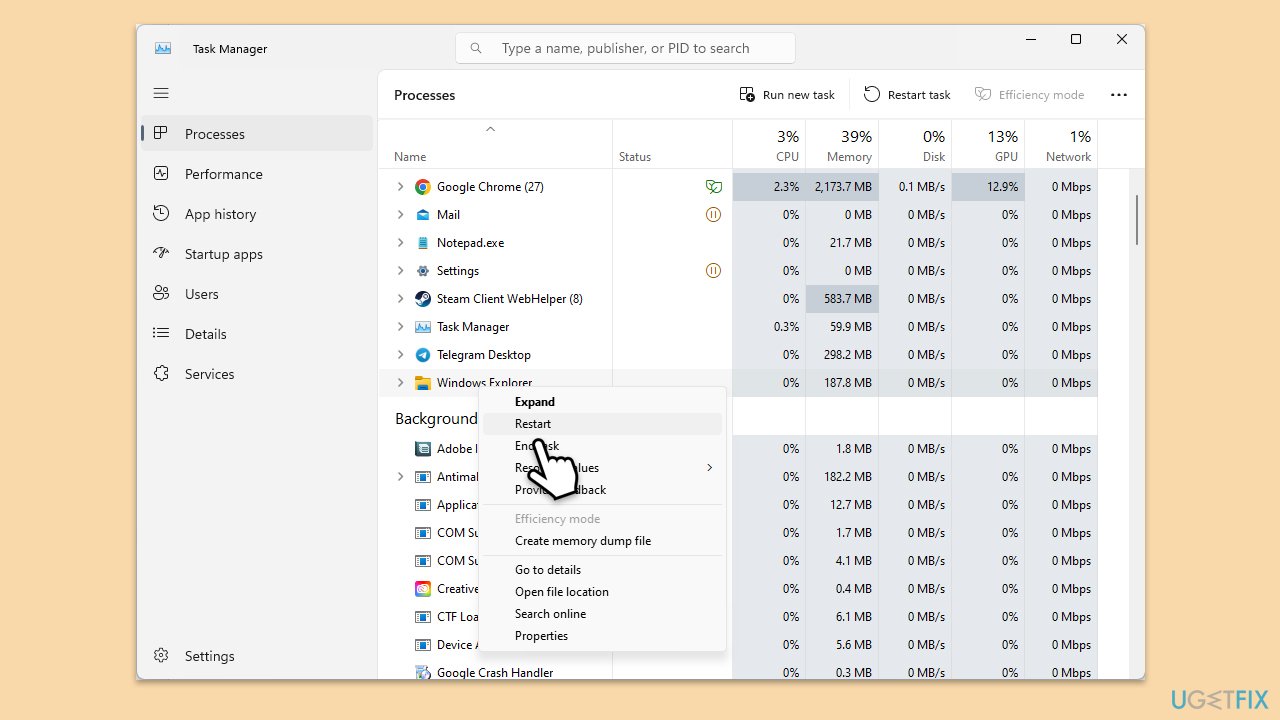
- Press Ctrl + Shift + Esc to open Task Manager.
- Locate Windows Explorer in the list of processes.
- Right-click on it and select Restart.
- Check if the taskbar buttons appear on all taskbars after the restart.
Fix 4. Reset Folder Options
Misconfigured folder settings might be hiding the pane, and resetting them restores default view.
- Open File Explorer and go to the folder with the problem.
- Click the three dots (or Options in older versions) in the toolbar.
- In the Options or Folder Options window, switch to the View tab.
- Click Reset Folders and then apply the changes.
- Check if sorting by date modified works properly.

Fix 5. Update Windows
Outdated system files can cause display issues in File Explorer, and installing updates often patches these problems.
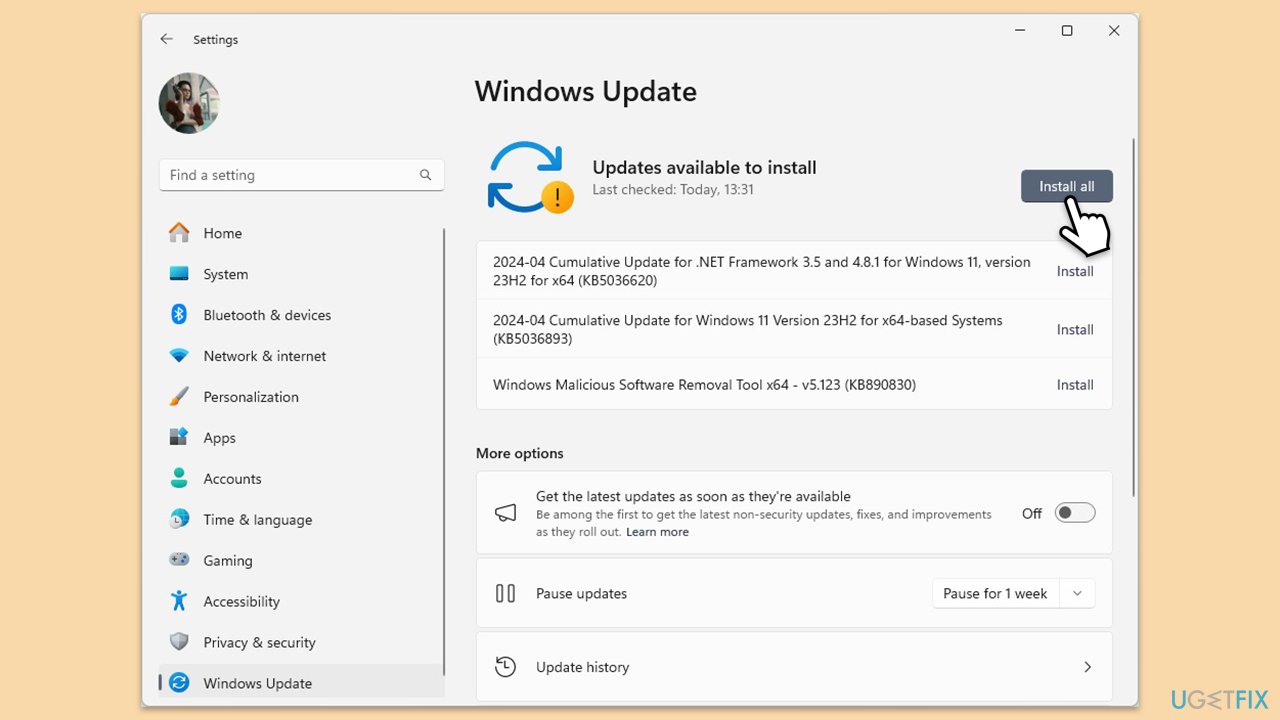
- Type Updates in Windows search and hit Enter.
- If updates are available, click Install updates.
- Otherwise, click Check for updates.
- If optional updates are available, install them as well.
- When all the update processes are complete, restart your device.
Fix 6. Run System File Checker and DISM
Corrupted system files can disrupt File Explorer features, and these tools can scan and repair them effectively.
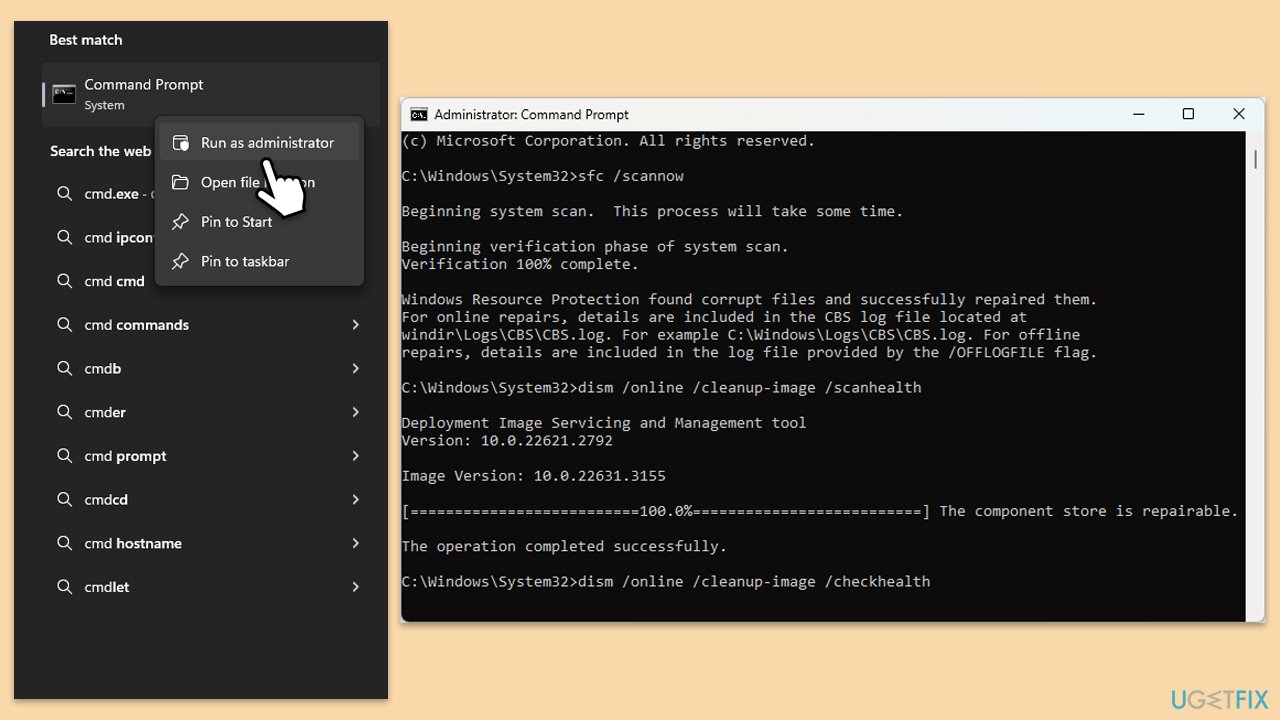
- Type cmd in Windows search.
- Right-click on Command Prompt and select Run as administrator.
- When User Account Control shows up, click Yes.
- In the Command Prompt window, paste the following command and press Enter:
sfc /scannow - Wait for the scan to complete.
- Once the SFC scan is finished, run the following set of DISM commands, pressing Enter after each one:
DISM /Online /Cleanup-Image /CheckHealth
DISM /Online /Cleanup-Image /ScanHealth
DISM /Online /Cleanup-Image /RestoreHealth
(Note: if you get an error executing this last command, add /Source:C:\RepairSource\Windows /LimitAccess to it and try again). - After completing the DISM commands, restart your system.
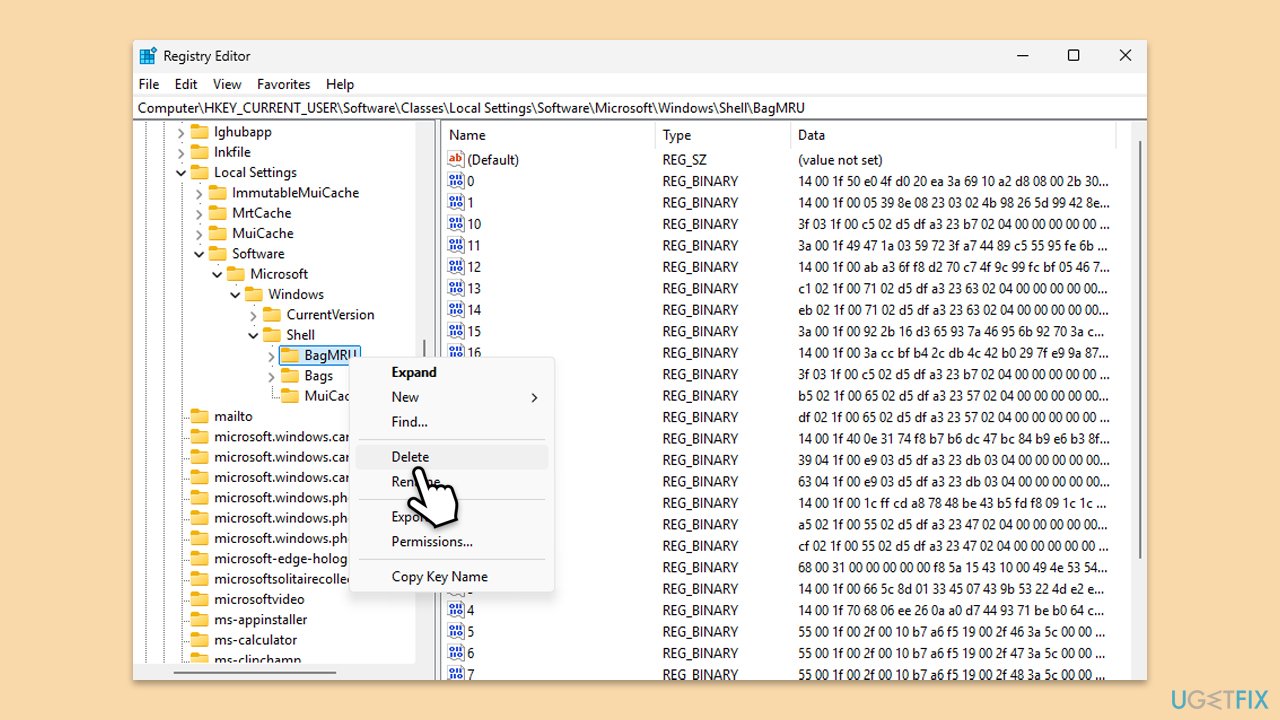
Fix 7. Delete Registry keys for folder views
Over time, registry entries for folder bags can corrupt and hide the pane, so deleting them resets views safely.
- Press Win + R, type regedit, and press Enter.
- Navigate to the following location:
HKEY_CURRENT_USER\Software\Classes\Local Settings\Software\Microsoft\Windows\Shell - Delete the Bags and BagMRU keys.
- Close Registry Editor and restart your system.
- Check whether File Explorer works fine.
Bottom line
To fix the missing navigation pane in File Explorer, you can check and enable the navigation pane under View settings, clear File Explorer history, or restart the Explorer process. Additionally, performing system scans to fix files, resetting folder options, or ensuring Windows is updated are recommended steps. If none of these solutions work, consider using specialized software to diagnose and repair system issues.
Frequently asked questions
You can restore the navigation pane by opening File Explorer, clicking on the 'View' tab, and selecting 'Navigation pane' to ensure it is checked.
To reset File Explorer settings in Windows 11, go to 'File Explorer Options', click on the 'View' tab, and then select 'Reset Folders'.
Yes, you can open the Registry Editor and navigate to HKEY_CURRENT_USER\Software\Microsoft\Windows\CurrentVersion\Explorer\Advanced, then set 'NavPane' to 1 to enable the navigation pane.




Before diving into those fixes, remember to check for any hardware issues too. I had a similar problem with a customer's machine last month, and it turned out the PSU was causing erratic behavior in File Explorer. Always worth running a hardware diagnostic first. What’s your system setup like? Could help narrow it down!