How to fix
“Installation has failed” error in Microsoft Teams
on Windows
Resolve the "Installation has failed" error in Microsoft Teams on Windows 10 or 11 effortlessly. Expert-tested methods to fix issues in minutes.


What causes How to fix “Installation has failed” error in Microsoft Teams?
- Interference from security software
- Corrupt or incomplete installation files
- Insufficient user permissions
- Conflicts with existing Teams installations
- Problems with Windows Installer services
Repairs Windows system files, removes malware, and restores a clean OS state — without reinstalling.
I want to install Teams on my Windows 11 PC but it just keeps failing with the error message "Installation has failed. There was an error while installing the application. Check the setup log for more information and contact the author."
Microsoft Teams is a widely used collaboration platform that facilitates communication through video calls, messaging, and file sharing. However, some users encounter an error during installation, receiving the message:
"Installation has failed. There was an error while installing the application. Check the setup log for more information and contact the author." It prevents Teams from being installed or updated, disrupting access to its features.
A common cause of this error is interference from security software, which may block the installer from making necessary system changes. Corrupt or incomplete installation files can also contribute to the issue, particularly if a previous installation attempt was interrupted. Additionally, insufficient user permissions may prevent the installer from accessing the required directories, leading to a failed setup.
Another factor to consider is conflicts with existing Teams installations. If a previous version of Teams is already installed, residual files or registry entries could interfere with the new installation. In some cases, problems with Windows Installer services may also be responsible, preventing software from installing properly.
Since there can be numerous elements potentially contributing to the "Installation has failed" error, troubleshooting includes the identification and elimination of possible system conflicts. If you are experiencing this error while trying to install Microsoft Teams, there might be a solution below. You can first download an all-in-one PC repair tool [d1] that will automatically search for problems on Windows and fix them.

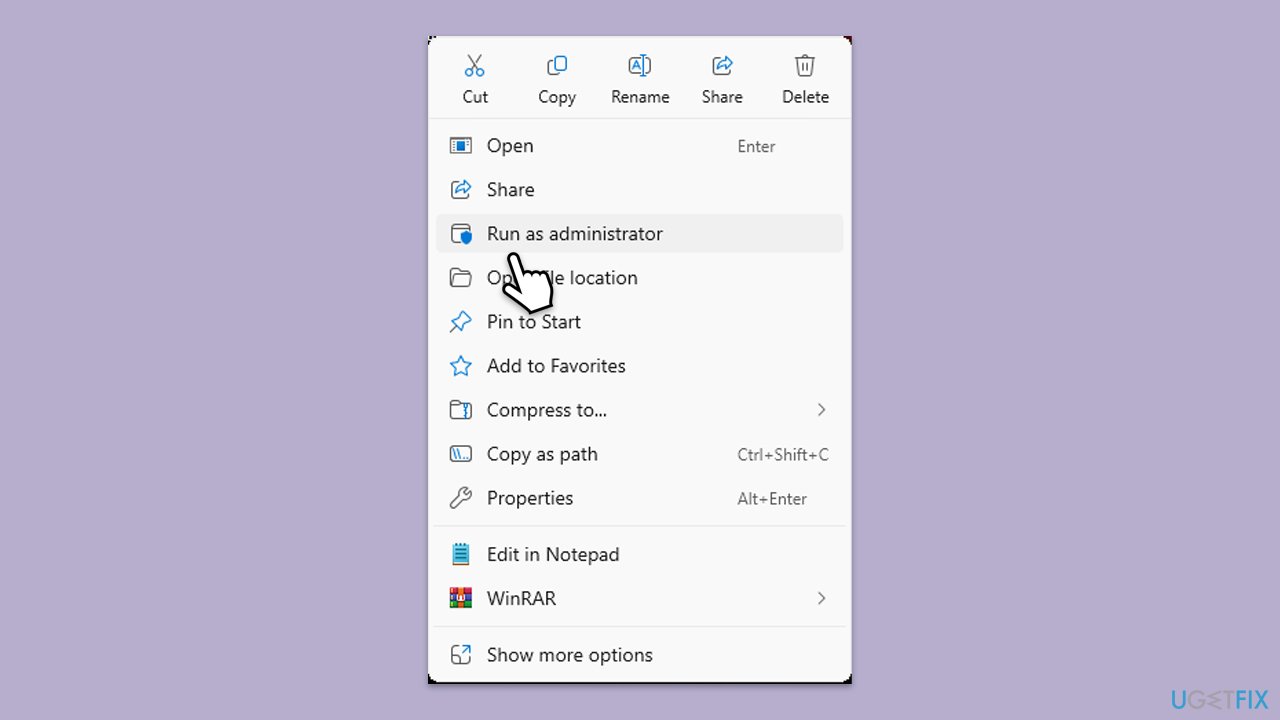
Fix 1. Run the installer as administrator
Microsoft Teams requires administrative privileges to install properly. Running the installer with elevated permissions ensures it can access system directories and make necessary changes.
- Locate the Microsoft Teams setup file.
- Right-click on the file and select run as administrator.
- Confirm any User Account Control (UAC) prompts.
- Follow the installation instructions and check if the error persists.
Fix 2. Uninstall previous Teams versions
Residual files from a previous Microsoft Teams installation can interfere with the setup process. Completely removing any existing versions ensures a clean installation.
- Type Control Panel in Windows search and press Enter.
- Go to Programs > Uninstall a program.
- Find Microsoft Teams, right-click, and select Uninstall.
- Follow the prompts to remove the app.
- Once done, press Win + E to open File Explorer.
- In the View tab at the top of the window, enable Hidden Files.
- Go to C:\Program Files\WindowsApps location.
- Scroll down to find the Microsoft Teams folder and delete it (alternatively, you can rename it).
- Now type %AppData% in Windows search and press Enter.
- Delete the Teams folder here.
- Finally, restart your system and reinstall the app.

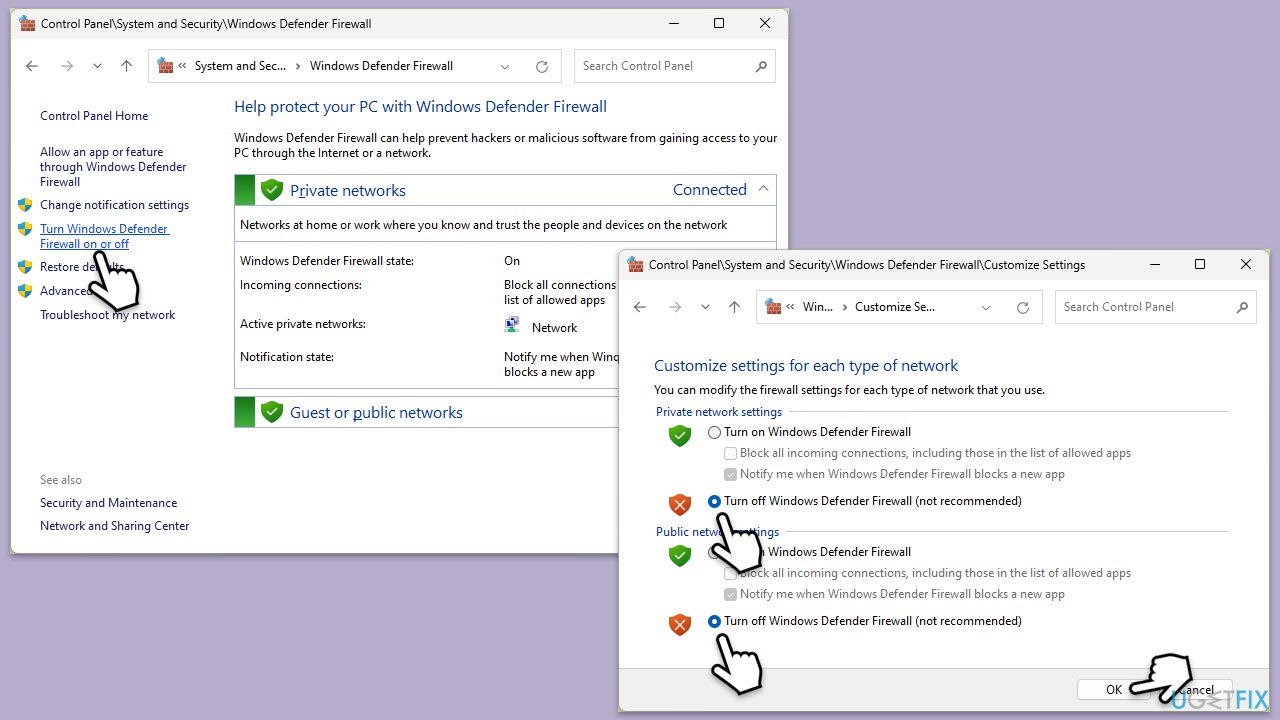
Fix 3. Disable antivirus and firewall temporarily
Some security software may block the Teams installation process. Temporarily disabling antivirus and firewall settings can help identify if they are causing the issue.
- Temporarily disable your third-party security software.
- Open the Control Panel and navigate to System and Security > Windows Defender Firewall.
- Select Allow an app or feature through Windows Defender Firewall.
- Click Change settings and enter your administrator password if prompted.
- Find Microsoft Teams in the list and check both the Private and Public boxes.
- Click OK to save your changes.
Fix 4. Clear Teams installation cache
Corrupt installation cache files can prevent the setup process from completing. Deleting these temporary files allows the installer to create fresh installation data.
- Close down Microsoft Teams.
- Press Win + E to open File Explorer.
- Ensure Hidden files are visible.
- In the address bar, type in %appdata%\Microsoft\teams and press Enter.
- Delete the contents of the following folders:
%appdata%\Microsoft\teams\application cache\cache
%appdata%\Microsoft\teams\blob_storage
%appdata%\Microsoft\teams\Cache
%appdata%\Microsoft\teams\databases
%appdata%\Microsoft\teams\GPUcache
%appdata%\Microsoft\teams\IndexedDB
%appdata%\Microsoft\teams\Local Storage %appdata%\Microsoft\teams\tmp - Make sure you empty the Recycle Bin (or use Shift + Del combination to delete these files).
- Restart your system.
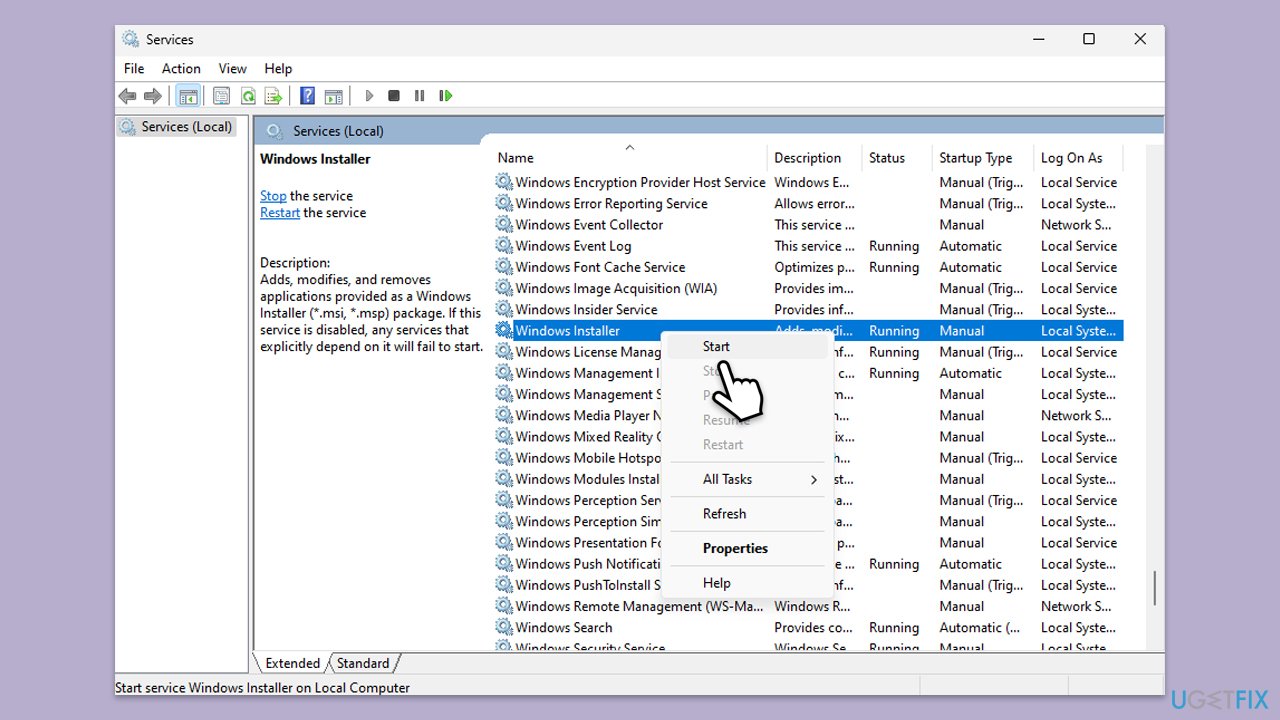
Fix 5. Check Windows Installer service
Microsoft Teams relies on the Windows Installer service to install components. If this service is not functioning properly, installation failures can occur.
- Type in Services in Windows search and hit Enter.
- Scroll down a bit to find the Windows Installer service.
- If it is already running, right-click and select Restart.
- If the service is not running, double-click it, pick Automatic under the Startup type drop-down menu.
- Click Start, Apply, and OK.
- Restart your computer.
Fix 6. Perform a Clean Boot
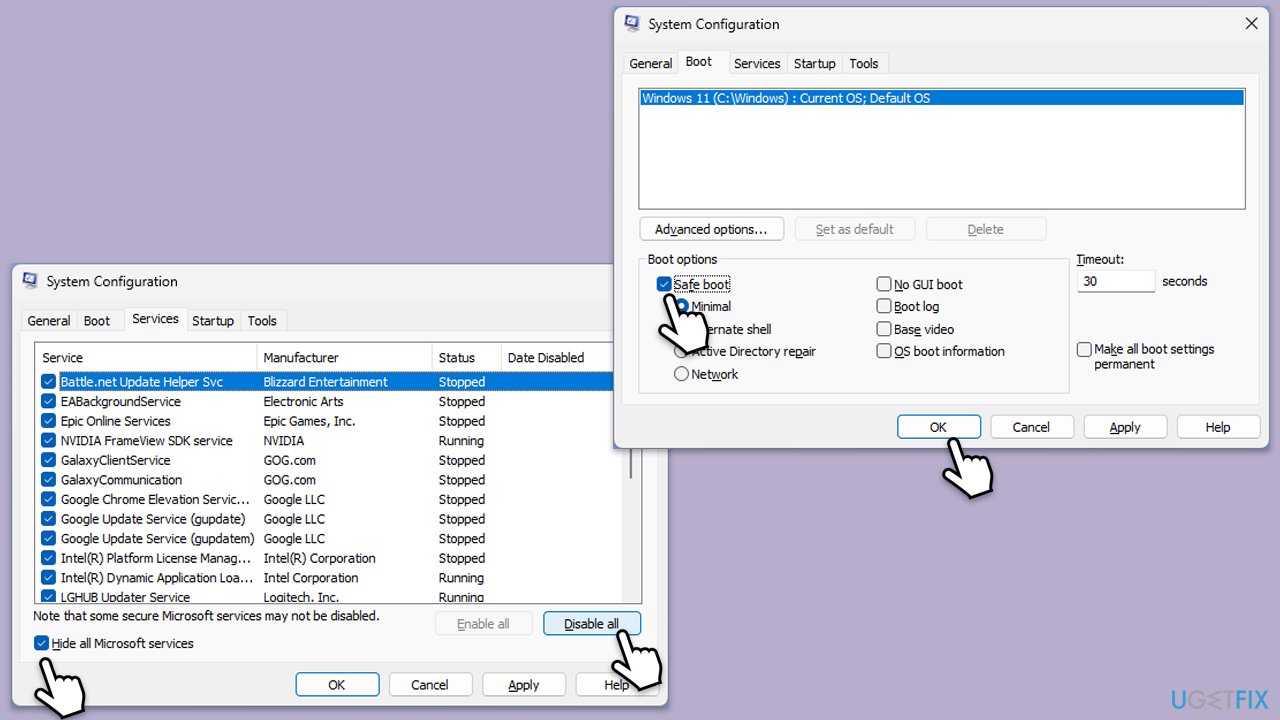
Background applications may interfere with the installation process. Performing a clean boot starts Windows with only essential services, preventing conflicts.
- Type msconfig in the Windows search box and press Enter.
- Pick the Services tab.
- Mark Hide all Microsoft services and select Disable all.
- Select the Startup tab and click Open Task Manager.
- In the Task Manager, right-click on each of the items and select Disable, then close the Task Manager.
- Go to the Boot tab, mark the Safe Boot option, then click Apply and OK.
- On the System Configuration window, click OK.
- Restart the computer and try installing Teams again.
- If successful, re-enable services one by one to identify the conflicting program.
Fix 7. Download and install the latest version of Teams
If the current installation file is outdated or corrupt, downloading a fresh copy of the installer can resolve the issue.
- Go to the official Microsoft Teams website.
- Click download for desktop and save the setup file.
- Run the newly downloaded installer as administrator.
- Follow the installation prompts and check if the error is resolved.
Bottom line
To resolve the 'Installation has failed' error in Microsoft Teams, you can try running the installer as an administrator, ensuring you have the necessary permissions. If the issue persists, consider checking for conflicts with previous installations or using a PC repair tool. If none of these solutions work, further troubleshooting may be required.
Frequently asked questions
Try restarting your computer and then attempt the installation again. If the error persists, consider uninstalling any previous versions of Teams before retrying the installation.
Ensure that your Windows 11 is fully updated and that there are no pending updates. Additionally, check if your antivirus is blocking the installation and temporarily disable it if necessary.
Yes, you can check the Event Viewer for any related error logs under 'Windows Logs' -> 'Application' to gather more information about the installation failure.




I haven't tried installing Teams yet, but this sounds like a hassle! I know a bit about how permissions can mess things up. Last week, I had a similar issue with a different app and just running it as admin sorted it. Is it common for security programs to interfere like that? I always worry about messing with my antivirus settings. Cheers!
Hey Timmy! Yeah, permissions can definitely be a hassle, and you're right — running as admin can help sometimes. But I’d be careful not to jump to software fixes before checking the hardware. If you've got a failing drive or memory issue, that can mess with installations too. Run CrystalDiskInfo first to rule out disk problems. Nine times out of ten, it’s not a software issue, it’s something hardware-related. Cheers!