How to fix
KB5037771 fails to install
on Windows
Resolve KB5037771 installation issues in Windows 11 quickly and effectively with our expert-tested solutions. Get your system running smoothly again!

What causes How to fix KB5037771 fails to install in Windows 11?
- Insufficient disk space
- Corrupt system files
- Software conflicts
- Network problems
- Corrupt update files
- Pending updates
Repairs Windows system files, removes malware, and restores a clean OS state — without reinstalling.
Today I woke up and saw that there was an update KB5037771 for Windows available. To my surprise, it failed to install - the message says I should try later. Is there something I can do to fix it?
KB5037771 (OS Builds 22621.3593 and 22631.3593) is a routine update that was delivered by Microsoft on May 15, 2024, as a part of the Patch Tuesday set of updates. Released for Windows 11 versions 22H2 and 23H3, this update focuses on fixing an issue that caused the VPN connection to fail, which was caused by April's Patch Tuesday updates.
In addition, as is common, KB5037771 also focuses on numerous security issues as well as improvements to various features such as domain controllers (DC), Virtual Secure Mode (VSM), and Server Message Block. The usual quality improvements to the servicing stack were also included. Unfortunately, some users said that they can't install the KB5037771 update, and it is not an uncommon occurrence.
What causes Windows updates to fail?
Unfortunately, Windows update failures are not that uncommon, even though they usually affect a small percentage of the user base. Here are a few common causes:
- Insufficient disk space
- Corrupt system files
- Software conflicts
- Network problems
- Corrupt update files
- Pending updates
- Update service issues
- Third-party security software, etc.
It goes without saying that its installation of the latest updates is mandatory for those who want to keep their systems secure and enjoy stability improvements and new features.
How can you fix this?
It might sometimes be difficult to pinpoint the exact reason for KB5037771 failing to install, but there are several things you could try to fix. A very simple and common method is running a Windows update troubleshooter, which is a built-in tool that can usually resolve simple issues related to the process.
However, more complex troubleshooting might be necessary, such as fixing corrupted Windows files, resetting Windows update components, downloading the update manually, etc. If the below instructions seem too overwhelming or you are looking for a more straightforward solution, try running a scan with a powerful PC repair app [d1].
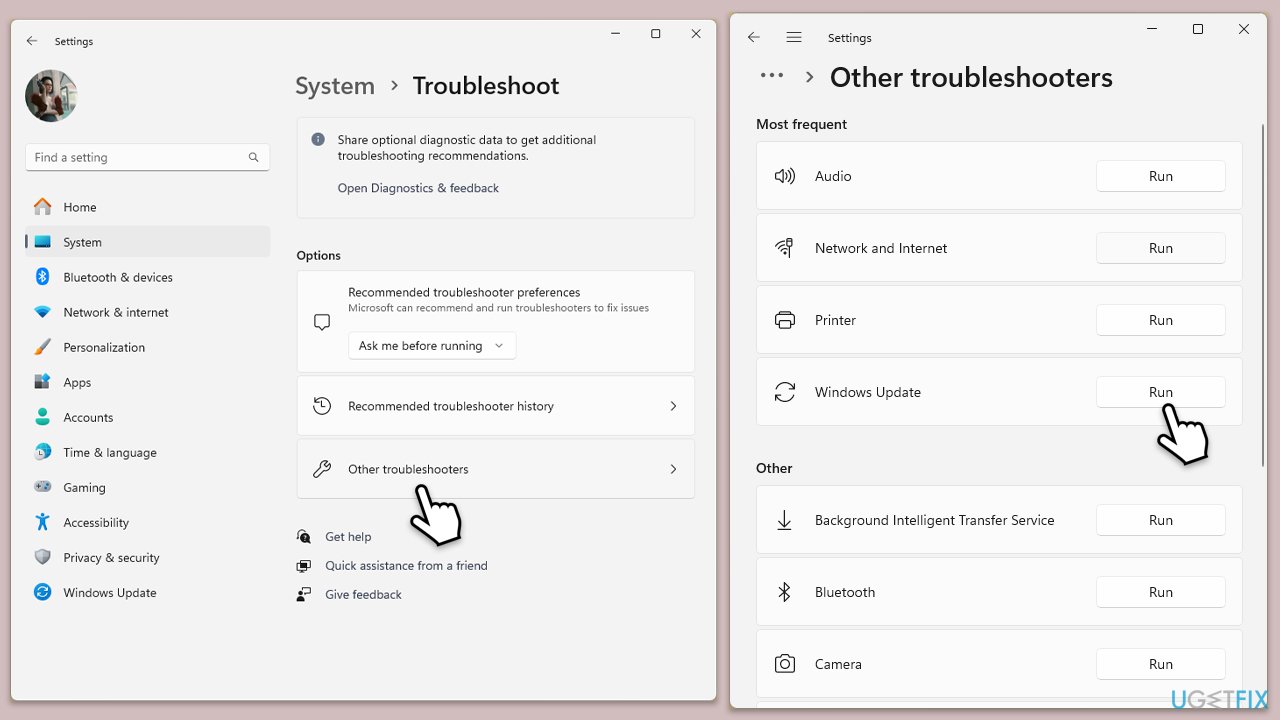
Fix 1. Run Windows update troubleshooter
- Type troubleshoot in Windows search and press Enter or go to Start > Settings > System > Troubleshoot.
- From the list of Options, pick Other trouble-shooters.
- Scroll down to locate the Windows Update and click Run.
- After that, run the Network adapter troubleshooter.
- Wait for it to finish, then apply changes and reboot the system.
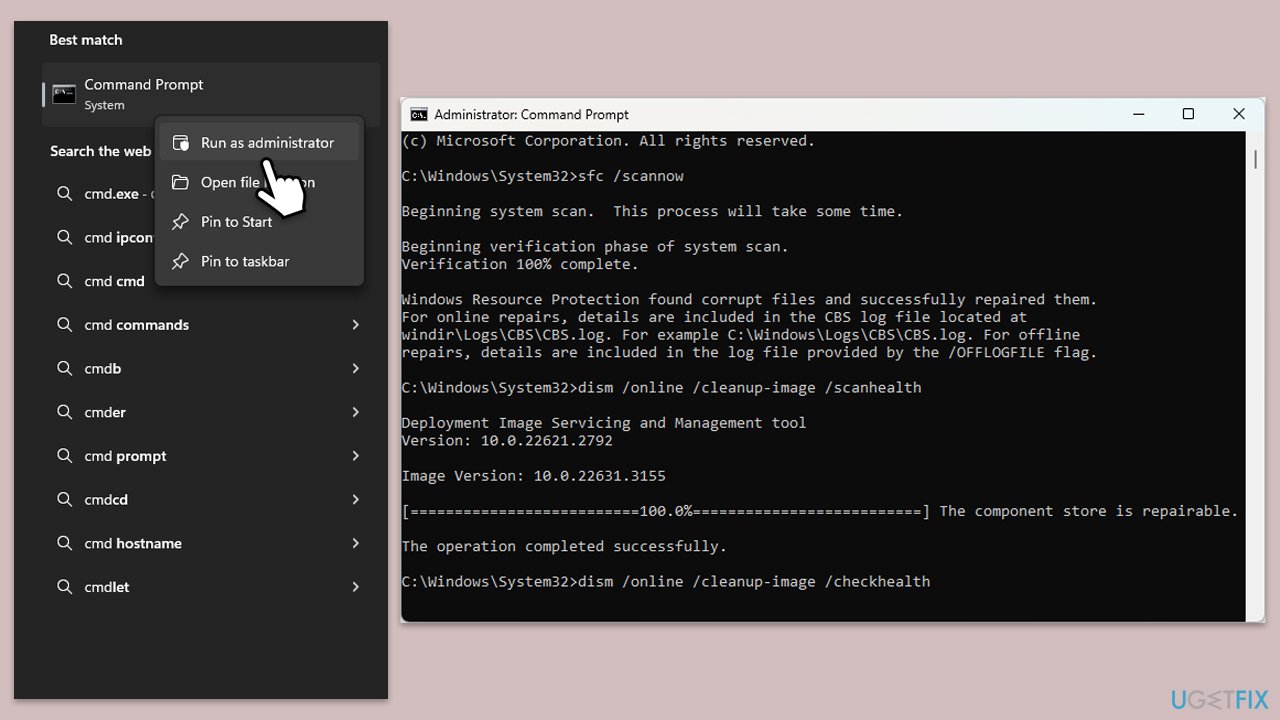
Fix 2. Repair corrupted system files
- Type cmd in Windows search.
- Right-click on Command Prompt and pick Run as administrator.
- User Account Control window will show up - click Yes when prompted.
- Then, copy and paste the following command, pressing Enter after:
sfc /scannow - Wait till the scan is finished. If Windows finds system file integrity violations, it will attempt to fix them. After this, use the set of the following commands, pressing Enter each time:
DISM /Online /Cleanup-Image /CheckHealth
DISM /Online /Cleanup-Image /ScanHealth
DISM /Online /Cleanup-Image /RestoreHealth - Close down the Command Prompt and restart your computer.
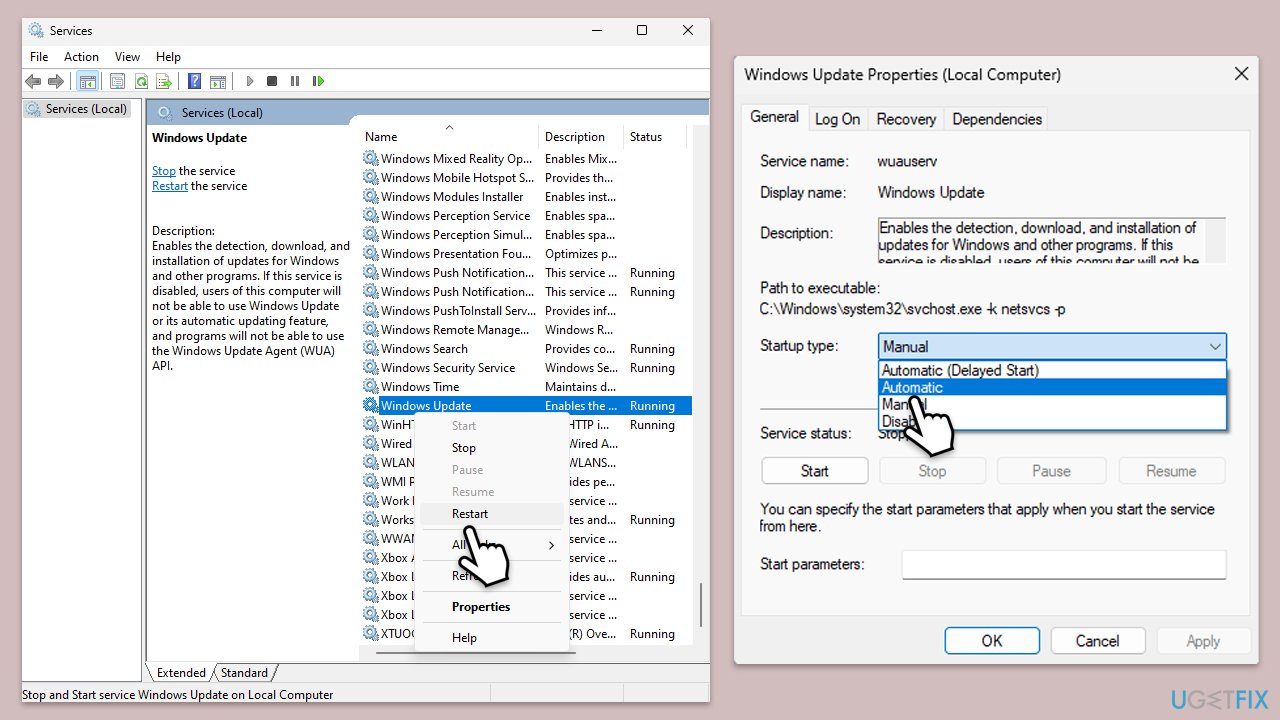
Fix 3. Check relevant services
- Type in Services in Windows search and press Enter.
- Find Windows Update Service.
- If it is already running, right-click and pick Restart.
- If the service is not running, double-click it, and select Automatic under the Startup type from the drop-down menu.
- Click Start, Apply, and OK.
- Repeat this process for Background Intelligent Transfer Service (BITS) and Cryptographic services.
Fix 4. Perform Disk Cleanup
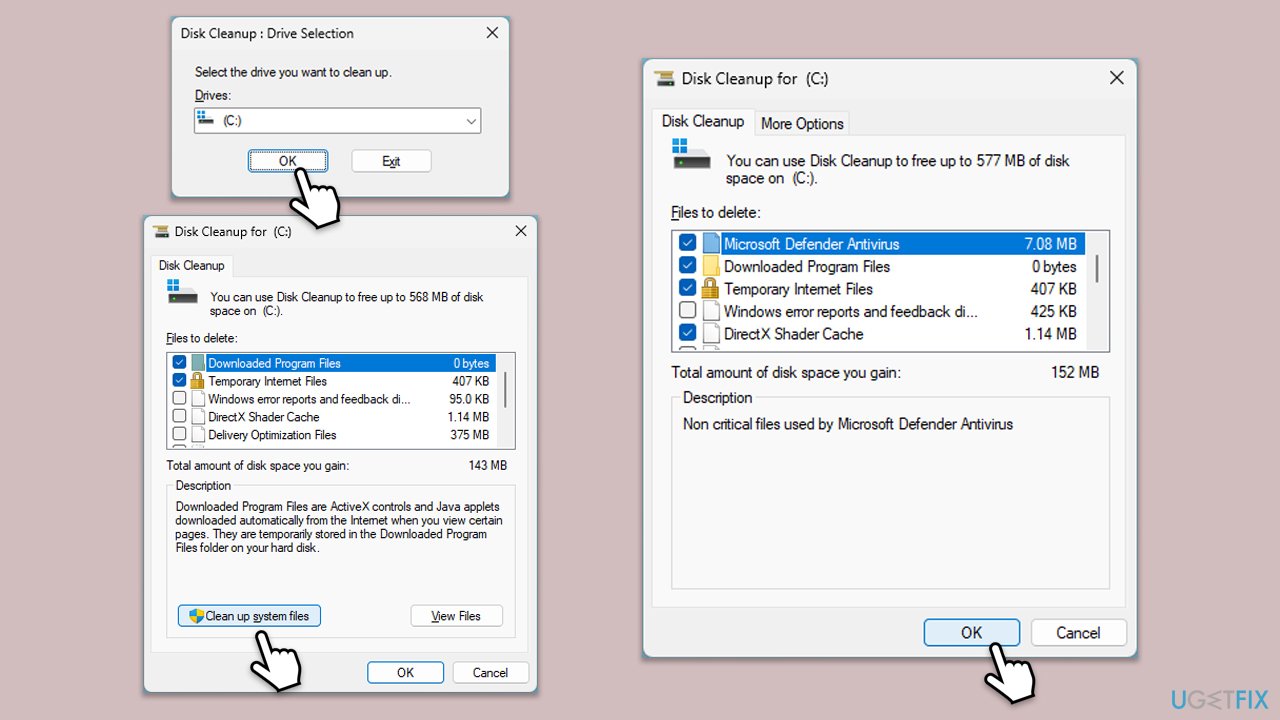
- Open the Windows search bar and type Disk Cleanup. Press Enter to open the Disk Cleanup utility.
- In the Disk Cleanup window, click Clean up system files.
- Select the drive again and click OK.
- In the list of files that can be cleaned up, select the largest portions of data, such as Windows Update, Temporary Internet Files, Temporary Files, and others.
- Click OK to begin the cleanup process.
Fix 5. Reset Windows update components
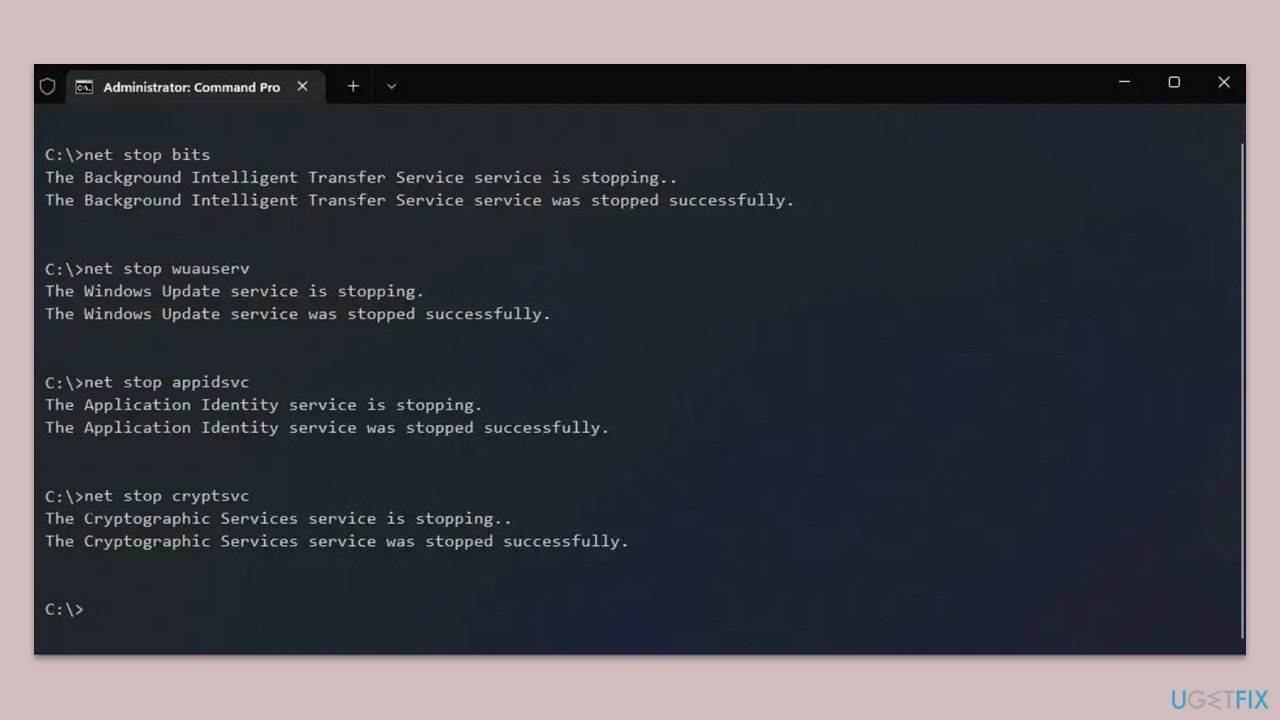
- Open Command Prompt as administrator again
- In the new window, copy and paste each of these commands, pressing Enter every time:
net stop bits
net stop wuauserv
net stop appidsvc
net stop cryptsvc
Del "%ALLUSERSPROFILE%\Application Data\Microsoft\Network\Downloader\*.*"
rmdir %systemroot%\SoftwareDistribution /S /Q
rmdir %systemroot%\system32\catroot2 /S /Q
regsvr32.exe /s atl.dll
regsvr32.exe /s urlmon.dll
regsvr32.exe /s mshtml.dll
netsh winsock reset
netsh winsock reset proxy
net start bits
net start wuauserv
net start appidsvc
net start cryptsvc - Restart your device and try updating again.
Fix 6. Install the update manually
- Visit the Microsoft Update Catalog website.
- Search for the update KB5037771.
- Find the version of the update that matches your system type.
- Click the Download button next to the correct version.
- In the window that opens, click the link to start the download.
- Once downloaded, open the file and follow the on-screen instructions to install the update.
Fix 7. Perform Clean Boot
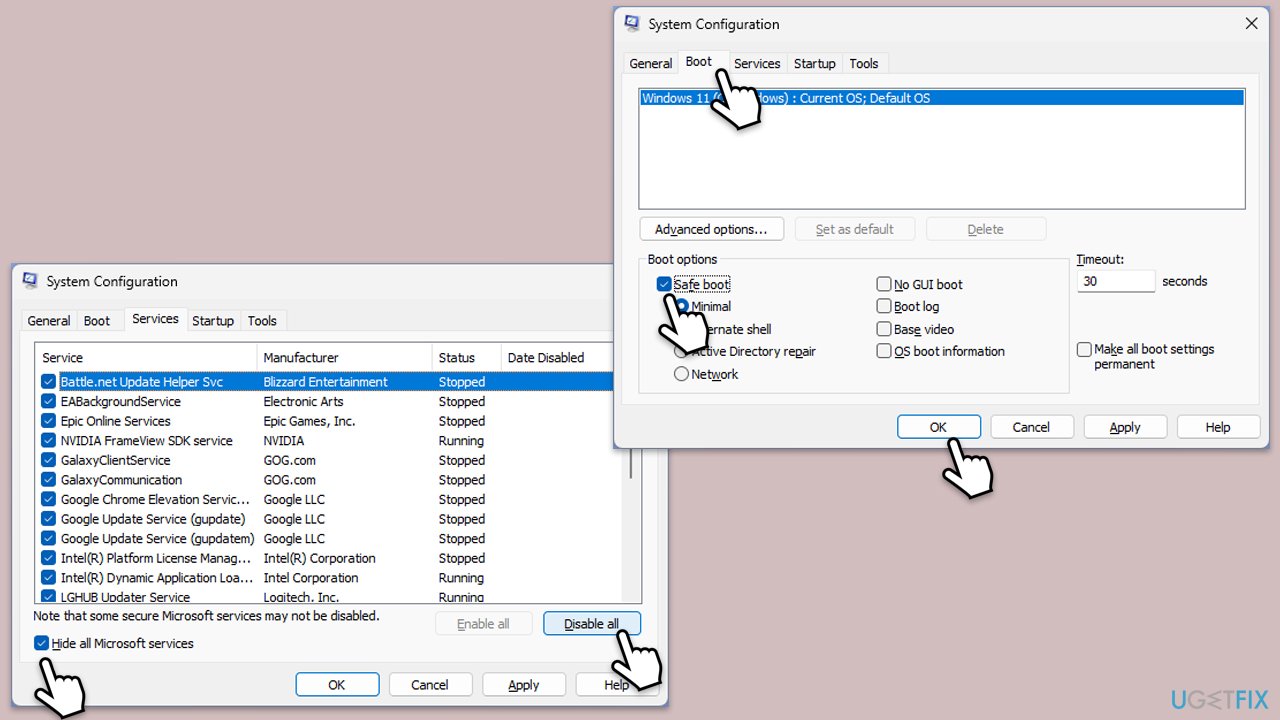
- Type msconfig inWindows Search and press Enter to open the System Configuration window.
- Click on the Services tab and check the Hide all Microsoft Services box.
- Click Disable all to disable non-Microsoft services, then click the Startup tab.
- Open the Task Manager, disable all startup items, and close the Task Manager.
- Go to the Boot tab and mark the Safe boot option.
- Click OK on the System Configuration window.
- Restart your computer and try updating again.
Fix 8. Use Media Creation Tool
Before proceeding, make sure you disconnect any unnecessary peripherals and uninstall third-party security software and similar apps.
- Visit the official Microsoft website and download Windows 10 installation media (Windows 11 version).
- Double-click the installer, select Yes when UAC shows up, and agree to the terms.
- Select the ISO file and click Next, then follow the instructions to finish the process.
- Open the location of the ISO, right-click on it, and select Mount.
- Launch the installer.
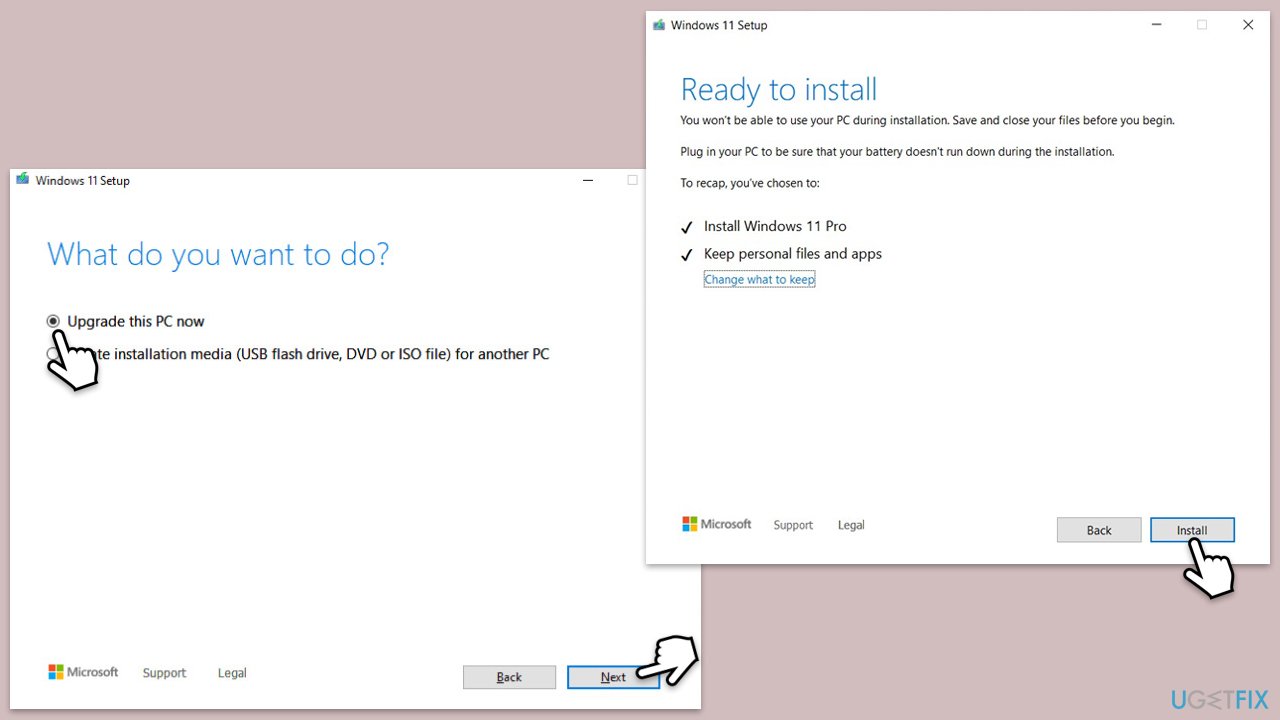
- Select Upgrade this PC now and click Next.
- Windows will start downloading the needed files.
- Agree to the terms once again and click Next.
- Before installing, ensure you are happy with your choices (otherwise, you can click the Change what to keep option).
- Finally, click Install to begin the upgrade process.
Bottom line
To fix the installation failure of KB5037771, you can try running the Windows update troubleshooter, fixing corrupted Windows files, or resetting Windows update components. If these methods seem overwhelming, consider using a powerful PC repair app. If none of these solutions work, further investigation may be necessary.
Frequently asked questions
Try running the Windows Update Troubleshooter to automatically detect and fix issues related to Windows Update. You can access it by going to Settings > Update & Security > Troubleshoot > Additional troubleshooters.
You can download the standalone update package from the Microsoft Update Catalog website and install it manually. Make sure to select the correct version that matches your Windows 11 architecture (32-bit or 64-bit).
Yes, errors like 0x800f0831 or 0x8007000d are common when KB5037771 fails to install. You should check the Windows Update logs for more details on the specific error code.




Report an issue
What's wrong with this guide? We review every report and update or remove content.
Report received — thank you. We'll review and fix it.
You need a free account to submit a report.
Be the first to comment