How to fix
KB5037849 fails to install
on Windows
Resolve the KB5037849 installation failure on Windows 10 quickly and efficiently with our expert-tested solutions and detailed guides. Fixed in minutes!

What causes How to fix KB5037849 fails to install in Windows 10?
- Corrupted update files
- Software conflicts
- Insufficient disk space
- Problems with the Windows Update service
Repairs Windows system files, removes malware, and restores a clean OS state — without reinstalling.
I was about to install the latest Preview build KB5037849 but, unfortunately, it failed. What should I do now? Should I just wait? I tried numerous times yesterday and today but to no avail.
KB5037849 is a Preview build released on May 29, 2024, for Windows 10 version 22H2. This update includes a new feature added to the Snipping Tool that allows its use on a connected Android phone. Additionally, it addresses a couple of bug fixes to enhance system performance and reliability. Despite these improvements, some users have encountered issues with installing this update.
Unfortunately, for some users, KB5037849 fails to install in Windows 10. This failure can manifest in several ways, such as error messages, the update getting stuck during the installation process, or repeated attempts to install the update without success. These issues can occur due to various reasons, including corrupted update files, software conflicts, insufficient disk space, or problems with the Windows Update service itself.
If you can't install KB5037849, there are several steps you can take to resolve the problem. First, running the Windows Update Troubleshooter can automatically detect and fix common problems with Windows Update. Another solution is to clear the Windows Update cache, which involves removing corrupted update files that might be causing the installation issue.
You can also try using the Microsoft Update Catalog to manually download and install the update, which can sometimes bypass issues with the automatic update process. Ensuring sufficient disk space is also important, as a lack of space can prevent updates from installing. Finally, performing a clean boot can eliminate software conflicts that might be interfering with the update installation.
Additionally, using the [d1] maintenance and repair utility can be particularly useful when dealing with broken registries or DLLs, corrupted system files, BSODs, and more. This tool is especially helpful when it's difficult to identify the exact cause of the problem.
Fix 1. Run the Windows update troubleshooter
The built-in troubleshooter can automatically detect and fix common problems with Windows Update, helping resolve installation issues.
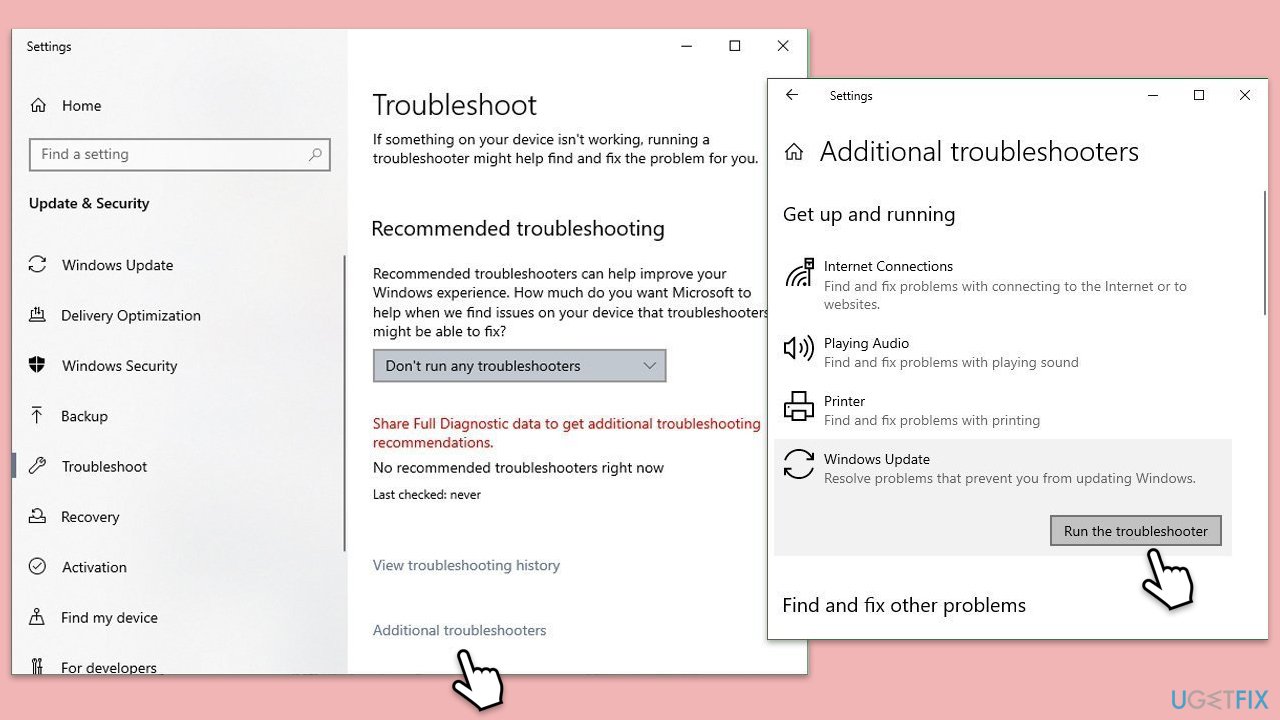
- Type Troubleshoot in Windows search and press Enter.
- On the right side of the window, click Additional troubleshooters.
- Scroll down and select Windows update.
- Click Run the troubleshooter.
- Wait for the troubleshooter to finish.
- Restart your system when done.
Fix 2. Check relevant services
For an update to be completed successfully, several services need to be running.
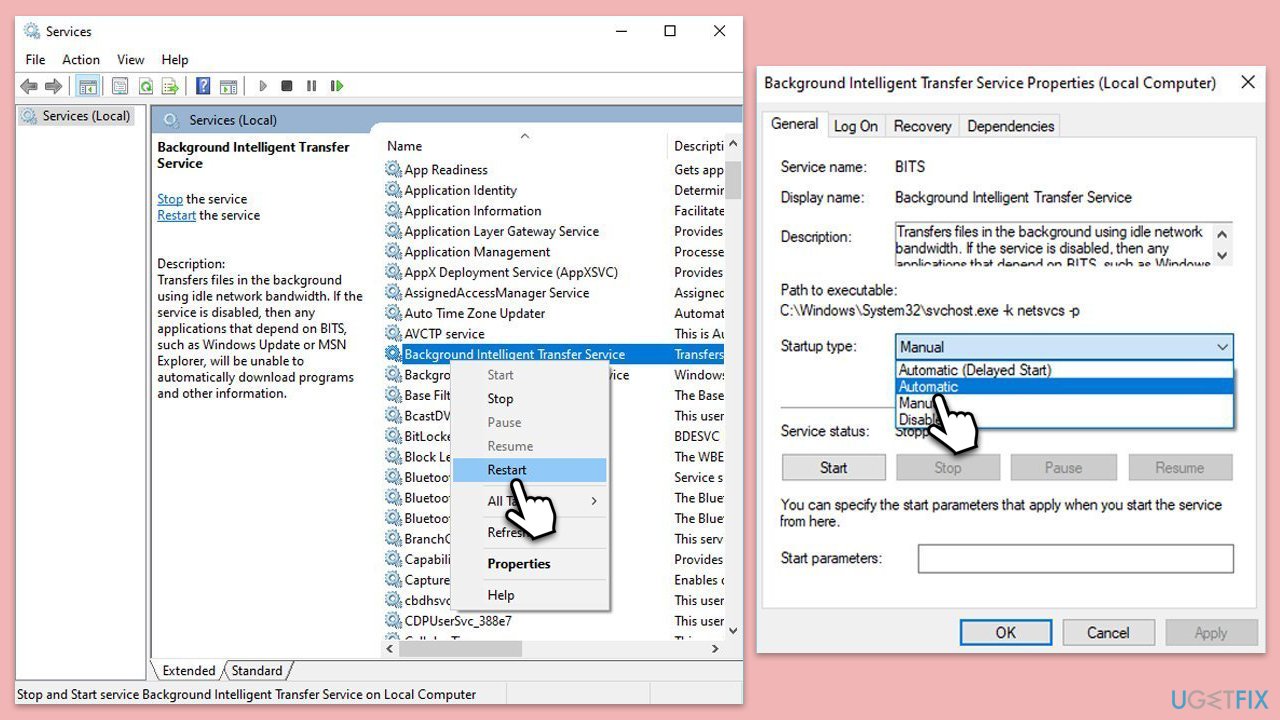
- Type in Services in Windows search and press Enter.
- Scroll down to locate Background Intelligent Transfer Service (BITS).
- If it is already running, right-click and pick Restart.
- If the service is not running, double-click it, select Automatic under the Startup type from the drop-down menu.
- Click Start, Apply, and OK.
- Perform the same steps with Windows update and Cryptographic services.
Fix 3. Use the Microsoft Update Catalog
Manually downloading and installing the update from the Microsoft Update Catalog can sometimes bypass issues with the automatic update process.
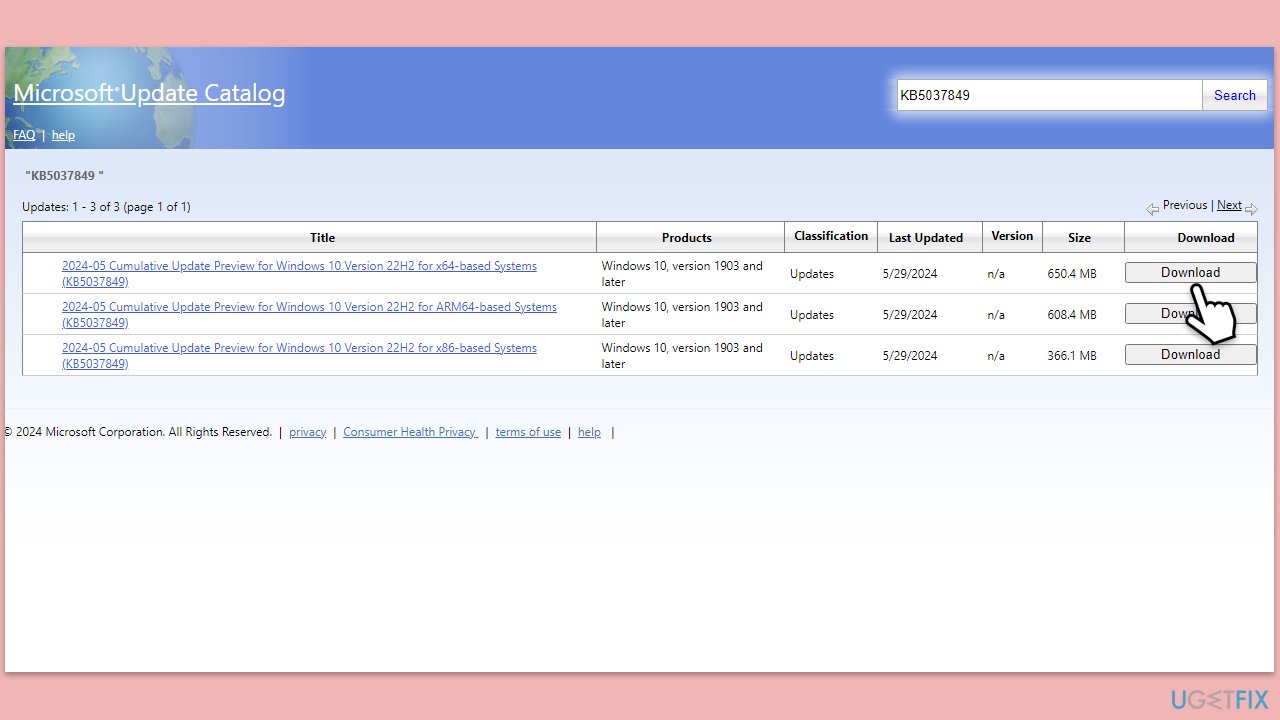
- Open your web browser and navigate to the Microsoft Update Catalog.
- In the search box, type in KB5037849 and click Search.
- Locate the correct version of the update for your operating system by checking your System type (Right-click on Start and pick System. Under Windows specifications, check the Version).
- Click on Download and follow the prompts to complete the process.
- Once the update is installed, restart your device.
Fix 4. Ensure sufficient disk space
Lack of disk space can prevent updates from installing. Freeing up space can resolve this issue.
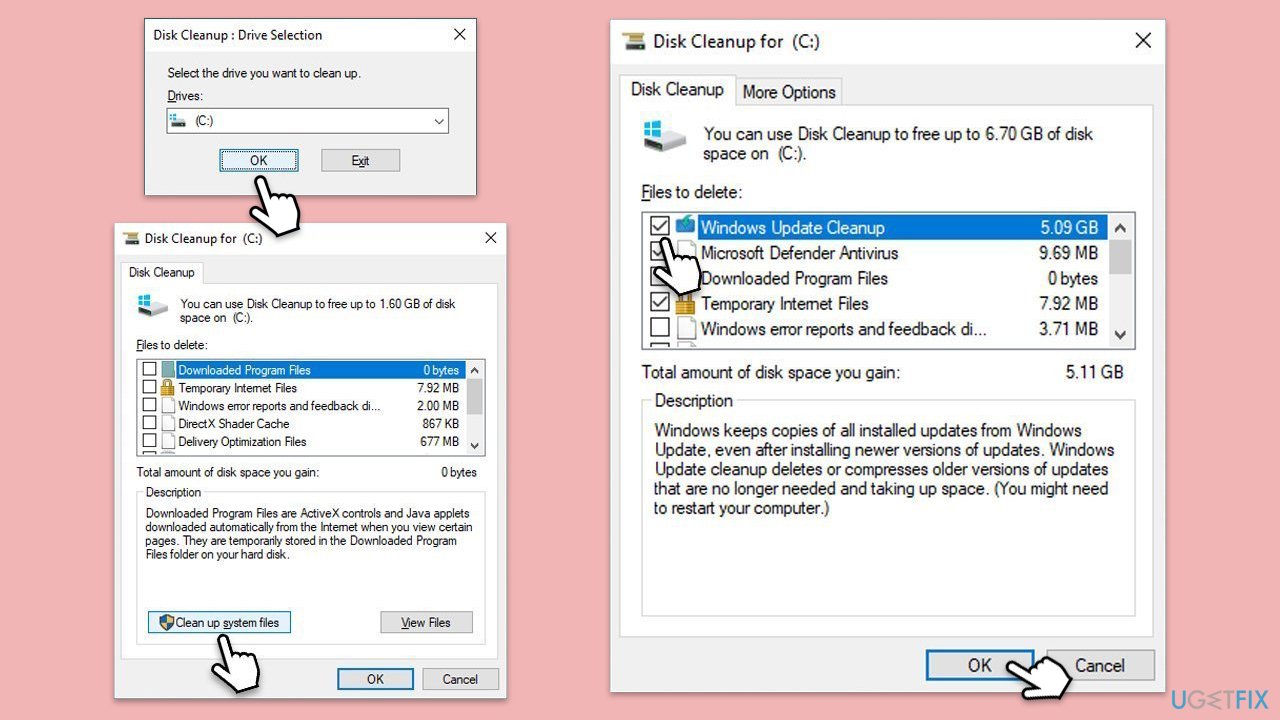
- Type Disk Cleanup in Windows search and press Enter.
- Select your main drive (C: by default).
- Select appropriate fields (Temporary files, Recycle Bin, etc.) and click OK.
- If you want a more thorough cleanup and require even more space, select Clean system files in the Disk Cleanup window.
- Select your main drive again - Windows will compute how much space can be retrieved.
- The largest data dumps are usually accumulated in Windows Update and Delivery Optimization sections, although Temp files can also take a lot if it hasn't been cleaned.
- Select appropriate fields and click OK - Windows will remove all these files from your device and free up space.
Fix 5. Perform a clean boot
A clean boot can eliminate software conflicts that might be interfering with the update installation.
- Disable your anti-malware software temporarily and try the update again.
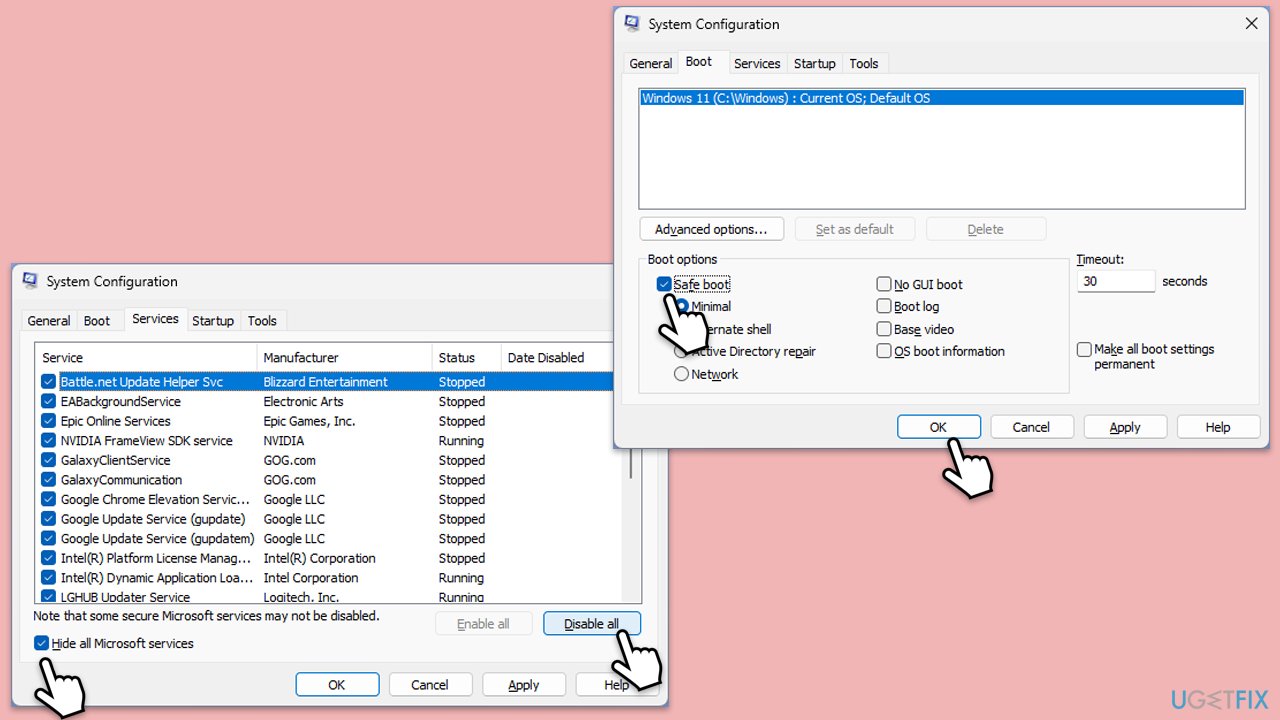
- If the problem persists, press Win + R, type msconfig, and hit Enter.
- Go to the Services tab and tick the Hide all Microsoft services checkbox.
- Select Disable all.
- Go to the Startup tab and click Open Task Manager.
- Here, right-click on each of the non-Windows entries and select Disable.
- Close down the Task Manager.
- Go to the Boot tab and tick the Safe boot option.
- Restart your computer and try installing the update again.
Fix 6. Repair corrupted system files
Using SFC and DISM tools can fix corrupted system files that might be causing update issues.
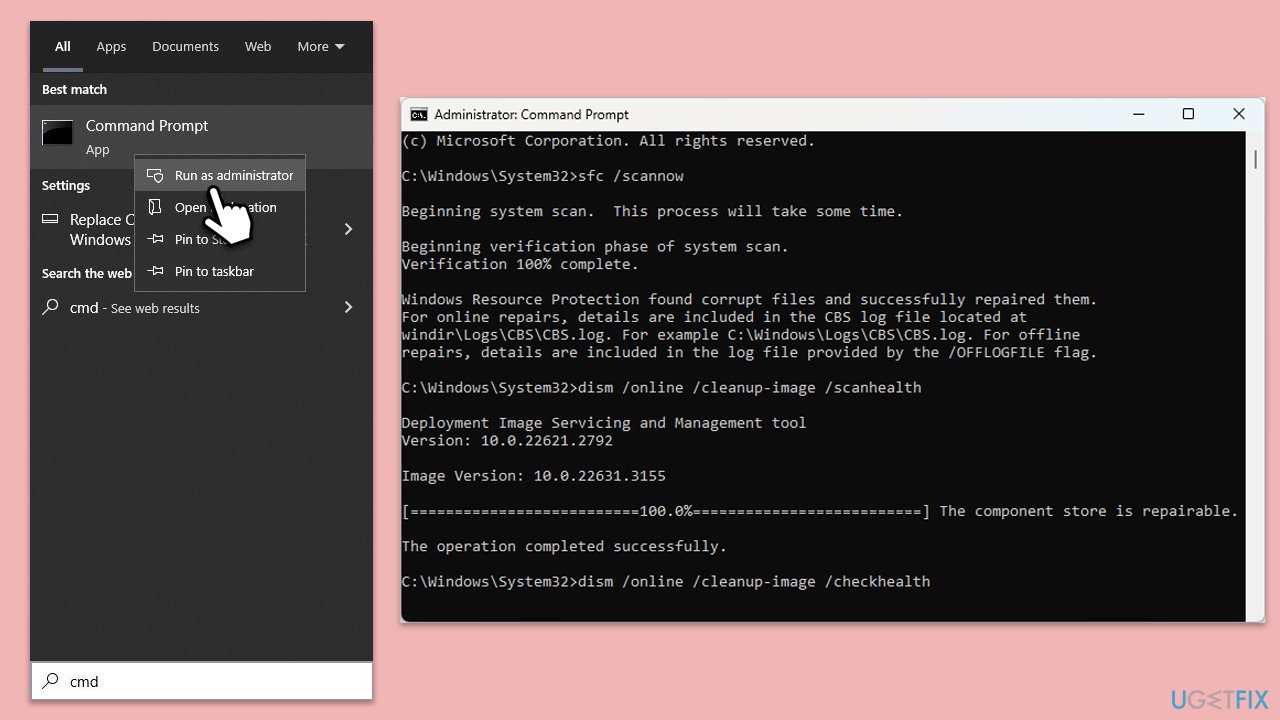
- Type cmd in Widnows search.
- Right-click on Command Prompt and pick Run as administrator.
- Type in the following command and press Enter:
sfc /scannow - When done, run the following commands as well:
dism /online /cleanup-image /scanhealth
dism /online /cleanup-image /checkhealth
dism /online /cleanup-image /restorehealth
(Note: if you get an error executing this last command, add /Source:C:\RepairSource\Windows /LimitAccess to it and try again). - Restart your computer.
Fix 7. Reset Windows update components
Resetting Windows Update components can resolve issues with the update service itself.
- Type cmd in Windows search.
- Right-click on Command Prompt and pick Run as administrator.
- The User Account Control window will ask whether you want to allow changes - click Yes.
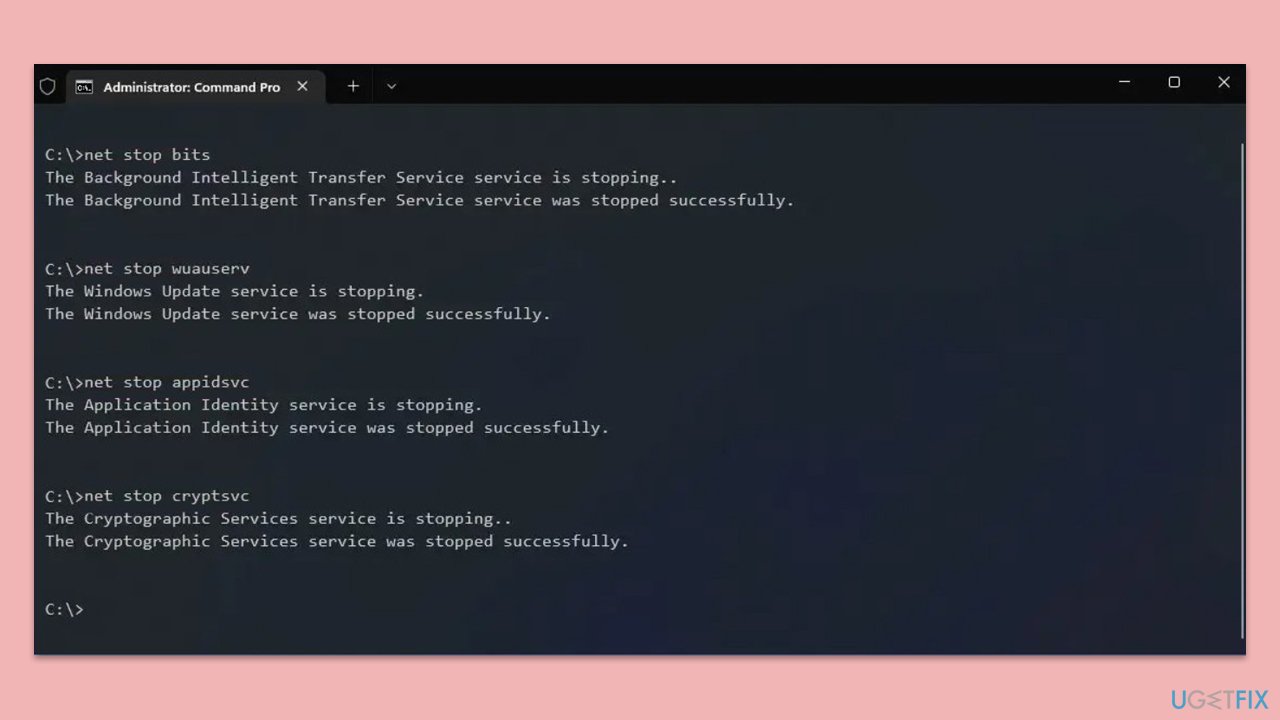
- In the new window, use the following commands, pressing Enter after each:
net stop bits
net stop wuauserv
net stop appidsvc
net stop cryptsvc
Del “%ALLUSERSPROFILE%\Application Data\Microsoft\Network\Downloader\*.*”
rmdir %systemroot%\SoftwareDistribution /S /Q
rmdir %systemroot%\system32\catroot2 /S /Q
regsvr32.exe /s atl.dll
regsvr32.exe /s urlmon.dll
regsvr32.exe /s mshtml.dll
netsh winsock reset
netsh winsock reset proxy
net start bits
net start wuauserv
net start appidsvc
net start cryptsvc - Restart your computer.
Bottom line
To fix the installation failure of KB5037849, you can run the Windows Update Troubleshooter, clear the Windows Update cache, or manually download the update from the Microsoft Update Catalog. Ensuring you have sufficient disk space and performing a clean boot may also help. If none of these solutions work, consider using a maintenance and repair utility to address deeper system issues.
Frequently asked questions
Common causes include corrupted system files, insufficient disk space, or conflicts with third-party software. It's essential to ensure your system is up to date and free of conflicting applications.
You can manually download the KB5037849 update from the Microsoft Update Catalog website and install it directly. Ensure you select the correct version for your Windows 10 system architecture.
If the update continues to fail, consider running the Windows Update Troubleshooter or performing a system restore to revert to a previous state. Additionally, check for any pending updates that might be blocking the installation.




Report an issue
What's wrong with this guide? We review every report and update or remove content.
Report received — thank you. We'll review and fix it.
You need a free account to submit a report.
Be the first to comment