How to fix
KB5039211 fails to install
on Windows
Resolve the KB5039211 installation error on Windows 10 quickly. Our expert-tested solutions ensure your system runs smoothly again, with screenshots.

What causes How to fix KB5039211 fails to install in Windows 10?
- Corrupted system files
- Insufficient disk space
- Bugged caches
- Security software conflicts
- Necessary services not running
Repairs Windows system files, removes malware, and restores a clean OS state — without reinstalling.
I can't install the latest Windows 10 update KB5039211. Any help would be appreciated (I never had problems with updates so I don't know what to do).
Users should always keep Windows updated since new features, security patches, and bug fixes improve system operation and performance. Every month on the second Tuesday, Microsoft releases an update cycle called Patch Tuesday, which gives users access to the most recent fixes and enhancements for their operating systems.
Knowledge Base (KB) is a number assigned to these updates, which allow administrators and users to keep track of particular changes. KB5039211 was released on June 11, 2024, for Windows 10 versions 21H2 and 22H2 concurrently with the release of KB5039212 for Windows 11.
KB5039211 addresses several issues, including problems with the Local Security Authority Subsystem Service (lsass.exe), and issues affecting the Share button on USB controllers, and introduces a feature enabling the Snipping Tool to be used on Android devices.
Despite the importance of these updates, some users may encounter an issue where KB5039211 is not installing successfully. Common reasons for installation failures include corrupted system files, insufficient disk space, issues with bugged caches, security software conflicts, and necessary services not running.
Corrupted system files can disrupt the update process, while limited disk space can prevent the update from being downloaded and installed properly. Additionally, bugged caches and security software may interfere with the installation process, and if essential services are not running, the update cannot be applied successfully.
In cases where KB5039211 is not installing, you may need to take a few steps to fix the problem. Resolution might come by addressing faulty system files, making sure there is enough disk space, cleaning caches, turning off incompatible security software, and making sure all required services are operating. Please refer to the instructions below if you require assistance carrying out these actions.
In cases where determining the precise source of a problem is difficult, using a maintenance and repair tool like [d1] can be very helpful - it addresses issues with corrupted system files, faulty registry or DLLs, Blue Screen of Death (BSOD) failures, and more.
Fix 1. Run Windows update troubleshooter
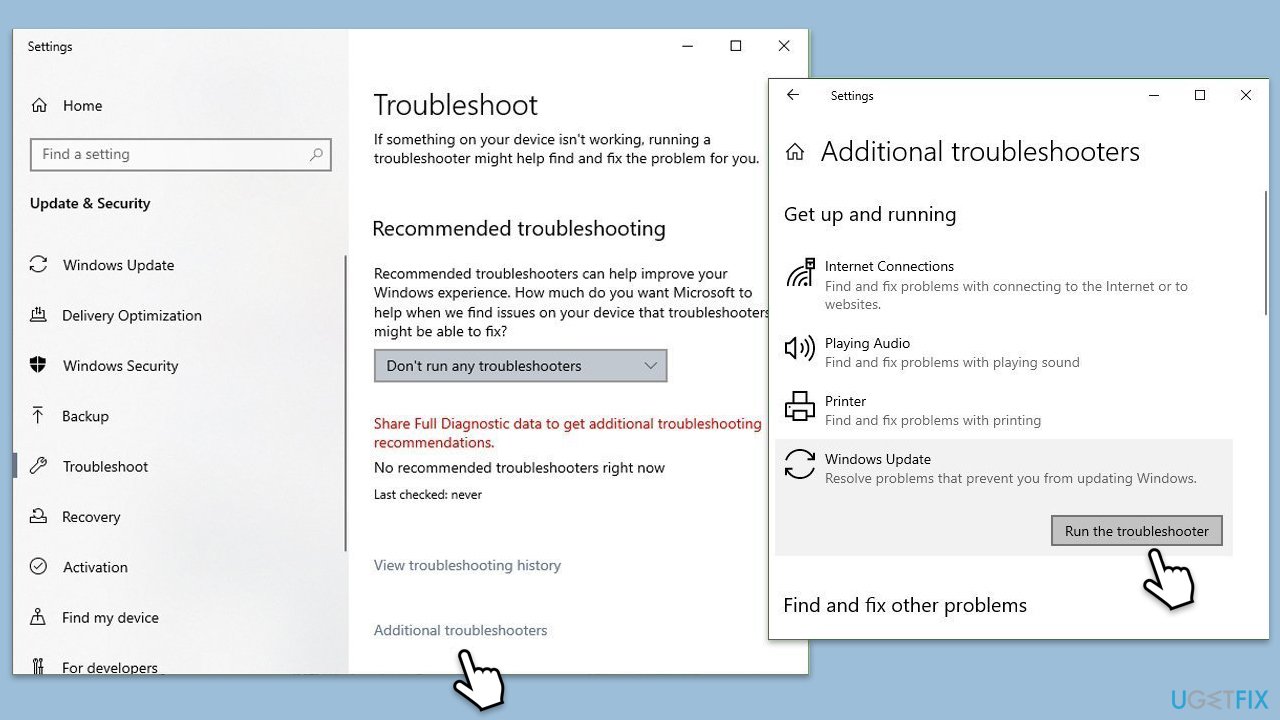
Troubleshooters are useful built-in tools that can often help users to resolve problems related to particular Windows issues, such as updates.
- Right-click on Start and pick Settings.
- Select Update & Security.
- Click on Troubleshoot.
- Choose Windows Update.
- Click on Run the troubleshooter.
- Follow the on-screen instructions.
Fix 2. Repair Windows file corruption
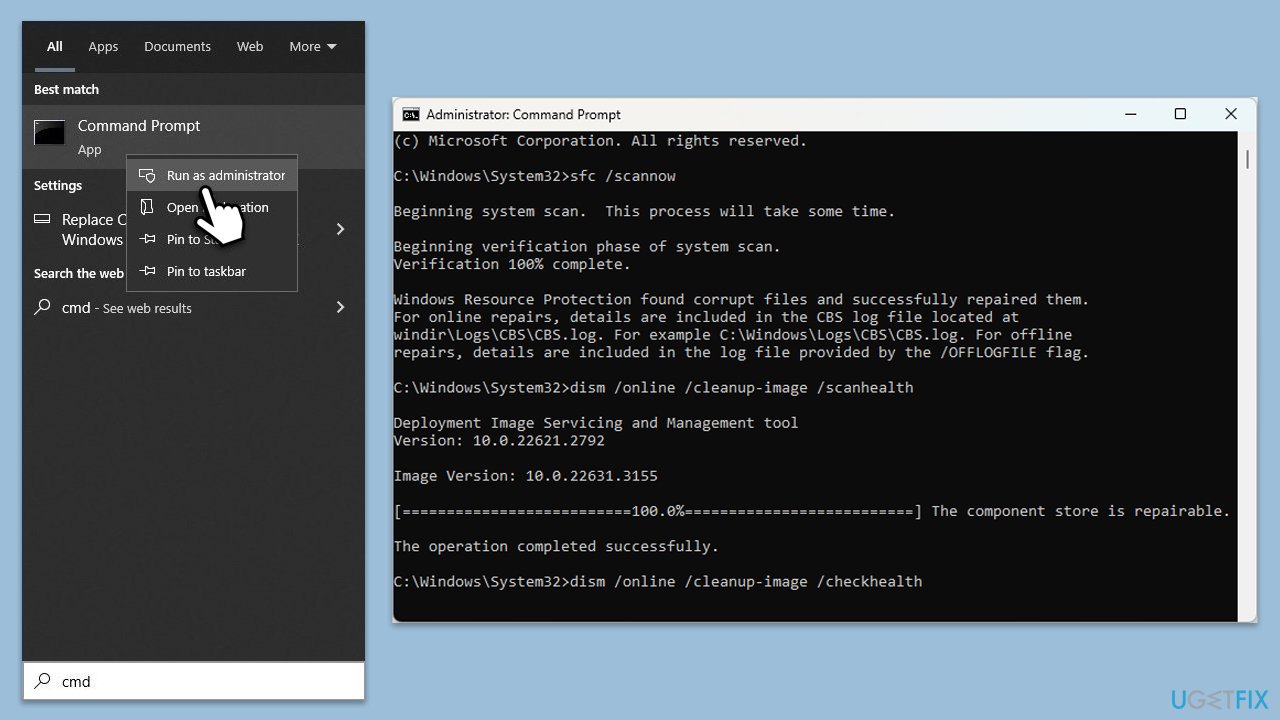
Corrupted system files can often cause Windows to fail to install updates. You can run SFC and DISM utilities to fix them:
- Type cmd in Windows search.
- Right-click on Command Prompt and pick Run as administrator.
- User Account Control will ask you whether you want to allow changes – click Yes.
- Copy and paste this command and hit Enter:
sfc /scannow - Wait for the scan to finish.
- As soon as it finishes, Windows will report whether integrity violations were found and if they could be fixed. Regardless of the outcome, use these commands next, pressing Enter after each:
Dism /Online /Cleanup-Image /CheckHealth
Dism /Online /Cleanup-Image /ScanHealth
Dism /Online /Cleanup-Image /RestoreHealth - Close down the Command Prompt and restart your device.
Fix 3. Disable security or similar software
- Open security software installed on your system.
- Navigate to Settings.
- Look for an option to temporarily disable protection or turn off real-time scanning.
- Disable the protection and try installing the update again.
Fix 4. Install the update manually
If the automatic update fails, downloading and installing the update manually can bypass issues with Windows Update.
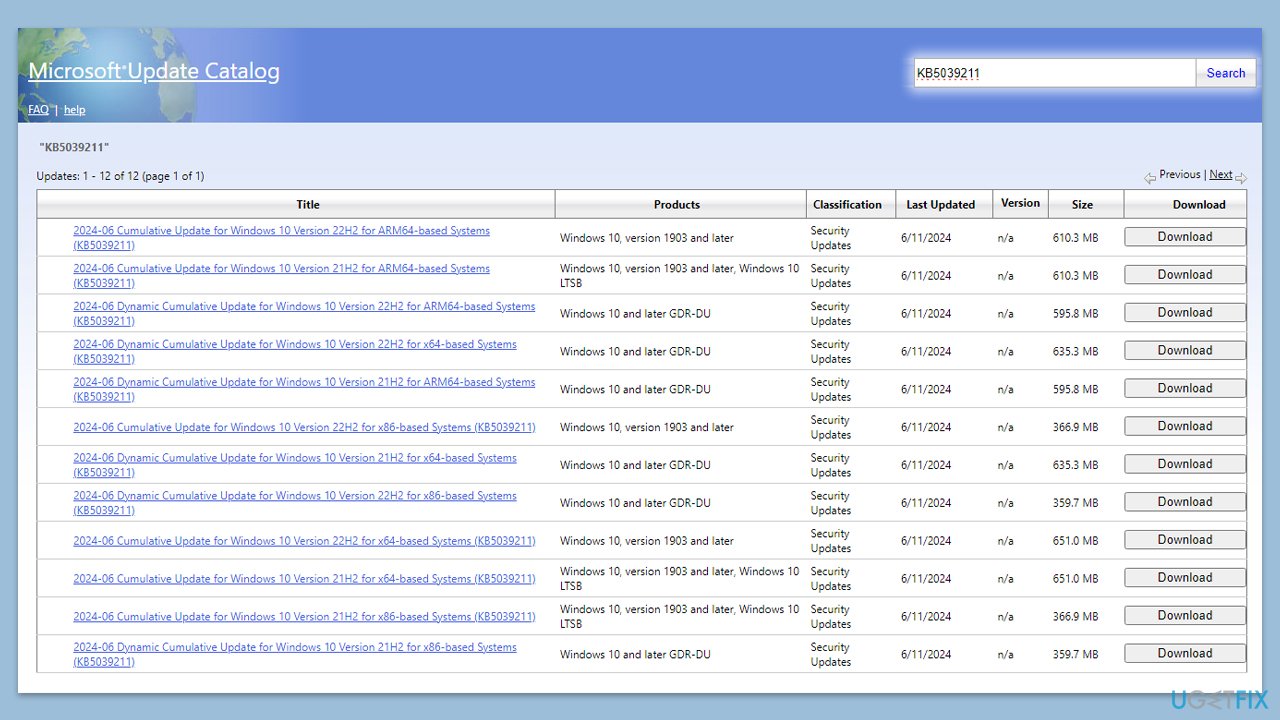
- Visit the Microsoft Update Catalog website.
- In the search bar, type the update number (KB5039211 in this case) and press Enter or click Search.
- Find the update that matches your system type (32-bit or 64-bit) and click Download.
- In the pop-up window, click the link to download the update.
- Once downloaded, run the update file and follow the on-screen instructions.
- Restart your PC.
Fix 5. Reset Windows update components
- Type cmd in Windows search.
- Right-click on Command Prompt and select Run as administrator.
- When the User Account Control window pops up, click Yes.
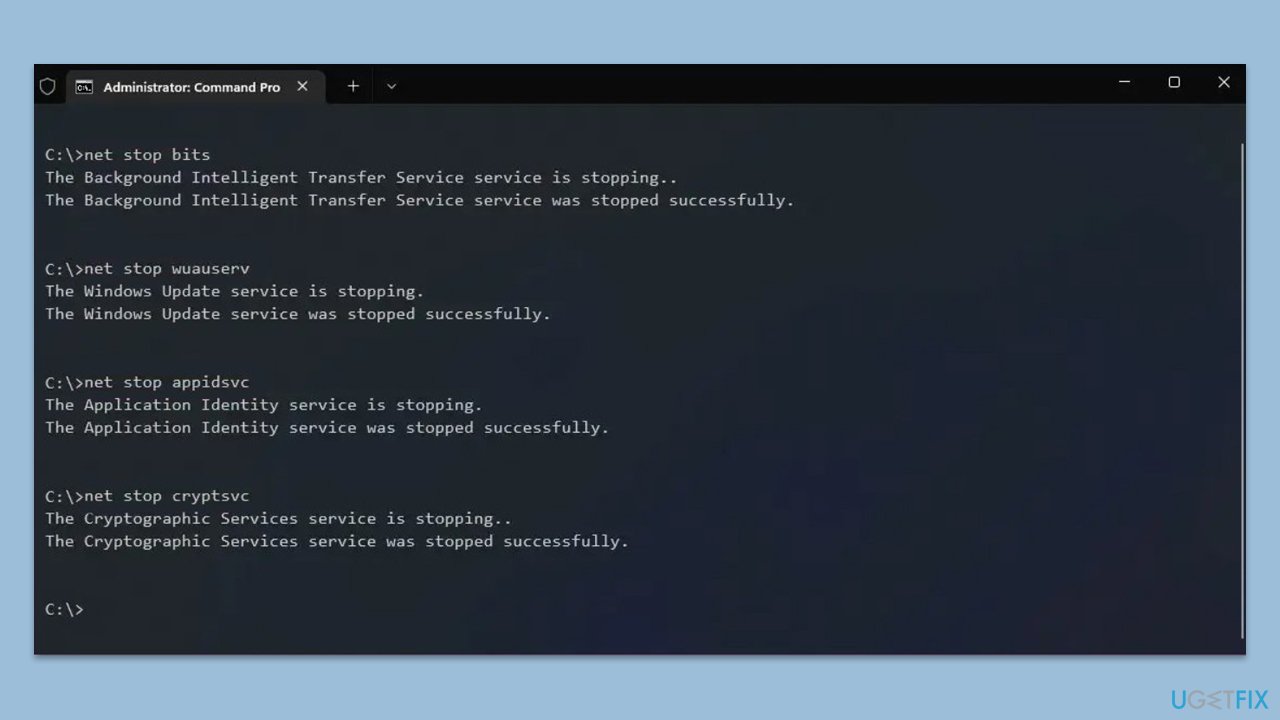
- Type the following commands one by one in Command Prompt and press Enter after each:
net stop wuauserv
net stop cryptSvc
net stop bits
net stop msiserver
Del "%ALLUSERSPROFILE%\Application Data\Microsoft\Network\Downloader\*.*"
rmdir %systemroot%\SoftwareDistribution /S /Q
rmdir %systemroot%\system32\catroot2 /S /Q
regsvr32.exe /s atl.dll
regsvr32.exe /s urlmon.dll
regsvr32.exe /s mshtml.dll - When these commands are executed, the last thing to do is to re-enable relevant services:
net start wuauserv
net start cryptSvc
net start bits
net start msiserver - Reboot your device.
Fix 6. Perform Check Disk
Running the Check Disk utility can identify and repair disk errors that may be causing update installation failures.
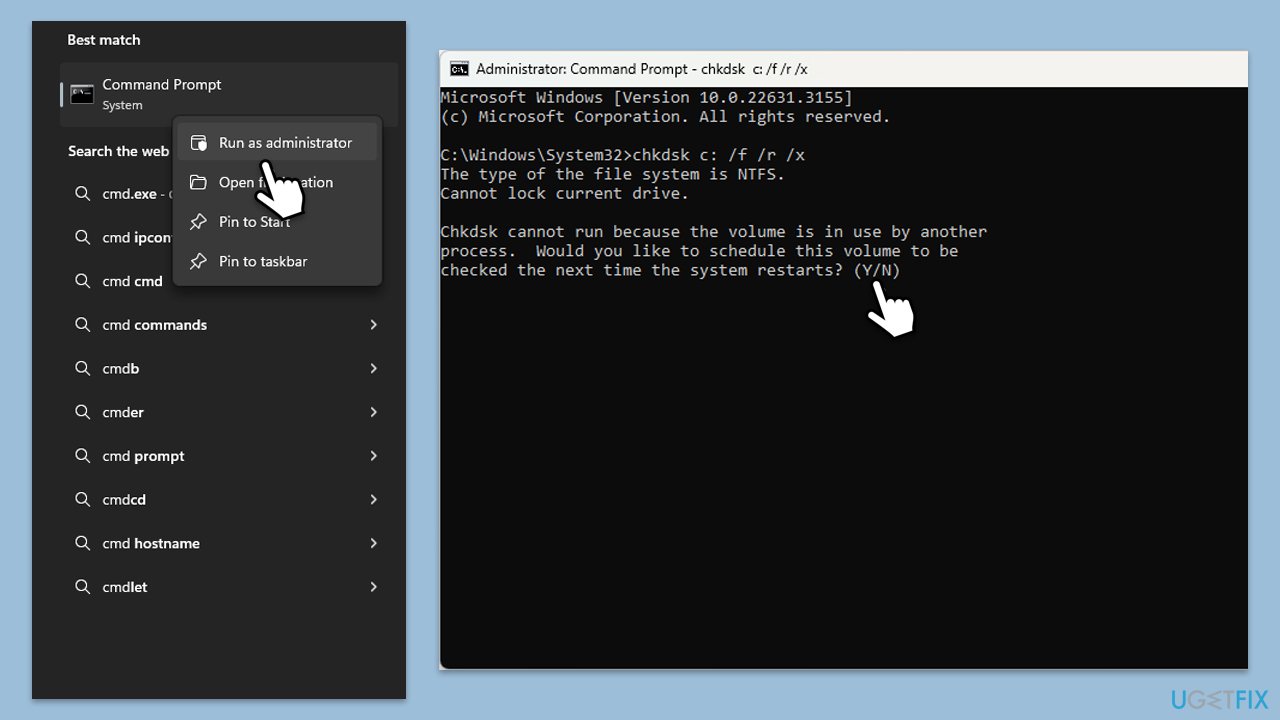
- Open Command Prompt as administrator.
- In the new window, type in the following command and press Enter after:
chkdsk c: /f
(Note: use chkdsk c: /f /r /x command if you are using SSD. Also, replace c: with the external drive letter assigned upon insertion) - If you receive an error, type in Y, close down Command Prompt, and restart your computer.
- Wait till the scan is finished.
Fix 7. Use Media Creation Tool
The Media Creation Tool can be used to upgrade your system to the latest version, effectively installing the update alongside other updates and system files.
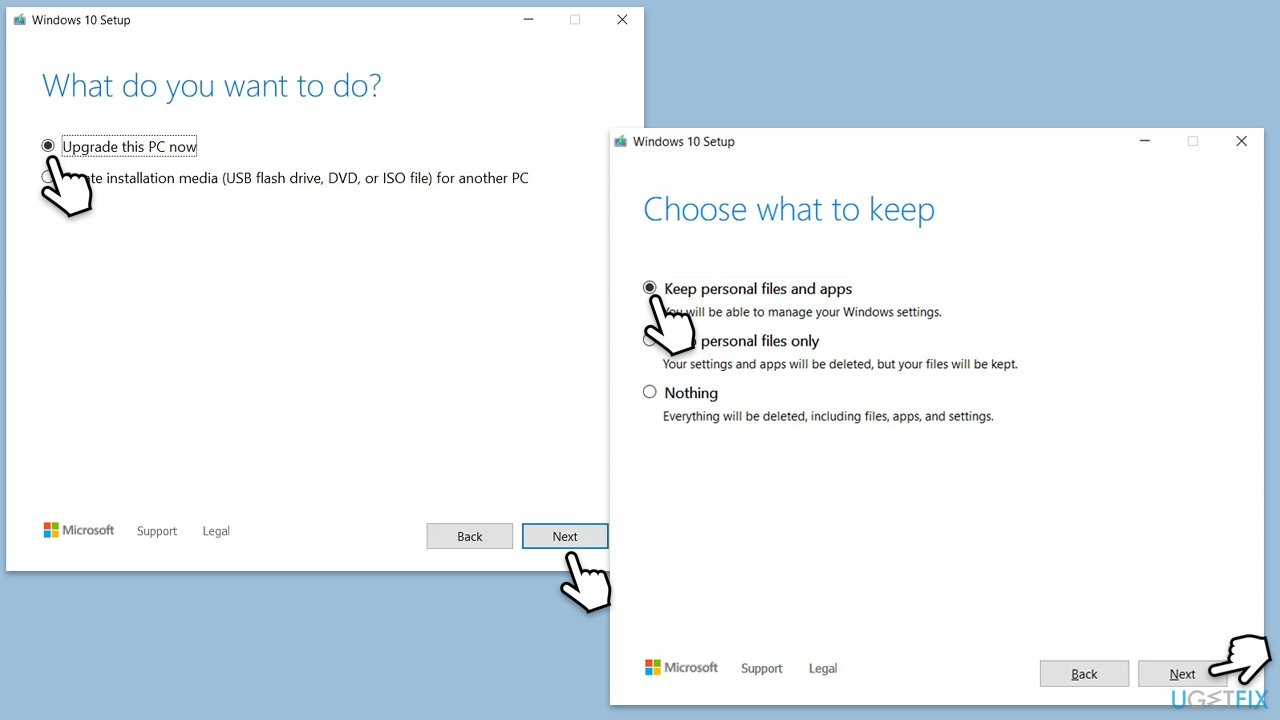
- Visit the official Microsoft website and download Windows 10 installation media.
- Double-click the installer, select Yes when UAC shows up, and agree to the terms.
- Select Upgrade this PC now and click Next.
- Windows will start downloading the needed files.
- Agree to the terms once again and click Next.
- Before installing, ensure you are happy with your choices (otherwise, you can click the Change what to keep option).
- Finally, click Install to begin the upgrade process.
Bottom line
To fix the installation issue with KB5039211, you should address corrupted system files, ensure there is enough disk space, clean caches, disable incompatible security software, and verify that all required services are running. If these steps do not resolve the problem, consider using a maintenance and repair tool to assist with the issues.
Frequently asked questions
First, try running the Windows Update Troubleshooter to automatically detect and fix issues. If that doesn't work, consider manually downloading the update from the Microsoft Update Catalog.
Yes, third-party antivirus programs can block updates; temporarily disabling them during the installation may help. Remember to re-enable your antivirus after the update process.
You can check your update installation history by going to Settings > Update & Security > Windows Update > View update history. This will show you whether KB5039211 was installed successfully or if it failed.




Report an issue
What's wrong with this guide? We review every report and update or remove content.
Report received — thank you. We'll review and fix it.
You need a free account to submit a report.
Be the first to comment