How to fix
KB5049622 fails to install
on Windows
Resolve the KB5049622 installation error in Windows 11 with effective solutions. Expert-tested tips for quick fixes and hassle-free updates. Fixed in mi…

What causes How to fix KB5049622 fails to install in Windows 11?
- Corrupt system files
- Bugged Windows update components
- Misconfigured .NET Framework settings
- Missing .NET Framework components
- Interference from third-party software
- Low available disk space
Repairs Windows system files, removes malware, and restores a clean OS state — without reinstalling.
KB5049622 failed to install for me, while the other update was fine. The error code is 0x80080005. What does that mean and how can I fix it?
When Windows update fails to install, it disrupts the workflow and leaves users without important improvements, such as those related to security or system stability. Whatever the reason, some users cannot seem to get KB5049622 to install, and they don't know what to do to resolve this issue.
It becomes the definition of the KB5049622 update of the.NET Framework running on Windows 11 for its applications to function better and more reliably. Early 2025, the.NET Framework 4.8, 4.8.1, and 4.7.2 update contained some very critical patches for security fixes, bug fixes, and enhancements to stabilize the operating system.
KB5049622 was designed to patch some very specific vulnerabilities and increase compatibility with modern applications; thus, this update has very important roles in keeping secure and efficient computing up to date.
While this is important, some users encounter errors during its installation. When KB5049622 is not installing, it could be for several reasons. Two of the most common reasons include corrupt system files or bugged Windows update components.
Problems with the.NET Framework itself, such as misconfigured settings or missing components, can also block the update process. Interference from third-party software, particularly antivirus programs, may occur during installation. It could be that the available disk space is low or a network interruption made the update process fail halfway through.
The resolution depends on what causes the issue. For some problems, simple steps of restarting the system and ensuring there is a stable internet connection suffice. In cases where .NET Framework is out of configuration or some of its parts are missing, it can be repaired or reinstalled. Clearing cached update files and resetting the Windows Update components are very effective in resolving related issues. If the issue is caused by interference from third-party software, a clean boot will help to isolate the problematic program.
For those who are having trouble fixing the issue manually, [d1] repair is an automated solution. It will diagnose and fix update-related errors quickly and is, therefore, a perfect solution for users facing issues with updates like KB5049622.
Fix 1. Restart the PC
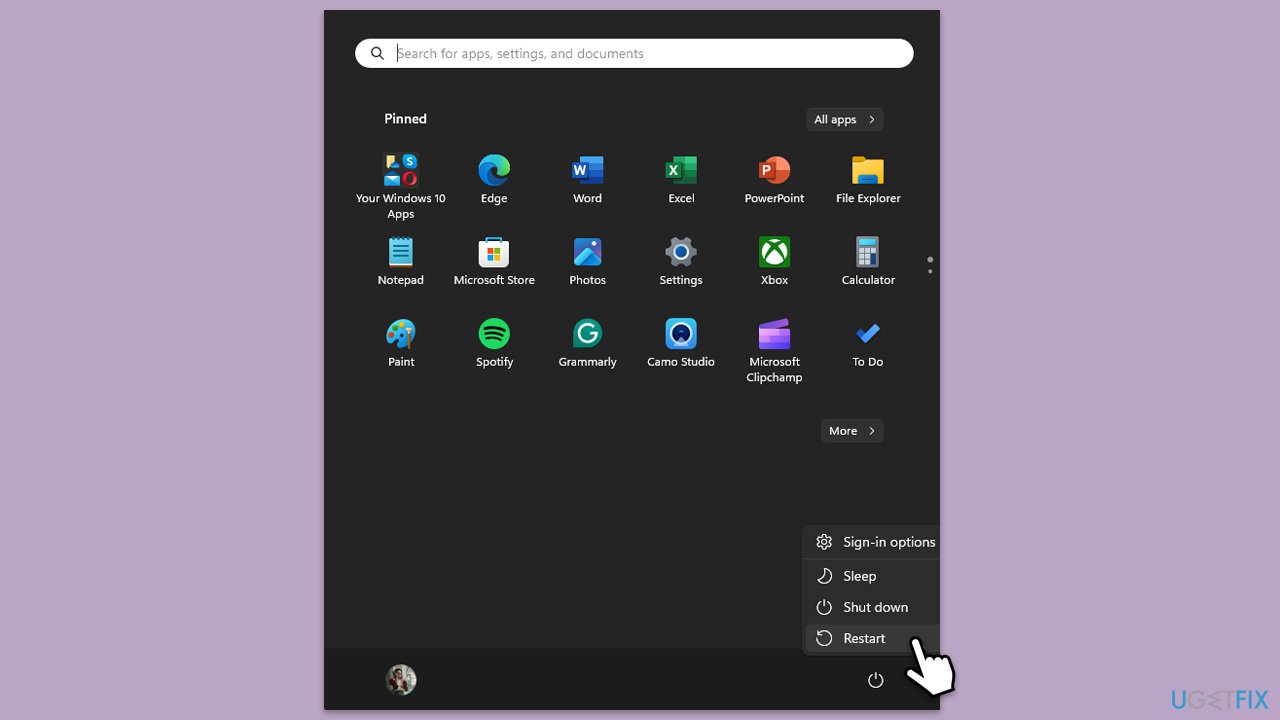
A simple restart can sometimes resolve issues with updates not installing by clearing temporary system glitches.
- Close all applications.
- Click on the Start menu.
- Select Restart.
- Wait for your PC to reboot.
Fix 2. Run the Windows Update Troubleshooter
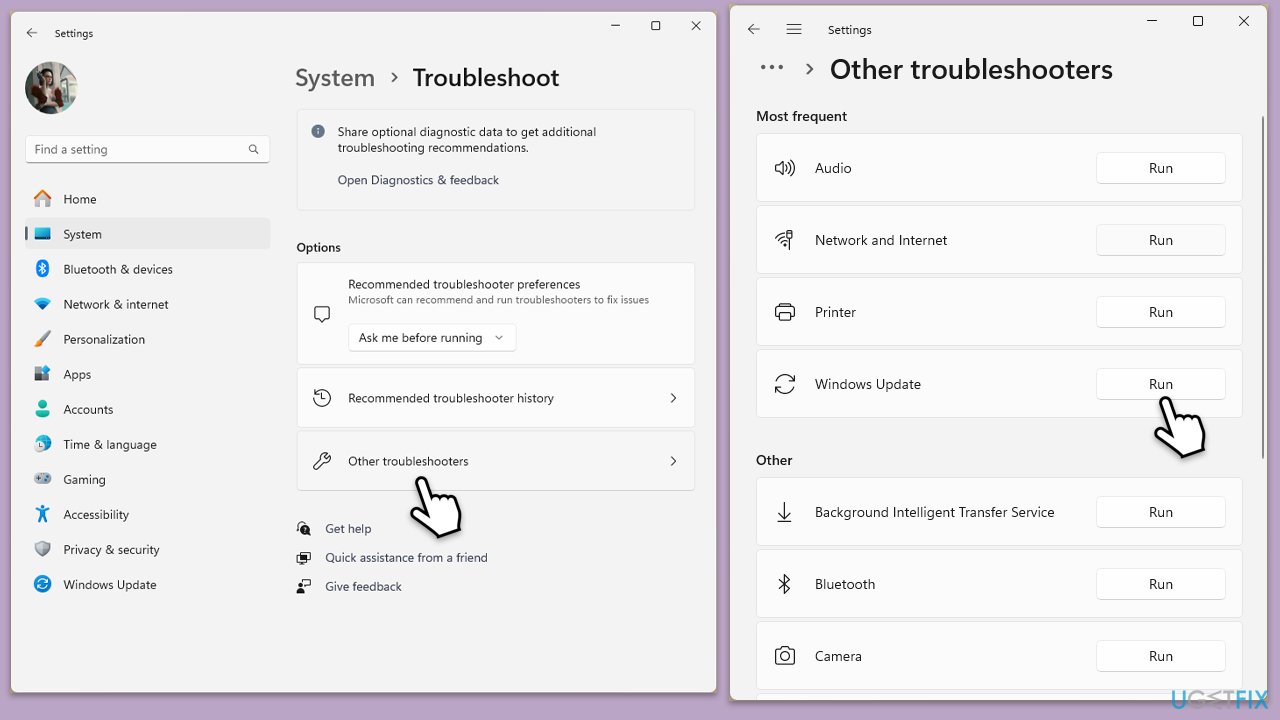
The Windows Update Troubleshooter is a built-in utility that tries to find problems preventing updates from being installed and fix them automatically. It basically scans your system for common update problems and tries to solve them with as little user intervention as possible.
- Type troubleshoot in Windows search and press Enter or go to Start > Settings > System > Troubleshoot.
- From the list of Options, pick Other troubleshooters.
- Scroll down to locate the Windows Update and click Run.
- Wait for it to finish, then apply changes and reboot the system.
Fix 3. Check Windows update services
Windows Update depends on certain services running properly to function correctly. If these services are disabled or not running, the update process can fail.
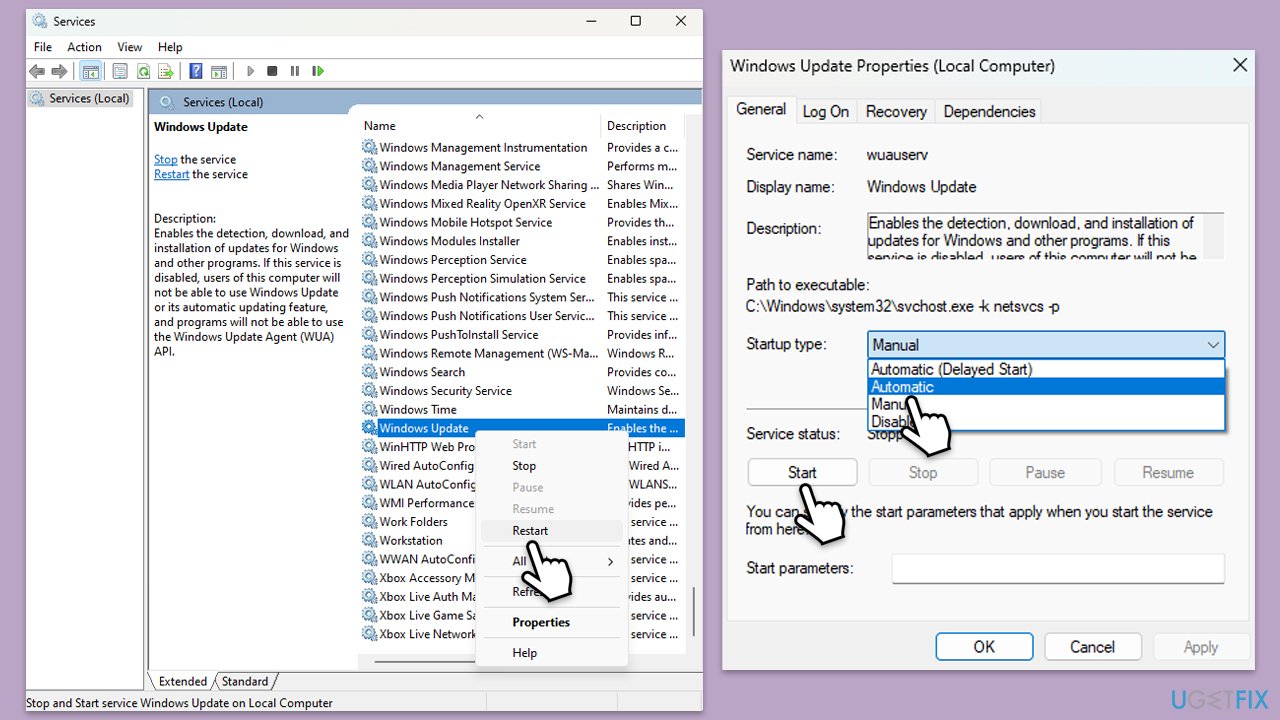
- Type Services in Windows search and press Enter.
- In the Services window, locate and double-click on the following services one by one (if these are already running, right-click and hit Restart):
- Windows Update
- Background Intelligent Transfer Service (BITS)
- Cryptographic Services
- For each service, ensure that the Startup type is set to Automatic. If it's not, select Automatic from the drop-down menu.
- Check the Service status. If the service is not running, click the Start button to start it.
- Click Apply and then OK for each service.
- Close the Services window and restart your computer.
Fix 4. Clear the Windows Update cache
Sometimes, corrupted update cache files can prevent updates from being installed. Clearing it can help resolve these problems.
- Type cmd in Windows search.
- Right-click on Command Prompt and select Run as administrator.
- The User Account Control (UAC) window will ask whether you want to allow changes to your computer - click Yes.
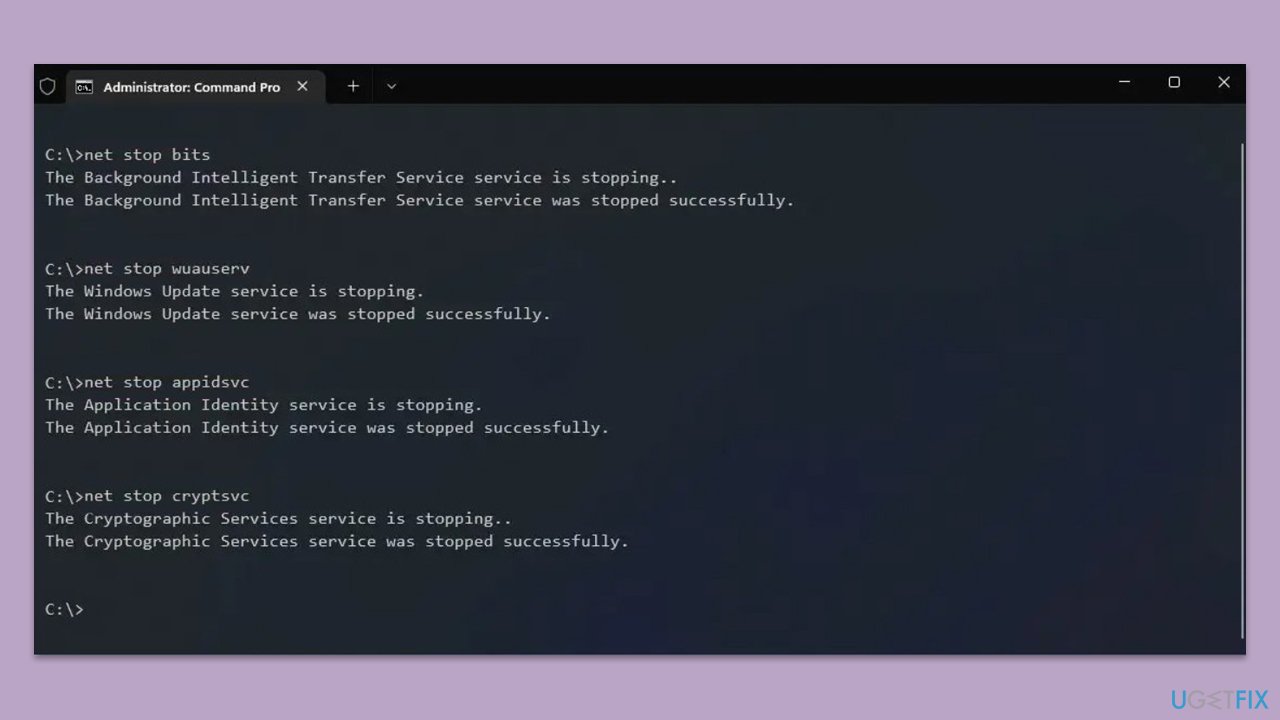
- Copy and paste the following commands one by one in Command Prompt and press Enter after each:
net stop wuauserv
net stop cryptSvc
net stop bits
net stop msiserver
Ren C:\Windows\SoftwareDistribution SoftwareDistribution.old
Ren C:\Windows\System32\catroot2 Catroot2.old - When these commands are executed, the last thing to do is to re-enable relevant services:
net start wuauserv
net start cryptSvc
net start bits
net start msiserver - Reboot your PC.
Fix 5. Repair .NET Framework
KB5049622 is a .NET Framework update, so issues with the .NET installation can cause it to fail. Repairing the .NET Framework can fix such problems.
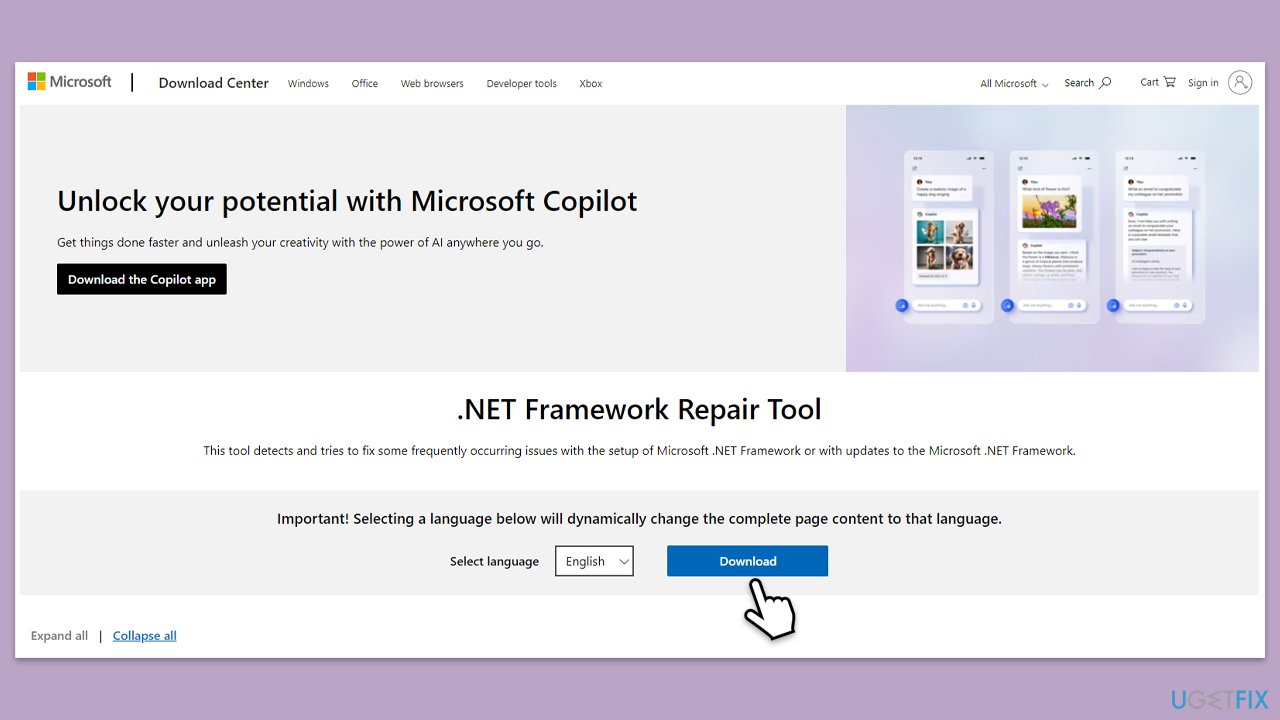
- Open your browser and navigate to the official Microsoft website.
- Download Microsoft .NET Framework Repair Tool from the link provided and launch the installer.
- When the UAC window shows up, click Yes.
- Mark the I have read and accept the license terms and then click Next.
- Follow on-screen instructions to finalize the process.
Fix 6. Use the System File Checker (SFC) and DISM Tool
SFC and DISM are tools that can scan and repair corrupted system files and images, potentially fixing issues preventing updates. Using both tools can help resolve problems with the update process.
- Open Command Prompt as administrator.
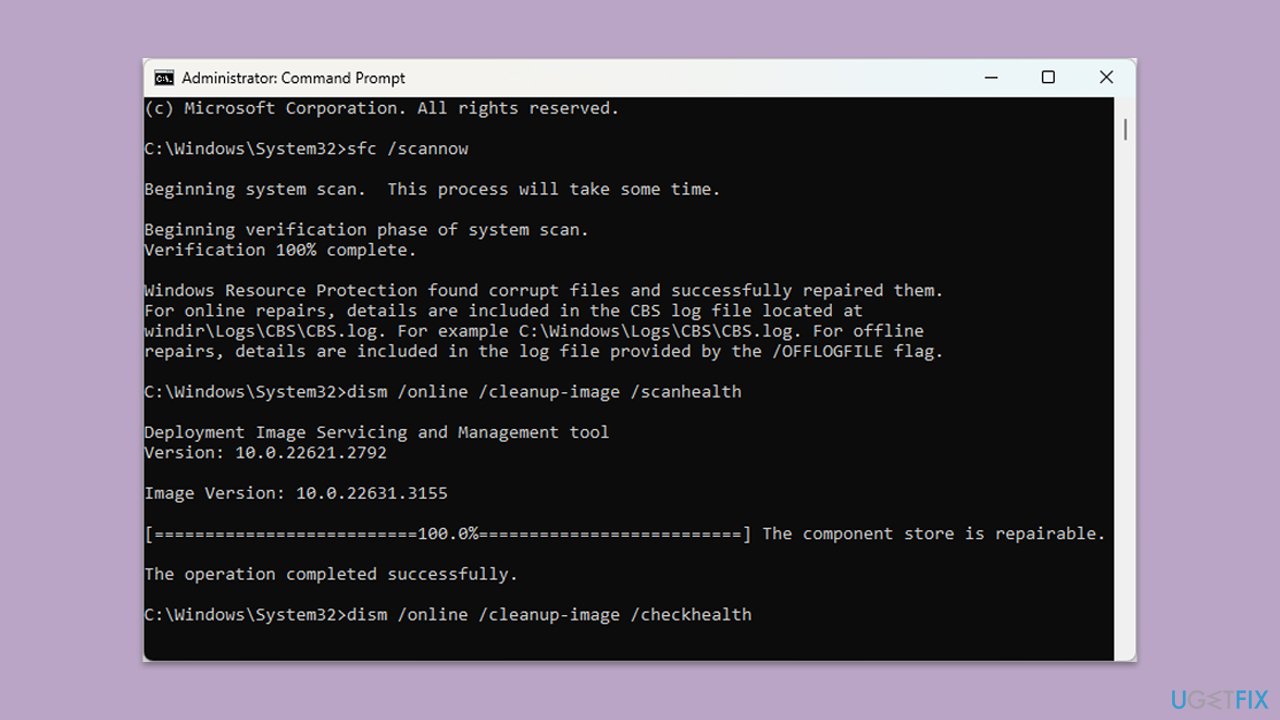
- In the Command Prompt window, paste the following command and hit Enter:
sfc /scannow - Next, use the following commands, pressing Enter each time:
Dism /Online /Cleanup-Image /CheckHealth
Dism /Online /Cleanup-Image /ScanHealth
Dism /Online /Cleanup-Image /RestoreHealth
(Note: if you get an error executing this last command, add /Source:C:\RepairSource\Windows /LimitAccess to it and try again). - Reboot your computer.
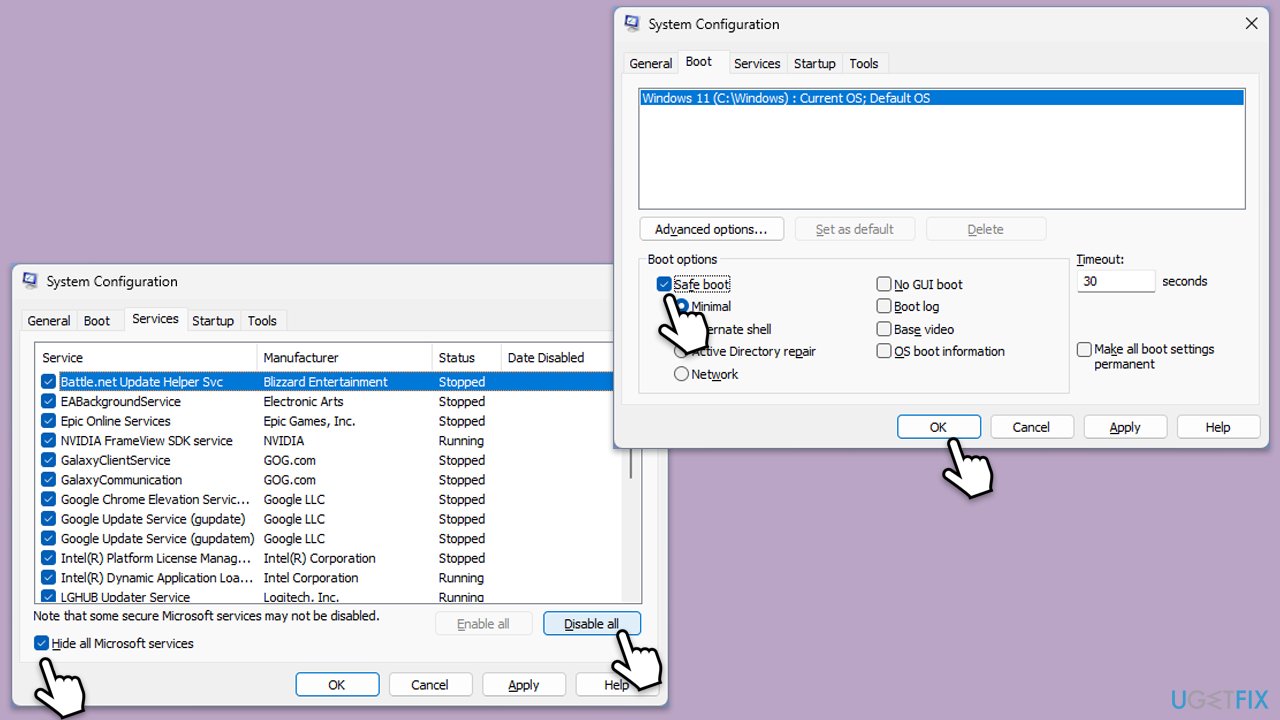
Fix 7. Perform a Clean Boot
The clean boot will help identify if some third-party applications or services are interfering with the update. It boots Windows with only the essential drivers and startup programs.
- Type msconfig in Windows Search and press Enter to open the System Configuration window.
- Click on the Services tab and check the Hide all Microsoft Services box.
- Click Disable all to disable non-Microsoft services, then click the Startup tab.
- Open the Task Manager, disable all startup items, and close the Task Manager.
- Go to the Boot tab and mark the Safe boot option.
- Click OK on the System Configuration window and restart your computer.
- Try installing the update again.
Bottom line
To resolve the installation failure of KB5049622, users can try restarting the system, ensuring a stable internet connection, repairing or reinstalling the .NET Framework, clearing cached update files, and resetting Windows Update components. If the issue persists, performing a clean boot may help isolate any problematic software. For those unable to fix the issue manually, an automated repair solution is available.
Frequently asked questions
First, try running the Windows Update Troubleshooter to identify and fix any issues. If that doesn't work, consider manually downloading the update from the Microsoft Update Catalog.
You can check if KB5049622 is installed by going to Settings > Update & Security > Windows Update > View update history. This will show a list of installed updates.
Yes, ensure that your Windows 11 is up to date with the latest version and that you have enough disk space available for the update.




Report an issue
What's wrong with this guide? We review every report and update or remove content.
Report received — thank you. We'll review and fix it.
You need a free account to submit a report.
Be the first to comment