How to fix
KB5050021 fails to install
on Windows
Resolve KB5050021 installation issues on Windows 11 effortlessly with our expert solutions. Fixed in minutes and updated for 2025!

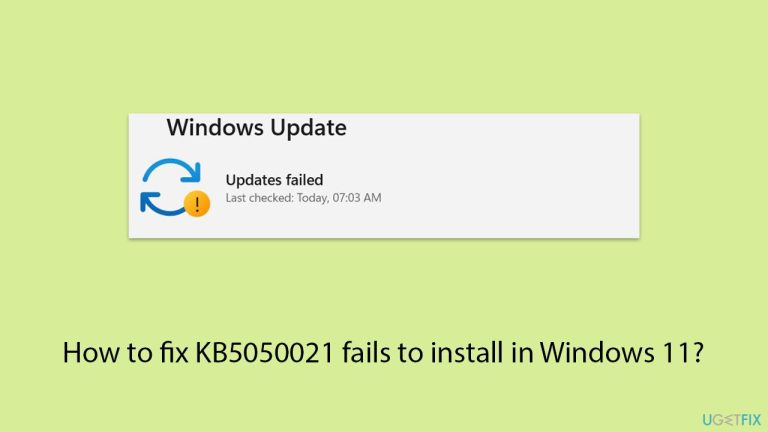
What causes How to fix KB5050021 fails to install in Windows 11?
- Incomplete downloads due to unstable internet connections
- Interference by third-party antivirus software
- Corruption in the Windows Update components
- Insufficient disk space
- Mismatch between the update and the system configuration
- Damaged system files
Repairs Windows system files, removes malware, and restores a clean OS state — without reinstalling.
I was unable to install the newest Windows 11 update KB5050021. Could you help me with this?
Windows Update serves as a crucial component for maintaining system security, performance, and compatibility. Updates are regularly provided through Patch Tuesday, a monthly event where Microsoft releases cumulative updates, security patches, and feature enhancements.
Among these updates, specific Knowledge Base (KB) articles identify individual updates, each addressing particular issues or introducing improvements. These updates are essential for keeping Windows systems secure, functional, and up-to-date.
Released on January 14, 2025, KB5050021 is one such update aimed at addressing various issues within Windows 11. Classified as a cumulative update, KB5050021 targets Windows 11 version 22H2 and 23H2. It includes performance optimizations, compatibility enhancements, and resolutions to known security vulnerabilities.
For instance, it fixes certain connectivity issues with network devices, improves memory management, and addresses flaws related to file handling. Despite its importance, some users have encountered difficulties installing KB5050021, a problem that has raised concerns within the Windows community.
When KB5050021 fails to install, the system might give an error message or silently fail without any obvious feedback. The most common causes of this problem include incomplete downloads due to unstable internet connections and interference by third-party antivirus software. Corruption in the Windows Update components, insufficient disk space, or a mismatch between the update and the system configuration may also lead to installation failure. Additionally, system files might be damaged, preventing the update from applying successfully.
While this can be frustrating, several remedies will get this problem resolved. The solutions include simple steps such as clearing the Windows Update cache to advanced steps like repairing corrupted files or resetting Windows Update components.
For those who prefer an automated approach, the [d1] repair and maintenance app is recommended as a reliable tool to identify and fix update-related problems efficiently.
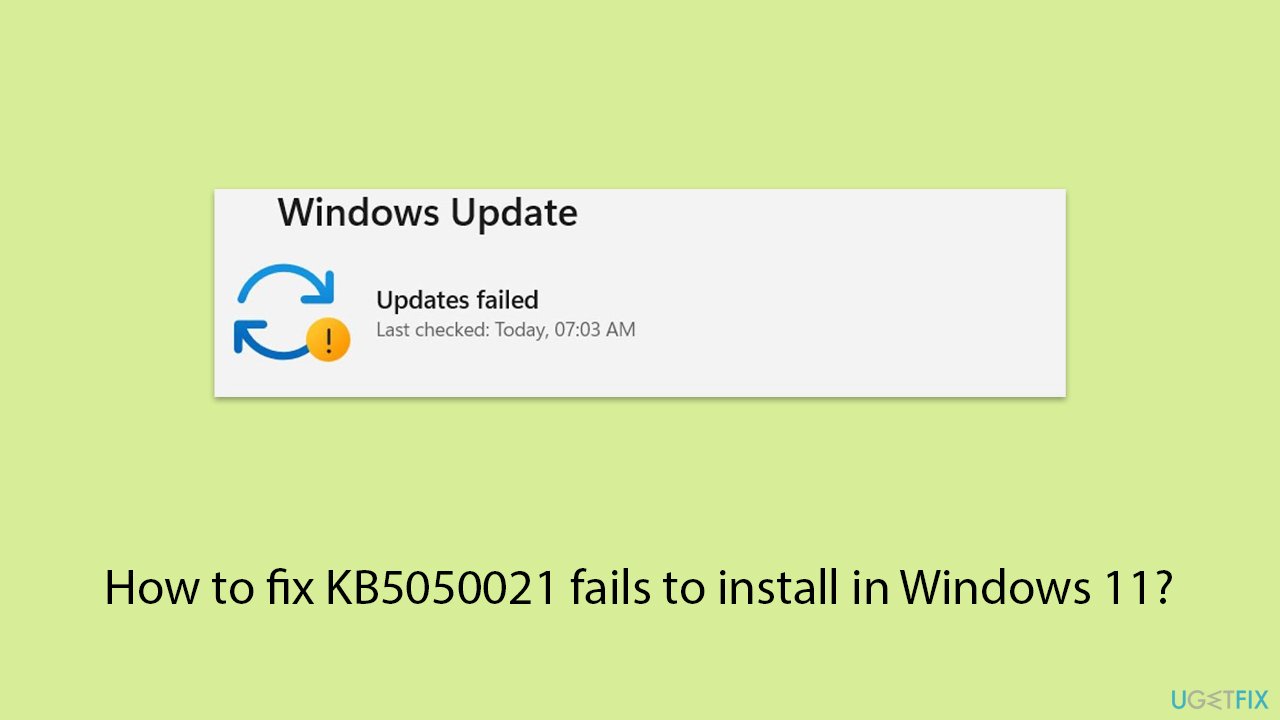
Fix 1. Check services
If essential services for Windows Update are disabled or not running, the update process can fail. Ensuring these services are active can help resolve the issue.
- Type in Services in Windows search and hit Enter.
- Locate Windows update service.
- If this service is already running, right-click and select Restart.
- If it is not running, double-click it, select Automatic under the Startup type from the drop-down menu.
- Click Start, Apply, and OK.
- Locate Background Intelligent Transfer Service (BITS), Cryptographic service, and Windows Installer service, and repeat the process.
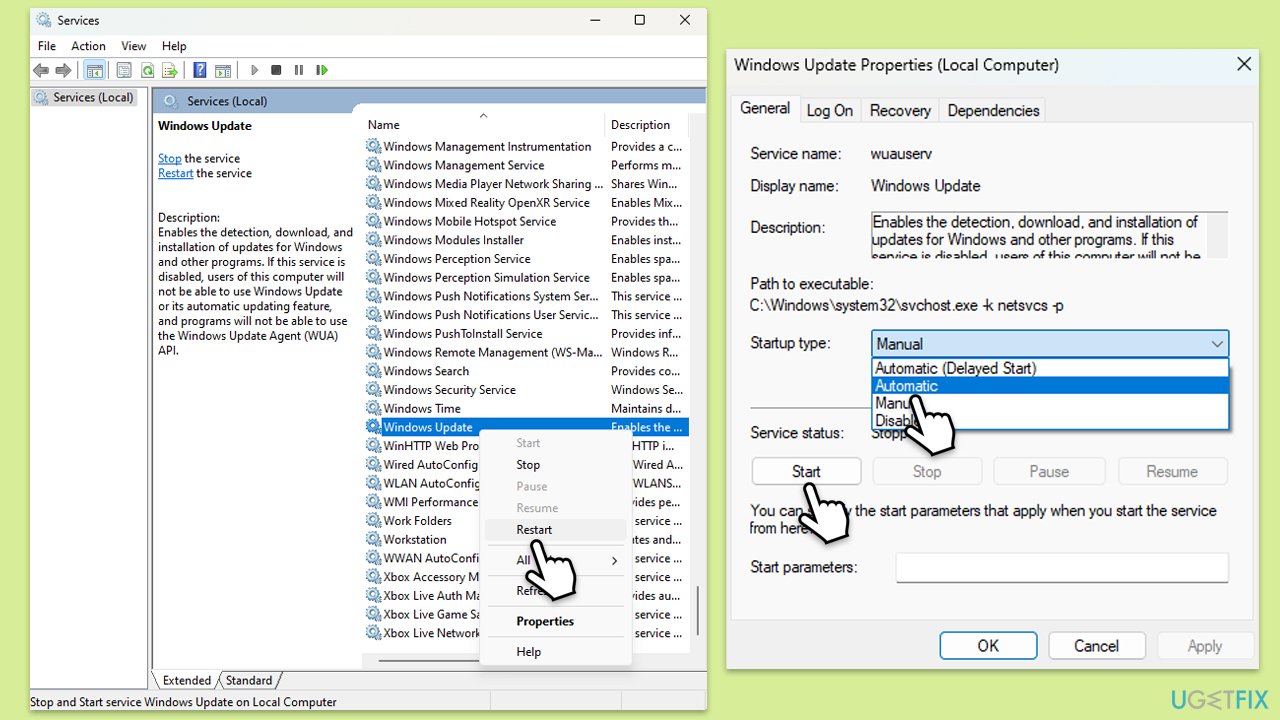
Fix 2. Free up storage space
Insufficient storage space can stop updates from installing. The update requires some free space for temporary files and installation.
- Type Disk Cleanup in Windows search and hit Enter.
- If your Windows is installed on drive C, pick it from the list (should be by default) and press OK.
- Click Clean up system files.
- Select your main drive again and click OK.
- Here, select the largest portions of the data used - these typically include Temporary Internet Files, Windows Update, Temporary Files, Recycle Bin, Delivery Optimization Files, and others. Marking Windows Update is vital here.
- Click OK - the process should be finished shortly.
Fix 3. Disable third-party antivirus software
Sometimes, antivirus programs interfere with the update process, mistaking it for a threat.
- Temporarily disable your antivirus software from its settings menu.
- Retry installing the update.
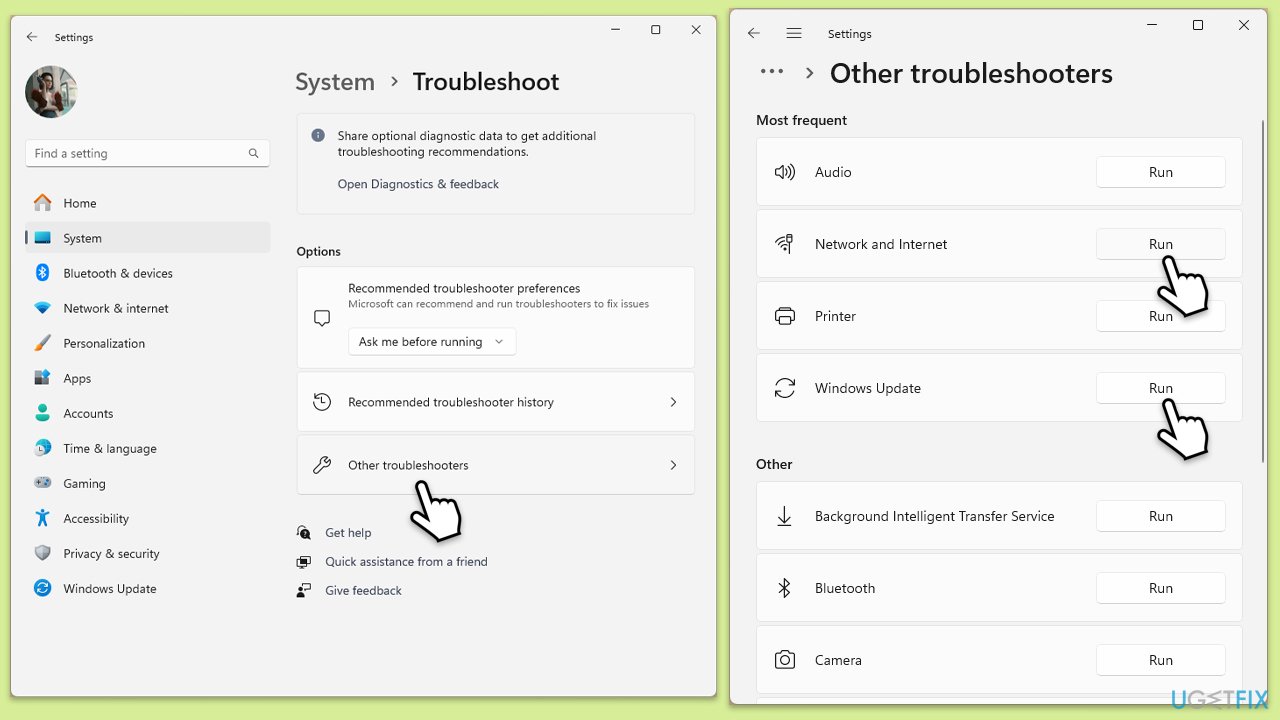
Fix 4. Run the troubleshooters
The built-in troubleshooters can identify and fix common update issues automatically.
- Type Troubleshoot in Windows search and hit Enter.
- Select Other troubleshooters.
- Find Windows Update from the list and click Run.
- The troubleshooter will automatically scan your system for potential problems and display any issues it finds.
- Repeat the process with Network & Internet troubleshooter.
- If the troubleshooter finds any issues, it will provide recommended solutions.
- Follow the on-screen instructions and restart your computer.
Fix 5. Reset Windows Update components
Corrupted update files or services might cause installation problems. Resetting these components can help.
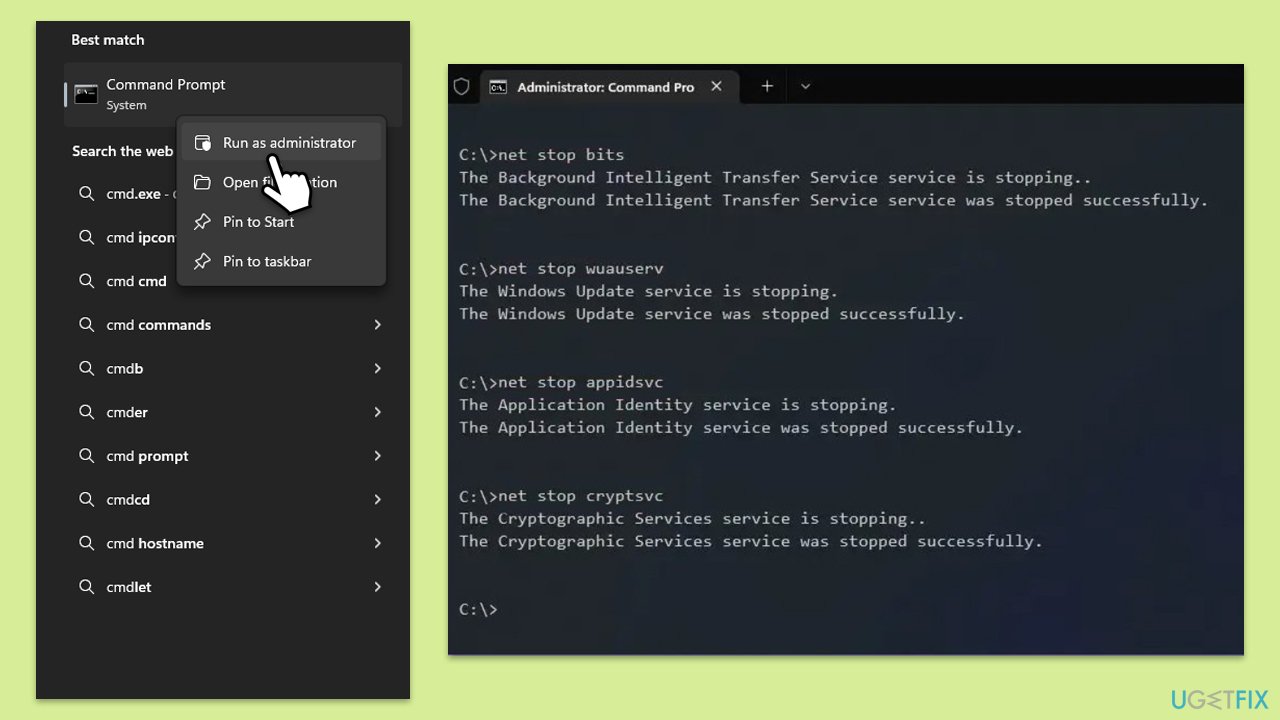
- Type in cmd in Windows search.
- Right-click on Command Prompt and select Run as administrator.
- User Account Control will ask you whether you want to allow to make changes to the system - click Yes.
- Stop the BITS, Windows Update, and Cryptographic services by typing the following commands, and pressing Enter after each:
- net stop bits
- net stop wuauserv
- net stop appidsvc
- net stop cryptsvc
- To rename the SoftwareDistribution and Catroot2 folders (where Windows stores update files), type the following commands:
- ren %systemroot%\SoftwareDistribution SoftwareDistribution.old
- ren %systemroot%\system32\catroot2 catroot2.old
- regsvr32.exe /s atl.dll
- regsvr32.exe /s urlmon.dll
- regsvr32.exe /s mshtml.dll
- netsh winsock reset
- netsh winsock reset proxy
- Restart the services stopped earlier by typing the following commands:
- net start bits
- net start wuauserv
- net start appidsvc
- net start cryptsvc
- Restart your device.
Fix 6. Manually download and install the update
If all else fails, downloading and installing the update manually can bypass many issues.
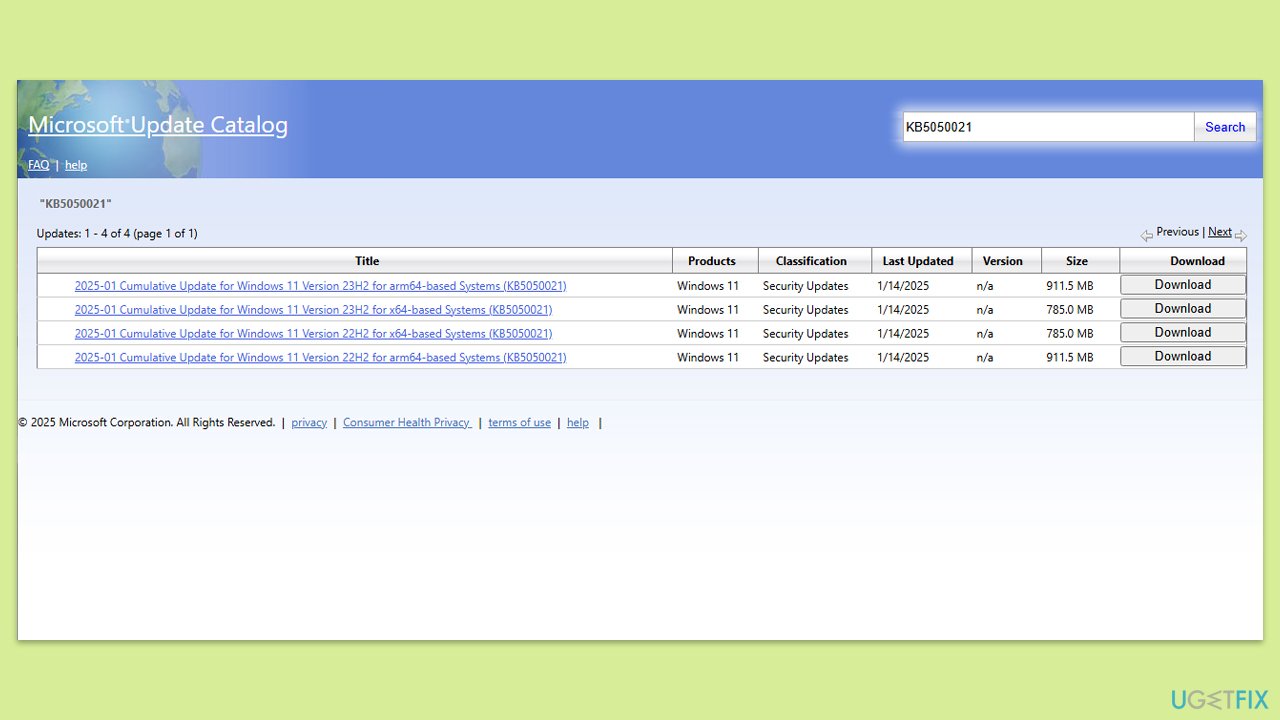
- Open your browser and navigate to the Microsoft Update Catalog where you can find the KB5050021 update.
- Locate the correct version of the update for your operating system by checking your System type (Right-click on Start and select System. Under Windows specifications, check the Version).
- Click on Download and follow the prompts to complete the process.
- After the full installation, reboot your computer.
Bottom line
To resolve the installation failure of KB5050021, you can try clearing the Windows Update cache, repairing corrupted files, or resetting Windows Update components. If these steps do not work, consider using a repair and maintenance app to identify and fix update-related problems.
Frequently asked questions
First, try running the Windows Update Troubleshooter in Settings to identify and fix any issues. If that doesn't work, consider manually downloading the update from the Microsoft Update Catalog.
Yes, you can uninstall the update by going to Settings > Update & Security > Windows Update > View update history, then select Uninstall updates.
Make sure your Windows 11 is fully updated by checking for any pending updates and ensuring that your device meets the system requirements for the update.




Report an issue
What's wrong with this guide? We review every report and update or remove content.
Report received — thank you. We'll review and fix it.
You need a free account to submit a report.
Be the first to comment