How to fix
KB5053657 fails to install
on Windows
Resolve KB5053657 installation issues on Windows 11 effortlessly with our expert-tested solutions. Get back on track in minutes!

What causes How to fix KB5053657 fails to install in Windows 11?
- Corrupted update files
- Unreliable network connections
- Conflicts with system services
- Clogged update cache
- Driver incompatibilities
Repairs Windows system files, removes malware, and restores a clean OS state — without reinstalling.
I'm on Windows 11 and tried installing KB5053657 through Windows Update, but it keeps failing with an error message. I've restarted my PC, yet it still won't install. Can you help?
Released on March 25, 2025, KB5053657 is an optional cumulative update preview for Windows 11 version 23H2, bringing enhancements like a new emoji button on the taskbar, a Gamepad keyboard layout for touch input, and improved File Explorer accessibility with better text scaling support.
Once installed, it updates systems to Build 22631.5126, also adding spec cards in Settings > System > About. Yet, for many users, KB5053657 fails to install, stalling the process and leaving these features out of reach. The issue often surfaces in Windows Update, where the download progresses but KB5053657 not installing becomes evident as an error code pops up or the system reverts after a restart.
This persistent problem - KB5053657 failing to install - means users miss out on critical fixes and new tools, which can be frustrating when relying on Windows 11 for daily tasks. For users reporting this, a simple reboot didn’t resolve the situation, hinting at underlying causes like corrupted update files, unreliable network connections, or conflicts with system services.
Optional updates like this one, unlike mandatory releases, sometimes encounter such hiccups due to less extensive pre-release testing, making installation failures more common.
When KB5053657 fails to install, it might stem from a clogged update cache, driver incompatibilities, or even third-party software interference. Pinpointing the exact reason requires patience, as the issue varies across systems. The solutions below provide practical steps to address KB5053657 not installing, with [d1] available to tackle deeper Windows issues if needed, ensuring this 23H2 update installs successfully.
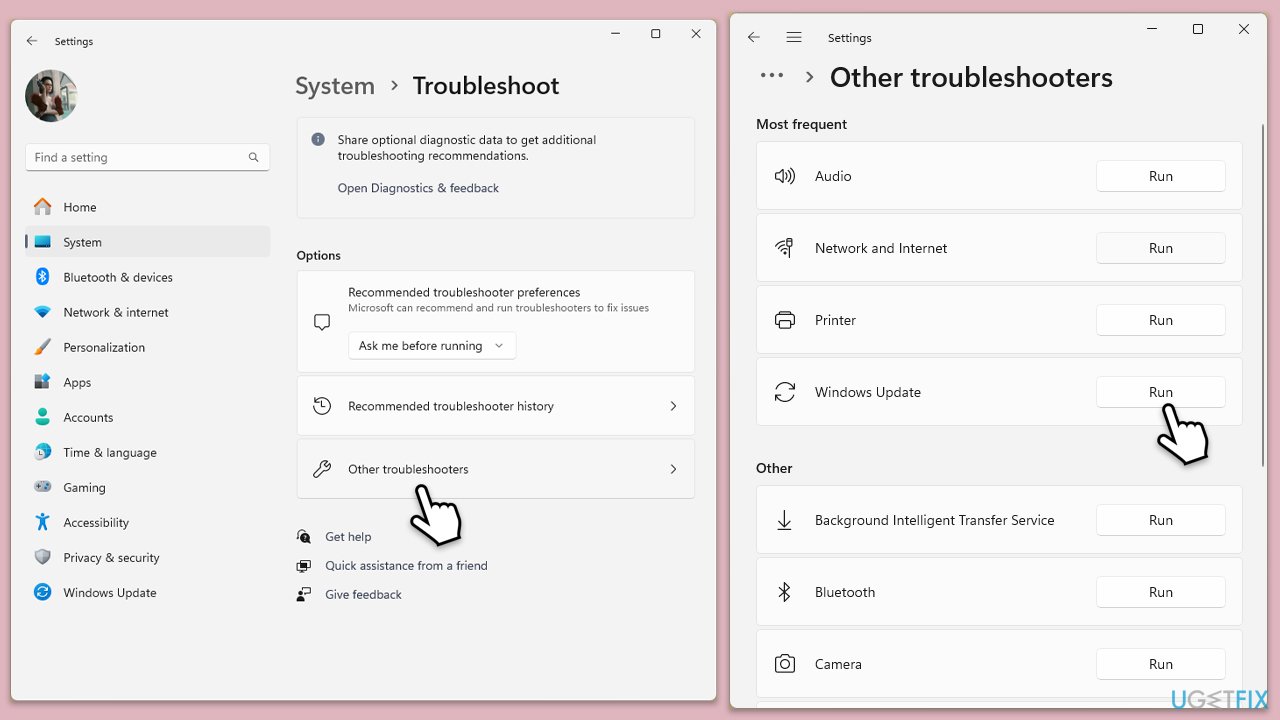
Fix 1. Run Windows Update troubleshooter
Windows troubleshooter might pinpoint and fix the glitch holding the update back.
- Type Troubleshoot in Windows search and hit Enter.
- Select Other troubleshooters.
- Find Windows Update from the list and select Run.
- Wait till the scan is finished - you will be provided with potential causes so you can proceed with fixes.
- If no suggestions were provided, proceed with the solutions below.
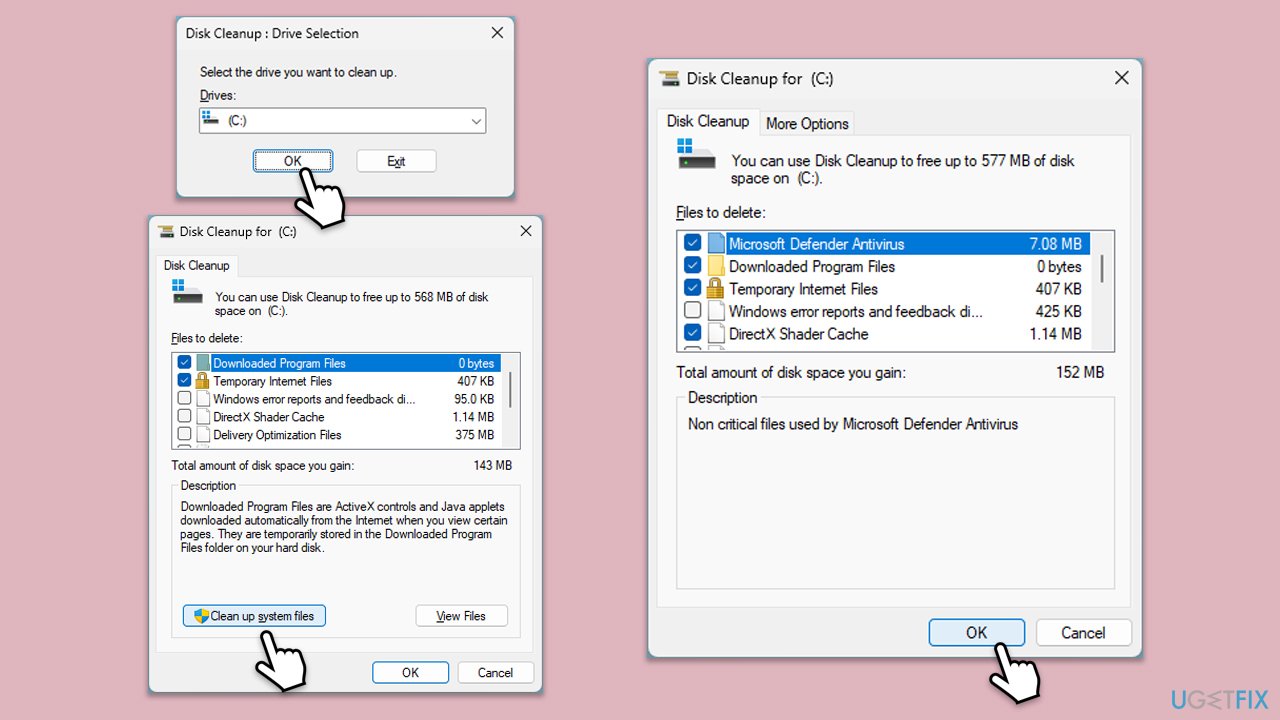
Fix 2. Free up disk space
The update may not download and install if there is not enough storage space. You can free it up to help fix this problem.
- Type Disk Cleanup in Windows search and hit Enter.
- If your Windows is installed on drive C, pick it from the list (it should be by default) and press OK.
- Click Clean up system files.
- Select your main disk again and click OK.
- Here, select the largest portions of the data used - these typically include Temporary Internet Files, Windows Update, Temporary Files, Recycle Bin, Delivery Optimization Files, and others.
- Click OK - the process should be finished shortly.
Fix 3. Fix corrupted system files and repair Windows image
Updates may not install correctly if system files are corrupted. These files can be fixed with the System File Checker and Deployment Imaging Service and Management Tool.
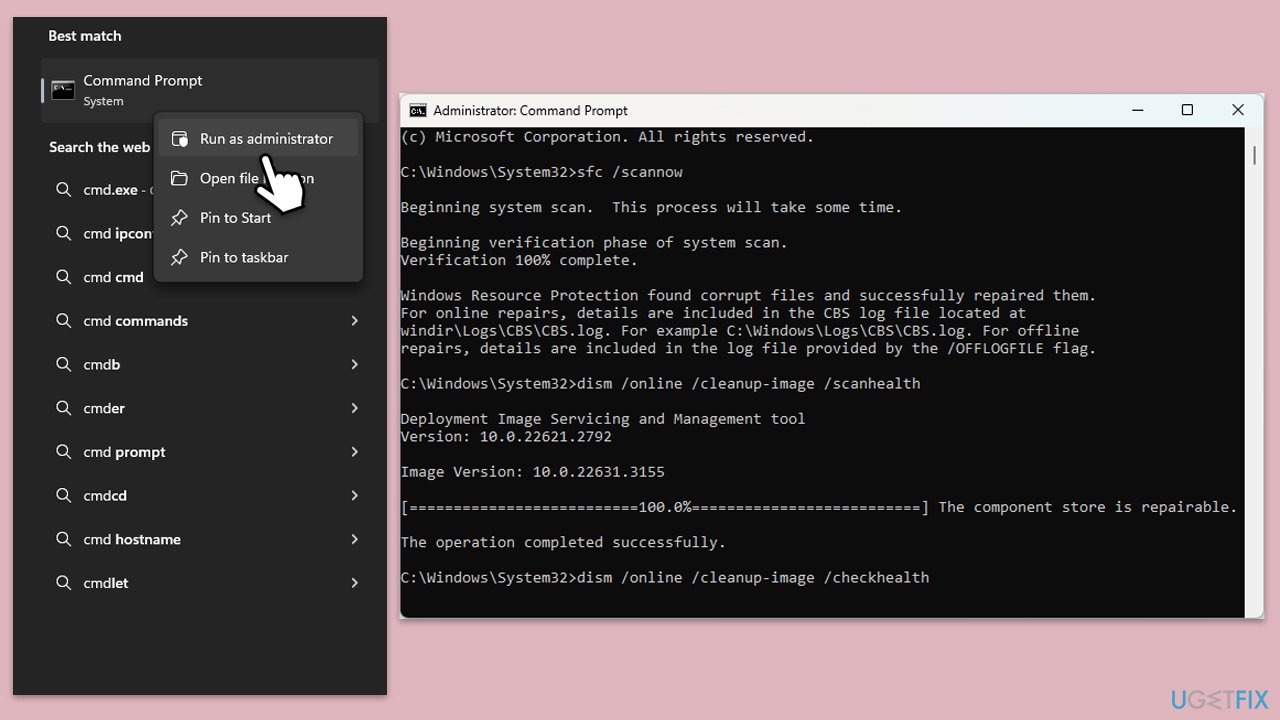
- Type in cmd in Windows search.
- Right-click on Command Prompt and select Run as administrator.
- User Account Control window will show up - click Yes when prompted.
- In the Command Prompt window, paste the following command and press Enter:
sfc /scannow - Wait for the scan to complete.
- Once the SFC scan is finished, run the following set of DISM commands, pressing Enter after each one:
DISM /Online /Cleanup-Image /CheckHealth
DISM /Online /Cleanup-Image /ScanHealth
DISM /Online /Cleanup-Image /RestoreHealth
(Note: if you get an error executing this last command, add /Source:C:\RepairSource\Windows /LimitAccess to it and try again). - After completing the DISM commands, restart your system.
Fix 4. Disable third-party antivirus
Antivirus tools can get overzealous and block the update, so pausing them might open the door to success.
- Open your antivirus program’s main interface.
- Locate the real-time protection or scanning toggle and turn it off temporarily.
- Attempt to install KB5053657 via Windows Update.
- Re-enable antivirus protection afterward.
Fix 5. Install manually via MSU File
Downloading the update directly from Microsoft can sidestep the failure entirely.
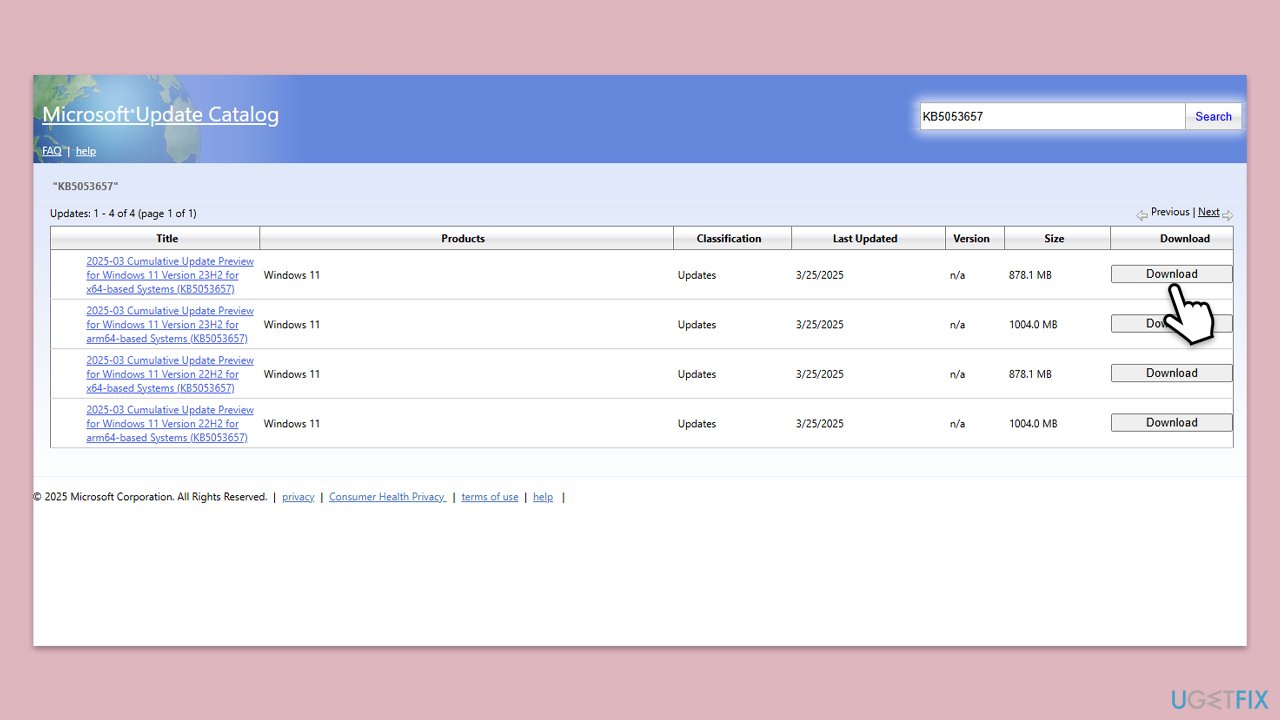
- Visit the Microsoft Update Catalog online.
- Search for KB5053657, download the 64-bit version for 23H2 (released March 25, 2025).
- Double-click the .msu file to launch the installer.
- Follow the on-screen instructions to complete installation.
- Restart your PC and check the build number (should be 22631.5126).
Fix 6. Ensure relevant services are running
For the update to proceed successfully, make sure that relevant services are running.
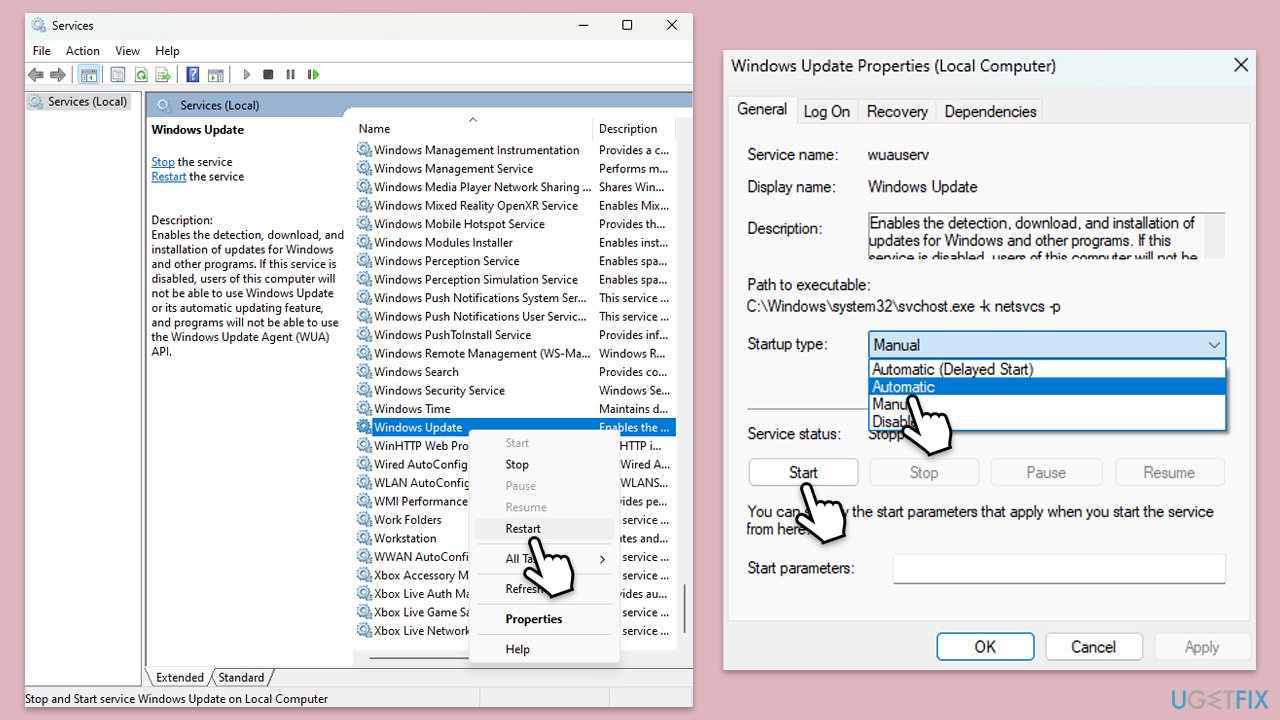
- Type Services in Windows search and press Enter.
- Locate Windows Update.
- If it is already running, right-click and select Restart.
- if the service is not running, double-click it, and pick Automatic under the Startup type from the drop-down menu.
- Click Start, Apply, and OK.
- Repeat this process with the following services:
Background Intelligent Transfer Service (BITS)
Microsoft Store Install Service
Cryptographic Service
Windows Installer - Restart your computer.
Fix 7. Reset Windows Update components
To enable a proper installation of the update, corrupted or stuck update files can be removed by resetting Windows Update components.
- Open Command Prompt as administrator.
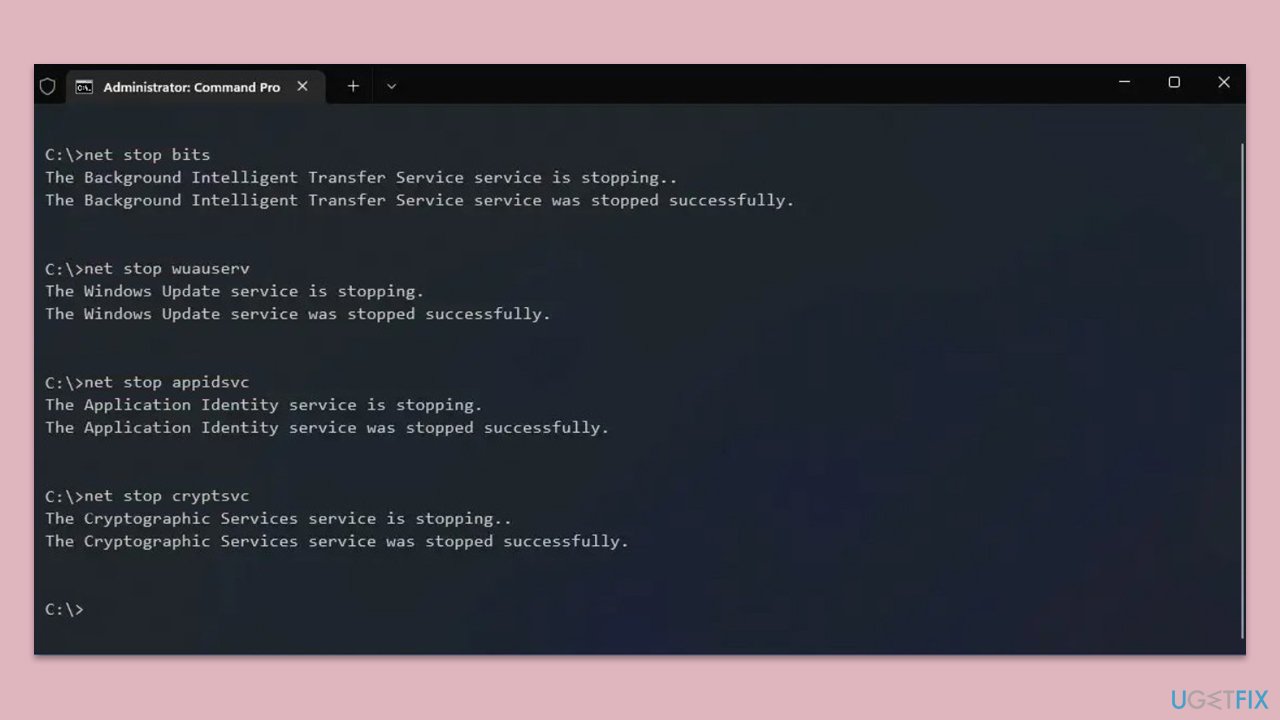
- Stop the Windows Update-related services by running the following commands one at a time, pressing Enter after each one:
net stop wuauserv
net stop cryptSvc
net stop bits
net stop msiserver - Rename the SoftwareDistribution and Catroot2 folders by running the following commands:
ren C:\Windows\SoftwareDistribution SoftwareDistribution.old
ren C:\Windows\System32\catroot2 Catroot2.old
Note: If your Windows installation is not on the C drive, replace "C" with the appropriate drive letter.
regsvr32.exe /s atl.dll
regsvr32.exe /s urlmon.dll
regsvr32.exe /s mshtml.dll
netsh winsock reset
netsh winsock reset proxy - Restart the Windows Update-related services by running the following commands:
net start wuauserv
net start cryptSvc
net start bits
net start msiserver - Restart your computer.
Bottom line
To resolve the installation failure of KB5053657, users can run the Windows Update troubleshooter, check their network connection, and clear the update cache. If these steps do not work, further investigation into driver compatibility and third-party software interference may be necessary.
Frequently asked questions
First, ensure that your Windows 11 is up to date by checking for other pending updates. If the issue persists, try running the Windows Update Troubleshooter from Settings to identify and resolve the problem.
Yes, you can manually download the update from the Microsoft Update Catalog website and install it on your Windows 11 device. Make sure to select the correct version for your system architecture.
Common reasons include insufficient disk space, system file corruption, or conflicts with antivirus software. It's advisable to check these factors before attempting the installation again.




Report an issue
What's wrong with this guide? We review every report and update or remove content.
Report received — thank you. We'll review and fix it.
You need a free account to submit a report.
Be the first to comment