How to fix
Microsoft “Something went wrong 1200” error
on Windows
Resolve the Microsoft "Something went wrong 1200" error on Windows 10 or 11 effortlessly. Expert-tested solutions provided to fix in minutes!


What causes How to fix Microsoft “Something went wrong 1200” error in Windows?
- Authentication issues
- Network connectivity issues
- Incorrect date and time settings
- Misconfigured network settings
- Corrupted installation files
- Outdated software versions
Repairs Windows system files, removes malware, and restores a clean OS state — without reinstalling.
Hi. I can't use Teams at all for over a week now because of the "Something went wrong [1200]" error. Please help me.
When logging into Microsoft-related accounts on applications like Teams, Outlook, or OneDrive, you might encounter the "Something went wrong 1200" error. This error disrupts access to crucial services, impacting daily activities and professional tasks.
The "Something went wrong 1200" error usually stems from authentication or network connectivity issues. Common causes include server-side problems, network configuration issues, or incorrect device settings. An unstable or slow internet connection often prevents successful communication with Microsoft's servers.
Incorrect date and time settings on your device can interfere with the login process, as they are essential for secure communication. Misconfigured network settings, such as proxy or VPN settings, can also obstruct the connection.
Additionally, corrupted installation files or outdated software versions within the applications might trigger this error. Security software like firewalls or antivirus programs can block necessary network traffic, contributing to the problem.
To address the "Something went wrong 1200" error, ensure that your internet connection is stable and fast, and check that your device's date and time settings are correct.
Review and modify your network configuration, including any proxy or VPN settings. Updating or reinstalling the troublesome software may resolve issues caused by corrupted files or outdated versions.
Disabling any security software that may interfere with the network connection can also assist. Also, look for updates to the operating system or the applications themselves, as these frequently include patches for known issues.
For those who find these steps insufficient or too complex, using a [d1] PC repair tool can automatically fix underlying Windows issues, potentially resolving the "Something went wrong 1200" error without extensive manual troubleshooting.

Fix 1. Clear cached credentials via the Credential Manager
Cached credentials can sometimes cause login issues by storing outdated or incorrect information. Clearing them can help resolve authentication problems.
- Type Credential Manager in Windows search and press Enter.
- Select Windows Credentials.
- Locate and remove any stored credentials related to Microsoft Teams or Office 365.
- Restart your computer.
- Attempt to log in again.

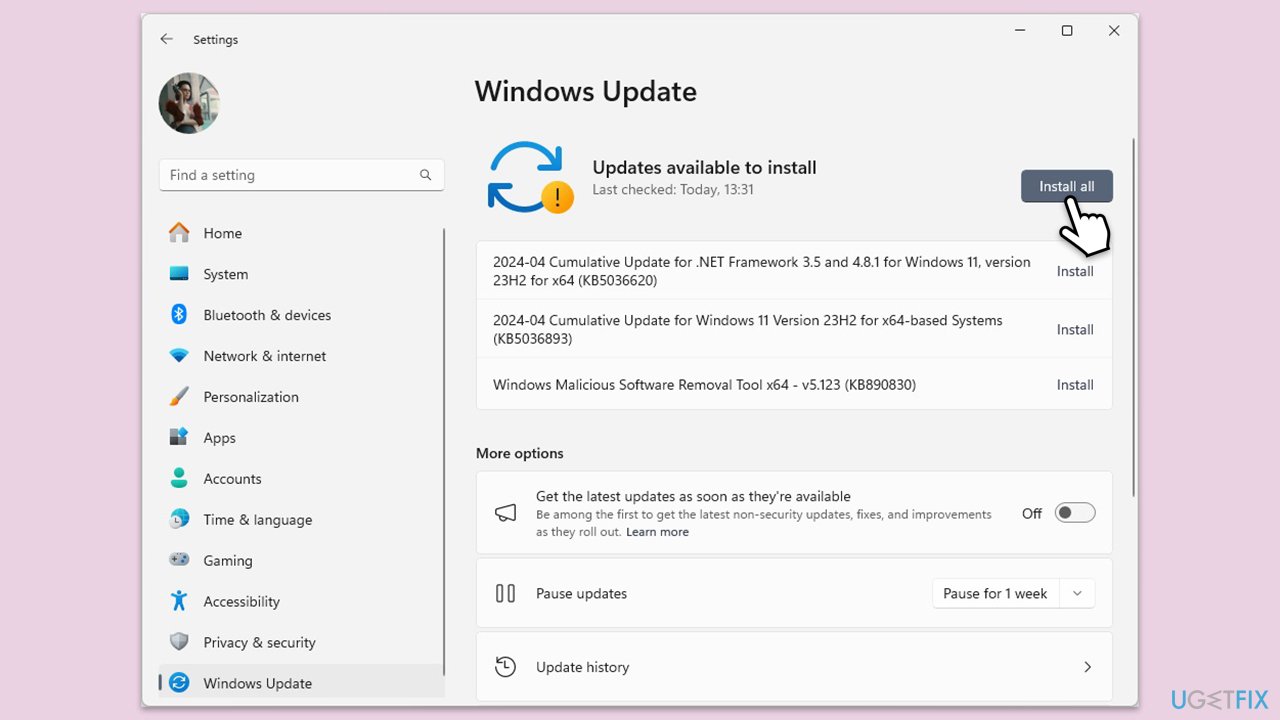
Fix 2. Install all Windows updates
Keeping your operating system up to date ensures you have the latest fixes and improvements, which can resolve various issues, including login errors.
- Type Updates in Windows search and hit Enter.
- If updates are available, click Install updates.
- Otherwise, click Check for updates.
- If optional updates are available, install them as well.
- When all the update processes are complete, restart your computer.
Fix 3. Verify date and time settings
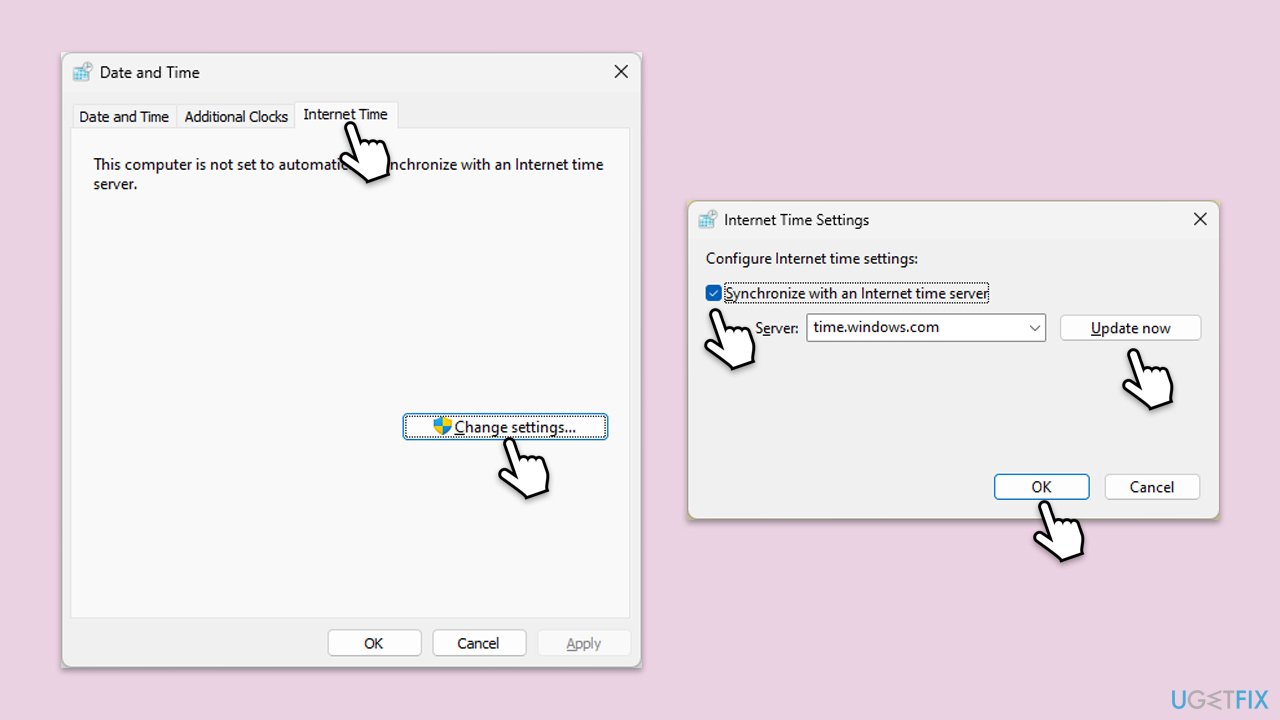
Incorrect date and time settings can interfere with secure communication between your device and Microsoft's servers. Ensuring these settings are accurate can resolve login issues.
- Type in Control Panel in Windows search and press Enter.
- Go to Clock and Region and click on Date and Time.
- Pick the Internet Time tab and select Change Settings.
- Make sure that the Synchronize with an Internet time server box is ticked.
- Click Update now and OK.
Fix 4. Run Windows Store apps and Network troubleshooters
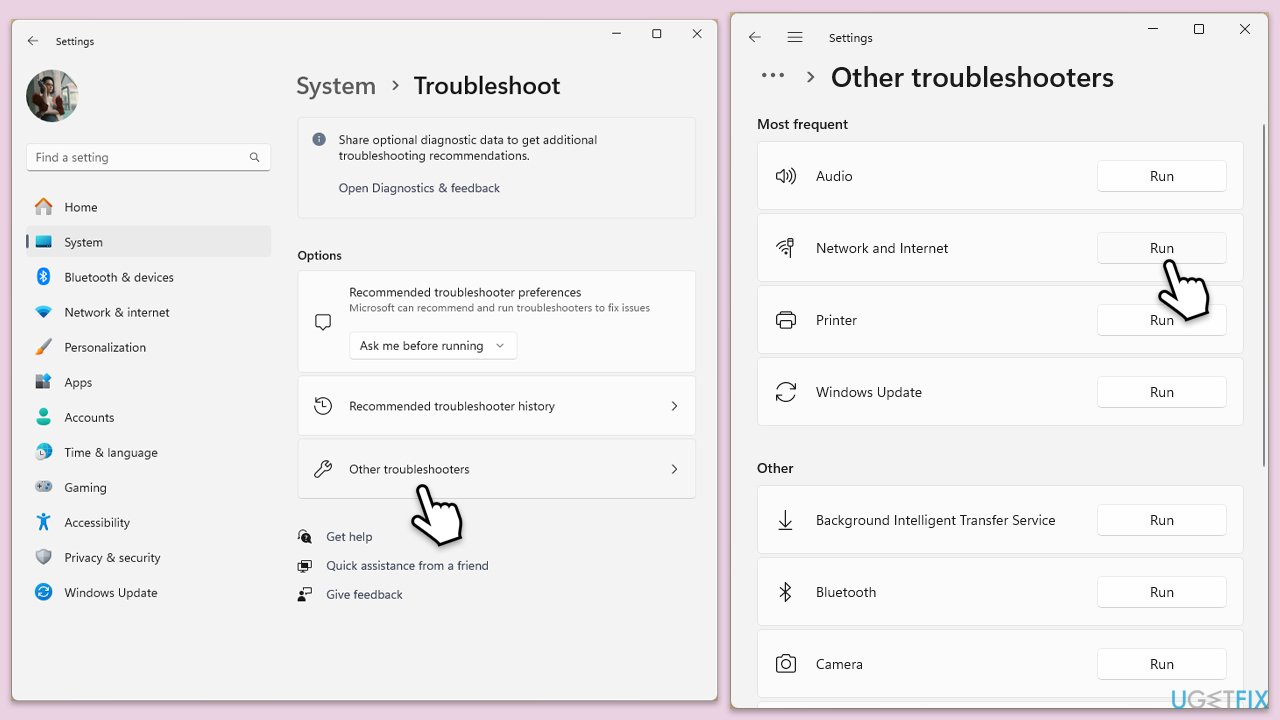
Running these troubleshooters can automatically detect and fix issues related to Microsoft Store apps and network connections, which might be causing the error.
Windows 11
- Type Troubleshoot in Windows search and hit Enter.
- Select Additional troubleshooters/Other troubleshooters.
- Locate Windows Store apps from the list and click Run the troubleshooter/Run.
- Wait till the process is finished and apply the recommended fixes.
- Repeat with Network & Internet troubleshooter.
- Restart your computer.
Windows 10
- Right-click on Start and pick Settings.
- Go to the Network & Internet section.
- On the right side, find the Advanced network settings section.
- Click Network troubleshooter and wait.
- The fixes will be automatically applied.
Fix 5. Clear cache files in your browser
Browser cache files can store outdated information that might interfere with login processes. Clearing these files can help resolve the issue.
Google Chrome
- Open Chrome.
- Click on Menu and select Settings.
- Under Privacy and security, pick Clear browsing data.
- Select All time under the time range.
- Select Browsing history, Cookies and other site data, as well as Cached images and files.
- Click Clear data.
Microsoft Edge
- Open Edge and click on three horizontal dots (Settings and more).
- Select Settings and then pick Privacy, search, and services on the left.
- On the right side of the window, scroll down to find the Clear browsing data section.
- Click Choose what to clear.
- Select All time under the time range.
- Pick all the sections and click Clear now.
Mozilla Firefox
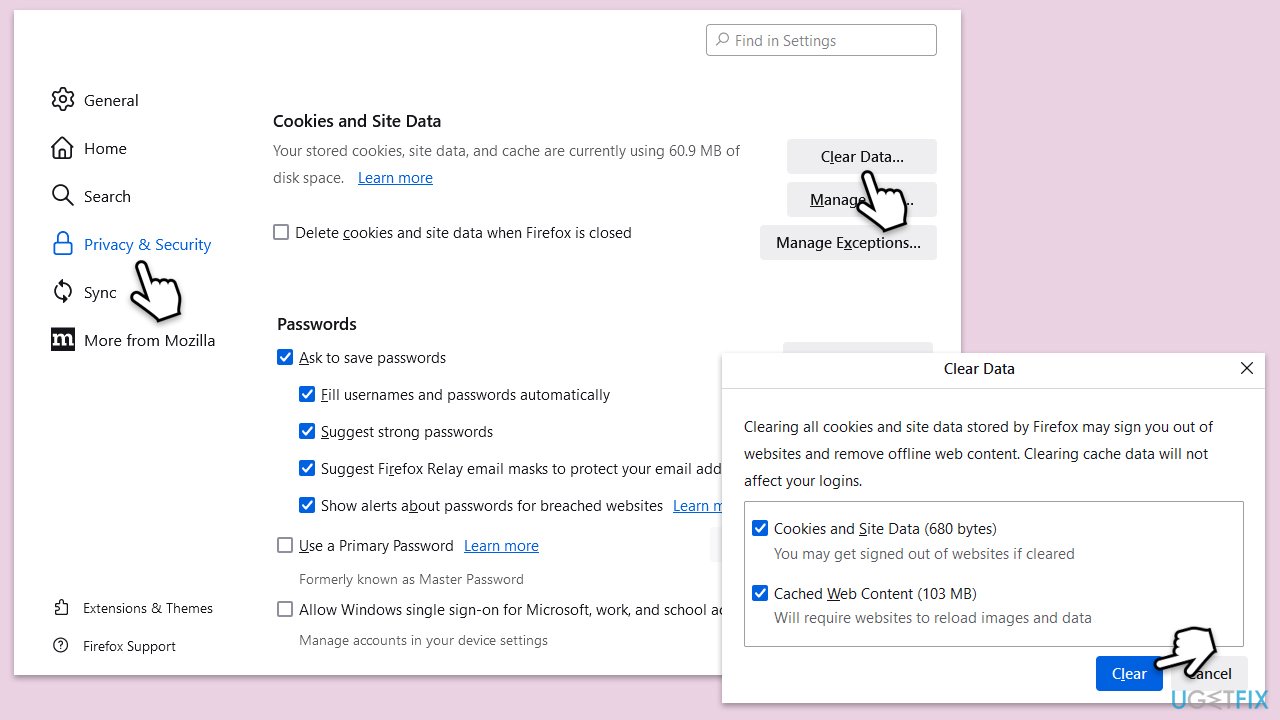
- Click on the menu button (three horizontal lines) in the upper-right corner of the Firefox window.
- Select Settings from the drop-down menu.
- From the panel on the left side, click on Privacy & Security.
- Scroll down to the Cookies and Site Data section, and click on Clear Data.
- Ensure both boxes for Cookies and Site Data and Cached Web Content are checked, and then click on Clear.
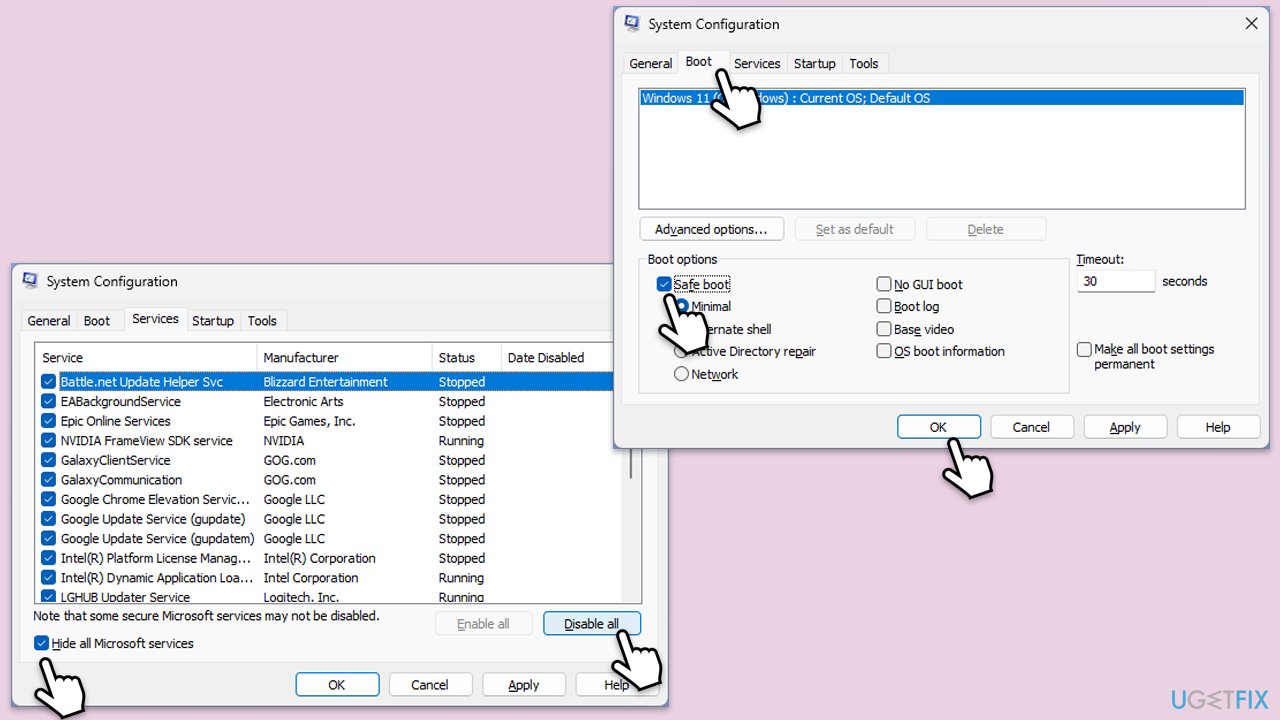
Fix 6. Try Clean Boot
Performing a clean boot starts Windows with a minimal set of drivers and startup programs, which can help identify if background processes are causing the issue.
- Type msconfig inWindows Search and press Enter to open the System Configuration window.
- Click on the Services tab and check the Hide all Microsoft Services box.
- Click Disable all to disable non-Microsoft services, then click the Startup tab.
- Open the Task Manager, disable all startup items, and close the Task Manager.
- Go to the Boot tab and mark the Safe boot option.
- Click OK on the System Configuration window and restart your PC.
- After the restart, check if you can log in again. If you can, it means that one of the disabled services or startup items is causing the issue.
- Re-enable services and startup items one by one (or in groups), restarting your computer each time, to identify the specific program or service responsible for the issue.
- Once identified, keep the problematic program or service disabled or uninstall it if necessary.
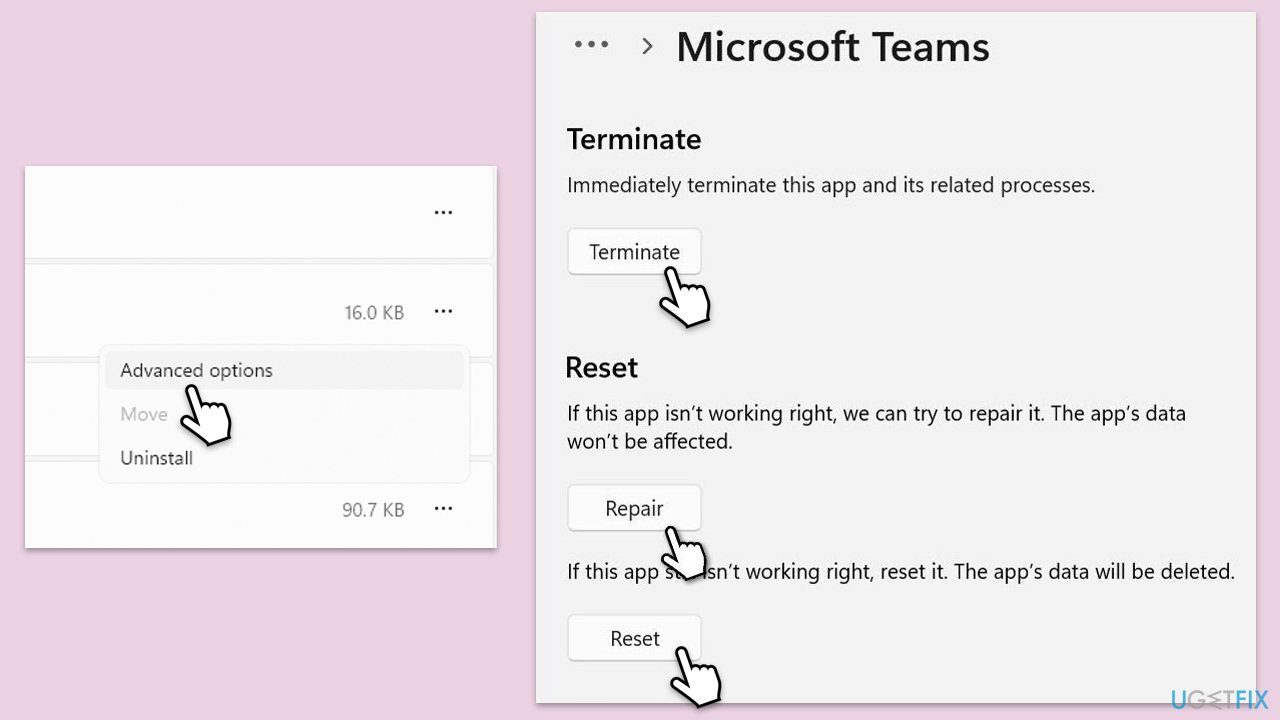
Fix 7. Repair or reset the app
- Click on Start and pick Settings.
- Go to the Apps section.
- Locate Microsoft Teams or another affected app from the list.
- Click on the three vertical dots and pick Advanced options.
- Click Terminate to ensure that the app is not running.
- Under the Reset section, click Repair and see if that solved your issue.
- If not, then try the Reset option.
Bottom line
To fix the 'Something went wrong 1200' error, ensure your internet connection is stable, check your device's date and time settings, and review your network configuration. Updating or reinstalling the affected applications and disabling any interfering security software may also help. If these steps do not resolve the issue, consider using a PC repair tool for automatic fixes.
Frequently asked questions
This error typically occurs due to issues with Windows Store apps, corrupted system files, or problems with user account settings in Windows 10 or Windows 11.
You can try resetting the Windows Store cache by running the command 'wsreset.exe' in the Run dialog, or check for updates to ensure your system is up to date.
Yes, you can perform a system file check using 'sfc /scannow' in Command Prompt, or consider creating a new user profile to see if the issue persists.




Report an issue
What's wrong with this guide? We review every report and update or remove content.
Report received — thank you. We'll review and fix it.
You need a free account to submit a report.
Be the first to comment