How to fix
Microsoft Store and Xbox app error 0x80D03002
on Windows
Resolve Microsoft Store and Xbox app error 0x80D03002 on Windows 10 and 11 effortlessly. Get expert-tested solutions to fix the issue in minutes!

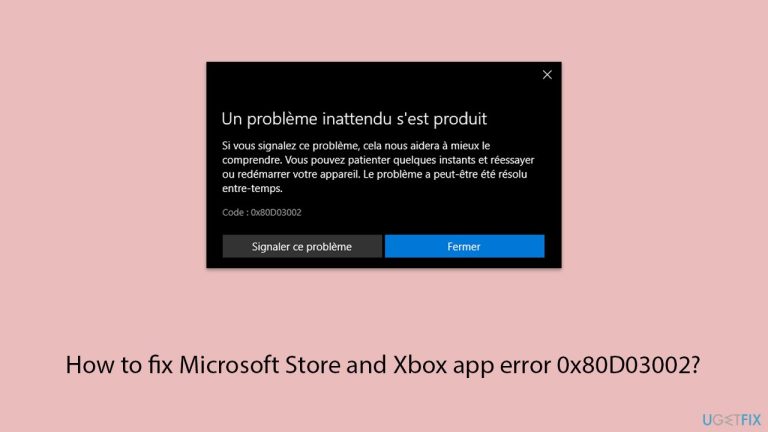
What causes How to fix Microsoft Store and Xbox app error 0x80D03002?
- Failure in communication with Microsoft servers
- Corrupted cached files or temporary data
- Improperly configured system settings
- Desynchronized date and time settings
- Outdated Windows features
- Conflicting software with app functionality
Repairs Windows system files, removes malware, and restores a clean OS state — without reinstalling.
I can't install games from Game Pass on my PC no matter how many times I try. For example, I tried to install COD Modern Warfare III through Xbox app, and I got an error 0x80D03002. I then tried to install Forza Horizon 5, and the result was the same. I then thought that maybe I could do that through Microsoft Store, but again, I received the same error. What is going on and how can I fix this?
The Microsoft Store and Xbox app are go-to hubs for Windows users, offering apps, games, and updates all in one place. Whether you’re grabbing a productivity tool or diving into a new game, these platforms make it simple - until error 0x80D03002 shows up.
For some, this pesky code appears when trying to download or update content, halting the process and leaving you stuck. If you’ve encountered 0x80D03002, you’re not alone; it’s a hiccup that’s tripped up plenty of users.
Why is error 0x80D03002 occurring? More often than not, it points to a failure in the communication of the application with Microsoft servers, which may happen if cached files or temporary data get corrupted. It may also result from improperly configured system settings like desynchronized date and time settings - interfering with the authentication process.
Sometimes, the issue leads back to overarching Windows problems, like outdated features or conflicting software conflicting with the apps' functionality. No matter the cause, 0x80D03002 popping up can be frustrating when all you are trying to do is get something installed.
The good news is there are ways to move past this. Potential solutions include resetting the app cache to clear out any junk, double-checking your system settings to ensure everything aligns, or signing out and back into your Microsoft account to refresh the connection.
For more stubborn cases linked to deeper system issues, a repair and maintenance app like [d1] could help by fixing underlying Windows glitches, getting the Microsoft Store and Xbox app back to working order without that frustrating 0x80D03002 error rearing its head again.

Fix 1. Reset the store cache
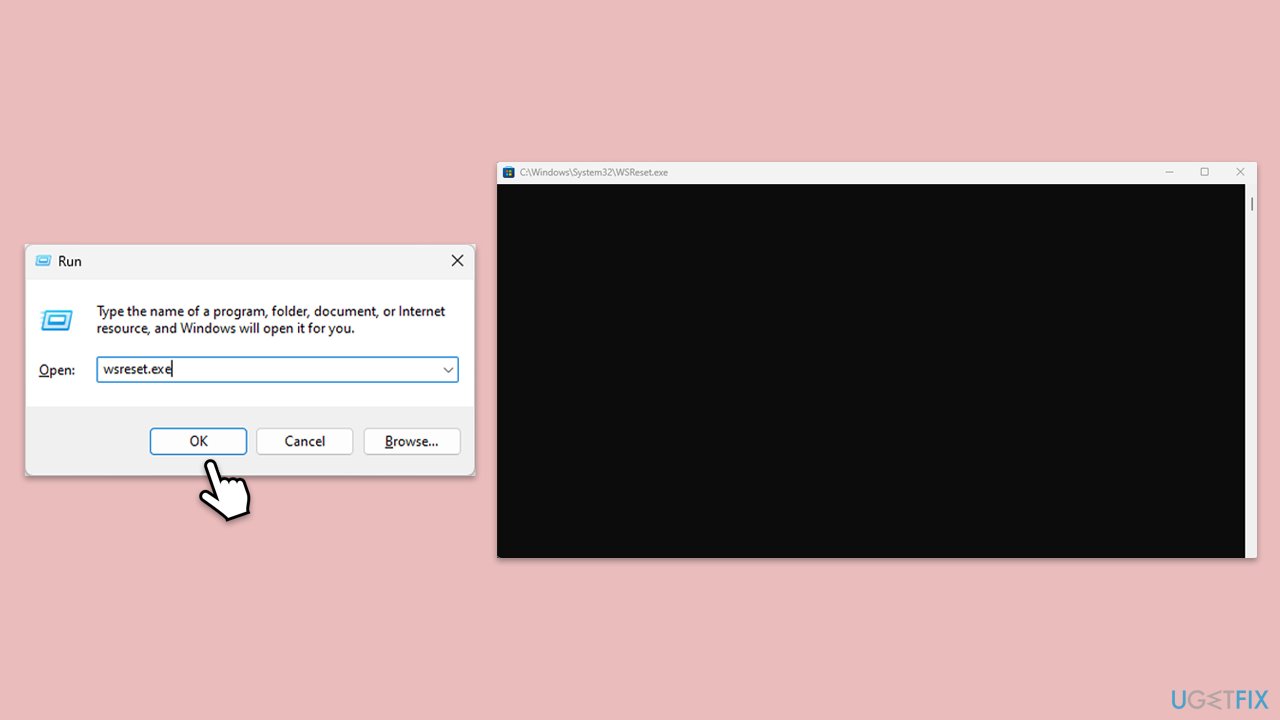
Corrupted cache files can disrupt the Microsoft Store and Xbox app - resetting the cache clears out this clutter and restores normal function.
- Press Win + R to open the Run dialog box.
- Type wsreset.exe and press Enter.
- A blank Command Prompt window will open. Wait for it to close automatically.
- Once closed, the Microsoft Store will open automatically, indicating the cache has been reset.
Fix 2. Sign out and sign back in
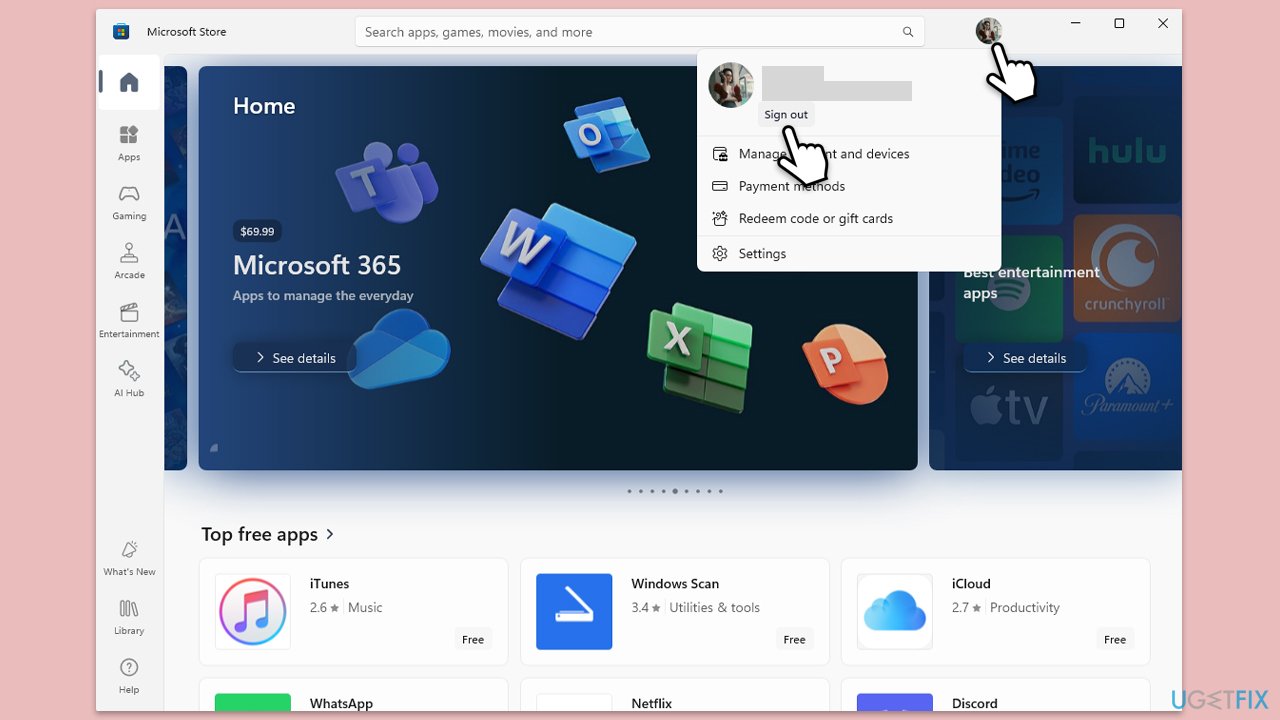
A shaky connection to your Microsoft account might trigger error 0x80D03002. Re-authenticating can refresh the link and resolve the issue.
- Launch Microsoft Store.
- Click on your Profile picture and click Sign out.
- Restart your computer.
- Sign back in again with your account credentials.
Fix 3. Check date and time settings
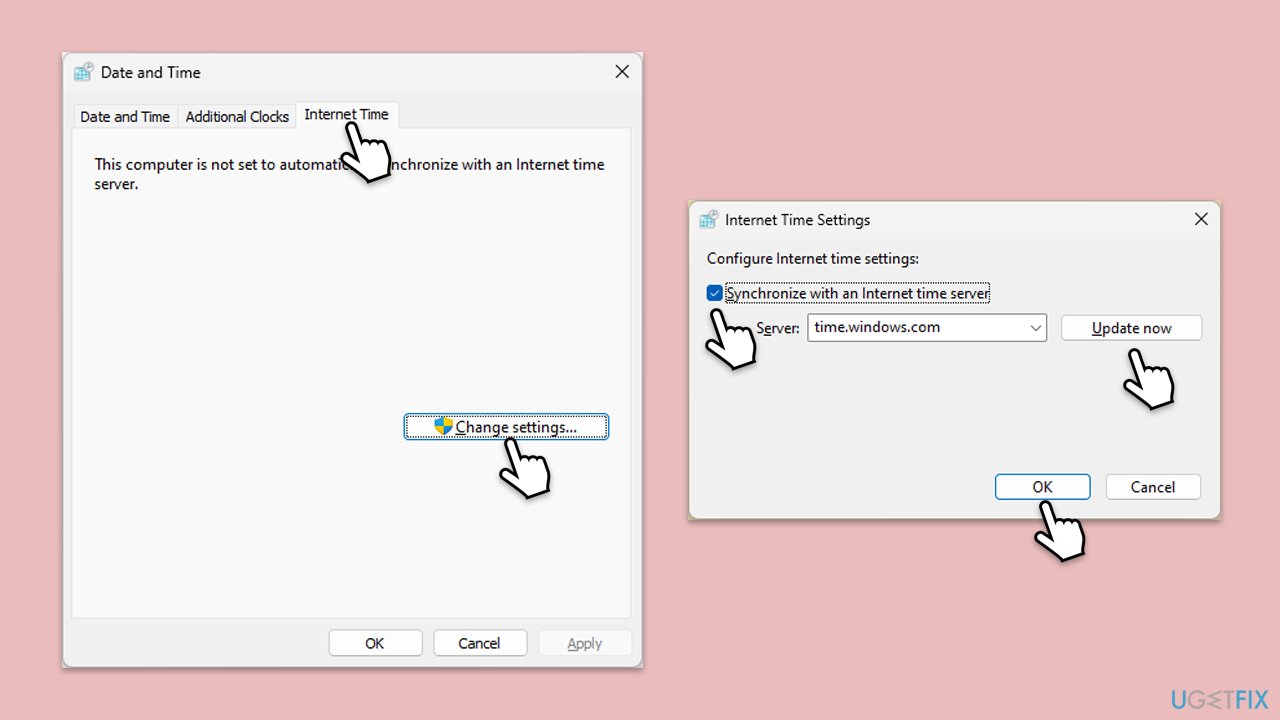
Incorrect system date or time can confuse server authentication, causing the error. Syncing them properly often fixes this.
- Type in Control Panel in Windows search and press Enter.
- Go to Clock and Region and click on Date and Time.
- Pick the Internet Time tab and select Change Settings.
- Make sure that the Synchronize with an Internet time server box is ticked.
- Click Update now and OK.
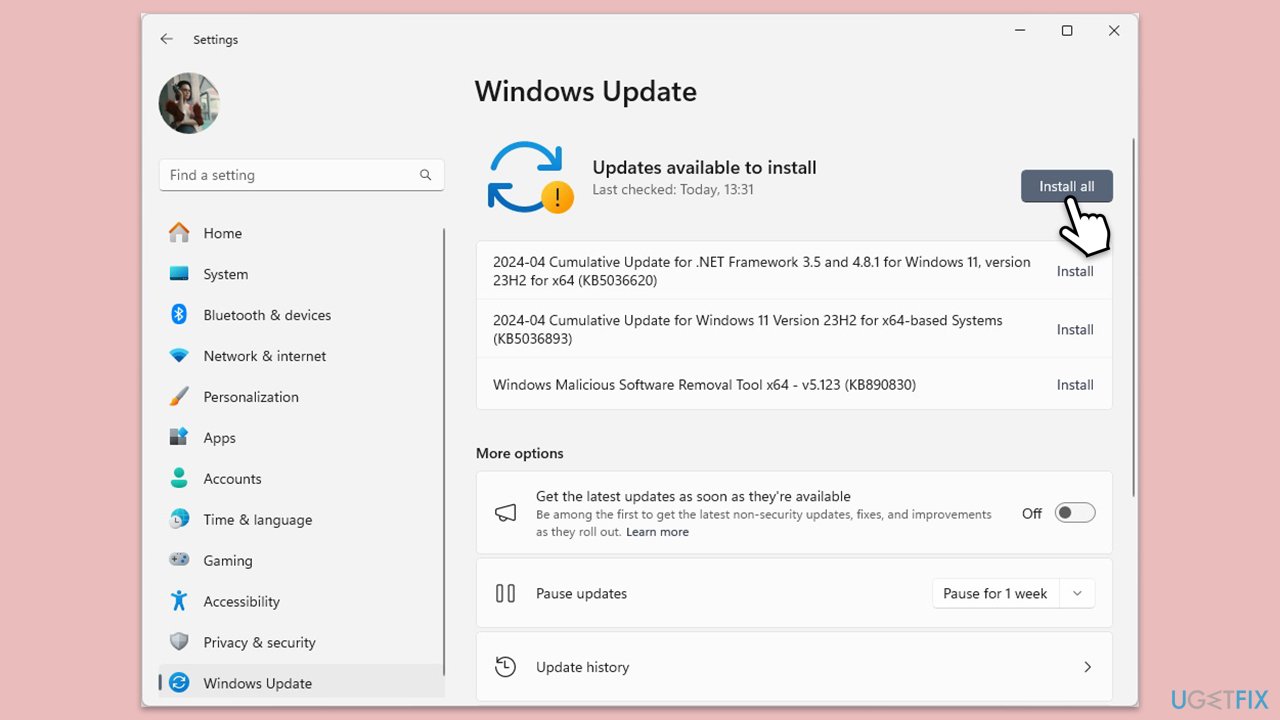
Fix 4. Update Windows
Outdated Windows components might not play nicely with the Store or Xbox app, so make sure you update them.
- Type Updates in Windows search and press Enter.
- In the new window, click Check for updates (or Install all) and wait till everything is installed.
- Make sure you also install any available optional updates.
- When done, restart your device to implement the changes.
Fix 5. Run the Windows Store apps troubleshooter
This built-in tool can detect and repair issues specific to Microsoft Store apps by resetting faulty processes.
- Type Troubleshoot in Windows search and hit Enter.
- Click Additional troubleshooters/Other troubleshooters.
- Scroll down to find Windows store apps and select it.
- Click Run the troubleshooter/Run.
- Wait till the process is finished and apply the fixes.
Fix 6. Re-register the apps
Re-registering Microsoft Store or Xbox app files refreshes their system integration.
- Type PowerShell in Windows search.
- Right-click on the result and select Run as administrator.
- When UAC shows up, click Yes.
- Use the following command and press Enter:
Get-AppXPackage *WindowsStore* -AllUsers | Foreach {Add-AppxPackage -DisableDevelopmentMode -Register "$($_.InstallLocation)\AppXManifest.xml"} - When done, restart your machine.

Fix 7. Check for conflicting software
Third-party programs like antivirus or VPNs might block the Store or Xbox app, causing error 0x80D03002. Temporarily disabling them can pinpoint the issue.
- Open your antivirus or firewall software and disable real-time protection.
- If that does not help use Clean Boot to find out which software is causing the conflict.
- Type msconfig in Windows Search and press Enter to open the System Configuration window.
- Click on the Services tab and check the Hide all Microsoft Services box.
- Click Disable all to disable non-Microsoft services, then click the Startup tab.
- Open the Task Manager, disable all startup items, and close the Task Manager.
- Go to the Boot tab and mark the Safe boot option.
- Click OK on the System Configuration window and restart your computer.
- If the problem is gone, you need to find which software is causing conflicts.
- Enable half of the disabled services in System Configuration.
- Restart and check CPU usage.
- Repeat, enabling services in smaller groups until the issue reappears.
- Once found, disable the service.

Fix 8. Adjust delivery optimization settings
Error 0x80D03002 can sometimes tie into slow or interrupted downloads caused by Delivery Optimization limits. Setting the bandwidth to unlimited and switching to Bypass mode can let the Background Intelligent Transfer Service (BITS) handle downloads more reliably, potentially bypassing the issue.
- Type gpedit.msc in Windows search and press Enter.
- Navigate to Computer Configuration > Administrative Templates > Windows Components > Delivery Optimization.
- Double-click Maximum download bandwidth percentage, set it to Enabled, and enter 0 in the maximum limit field.
- Click Apply, then OK to save changes.
- Double-click Download Mode, set it to Enabled, and select Bypass from the dropdown.
- Click Apply, then OK, and close Group Policy Editor.
- Restart your computer and try the Microsoft Store or Xbox app again.

Bottom line
To fix the error 0x80D03002, you can try resetting the app cache, checking your system settings, or signing out and back into your Microsoft account. If these solutions do not resolve the issue, consider using a repair and maintenance app to address deeper system problems.
Frequently asked questions
The error 0x80D03002 typically occurs due to connectivity issues, corrupted cache files, or problems with the Microsoft Store or Xbox app services.
You can clear the Microsoft Store cache by pressing Win + R, typing 'wsreset.exe', and hitting Enter; this will reset the cache without affecting your installed apps.
Yes, ensure that your Windows 11 system is up to date, and check that the Xbox app and Microsoft Store have the necessary permissions to access the internet.




Report an issue
What's wrong with this guide? We review every report and update or remove content.
Report received — thank you. We'll review and fix it.
You need a free account to submit a report.
Be the first to comment