How to fix
Microsoft Store error 0x80d06802
on Windows
Solve Microsoft Store error 0x80d06802 on Windows 10/11 quickly and easily. Get expert-tested solutions to enjoy seamless app downloads today!

What causes How to fix Microsoft Store error 0x80d06802?
- Corrupted store files
- Corrupted Windows update components
- Unstable internet connection
- Issues with Windows apps registration
Repairs Windows system files, removes malware, and restores a clean OS state — without reinstalling.
Hello, I can't download Horza Horizon 5 from the Microsoft Store because I keep getting the error 0x80d06802. What can I do to fix it?
Microsoft Store is a built-in program that can be incredibly helpful to users. It allows you to not only update existing apps but also search for and install new ones. The functionality has advantages since users do not need to resort to accessing third-party websites to download software, decreasing the potential of malware attacks and other threats.
Unfortunately, errors within the Microsoft Store are quite common, and one such error you might encounter is 0x80d06802, which occurs when trying to download new apps or update existing ones.
There are numerous reasons why you might encounter the 0x80d06802 error - from corrupted store files and Windows update components to an unstable internet connection.
Because there could be different reasons for the issue to arise, you might have to try several troubleshooting steps before you find the one that works for you. For example, for some, a run of a troubleshooter might be sufficient, while others might have to reset Windows update components, repair corrupted files, or re-register all Windows apps.
We have provided a comprehensive list of solutions below, so try them one by one to determine which one works for you.
We also recommend running a scan with the [d1] PC repair utility, which can efficiently detect and repair damaged OS sectors automatically. It can resolve BSODs, errors, crashes, registry corruption, and other common Windows issues.
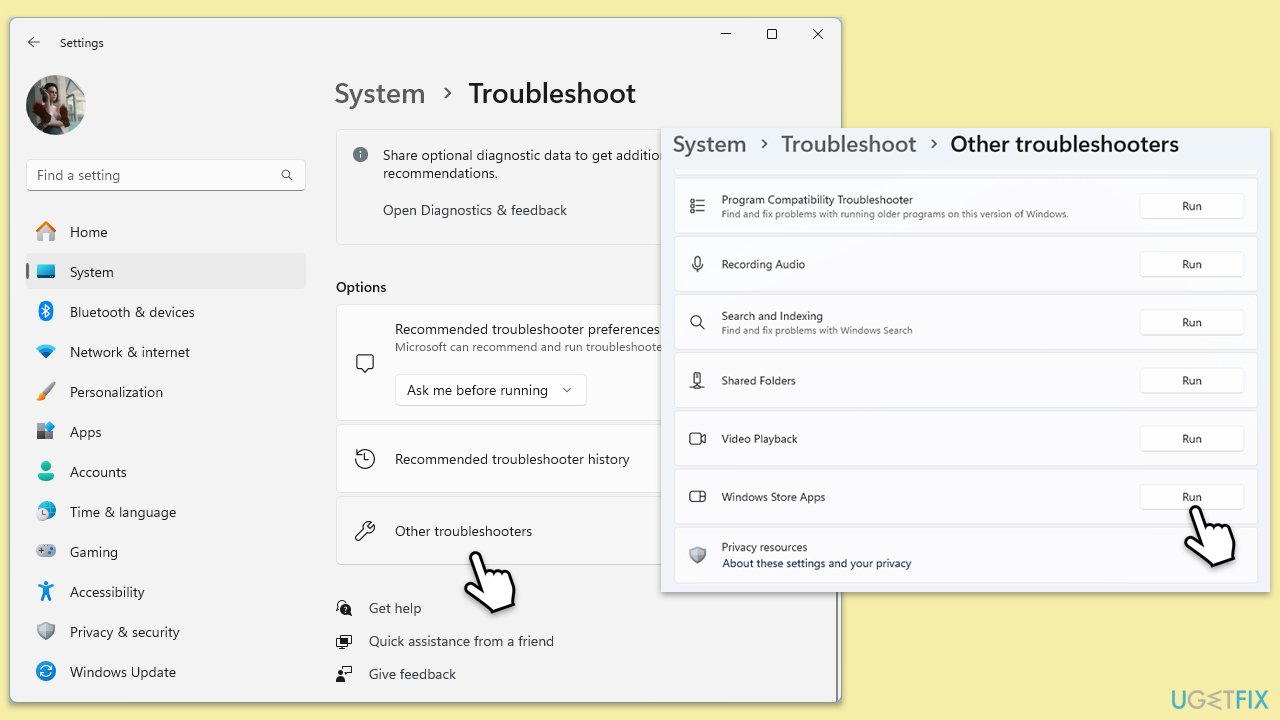
Fix 1. Run Windows Store Apps troubleshooter
- Type in Troubleshoot in Windows search and hit Enter.
- Pick Additional Troubleshooters/Other troubleshooters option.
- Scroll down to find Windows Store Apps section.
- Click Run the troubleshooter/Run and wait for the troubleshooter to finish scanning the system.
- Follow the on-screen instructions to fix any issues that the troubleshooter has found.
Fix 2. Reset Microsoft Store cache
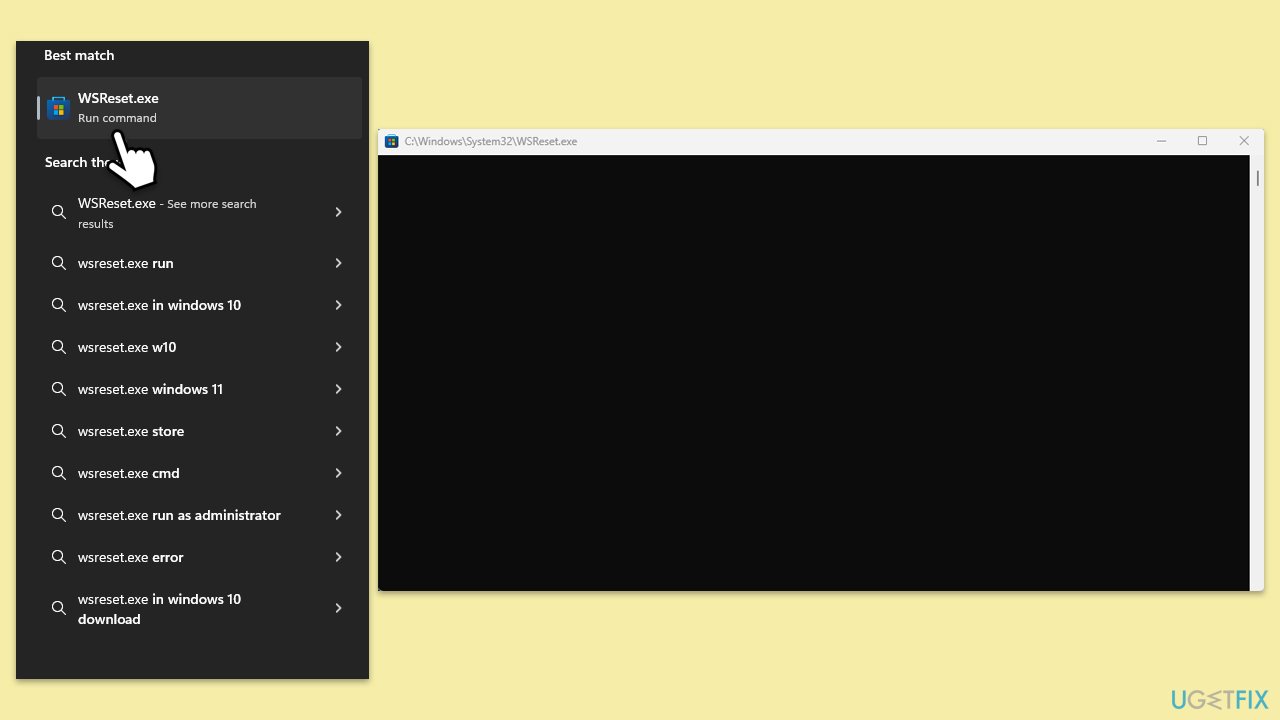
- In Windows search, type wsreset.exe and press Enter.
- Wait till a black window shows up – do not close it.
- Once it's gone, Microsoft Store should restart.
- Try using the Store again.
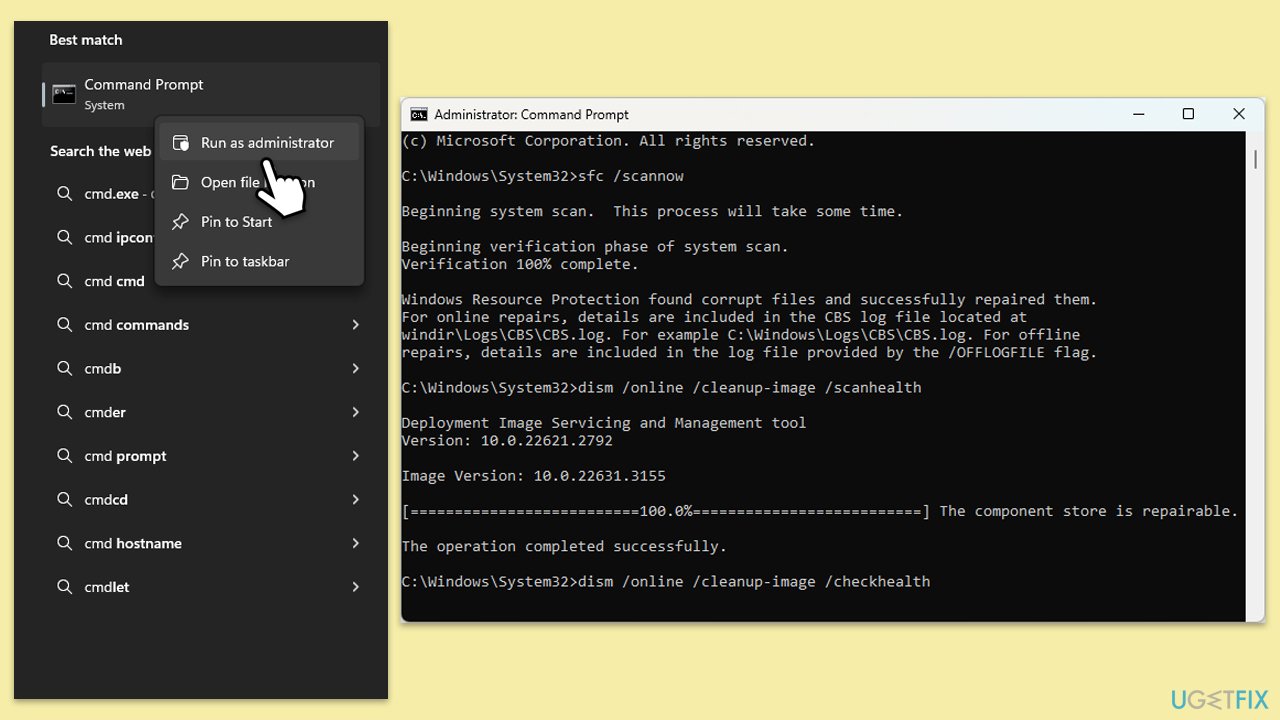
Fix 3. Run SFC and DISM scans
- Type cmd in Windows search.
- Right-click on Command Prompt and select Run as administrator.
- When UAC asks you whether you want to make changes, agree by pressing Yes.
- Next, copy and paste the following commands, pressing Enter each time:
sfc /scannow
DISM /Online /Cleanup-Image /CheckHealth
DISM /Online /Cleanup-Image /ScanHealth
DISM /Online /Cleanup-Image /RestoreHealth
(Note: if you get an error executing the last command, add /Source:C:\RepairSource\Windows /LimitAccess to it and try again.) - Restart your device.
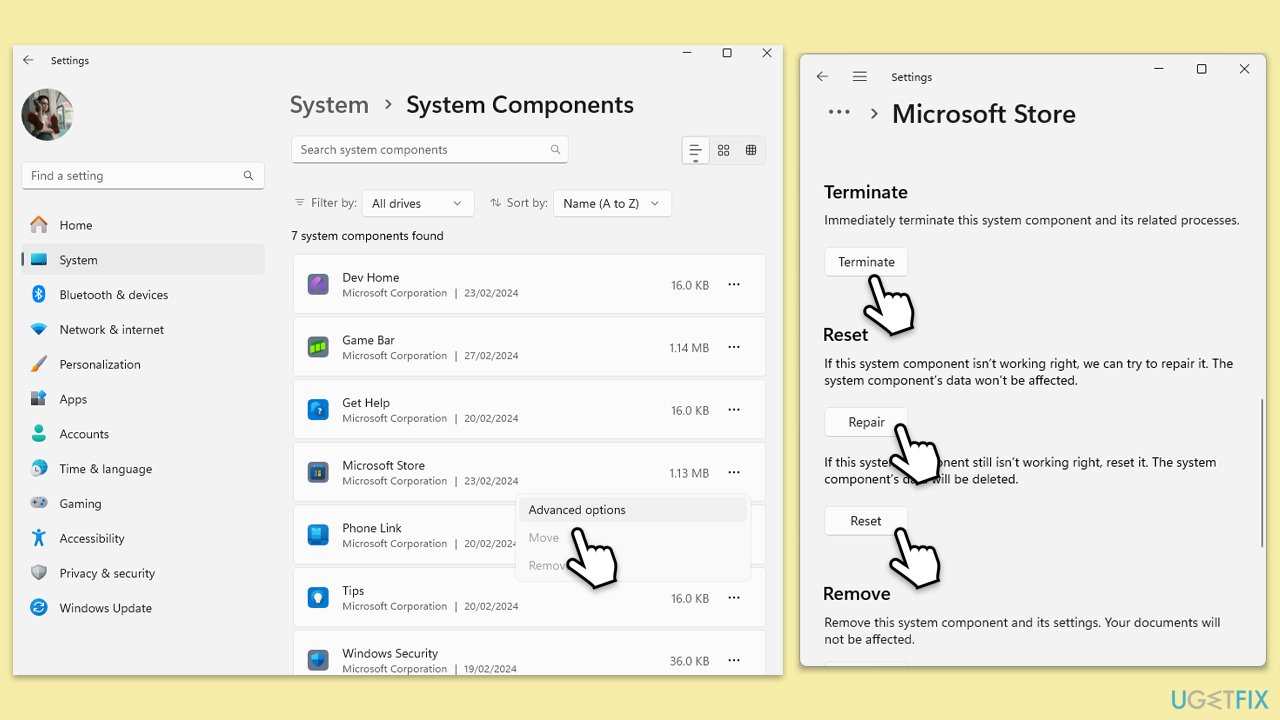
Fix 4. Repair or/and reset the Microsoft Store
- Right-click on Start and select Apps & Features/Installed apps.
- Scroll down to locate the Microsoft Store and select Advanced options.
- Click Terminate and then hit Repair.
- Check if the 0x80d06802 error is gone.
- If that does not work, try using Reset.
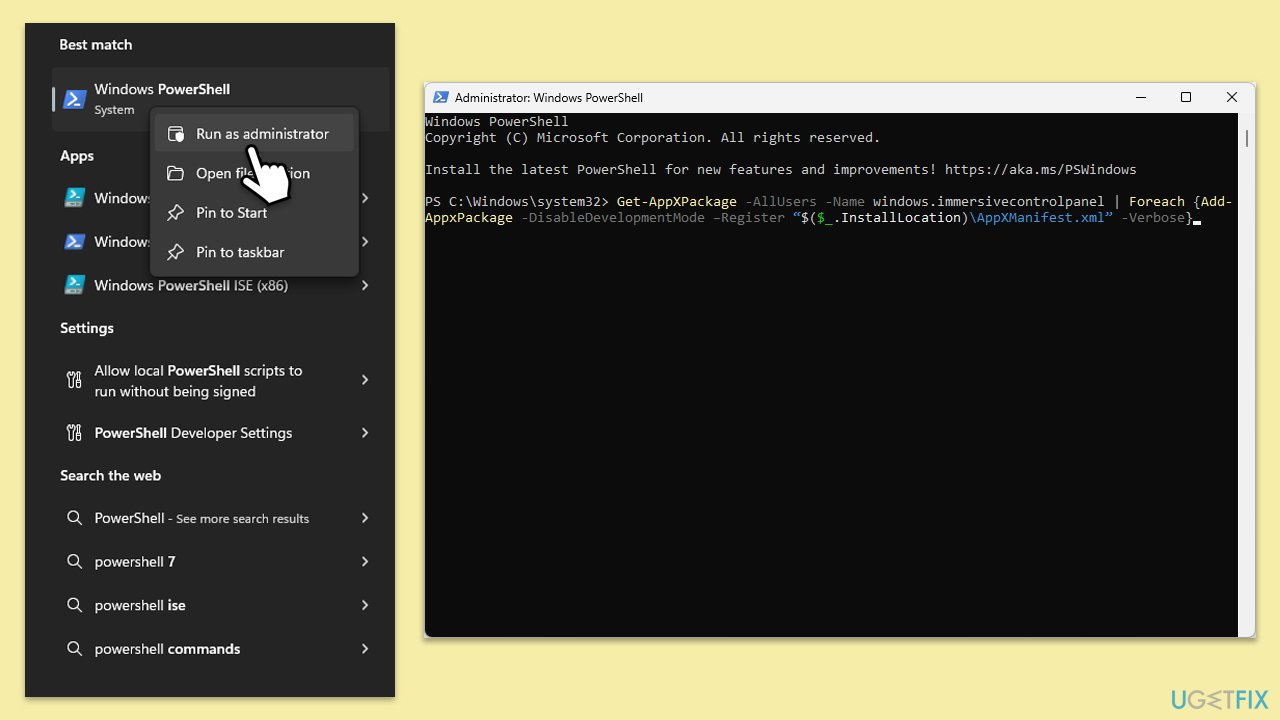
Fix 5. Re-register all Windows apps
- Open Command Prompt as an administrator.
- Type in the following and press Enter:
ren %localappdata%\Packages\Microsoft.WindowsStore_8wekyb3d8bbwe\LocalState cache.old - Then type the following and press Enter:
powershell -ExecutionPolicy Unrestricted
Get-AppXPackage -AllUsers | Foreach {Add-AppxPackage -DisableDevelopmentMode -Register "$($_.InstallLocation)\AppXManifest.xml"} - Restart your device.
Fix 6. Reset Windows update components
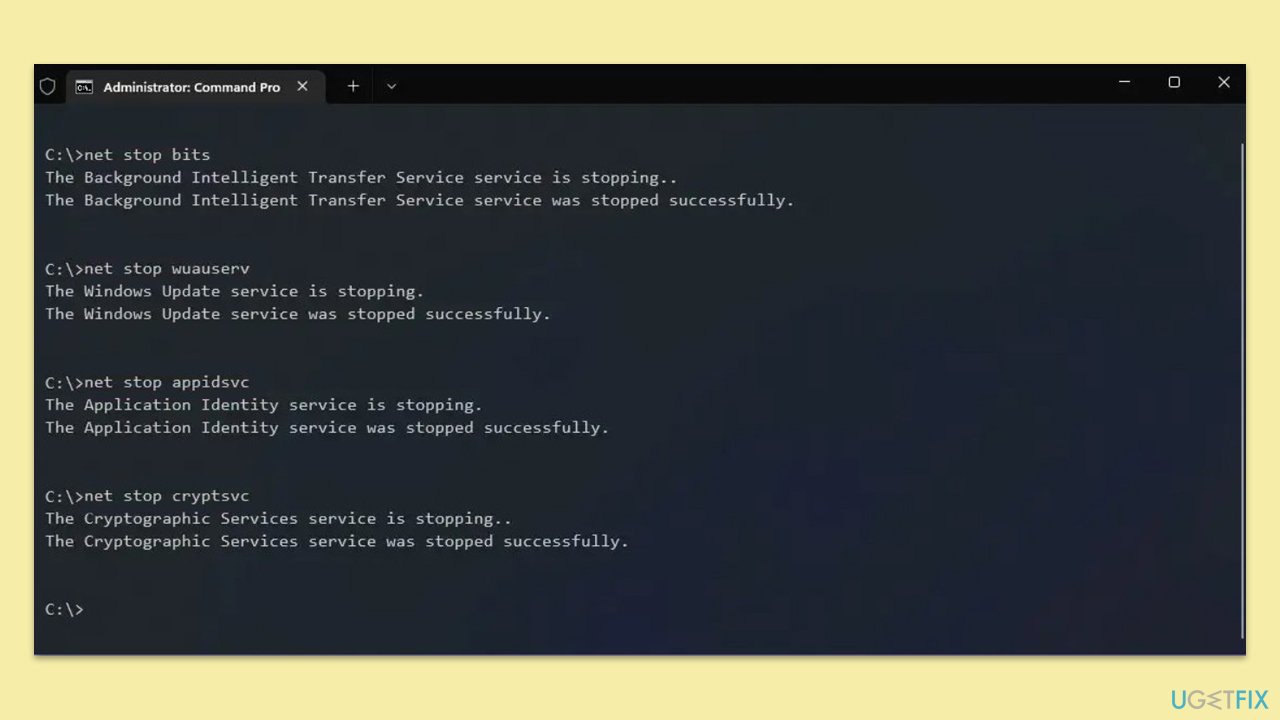
- Open Command Prompt as administrator as explained above
- Copy and paste the following commands and press Enter after each of them:
net stop wuauserv
net stop cryptSvc
net stop bits
net stop msiserver
ren C:\Windows\SoftwareDistribution SoftwareDistribution.old
ren C:\Windows\System32\catroot2 Catroot2.old
Note: If your Windows installation is not on the C drive, replace "C" with the appropriate drive letter.
cd /d %windir%\system32
regsvr32.exe atl.dll
regsvr32.exe urlmon.dll
regsvr32.exe mshtml.dll
regsvr32.exe shdocvw.dll
regsvr32.exe browseui.dll
regsvr32.exe jscript.dll
regsvr32.exe vbscript.dll
regsvr32.exe scrrun.dll
regsvr32.exe msxml.dll
regsvr32.exe msxml3.dll
regsvr32.exe msxml6.dll
regsvr32.exe actxprxy.dll
regsvr32.exe softpub.dll
regsvr32.exe wintrust.dll
regsvr32.exe dssenh.dll
regsvr32.exe rsaenh.dll
regsvr32.exe gpkcsp.dll
regsvr32.exe sccbase.dll
regsvr32.exe slbcsp.dll
regsvr32.exe cryptdlg.dll
regsvr32.exe oleaut32.dll
regsvr32.exe ole32.dll
regsvr32.exe shell32.dll
regsvr32.exe initpki.dll
regsvr32.exe wuapi.dll
regsvr32.exe wuaueng.dll
regsvr32.exe wuaueng1.dll
regsvr32.exe wucltui.dll
regsvr32.exe wups.dll
regsvr32.exe wups2.dll
regsvr32.exe wuweb.dll
regsvr32.exe qmgr.dll
regsvr32.exe qmgrprxy.dll
regsvr32.exe wucltux.dll
regsvr32.exe muweb.dll
regsvr32.exe wuwebv.dll
net start wuauserv
net start cryptSvc
net start bits
net start msiserver - Reboot your computer.
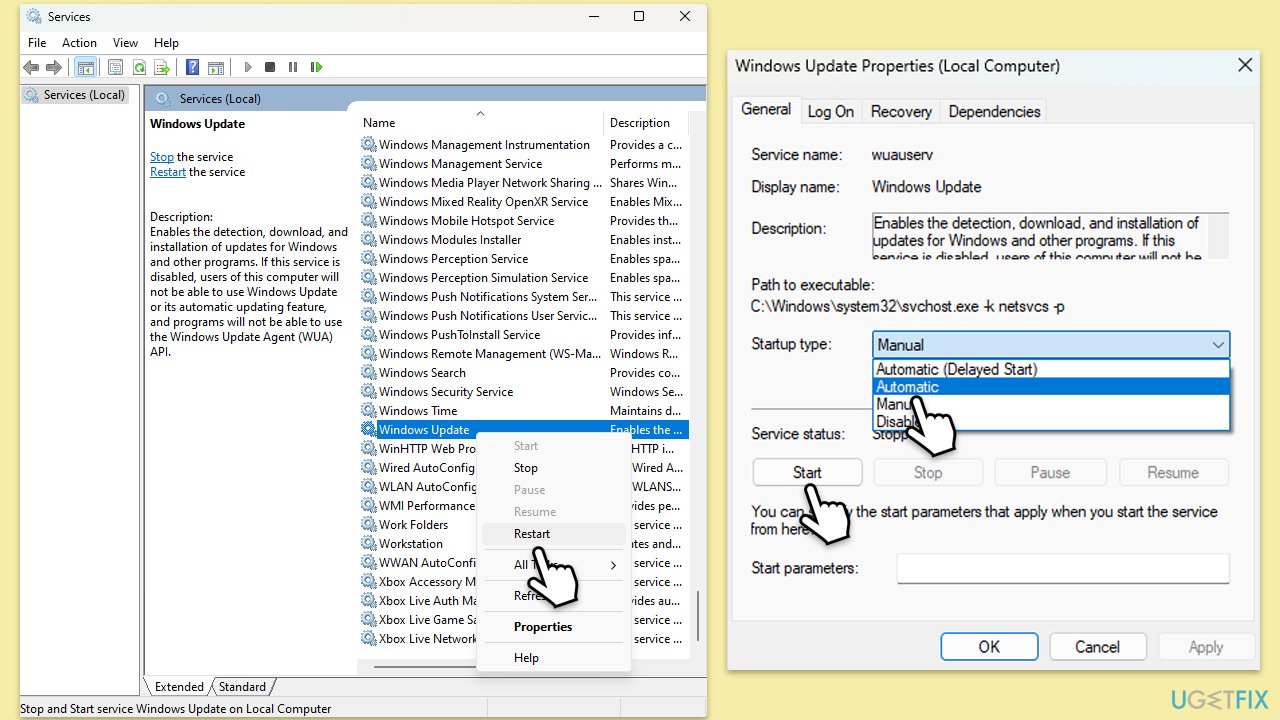
Fix 7. Check services
- Type Services in Windows search and hit Enter.
- Locate Windows Update, Windows Installer, Storage Service, and Windows Firewall in the list.
- Right-click on each and select Properties.
- Set the Startup type to Automatic - select it from the drop-down menu.
- Click Start if the service is not running.
- Click Apply and OK.
Bottom line
To fix the Microsoft Store error 0x80d06802, you can try running the Windows Store Apps troubleshooter, resetting the Microsoft Store cache, or re-registering all Windows apps. If these solutions do not resolve the issue, consider running a scan with a PC repair utility to detect and repair any underlying problems.
Frequently asked questions
This error typically indicates that there is an issue with the Microsoft Store app or its connection to the Microsoft servers, preventing downloads or updates from occurring.
You can reset the Microsoft Store by pressing Win + R, typing 'wsreset.exe', and hitting Enter, which will clear the cache and may resolve the error.
Yes, ensure that your date and time settings are correct and that your Windows Firewall or antivirus software is not blocking the Microsoft Store.




Report an issue
What's wrong with this guide? We review every report and update or remove content.
Report received — thank you. We'll review and fix it.
You need a free account to submit a report.
Be the first to comment