How to fix
Microsoft store error code 0x80073D12
on Windows
Resolve Microsoft Store error code 0x80073D12 on Windows 10 or 11 effortlessly. Follow our expert-tested solutions and get back to downloading in minutes.

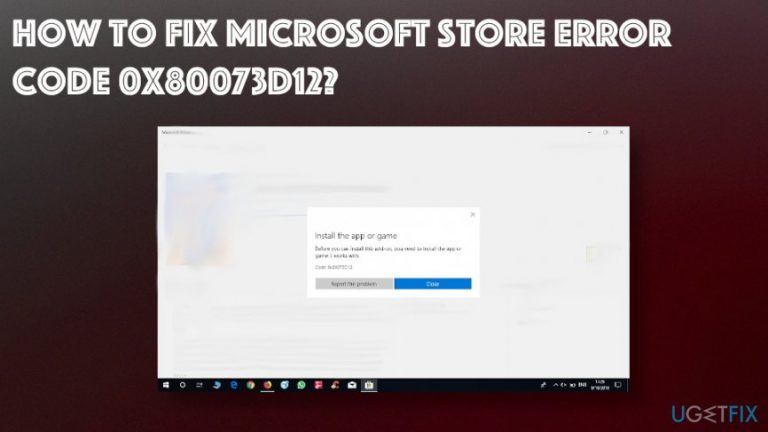
What causes How to fix Microsoft store error code 0x80073D12?
- Installation bundle parts are corrupted
- Incomplete installation of game components
- Specific version of Windows OS 10 issues
- Expansion pack or game collection bundle problems
- Error triggered during expansion or update download
Repairs Windows system files, removes malware, and restores a clean OS state — without reinstalling.
Hello, I have an issue with the error code: 0x80073D12. I tried installing various games and applications, and cannot do so due to this error on Microsoft Store. The message is "one or more items in this bundle didn't install yet, well keep trying. you can also try installing them from downloads and updates" and I have no idea what that is about. I cannot download nor install anything I want from the MS Store. What can I do?
Microsoft store error code 0x80073d12 is not the only Microsoft Store error that frustrates people because applications and games are downloaded via Microsoft Store constantly. This particular code shows up when people try to download or install specific applications or games and the system shows an error message about the impossible task.[ref en-1]
Code: 0x80073D12 message sometimes claims that some parts of the particular installation bundle cannot get installed or refers to a particular part of the program or game. Some of these application installation issues can be associated with a particular version of Windows OS 10, but that is easily avoidable if you update the operating system yourself and check the function again.[ref en-2]
Xbox live Code:0x80073D12 is one of the more reported issues because the problem occurs for people that want to install games on their devices. The Microsoft Store has over 70 0000 apps that people can install and download, so this error can stop most of them from being downloaded. If you encounter the issue it may be the case that expansion pack or a part of the game collection bundles is corrupted or not complete.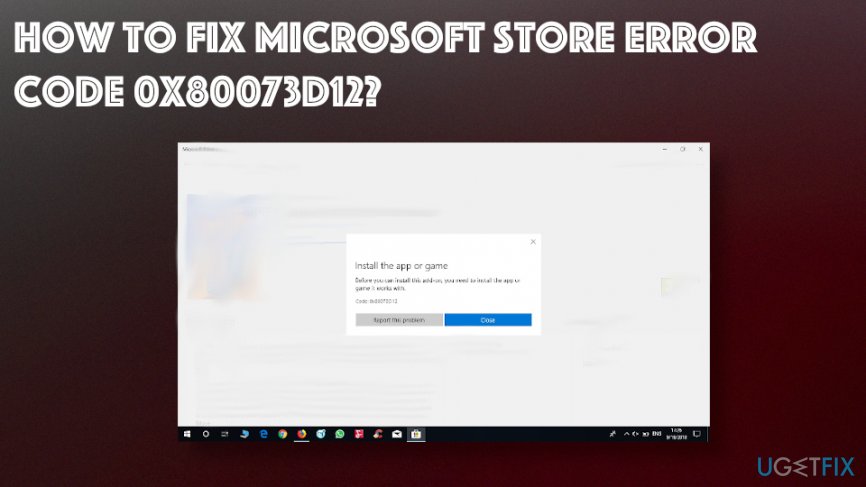
Microsoft store error downloading pop-ups state:
Install the app or game. Before you can install this add-on, you’ll need to install the app or game it works with.
one or more items in this bundle didn't install yet, well keep trying. you can also try installing them from downloads and updates error code 0x80073d12
The fact that we can definitely determine as NOT a reason for Microsoft gamepass error code 0x80073d12 or any other particular Microsoft Store error is malware.[ref en-4] There is no way that any cyber intruder could trigger such issues, especially when you use the reliable application source like Microfost Store. There is little to no possibility to get any intruder or possible dangerous program this way.
How to fix Microsoft store error code 0x80073d12
The most common reason and the solution for such issues when people can't download some apps can be the lack of space on the computer, so when you make sure that there is enough hard drive space for the application or the game, you can download it without any errors or issues. As we mentioned, getting the expansion pack for the game without properly installed initial version is also not possible and can cause issues. Some system incompatibilities or affected files can trigger separate issues, so rely on system tools and run [d1] to make sure that every function indeed is properly working.
Check your time and date settings
Such errors like code 0x80073d12 can occur due to incorrect date settings. To make sure that they are right:
- Click on the time and date at the right corner of the taskbar.
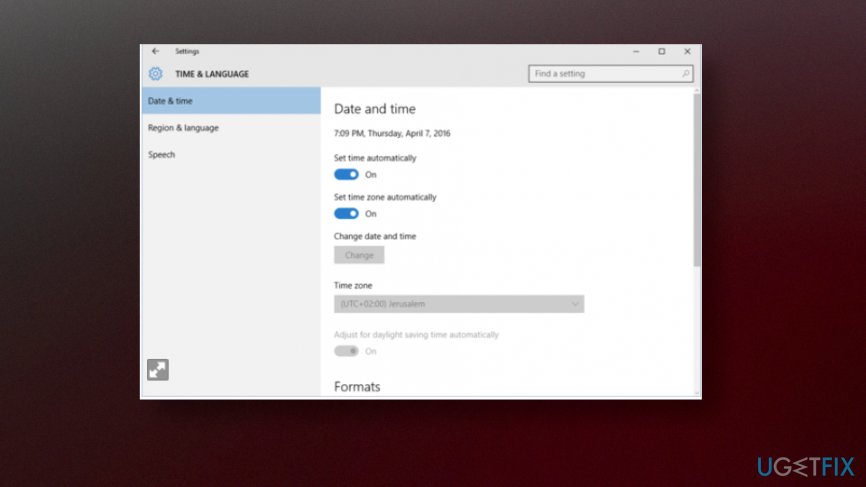
How to fix microsoft store error code 0x80073d12 date time - Once the panel appears, choose Date and time settings.
- Make sure that the time is correct.
- Turn the Set time automatically and Set time zone automatically to ON.
Delete temporary files to fix Microsoft store error code 0x80073d12
Basically you should delete things from C:\\Windows\\SoftwareDistribution\\DataStore and C:\\Windows\\SoftwareDistribution\\Download directories and try download and installs apps again.
Check the drive space
- Press Win + E to open File Explorer.
- Click This PC.
- You can now see how much storage space is available under Devices and drives.
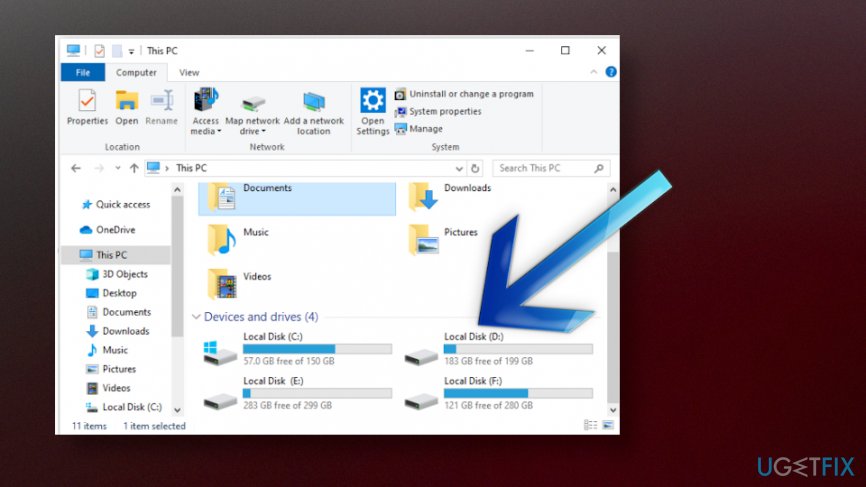
How to fix microsoft store error code 0x80073d12 drive space
Run Windows Store Apps Troubleshooter to fix Microsoft store error code 0x80073d12
- Press Win + I to open the Settings section.
- Click on the Update&Security category.
- On the left find Troubleshoot and scroll down on the right to find Windows Store Apps.
- Click the Run the Troubleshooter button.
- Follow steps and run the process.
Install the game from My library
- Press Start and open Microsoft Store App.
- Click See more.. and then choose Download and updates.
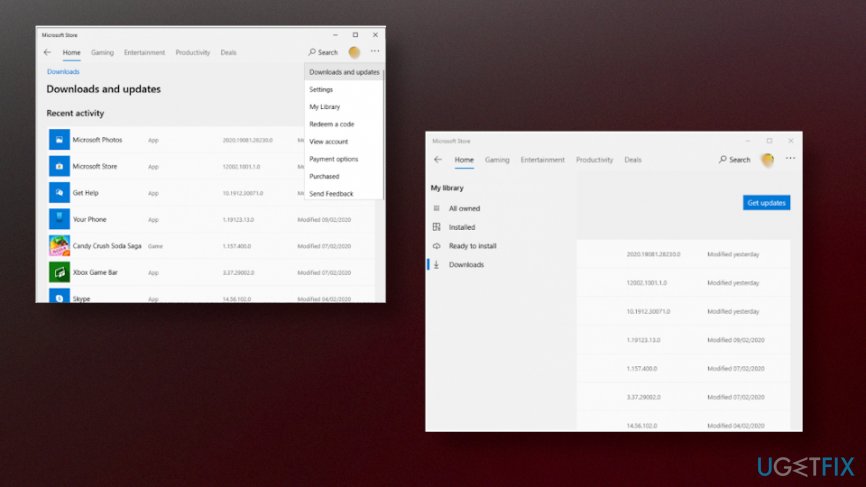
How to fix microsoft store error code 0x80073d12 library - Select Downloads on the left and open My library.
- Click Ready to install to open the list of apps.
- Then Install button for the particular game or app you need.
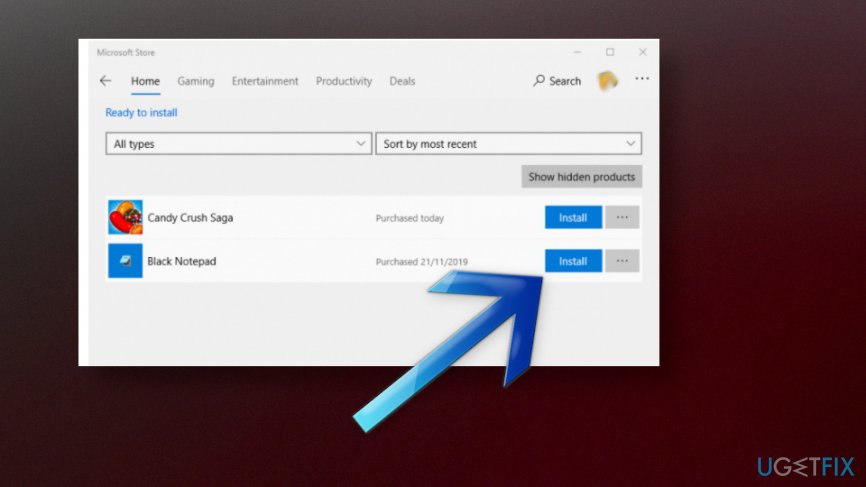
How to fix microsoft store error code 0x80073d12 library install
Bottom line
To fix the error code 0x80073D12, you can update your Windows operating system, check for incomplete installations, or try reinstalling the affected applications or games. If these solutions do not resolve the issue, consider seeking further assistance or support from Microsoft.
Frequently asked questions
This error typically occurs due to corrupted app data or issues with the Microsoft Store application itself on Windows 10.
You can reset the Microsoft Store by going to Settings > Apps > Apps & features, selecting Microsoft Store, and clicking on 'Advanced options' to find the reset option.
Yes, you can repair apps by navigating to Settings > Apps > Apps & features, selecting the problematic app, and choosing the 'Repair' option.




Report an issue
What's wrong with this guide? We review every report and update or remove content.
Report received — thank you. We'll review and fix it.
You need a free account to submit a report.
Be the first to comment