How to fix
Microsoft Store stuck on updating
on Windows
Fix Microsoft Store stuck on updating effortlessly for Windows 10 and 11. Get expert-tested solutions for a smooth experience—updated 2025!


What causes How to fix Microsoft Store stuck on updating?
- Buggy cache files
- Incorrect update settings
- Interference from running processes
- Antivirus clash
- Momentary network issues
Repairs Windows system files, removes malware, and restores a clean OS state — without reinstalling.
Today I found out that Microsoft Store is not working properly. Apparently, it needs to be updated but it is indefinitely stuck in "Updating Microsoft Store...Working..." And nothing happens for hours, so I just give up. What can I do to fix this?
The Microsoft Store is an important part of Windows, and users can download apps, games, and updates without issue. However, some users experience the issue where Microsoft Store gets stuck on updating. In such cases, the updating process is initiated but appears to be stuck indefinitely, with the progress bar remaining static, preventing new content from being downloaded or installed.
This problem can be particularly infuriating as, even with a stable internet connection and a working system, the Microsoft Store still will not react. There are several reasons for this. Buggy cache files, incorrect update settings, or interference from running processes are some of the usual suspects.
Some have also complained with some pointing out that the problem started after their latest Windows update or when they installed new programs, indicating that system modifications at times disrupt the updating process.
In addition to cache corruption, antivirus clash or momentary network issues might be the cause as well. The issue wouldn't be observable on the outside, as all other components of the system behave normally and only the Microsoft Store appears to get stuck in a mode of continuous updating. The issue would for those affected mean going through troubleshooting which would commonly entail clearing of the cache, modification of the system settings, or restarting base services to make it normal.
For a more easy solution, most users turn to automated software. The [d1] repair and maintenance app is designed to identify and fix underlying issues right away, so your Microsoft Store will no longer be frozen on updating and your system can continue to run smoothly.

Fix 1. Clear Microsoft Store cache
Clearing the cache can remove corrupted temporary files that may be causing the update process to stall.
- Press the Win + R on your keyboard to open the Run dialog box.
- In the dialog box, type wsreset.exe and then hit Enter or click OK.
- A blank Command Prompt window will open (do not close it), and after about ten seconds, the window will close, and the Microsoft Store will open automatically.

Fix 2. Sign out and sign in to Microsoft Store
Refreshing your account credentials can resolve issues with a stuck update in the Microsoft Store.
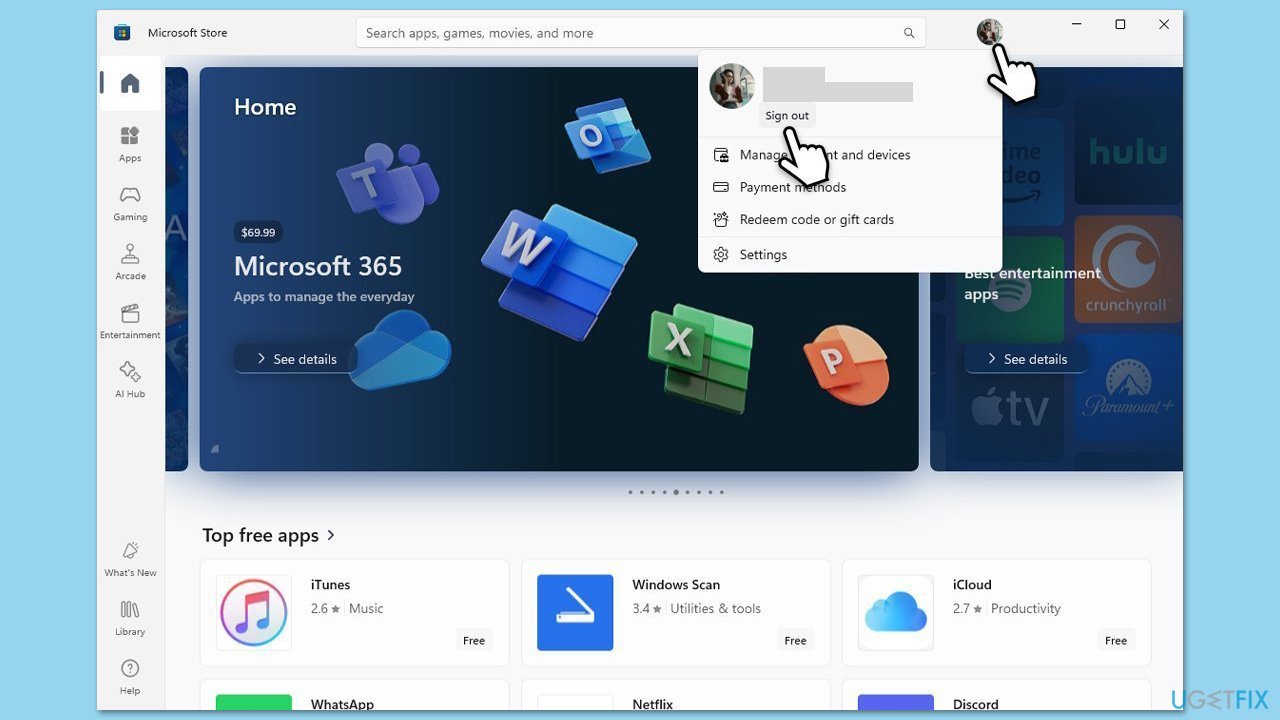
- Launch Microsoft Store.
- Click on your Profile picture and click Sign out.
- Restart your computer.
- Sign back in again with your account credentials.
Fix 3. Repair or reset Microsoft Store App
Repairing or resetting the app restores its default settings and clears potential configuration issues.
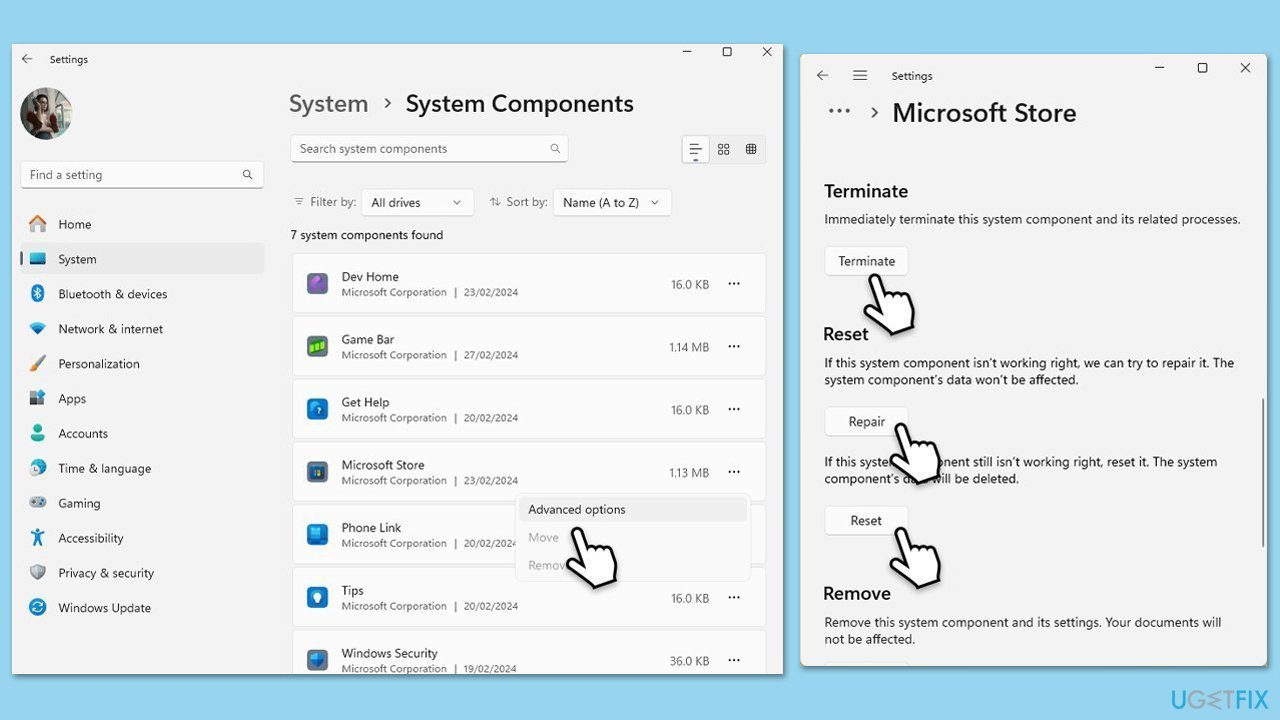
- Right-click on Start and select Apps & Features/Installed apps.
- Scroll down to find Microsoft Store and click Advanced options or go to Settings > System > System Components > Advanced options.
- Scroll down again and click Terminate and Repair.
- If that does not work, try using Reset.
Fix 4. Run Windows Store Apps troubleshooter
The built-in troubleshooter can detect and fix common issues affecting the Microsoft Store update.
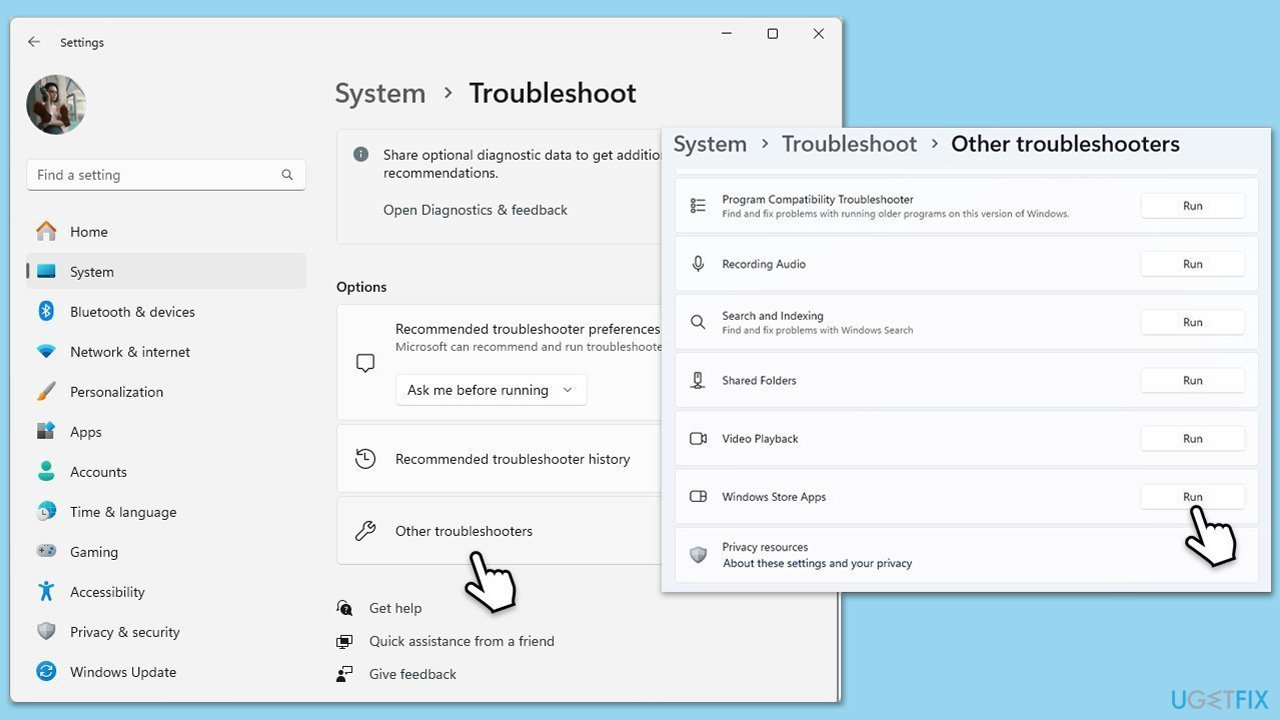
- Type Troubleshoot in Windows search and hit Enter.
- Select Additional troubleshooters/Other troubleshooters.
- Find Windows Store apps from the list and select Run the troubleshooter/Run.
- Wait till the scan is finished - you will be provided with potential causes so you can proceed with fixes.
Fix 5. Re-register Microsoft Store app
Re-registering the app can restore its original configuration and resolve persistent update issues.
- Type PowerShell in Windows search.
- Right-click on PowerShell and select Run as administrator.
- When UAC shows up, click Yes.
- Type in the following and press Enter:
ren %localappdata%\Packages\Microsoft.WindowsStore_8wekyb3d8bbwe\LocalState cache.old - Then type the following and press Enter:
powershell -ExecutionPolicy Unrestricted
Get-AppXPackage -AllUsers | Foreach {Add-AppxPackage -DisableDevelopmentMode -Register "$($_.InstallLocation)\AppXManifest.xml"} - Restart your system.

Fix 6. Check relevant services
Sometimes, essential services may be disabled or not running, which can cause the Microsoft Store to get stuck on updating. Verifying that these services are set to run automatically can help resolve the issue.
- Type Services in Windows search and hit Enter.
- Locate Windows Update, Windows Installer, Background Intelligent Transfer Service (BITS), Storage Service, and Windows Firewall in the list.
- Right-click on each and select Properties.
- Set the Startup type to Automatic - select it from the drop-down menu.
- Click Start if the service is not running.
- Click Apply and OK.

Fix 7. Reinstall Microsoft Store
If none of the solutions work, you can use PowerShell to remove the app and then reinstall it.
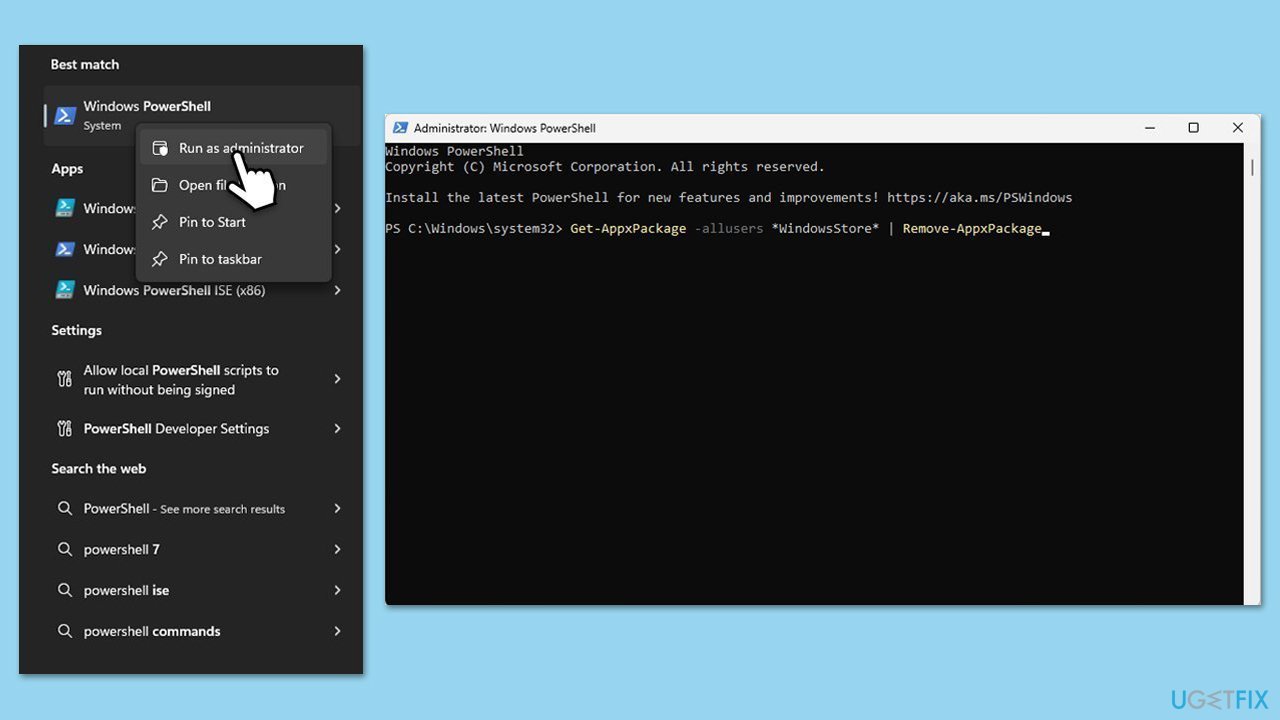
- Open PowerShell as administrator.
- Similarly, like before, confirm the UAC prompt.
- Copy and paste the following command, pressing Enter after:
Get-AppxPackage -allusers *WindowsStore* | Remove-AppxPackage - Next, reinstall the store with the following command:
Get-AppxPackage -allusers *WindowsStore* | Foreach {Add-AppxPackage -DisableDevelopmentMode -Register “$($_.InstallLocation)\AppXManifest.xml”} - Reboot your computer.
Bottom line
To fix the Microsoft Store stuck on updating, you can try clearing the Microsoft Store cache, modifying system settings, or restarting base services. If these solutions do not resolve the issue, consider using automated repair and maintenance software to identify and fix underlying problems.
Frequently asked questions
Try resetting the Microsoft Store cache by pressing Windows + R, typing 'wsreset.exe', and hitting Enter. This can resolve issues with updates getting stuck.
Go to Settings, select 'Windows Update', and click 'Check for updates' to ensure your system is fully updated, which can help fix the Store issues.
Yes, you can open Command Prompt as an administrator and run 'powershell -ExecutionPolicy Unrestricted Add-AppxPackage -DisableDevelopmentMode -Register $Env:SystemRoot\SystemApps\Microsoft.WindowsStore_8wekyb3d8bbwe\AppxManifest.xml' to re-register the Microsoft Store.




Report an issue
What's wrong with this guide? We review every report and update or remove content.
Report received — thank you. We'll review and fix it.
You need a free account to submit a report.
Be the first to comment