How to fix
Microsoft Teams error 407
on Windows
Resolve the Microsoft Teams error 407 on Windows 10 and 11 effortlessly with our expert-tested solutions. Get your meetings back on track in minutes!

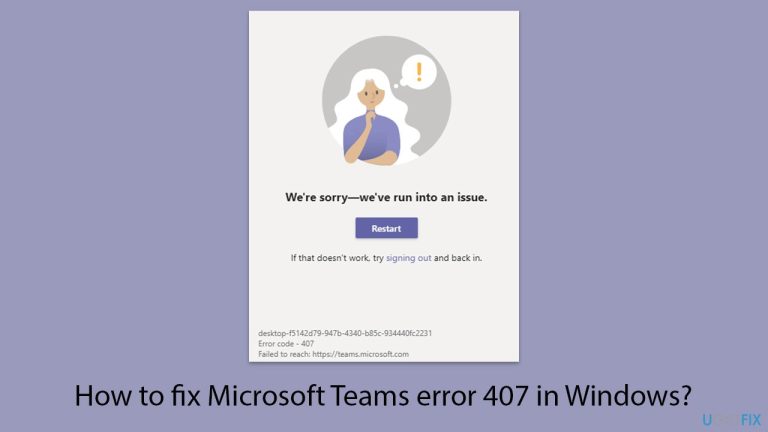
What causes How to fix Microsoft Teams error 407 in Windows?
- Proxy server requires authentication
- Microsoft Teams does not fully support authenticated proxies
- Outdated Teams version
- Improper system configurations
- Restrictions imposed by network administrators
Repairs Windows system files, removes malware, and restores a clean OS state — without reinstalling.
Hey. When I try to join a meeting call on Teams I get an error 407 (proxy authentication required) for teams.microsoft.com. Could you help me to solve this?
Error 407 in Microsoft Teams, also known as "Proxy Authentication Required," occurs when the application encounters difficulties connecting to the internet through a proxy server. This error can disrupt access to Teams, preventing users from participating in meetings, chatting, or collaborating on projects.
The root cause of this issue is usually tied to a proxy server that requires authentication. In many corporate or educational networks, proxy servers are configured to control internet access. However, Microsoft Teams may not fully support authenticated proxies in its default setup, leading to this connectivity failure. Additional reasons for this error may include outdated Teams versions, improper system configurations, or restrictions imposed by network administrators.
This error is particularly problematic because it interrupts workflows in professional and academic environments, where reliable communication tools are essential. While users may try bypassing the error by adjusting network settings, the underlying challenge often lies in bridging the gap between proxy authentication protocols and Teams' compatibility.
Fixing Error 407 typically requires verifying and adjusting proxy configurations, ensuring that Teams is updated to the latest version, and, in some cases, collaborating with IT administrators to ensure proper network settings. Network environments with strict security policies might necessitate changes to proxy authentication methods to make them compatible with Teams.
Resolving this error promptly is critical for uninterrupted use of Microsoft Teams. For additional support, using tools like the [d1] repair and maintenance software can help address underlying system issues, such as configuration errors or corrupted files, that may contribute to connectivity problems.
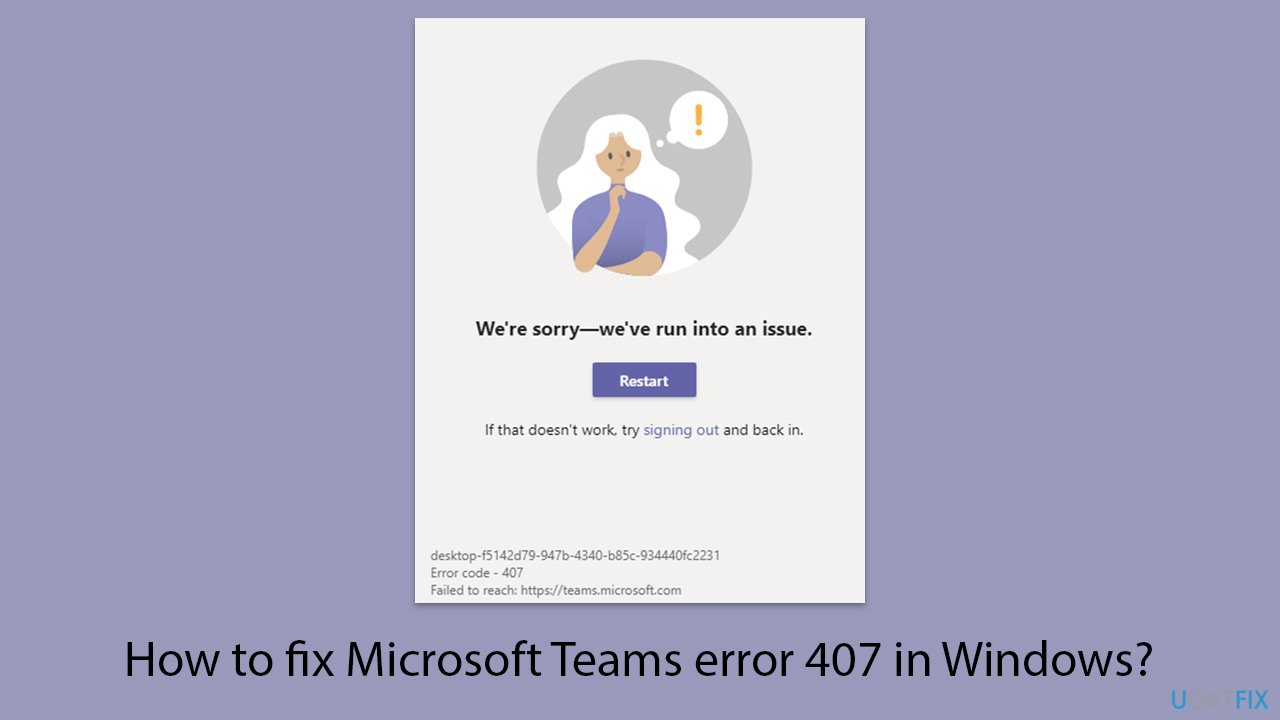
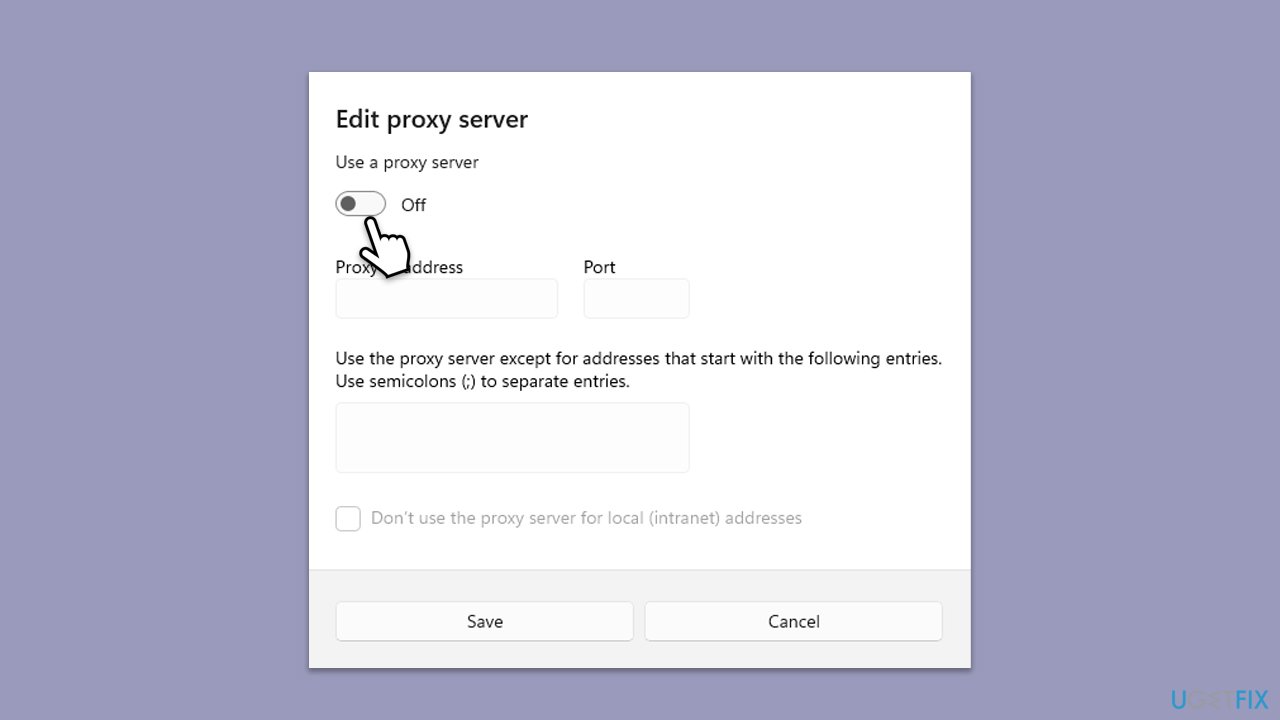
Fix 1. Check proxy server settings
Error 407 often occurs due to issues with proxy server configurations. Teams may struggle to authenticate or connect through a proxy that requires login credentials. Ensuring the proxy settings are accurate and compatible with Microsoft Teams is essential.
- Right-click on Start and pick Network connections.
- Navigate to the VPN section and disable it if it's connected.
- Then back and select Proxy.
- Here, disable Proxy if it's enabled.
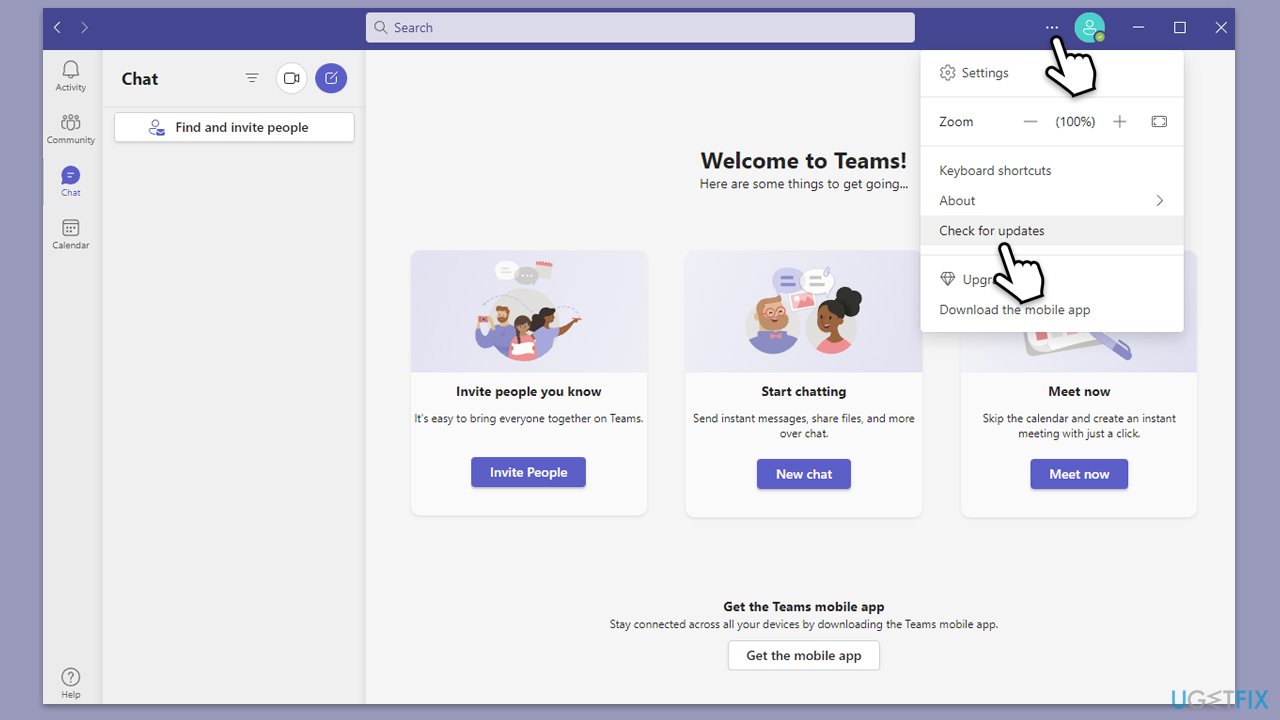
Fix 2. Update Microsoft Teams
Running an outdated version of Teams can lead to compatibility issues, including error 407. Ensuring the latest version is installed can resolve these problems.
- Open Microsoft Teams.
- Click on the Settings and more button at the top-right corner.
- Select Check for updates.
- Teams will automatically download and install any available updates.
- Restart Teams after the update is completed.
Fix 3. Clear Teams cache
A corrupted cache can interfere with proper functioning, including proxy authentication. Clearing the cache forces the app to rebuild its data, often fixing such errors.
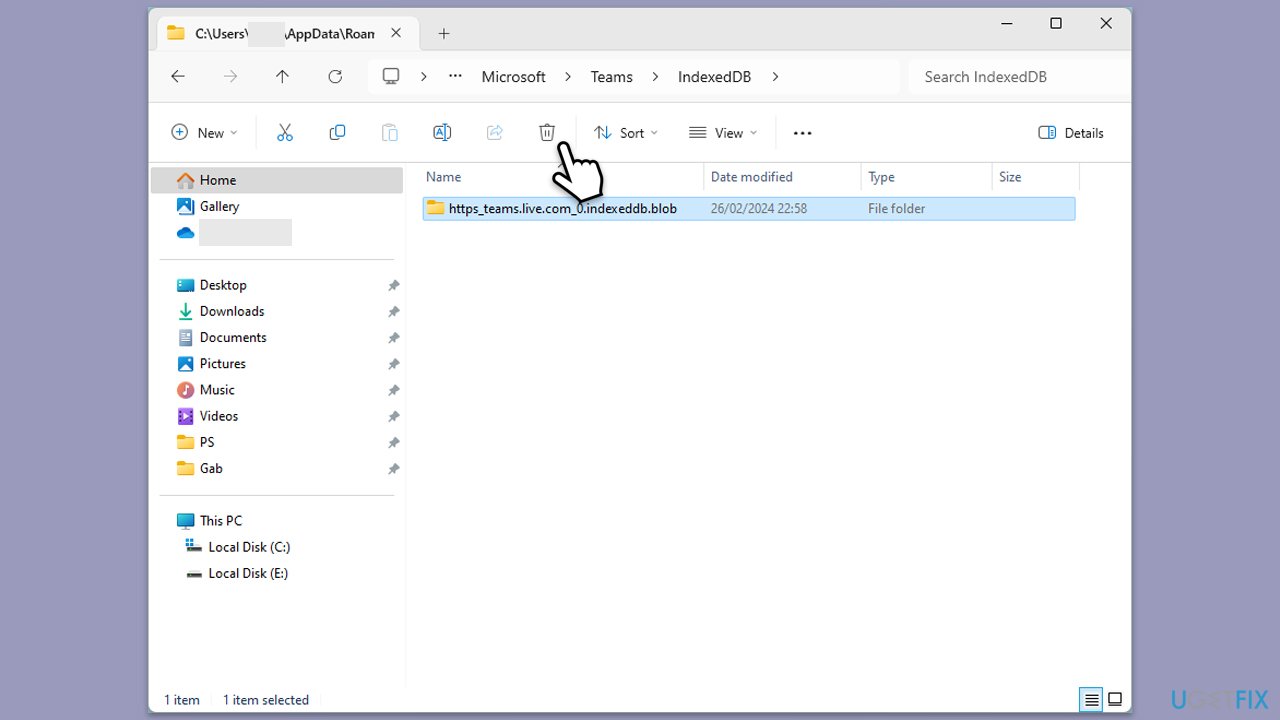
- Press Win + E to open File Explorer.
- Ensure Hidden files are visible.
- In the address bar, type in %appdata%\Microsoft\teams and press Enter.
- Delete the contents of the following folders:
%appdata%\Microsoft\teams\application cache\cache
%appdata%\Microsoft\teams\blob_storage
%appdata%\Microsoft\teams\Cache
%appdata%\Microsoft\teams\databases
%appdata%\Microsoft\teams\GPUcache
%appdata%\Microsoft\teams\IndexedDB
%appdata%\Microsoft\teams\Local Storage %appdata%\Microsoft\teams\tmp - Make sure you empty the Recycle Bin (or use Shift + Del combination to delete these files).
- Restart your system.
Fix 4. Temporarily disable VPN
If you are using a VPN, it may conflict with Teams' proxy authentication. Temporarily disabling the VPN can help identify if it is causing the issue.
- Disconnect from your VPN through its app or settings.
- Open Microsoft Teams and see if the error persists.
- If resolved, check the VPN configuration or contact your network administrator for assistance.
Fix 5. Adjust group policy settings
In managed environments, group policy configurations might block or interfere with Teams' proxy authentication. Ensuring proper configurations can resolve the issue.
- Press Win + R on your keyboard, type gpedit.msc, and press Enter.
- Navigate to Computer Configuration > Administrative Templates > Network > Network Connections.
- Review any policies related to proxy server use and ensure they align with Teams' requirements.
- Apply the changes and restart your device.
Fix 6. Reinstall Microsoft Teams
If none of the above methods work, reinstalling Teams ensures a fresh installation free from corrupted files.
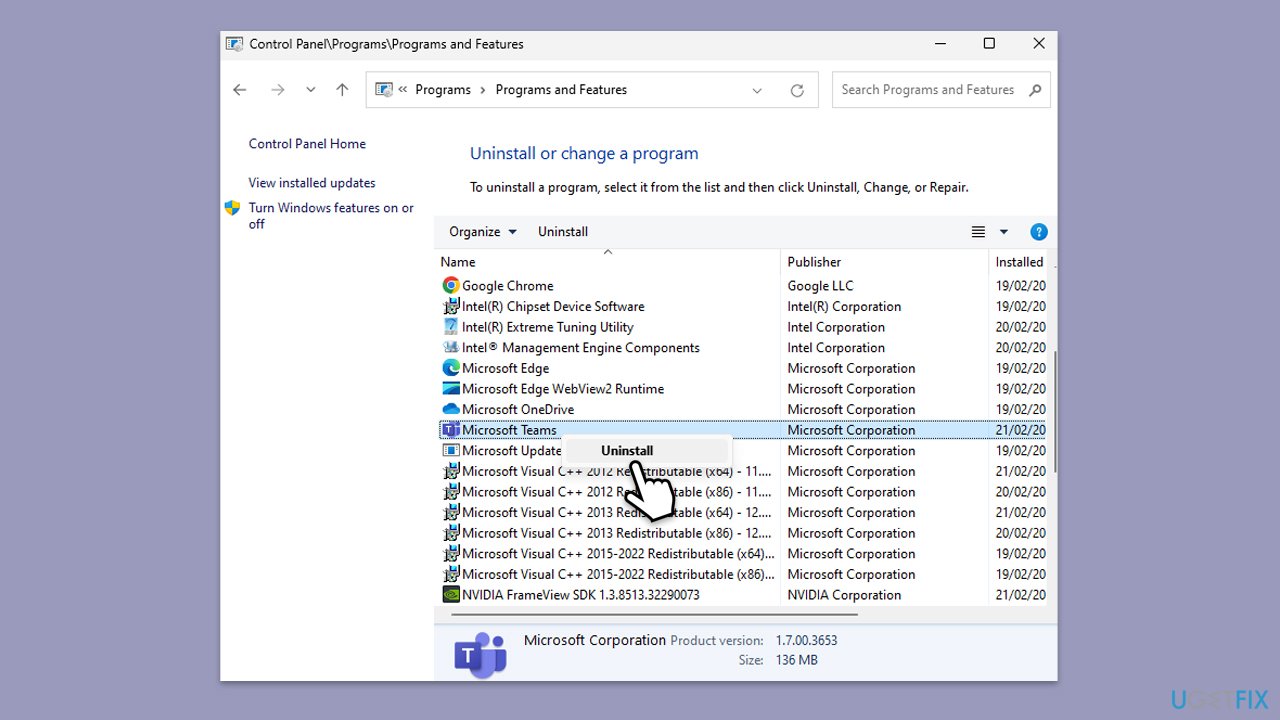
- Type Control Panel in Windows search and press Enter.
- Go to Programs > Uninstall a program.
- Find Microsoft Teams, right-click, and select Uninstall.
- Follow the prompts to remove the app.
- Once done, press Win + E to open File Explorer.
- In the View tab at the top of the window, enable Hidden Files.
- Go to C:\Program Files\WindowsApps location.
- Scroll down to find the Microsoft Teams folder and delete it (alternatively, you can rename it).
- Now type %AppData% in Windows search and press Enter.
- Delete the Teams folder here.
- Finally, restart your system and reinstall the app.
Bottom line
To fix Microsoft Teams error 407, check and adjust your proxy server settings, ensure that Teams is updated to the latest version, and collaborate with IT administrators for proper network configurations. If these solutions do not resolve the issue, consider using repair and maintenance software to address underlying system problems.
Frequently asked questions
Error 407 in Microsoft Teams typically indicates that a proxy authentication error has occurred, preventing the application from connecting to the server.
To fix error 407, ensure that your proxy settings are correctly configured in Windows and that Teams is allowed to bypass the proxy, or try disabling the proxy temporarily.
Yes, you can troubleshoot by checking your internet connection, updating Teams, or resetting the network settings in Windows 10 or Windows 11.




Report an issue
What's wrong with this guide? We review every report and update or remove content.
Report received — thank you. We'll review and fix it.
You need a free account to submit a report.
Be the first to comment