How to fix
Microsoft windows search filter (SearchFilterHost.exe) high CPU usage
on Windows
Resolve high CPU usage from SearchFilterHost.exe in Windows 10 or 11 with our expert-tested solutions. Fix it in minutes with clear steps!


What causes How to fix Microsoft windows search filter (SearchFilterHost.exe) high CPU usage in Windows?
- Overloaded search index
- Corrupted search index
- Active indexing of many new files
- Corrupted system files
- Issues with Windows Search Service
- Incomplete or buggy Windows installations or updates
Repairs Windows system files, removes malware, and restores a clean OS state — without reinstalling.
Microsoft Windows search filter is driving my CPU to extreme heights and I don't understand why is that happening. It stops for a bit after I restart the PC but then it comes back again.
Microsoft Windows Search Filter Host process, known as SearchFilterHost.exe, is a key component of the Windows Search Indexer. It plays a crucial role in indexing and filtering file contents to make searches faster and more efficient on your system. However, many users report high CPU usage caused by this process, which can significantly slow down performance.
SearchFilterHost.exe high CPU usage can occur for several reasons. A common cause is an overloaded or corrupted search index, which forces the system to expend excessive resources trying to process searches. Problems with active indexing, such as when Windows is trying to index many new files or large folders, can also lead to this spike in CPU usage. Additionally, corrupted system files or issues with the Windows Search Service itself may cause the process to malfunction, further increasing CPU load. In some cases, incomplete or buggy Windows installations or updates might also trigger this problem.
To fix SearchFilterHost.exe high CPU usage, there are various approaches you can take, such as rebuilding the search index, adjusting the indexed locations, or running Windows' built-in Search and Indexing troubleshooter. Disabling the Windows Search Service entirely is another option for those who do not rely heavily on the search functionality.
For users looking for a more automated and comprehensive solution, using a reliable [d1] optimization and repair utility can help resolve any underlying system issues and improve overall performance.
By following these methods, you can often resolve SearchFilterHost.exe high CPU usage and restore normal operation to your system without needing to sacrifice the benefits of Windows Search.

Fix 1. Rebuild the search index
Rebuilding the search index helps resolve corruption in the index that may be causing high CPU usage. This creates a fresh index without damaged entries.
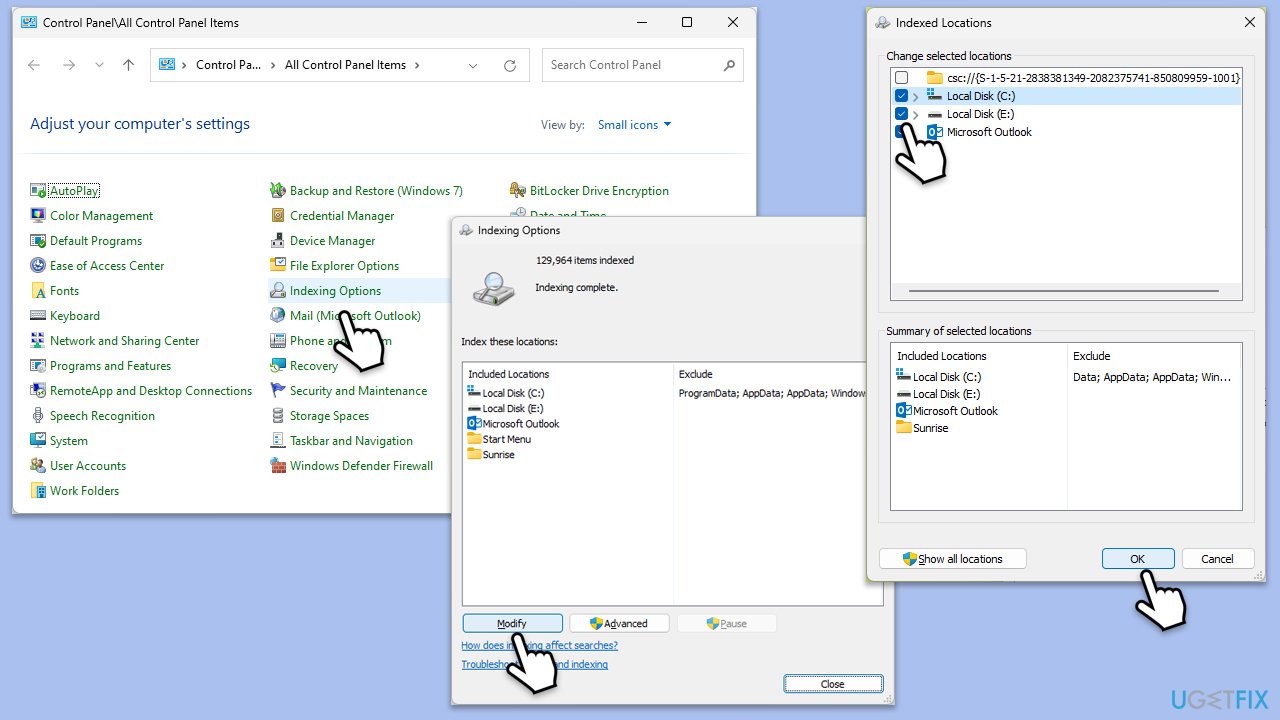
- Type Control Panel in Windows search and press Enter.
- On the top-right corner, click on View by option and select Small icons.
- Pick Indexing options.
- Click Modify.
- Mark the locations that you want to be indexed and click OK (you can also use Show all locations at the bottom-left of the window if you can't see the location you are looking for).
- In the Indexing Options window, click Advanced.
- Click Rebuild under Delete and rebuild index. This might take a while, depending on how large your drives are. During the rebuilding process, you might not be able to use the search bar or receive incomplete results.
- Click OK.
Fix 2. Run the search and indexing troubleshooter
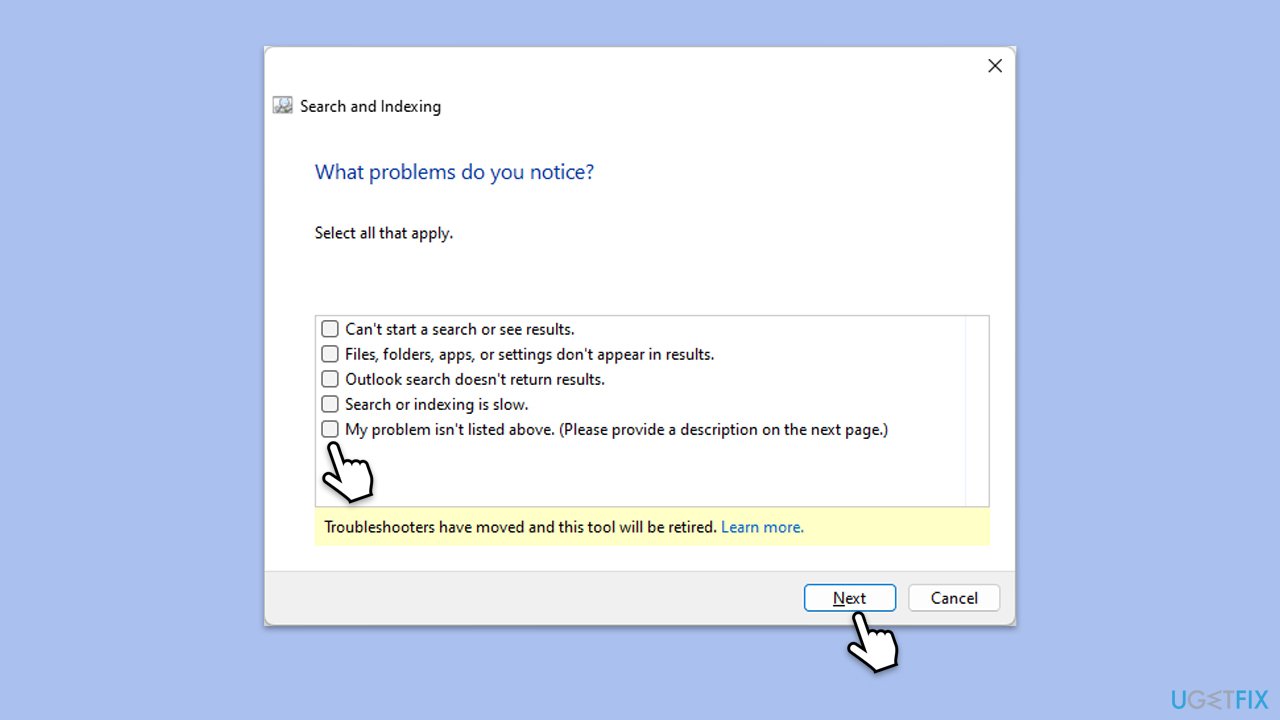
Running this troubleshooter can automatically detect and fix problems related to Windows search, including issues causing high CPU usage by SearchFilterHost.exe.
- Click Start and select Settings.
- Go to the Update & Security (Win10) or System (Win11) section.
- Select Troubleshoot.
- Pick Additional troubleshooters/Other troubleshooters.
- Scroll down to find the Search and Indexing troubleshooter.
- Click on it and select Run the troubleshooter/Run.
Fix 3. Reduce indexed locations
Reducing the number of indexed locations limits the amount of data Windows needs to process, which can reduce CPU usage.
- Click Start and select Settings.
- Select Privacy & Security and then select Searching Windows.
- Under Indexing Status, select Modify Indexed Locations.
- Uncheck large or unnecessary folders and click OK.
Fix 4. Restart the Windows search service
Sometimes the Windows Search Service may become stuck or overloaded, and restarting it can resolve high CPU usage.
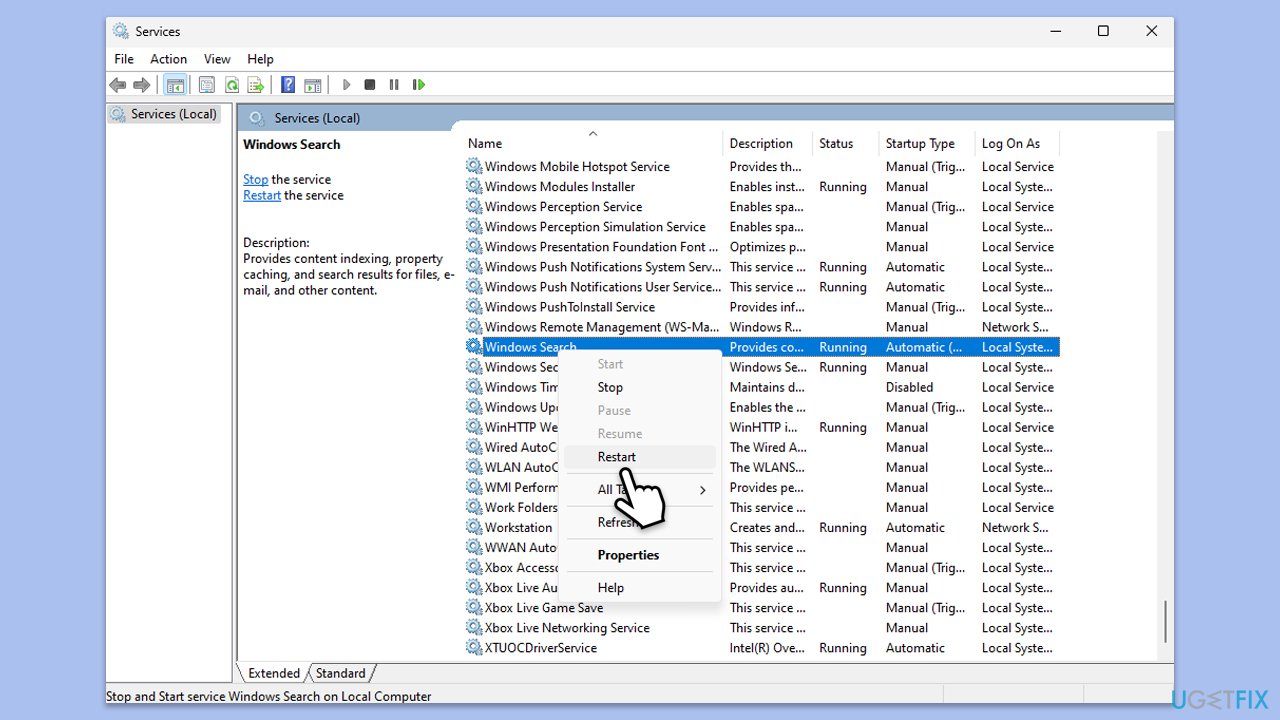
- Type Services in Windows search and press Enter.
- Locate Windows Search Service.
- If it is already running, right-click and select Restart.
- if the service is not running, double-click it, and pick Automatic under the Startup type from the drop-down menu.
- Click Start, Apply, and OK.
Fix 5. Update Windows
Outdated Windows versions may contain bugs that cause high CPU usage by system processes like SearchFilterHost.exe. Updating Windows can resolve these issues.
- Type Updates in the Windows search bar and hit Enter.
- If updates are pending, click Download and install. Otherwise, click Check for updates.
- Make sure you choose to install optional updates as well.
- Restart your system to implement the changes.

Fix 6. Disable Windows search service (not recommended)
If you rarely use the search function, disabling the Windows Search Service can completely eliminate CPU usage caused by SearchFilterHost.exe.
- Type services.msc in Windows search and press Enter.
- Scroll down to Windows Search, right-click, and select Properties.
- In the Startup type dropdown, choose Disabled and click OK.
Fix 7. Scan for malware
If you want, you can employ trusted third-party security software, although Microsoft Safety Scanner or the built-in Windows Defender can do the job just as well:
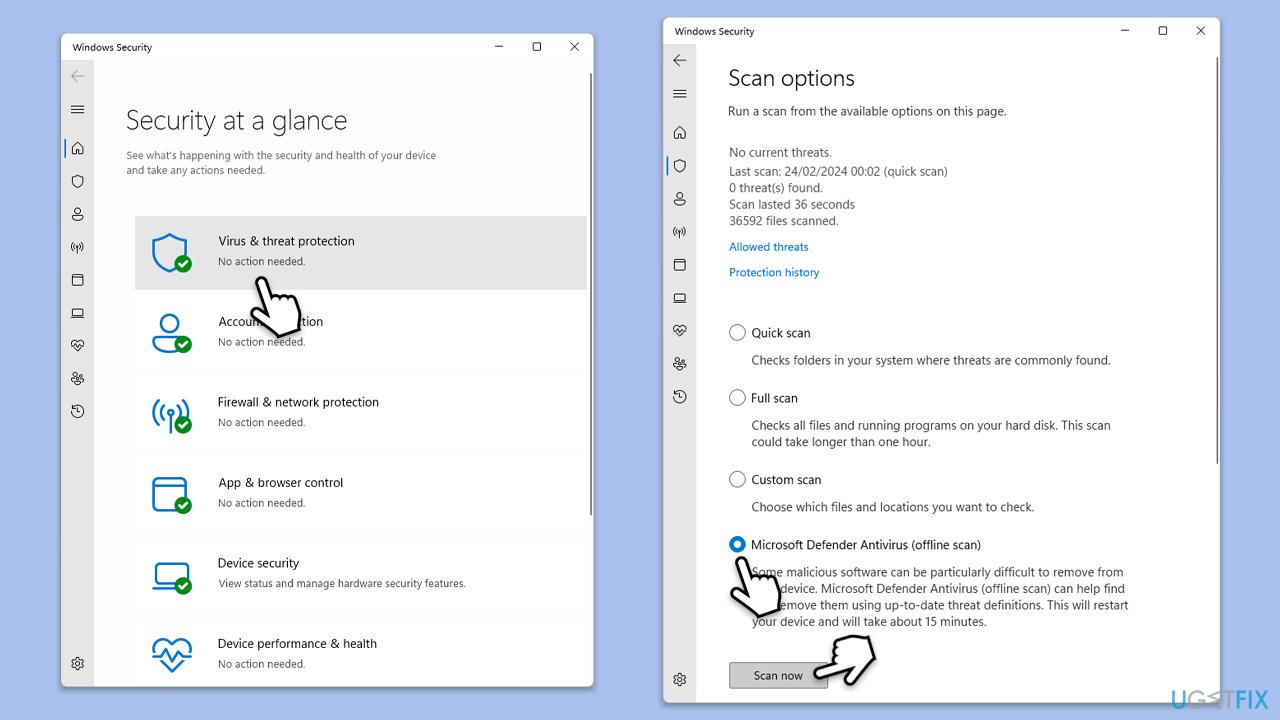
- Type Windows Security in the Windows search bar and hit Enter.
- Select Virus & threat protection.
- Pick Scan options.
- Choose Microsoft Defender Offline scan and click Scan now.
- Your computer will immediately reboot and begin a deep scan.
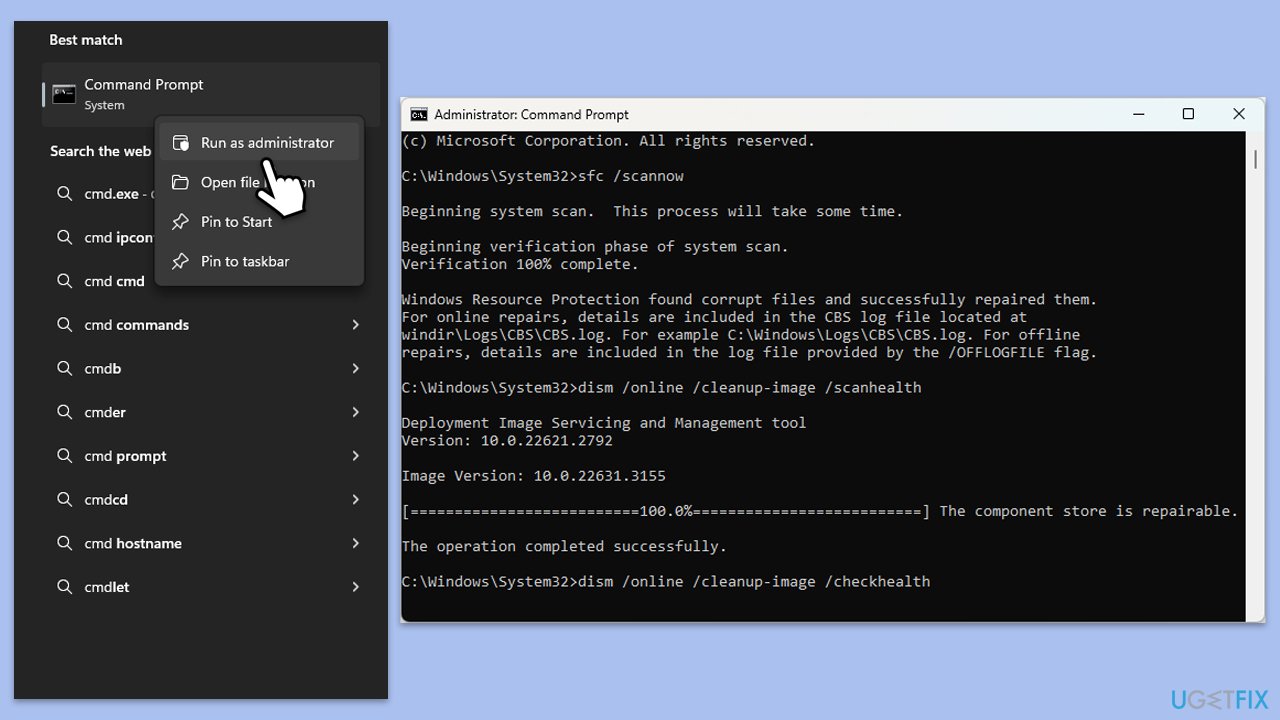
Fix 8. Repair corrupted system files
Corrupt system files can cause high CPU usage by interfering with normal processes. Running the System File Checker can repair these files.
- Type cmd in Windows search.
- Right-click on Command Prompt and select Run as administrator.
- When UAC shows up, click Yes.
- Copy and paste the following command, pressing Enter after:
sfc /scannow - Wait till the scan is finished. If Windows finds system file integrity violations, it will attempt to fix them. After this, use the set of the following commands, pressing Enter each time:
DISM /Online /Cleanup-Image /CheckHealth
DISM /Online /Cleanup-Image /ScanHealth
DISM /Online /Cleanup-Image /RestoreHealth - Restart your computer.
Bottom line
To fix high CPU usage caused by SearchFilterHost.exe, you can rebuild the search index, adjust indexed locations, or run the built-in Search and Indexing troubleshooter. Disabling the Windows Search Service is also an option for those who do not rely on search functionality. If none of these methods work, consider using a reliable optimization and repair utility to address underlying system issues.
Frequently asked questions
High CPU usage by SearchFilterHost.exe is often caused by indexing issues or corrupted search settings in Windows 10 or Windows 11.
To reduce CPU usage, you can rebuild the search index by going to Indexing Options in the Control Panel and selecting 'Advanced' followed by 'Rebuild'.
While you can disable SearchFilterHost.exe, it may affect search functionality; it's recommended to troubleshoot the underlying issue first before considering this option.




Report an issue
What's wrong with this guide? We review every report and update or remove content.
Report received — thank you. We'll review and fix it.
You need a free account to submit a report.
Be the first to comment