How to fix
Minecraft error code 0x87e50038
on Windows
Resolve Minecraft error code 0x87e50038 on Windows 10 and 11 effortlessly. Follow expert-tested solutions to get back to gaming in no time!


What causes How to fix Minecraft error code 0x87e50038 in Windows?
- Microsoft Store issues
- Xbox app issues
- Windows services problems
- Corrupted game files
- Outdated system components
- Incompatibility with running processes
Repairs Windows system files, removes malware, and restores a clean OS state — without reinstalling.
Whenever I try to launch Minecraft on Windows, I keep getting error code 0x87e50038. It won’t start, and I have no idea what’s causing it. Does anyone know how to fix this?
Minecraft error 0x87e50038 is an issue that prevents players from playing or updating Minecraft on Windows. The error commonly happens when they try to run Minecraft through the Xbox app or Microsoft Store and can be frustrating for players who just want to play their game. Players also complain that there is little indication in the error message of what went wrong.
The 0x87e50038 error code can have several reasons behind it, although it most often corresponds to Microsoft Store, Xbox app, or Windows services that deal with app installs and updates. Corrupted game, outdated system components, or incompatibility with currently running processes are other possibilities. In some cases, there could be an issue on the server-side at Microsoft and one needs to wait for a company reply as a patch.
To fix the 0x87e50038 error, players may need to remove the Microsoft Store cache, reinstall or repair the Xbox app, or ensure all services required will function properly. Windows and Minecraft must be updated and looked for any upcoming updates on Minecraft to verify compatibility issues that would cause the issue will be resolved. If the problem persists, Minecraft must be reinstalled or system settings must be adjusted to restore the app's association with Xbox services.
Since the origin of Minecraft error code 0x87e50038 is not always clear, resolving it can be time-consuming. Using [d1] PC fix software can help diagnose and solve underlying system issues, especially when dealing with corrupted files, registry issues, or issues with Microsoft Store applications.

Fix 1. Check for pending Minecraft updates
Sometimes, the error appears when Minecraft is outdated or a previous update did not install correctly.
- Open the Microsoft Store and go to Library.
- Click Get updates to check for any pending Minecraft updates.
- If an update is available, install it and restart your computer.

Fix 2. Run Windows Update
A missing system update can cause compatibility issues with Minecraft, preventing it from launching.
- Right-click on Start and select Settings.
- Go to Update & Security/Windows Update (depending on Windows version).
- If updates are pending, click Install updates.
- Otherwise, click Check for updates and wait.
- If there are optional updates available, install them as well.
- Restart your system to implement the changes.

Fix 3. Sign out and sign back into the Xbox app
Account authentication issues can sometimes trigger this error, especially if there is a sync problem with Xbox services.
- Open the Xbox app.
- Click on your profile picture in the top-right corner and select Sign out.
- Sign back in with the correct Microsoft account credentials.
- Verify that your account details match those linked to the Windows Store.

Fix 4. Check Xbox Live service status
If Microsoft’s servers are experiencing downtime or issues, you may need to wait until the problem is resolved.
- Visit the official Xbox Live Status page online.
- Check if there are reported issues with the Microsoft Store or Minecraft.
- If services are down, wait for Microsoft to resolve the issue before trying again.

Fix 5. Reset the Microsoft Store cache
A corrupted Microsoft Store cache can interfere with app downloads and updates, leading to errors when launching Minecraft. Clearing the cache can restore normal functionality.
- Type wsreset.exe in the Windows search box and press Enter.
- Wait till a black window shows up – do not close it.
- Once it's gone, Microsoft Store should restart.
- Once closed, the Microsoft Store will open automatically, indicating the cache has been reset.

Fix 6. Make sure Services are running
Minecraft relies on Microsoft’s Gaming Services to function properly. If these services are not running, the game may fail to start.
- Type Services in Windows search and press Enter.
- Scroll through the list and ensure the following services are running: Windows Update, Xbox Live Auth Manager, Xbox Live Game Save, and Xbox Live Networking Service. If any are not running, right-click on the service, select Properties, set the Startup type to Automatic, and click Start if the service is stopped.
- Click OK and close the Services window.
- Restart your computer and check if the issue with the Xbox app persists.

Fix 7. Repair or reset the Xbox app
Since Minecraft runs through the Xbox app on Windows, issues with the app can prevent the game from launching. Repairing the Xbox app can resolve missing or corrupted files that might be causing error code 0x87e50038.
- Right-click on Start and pick Apps & Features/Installed apps.
- Scroll down to locate the Xbox app and click Advanced options.
- Click Terminate and Repair.
- If that does not help, try the Reset option instead.
- Repeat this with the Microsoft Store and Gaming Services.

Fix 8. Reinstall the Xbox app
If the Xbox app is corrupted or outdated, reinstalling it can resolve issues affecting Minecraft’s launch.
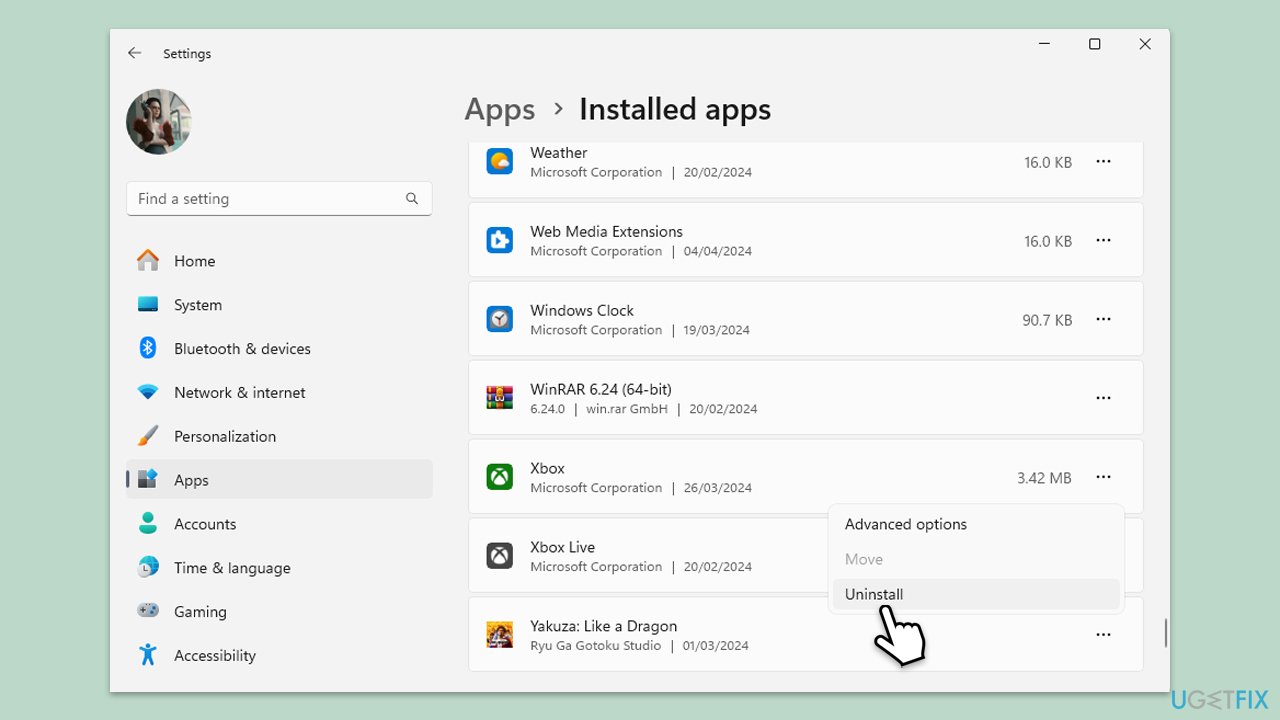
- Right-click on Start and pick Apps & Features/Installed apps.
- Scroll down to the Xbox app, select it (or click three vertical dots), and click Uninstall.
- Confirm any prompts and follow on-screen instructions.
- Restart your computer.
- Reinstall the app from the Microsoft Store.
Bottom line
To fix the 0x87e50038 error, players should check for pending Minecraft updates, remove the Microsoft Store cache, and reinstall or repair the Xbox app. If the problem persists, consider reinstalling Minecraft or adjusting system settings to restore app associations. If none of these solutions work, it may be necessary to wait for a server-side fix from Microsoft.
Frequently asked questions
This error typically occurs due to issues with the Xbox Game Services or problems with the installation of Minecraft on Windows 10. Corrupted game files or outdated system components can also contribute to this error.
To troubleshoot this error on Windows 11, try resetting the Xbox Game Services and ensuring that your game files are not corrupted. You can also check for updates for both Windows and Minecraft to resolve compatibility issues.
To prevent this error from recurring, regularly update your Windows 10 or Windows 11 system, keep your Xbox Game Services up to date, and ensure that your Minecraft installation is in good condition by verifying the game files.




Report an issue
What's wrong with this guide? We review every report and update or remove content.
Report received — thank you. We'll review and fix it.
You need a free account to submit a report.
Be the first to comment