How to fix
OneDrive error “File can’t be displayed”
on Windows
Resolve the OneDrive "File can’t be displayed" error on Windows 10 or 11 quickly and efficiently. Get expert-tested solutions you can trust!

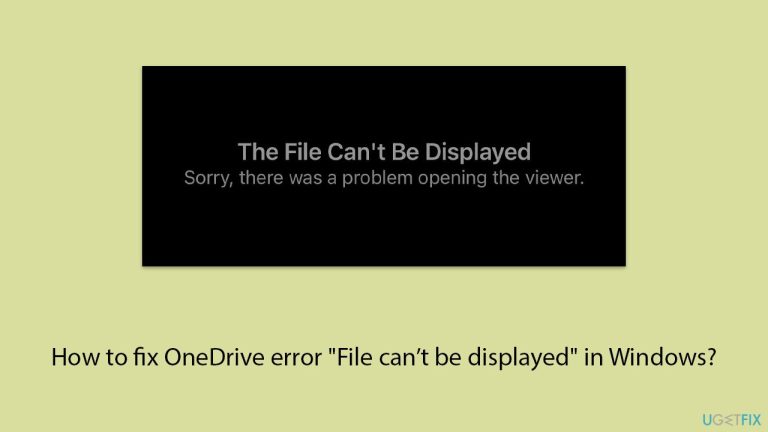
What causes How to fix OneDrive error “File can’t be displayed” in Windows?
- Network connectivity issues
- Corrupted or incomplete files
- Incompatible or older versions of the OneDrive app
- Permission issues
- Changes in the original location of the files
Repairs Windows system files, removes malware, and restores a clean OS state — without reinstalling.
So I use my OneDrive desktop app for everything to do with my files there. As of yesterday, I can't open PDF files and the message says "File can’t be displayed." Everything works fine in the browser.
Among the most popular cloud storage solutions, OneDrive integrates well with Windows and provides a way of accessing, sharing, and syncing files across multiple devices. OneDrive is especially appreciated for its ease of use and tight integration with Microsoft Office and Windows Explorer.
However, as with any other app, OneDrive isn't free from issues that can prevent its expected functionality. One of the problems that might bug a user is some file display error, which does not allow users to view or access certain files within a particular user account on OneDrive.
With the "File can't be displayed" error, some of those files will not open either in the OneDrive application or in the browser interface. Mostly, this error does not come with an explanation, leaving you with questions like where it came from.
For some users, the problem appears to affect just a few files or folders, while for other users, it impacts larger portions of their OneDrive storage. This can be really frustrating if the affected files are important to deal with for work, school, or personal projects.
Now, this "File can't be displayed" error could appear for a couple of reasons. The common cause could be some issues in network connectivity; hence, OneDrive can't sync or load your files properly. In other cases, corrupted or incomplete files can also trigger this error and make them inaccessible.
Incompatible or older versions of the OneDrive app can be another point of conflict that causes files to fail to appear as they should. Besides, permission issues or changes in the original location of these files might be a contributing factor to the anomaly, through which OneDrive is unable to find or open the file.
Such problems can be circumvented by using various third-party utility tools like the [d1] repair tool to automatically replace corrupted system files or other underlying Windows issues that might lead to errors in OneDrive.
Solutions for the "File can't be displayed" error vary from simple refresh of the network and update of the OneDrive application to manual steps like resetting the application or re-syncing of the file. Below are manual steps to walk you through the procedures progressively from the easiest to the most advanced fixes.
Fix 1. Check your internet connection
Network connectivity issues are one of the main reasons why OneDrive may struggle to display files. Ensuring your connection is stable can help.
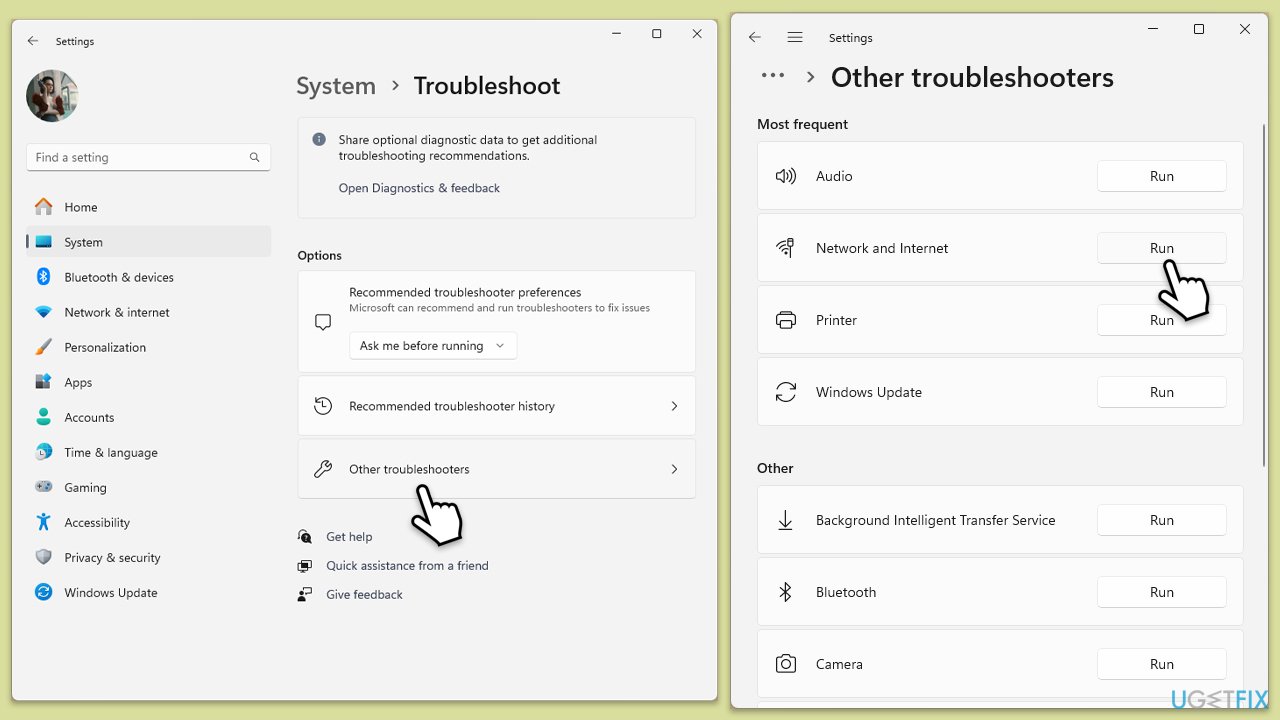
Windows 11
- Type Troubleshoot in Windows search and hit Enter.
- Select Other troubleshooters.
- Locate Network & Internet troubleshooter from the list and click Run.
- Wait till the process is finished and apply the recommended fixes.
- Restart your computer.
Windows 10
- Right-click on Start and pick Settings.
- Go to the Network & Internet section.
- On the right side, find the Advanced network settings section.
- Click Network troubleshooter and wait.
- The fixes will be automatically applied.
Fix 2. Update the OneDrive app
Running an outdated version of the OneDrive app can cause compatibility problems, leading to errors.
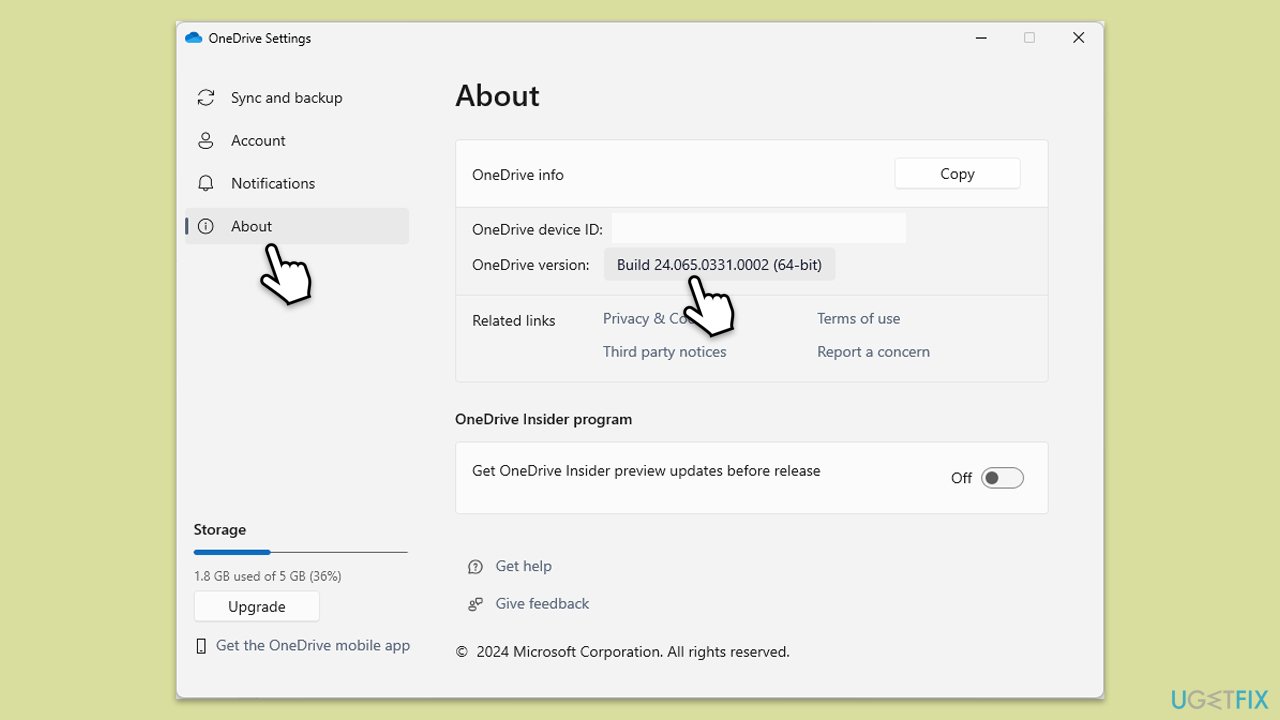
- Open the OneDrive app on Windows.
- Click on the Help & Settings icon in the notification area.
- Select Settings.
- In the settings menu, go to the About tab.
- Click on the OneDrive version - this should open the browser and the release notes from Microsoft.
- If the latest version listed there matches with the one on your app, you are up to date.
- If the version does not match, simply click on Download OneDrive for Windows, follow the installation instructions and it will install the latest version on your device.
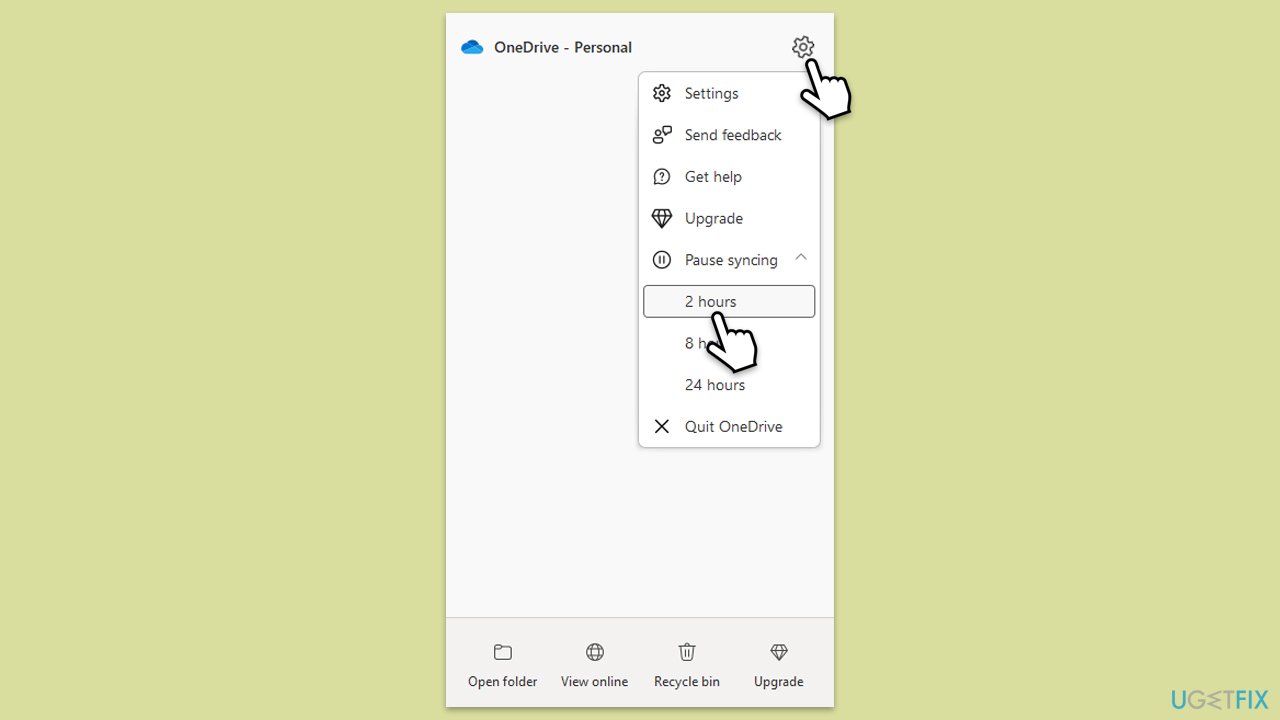
Fix 3. Refresh OneDrive sync
Refreshing the sync process can help clear minor issues that may be causing the error.
- Right-click the OneDrive cloud icon in the system tray.
- Select Pause syncing and choose a time interval.
- Wait a few moments, then right-click the icon again and select Resume syncing.
Fix 4. Check file permissions
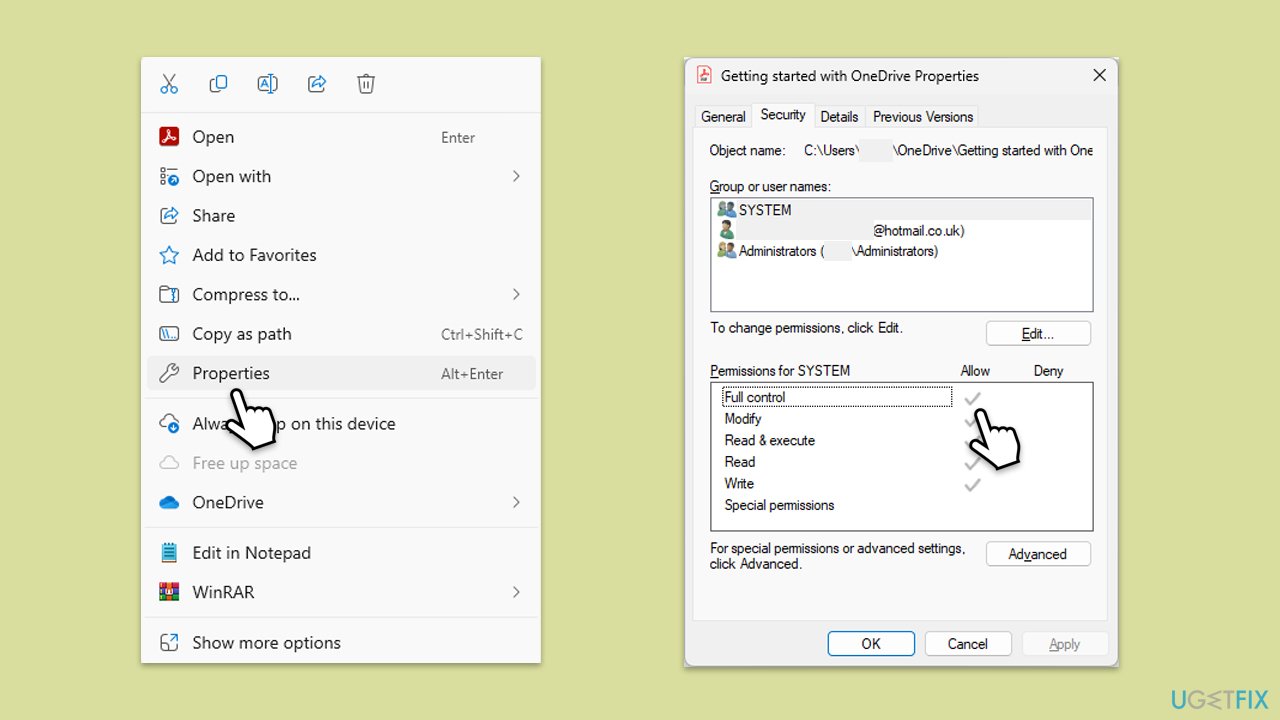
Incorrect file permissions can prevent OneDrive from displaying files properly.
- Navigate to the file in question on your OneDrive.
- Right-click the file and select Properties.
- Go to the Security tab and ensure that your user account has full control.
- Click Edit and adjust the permissions as required.
Fix 5. Clear OneDrive cache
Clearing the OneDrive cache can remove temporary data that may be causing issues.
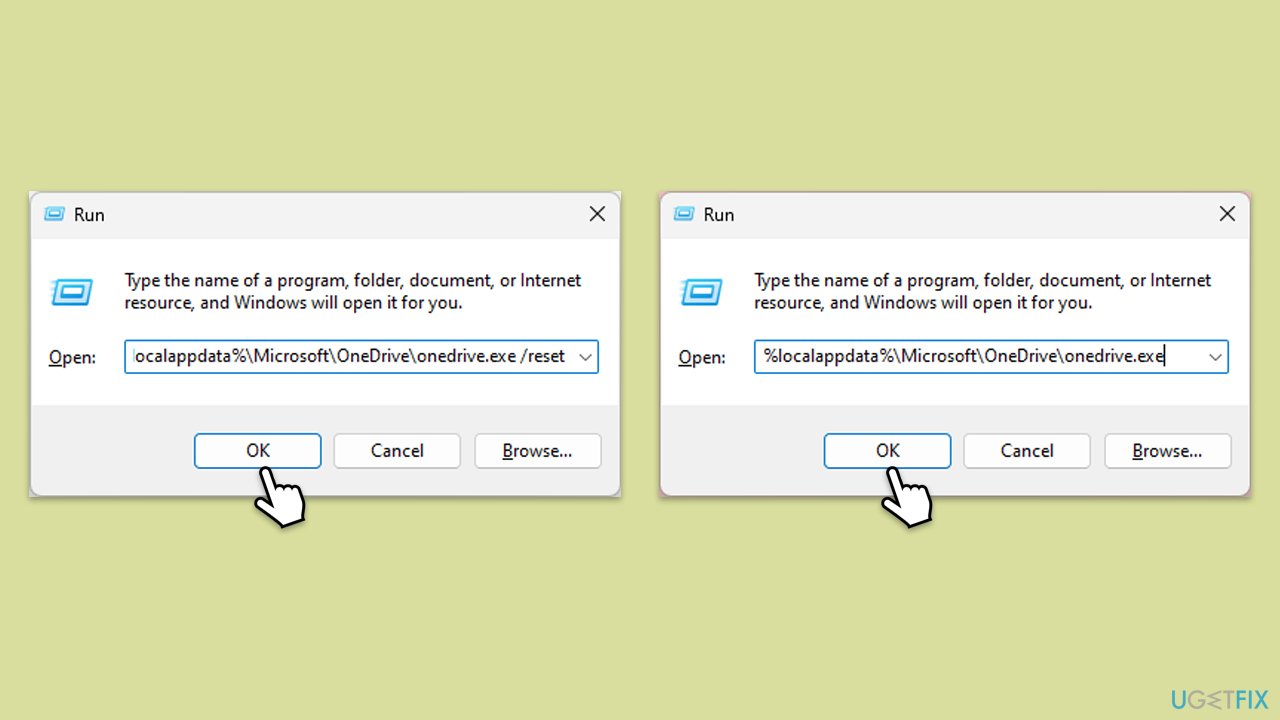
- Press Win + R on your keyboard.
- When the Run window opens, copy and paste the following text into it:
%localappdata%\Microsoft\OneDrive\onedrive.exe /reset
(Note: you might get an error here. In that case, use %programfiles(x86)%\Microsoft OneDrive\onedrive.exe /reset or C:\Program Files (x86)\Microsoft OneDrive\onedrive.exe /reset instead) - Press Enter or click OK.
- After this command is executed, the app should be reset, and OneDrive should open.
- If it doesn't, wait a few minutes, then open the Run window again and use the following command:
%localappdata%\Microsoft\OneDrive\onedrive.exe - Press Enter.
Fix 6. Re-link your OneDrive account
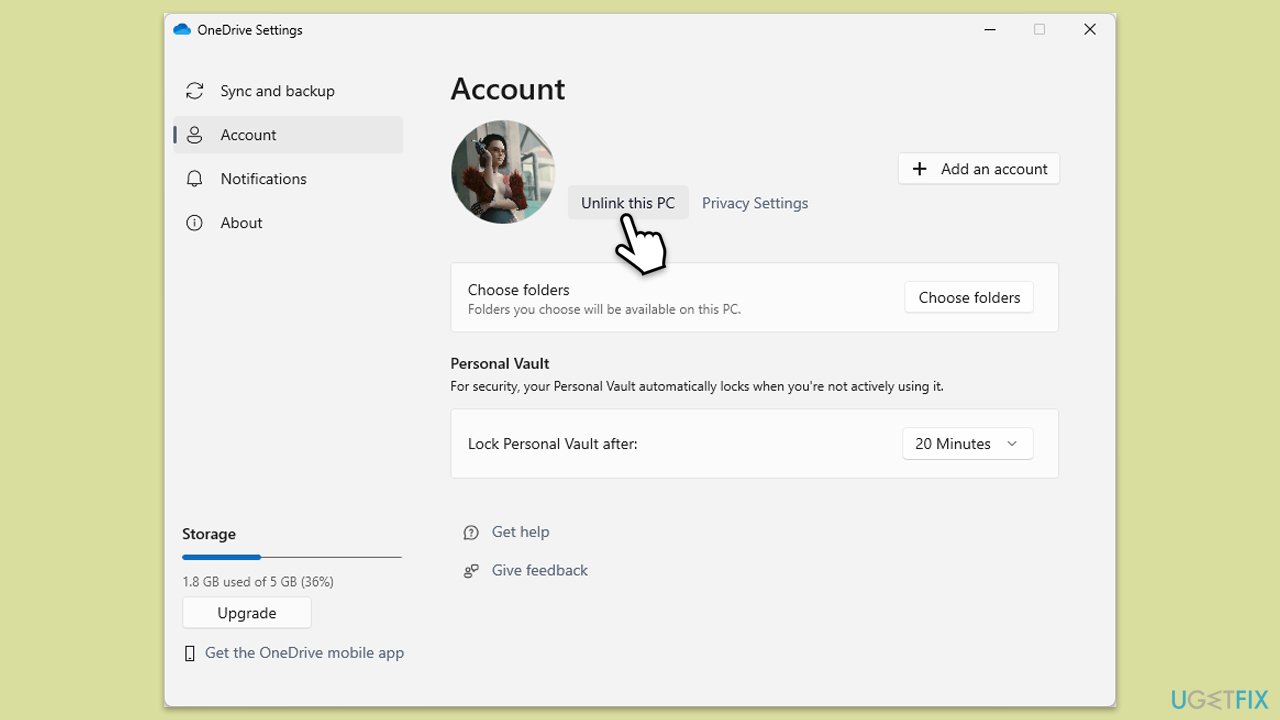
Re-linking your OneDrive account can reset the connection and resolve issues.
- Right-click the OneDrive icon in the taskbar.
- Select Settings.
- Go to the Account tab.
- Click Unlink this PC.
- Sign in again with your Microsoft account.
Fix 7. Reinstall the OneDrive app
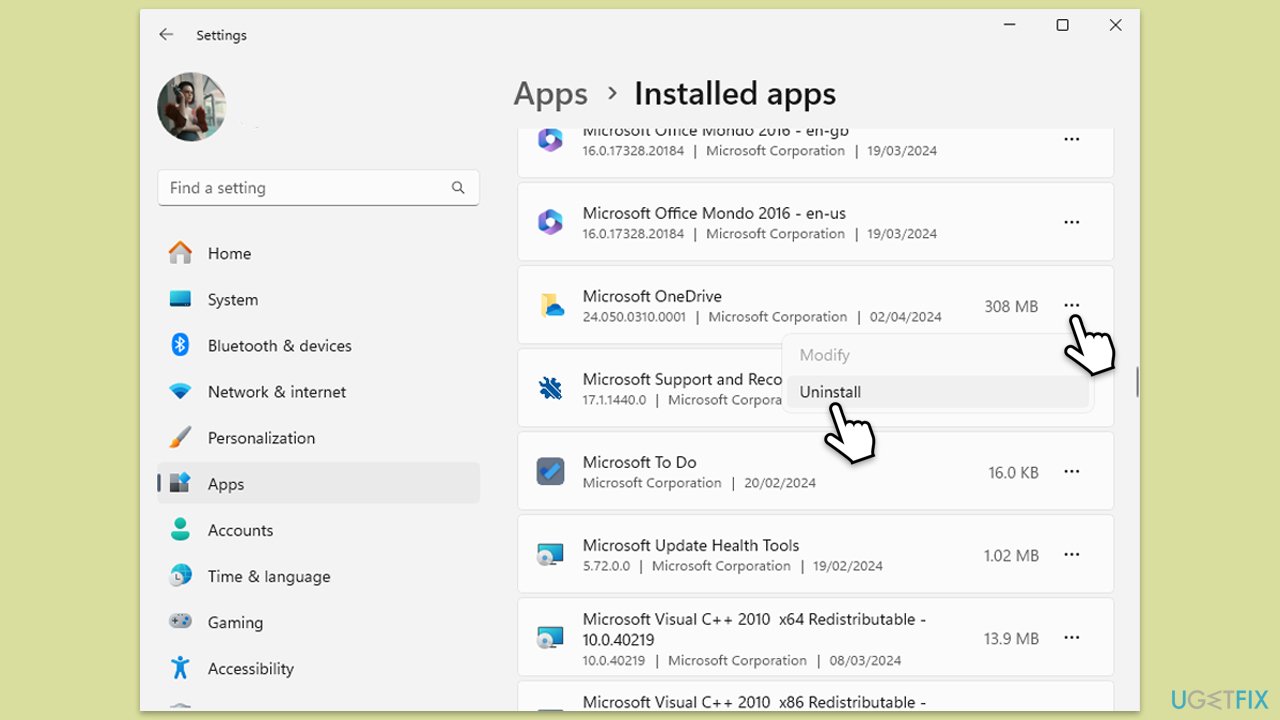
If the problem persists, reinstalling the app can reset its configuration.
- Type cmd in Windows search.
- Right-click on Command Prompt and pick Run as administrator.
- User Account Control will ask whether you want to accept changes - click Yes.
- Type in the following and press Enter to terminate any leftover OneDrive processes:
taskkill /f /im OneDrive.exe - If you are using 64-bit Windows, use the following command and hit Enter:
%SystemRoot%\SysWOW64\OneDriveSetup.exe /uninstall - If you are using 32-bit Windows, use the following command and hit Enter:
%SystemRoot%\System32\OneDriveSetup.exe /uninstall - After that, restart your PC.
- Reinstall OneDrive from the official Microsoft website.
Bottom line
To fix the 'File can’t be displayed' error, you can check your network connection, ensure your files are not corrupted, update the OneDrive app, and verify file permissions. If these solutions do not resolve the issue, consider using third-party utility tools or contacting support for further assistance.
Frequently asked questions
This error typically occurs due to corrupted files, unsupported file types, or syncing issues within OneDrive. Ensuring your files are compatible and checking your internet connection can help resolve this.
To troubleshoot this error on Windows 11, try clearing the OneDrive cache and resetting the application. You can also check for updates or reinstall OneDrive if the issue persists.
Yes, you can recover files by accessing the OneDrive web interface, where deleted or corrupted files may still be available. Make sure to check the Recycle Bin in OneDrive for any recoverable items.




Report an issue
What's wrong with this guide? We review every report and update or remove content.
Report received — thank you. We'll review and fix it.
You need a free account to submit a report.
Be the first to comment