How to fix
OneNote app error code: 0x5
on Windows
Resolve the OneNote error code: 0x5 on Windows 10 and 11 effortlessly. Follow our expert-tested solutions for a seamless experience, fixed in minutes.

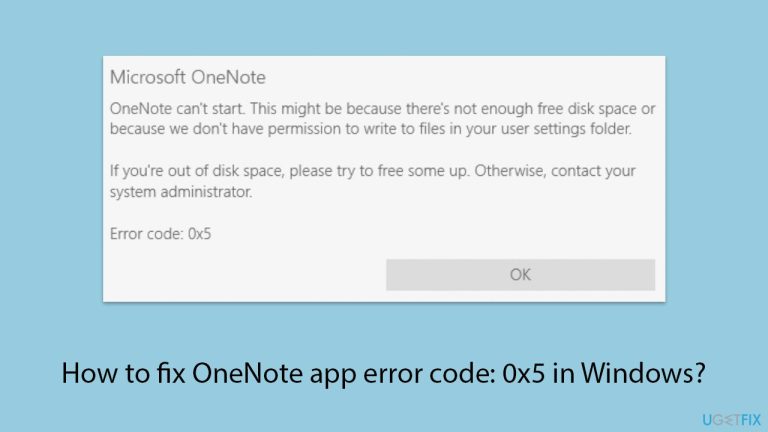
What causes How to fix OneNote app error code: 0x5 in Windows?
- Permission-related issues
- Inadequate access rights to files or folders
- Corrupt application data
- Outdated OneNote versions
- Conflicts with third-party applications
Repairs Windows system files, removes malware, and restores a clean OS state — without reinstalling.
I can't start OneNote for some reason. Everything was working fine for years and now it no longer does, and I am not sure what the reason is. This happened a few days ago, after starting my PC and trying to open a workbook, I got an error code 0x5, which said that Microsoft OneNote can't start.
OneNote is an application used extensively in note management, project management, and collaborative tasks. This fact makes it indispensable for many users, whether at professional or academic levels. However, receiving error code 0x5 can be annoying, as it prohibits proper functionality of the application.
This error can be witnessed every time one attempts to start OneNote or access some particular notebooks. Doing so makes it hard to work with this application and can lead to problems accessing data.
The 0x5 error code typically indicates permission-related issues within the system. It can happen if OneNote does not have adequate access rights to its required files or folders, or if system-level settings block the application. Other possible causes include corrupt application data, outdated OneNote versions, or conflicts with third-party applications, such as antivirus software. In some cases, Windows system errors or registry inconsistencies can also trigger this problem.
While the exact resolution depends on the cause, there are various approaches to resolve this issue. For instance, granting appropriate permissions to the OneNote folder and files can often fix the error. Additionally, repairing or updating the app can address any internal glitches or compatibility problems. Removing conflicting programs or clearing OneNote's cache may also prove effective.
In more complex cases, resetting the app or reinstalling it entirely might be necessary to restore its functionality. System-level troubleshooting, such as running file repair tools or ensuring that Windows updates are fully installed, can also resolve underlying issues causing the 0x5 error.
For a hassle-free approach, consider using the [d1] repair tool, which can automatically detect and fix various Windows-related problems, ensuring that your applications, including OneNote, run smoothly.

Fix 1. Restart OneNote
Restarting the app can clear temporary glitches that might be causing error code 0x5. This simple step often resolves minor issues.
- Close the OneNote app completely.
- Press Ctrl + Shift + Esc to open the Task Manager to ensure no OneNote processes are running.
- Relaunch the app and check if the error persists.
Fix 2. Check folder and file permissions
Permission issues can prevent OneNote from accessing its necessary files, leading to this error.
- Right-click on the OneNote folder in your Documents directory.
- Select Properties and navigate to the Security tab.
- Ensure that your user account has full control.
- Click Edit and adjust the permissions as required.
- Apply changes and restart OneNote.

Fix 3. Update OneNote
Using an outdated version can result in compatibility issues. Updating ensures you have the latest fixes.
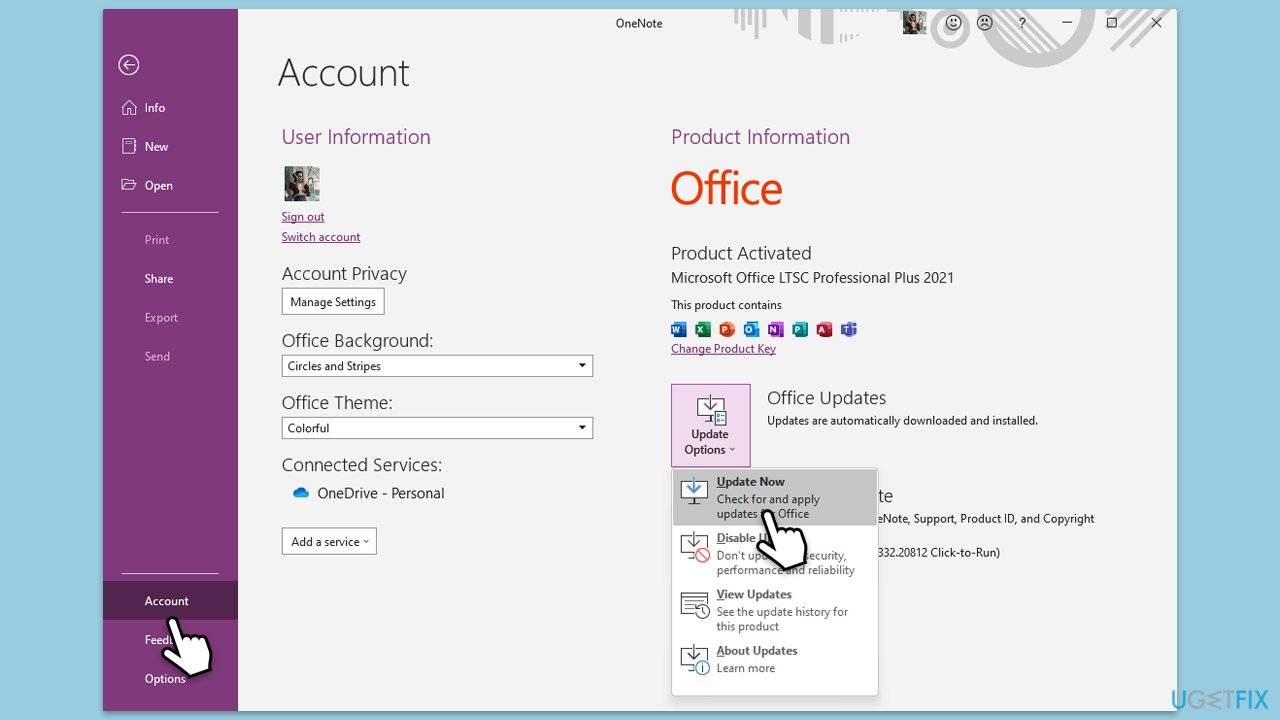
- Open Microsoft OneNote and navigate to File.
- From the file menu, select Account.
- Under Product Information, locate and click on Update Options.
- From the dropdown list, select Update Now. The program will then check for available updates and install them.
Fix 4. Disable third-party antivirus software
Antivirus programs can mistakenly block OneNote’s operations, causing error code 0x5.
- Temporarily disable your antivirus software from its settings.
- Launch OneNote to check if the issue is solved.
- If this works fine, add OneNote to the antivirus exclusion list.
Fix 5. Clear the OneNote cache
A corrupted cache can lead to errors within the app. Clearing it often resolves such problems.
- Close OneNote completely.
- Navigate to the following location:
C:\Users\YourUsername\AppData\Local\Microsoft\OneNote\16.0\cache (replace with your username and OneNote version). - Delete all files in this folder.
- Restart OneNote and try syncing again.
Fix 6. Repair the OneNote app
If the app is damaged, repairing it can fix the issue without removing your data.
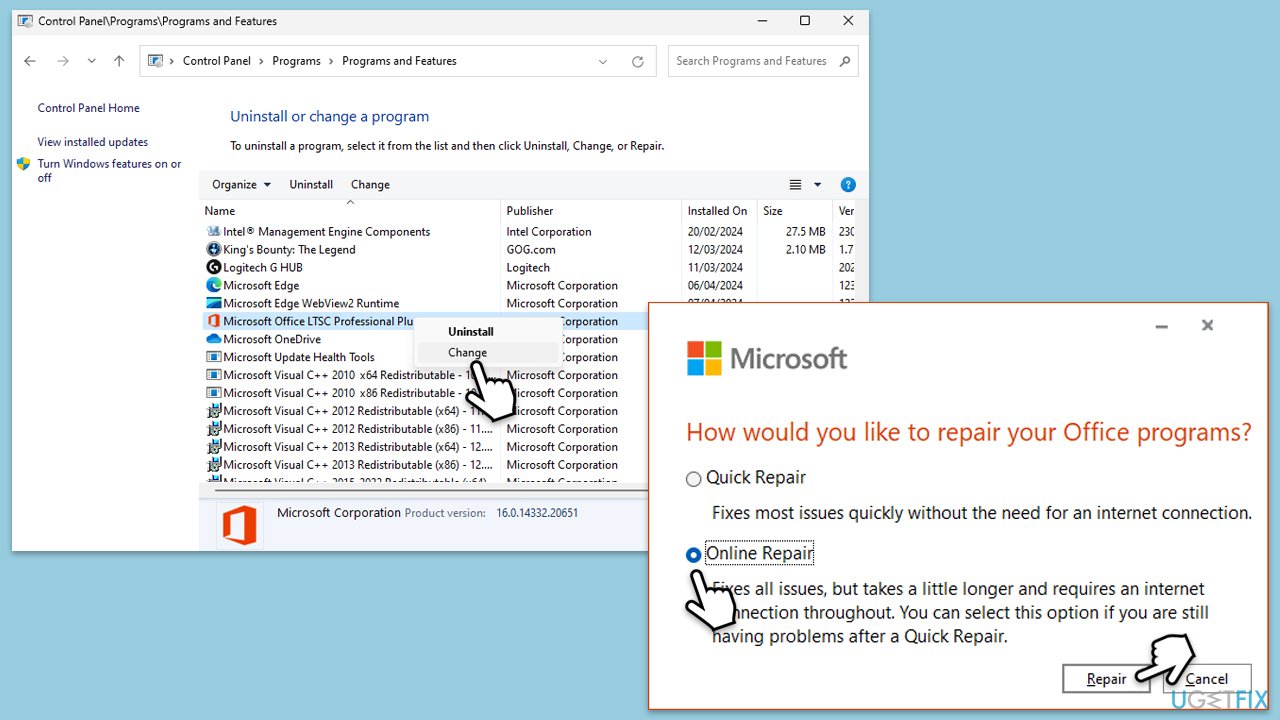
- Type Control Panel in Windows search and press Enter.
- Select Programs and Features.
- Find Microsoft Office in the list, right-click, and choose Online repair.
- Follow the on-screen instructions to complete the repair process.
Fix 7. Reinstall OneNote
If other solutions fail, reinstalling the app removes corrupted files and installs a fresh version.
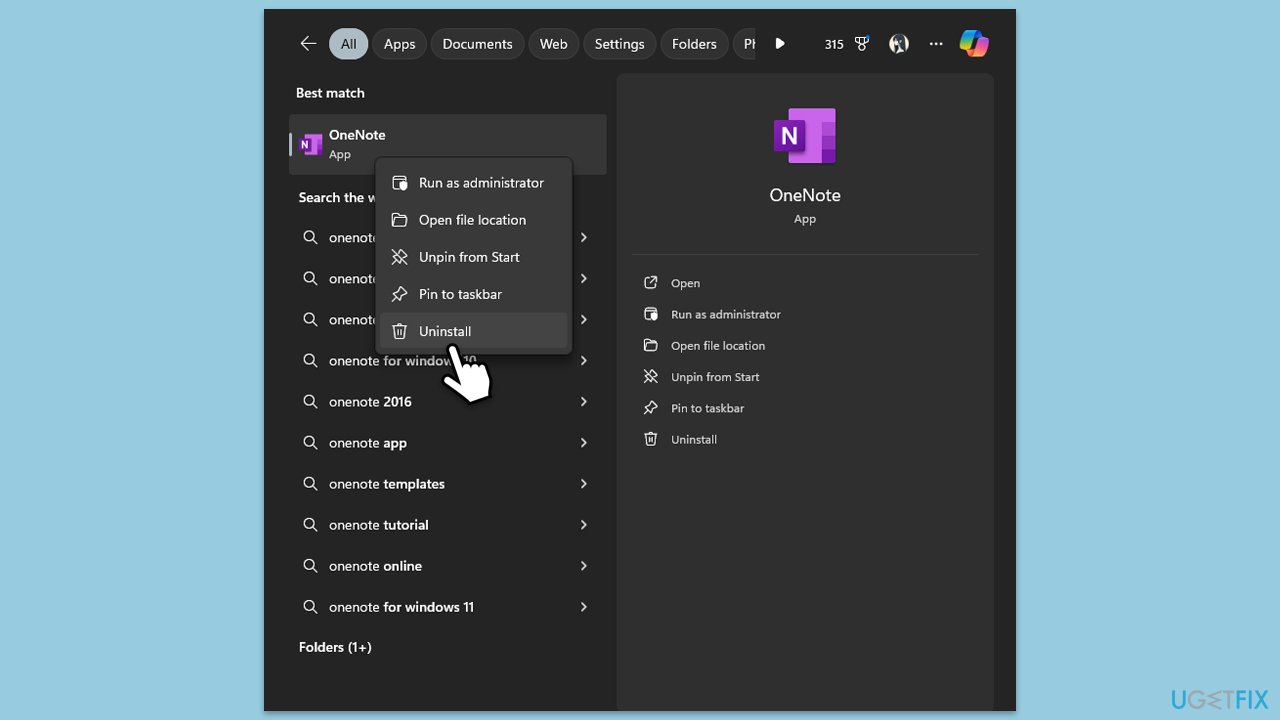
- Type OneNote in the Windows search box.
- Right-click on OneNote and select Uninstall.
- Follow the prompts to remove the app completely.
- Reboot your system.
- Go to the Microsoft Store and reinstall OneNote.
Bottom line
To fix the OneNote error code 0x5, you can try granting appropriate permissions to the OneNote folder, repairing or updating the app, or clearing its cache. If these methods do not resolve the issue, consider resetting or reinstalling the app, or using a repair tool to address underlying problems.
Frequently asked questions
The error code: 0x5 typically occurs due to permission issues, corrupted files, or conflicts with other applications in Windows 10 or Windows 11.
To fix the error, try running the OneNote app as an administrator, or reset the app through the Windows Settings under Apps.
Yes, you can repair OneNote by going to Settings > Apps > Apps & features, selecting OneNote, and choosing the 'Repair' option.




Report an issue
What's wrong with this guide? We review every report and update or remove content.
Report received — thank you. We'll review and fix it.
You need a free account to submit a report.
Be the first to comment