How to fix
Print Spooler error 0x800706b9
on Windows
Resolve the Print Spooler error 0x800706b9 on Windows 10 and 11 quickly. Follow our expert-tested guide for a hassle-free printing experience!


What causes How to fix Print Spooler error 0x800706b9 in Windows?
- Too many print jobs in the queue
- Issues with the 'Printers' folder
- Problem with the Remote Procedure Call (RPC) service
- Outdated printer drivers
- Corrupted printer drivers
Repairs Windows system files, removes malware, and restores a clean OS state — without reinstalling.
I have been trying to print using my HP DeskJet 4255e in the past few days but to no avail due to the Print Spooler error 0x800706b9. I restarted the PC and printer several times but it also didn't help. Can I do something to make it work again?
Printers are very helpful devices that let us print documents, photos, and more directly from our computers. However, they can sometimes cause problems, including errors like 0x800706b9. Users receive the error whenever they attempt to print a document - the full message reads:
Windows could not start the Print Spooler service on Local Computer. Error 0x800706b9: Not enough resources are available to complete this operation.
This note does not provide many details to a regular user, so let's see what this is all about.
What causes Print Spooler error 0x800706b9?
Windows error codes, while can often indicate an approximate issue, can not pinpoint the direct reason for each person who receives it. This is because each operating system configuration is different, and there are thousands of variables involved. To find out the way to fix the 0x800706b9 error, you must first find the reason it occurred in the first place.
A common reason is that there are too many print jobs in the queue, which can overwhelm the system. Additionally, issues with the "Printers" folder (where temporary print job files are stored) can also cause these issues.
It could be a problem with the Remote Procedure Call (RPC) service, which the Print Spooler needs to work properly. If the RPC service isn't set up correctly, the Print Spooler can't start. Finally, outdated or corrupted printer drivers might also be to blame, as they might not work well with your current system.
Potential solutions for Print Spooler error 0x800706b9
To fix the Print Spooler error 0x800706b9, you can try several things, which include running the printer troubleshooter, clearing the "Printers" folder and the print queue, ensuring the Remote Procedure Call service is set up and running correctly, updating your printer drivers, etc.
If you would rather deal with various Windows issues without your manual input, you could always try using the [d1] PC repair tool, as it can automatically diagnose and resolve issues on your system.

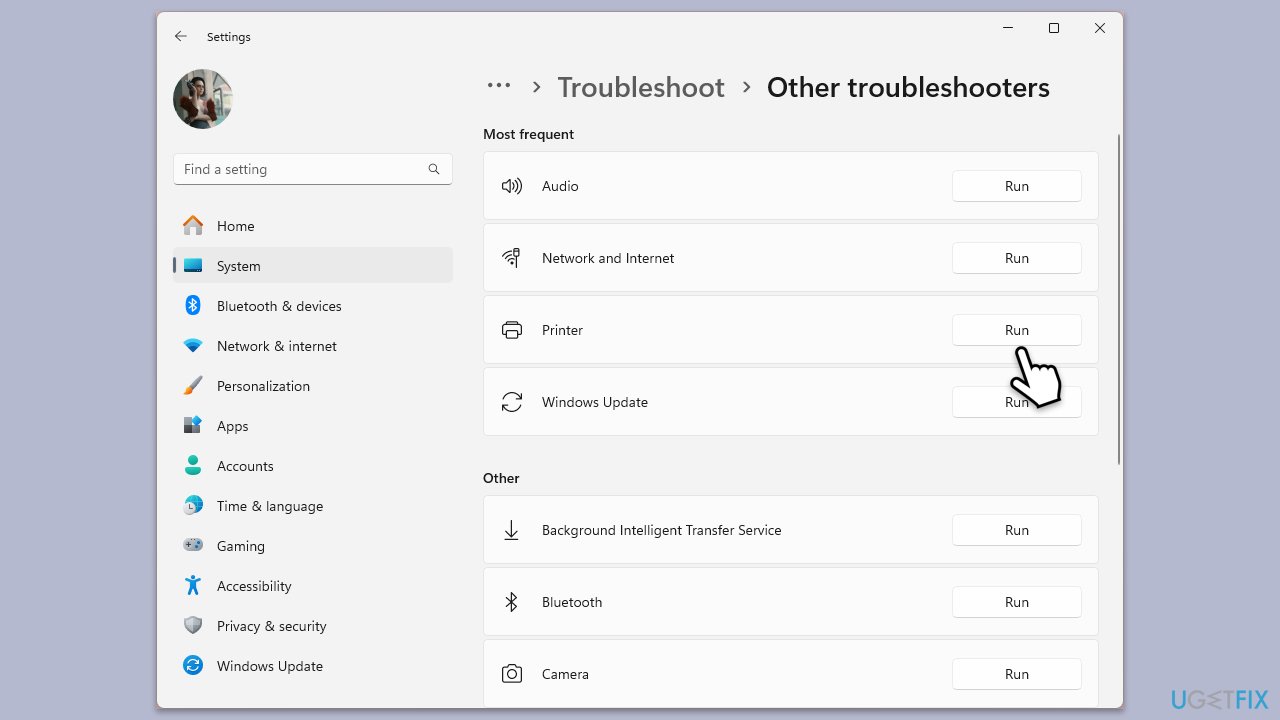
Fix 1. Run printer troubleshooter
Running the printer troubleshooter helps identify and fix common printing issues automatically.
- In the Windows search bar, type Troubleshoot and press Enter.
- Select Additional troubleshooters/Other troubleshooters.
- Click on Printer, then select Run the troubleshooter/Run.
- Follow the on-screen instructions to diagnose and fix issues.
Fix 2. Clear the "Printers" folder
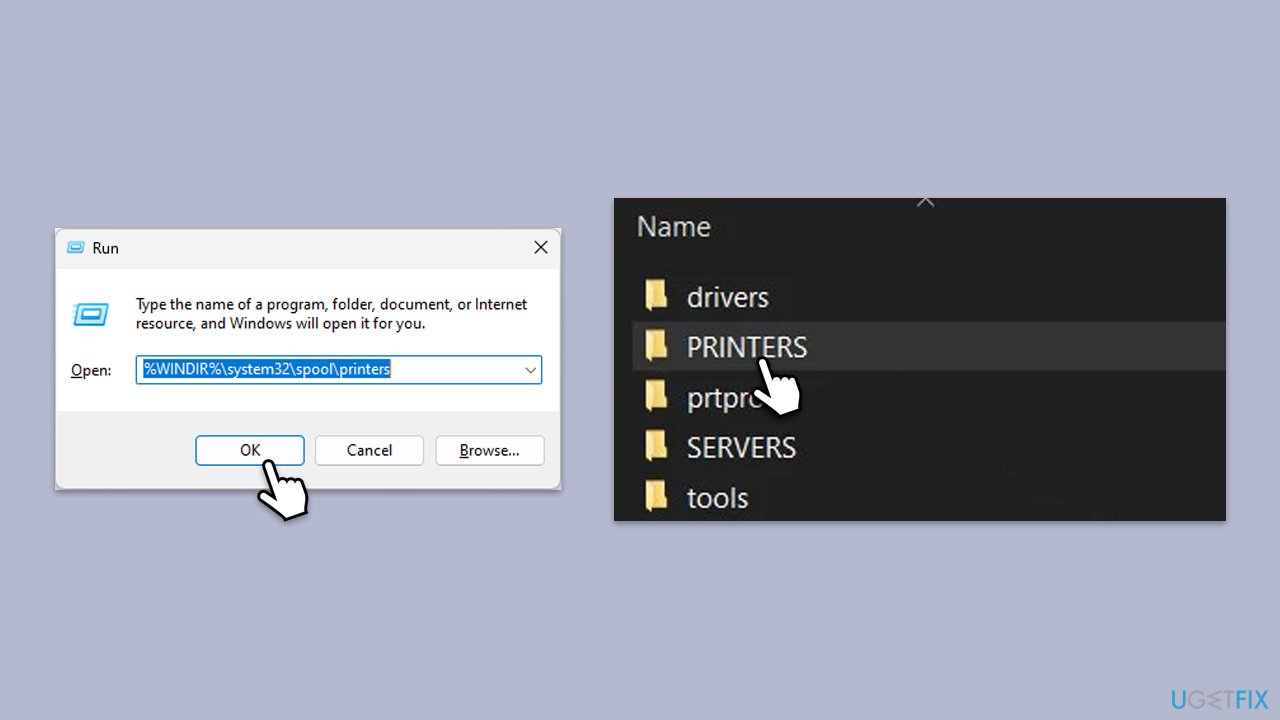
Clearing the "Printers" folder removes any temporary files that might be causing the problem.
- Type Services in Windows search and press Enter.
- Find the Print Spooler service in the list, right-click on it, and select Stop.
- Once the service has stopped, press the Win + R.
- Type %WINDIR%\system32\spool\printers and press Enter. This should open the Printers folder.
- Delete all files within this folder.
- After clearing it, go back to the services window, find the Print Spooler service, right-click on it, and select Start.
- Close the services window and attempt to print your document again.
Fix 3. Clear the print queue manually
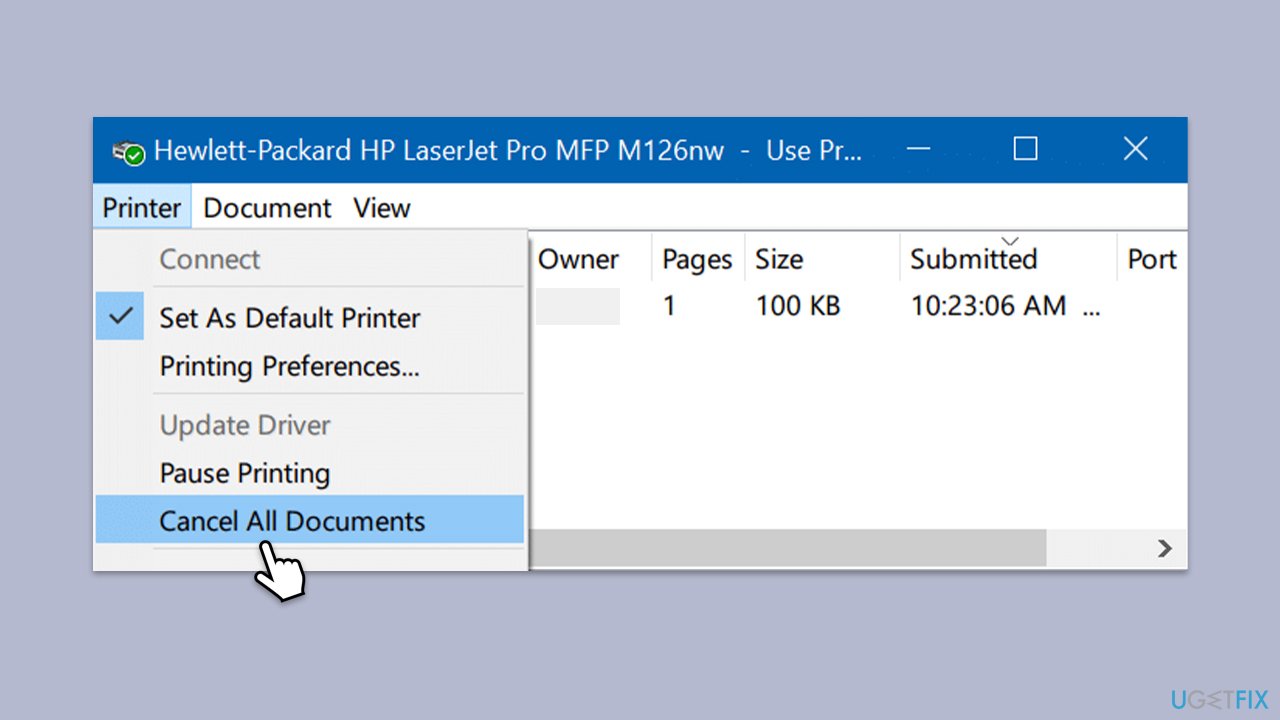
Clearing the print queue can remove any stuck print jobs that are causing the error.
- Navigate to the Control Panel on your computer.
- Select the Devices and Printers option.
- Right-click on your specific printer and opt for See what's printing.
- If there are any pending tasks in the queue, cancel them by right-clicking and selecting Cancel.
Fix 4. Restart the Print Spooler service
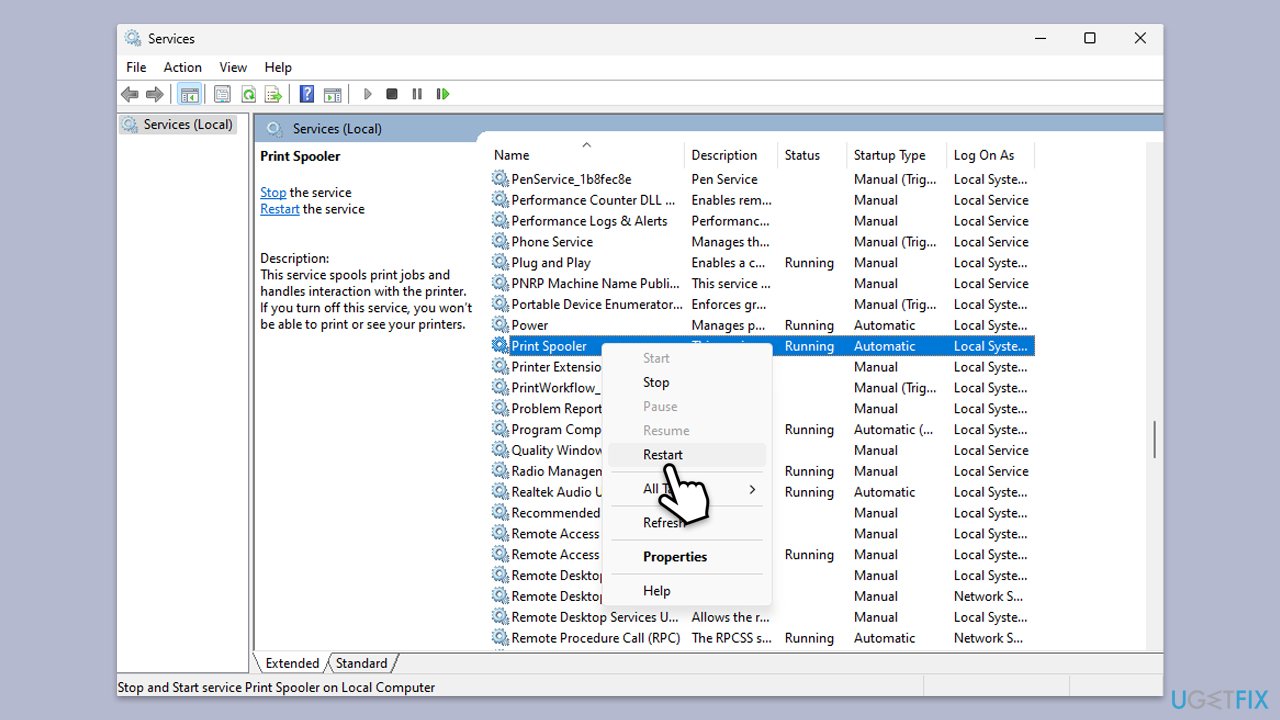
Restarting the Print Spooler service can help clear temporary issues.
- Type Services in Windows search and press Enter.
- Scroll down and locate the Printer Spooler service.
- Right-click on it and select Restart.
- Try to connect to the printer again after the service restarts.
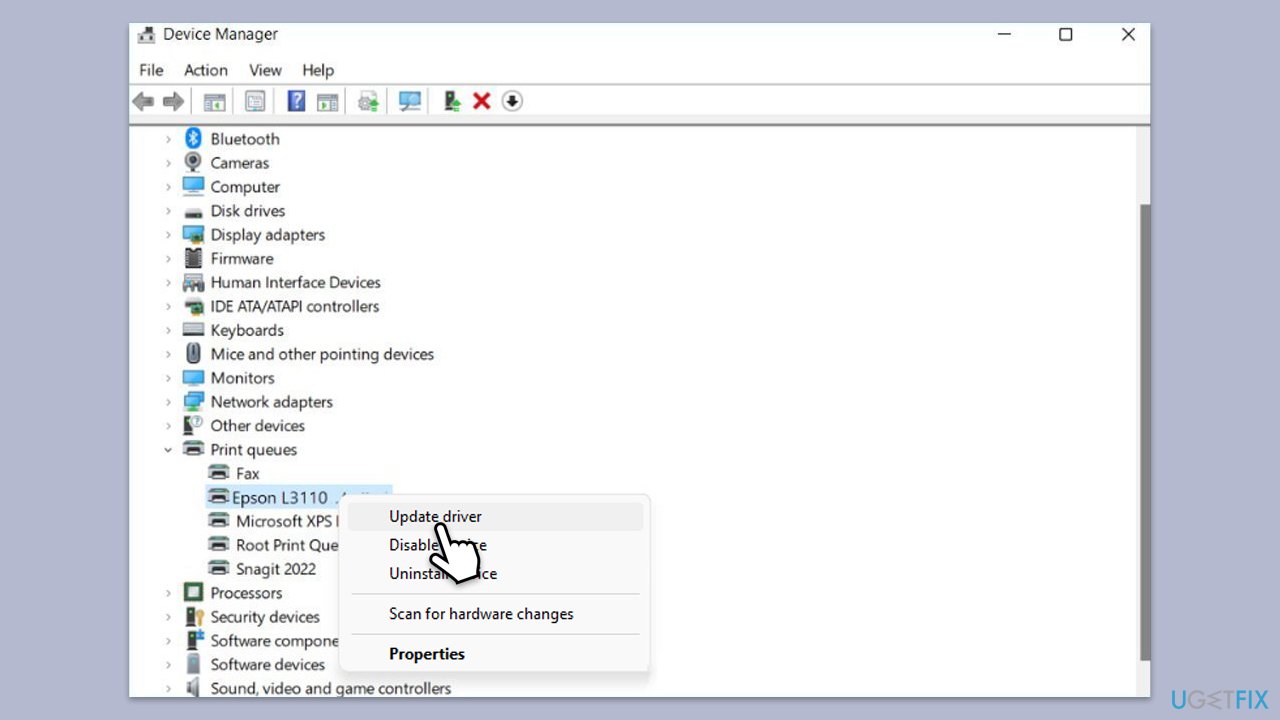
Fix 5. Update printer drivers
Updating printer drivers to the latest version can resolve compatibility issues.
- Right-click on Start and pick Device Manager.
- Find your printer under the Printers category.
- Right-click on it and choose Update Driver.
- Select Search automatically for drivers.
- Follow the prompts to install any available updates.
Fix 6. Check for system updates
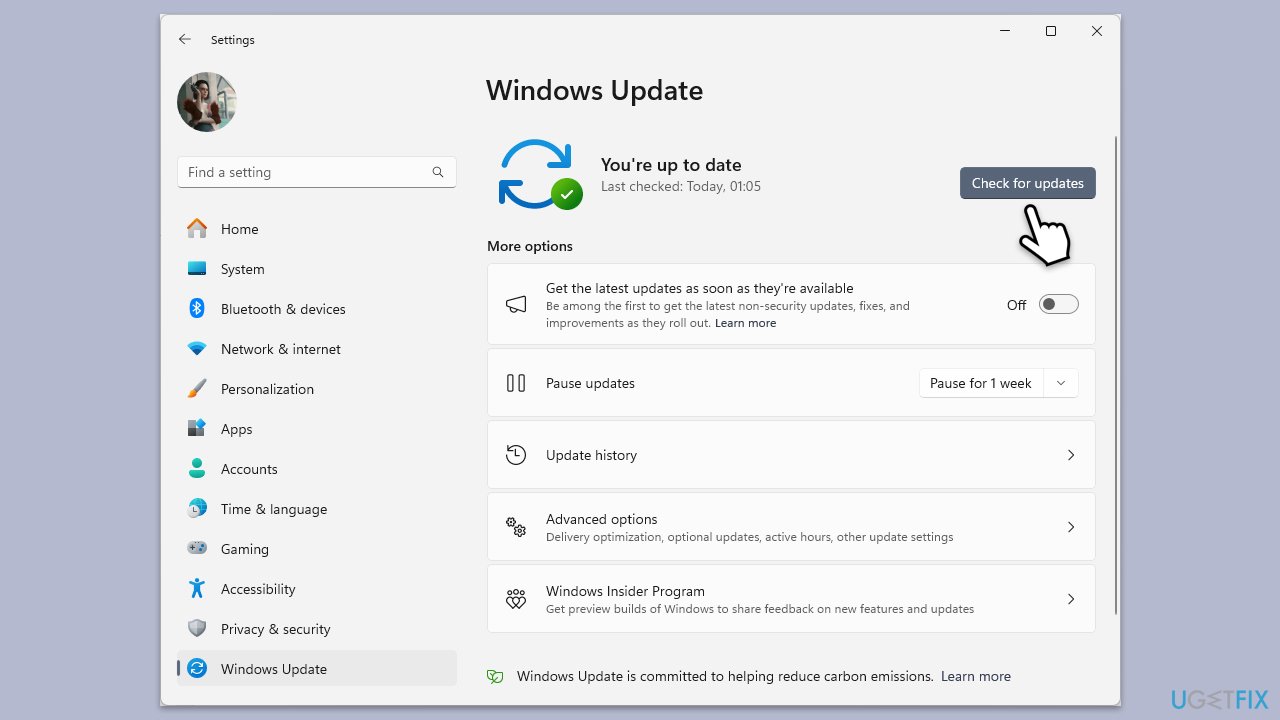
Ensuring your system is up to date can resolve compatibility issues with the Print Spooler.
- Type Updates in the Windows search box and press Enter.
- Click Check for Updates or Install all.
- Ensure optional and pending updates are installed as well.
- Wait till the process is finished.
- Restart your device.
Fix 7. Perform a system file check
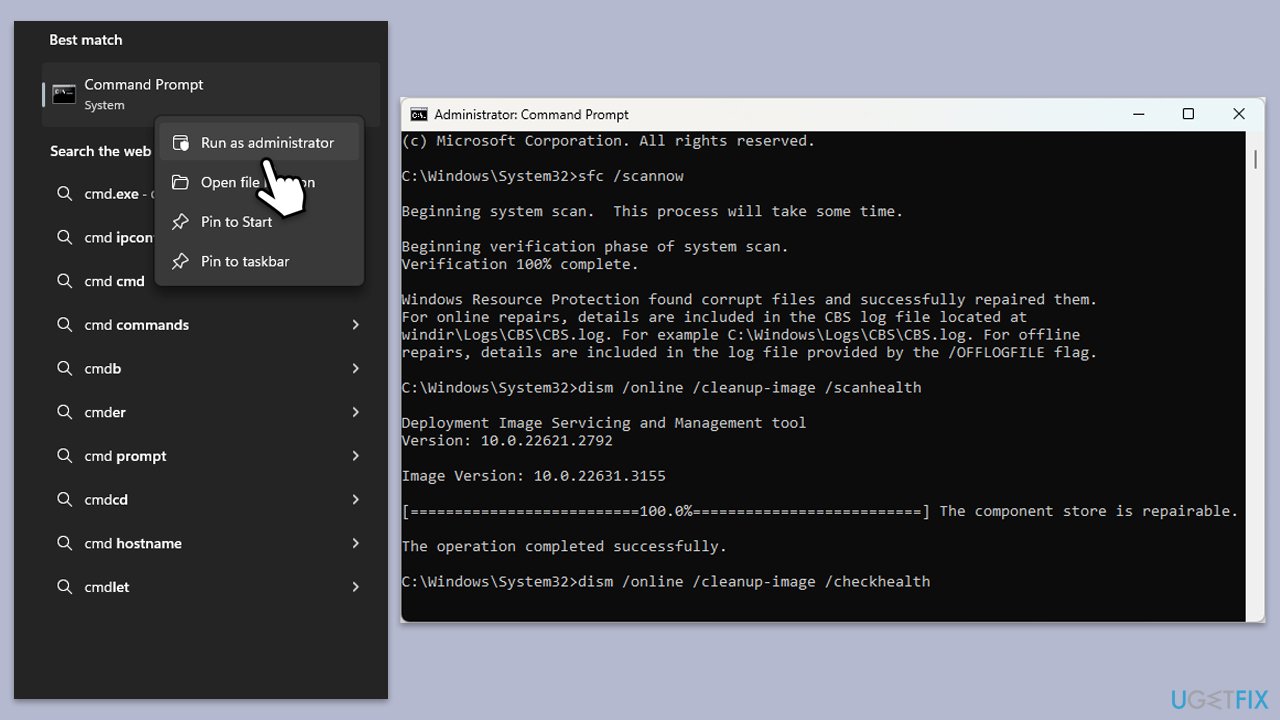
Repair system file corruption by running the following:
- Type cmd in Windows search.
- Right-click on Command Prompt and pick Run as administrator.
- User Account Control window will show up - click Yes when prompted.
- Then, copy and paste the following command, pressing Enter after:
sfc /scannow - Wait till the scan is finished. If Windows finds system file integrity violations, it will attempt to fix them. After this, use the set of the following commands, pressing Enter each time:
DISM /Online /Cleanup-Image /CheckHealth
DISM /Online /Cleanup-Image /ScanHealth
DISM /Online /Cleanup-Image /RestoreHealth - Close down the Command Prompt and restart your device.
Bottom line
To fix the Print Spooler error 0x800706b9, you can try running the printer troubleshooter, clearing the 'Printers' folder and the print queue, ensuring the RPC service is set up correctly, and updating your printer drivers. If these solutions do not work, further investigation into the system configuration may be necessary.
Frequently asked questions
The Print Spooler error 0x800706b9 in Windows 10 indicates that the Print Spooler service is not running or has encountered a problem. This error often prevents users from printing documents.
To restart the Print Spooler service in Windows 11, press Win + R, type 'services.msc', find 'Print Spooler', right-click it, and select 'Restart'. This can resolve temporary issues causing the error.
Yes, you can edit the registry to fix the Print Spooler error 0x800706b9 by ensuring that the 'RPCSS' service is set to start automatically, as it is essential for the Print Spooler to function correctly in Windows.




Report an issue
What's wrong with this guide? We review every report and update or remove content.
Report received — thank you. We'll review and fix it.
You need a free account to submit a report.
Be the first to comment