How to fix
Realtek audio issues after Windows 11 24H2 update
on Windows
Resolve Realtek audio issues after the Windows 11 24H2 update swiftly and efficiently. Trust our expert-tested solutions for seamless sound restoration.

What causes How to fix Realtek audio issues after Windows 11 24H2 update?
- Incompatible drivers
- Driver conflicts
- Outdated or corrupted drivers
- Windows update bugs
- Hardware issues
Repairs Windows system files, removes malware, and restores a clean OS state — without reinstalling.
After installing the latest version of Windows (24H2), my sound completely disappeared. I am using Realtek Audio is that is relevant. Is there anything I can do instead of reinstalling Windows?
Since the release of the Windows 11 24H2 update, a lot of users with Realtek audio drivers faced no sound, audio failure, and even Realtek software-related errors. Most of these were related to the incompatibility of the drivers and the conflicts brought forth by this update, whereby users have not been able to make any use of their audio thus far.
Users affected by this issue commonly describe either no sound or intermittent audio. In some cases, the Realtek audio driver may not be recognized at all or show up as a blank or non-functional device in Device Manager. Others report Realtek audio software errors or the complete absence of sound.
Potential causes may include:
- Incompatible drivers. The Realtek drivers may not be fully compatible with Windows 11 24H2, leading to functionality issues.
- Driver conflicts. Conflicts between new system drivers and the existing Realtek driver can cause malfunction.
- Outdated or corrupted drivers. Older or corrupted drivers may fail after the update, resulting in a loss of sound.
- Windows update bugs. New bugs introduced by the Windows 11 24H2 update can disrupt the connection between the operating system and audio drivers.
- Hardware issues. While less common, hardware problems could coincide with the timing of the update and cause issues with Realtek audio devices.
Many users have had success by rolling back to a previous driver version or downloading updated drivers from Realtek's website. Others have fixed the problem by reinstalling or updating their drivers through Device Manager. Adjusting sound settings, such as disabling sound enhancements, has also resolved the issue for some users. If these solutions don’t work, using a [d1] repair tool may help address deeper software issues and restore normal audio functionality.
Solution 1. Check audio output device
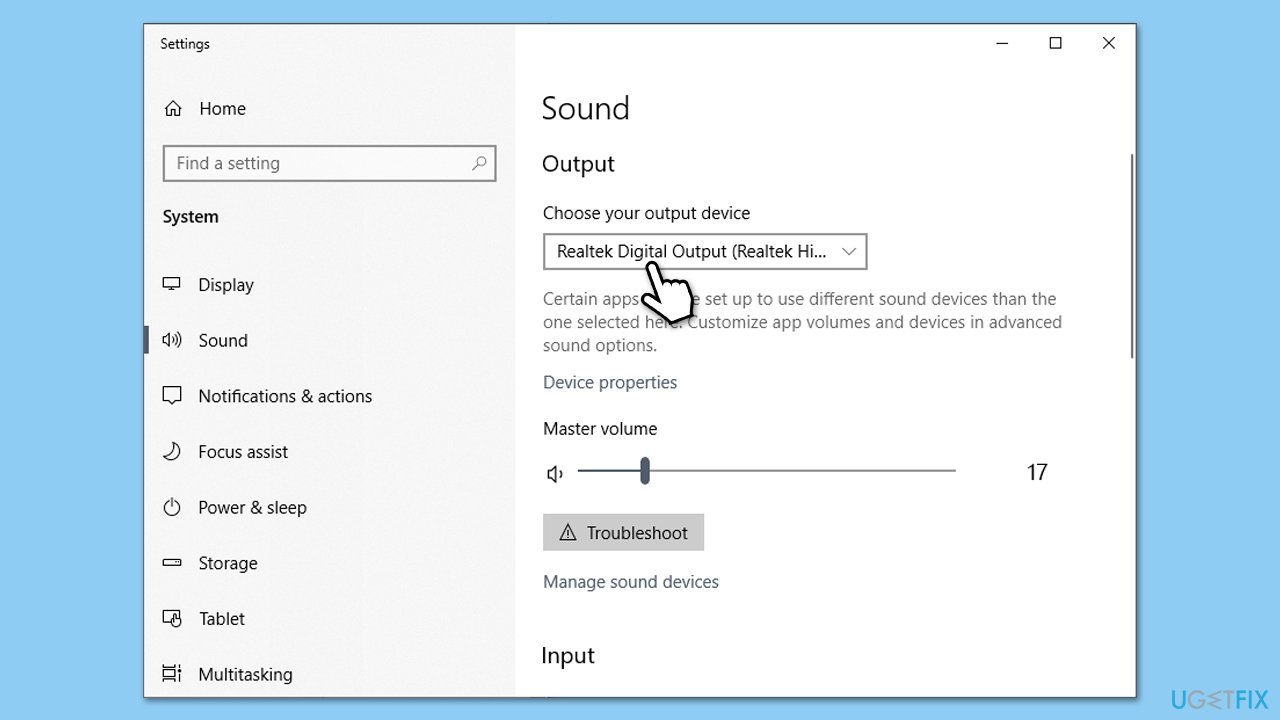
Ensure the correct audio output device is selected in your system settings.
- Right-click the sound icon in the taskbar and select Open Sound settings.
- Under Output, make sure your Realtek audio device is selected.
- Adjust the volume and check if sound is working.
Solution 2. Run the Audio Troubleshooter
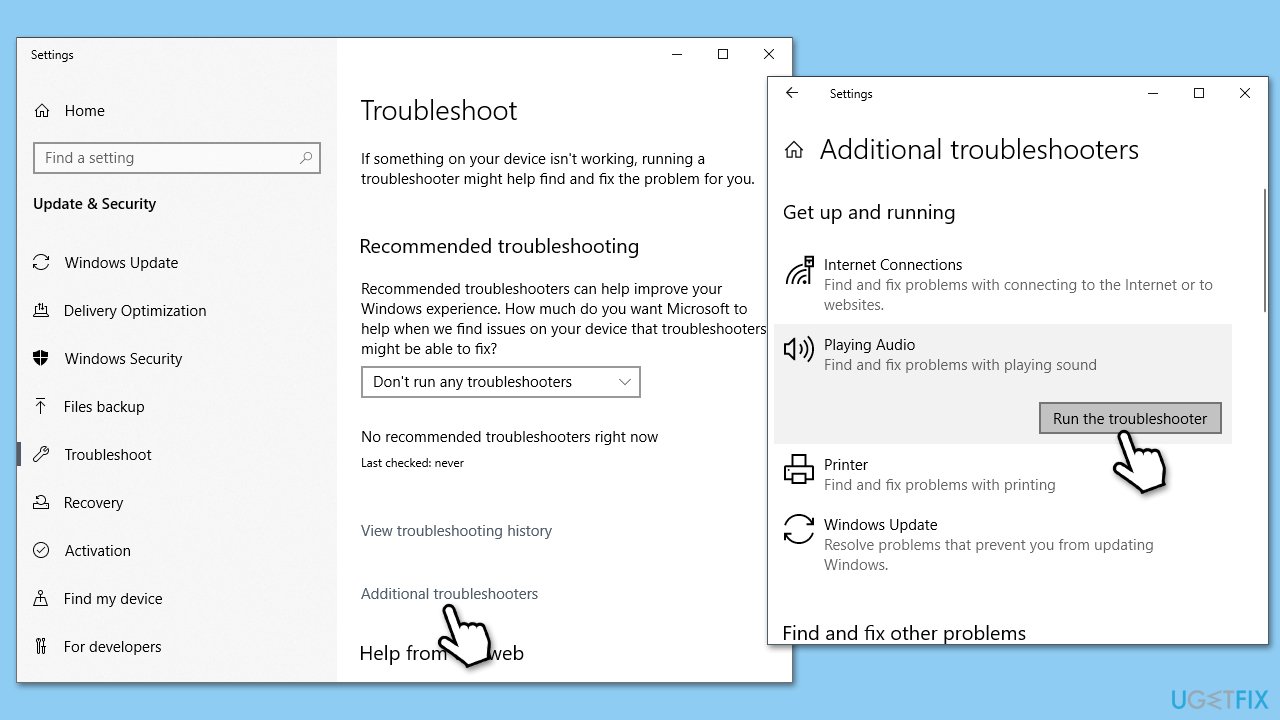
Windows includes a built-in troubleshooter that can detect and resolve common audio issues automatically.
- Type Troubleshoot in Windows search and press Enter.
- Select Other troubleshooters/Additional troubleshooters.
- Choose Playing Audio and click on Run/Run the troubleshooter.
- Follow the on-screen prompts to allow the troubleshooter to diagnose and resolve any problems.
Solution 3. Update Realtek drivers
Sometimes, the latest drivers can resolve compatibility issues that Windows Update did not address.
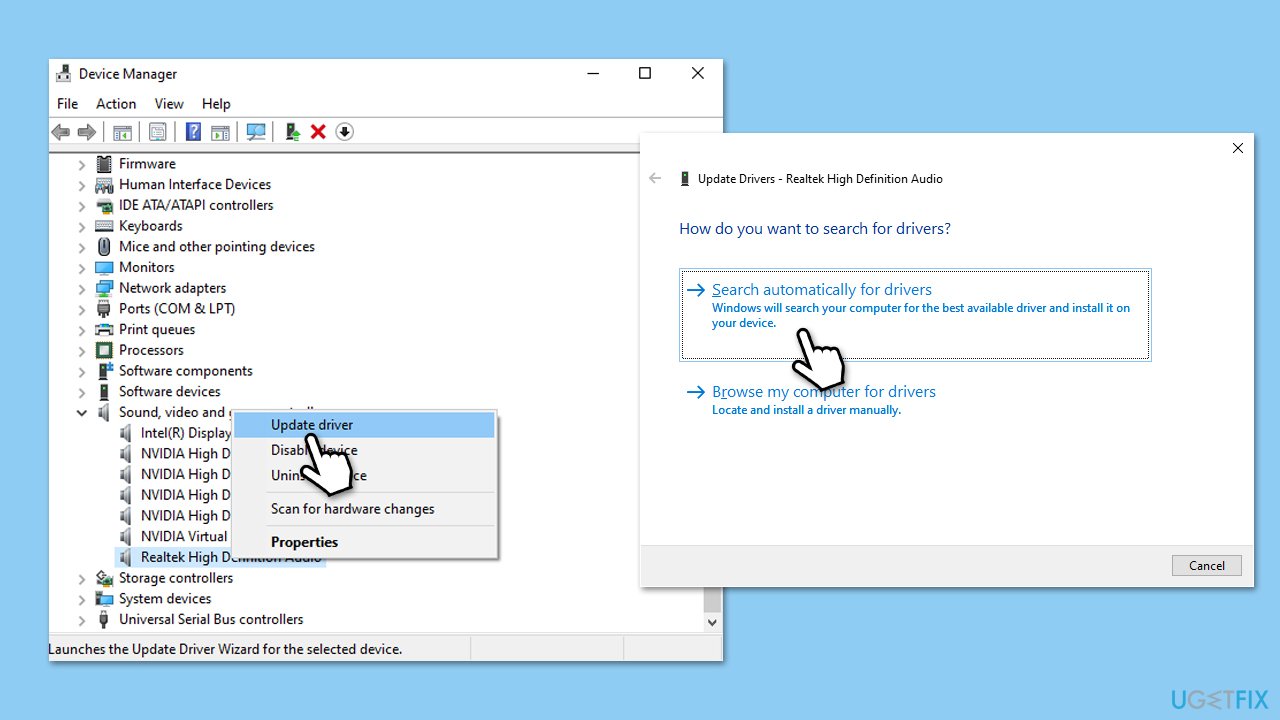
- Right-click on Start and pick Device Manager.
- Expand the Sound, video, and game controllers section.
- Right-click your Realtek Audio and select Update driver.
- Choose Search automatically for drivers.
- Follow the on-screen instructions to complete the update.
- Restart your computer after the update is installed.
Solution 4. Roll Back Realtek audio drivers
If the audio issue appeared after the update, rolling back to the previous version of the Realtek audio driver might help.
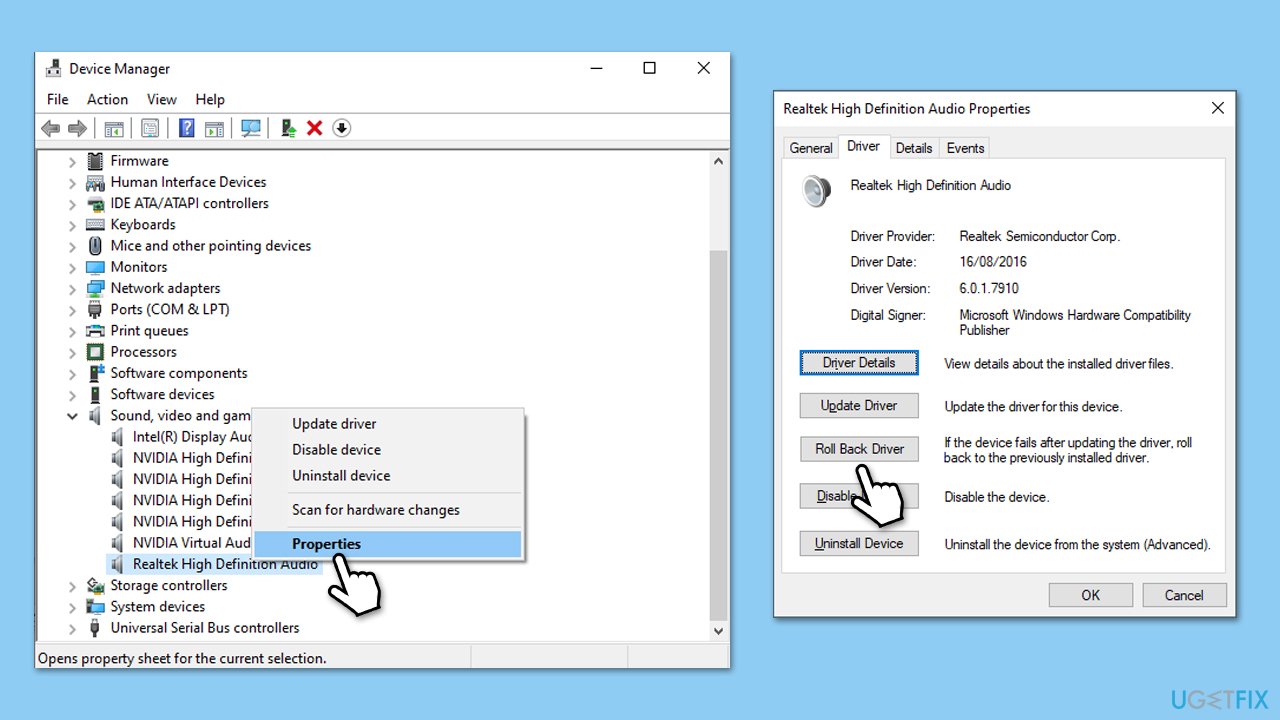
- Open Device Manager.
- Expand the Sound, video and game controllers section.
- Right-click Realtek HD Audio Device and select Properties.
- Go to the Driver tab.
- Click the Roll Back Driver button.
- Select the reason and then click Yes.
- Restart your system.
Solution 5. Reinstall Realtek audio drivers
If rolling back the driver doesn’t work, try reinstalling the Realtek audio driver.
- Open Device Manager.
- Expand the Sound, video, and game controllers section.
- Right-click on your audio device and select Uninstall device.
- Confirm any prompts and restart your system.
- Windows will automatically reinstall the driver upon reboot.
- If it doesn't, download the driver manually, via Device Manager, or use automatic tools such as [rev id="DriverFix"].
Solution 6. Disable Sound Enhancements
Sound enhancements can sometimes interfere with the proper functioning of audio devices.
Windows 11
- Right-click on the speaker icon on your taskbar and pick Sound settings.
- Select the device you are using, for example, headphones.
- Under Output settings, locate the Audio enhancements section.
- Click on the drop-down menu and pick Off.
Windows 10
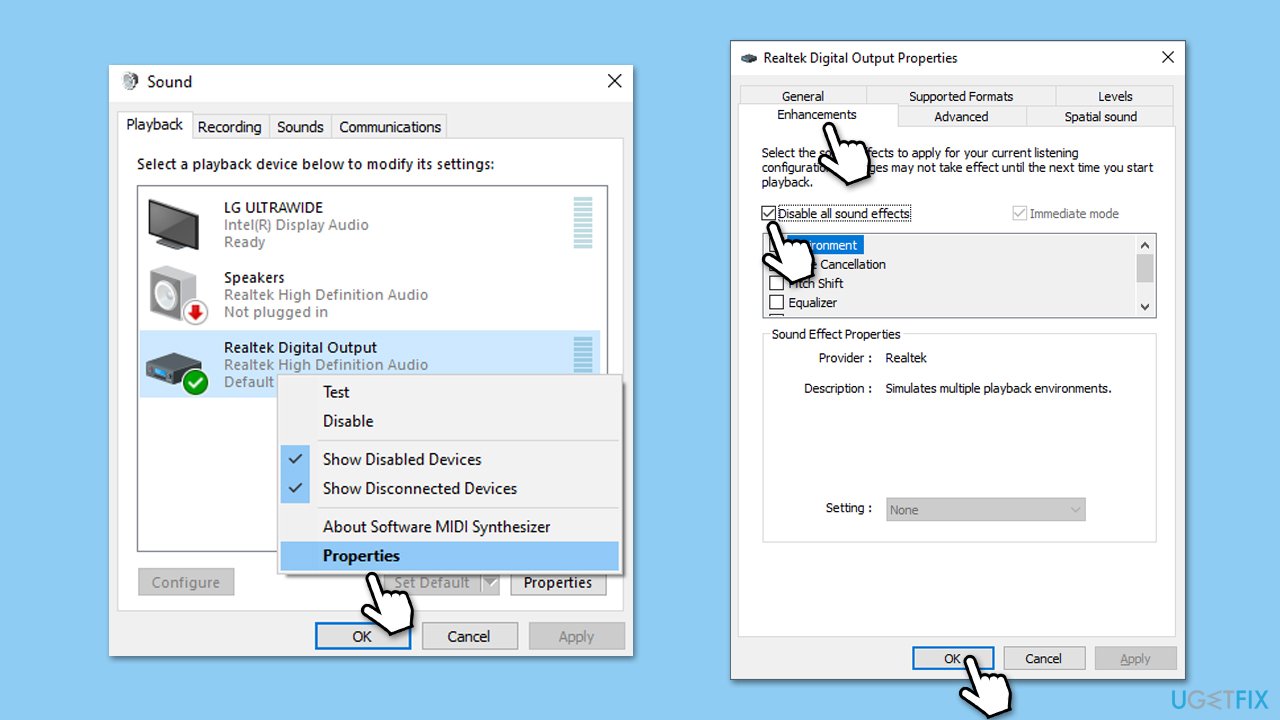
- Right-click on the speaker icon on your taskbar and select Sounds.
- Go to the Playback tab.
- Right-click your default playback device (like Speakers) and choose Properties.
- Navigate to the Enhancements tab.
- Check Disable all enhancements or Disable all sound effects.
- Click Apply, then OK.
Solution 7. Perform a System Restore
If the issue began after the update and no solutions have worked, performing a system restore to a point before the update might resolve the issue.
- Type in Create a restore point in Windows search and hit Enter.
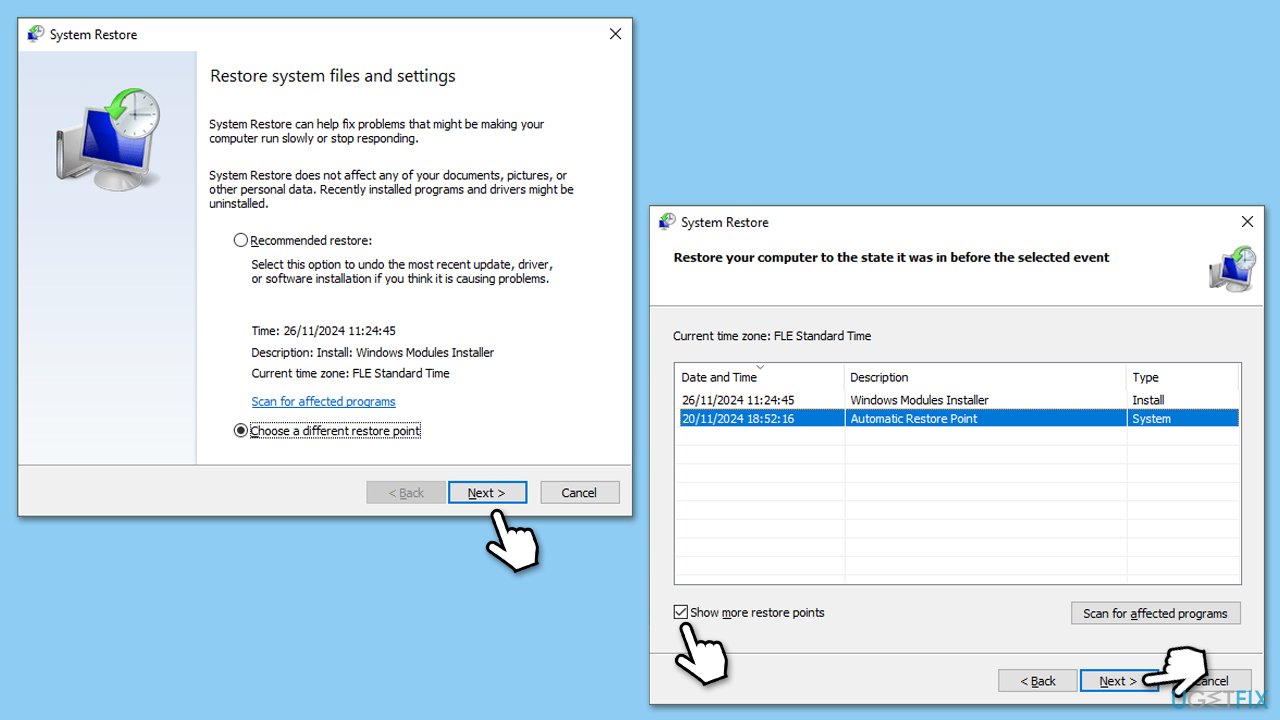
- In the System Protection tab, pick System restore.
- Click Next.
- Click Show more restore points (if available).
- Pick the time before the problem occurred and click Next.
- Your computer will restart as required.
Bottom line
To fix Realtek audio issues after the Windows 11 24H2 update, users can roll back to a previous driver version, download updated drivers from Realtek's website, or reinstall/update drivers through Device Manager. Additionally, adjusting sound settings and disabling sound enhancements may help. If these solutions don’t work, using a repair tool may address deeper software issues.
Frequently asked questions
First, try updating your Realtek audio drivers through Device Manager or the manufacturer's website. If that doesn't work, consider rolling back the audio driver to a previous version.
This issue can occur due to compatibility problems between the new update and existing audio drivers, causing them to malfunction or become outdated.
You can check for driver updates by right-clicking the Start button, selecting Device Manager, expanding the Sound, video and game controllers section, and then right-clicking on Realtek Audio to choose 'Update driver'.




Report an issue
What's wrong with this guide? We review every report and update or remove content.
Report received — thank you. We'll review and fix it.
You need a free account to submit a report.
Be the first to comment