How to fix
Rlls64.dll missing or not found error
on Windows
Resolve the rlls64.dll missing error in Windows 10 or 11 swiftly with our expert-tested solutions. Get back to smooth performance today!

What causes How to fix rlls64.dll missing or not found error in Windows?
- Partial removal of RelevantKnowledge by antivirus software
- Rlls64.dll file deleted while remnants of RelevantKnowledge remain
- Applications looking for the missing DLL due to its absence
- Potentially unwanted program (PUP) associated with adware
- Antivirus software flagging Rlls64.dll as dangerous
Repairs Windows system files, removes malware, and restores a clean OS state — without reinstalling.
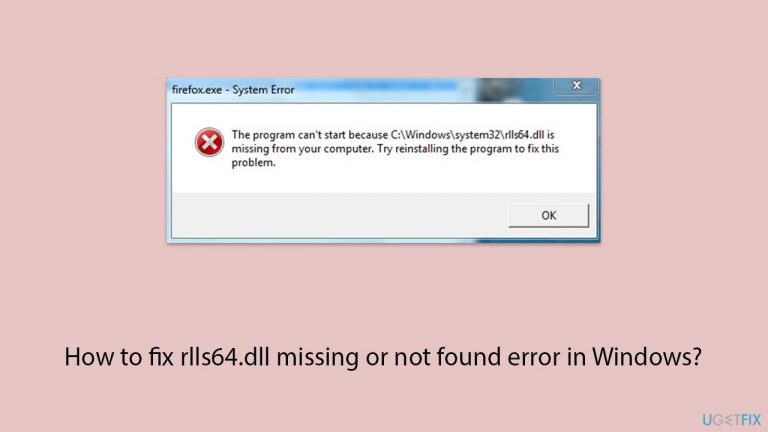
When I ran an antivirus program to see if there were any possible viruses, it found that Rlls64.dll was a harmful file that should be removed. That was OK with me until I tried to launch Firefox and received an error notice stating that C:\Windows\system32\rlls64.dll was missing from my PC. To resolve this issue, try reinstalling the software."
Rlls64.dll is a dynamic link library (DLL) file associated with a potentially unwanted program (PUP) known as RelevantKnowledge. This DLL file is often flagged as dangerous by antivirus software due to its association with adware or unwanted browser and application modifications. When this file is detected and removed by security software, it can cause errors in applications that RelevantKnowledge modified.
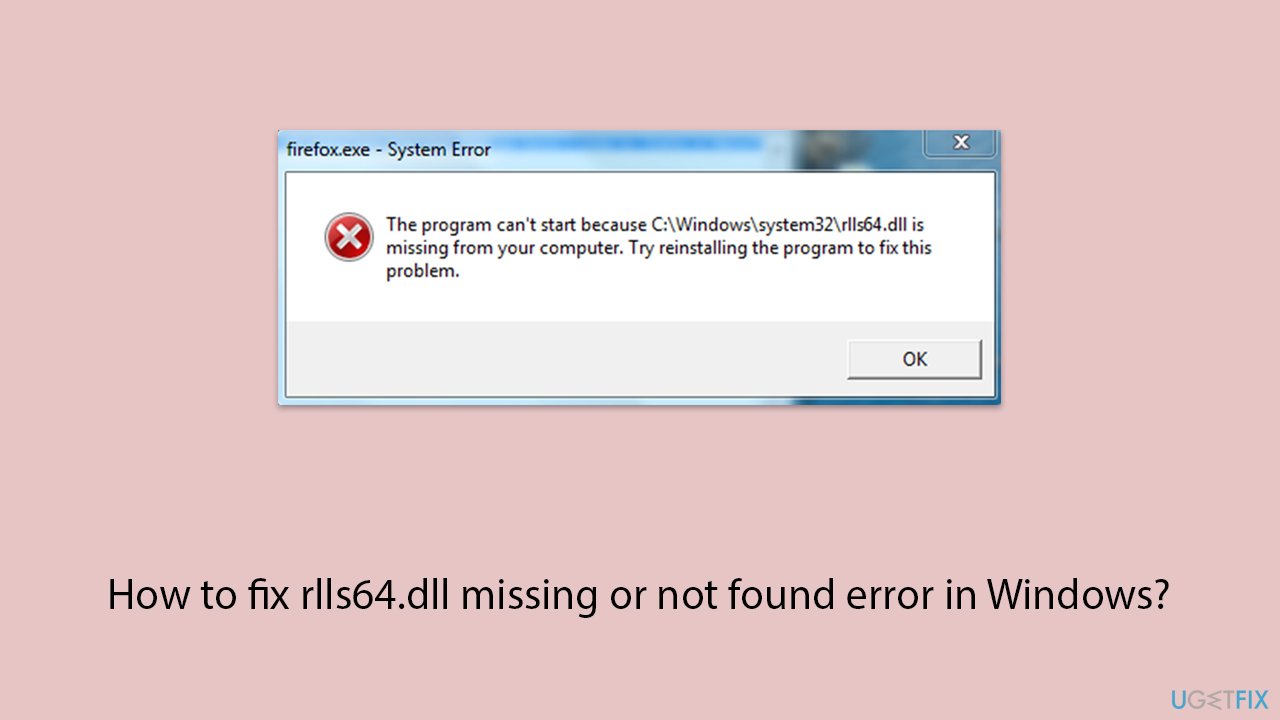
People run into the "rlls64.dll missing or not found" error while attempting to open apps like Firefox. They receive a message, which indicates that the software cannot start because the rlls64.dll file is missing from the machine, making it impossible for users to launch the application. Here's the full message:
C:\Windows\system32\rlls64.dll is missing from your computer. Try reinstalling the program to fix this problem
The main reason why the "rlls64.dll is missing from your computer" error occurs is a partial removal of RelevantKnowledge by antivirus software. While the rlls64.dll file may be deleted, remnants of the RelevantKnowledge program can still exist, causing applications to look for the missing DLL. This issue arises because the program was designed to rely on this DLL, and its absence leads to functionality problems.
To fix the "rlls64.dll missing or not found" error, it is crucial to remove all traces of the RelevantKnowledge program from your system. Detailed, step-by-step instructions for this solution will be provided below the article to guide you through the process.
If you are more of a hands-off approach individual or you are inexperienced in the IT field, we recommend you employ a powerful PC repair tool [d1], which is perfect when dealing with DLL or other errors.
Fix 1. Run a full antivirus scan
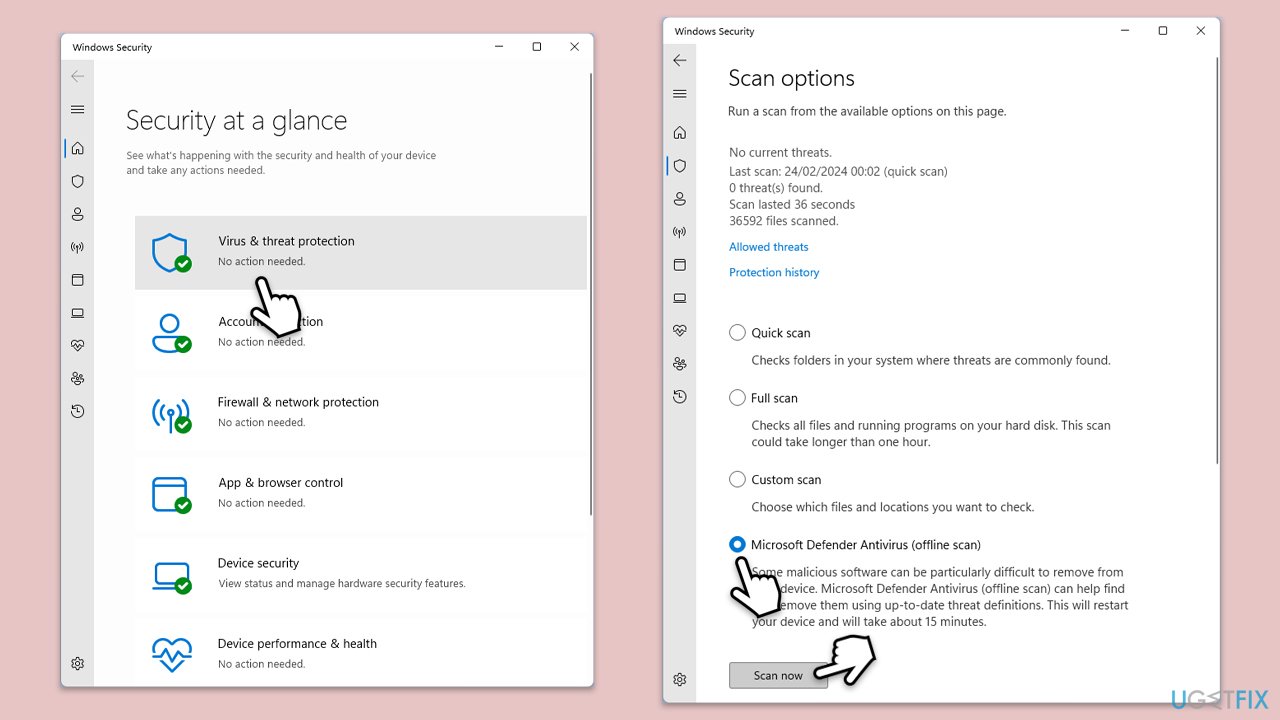
If your antivirus didn't remove everything, you should try another one. For example, you can use Microsoft Safety Scanner or even employ deep scan with Microsoft Defender:
- Type Windows Security in the Windows search bar and hit Enter.
- Select Virus & threat protection.
- Pick Scan options.
- Choose Microsoft Defender Offline scan and click Scan now.
- Your computer will immediately restart to begin a deep scan.
Fix 2. Remove PUP's leftover files
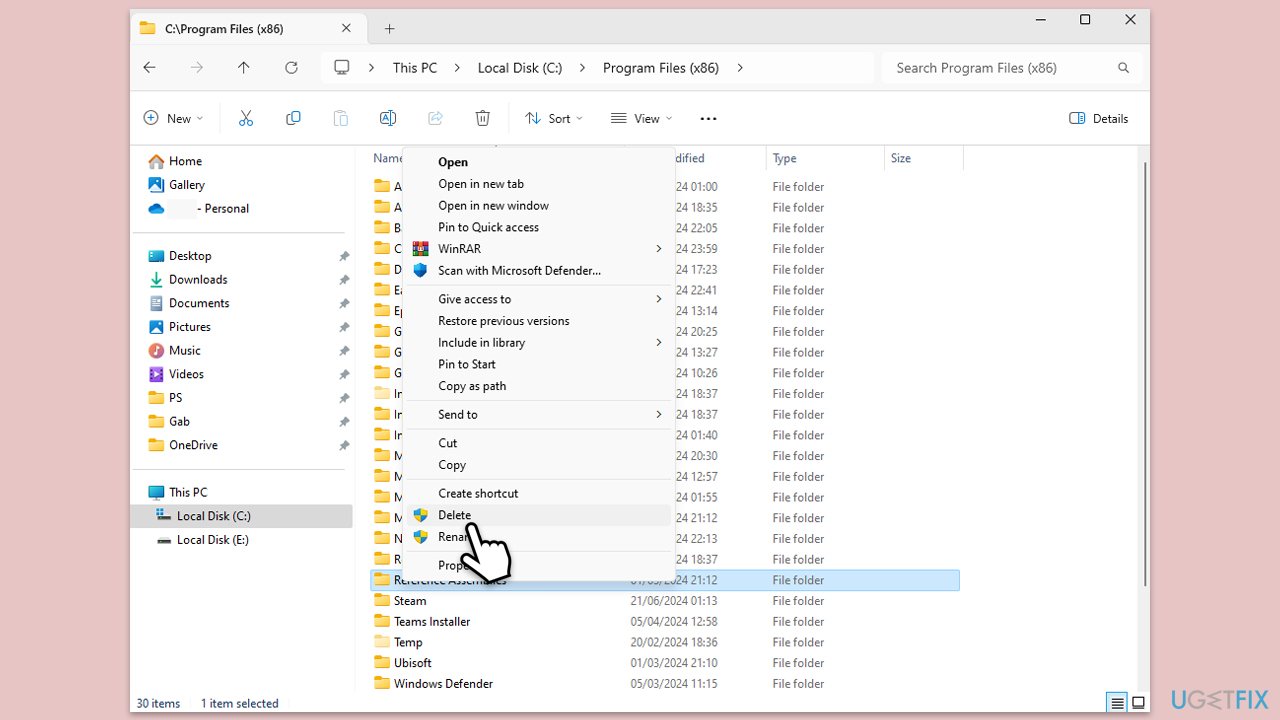
Removing all traces of the RelevantKnowledge ensures that no residual files cause the rlls64.dll error in applications like Firefox.
- Type File Explorer in Windows search and press Enter.
- Navigate to the following location:
C:\Program Files (x86) - Locate the RelevantKnowledge folder.
- Right-click on the folder and select Delete.
- Empty the Recycle Bin.
Fix 3. Reinstall the affected application
Reinstalling the application can restore any missing or corrupted files, including dependencies on the rlls64.dll file.
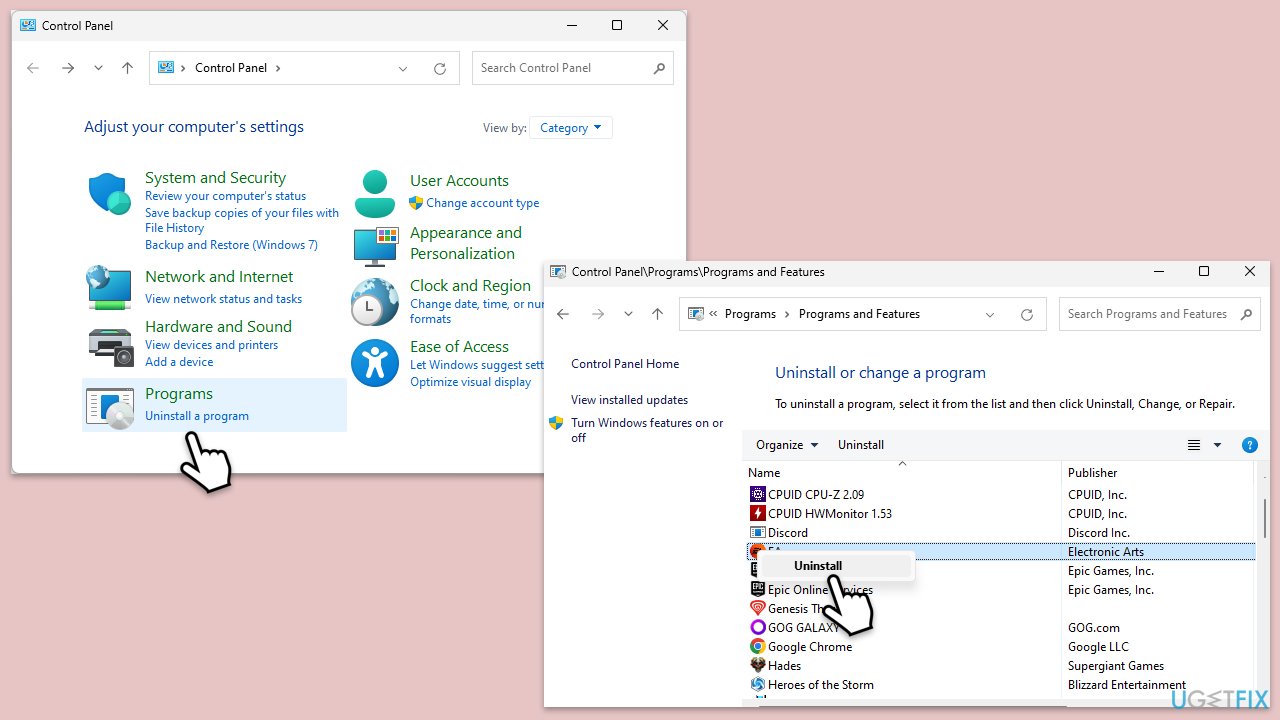
- Type Control Panel in Windows search and pres Enter.
- Go to Programs > Uninstall a program.
- Select the affected application (e.g., Firefox).
- Click on Uninstall and follow the prompts.
- Download the latest version of the application from its official website.
- Install the application following the installation prompts.
Fix 4. Repair corrupted files
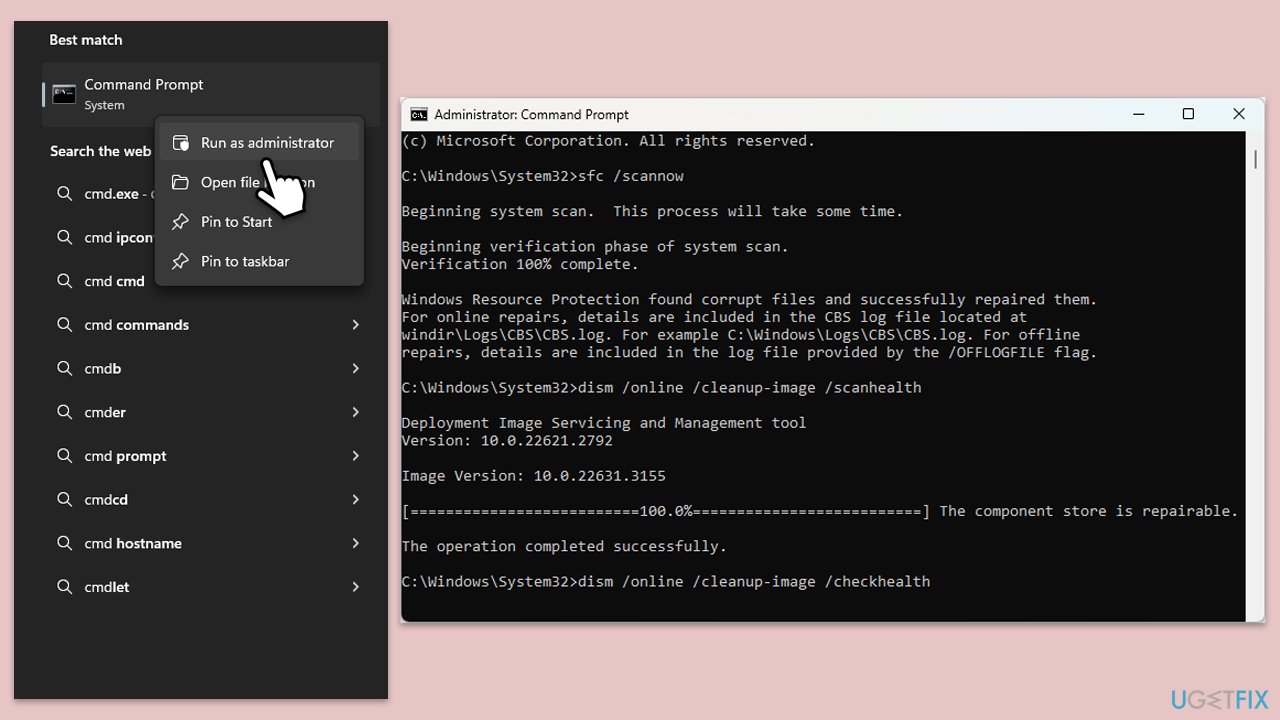
The SFC tool scans for and repairs corrupted system files, which can resolve issues related to missing DLL files.
- Type cmd in Windows search.
- Right-click on Command Prompt and pick Run as administrator.
- When UAC asks you whether you want to make changes, agree by pressing Yes.
- Next, copy and paste the following commands, pressing Enter each time:
sfc /scannow
DISM /Online /Cleanup-Image /CheckHealth
DISM /Online /Cleanup-Image /ScanHealth
DISM /Online /Cleanup-Image /RestoreHealth
(Note: if you get an error executing the last command, add /Source:C:\RepairSource\Windows /LimitAccess to it and try again.) - Restart your computer.
Fix 5. Perform System Restore
Restoring your system to a previous state can undo recent changes that might have caused the rlls64.dll error.
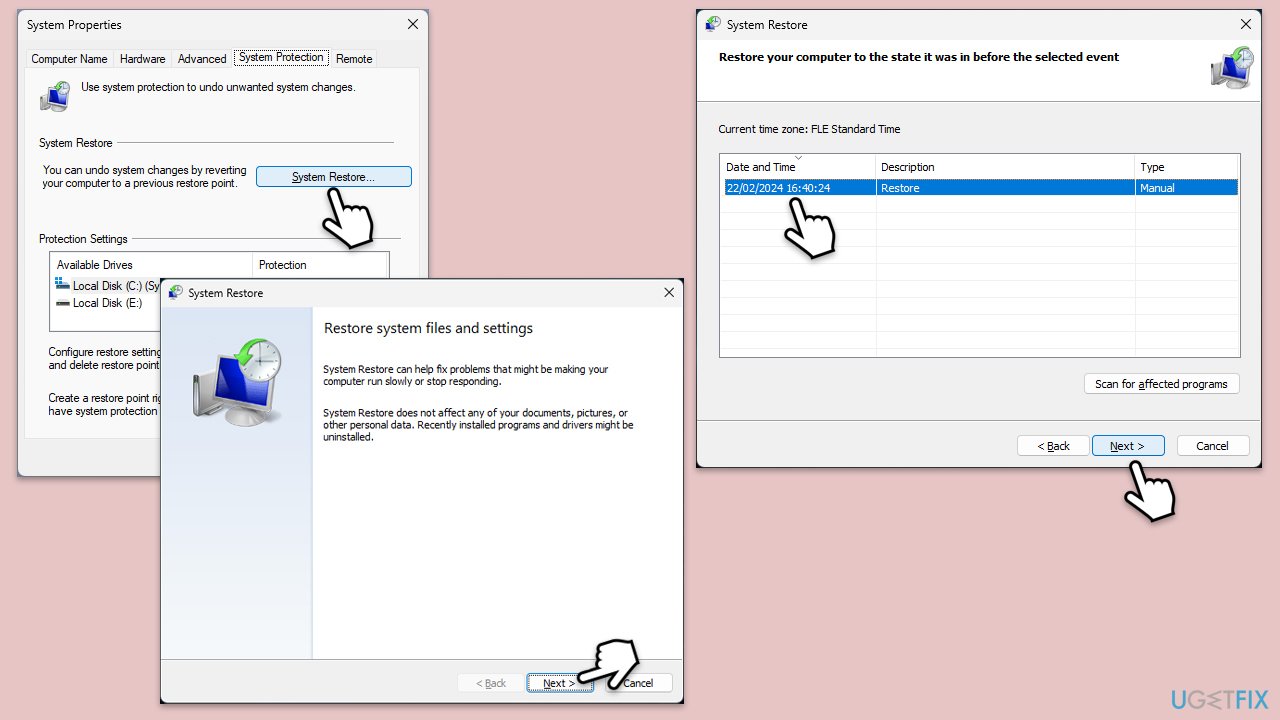
- Type System Restore in the search box and click Create a restore point.
- In the System Properties window, click System Restore.
- Click Next, choose a restore point from before the issues began, and click Next again.
- Follow the on-screen instructions to complete the restoration.
- Restart your computer after the process is completed.
Bottom line
To fix the 'rlls64.dll missing or not found' error, it is essential to remove all traces of the RelevantKnowledge program from your system. You can also run a full antivirus scan to ensure all harmful files are eliminated. If these solutions do not work, consider using a powerful PC repair tool.
Frequently asked questions
rlls64.dll is a dynamic link library file that is essential for certain applications to run properly on Windows 10 or Windows 11. If this file is missing, you may encounter errors when trying to launch specific software.
You can restore the missing rlls64.dll file by reinstalling the application that requires it, or by downloading the file from a trusted source and placing it in the application's directory or the Windows System32 folder.
If you encounter an rlls64.dll error after a Windows update, try reverting the update, running the System File Checker tool, or reinstalling the affected application to resolve the issue.




Report an issue
What's wrong with this guide? We review every report and update or remove content.
Report received — thank you. We'll review and fix it.
You need a free account to submit a report.
Be the first to comment