How to fix
Starfield not launching
on Windows
Resolve Starfield not launching on Windows 10 or Windows 11 with our expert-tested solutions. Get back to gaming in minutes, no traces left!

What causes How to fix Starfield not launching on Windows?
- Outdated GPU driver
- Incompatibility with minimum system requirements
- Program incompatibilities
- Insufficient computing power
- Corrupted files or registry issues
Repairs Windows system files, removes malware, and restores a clean OS state — without reinstalling.
Hello. I just installed Starfield but when I try to launch it, it does not work. What should I do?
For many people, the problem with Starfield not starting on Windows has been a source of frustration. While Bethesda Game Studios' game promises a thrilling open-world experience with a space theme, some gamers have run into substantial roadblocks that have prevented them from starting the game. Users may notice a significant impact from this problem, which may reduce their enjoyment of the game and their gaming experience overall.
A GPU (Graphics Processing Unit) driver that is out of date could be one of the main causes of Starfield's failure to launch. The most recent GPU drivers are frequently necessary for video games, especially those with cutting-edge visuals and demanding specifications like Starfield, to perform at their peak levels. A user's outdated GPU driver could cause compatibility problems and make it difficult for the game to launch. Players who are eager to explore the expansive area with a space theme that the game promises may find this situation especially irritating.
The lack of compatibility between the player's PC and the game's minimum system requirements is another probable reason why Starfield won't launch. The enormous open environment and fictional and real planetary systems that makeup Starfield's ambitious design necessitate significant computing power. A user may be disappointed to discover that their PC does not meet the game's minimum requirements and cannot play the game at all.
Users may need to take a number of actions to fix the Starfield launch issue, including updating their GPU drivers, making sure their PC satisfies the minimum system requirements, and resolving any potential program incompatibilities. The precise answers, however, may differ based on the system used by each user and the underlying causes of the issue.
In this guide, you will find 5 steps that should help you fix Starfield not launching on Windows. You can also use a repair tool like [d1] that can fix most system errors, BSODs, corrupted files, and registry issues. Otherwise, follow the step-by-step instructions below.
Method 1. Update the Graphics Driver
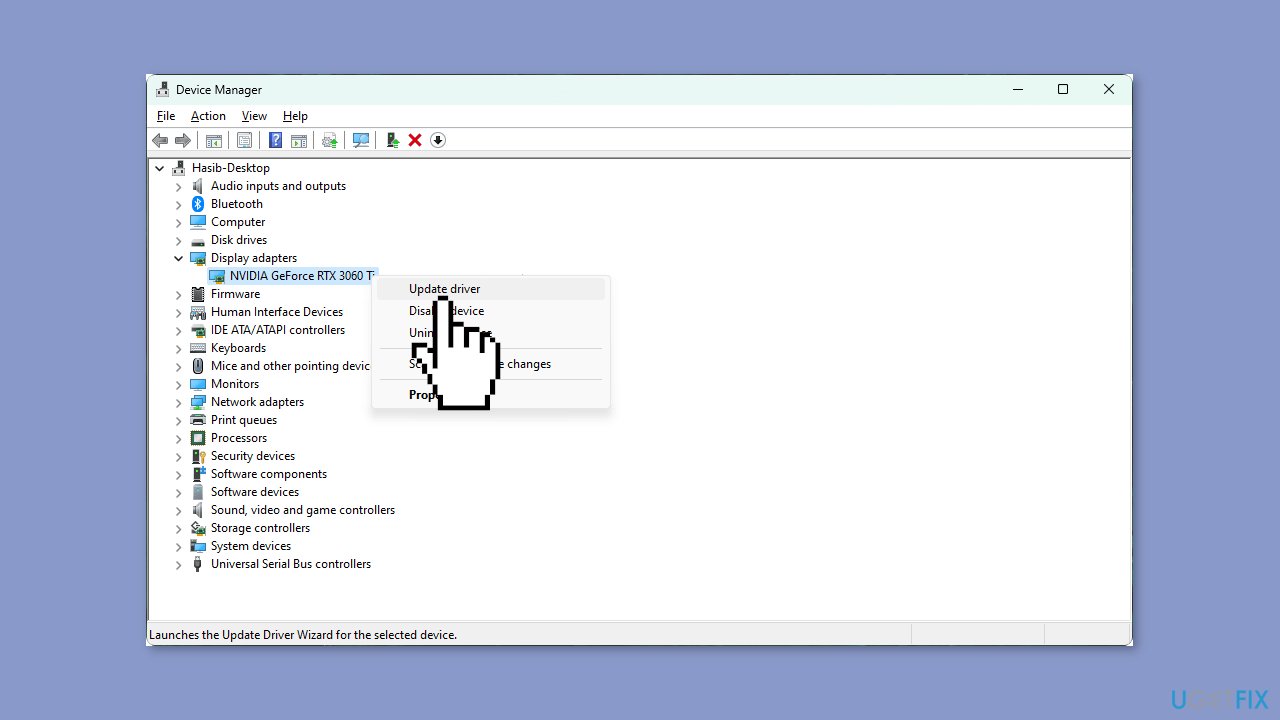
- Press the Windows key + X on the keyboard to open the Quick Access Menu.
- Select Device Manager from the menu.
- In the Device Manager window, locate and expand the Display Adapters category.
- Right-click on the display driver listed under Display Adapters.
- From the context menu, click on Update driver.
- In the Update Drivers window, choose the option that says Search automatically for drivers.
- Follow any onscreen instructions that may appear during the driver update process.
- Once the driver update is complete, restart your Windows computer to apply the changes.
You can use a dedicated utility like [rev id="DriverFix"] that can find the best drivers for your machine and install them automatically.
Method 2. Clear the Game Client Cache
Steam:
- Launch Steam.
- Click on Steam in the menu.
- Navigate to Settings, as shown in the screenshot.
- In the Settings window, go to the Downloads tab.
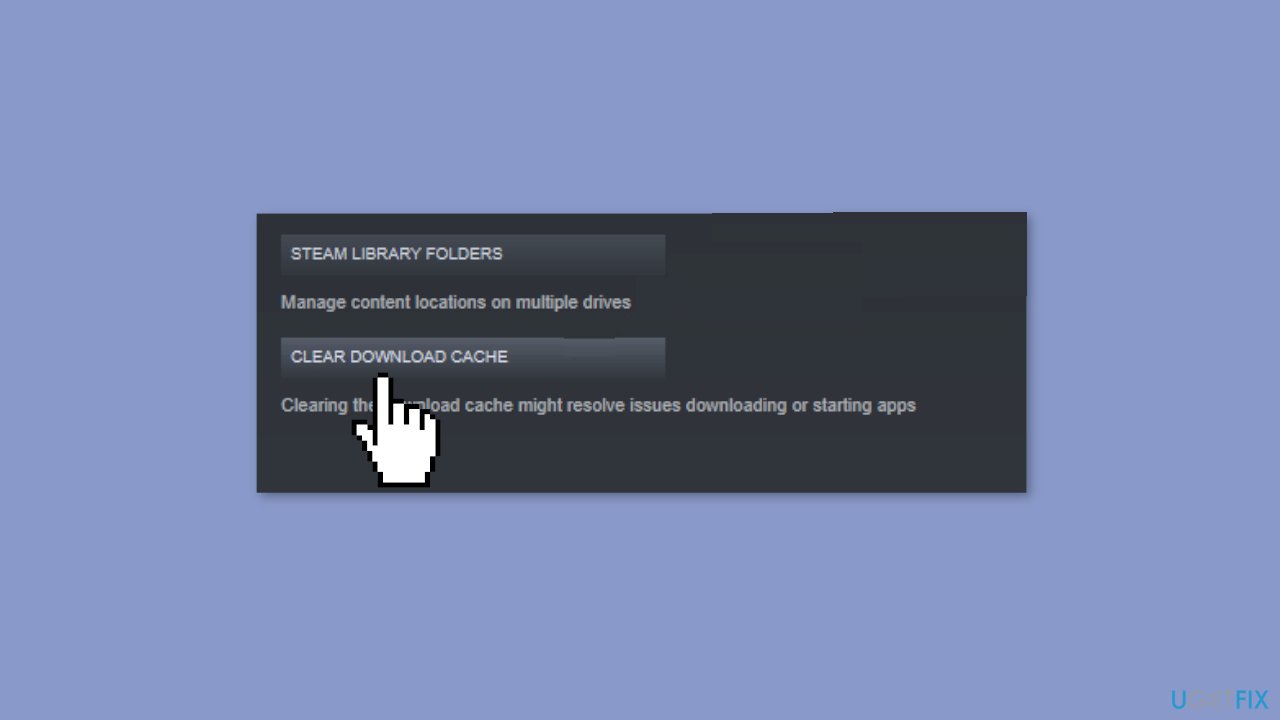
- Click on Clear Download Cache.
- Steam will automatically relaunch within a couple of seconds.
Xbox app:
- If you use the Xbox app for the game, right-click on it in the Start Menu.
- Go to App Settings.
- Click on Reset.
- After performing the reset, attempt to launch Starfield again and check if it works.
Method 3. Re-install the Game on a Different Drive
- Open Steam as you did previously.
- Navigate to the Steam Library, following the screenshot's guidance.
- Locate Starfield in your library, right-click on it, and choose Uninstall.
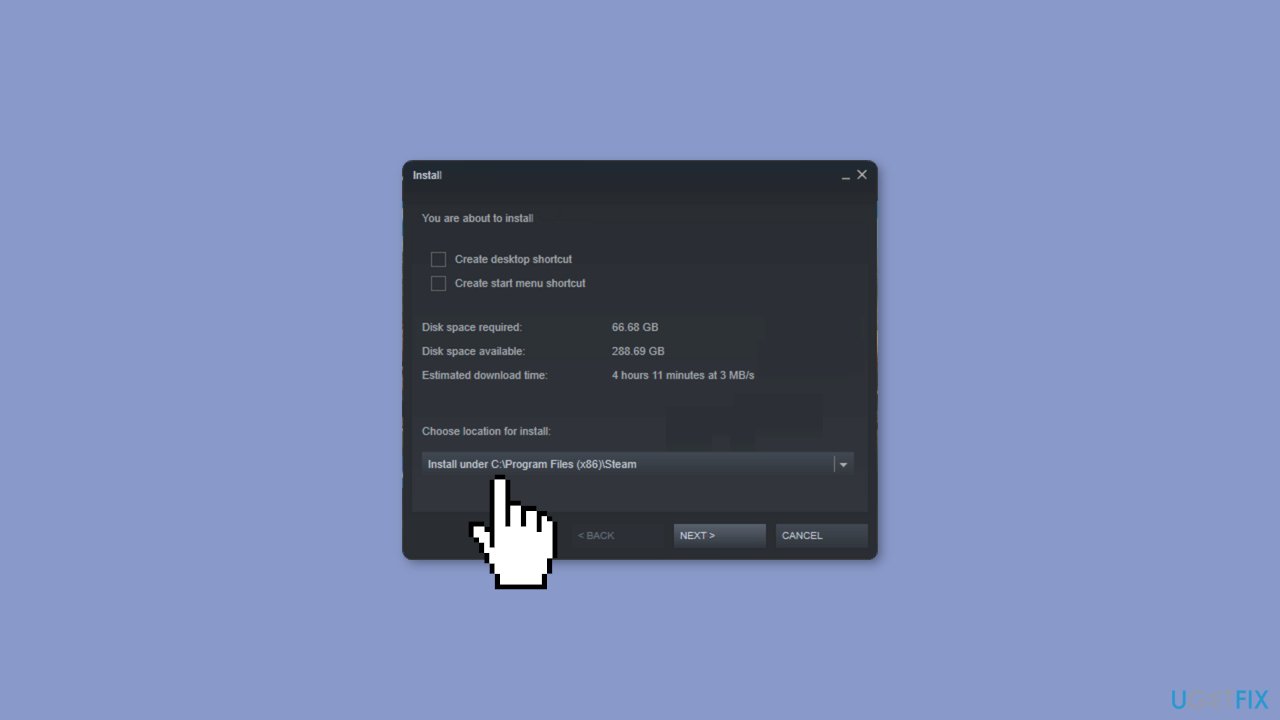
- After uninstalling, click on the Install button when it becomes available.
- Choose your preferred installation location and click on Next.
- Follow the prompts to complete the installation process.
Method 4. Install Windows Updates
- Click Start on the taskbar.
- Select the Setting app pinned to the Start menu.
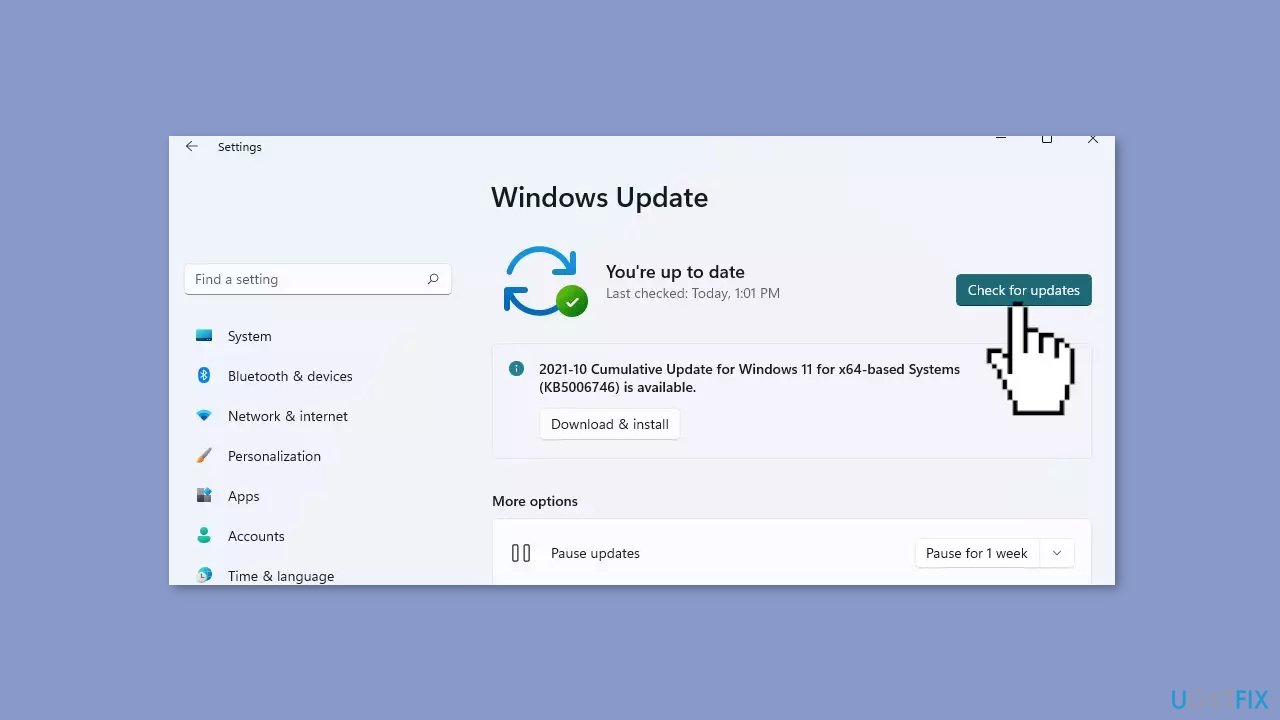
- Click Windows Update on the left side of Settings.
- Press the Check for updates button to download and install new patch updates.
Method 5. Try Clean Boot
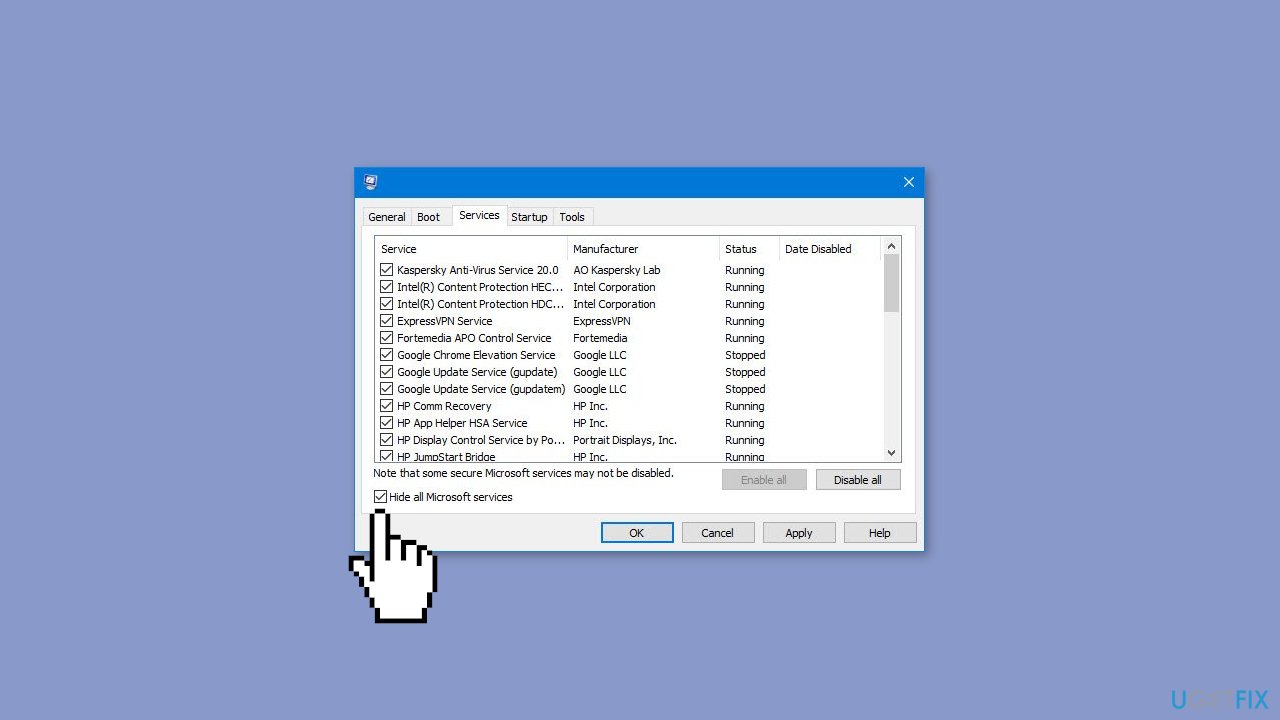
- Open the Search menu, type in system configuration, and press Enter.
- Under the Services tab, tick the Hide all Microsoft services box.
- Click on Disable all button.
- Head over to the Startup tab and click on Open Task Manager.
- Select a third-party program and click on Disable at the top.
- Repeat this step to disable all third-party apps and programs.
- Restart your PC to enter the clean boot state and see if the issue persists.
- If the issue disappeared in the clean boot state, then you can be certain that a third-party app is causing it.
- Go through all recently installed apps or programs and remove them one by one.
Bottom line
To fix Starfield not launching on Windows, users should update their GPU drivers, ensure their PC meets the game's minimum system requirements, and resolve any program incompatibilities. Additionally, using a repair tool can help fix system errors and corrupted files. If none of these solutions work, further troubleshooting may be necessary.
Frequently asked questions
First, ensure that your system meets the game's minimum requirements and update your graphics drivers. If the issue persists, try verifying the game files through the platform you purchased it from.
Make sure that DirectX is updated to the latest version on your Windows 10 or Windows 11 system, as Starfield requires it to run properly. You can download the latest DirectX from the official Microsoft website.
Yes, check your Windows Firewall and antivirus settings to ensure that Starfield is allowed through, as these can sometimes block the game from launching.




Report an issue
What's wrong with this guide? We review every report and update or remove content.
Report received — thank you. We'll review and fix it.
You need a free account to submit a report.
Be the first to comment