How to fix
“System.xml.Linq.ni.dll is either not designed to run
on Windows
Resolve the "System.xml.Linq.ni.dll" error on Windows 10 or 11 effortlessly. Get expert-tested solutions and fix your system in minutes!

What causes How to fix “System.xml.Linq.ni.dll is either not designed to run on Windows or it contains an error”?
- Corrupted DLL file
- Incompatibility
- Missing updates
- Software conflicts
Repairs Windows system files, removes malware, and restores a clean OS state — without reinstalling.
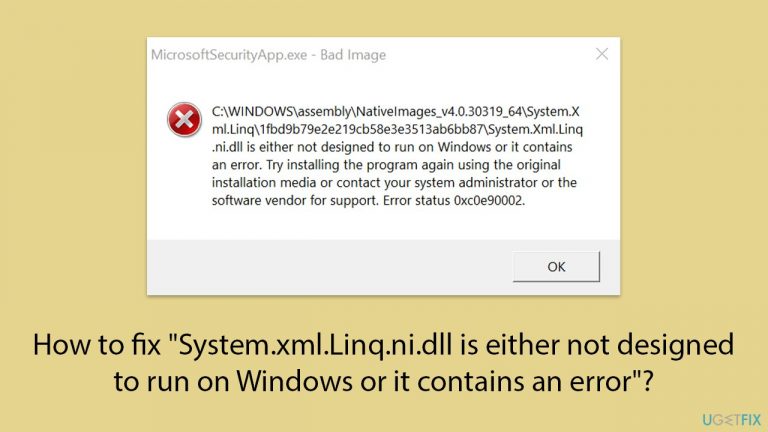
Recently, whenever I boot my PC, a strange error pops up that says "System.xml.Linq.ni.dll is either not designed to run on Windows or it contains an error." It tells me to reinstall the program but the mentioned app here is MicrosoftSecurityApp.exe.
Understanding DLL errors in Windows
In Windows operating systems, dynamic link library (DLL) errors commonly encounter problems. DLL files are essential parts that let various applications share resources and code, which reduces the need for memory and disk space. Nevertheless, issues that impair an application's functioning can result from missing, corrupted, or incompatible DLL files.
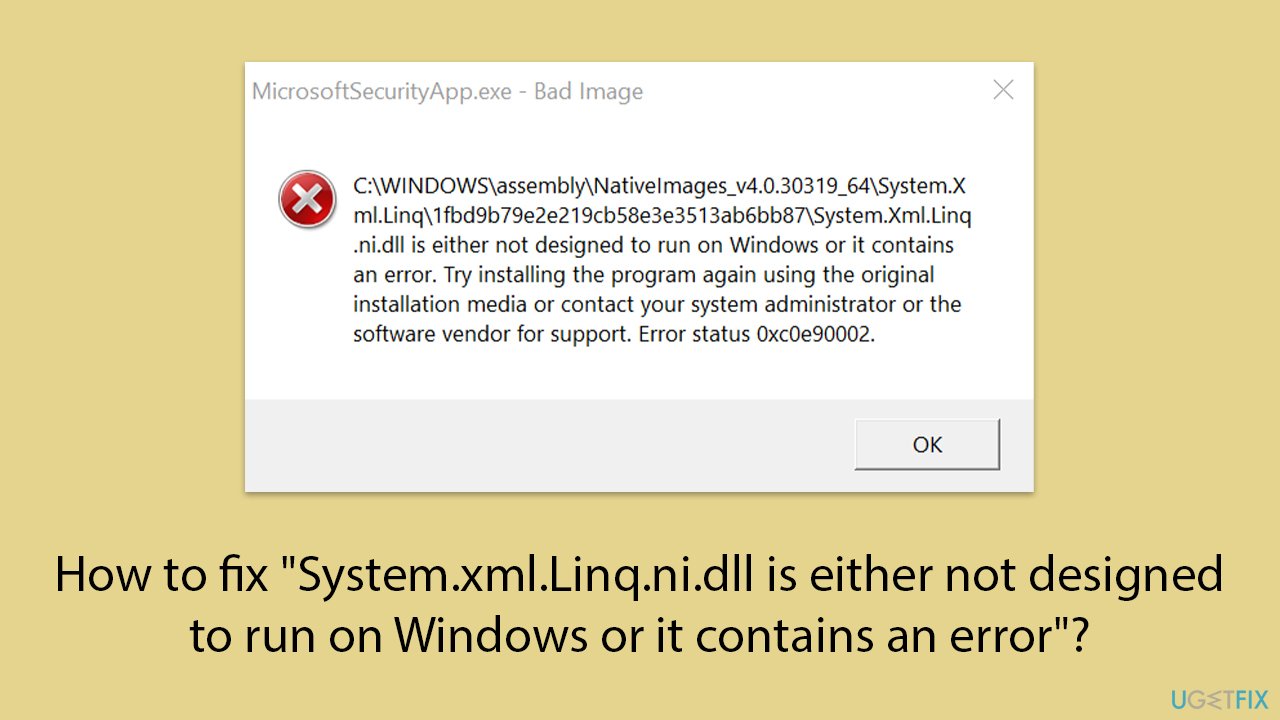
One specific error that some people encounter is "System.xml.Linq.ni.dll is either not designed to run on Windows or it contains an error." This error message typically appears in a pop-up window with "Bad Image - MicrosoftSecurityApp.exe" referenced at the top. It indicates a problem with the System.xml.Linq.ni.dll file, affecting the performance of certain applications or the system itself.
Reasons for the "System.xml.Linq.ni.dll" error
Several factors can cause this error to appear. The most common reasons include:
- Corrupted DLL file
- Incompatibility
- Missing updates
- Software conflicts, etc.
While reinstalling the application in question (Microsoft Defender) might seem like the first thing you should do, it is not recommended, as it can usually be solved in easier ways.
First of all, you should check whether you have a second version of the app installed from the Microsoft Store and get rid of it, as it often causes conflicts (you should only have one security app installed on your PC).
Another method is to update your Windows operating system, as updates can fix compatibility issues and replace missing or corrupted system files.
If that does not help, running SFC and DISM scans via an elevated Command Prompt is the next step. Additionally, performing a thorough malware scan with reliable antivirus software can identify and remove malicious software that might be causing the error.
Detailed instructions for these solutions are provided below the article. Implementing these steps can help resolve the error and restore your system's functionality.
Moreover, using a [d1] PC repair app can automatically fix underlying Windows issues and maintain your system’s health.
Fix 1. Uninstall the second Microsoft Defender app
Having two instances of Microsoft Defender can cause conflicts and errors. Removing the duplicate app can resolve these issues.
- Right-click on Start and pick Settings.
- Go to the Apps section.
- Find the second Microsoft Defender app.
- Click Uninstall.
- Restart your computer.
Fix 2. Exit S Mode
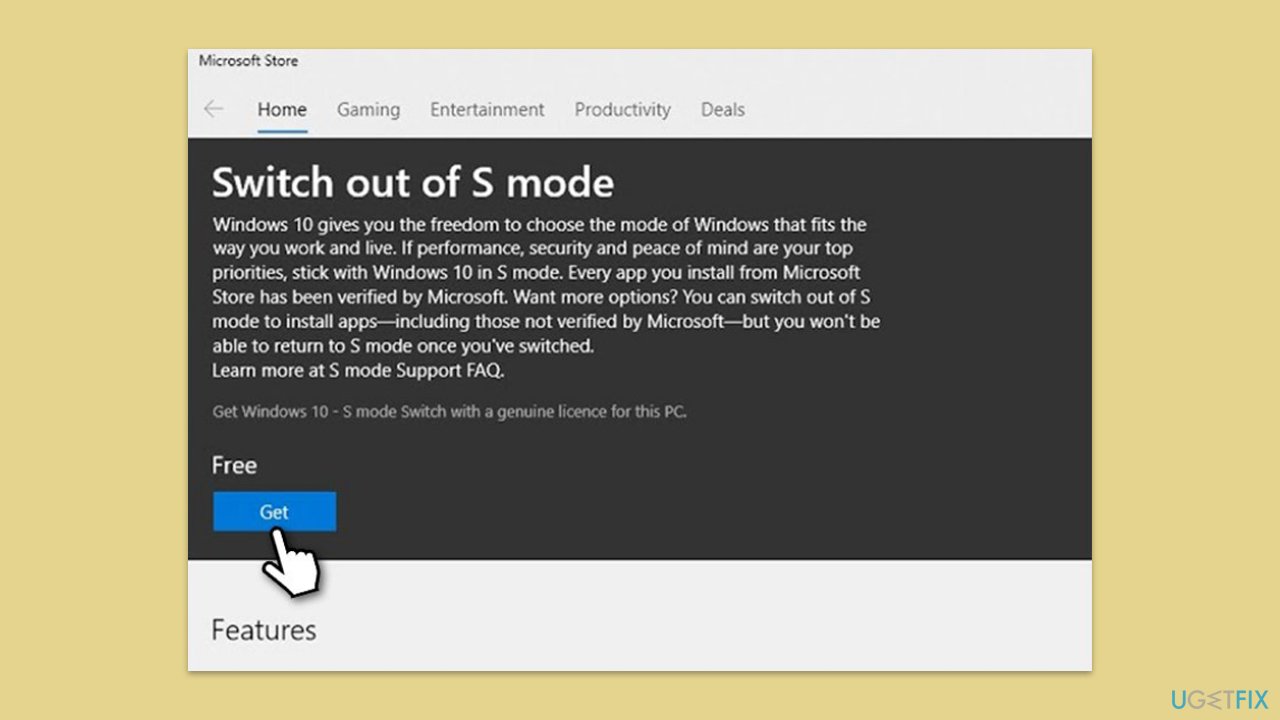
Windows S Mode restricts software installations and may cause compatibility issues. Exiting S Mode allows for more flexibility in managing your system.
- Open Settings.
- Navigate to the Update & Security section.
- Click on Activation on the left-hand menu.
- Look for the Switch to Windows 10/11 Home or Switch to Windows 10/11 Pro section.
- Select the Go to the Store link and click Get.
- Follow the on-screen instructions to complete the switch out of S mode.
Fix 3. Repair corrupted files
System File Checker (SFC) and Deployment Imaging Service and Management Tool (DISM) scan for and repair corrupted system files.
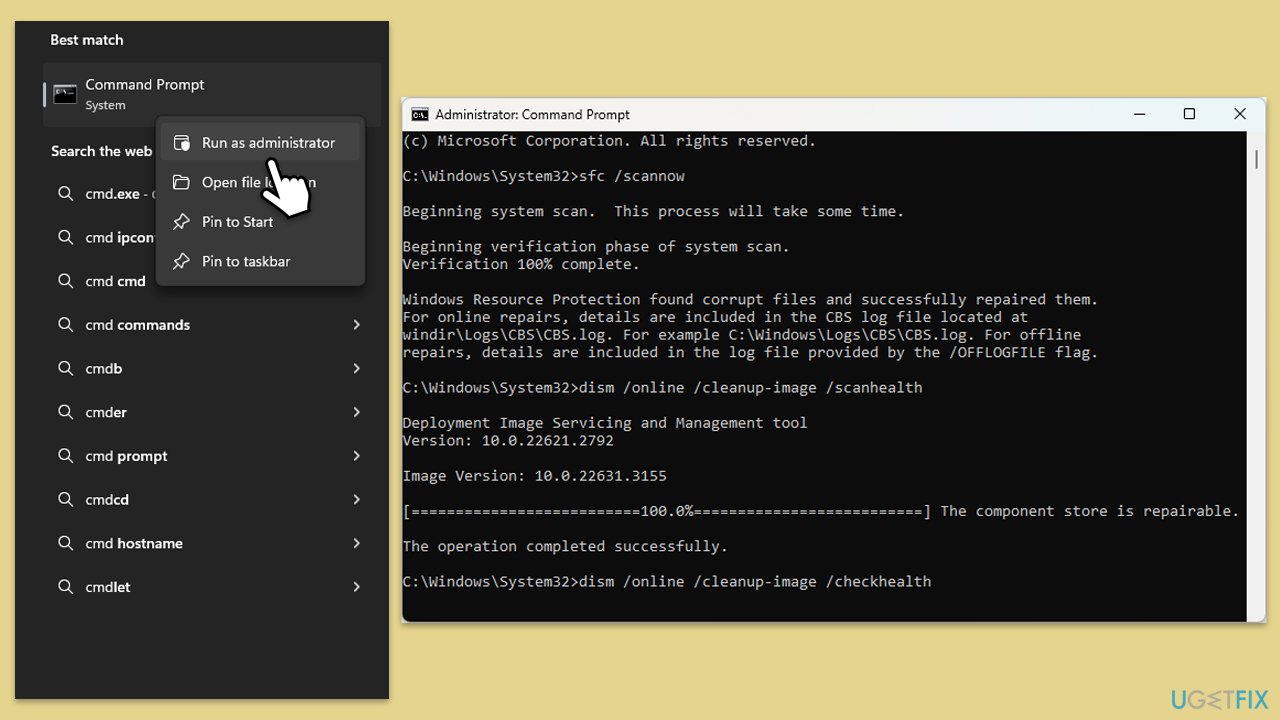
- Type cmd in Windows search.
- Right-click on Command Prompt and pick Run as administrator.
- User Account Control (UAC) will ask whether you want to allow changes - click Yes.
- Use the following command lines, pressing Enter after each:
sfc /scannow
DISM /Online /Cleanup-Image /CheckHealth
DISM /Online /Cleanup-Image /ScanHealth
DISM /Online /Cleanup-Image /RestoreHealth
(Note: if you get an error executing this last command, add /Source:C:\RepairSource\Windows /LimitAccess to it and try again). - Restart your computer.
Fix 4. Reregister System.xml.Linq.ni.dll file
Reregistering the DLL file can resolve issues caused by improper registration.
- Open Command Prompt as administrator.
- Type the following and press Enter:
regsvr32 /u System.xml.Linq.ni.dll - Type the next command and hit Enter:
regsvr32 System.xml.Linq.ni.dll - Restart your computer.
Fix 5. Scan your system for malware
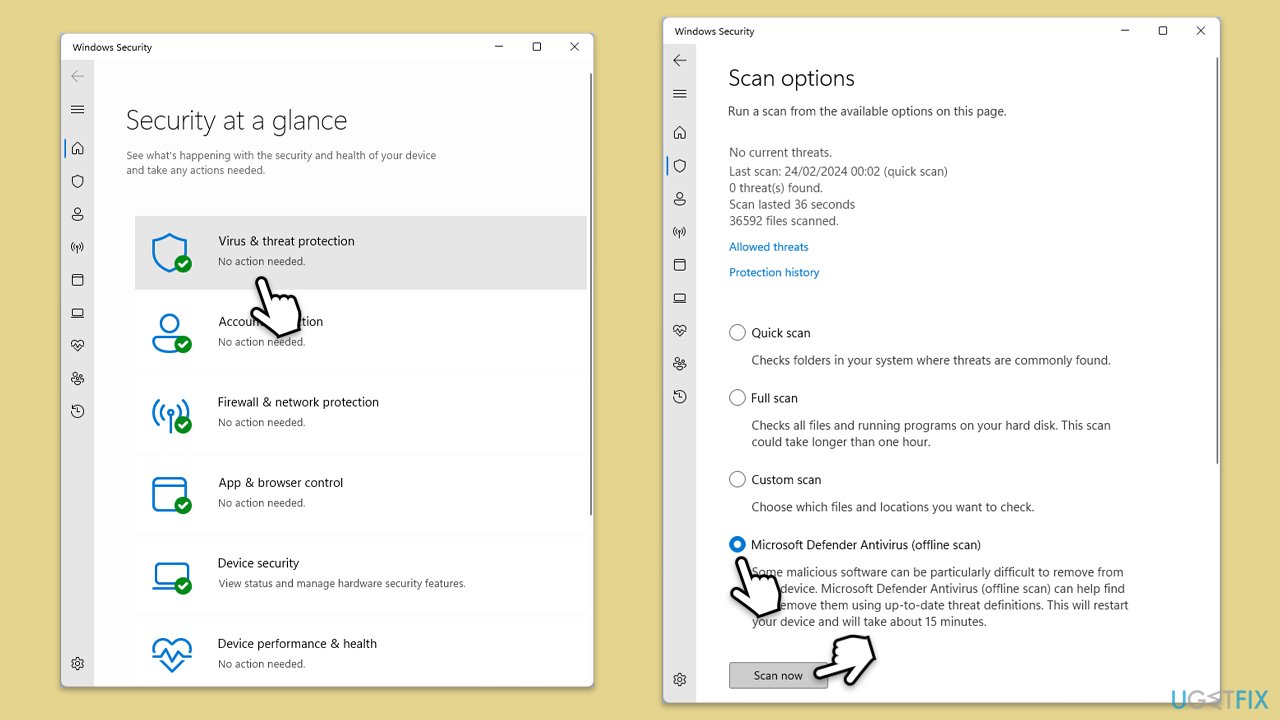
Malware can corrupt system files, causing errors. A thorough scan can detect and remove malicious software. You can use Microsoft Security Scanner is a free option, as well as the built-in Windows Defender. If you choose the latter, follow these steps:
- Type in Windows Security in Windows search and press Enter.
- Select Virus & threat protection.
- Pick Scan options.
- Select Microsoft Defender Offline scan and click Scan now.
- The computer will now restart, and the scan begin.
Fix 6. Use System Restore
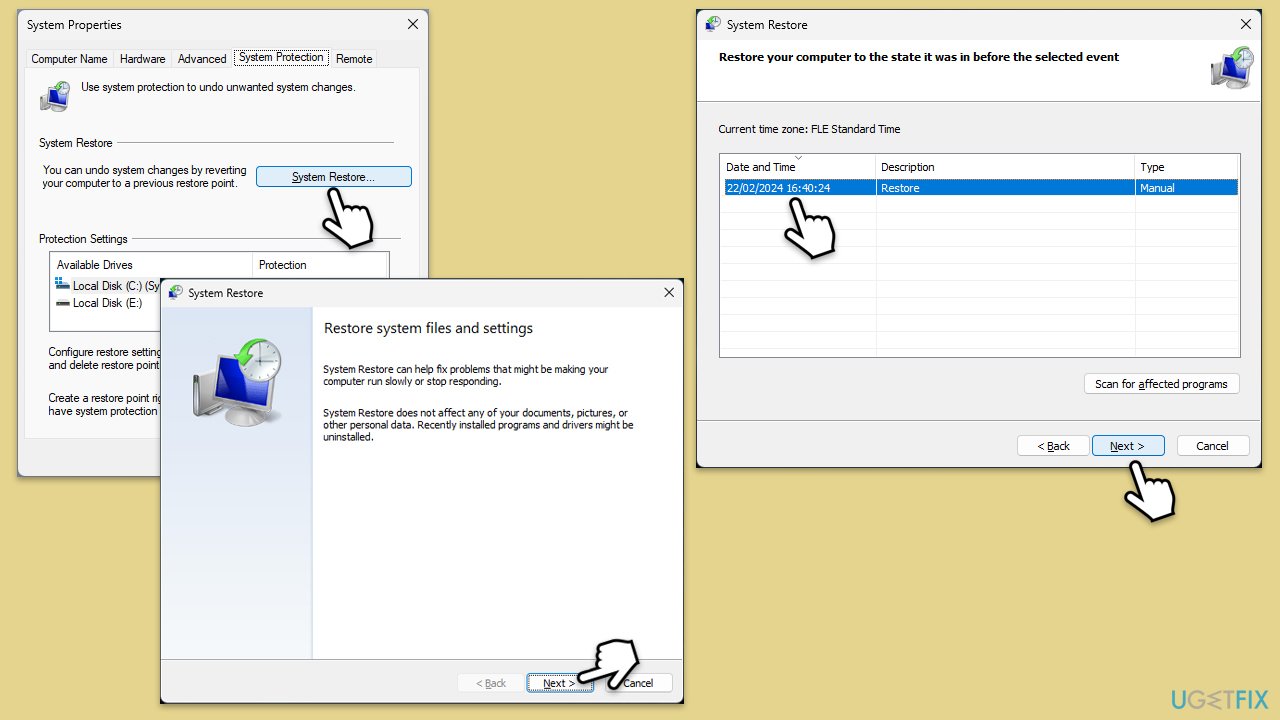
System Restore can revert your computer to a previous state where the error did not occur.
- Type Create a restore point in the Windows search bar and press Enter.
- In the System Properties window, click System Restore.
- Choose a restore point from before the issue occurred.
- Click Next and follow the on-screen instructions to complete the system restore.
- Restart your computer after the process is finished.
Fix 7. Perform in-place upgrade
An in-place upgrade can refresh your Windows installation without affecting your files and applications. Don't worry, you won't lose your personal files. Before proceeding make sure you uninstall a third-party security app and disconnect any unnecessary peripherals such as printers or external drives.
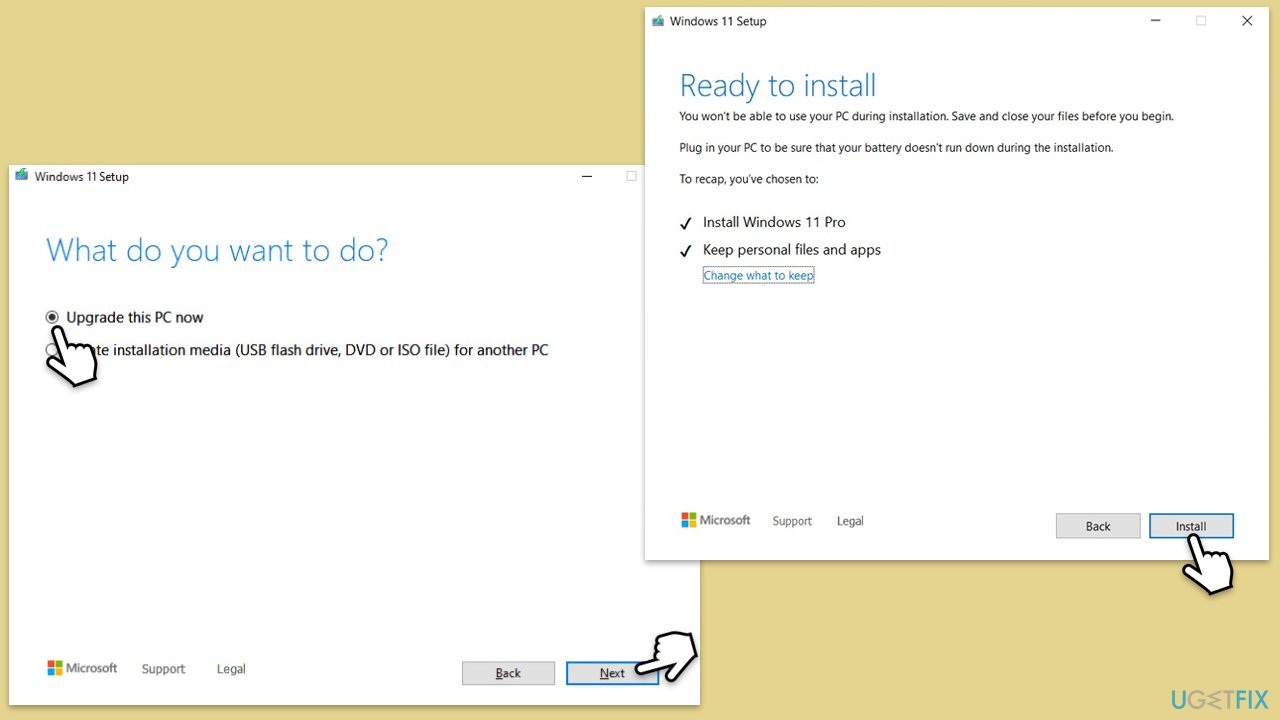
- Visit the official Microsoft website and download Windows 10 installation media (Windows 11 version).
- Double-click the installer and select Yes when UAC shows up.
- Agree to the terms and click Next.
- Select Upgrade this PC now and select Next
- Windows will now download all the necessary files, which might take some time.
- Agree to the terms once again and click Next.
- Before installing, ensure you are happy with your choices (otherwise, you can click Change what to keep option).
- Click Install to begin the upgrade process.
- Your computer will restart as required.
Bottom line
To fix the 'System.xml.Linq.ni.dll' error, check for a second version of Microsoft Security App installed, update your Windows operating system, and run SFC and DISM scans via an elevated Command Prompt. Additionally, perform a thorough malware scan with reliable antivirus software. If none of these solutions work, consider using a PC repair app for further assistance.
Frequently asked questions
This error typically occurs due to a corrupted or incompatible DLL file, often linked to software that relies on the .NET Framework. It can also result from system file corruption or conflicts with Windows updates.
You can try repairing the error by running the System File Checker tool; open Command Prompt as an administrator and execute 'sfc /scannow'. Alternatively, reinstalling the application associated with the error may resolve the issue.
To prevent this error, ensure that your Windows 10 or Windows 11 system is up to date and regularly check for updates to the .NET Framework. Additionally, avoid installing unverified third-party applications that may interfere with system files.




Report an issue
What's wrong with this guide? We review every report and update or remove content.
Report received — thank you. We'll review and fix it.
You need a free account to submit a report.
Be the first to comment