How to fix
“This operation is not supported when reserved storage is in use” error
on Windows
Resolve the "This operation is not supported when reserved storage is in use" error on Windows 10 and 11 easily. Expert-tested solutions inside.

What causes How to fix “This operation is not supported when reserved storage is in use” error in Windows?
- Reserved storage is actively being utilized by Windows
- System updates are in progress
- Temporary files are being stored
- Disk cleanup utilities are running
- Insufficient free storage space
Repairs Windows system files, removes malware, and restores a clean OS state — without reinstalling.
I got "This operation is not supported when reserved storage is in use" error in Command Prompt. How do I fix it?
Windows operating systems rely on various resources to ensure smooth functionality, and one key aspect is reserved storage. Reserved storage is a feature introduced in Windows 10 that sets aside a portion of your device’s storage to ensure system updates and temporary files have enough space to function properly.
This feature helps avoid issues such as failed updates due to lack of disk space, ensuring the system can maintain performance during critical tasks. However, certain errors can occur related to this functionality, one of which is the "This operation is not supported when reserved storage is in use" error.
This error typically appears when attempting to modify system settings, install software, or run maintenance tasks while reserved storage is actively being utilized by Windows. When the system is making use of reserved storage, certain operations, especially those involving disk space, are temporarily blocked.
This restriction ensures that ongoing system processes like updates or installations aren't disrupted, which could otherwise cause system instability or incomplete processes.
The "This operation is not supported when reserved storage is in use" error often occurs during system updates or when running disk cleanup utilities, particularly when the system is low on free storage space.
Users may encounter this error if they try to delete files or perform changes that conflict with Windows' reserved space allocation. Since reserved storage plays a vital role in maintaining system integrity during updates, Windows imposes restrictions to prevent interference with its usage.
To resolve the issue, understanding the specific circumstances when reserved storage is being used is key. It could be during an update, while temporary files are actively being stored, or in instances where storage management features are in use. Properly managing disk space and allowing Windows to complete its processes can often prevent this error from recurring.
In some cases, system conflicts or underlying issues may cause this error to persist, for which a reliable PC repair tool like [d1] can automatically address deeper Windows-related problems.

Fix 1. Wait for system processes to complete
The error often occurs because Windows is actively using reserved storage for system updates or other tasks. Simply waiting for these operations to finish can resolve the issue.
- Press Ctrl + Shift + Esc to openTask Manager and check if Windows is performing updates or maintenance tasks.
- Wait until the process completes.
- Try running the operation again once the system is idle.
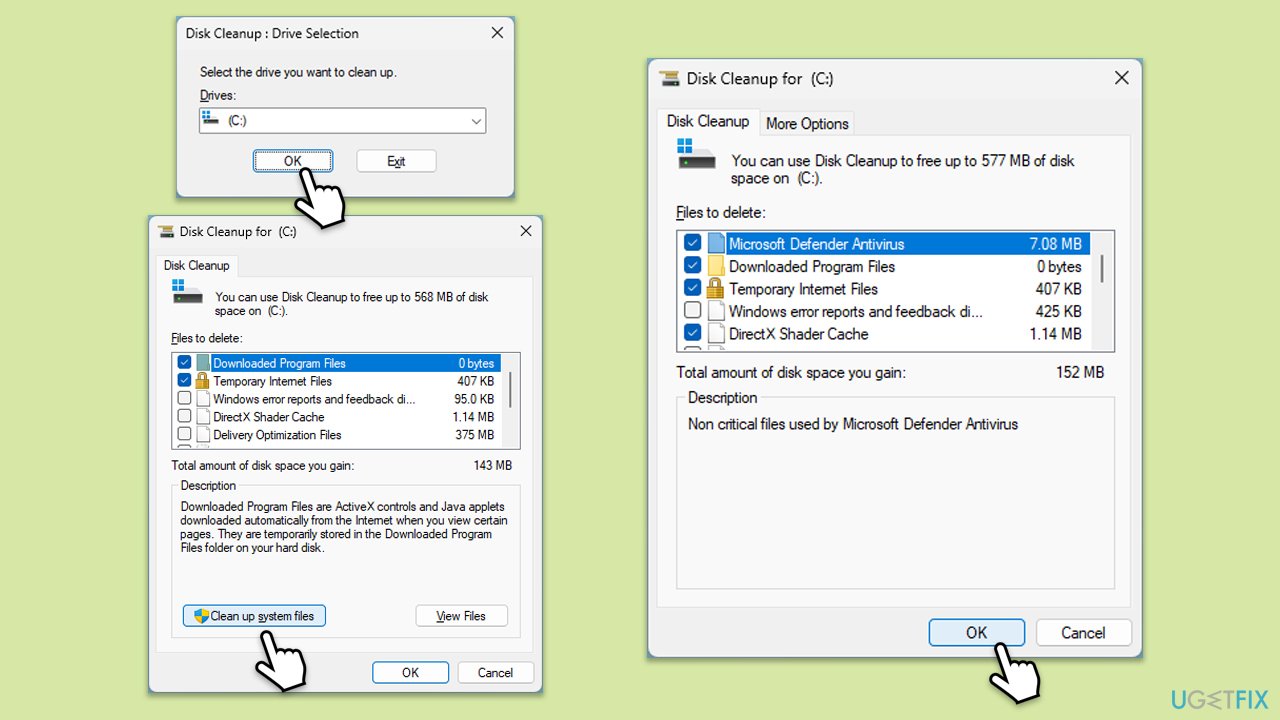
Fix 2. Run Disk Cleanup
Disk Cleanup can help clear temporary files and other unnecessary data, which may alleviate the pressure on reserved storage and resolve the error.
- Type Disk Cleanup in Windows search and hit Enter.
- If your Windows is installed on drive C, pick it from the list (it should be by default) and press OK.
- Click Clean up system files.
- Select your main disk again and click OK.
- Here, select the largest portions of the data used - these typically include Temporary Internet Files, Windows Update, Temporary Files, Recycle Bin, Delivery Optimization Files, among others.
- Click OK - the process should be finished shortly.
Fix 3. Install all Windows updates
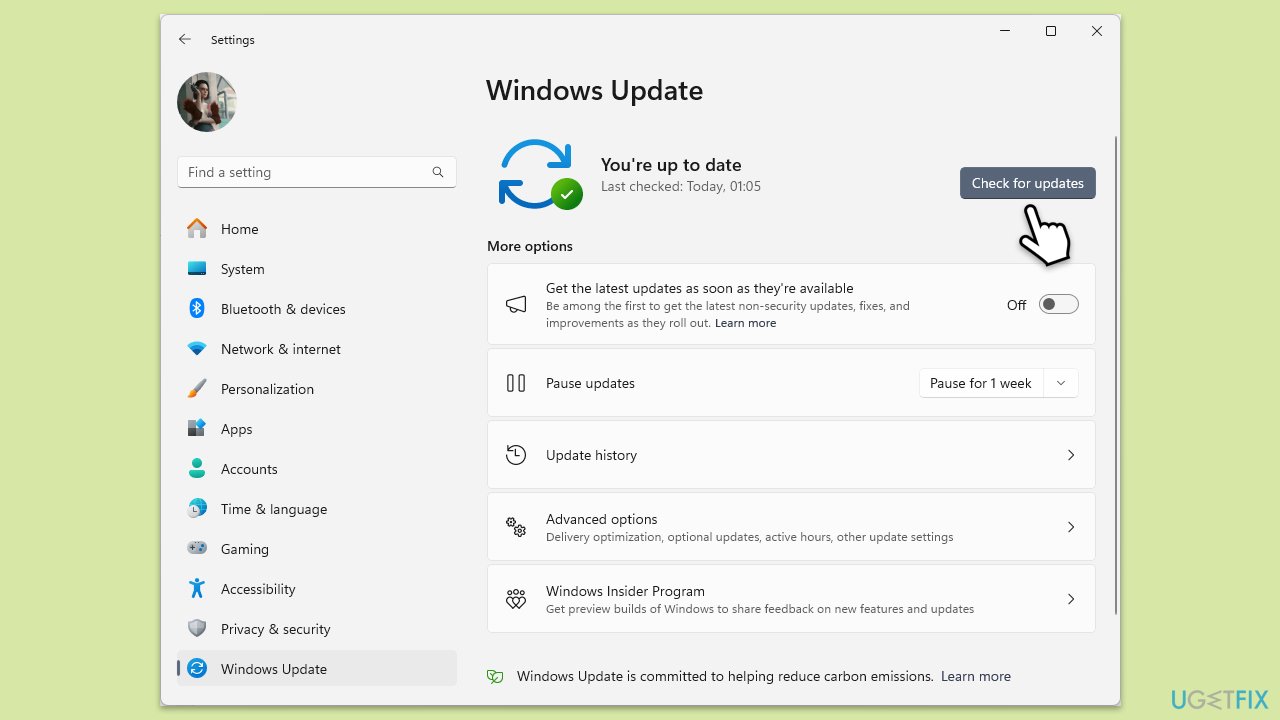
If Windows updates are pending, they may be reserving storage, causing the error. Ensuring all updates are completed can free up reserved storage.
- Type Updates in Windows search and hit Enter.
- If updates are available, click Install updates.
- Otherwise, click Check for updates.
- If optional updates are available, install them as well.
- When all the update processes are complete, restart your device.
Fix 4. Pause Windows updates
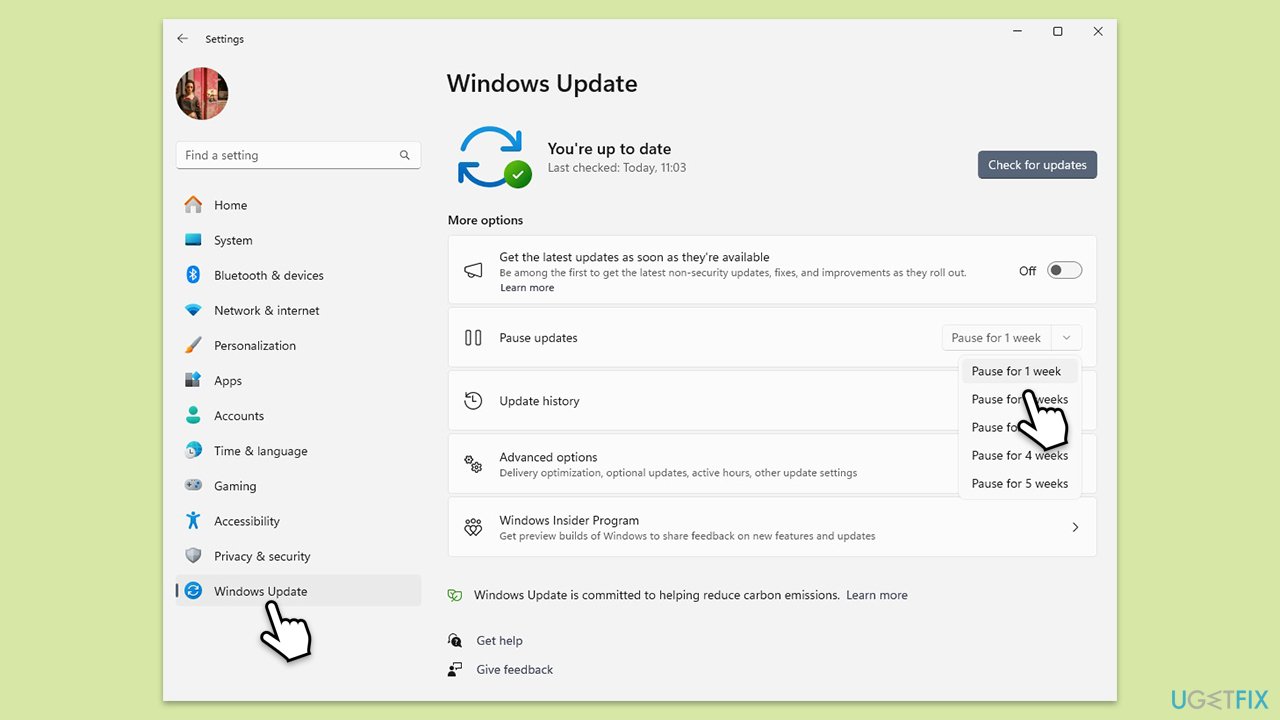
While this is not an optimal solution, pausing Windows updates could prevent "This operation is not supported when reserved storage is in use" error from appearing.
- Open Settings.
- Click on Windows Update.
- Click on the drop-down menu and select Pause updates for 1 week (or another time period).
- Restart your computer.
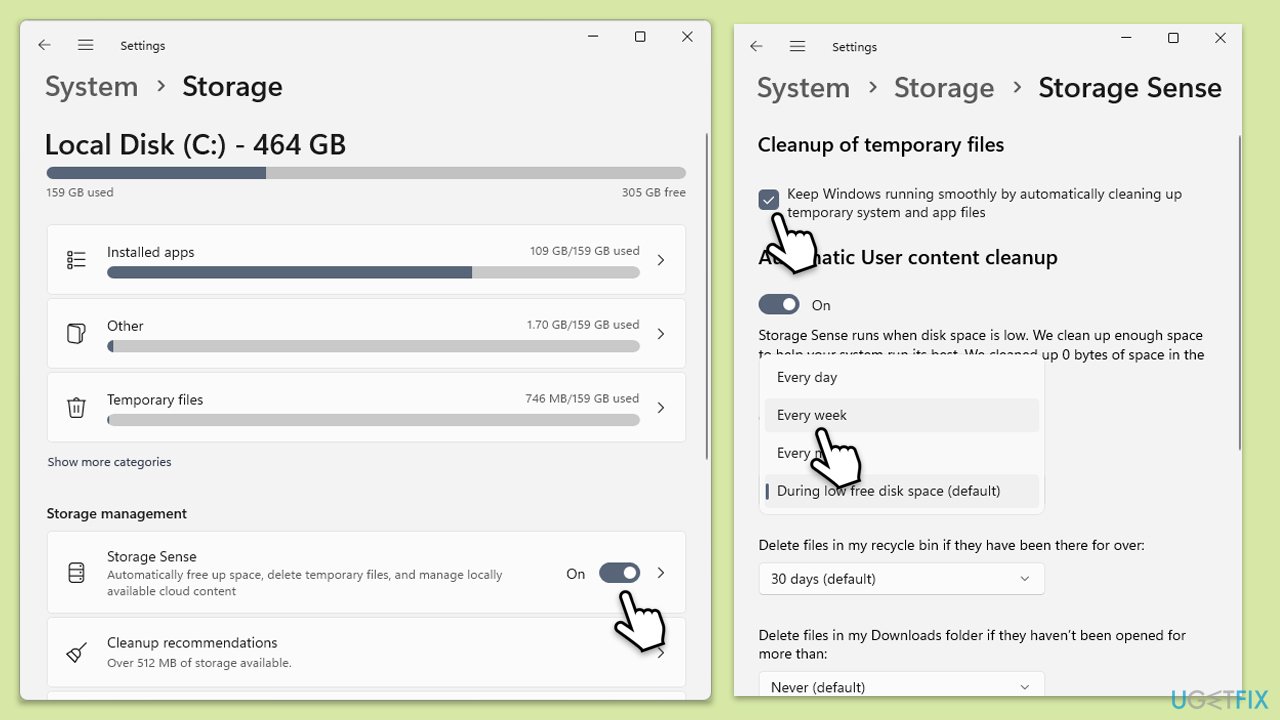
Fix 5. Enable Storage Sense
Storage Sense, a feature in Windows, can automatically manage disk space, including temporary files, which might reduce conflicts with reserved storage.
- Right-click on Start and pick Settings.
- Go to the System section.
- Click on Storage, then select Configure Storage Sense or find Storage Management > Storage Sense section.
- Turn on Storage Sense and adjust settings for automatic file deletion.
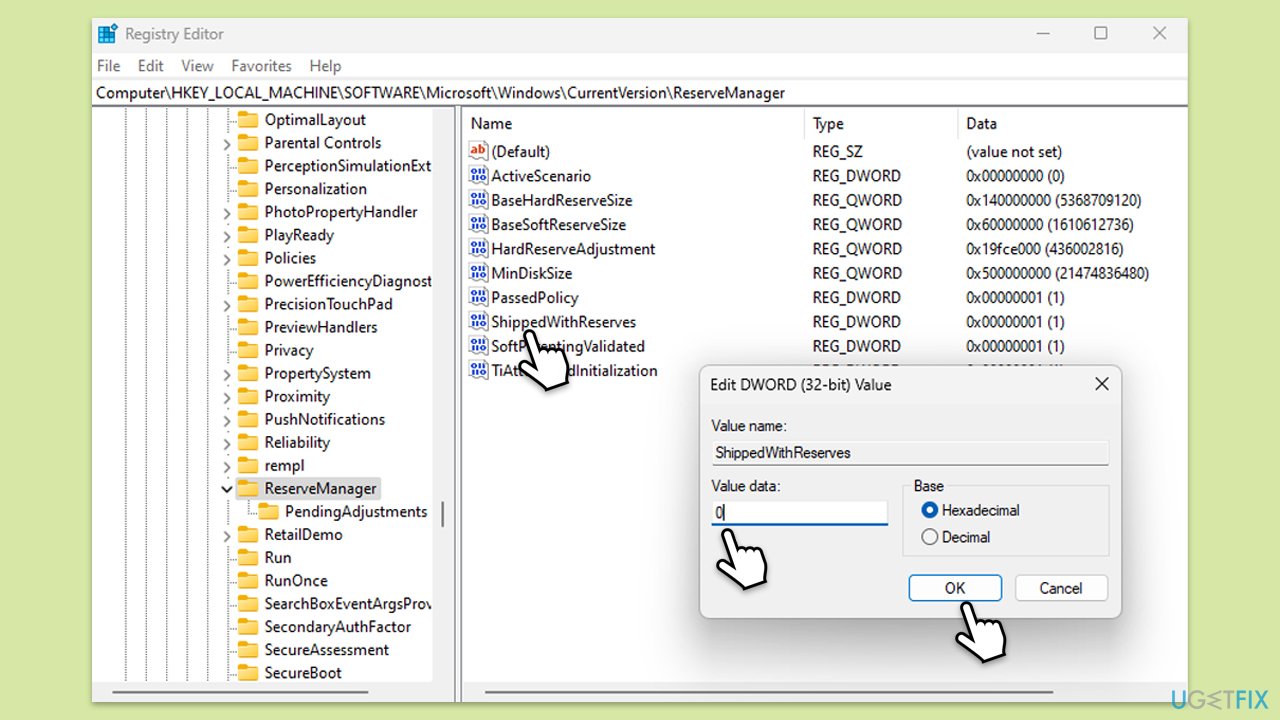
Fix 6. Disable reserved storage via Registry Editor (optional)
If the error is consistently disruptive, disabling reserved storage can prevent it from interfering with certain operations. Be cautious, as this could affect future updates.
- Type regedit in Windows search and press Enter.
- Navigate to the following location:
HKEY_LOCAL_MACHINE\SOFTWARE\Microsoft\Windows\CurrentVersion\ReserveManager - Double-click on ShippedWithReserves and set the value to 0, then click OK.
- Restart your computer.
Bottom line
To resolve the error, ensure that Windows has completed its updates and that no disk cleanup utilities are running. Properly managing disk space can help prevent this error from recurring. If the issue persists, consider using a reliable PC repair tool to address deeper Windows-related problems.
Frequently asked questions
This error indicates that certain operations cannot be performed because reserved storage is currently active, which is designed to ensure that essential updates and system processes have enough disk space. To resolve this, you may need to disable reserved storage or free up space.
To disable reserved storage in Windows 11, open Settings, go to System > Storage, and then click on 'Change how we free up space automatically' to adjust the reserved storage settings. This may help eliminate the error and allow you to perform the desired operation.
Yes, deleting reserved storage in Windows 10 is generally safe and can help resolve the error, but it may impact the system's ability to install updates efficiently. Always ensure you have sufficient disk space for future updates before proceeding.




Report an issue
What's wrong with this guide? We review every report and update or remove content.
Report received — thank you. We'll review and fix it.
You need a free account to submit a report.
Be the first to comment