How to fix
UtcSvc high CPU usage
on Windows
Resolve UtcSvc high CPU usage on Windows 10 and 11 effortlessly. Follow our expert-tested tips and enjoy a smoother experience in no time!


What causes How to fix UtcSvc high CPU usage in Windows?
- Extensive data collection tasks
- Conflicts with other system processes
- Corrupted telemetry data
- Malware disguising as UtcSvc
- Service becoming unresponsive or stuck
Repairs Windows system files, removes malware, and restores a clean OS state — without reinstalling.
So, for some reason, Service host: UtcSvc is using high amount of CPU at all times. It can get as high as 40-50%, which is really noticeable when using Windows. Could you help me?
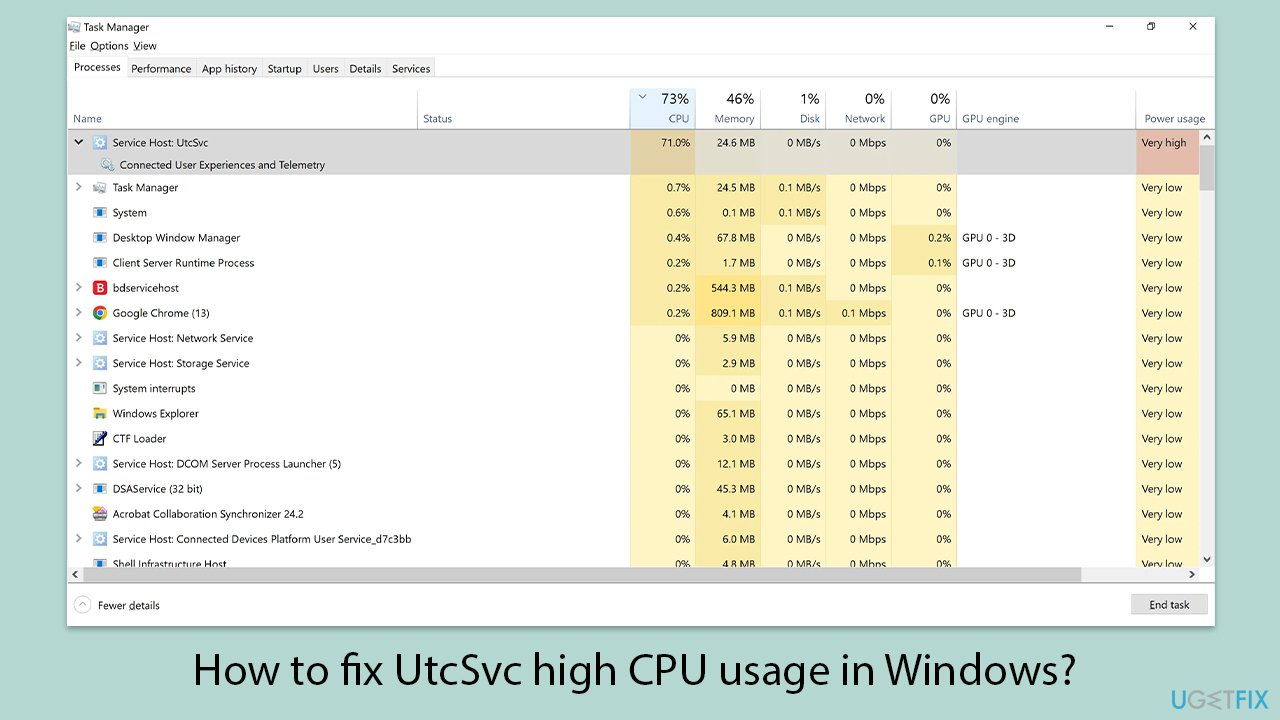
The UtcSvc process is related to the Connected User Experiences and Telemetry service-a part of all Windows operating systems that collect and send diagnostic information and usage details to Microsoft. Although this helps improve user experiences by finding system problems and taking remedial actions, users often complain about it when UtcSvc causes CPU and disk usage to go unusually high, considerably slowing down system performance.
Several factors can contribute to UtcSvc consuming excessive system resources. One common cause is the service running extensive data collection tasks, which can strain CPU and disk usage. Additionally, conflicts with other system processes or corrupted telemetry data can exacerbate the issue. In some cases, malware disguising itself as the UtcSvc process may be responsible for the high resource consumption.
Users experiencing this problem have observed that UtcSvc can consistently utilize a significant portion of CPU resources, sometimes exceeding 30%, leading to noticeable system slowdowns. This persistent high usage not only affects performance but can also reduce hardware lifespan due to sustained stress.
Addressing the high CPU and disk usage caused by UtcSvc involves identifying the underlying cause and implementing appropriate solutions. If you're encountering this issue, a potential fix may be available below. Before proceeding, consider using an all-in-one PC repair tool [d1] to automatically detect and resolve any underlying Windows issues.
Fix 1. Restart the UtcSvc service
Sometimes, the Connected User Experiences and Telemetry service may become unresponsive or stuck in a high resource usage state. Restarting the service can help refresh its operation and reduce CPU usage.
- Type Services in Windows search and press Enter.
- Scroll down and locate Connected User Experiences and Telemetry (UtcSvc).
- Right-click on the service and select Restart.
- Wait for the process to complete and monitor CPU usage in Task Manager.

Fix 2. Disable UtcSvc temporarily
If UtcSvc continues consuming excessive system resources, disabling it can prevent it from running in the background. However, keep in mind that this may affect Windows diagnostics and telemetry-related features.
- Type Services in Windows search and press Enter.
- Find Connected User Experiences and Telemetry in the list.
- Right-click on the service and select Properties.
- Change the Startup type to Disabled.
- Click Apply, then OK, and restart the computer.

Fix 3. Limit diagnostic data collection
UtcSvc is responsible for sending telemetry data to Microsoft. Reducing the amount of data collected can help decrease CPU usage.
- Right-click on Start and pick Settings.
- Go to Privacy & Security, then click Diagnostics & Feedback.
- Disable the Send optional diagnostic data option.
- Restart the computer and check if CPU usage decreases.

Fix 4. Run System File Checker (SFC) and DISM
Corrupt system files may cause UtcSvc to consume excessive resources. Running system integrity checks can resolve such issues.
- Type cmd in Windows search.
- Right-click on the Command Prompt result and select Run as administrator.
- When the UAC window pops up, click Yes.
- In the Command Prompt window, paste the following command and press Enter:
sfc /scannow - Wait for the scan to complete.
- Once the SFC scan is finished, run the following set of DISM commands, pressing Enter after each one:
DISM /Online /Cleanup-Image /CheckHealth
DISM /Online /Cleanup-Image /ScanHealth
DISM /Online /Cleanup-Image /RestoreHealth - After completing the DISM commands, restart your computer.
Fix 5. Check for Windows updates
Microsoft periodically releases patches that address system performance issues, including those related to UtcSvc. Ensuring Windows is up to date may resolve the problem.
- In Windows search, type Updates and press Enter.
- In the new window, click Check for updates and wait till everything is installed.
- Make sure you also install any available optional updates.
- When done, restart your device to implement the changes.

Fix 6. Scan for malware
Malicious programs can disguise themselves as legitimate system processes like UtcSvc. Running a malware scan ensures that high CPU usage is not caused by harmful software. You can use Microsoft Safety Scanner or the built-in Microsoft Defender:
- Type Windows Security in the Windows search bar and hit Enter.
- Select Virus & threat protection.
- Pick Scan options.
- Choose Microsoft Defender Offline scan and click Scan now.
- Your computer will immediately reboot and begin a deep scan.

Fix 7. Perform a Clean Boot
Background applications or third-party services may conflict with UtcSvc, leading to increased CPU usage. A clean boot starts Windows with minimal services to identify conflicts.
- Type msconfig in Windows Search and press Enter.
- Click on the Services tab and check the Hide all Microsoft Services box.
- Click Disable all to disable non-Microsoft services, then click the Startup tab.
- Open the Task Manager, disable all startup items, and close the Task Manager.
- Go to the Boot tab and mark the Safe boot option.
- Click OK on the System Configuration window and restart your computer.
- If the issue is resolved, re-enable services one by one to identify the problematic application.

Fix 8. Reset Windows performance settings
Incorrect performance settings may cause UtcSvc to consume more resources than necessary. Resetting performance settings can help stabilize CPU usage.
- Type sysdm.cpl in Windows search and press Enter.
- Go to the Advanced tab and click Settings under the Performance section.
- Select Adjust for best performance, then click Apply.
- Restart the computer.

Bottom line
To address the high CPU usage caused by UtcSvc, you can restart the Connected User Experiences and Telemetry service. This may refresh its operation and reduce resource consumption. If the issue persists, consider using an all-in-one PC repair tool to detect and resolve underlying Windows issues.
Frequently asked questions
UtcSvc, or the Universal Telemetry Client Service, is responsible for collecting and sending telemetry data to Microsoft. High CPU usage can occur due to bugs or excessive data processing, impacting system performance.
To reduce UtcSvc's CPU usage, you can disable the service through the Services app or adjust your privacy settings to limit telemetry data collection.
Yes, it is generally safe to disable UtcSvc, but doing so may prevent your system from sending diagnostic data to Microsoft, which could affect service improvements.




Report an issue
What's wrong with this guide? We review every report and update or remove content.
Report received — thank you. We'll review and fix it.
You need a free account to submit a report.
Be the first to comment