How to fix
“Your PC needs to be repaired. Error code: 0xc000014c“ problem
on Windows
Resolve the “Your PC needs to be repaired. Error code: 0xc000014c” issue on Windows 10 and 11 quickly and easily. Expert-tested solutions await!

What causes How to fix “Your PC needs to be repaired. Error code: 0xc000014c“ problem?
- Corrupted Windows installation files
- Damaged Windows installation files
- Missing boot configuration data
- Wrongly configured drivers
- Boot process failure
Repairs Windows system files, removes malware, and restores a clean OS state — without reinstalling.
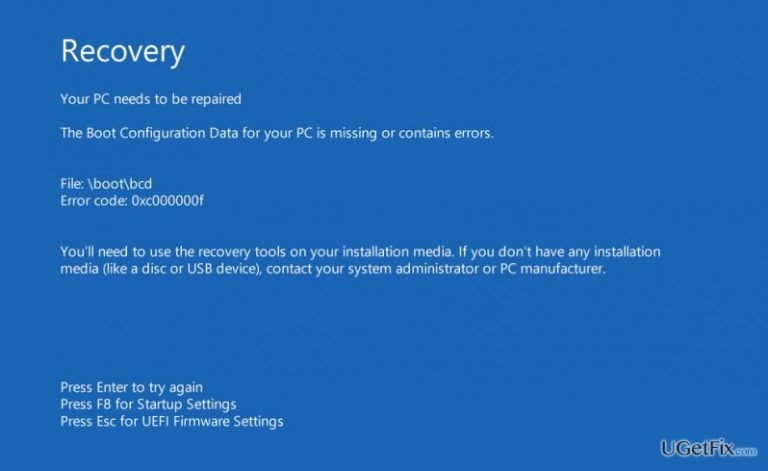
When I turned the computer on, the black screen emerged saying that Windows could not start normally and I need to repair my device. It also says that the boot configuration data for my PC is missing and contains errors. Error code 0xc000000f. Where is the problem and how can I solve it?
“Your PC/device needs to be repaired. Error code: 0xc000014c,“ which is alternatively called as the error “0xc000000f,” is suspected to occur when there are corrupted or damaged Windows installation files. Likewise, the boot process fails to launch properly. While this problem is not common, it requires some of your time and patience. Wrongly configurated drivers might be at fault for this error as well. If you encounter this error, there is no need to worry. Restore the efficiency of the device by following one of these methods.
Option 1. Using bootrex.exe file for windows recovery
- Launch the PC from the DVD disk or USB flash drive.
- Access Windows Recovery Environment (WinRE). Launch Command Prompt and type Bootrec /RebuildBCD. Activate the command by pressing Enter.
- Reboot the device.
Note. In case this option does not work, type this set of commands in Command Prompt RE window:
- bcdedit /export C:\BCD_Backup
- c:
- cd boot
- attrib bcd -s -h -r
- ren c:\boot\bcd bcd.old
- bootrec /RebuildBcd
Option 2. Reinstalling Windows 10
The least wanted solution might be the reinstallation of the operating system. Make sure to download the ISO file from the official Microsoft web page. With the help of the installation wizard, you will be able to choose bootable DVD disk. When the burning process is complete, you will be asked to select boot sequence. Opt for boot from the DVD. Afterward, the small notification icon of “Repair” pops up. After performing the steps of the guide, restart the device. Lastly, when you access the computer, run [rev id=”RegCure Pro”] to check if all registry files function well.
Bottom line
To fix the error code 0xc000014c, you can use the Bootrec.exe file for Windows recovery or reinstall Windows 10. If these methods do not resolve the issue, consider running a registry check with RegCure Pro.
Frequently asked questions
The error code 0xc000014c typically occurs due to corrupted boot configuration data or issues with the hard drive. This can happen after improper shutdowns or hardware failures.
You can repair the boot configuration data by booting from a Windows installation media, selecting 'Repair your computer', and then using the Command Prompt to run 'bootrec /rebuildbcd'.
Yes, you can attempt to fix error 0xc000014c by using the Startup Repair option available in the Windows Recovery Environment, which can help resolve boot issues without a full reinstallation.




Report an issue
What's wrong with this guide? We review every report and update or remove content.
Report received — thank you. We'll review and fix it.
You need a free account to submit a report.
Be the first to comment