
mdnsnsp.dll is blocked, missing or breaks the network: what the file is and how to fix it
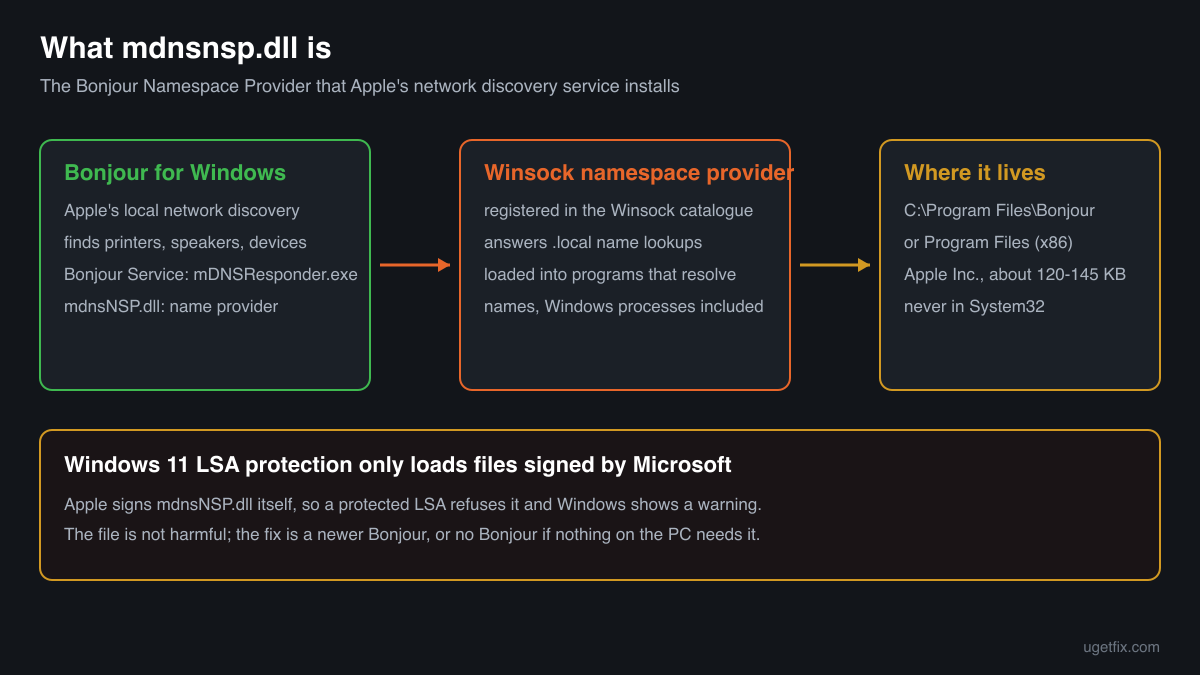
mdnsnsp.dll is the Bonjour Namespace Provider, an Apple library that Bonjour for Windows installs so that Windows can find printers, speakers and other devices on your local network by name. Bonjour arrives with iTunes, iCloud for Windows, Bonjour Print Services and some other programs. Most people meet the file in a Windows 11 warning that it was blocked from loading into the Local Security Authority, or in network errors after Bonjour was removed. Both are fixed through Bonjour and the program that brought it.

Prefer to fix it yourself? The manual steps follow.
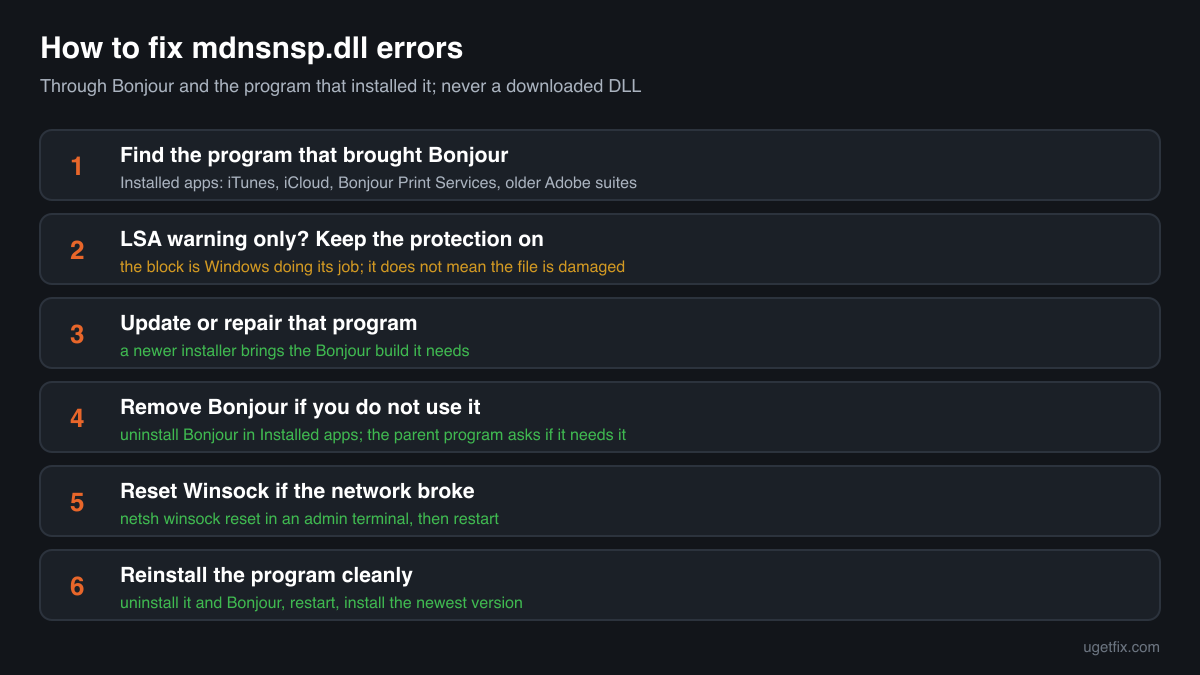
How to fix mdnsnsp.dll errors
The file belongs to Bonjour, Apple's network discovery service, not to Windows. Open Settings, Apps, Installed apps and look for Bonjour and the program that installed it, usually iTunes, iCloud or Bonjour Print Services. If Windows warns that mdnsNSP.dll was blocked from loading into the Local Security Authority, the file is not damaged: Windows protection refuses it because Microsoft did not sign it. Update that program, or uninstall Bonjour if nothing on the PC uses it, and leave the protection on. If the file is missing or the network stopped working after Bonjour was removed, repair or reinstall the program, or reset Winsock with netsh winsock reset and restart.
An mdnsnsp.dll from a DLL download site is not the fix. The file only works as part of a Bonjour installation, registered in Windows networking together with the Bonjour Service, and a loose copy is a file of unknown origin that Windows may load into many processes, its security process included.
Which programs ship mdnsnsp.dll
Apple does not put mdnsnsp.dll into other programs directly. It is part of Bonjour for Windows, and other installers add Bonjour as a separate component, which then appears on its own in Installed apps. That is why the file often stays on a PC after the program that brought it is long gone. These are the cases you will meet.
| Program | Made by | What to know |
|---|---|---|
| Bonjour for Windows | Apple Inc. | The owner of the file. Installs the Bonjour Service (mDNSResponder.exe) and mdnsNSP.dll in C:\Program Files\Bonjour, plus a 32-bit copy in C:\Program Files (x86)\Bonjour on many 64-bit PCs. Listed as Bonjour in Installed apps. |
| iTunes for Windows | Apple Inc. | The installer from Apple's website adds Bonjour so that iTunes can find shared libraries and AirPlay speakers on the network. Uninstalling iTunes leaves Bonjour behind as a separate entry. |
| iCloud for Windows | Apple Inc. | Some versions install Bonjour alongside Apple's other support components. Update iCloud before you remove Bonjour, and check afterwards that it still syncs. |
| Bonjour Print Services for Windows | Apple Inc. | Apple's standalone package for finding and adding network printers that advertise themselves with Bonjour. The only official Apple download that installs Bonjour on its own. |
| Older Adobe creative suites and other third-party programs | Their own publishers, with Apple's Bonjour | Some installers of design, audio, printing and media software added Bonjour for device and network discovery. When you do not remember installing anything from Apple, one of these is usually the reason Bonjour is there. |
| A copy outside the Bonjour folder | Unknown | No genuine installer puts mdnsnsp.dll in System32, Downloads, Temp or AppData. A copy there did not come from Bonjour and is a security question, not a missing-file one. |
Step by step
- Find out which program brought Bonjour. Open Settings, Apps, Installed apps and type Bonjour in the search box. Then look for iTunes, iCloud, Bonjour Print Services and other Apple entries, and think about printer, audio or design software you installed. You need the parent program for the next steps, because Bonjour is updated and repaired through it.
- If you only see the LSA warning, keep LSA protection on. The Windows Security warning that mdnsNSP.dll is blocked from loading into the Local Security Authority means LSA protection works. It accepts only plug-ins signed by Microsoft, and Apple signs Bonjour itself. Do not switch Local Security Authority protection off to silence the warning: that weakens the protection of your sign-in credentials for every program, not only Bonjour.
- Update or repair the parent program. Install the newest version of iTunes, iCloud or the other program from its official source, or use Modify or Repair in Installed apps if the program offers it. A current installer brings the Bonjour build it was made with and registers mdnsNSP.dll again. For Bonjour Print Services, download the package from Apple Support and run it again.
- Uninstall Bonjour if nothing uses it. In Installed apps select Bonjour and choose Uninstall, then restart the PC. Most people only notice Bonjour through the warning, and iTunes plays local music without it. What stops working are network features: finding AirPlay speakers, shared libraries and Bonjour printers. If you need them later, reinstalling the parent program brings Bonjour back.
- Reset Winsock if the network broke. If browsers or other programs lost their internet connection after Bonjour was removed or damaged, Windows networking may still list Bonjour's provider. Open Terminal as administrator, run netsh winsock reset and restart. This rebuilds the Winsock catalogue to its default state; programs that add their own network components, such as VPN clients, may need to be reinstalled afterwards.
- Look at your security software's protection history. In Windows Security open Virus and threat protection, Protection history. If mdnsNSP.dll was removed from the Bonjour folder, find out why before you restore anything: a copy in C:\Program Files\Bonjour signed by Apple is a false positive, a copy anywhere else is not something to bring back.
- Reinstall the program cleanly. Uninstall the parent program and Bonjour, restart, check that the Bonjour folder in Program Files is gone, and install the newest version of the program. A clean install also removes leftovers that a repair keeps in place.
What not to do
Do not download mdnsnsp.dll from a DLL site.
A loose file does not register itself in Windows networking, so it fixes nothing on its own, and you cannot tell whether it is Apple's at all. A name provider is loaded into many processes, so a tampered copy would run in places where it can do real harm.
Do not turn off LSA protection because of this warning.
Microsoft built LSA protection to stop non-Microsoft code from loading into the process that holds your sign-in credentials. Switching it off to let one Apple file load removes that barrier for everything. Update or remove Bonjour instead.
Do not copy mdnsnsp.dll into System32.
Bonjour loads the file from its own folder, where Windows networking expects it. A copy in the Windows folders is never used by Bonjour and stays behind as an unknown file.
Do not delete only the DLL.
Deleting mdnsNSP.dll while Bonjour is still registered can leave Windows networking pointing at a file that is gone, which is one way to lose internet access. Uninstall Bonjour as a whole through Installed apps.
Do not run registry cleaners against Winsock.
Removing network entries by hand or with a cleaner can break name resolution for every program. netsh winsock reset is the supported way to rebuild the catalogue.
Check the copy on your PC
Choose the mdnsnsp.dll from your Bonjour folder. Its checksum is calculated in your browser and compared with 4 copies of the file collected from PCs, all reporting Apple Inc.
The file stays on your computer. Nothing is uploaded: the checksum is computed locally.
Found an mdnsnsp.dll outside the Bonjour folder, without Apple's signature, or on a PC where you never installed anything that uses Bonjour? Then the question is whether it is Apple's file at all, and that is a security question rather than a repair one. Is mdnsnsp.dll Apple's Bonjour file or a fake? On 2-Spyware
The error messages and what each one means
The wording points to the cause: a file Windows refuses to load, a file that is gone, a damaged file, or a Bonjour installation that was half removed. These are the messages Windows and programs show, with the file name filled in.
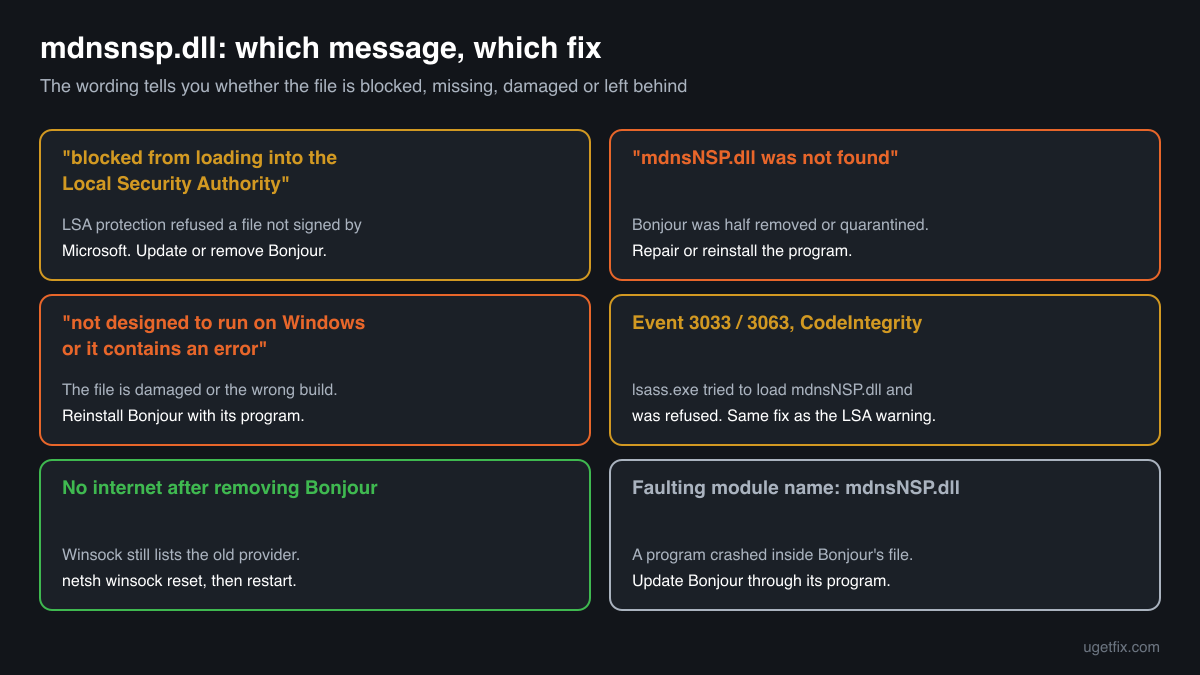
mdnsNSP.dll: This module is blocked from loading into the Local Security Authority.
A Windows Security warning on PCs where Local Security Authority protection is on. The file is intact; LSA refused it because only plug-ins signed by Microsoft may load. Update the program that brought Bonjour, or uninstall Bonjour if you do not need it. Keep the protection on.
Code Integrity event 3033 or 3063 naming lsass.exe and mdnsNSP.dll
The same block written to Event Viewer, under Applications and Services Logs, Microsoft, Windows, CodeIntegrity, Operational. Event 3033 means the file does not meet the Microsoft signing level, event 3063 that it does not meet the requirements for shared sections. Same fix as the warning.
Code Integrity event 3065 or 3066 naming mdnsNSP.dll
Audit mode: Windows notes that the file would be refused under LSA protection but still lets it load. Nothing is broken. It tells you in advance that the warning will come if the protection is switched on.
The code execution cannot proceed because mdnsNSP.dll was not found. Reinstalling the program may fix this problem.
A program that uses Bonjour started and the file was gone: removed by hand, quarantined, or left out by an interrupted uninstall. Check the protection history, then repair or reinstall the parent program.
mdnsNSP.dll is either not designed to run on Windows or it contains an error.
Windows found the file but it is damaged or not a valid library for this process, often after a disk error or a half-finished update. Reinstall the parent program so Bonjour writes a fresh copy.
No internet, or Windows Sockets errors, after uninstalling Bonjour
No single message, but a common pattern: browsers fail to resolve names while the connection itself is up. Windows networking still lists Bonjour's provider. Run netsh winsock reset as administrator and restart.
Faulting module name: mdnsNSP.dll
A line from the Application log in Event Viewer after a program crashed inside Bonjour's provider. Check the Faulting module path: inside the Bonjour folder, update Bonjour through its parent program; anywhere else, find out where the copy came from.
File facts
mdnsnsp.dll is a Winsock namespace provider. Windows lets programs plug extra name resolution into its networking layer, and Bonjour uses this to answer lookups for names ending in .local, the names that printers, speakers and other devices announce on your network through multicast DNS. The Bonjour Service, mDNSResponder.exe, does the actual work; mdnsNSP.dll is the bridge that lets ordinary programs ask it. Because it is part of the name lookup path, Windows can load it into many processes, which is how it reaches the Local Security Authority and meets LSA protection. What the catalogue copies of the file report:
- Description in the file
- Bonjour Namespace Provider
- Company in the file
- Apple Inc.
The genuine file sits in C:\Program Files\Bonjour, and on many 64-bit PCs a 32-bit copy sits in C:\Program Files (x86)\Bonjour so that 32-bit programs can use it too. It describes itself as Bonjour Namespace Provider from Apple Inc. (Properties, Details), carries Apple's digital signature, and is small: about 120 KB to 145 KB across the copies listed below. Its version follows the Bonjour release it came with, so the right copy for your PC is the one the newest installer of your parent program puts there.
Copies of mdnsnsp.dll found on PCs
Public DLL catalogues have collected 4 copies of mdnsnsp.dll uploaded from PCs, from version 1.0.5.11 to 3.1.0.1, all reporting Apple Inc. as the company and Bonjour Namespace Provider as the description. Each came from a Bonjour installation. The table lists them with their checksums, so you can tell whether your file is one of them.
Copying one of them onto your PC would not fix anything: Bonjour registers the file when it installs, and the newest copy here, 3.1.0.1, only works together with the Bonjour Service of the same release. If your copy matches an entry, it is most likely a genuine Apple build; whether it is the current one is decided by the newest installer of your parent program.
| Version | Build | Size | MD5 | SHA-1 |
|---|---|---|---|---|
3.1.0.1 | 64-bit | 133 KB | eaaa2b83c4764fdcfbee4a4d6546de92 | 961a7e7735ee8f07ca54fa7cbfb23399748f8174 |
3.0.0.10 | 64-bit | 133 KB | f9d908de6b166dac9b89bf62fa291ce8 | 938b53238291fc41ae852fdde51eed7a2bff0604 |
3.0.0.10 | 32-bit | 123 KB | 40947436a70e0034e41123df5a0a7702 | 6c27e1dd1c1533feb6435190a5074300ac2a9822 |
1.0.5.11 | 32-bit | 143 KB | 0e3e56064e162ee9cc48698355098301 | 30919f80695ce956ef416f2a50bded17c7a00e22 |
Copies uploaded by users to a public DLL catalogue, read on 17 October 2026. We list their checksums so you can identify a file; we do not offer them for download and we did not verify each one against Apple's signature.
Questions people ask
Is mdnsnsp.dll a virus?
Apple's mdnsnsp.dll is part of Bonjour and is not harmful. The Windows warning about it is a signature rule, not a malware detection: LSA protection refuses every plug-in that Microsoft did not sign. A copy in the Bonjour folder with Apple's signature is genuine. For a copy anywhere else, read the security page linked above.
Why did the mdnsnsp.dll warning appear out of nowhere?
Usually because Local Security Authority protection was switched on: by default on some new Windows 11 installations, by you in Windows Security, or by your organisation. Bonjour was already there and loaded without complaint before. Nothing about the file changed; Windows simply started enforcing the signing rule.
Can I uninstall Bonjour safely?
Yes. Windows does not need Bonjour, and removing it through Installed apps is supported. You lose network discovery for AirPlay speakers, shared iTunes libraries and Bonjour printers. If the internet stops working afterwards, run netsh winsock reset as administrator and restart. Reinstalling the parent program brings Bonjour back if you miss something.
Should I turn off LSA protection to stop the warning?
No. LSA protection guards the process that holds your Windows sign-in credentials against code injection. The warning only tells you that Bonjour cannot load there, and Bonjour works for normal programs anyway. Update or remove Bonjour and leave the protection on.
Can I download mdnsnsp.dll and put it in the Bonjour folder?
You should not. The file is registered in Windows networking when Bonjour installs, and it works only together with the Bonjour Service of the same release. Reinstalling the parent program or Bonjour Print Services from Apple writes the matching copy and registers it correctly.
Why is Bonjour on my PC when I never installed anything from Apple?
Other programs bundle it. Older design suites, printer software, audio and media programs installed Bonjour for device discovery, and it stays after they are removed. If nothing you use needs it, uninstall it in Installed apps.
Does reinstalling iTunes fix mdnsnsp.dll errors?
For a missing or damaged file, yes: the iTunes installer brings Bonjour and writes a fresh mdnsNSP.dll. For the LSA warning it usually does not, because the newer file is still signed by Apple, not Microsoft. For that warning, removing Bonjour is the reliable answer if you do not use its network features.
Related guides
mdnsnsp.dll is blocked, missing or breaks the network: what the file is and how to fix it
UninstallHow to uninstall Bonjour on Windows 11 and 10
Sources
- Apple Support: Download Bonjour Print Services for Windows v2.0.2
- Microsoft Learn: Configure added LSA protection
File data read on October 17, 2026.

The editors who write and check uGetFix guides and reference pages. File facts are read from Microsoft's own installers and documentation, and every page shows the date its data was read.
Questions and experiences
Ask about this page: members and our editors answer. Reading is open; writing needs a free account.
…