
How to uninstall Bonjour on Windows 11 and 10

Prefer to fix it yourself? The manual steps follow.
5 methods in this guide
I have a problem with Bonjour program on my PC. I've noticed random system crashes and checked the event viewer, which typically indicates Bonjour as the culprit. The truth is that this program is no longer in use as it was necessary for me when I was using iTunes and other Apple products. That's why I've decided to remove it. The problem is that when I try to uninstall it via Control Panel, I receive a notification "The folder path 'Program Files' contains an invalid character," which prevents the removal process. Could you please tell me what should I do?
Bonjour is Apple's zero-configuration networking service. It often arrives with iTunes or other software, and Windows does not need it. Stop its service, uninstall it in Settings or Control Panel, and use its own commands if the uninstaller fails.
Yes, you can uninstall Bonjour. Windows does not need it, and it is not a virus. Close iTunes and any Apple or Adobe app, open Settings > Apps > Installed apps, select More > Uninstall next to Bonjour and confirm. If the uninstaller shows the Program Files error or the entry is missing, run Bonjour's own remove commands from an administrator Command Prompt, then restart.
| Program | Bonjour, Apple's implementation of zero-configuration networking. Its background process is mDNSResponder.exe and its network provider file is mdnsNSP.dll. |
|---|---|
| Publisher | Apple Inc. Apple's developer site describes Bonjour and publishes its source code under the Apache 2.0 license. |
| Safe to remove | Yes, if you no longer use the Apple or Adobe software that came with it. Without it, apps that find devices on your network may stop finding them. |
| Leaves behind | The folder C:\Program Files\Bonjour, possibly a Bonjour Print Services folder, and a service entry if the uninstall fails halfway. |
| Needs a restart | Yes. Restart so Windows lets go of the network provider file mdnsNSP.dll. |
| Official removal tool | None found. Apple's pages we read give no uninstall steps for Bonjour, so the steps here use Windows Settings and Bonjour's own commands. |
| Time | About 20 minutes, with the cleanup and the checks. |
| What stops working | Automatic discovery of printers, shared media and other devices by apps that rely on Bonjour. Users report iTunes network features are among them. |
Facts checked on 16 October 2026. Steps written for Windows 11 (25H2 and 26H2) and Windows 10 22H2, read against Apple's own Bonjour pages.
What Bonjour is and whether you can remove it
Apple's developer site says Bonjour, also known as zero-configuration networking, enables automatic discovery of devices and services on a local network using industry standard IP protocols. In plain words, it lets a program find a printer, a shared library or another computer without you typing an address.
On Windows it runs as a background service. Users report that iTunes and some Adobe software install it quietly, which is why many people meet it only when the program shows up in a list of installed apps or in a crash report. Apple's pages we read do not say which Windows programs install it, so treat that as users' experience.
| What you see | What it is | Where |
|---|---|---|
| Bonjour in Installed apps. | The Bonjour service installed on your PC. | Settings > Apps > Installed apps. |
| Bonjour Print Services in Installed apps. | Apple's separate package with the Bonjour Printer Wizard. | Installed in \Program Files\Bonjour Print Services, says Apple. |
mDNSResponder.exe in Task Manager. | The running Bonjour process. | Task Manager > Details. |
mdnsNSP.dll. | A file Bonjour registers with Windows networking. | Named in the error some readers see. |
| Bonjour Service in Services. | The service that starts the process at boot. | services.msc. |
Bonjour is a legitimate Apple component, not malware, and Windows does not depend on it. Remove it if you no longer use Apple software on this PC. Keep it if you print to Bonjour printers or use iTunes over the network.
The reason people mistake it for a virus is that it starts with Windows, is hard to find in the old Control Panel list and its process comes back after you end it. A copy outside Program Files or one that arrived from a download site you do not know is a different matter: scan the PC with Microsoft Defender, How to scan for malware with Microsoft Defender.
Before you start: crashes, what you lose and what to close
If you came here because of random crashes, open Event Viewer first and note which program or module the entries name. Removing Bonjour only helps if mDNSResponder.exe or mdnsNSP.dll is the one named. If the entries name something else, Bonjour is not the cause and the crashes may continue.
| What you may lose | Why | What to do |
|---|---|---|
| Finding Bonjour printers. | Bonjour Print Services lets you discover and configure Bonjour-enabled printers, says Apple. | Note the printer's IP address first, so you can add it by address. |
| Network features of iTunes and similar Apple software. | Users report these apps use Bonjour to find devices. | Keep Bonjour if you still use them. |
| Adobe features that look for devices. | Users report some Adobe software installs Bonjour. Adobe's pages were not checked. | Test the Adobe program after the removal. |
| Your files, music and settings. | Bonjour holds none of them. | Nothing is deleted with Bonjour. |
Close iTunes, other Apple programs and any Adobe program that is open. Their processes may use Bonjour and hold its files. You need an administrator account. Windows 10 left support on 14 October 2025; the steps still work there, and the differences are noted.
Apple's Windows pages we read do not give an order for removing Apple software. If you are also removing iTunes, remove it first in the same way, then Bonjour, and restart once at the end.
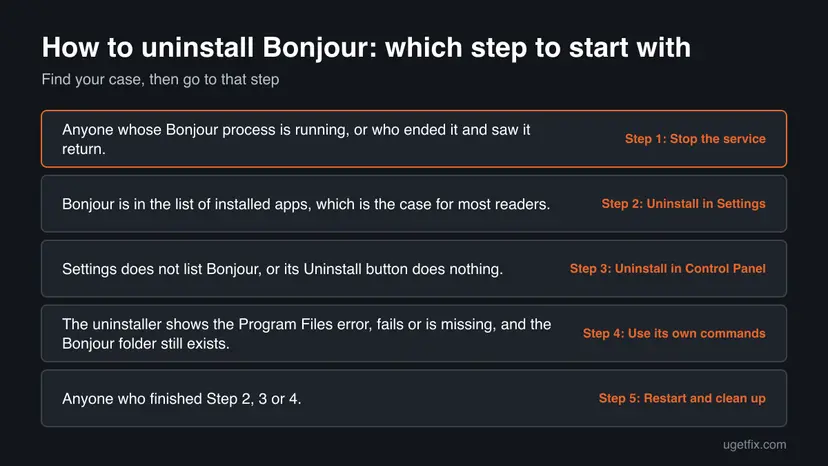
How to uninstall Bonjour completely, step by step
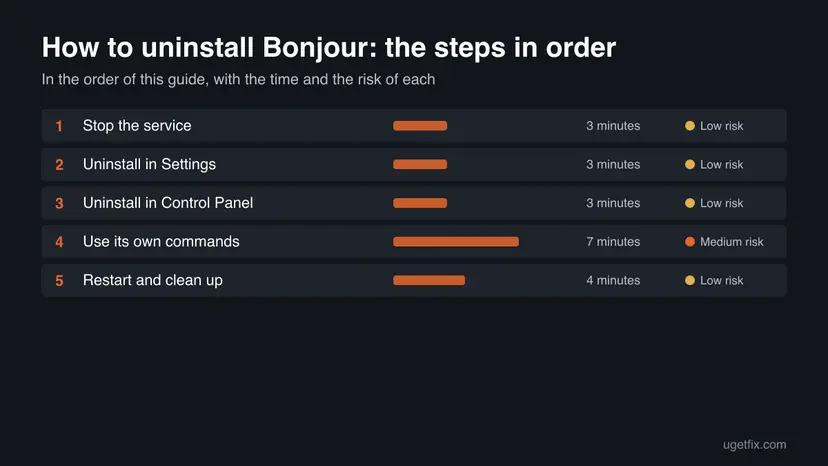
Do the steps in order and stop when Bonjour is gone. Step 3 is only for when Settings does not list it, and Step 4 only when the uninstaller fails. If nothing works, go to the section "Bonjour will not uninstall" below.
Step 1. Close Apple programs and stop the Bonjour Service
3 minutesLow riskAnyone whose Bonjour process is running, or who ended it and saw it return.
The Bonjour Service starts mDNSResponder.exe at boot, and Windows restarts a stopped process while the service runs. A running process keeps its files in use, so the uninstaller can fail or leave files behind.
- Close iTunes, other Apple programs and any open Adobe program.
- Press Win + R, type
services.mscand press Enter. - Find Bonjour Service, right-click it and select Stop.
- Right-click it again, select Properties, set Startup type to Manual and select OK.

The same steps with more pictures: Check and restart Windows services. If mDNSResponder.exe is still in Task Manager, end it there: Close a frozen app (Task Manager, Force Quit).
It worked if: The Bonjour Service shows no Running status, and mDNSResponder.exe is not in Task Manager.
If not: If Stop is greyed out or the service restarts, restart the PC, do not open any Apple program and go on with Step 2.
Step 2. Uninstall Bonjour in Windows Settings
3 minutesLow riskBonjour is in the list of installed apps, which is the case for most readers.
This runs Bonjour's own uninstaller, the way Microsoft recommends for any program. It removes the service, the network provider and the program folder in one go, so it is the first choice before any command.
- Select Start > Settings > Apps > Installed apps. On Windows 10 the page is Apps & features.
- Type
Bonjourin the search box above the list. - On Windows 11, select More (three dots) next to Bonjour, then Uninstall. On Windows 10, select the entry, then Uninstall.
- Click Uninstall again to confirm, then Yes in the User Account Control prompt.
- If Bonjour Print Services is also listed and you do not print to Bonjour printers, remove it the same way.
- Restart when the uninstaller asks.

Every Windows uninstall screen with pictures: Uninstall a program or app in Windows.
It worked if: A search for Bonjour in Installed apps returns nothing.
If not: If Bonjour is not listed, go to Step 3. If you get the Program Files error or any other error, go to Step 4.
Step 3. Uninstall Bonjour in Control Panel
3 minutesLow riskSettings does not list Bonjour, or its Uninstall button does nothing.
Control Panel reads the same list of installed programs, but it is a separate screen with its own way of starting the uninstaller. A program that Settings skips or fails on is sometimes removed here.
- Press Win + R, type
appwiz.cpland press Enter. This opens Programs and Features directly. - Select Bonjour in the list.
- Click Uninstall above the list and confirm.
- Click Yes in the User Account Control prompt and follow the uninstaller to the end.
The old Control Panel route was Start, Control Panel, Programs, Uninstall a program. The appwiz.cpl command opens the same page on Windows 11 and 10 and saves the search.
Some readers get the message "The folder path 'Program Files' contains an invalid character." We found no Microsoft or Apple page that explains it, so we cannot name its cause. Go to Step 4 when you see it.
It worked if: Bonjour disappears from Programs and Features.
If not: If the error appears or the entry is not there, go to Step 4.
Step 4. Remove Bonjour with its own commands
7 minutesRead the warningThe uninstaller shows the Program Files error, fails or is missing, and the Bonjour folder still exists.
Users report that Bonjour's executable removes its own service with the -remove switch and that regsvr32 /u unregisters its network provider file. Both are what the uninstaller does, done by hand when the uninstaller itself will not run.
Run only the two commands below and only against the Bonjour folder. A wrong path or command can unregister the wrong file. Apple's pages we read do not document these switches, so this method rests on user reports. Create a restore point first: Undo recent changes with System Restore.
- Open the Start menu, type
cmd, right-click Command Prompt and select Run as administrator. Use Command Prompt, not PowerShell, because%PROGRAMFILES%only expands there. - Type the command below and press Enter. It removes the Bonjour service.
- Type the second command and press Enter. It unregisters the network provider file. Windows should report that the unregistration succeeded.
- Open
C:\Program Files\in File Explorer and delete the Bonjour folder. If Windows says a file is in use, restart and try again before you open any Apple program.
Run both lines, one after the other
"%PROGRAMFILES%\Bonjour\mDNSResponder.exe" -remove
regsvr32 /u "%PROGRAMFILES%\Bonjour\mdnsNSP.dll"
If the Bonjour folder is not in C:\Program Files, look in C:\Program Files (x86) and change the path in both commands. We could not confirm from Apple's pages which folder each Windows build uses.
It worked if: The regsvr32 window reports success, Services no longer lists Bonjour Service and the Bonjour folder is deleted.
If not: If a command says the file is not found, Bonjour is already gone or in another folder. If it says access denied, you did not start Command Prompt as administrator.
Step 5. Restart and remove the leftovers
4 minutesLow riskAnyone who finished Step 2, 3 or 4.
Windows loads a network provider file when it starts and holds it until shutdown. Only after a restart can you delete what the uninstaller could not, and only then do the checks in "How to confirm Bonjour is gone" mean anything.
- Select Start > Power > Restart.
- Open
C:\Program Files\and delete the Bonjour and Bonjour Print Services folders if they are still there. - Press Win + R, type
services.mscand check that no Bonjour Service is listed. - Go through the table in "How to confirm Bonjour is gone" below.
It worked if: No Bonjour folder, no Bonjour Service and no mDNSResponder.exe after the restart.
If not: If a folder will not delete, read "Bonjour will not uninstall" below.
What Bonjour leaves behind and where to find it
These are the places we could name from Apple's pages and from user reports. Apple does not publish a list of everything Bonjour writes, so we name no registry keys: deleting keys by name guess is not worth the risk.
| Where | What it is | Delete it? |
|---|---|---|
Folder C:\Program Files\Bonjour. | The program folder with mDNSResponder.exe and mdnsNSP.dll. | The uninstaller removes it. Delete it by hand if it stays after a restart. |
Folder C:\Program Files\Bonjour Print Services. | Apple says the Print Services package installs the Bonjour Printer Wizard here. | Yes, after you remove it in Installed apps. |
| A desktop shortcut to the Bonjour Printer Wizard. | Apple says the package creates one. | Yes, if the uninstall left it. |
Bonjour Service in services.msc. | The background service. | Step 4 removes it. It should be gone after a restart. |
| A rule for UDP port 5353 in Windows Firewall. | Apple says the installer configures the Windows firewall for Bonjour's traffic. | Check Windows Defender Firewall for a Bonjour rule. We could not confirm its name. |
| Registry keys of Bonjour. | Not named in the Apple pages we read. | Leave them. Do not search the registry and delete by name. |
Cleaning tools that promise to delete every registry entry of a program can remove entries other programs use. The folders and the service in the table are enough.
Bonjour will not uninstall: each failure and its way out
| What you see | Likely cause | Way out |
|---|---|---|
| Bonjour is not in Installed apps or Programs and Features. | The list does not show it, or only Bonjour Print Services is there. | Check both lists. If the Bonjour folder exists, do Step 4. |
| "The folder path 'Program Files' contains an invalid character." | Cause not documented by Apple or Microsoft. | Do Step 4, which does not use the installer. |
mDNSResponder.exe comes back after End task. | The Bonjour Service restarts it. | Stop the service in Step 1. |
| A file is in use when you delete the folder. | The service or Explorer still holds mdnsNSP.dll. | Restart and delete before you open any Apple program. |
| Access denied on the commands. | Command Prompt is not running as administrator. | Open it with Run as administrator. |
| Bonjour returns after you open iTunes or an Adobe app. | The program reinstalls or repairs it. | Remove or update that program first. |
If a Bonjour file stays locked even after a restart, start Windows in Safe Mode and delete it there: Start Windows or a Mac in Safe Mode.
On Windows 10, Microsoft also offers its Program Install and Uninstall troubleshooter, which can fix a damaged uninstall entry. We did not read that page today, so search for the name on support.microsoft.com.
How to confirm Bonjour is gone
Do these checks after the restart in Step 5. A clean result in every row means Bonjour and its service are removed for the whole PC.
| Check | How | Clean result |
|---|---|---|
| Apps list. | Settings > Apps > Installed apps, search Bonjour. | No entry. |
| Services. | Win + R, services.msc. | No Bonjour Service. |
| Processes. | Task Manager > Details. | No mDNSResponder.exe. |
| Program folder. | File Explorer, C:\Program Files\Bonjour. | Not there. |
| Command. | Command Prompt: sc query "Bonjour Service". | Windows reports that the service does not exist. |
If you came here for crashes, use the PC as usual for a few days and look in Event Viewer for new entries naming Bonjour.
If something stops working after the removal
If a printer, iTunes or an Adobe program stops finding devices after Bonjour is gone, Bonjour is the likely reason. The simplest way back is to reinstall the program that used it, because users report that these programs install Bonjour themselves.
Apple publishes Bonjour Print Services for Windows as a separate package. Its Apple Support page lists support only up to Windows 7 and recommends Windows Update, so we cannot promise it runs on Windows 11. Adding the printer by its IP address in Windows Settings avoids the need for it.
Apple's page on updating its Windows software says that on Windows 10 or later you should use the Microsoft Store for Apple apps such as iTunes, and that Apple Software Update is then no longer needed. Newer Store versions are a cleaner way to get Apple software than old standalone installers.
Frequently asked questions
Can I uninstall Bonjour on Windows 11?
Yes. Windows 11 does not need Bonjour to run, and removing it deletes none of your files. The only things that can stop are apps that use it to find devices on your network, such as Bonjour printers, and users report iTunes network features. Close those apps, uninstall Bonjour in Installed apps and restart. If you do not use any Apple software on the PC, nothing you notice changes. If something stops finding a device afterwards, reinstall that program.
How to delete Bonjour from Windows 11?
Delete it by uninstalling, not by removing its folder. Deleting C:\Program Files\Bonjour alone leaves the Bonjour Service and the registered network provider pointing at missing files. Use Settings > Apps > Installed apps first (Step 2). Delete the folder by hand only afterwards, in Step 5, and only if the uninstaller left it behind.
Can I delete Bonjour from my computer?
You can, as long as you remove it in the right order: stop the service, uninstall, restart, then delete what is left. Apple describes Bonjour as a discovery technology and publishes it as open source, so it is not malware. Windows itself does not rely on it. Keep it only if you print to Bonjour printers or use Apple software over the network.
How to remove Bonjour from Windows 11?
Use the three routes in this order and stop when it is gone. First Installed apps, second Programs and Features through appwiz.cpl, third the commands in Step 4 from an administrator Command Prompt. The third route is the one for the Program Files error, because it does not start the installer. Restart after any of them.
Can I delete Bonjour?
Yes, and many people do after they stop using iTunes. The question to ask first is what else on the PC looks for devices through it. Check Event Viewer if crashes are your reason, because removal only fixes crashes that name Bonjour. If they name another module, Bonjour is not the cause.
Is Bonjour a virus?
No. Apple's developer site presents Bonjour as its zero-configuration networking technology and publishes the source code. It looks suspicious because it starts with Windows, runs as mDNSResponder.exe and returns after you end it. A file with that name outside the Bonjour folder is worth scanning with Microsoft Defender: How to scan for malware with Microsoft Defender. Apple does not describe it as a security risk on the pages we read.
Why does mDNSResponder.exe keep coming back?
Because the Bonjour Service starts it. Ending the process in Task Manager does not stop the service, so Windows or the service starts it again. Stop the service in services.msc and set it to Manual, or uninstall Bonjour. Disabling the service is less final than uninstalling, and it is the reversible choice if you are unsure.
What does the Program Files invalid character message mean?
We found no Apple or Microsoft page that explains "The folder path 'Program Files' contains an invalid character." Readers report it when the Bonjour uninstaller runs. Since the cause is not documented, go around the installer: stop the service and use the commands in Step 4, then delete the folder.
Will uninstalling Bonjour delete iTunes or my music?
No. Bonjour holds no music, backups or settings of iTunes. Removing it deletes only Bonjour's own files and service. Network features that use it may stop working, which is the reason to keep Bonjour if you use them. Your library, purchases and device backups stay where they are, and nothing about your Apple account changes.
Sources
- Apple Developer: Bonjour (zero-configuration networking, Bonjour for Windows, open source under Apache 2.0) (developer.apple.com)
- Apple Support: Bonjour Print Services for Windows v2.0.2 (what it includes, install folder, UDP port 5353, firewall) (support.apple.com)
- Apple Support: Update Apple software for Microsoft Windows (Microsoft Store and Apple Software Update) (support.apple.com)
Did this fix work?
One click, no account. It tells the next reader which guides are worth their time.
Questions and experiences: uninstall Bonjour on Windows 11 and 10
Still broken, or found a fix we did not cover? Ask here: members and our editors answer. Reading is open; writing needs a free account.
…