
How to uninstall TeraCopy on Windows

Prefer to fix it yourself? The manual steps follow.
6 methods in this guide
I installed TeraCopy to try it, but I am not quite sure how it works and why I need it when I can just copy files with the built-in Windows features. In fact, I want to uninstall TeraCopy already. If there is an easy way to do it, I would be glad if you shared it with me. Thanks!
TeraCopy is a free file copy tool from Code Sector that replaces the Windows copy dialog. Windows does not need it, so it is safe to remove. Close it, uninstall it in Settings, then delete its settings folder in AppData.
TeraCopy is a legitimate copy utility from Code Sector, and Windows copies files fine without it. Close it, open Settings > Apps > Installed apps, select More > Uninstall next to TeraCopy and confirm. A portable copy has no entry: run uninstall.cmd in its folder, then delete the folder. Finally delete %APPDATA%\TeraCopy and restart, and Ctrl+C, Ctrl+V and drag and drop use the Windows dialog again.
| Program | TeraCopy for Windows, a file copy and move tool that verifies copies with checksums, retries failed files and skips bad ones without stopping the whole transfer. |
|---|---|
| Publisher | Code Sector. Official site codesector.com, help at support.codesector.com. Also listed in the Microsoft Store. |
| Safe to remove | Yes. It is not part of Windows. Copying, moving and drag and drop go back to the built-in File Explorer dialog. |
| Leaves behind | The settings folder %APPDATA%\TeraCopy with Options.ini, PasteMenu.ini and the Ignore lists. Older versions may also leave a Code Sector registry key. |
| Installs besides itself | A copy handler (teracopy.dll) that takes over Explorer's copy and paste, and a context menu extension (context.dll). No service or driver is named in Code Sector's help. |
| Official removal tool | None for the installed version: its own uninstaller runs from Installed apps. The portable version comes with uninstall.cmd. |
| Needs a restart | Yes, or at least a restart of File Explorer, so Explorer lets go of the copy handler and the menu entry. |
| Time | About 15 minutes with the cleanup. |
| What stops working | The TeraCopy copy window, checksum verification and the saved transfer history. Files you copied with it stay where they are. |
Facts checked on 16 October 2026. Steps written for Windows 11 (25H2 and 26H2) and Windows 10 22H2, read against Code Sector's own help center.
What TeraCopy is and whether you need it
TeraCopy is a free utility from Code Sector for copying and moving files. When it is the default copy handler, every Ctrl+C and Ctrl+V or drag and drop in File Explorer opens the TeraCopy window instead of the Windows one.
Its window shows each file, retries files that fail, skips problem files so the rest of the transfer finishes, and can verify the copy. Code Sector's help says it calculates checksums while it copies and then compares the source and target files. A free and a paid version exist.
| What you see | What it is | Where |
|---|---|---|
| TeraCopy in Installed apps. | The installed program from Code Sector. | Settings > Apps > Installed apps. |
TeraCopy.exe in Task Manager. | The running copy window, installed or portable. | Task Manager > Processes or Details. |
| A TeraCopy entry when you right-click a file. | The context menu extension context.dll. | File Explorer. |
| The TeraCopy window on Ctrl+V or drag and drop. | The copy handler teracopy.dll. | Explorer copy and move. |
A folder TeraCopy in AppData. | Your settings and lists. | %APPDATA%\TeraCopy. |
TeraCopy from Code Sector is a legitimate program, not a virus, and nothing in Windows depends on it. If you only copy files now and then, the built-in File Explorer copy is enough, and removing TeraCopy breaks nothing.
Who keeps it: people who move very large folders, copy to failing drives or need proof that every file arrived intact. For them the verification and the list of failed files are the reason to have it. Everyone else loses nothing important.
Before you start: installed, Store or portable, and what you lose
TeraCopy comes three ways. The normal installer and the Microsoft Store version both put an entry in Installed apps. The portable version from Code Sector's zip file has no entry: it registers itself with install.cmd and is removed with uninstall.cmd.
Code Sector's help says where the data goes. A normal install keeps it in %APPDATA%\TeraCopy. A portable install that still has the file named Portable in its folder keeps it in the program folder itself.
| Data | Where it lives | Keep it? |
|---|---|---|
| Options (always on top, free space check, retries, sound). | Options.ini in the data folder. | Copy the file only if you will install TeraCopy again. |
| Paste menu entries for TeraCopy, 7-Zip or WinRAR. | PasteMenu.ini in the data folder. | Not needed. TeraCopy creates it again on the first paste. |
| Ignore lists. | The Ignore folder in the data folder. | Copy it if you built your own lists. |
| Licence key of the paid version. | Your purchase email. | Keep the email. Uninstalling does not cancel the licence. |
| Files you copied or moved. | Their target folders. | Untouched. The uninstall does not delete them. |
Wait until no transfer is running. A stopped transfer can be resumed later, but only inside TeraCopy, so finish it before you remove the program. You need an administrator account. Windows 10 left support on 14 October 2025; the steps still work there, and the differences are noted.
Keep TeraCopy but remove it as the default copy handler
If you like TeraCopy but do not want it to open on every paste, you do not have to uninstall it. Code Sector's help names two options that decide what happens when you copy or drag files in File Explorer.
- Open TeraCopy from the Start menu and open its settings.
- Clear Use TeraCopy as default copy handler. Ctrl+C, Ctrl+V and drag and drop now use the Windows dialog.
- Or keep it on and turn on Confirm drag and drop: a small window then asks each time whether to use Explorer or TeraCopy.
- Close TeraCopy and restart File Explorer, or sign out and back in, then copy a test file.
TeraCopy stays available from the right-click menu and the Start menu for the copies you choose. We could not confirm where the two options sit in every TeraCopy version: Code Sector's help names the options, not the menu path.
How to uninstall TeraCopy completely, step by step
Do the steps in order. Step 3 is only for the portable version, and Step 5 only if the older registry keys are there. If the uninstall fails, go to the section "TeraCopy will not uninstall" below.
Step 1. Close TeraCopy and end its process
1 minuteNo riskAnyone who copied or moved files since the last restart, installed or portable.
Explorer starts TeraCopy for every paste while it is the default handler, so a copy of TeraCopy.exe may still run with no window. A running copy keeps its files locked and the uninstaller then stops or leaves files behind.
- Let a running transfer finish, then close the TeraCopy window.
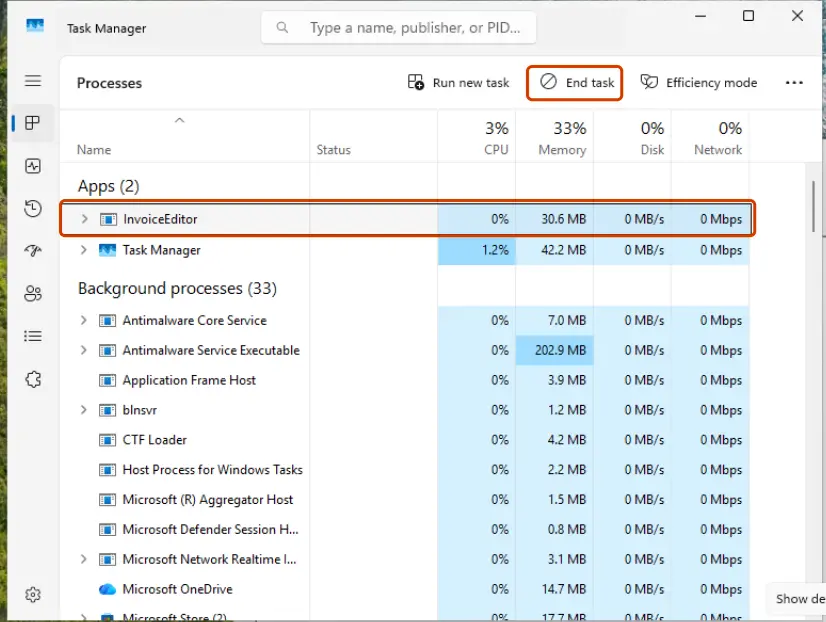
- Press Ctrl + Shift + Esc to open Task Manager.
- Find TeraCopy or
TeraCopy.exe, select it and click End task.
Other ways to close a program that will not quit: Close a frozen app (Task Manager, Force Quit).
It worked if: Task Manager shows no TeraCopy process.
If not: Restart the PC, do not copy anything, and go on with Step 2.
Step 2. Uninstall TeraCopy in Windows Settings
3 minutesLow riskTeraCopy is in the list of installed apps, from the normal installer or the Microsoft Store.
This runs TeraCopy's own uninstaller, the way Microsoft recommends for any program. It removes the program folder, the copy handler, the context menu entry and the shortcuts in one go.
- Select Start > Settings > Apps > Installed apps. On Windows 10 the page is Apps & features.
- Type
TeraCopyin the search box above the list. - On Windows 11, select More (three dots) next to TeraCopy, then Uninstall. On Windows 10, select the entry, then Uninstall.
- Click Uninstall again to confirm, then Yes in the User Account Control prompt.
- Follow TeraCopy's uninstall window to the end and close it.

If Settings will not remove it, use Control Panel > Programs > Programs and Features, right-click TeraCopy and select Uninstall. Every Windows uninstall screen with pictures: Uninstall a program or app in Windows.
It worked if: A search for TeraCopy in Installed apps returns nothing, and the TeraCopy entry is gone from the Start menu.
If not: If there was no entry to begin with, go to Step 3. If the uninstaller fails, see "TeraCopy will not uninstall" below.
Step 3. Remove a portable copy of TeraCopy with uninstall.cmd
3 minutesLow riskTeraCopy works on the PC but has no entry in Installed apps, because it was set up from Code Sector's zip file.
The portable setup registers the copy handler and the context menu extension with install.cmd. Deleting the folder alone would leave those registrations pointing at missing files, so Code Sector's help says to run uninstall.cmd from the install location.
- Find the folder you unzipped TeraCopy into, for example
\Users\<you>\Appsor\Program Files. - Double-click
uninstall.cmdin that folder. Click Yes if Windows asks for administrator rights. - Restart File Explorer or sign out and back in.
- If the file named Portable was in the folder, your settings are in the same folder: copy what you want to keep.
- Delete the TeraCopy folder and the downloaded
teracopy.zip, then empty the Recycle Bin.
Code Sector's help says install.cmd restarts itself with administrator rights when the folder is outside your user folder. A copy in Program Files therefore needs an administrator account to remove as well.
It worked if: Right-clicking a file shows no TeraCopy entry, and the folder is gone.
If not: If the folder will not delete, restart and delete it before you copy anything.
Step 4. Delete the TeraCopy settings folder
2 minutesLow riskYou want no trace of TeraCopy for your Windows user, after Step 2 or Step 3.
The data folder sits outside the program folder, and Code Sector's help does not say the uninstaller removes it. It holds Options.ini, PasteMenu.ini and the Ignore lists, which would load again if TeraCopy were ever reinstalled.
- Press Win + R, type
%APPDATA%\TeraCopyand press Enter. - Copy
Options.inior theIgnorefolder somewhere safe if you want them later. - Go up one level to
AppData\Roaming, right-click the TeraCopy folder and select Delete. - Repeat for every Windows user who used TeraCopy on this PC: each has an own folder.
It worked if: Win + R with %APPDATA%\TeraCopy says Windows cannot find it.
If not: If Windows says a file is in use, TeraCopy is still running: do Step 1 again.
Step 5. Check for the older Code Sector registry keys
3 minutesRead the warningYou used an older TeraCopy version, such as 3.x, and want to clear every setting.
The old version of this guide named a Code Sector key in the registry for older TeraCopy versions. Code Sector's current help names only the AppData folder, so we could not confirm these keys, and they may not exist on your PC.
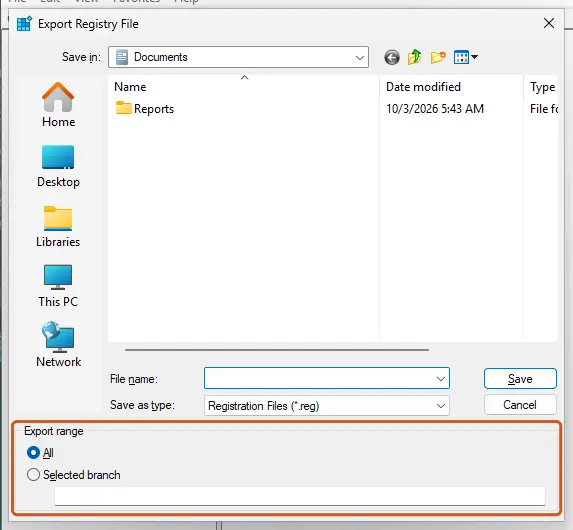
A wrong registry deletion can break other programs. Delete only the two keys named below, only if they exist, and back them up first: Back up the registry before editing it.
- Press Win + R, type
regeditand press Enter. Click Yes in the User Account Control prompt. - Paste
HKEY_CURRENT_USER\Software\Code Sectorinto the address bar and press Enter. - If the key exists and you use no other Code Sector program, right-click Code Sector and select Delete, then Yes.
- Do the same for
HKEY_LOCAL_MACHINE\SOFTWARE\Code Sector. - Close Registry Editor.
It worked if: Registry Editor does not find either Code Sector key.
If not: If a key comes back, TeraCopy is still installed or running for another user. Check Installed apps again.
Step 6. Restart and test a normal copy
3 minutesNo riskAnyone who finished the steps above.
File Explorer loads the copy handler and the menu extension when it starts and keeps them until it closes. Only after a restart do you know that Explorer copies with its own dialog again.
- Select Start > Power > Restart.
- Copy a file with Ctrl + C and paste it in another folder with Ctrl + V.
- Go through the table in "How to confirm TeraCopy is gone" below.
It worked if: The Windows copy dialog appears, and right-clicking a file shows no TeraCopy entry.
If not: If the TeraCopy window still opens, read "TeraCopy will not uninstall" below.
What TeraCopy leaves behind and where to find it
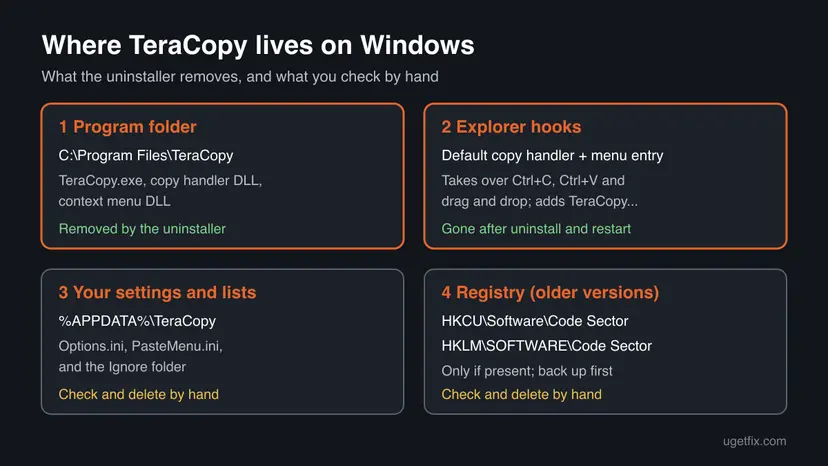
These are the places named in Code Sector's help, plus the two registry keys that older versions used. Each Windows user who ran TeraCopy has an own settings folder.
| Where | What it is | Delete it? |
|---|---|---|
Folder C:\Program Files\TeraCopy. | The program, TeraCopy.exe, the copy handler and menu DLLs. | The uninstaller removes it. Delete it if it stays empty. |
Folder %APPDATA%\TeraCopy. | Options.ini, PasteMenu.ini, the Ignore lists. | Yes, in Step 4. |
| The portable folder you chose. | Program and, with the Portable file, its settings. | Yes, after uninstall.cmd in Step 3. |
teracopy.zip or the setup file in Downloads. | What you downloaded. | Yes, unless you will install again. |
Key HKEY_CURRENT_USER\Software\Code Sector. | Settings of older versions. | Only if present and no other Code Sector program is used. |
Key HKEY_LOCAL_MACHINE\SOFTWARE\Code Sector. | Machine-wide entry of older versions. | Same rule, with a backup first. |
| Services, drivers, scheduled tasks. | None are named in Code Sector's help. We could not confirm any. | Nothing to remove by hand. |
The old advice to search the whole registry for "TeraCopy" and delete every hit is risky. Windows keeps references to programs in keys that are not TeraCopy's own, such as file and menu records. The keys in the table are enough.
TeraCopy will not uninstall: each failure and its way out
| What you see | Likely cause | Way out |
|---|---|---|
| No entry in Installed apps, but TeraCopy opens on paste. | It is the portable version. | Do Step 3. |
| The uninstaller says a file is in use. | Explorer or a hidden TeraCopy.exe holds the DLLs. | Do Step 1, or restart and uninstall before you copy anything. |
| The TeraCopy window still opens after the uninstall. | Explorer still has the old copy handler loaded. | Restart the PC. On a portable copy, run uninstall.cmd first. |
| The right-click entry is still there. | The menu extension is still registered. | Restart. If it stays, reinstall the same edition and uninstall it again. |
| The uninstaller is missing or fails with an error. | The program folder was deleted by hand. | Install TeraCopy again from codesector.com, then uninstall it at once. |
Code Sector's help center has its own article on fixing problems with the installer, which covers failures of the setup program itself. On Windows 10, Microsoft also offers its Program Install and Uninstall troubleshooter on the page Uninstall or remove apps and programs in Windows.
If a TeraCopy file stays locked even after a restart, start Windows in Safe Mode and delete it there: Start Windows or a Mac in Safe Mode.
How to confirm TeraCopy is gone
Do these checks after the restart in Step 6. A clean result in every row means TeraCopy and its hooks into File Explorer are removed for this Windows user.
| Check | How | Clean result |
|---|---|---|
| Apps list. | Settings > Apps > Installed apps, search TeraCopy. | No entry. |
| Copy dialog. | Copy and paste a file in File Explorer. | The Windows dialog, not the TeraCopy window. |
| Right-click menu. | Right-click any file. | No TeraCopy entry. |
| Processes. | Task Manager > Details. | No TeraCopy.exe. |
| Settings folder. | Win + R, %APPDATA%\TeraCopy. | Windows cannot find it. |
| Program folder. | File Explorer, C:\Program Files\TeraCopy. | Not there. |
Frequently asked questions
What is TeraCopy and is it safe?
TeraCopy is a file copy utility for Windows made by Code Sector. It replaces the File Explorer copy window, lists every file, retries or skips files that fail and can verify the copy by comparing checksums of the source and target. The genuine program from codesector.com or the Microsoft Store is legitimate software and not malware. A copy that came bundled from an unknown download site is another matter: remove it and scan the PC with Microsoft Defender (How to scan for malware with Microsoft Defender).
Do I need TeraCopy if Windows can already copy files?
For most people, no. File Explorer copies and moves files well on its own. TeraCopy earns its place when you move very large folders, copy from a disk that has read errors, or need proof that each file arrived intact. Then the list of failed files, the retry and the checksum verification help. If you copy now and then, you lose nothing important by removing it.
Why does the TeraCopy window still open after I uninstalled it?
File Explorer loaded TeraCopy's copy handler when it started and keeps it until it closes. Restart the PC and try a paste again. If the window still opens, TeraCopy is not really gone: either a portable copy is registered, in which case you run uninstall.cmd in its folder, or a second installation exists for another user. Search Installed apps and every user's AppData for TeraCopy.
Does uninstalling TeraCopy delete the files I copied with it?
No. TeraCopy only moves your files between folders; once a transfer is done, they belong to the folder they went to. The uninstaller removes the program, the copy handler and the menu entry. A transfer you stopped halfway is a different case: the files already copied stay, but the rest is not copied, and the resume list is lost with the program. Finish such a transfer before you uninstall.
Is there an official TeraCopy removal tool?
Not as a separate download. The installed version has its own uninstaller, which Windows runs when you choose Uninstall in Installed apps or Programs and Features. The portable version from Code Sector's zip file comes with uninstall.cmd, which reverses what install.cmd registered. A third-party uninstaller is not needed for TeraCopy: the steps on this page and the leftovers table cover what it leaves.
How do I remove the TeraCopy entry from the right-click menu?
The entry comes from TeraCopy's context menu extension, context.dll. Uninstalling TeraCopy in Installed apps removes it, and on a portable copy uninstall.cmd does the same. The change shows after File Explorer restarts, so sign out and back in or restart the PC. On Windows 11 the portable setup can also add an optional entry to the modern menu; it goes away with the same uninstall.
Do I have to uninstall TeraCopy for every Windows user?
The program itself, installed to Program Files, is removed once for the whole PC by an administrator. The settings are per user: every person who used TeraCopy has an own %APPDATA%\TeraCopy folder. Sign in as each user, or open C:\Users\<name>\AppData\Roaming\TeraCopy as an administrator, and delete each folder. A portable copy in one user's folder only affects that user.
What is serial perfect uninstaller v3.7?
It is a search for a licence key of Perfect Uninstaller, a third-party removal program that has nothing to do with TeraCopy or Code Sector. This page does not offer serial keys or cracked software, and such downloads are a common way to get malware. You do not need any paid uninstaller for TeraCopy: Windows Settings, uninstall.cmd for the portable version and the folder and keys in the leftovers table remove it completely.
Sources
- Code Sector Help Center: Portable Version of TeraCopy (install.cmd, uninstall.cmd, copy handler and context menu DLLs, data folder) (support.codesector.com)
- Code Sector Help Center: Configuration Files (settings folder, Options.ini, PasteMenu.ini) (support.codesector.com)
- Code Sector Help Center: Copying and Verifying Files (default copy handler, Confirm drag and drop, program path) (support.codesector.com)
Did this fix work?
One click, no account. It tells the next reader which guides are worth their time.
Questions and experiences: uninstall TeraCopy on Windows
Still broken, or found a fix we did not cover? Ask here: members and our editors answer. Reading is open; writing needs a free account.
…