
How to uninstall UltraViewer completely and stop remote access

Prefer to fix it yourself? The manual steps follow.
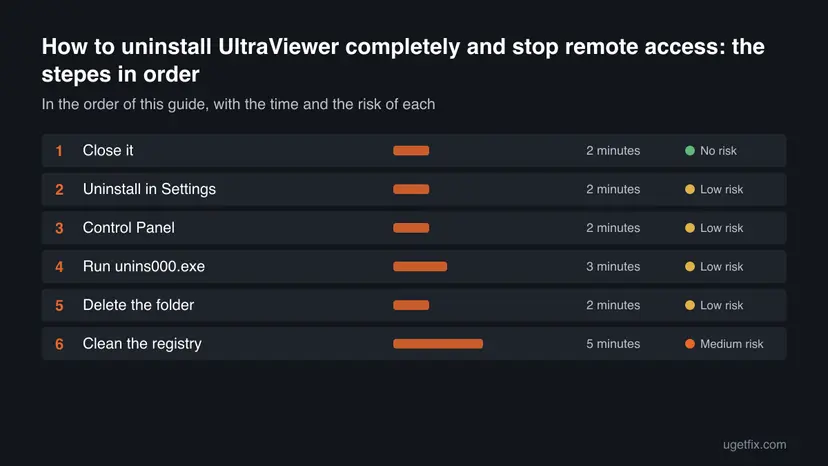
6 methods in this guide
Hello, I have recently received a call from an unknown number. The lady said that she's from Microsoft support and that they need to access my computer because they detected suspicious activity on it. They asked me to install a program called UltraViewer, so I did. But later, when I was asked to pay $300, I realized that this call is likely to be fake, so I dropped it. Now I have this UltraViewer on my PC, and I don't know if it is safe or not. Any help with what to do now?
UltraViewer is a legitimate Windows remote desktop program that scammers often ask people to install. Windows does not need it, so you can remove it. Close it first, uninstall it in Settings, then check for leftovers and for other programs the caller added.
To uninstall UltraViewer, first close it and end its process in Task Manager, which stops a caller from controlling your PC. Then open Settings > Apps > Installed apps, select More > Uninstall next to UltraViewer and confirm. If it is not listed, run unins000.exe from its folder, delete the folder, and scan for other tools the caller added.
| Program | UltraViewer, a Windows remote desktop program. Whoever has the ID and password it shows can see and control your screen while it runs. |
|---|---|
| Publisher | The vendor site is ultraviewer.net. Older guides name the maker as DucFabulous Co., Ltd. The current site only shows the name UltraViewer, so we could not confirm the company. |
| Safe to remove | Yes. Windows does not need it and no other program depends on it. Removing it closes the way in that the caller used through this program. |
| Leaves behind | Possibly the program folder, registry keys named UltraViewer and the setup file in Downloads. Also look for other programs the caller had you install. |
| Time | About 5 minutes, a little more if you also clean the registry. |
| Needs restart | Only if the uninstaller or a delete says a file is in use. |
| Official removal tool | None found. The vendor's support page points to the normal Windows uninstall. |
| What stops working | Remote sessions with UltraViewer, including honest ones you set up yourself. |
Facts checked on 16 October 2026. Steps written for Windows 11 (25H2 and 26H2) and Windows 10 22H2, read against UltraViewer's own support page and Microsoft's guidance on tech support scams.
What UltraViewer is and why a caller asked you to install it
UltraViewer is a remote desktop program for Windows. The vendor describes it as software that lets you control a partner's computer as if you were sitting in front of the screen. One person starts the program and reads out the ID and password it shows. The other person types them in, presses Connect, and can then see and control that PC.
The program is not malware. The risk is who gets your ID and password. Microsoft warns that tech support scammers ask people to install remote access software and then misrepresent normal system messages as signs of problems. It adds that Microsoft does not make unsolicited calls to offer support, so a caller who says otherwise is not from Microsoft.
| What you see | What it is | Where |
|---|---|---|
| UltraViewer in the list of apps. | The installed program. | Settings > Apps > Installed apps. |
| A window that shows an ID and a Password. | The pair a caller asks you to read out so they can connect. | Opens when you start the program. |
A file named like UltraViewer_setup_6.6_en.exe. | The setup file from the vendor's download link. The version number changes. | Usually your Downloads folder. |
Before you start: what you lose and what to note down
Removing UltraViewer costs you nothing except remote sessions made with it. There are no documents or saves inside it. You need an administrator account, because Windows asks for permission before it deletes a program. Windows 10 22H2 has been out of support since 14 October 2025, so keep it updated by other means if you still use it.
- Write down the facts of the call before you forget them: the phone number, the date, the name they gave and the amount they asked for. You will need them if you report it.
- Do not pay and do not call them back. Microsoft says it never asks for payment in cryptocurrency or gift cards.
- Close UltraViewer first if it is open, because the vendor says closing it ends the session. Step 1 does this.
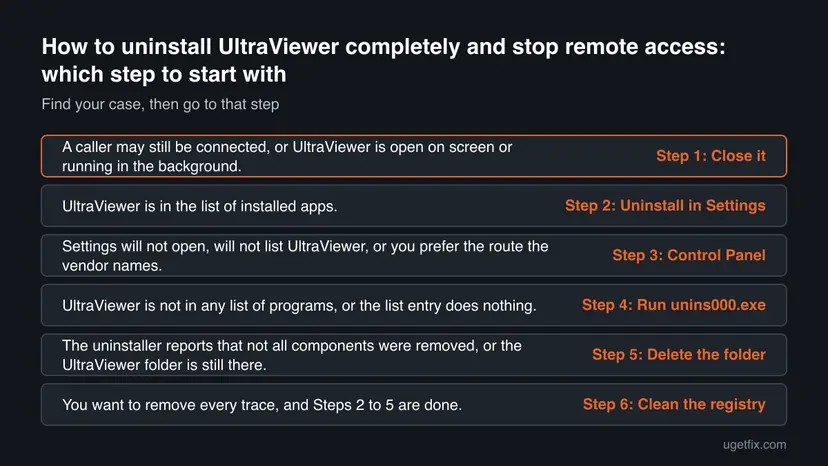
| Your situation | Start with |
|---|---|
| The caller may still be connected. | Step 1, then Step 2. |
| UltraViewer is in Installed apps. | Step 2, or Step 3 if Settings fails. |
| It is not in the list but its folder exists. | Step 4, then Step 5. |
| It was removed but you want to be sure. | The section on leftovers, then the check at the end. |
How to uninstall UltraViewer, step by step
Do the steps in order. Steps 2, 3 and 4 are three ways to run the same uninstall, so stop at the first one that removes it. If the uninstall fails, go to the section "UltraViewer will not uninstall" below.
Step 1. Close UltraViewer and end its process
2 minutesNo riskA caller may still be connected, or UltraViewer is open on screen or running in the background.
The vendor's support page says that closing UltraViewer stops the session, so the other person can no longer control the PC. Ending the process also frees its files, so the uninstaller can delete them.
- Close the UltraViewer window if one is open, and check the icons next to the clock.
- Press Ctrl + Shift + Esc to open Task Manager.
- If Task Manager shows a small view, click More details.
- Right-click each entry named UltraViewer and select End task.
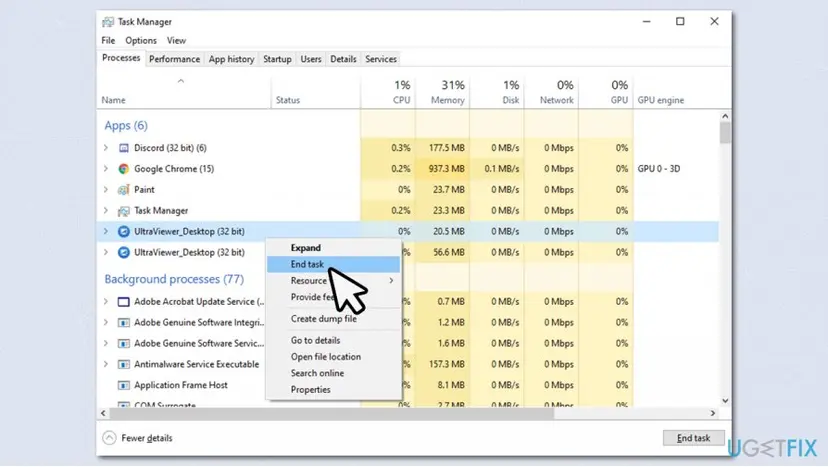
End only the UltraViewer entries. The old advice to end every running process can close programs you need. A stubborn program is covered in Close a frozen app (Task Manager, Force Quit).
It worked if: Task Manager lists no entry named UltraViewer, and no UltraViewer window is open.
If not: If an entry comes back at once, go on with Step 2 anyway and restart the PC before you open anything.
Step 2. Uninstall UltraViewer in Windows Settings
2 minutesLow riskUltraViewer is in the list of installed apps.
This runs the program's own uninstaller, the way Microsoft recommends for any desktop program, and it removes the program files and shortcuts in one pass.
- Right-click Start and select Settings, then select Apps.
- Open Installed apps. On Windows 10 the page is Apps & features.
- Type
UltraViewerin the search box above the list. - On Windows 11, select More (three dots) next to UltraViewer, then Uninstall. On Windows 10, select the entry, then Uninstall.
- Select Uninstall again to confirm, and Yes in the User Account Control prompt.

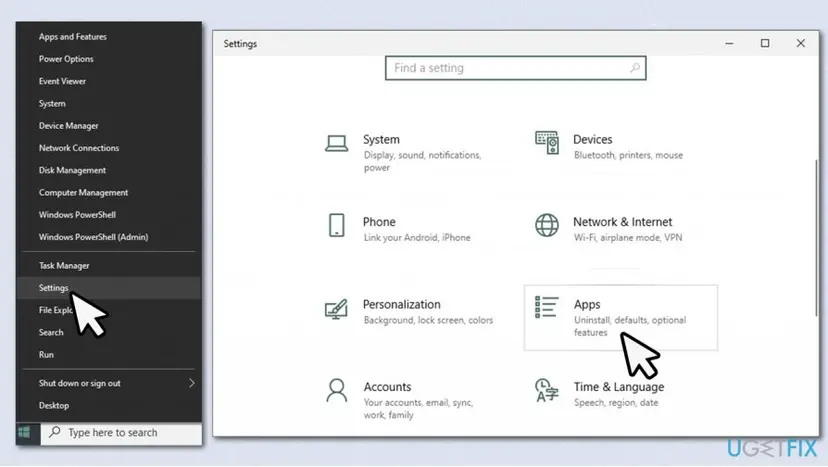
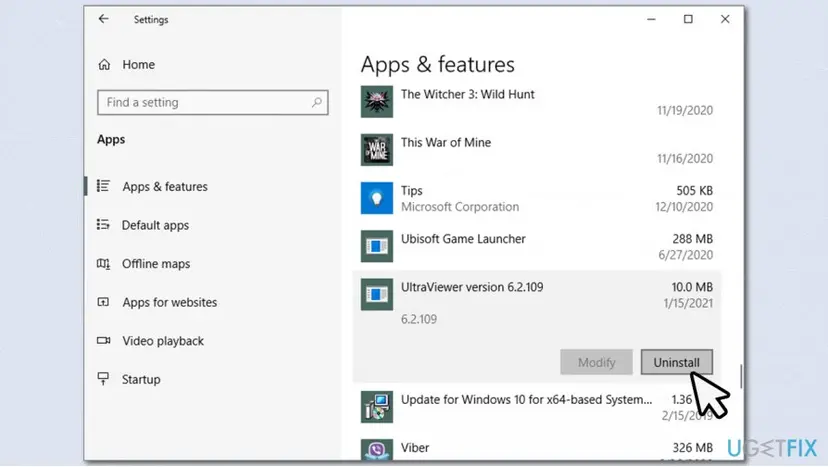
Every Windows uninstall screen with pictures is in Uninstall a program or app in Windows.
It worked if: A search for UltraViewer in Installed apps returns nothing.
If not: If there was no entry, go to Step 4. If the uninstaller fails or asks again, see "UltraViewer will not uninstall" below.
Step 3. Uninstall UltraViewer from Control Panel
2 minutesLow riskSettings will not open, will not list UltraViewer, or you prefer the route the vendor names.
UltraViewer's support page names the Windows programs list as the way to remove it. Control Panel shows the same entry as Settings and runs the same uninstaller, so it helps when Settings misbehaves.
- Type
Control Panelin the Windows search box and press Enter. - Select Programs > Uninstall a program.
- Find UltraViewer in the list.
- Right-click it, select Uninstall, and accept the User Account Control prompt.
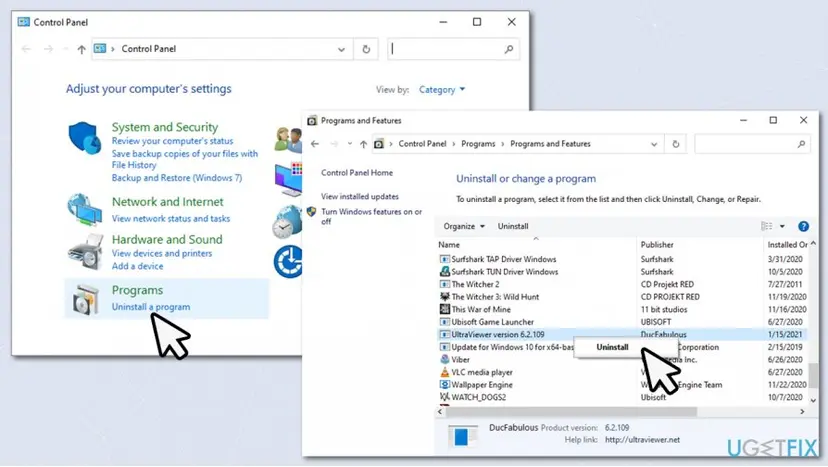
The vendor's page words this as Start > Control Panel > Add or Remove Programs, which is the Windows XP name. On Windows 11 and 10 the list is called Programs and Features.
It worked if: UltraViewer no longer appears in the Programs and Features list.
If not: If it is not listed, go to Step 4.
Step 4. Run the uninstaller file from the program folder
3 minutesLow riskUltraViewer is not in any list of programs, or the list entry does nothing.
Many installers keep their own uninstaller file in the program folder. Older guides and users name unins000.exe in the UltraViewer folder, so running it works even when the Windows list entry is broken.
- Open File Explorer and paste
C:\Program Files (x86)\UltraViewerinto the address bar, then press Enter. - Find unins000.exe and double-click it.
- Accept the User Account Control prompt.
- Follow the on-screen instructions to the end.
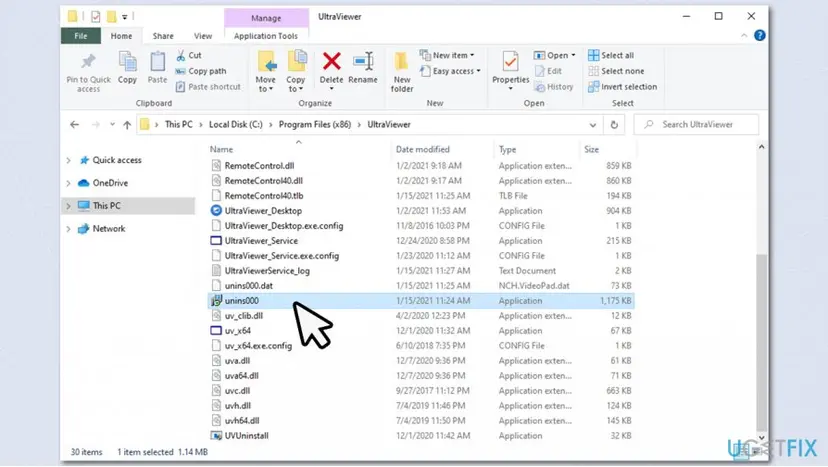
We could not confirm this path or file name on the vendor's site. If the folder does not exist, UltraViewer is either already removed or installed somewhere else. Check Installed apps again, or find the real folder with Open file location on its entry in Task Manager.
It worked if: The uninstaller finishes and the program folder is empty or gone.
If not: If Windows says the file is missing, go to Step 5.
Step 5. Delete the leftover program folder
2 minutesLow riskThe uninstaller reports that not all components were removed, or the UltraViewer folder is still there.
A folder that survives the uninstall holds only files of this program. Deleting it by hand removes what the uninstaller could not, and Step 1 has already released the files.
- Open File Explorer and go to
C:\Program Files (x86). - Click the UltraViewer folder once.
- Hold Shift and press Delete. This skips the Recycle Bin.
- Select Yes to confirm.
- Select Continue when Windows asks for administrator permission.
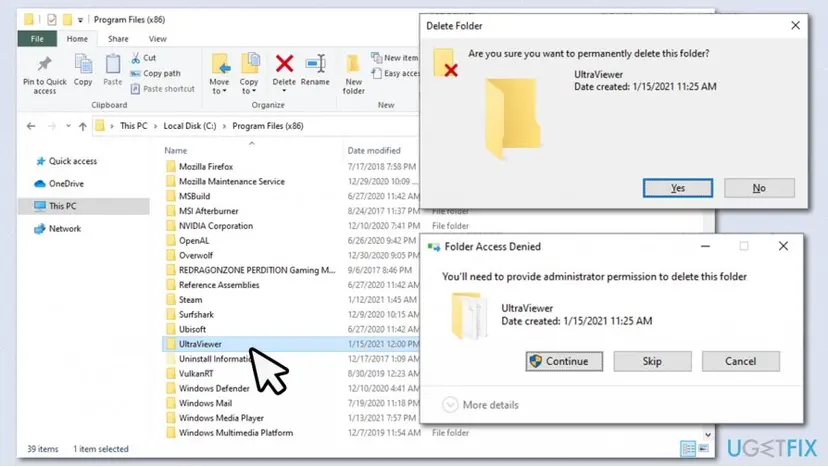
Also delete any UltraViewer setup file in your Downloads folder.
It worked if: The UltraViewer folder no longer appears under Program Files (x86).
If not: If Windows says a file is in use, repeat Step 1 or restart the PC and delete the folder before you open anything.
Step 6. Remove registry keys named UltraViewer (optional)
5 minutesRead the warningYou want to remove every trace, and Steps 2 to 5 are done.
An uninstall can leave keys that carry the program's name. They do no harm, so this step is optional, but removing them leaves nothing that points at the program.
A wrong registry edit can break Windows or other programs. Back up the registry first, change only keys whose own name is UltraViewer, and skip everything else.
- Back up the registry: Back up the registry before editing it. In Registry Editor choose File > Export, pick a place and click Save.
- Select Computer at the top of the left pane, then press Ctrl + F.
- Type
UltraViewer, tick only Keys, and click Find Next. - If the highlighted key itself is named UltraViewer, right-click it and select Delete.
- Press F3 to find the next one, and stop when Registry Editor says the search is finished.
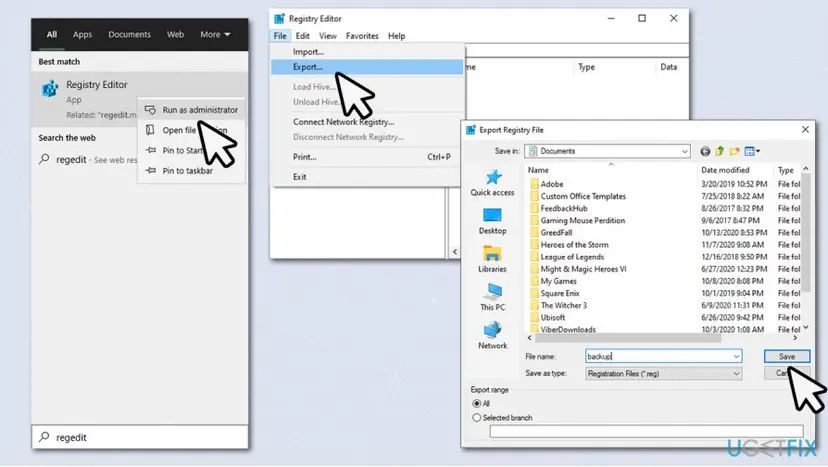
Do not delete values inside other keys that only mention the program. Windows keeps lists of past programs in places that other tools read.
It worked if: A new search for UltraViewer finds no key with that name.
If not: If anything breaks, double-click the backup file you saved to restore it, then restart.
What UltraViewer can leave behind and where to find it
These are the traces that older guides and users report, plus the setup file named on the vendor's download link. The uninstaller may remove some of them already. Check each row once, in this order.
| Where | What it is | Delete it? |
|---|---|---|
C:\Program Files (x86)\UltraViewer | The program folder. Users report that it stays when the uninstall stops halfway. | Yes. Step 5. |
| Registry keys named UltraViewer, found with the search in Step 6. | Settings the program wrote. Harmless. | Yes, only keys with that exact name. Step 6. |
UltraViewer_setup_6.6_en.exe or a similar name in Downloads. | The installer you ran. The version number changes with each release. | Yes, then empty the Recycle Bin. |
| Other programs in Installed apps with a recent install date. | Microsoft says scammers who get remote access often install more unwanted programs. Sort the list by install date to spot them. | Yes, if you did not choose them yourself. |
Do not search the whole disk or registry for the word UltraViewer and delete every hit. Windows keeps references to old programs in system lists, and deleting those does not remove anything useful.
UltraViewer will not uninstall: each failure and its way out
| What you see | Likely cause | Way out |
|---|---|---|
| UltraViewer is not in Installed apps, but it opens. | It runs from a folder without being installed, or it was installed under another Windows account. | Step 4 if the folder has unins000.exe. If not, end the task and delete the folder (Step 5). |
| Nothing happens after you click Uninstall. | Users report that clicking No on the User Account Control prompt denies the uninstaller its permission. | Run the uninstall again and select Yes on that prompt. |
| A message says not all components were removed. | Some files were still in use when the uninstaller ran. | Restart, then do Step 5. |
| A file or folder is in use and cannot be deleted. | The program is still running in the background. | Repeat Step 1, or start in Safe Mode and delete it there: Start Windows or a Mac in Safe Mode. |
| UltraViewer comes back after you remove it. | A second copy elsewhere, another Windows account, or someone installing it again. | Check the points below. |
- Check every Windows account on the PC. Each one can have its own copy of a program.
- Sort Installed apps by install date and look for a program you did not choose, especially another remote access tool.
- Treat a return you cannot explain as a security problem. The vendor's program has no feature that reinstalls it. Run a full Microsoft Defender scan (How to scan for malware with Microsoft Defender) and ask for IT help on a work PC.
How to confirm UltraViewer is gone
| Check | How | Clean result |
|---|---|---|
| Apps list. | Settings > Apps > Installed apps, search UltraViewer. | No entry. |
| Processes. | Task Manager, tabs Processes and Details. | Nothing named UltraViewer. |
| Folder. | File Explorer at C:\Program Files (x86). | No UltraViewer folder. |
| Registry, if you did Step 6. | Registry Editor, search for UltraViewer with Keys ticked. | No key with that name. |
The vendor describes a connection as the ID and password that appear in the running program. With the program removed there is no UltraViewer on your PC to connect to. This does not cover other tools the caller may have added, so the next section matters if you gave them access.
After the removal: what to do if a scammer had access
If the caller only talked to you and never connected, removing the program and checking your accounts is enough. If they were connected, or if you paid or gave details, do the following. These are Microsoft's own recommendations for tech support scams.
- Run a full scan with Windows Security: How to scan for malware with Microsoft Defender.
- Install all security updates: Settings > Windows Update > Check for updates.
- Change your passwords, starting with your Microsoft account and your email, and any password you reuse elsewhere.
- Call your bank or card provider if you paid. Tell them what happened. They will probably cancel and replace the card, and you can contest the charge.
- Consider resetting Windows if fake error messages keep appearing and you gave the caller access: Reinstall Windows without losing files.
- Report the call at
microsoft.com/reportascam, and tell your local law enforcement if you lost money.
Watch your online banking for payments you do not recognise in the weeks after the call, even if you only gave your name and address.
Frequently asked questions
How do I uninstall UltraViewer on Windows 11?
Close UltraViewer, then open Settings > Apps > Installed apps and type UltraViewer in the search box. Select the three dots next to it, choose Uninstall, confirm, and accept the User Account Control prompt. The same steps work on Windows 11 25H2 and 26H2. On Windows 10 the page is called Apps & features and you select the entry and click Uninstall. If the entry is missing, use Step 4, which runs the uninstaller file from the program folder.
How do I stop or disconnect UltraViewer access?
Close UltraViewer. The vendor's support page says that closing the program stops the remote session, so the other person can no longer control your computer. Then end any UltraViewer entry in Task Manager with End task so nothing keeps running in the background. To make sure the caller cannot connect again through this program, uninstall it as well. Closing alone leaves the program installed and ready to start again.
How do I uninstall UltraViewer on a laptop?
A Windows laptop works exactly like a desktop PC. Follow Step 1 to close the program, then use Step 2 or Step 3 to uninstall it. The vendor says UltraViewer currently runs only on Windows, so there is nothing to uninstall on a Mac. If a caller made you install something on a MacBook, it was another program, and you should remove it from the Applications folder.
Is UltraViewer safe or a virus?
The program from the vendor's own site is real remote desktop software, not a virus. It becomes dangerous when a stranger gets your ID and password, because they can then see and control your screen. Microsoft warns that people with remote access often install malware, ransomware or other unwanted programs. So the question is who asked you to install it. If it was a caller you did not contact, remove it and scan the PC.
Can the caller still get into my PC after I uninstall UltraViewer?
Not through UltraViewer, because the vendor describes a connection as an ID and password shown by the running program, and the program is gone. They may still have another way in if they had you install a second tool or if you gave them passwords. Sort Installed apps by install date, remove anything you did not choose, run a full scan and change your passwords.
I paid or gave my details to the caller. What should I do?
Contact your bank or card provider at once, explain what happened and ask about contesting the charge. Change the passwords you shared or reuse. Microsoft says it never asks for payment in cryptocurrency or gift cards and does not make unsolicited calls. Report the call at microsoft.com/reportascam, and tell local law enforcement if you lost money. Keep the notes you made about the number and the date.
Why does UltraViewer keep coming back after I uninstall it?
The vendor's program has no feature that reinstalls it. Users report a copy returning when another Windows account on the PC has its own copy, when a second copy sits in another folder, or when a person or a work tool installs it again. Check every account and the Installed apps list. If none of this explains it, treat it as a security problem and scan the PC.
What is unins000.exe and where is it?
It is the file name that older guides and users give for UltraViewer's own uninstaller, in the program folder C:\Program Files (x86)\UltraViewer. We could not confirm the name on the vendor's site. Double-clicking it starts the uninstall the same way as the Windows list. If the folder does not exist, the program is removed or installed elsewhere. Task Manager shows the real folder with Open file location.
Should I reset Windows after a scam call?
Microsoft says to consider it if you gave scammers access to your device, and calls it the best option in some cases, for example when fake error messages keep appearing and block normal use. If you only uninstalled UltraViewer and a full scan finds nothing, a reset is usually not needed. If you reset, back up your files first, because a reset can remove them.
Sources
- UltraViewer: Support center, frequently asked questions (uninstall, stopping a session, Windows only) (ultraviewer.net)
- UltraViewer: home page (how a connection works with ID and password, download file name) (ultraviewer.net)
- Microsoft Support: Protect yourself from tech support scams (uninstall, scan, passwords, reset, reporting) (support.microsoft.com)
Did this fix work?
One click, no account. It tells the next reader which guides are worth their time.
Questions and experiences: uninstall UltraViewer completely and stop remote access
Still broken, or found a fix we did not cover? Ask here: members and our editors answer. Reading is open; writing needs a free account.
…