
shell32.dll error: why File Explorer and programs crash in it and how to fix it
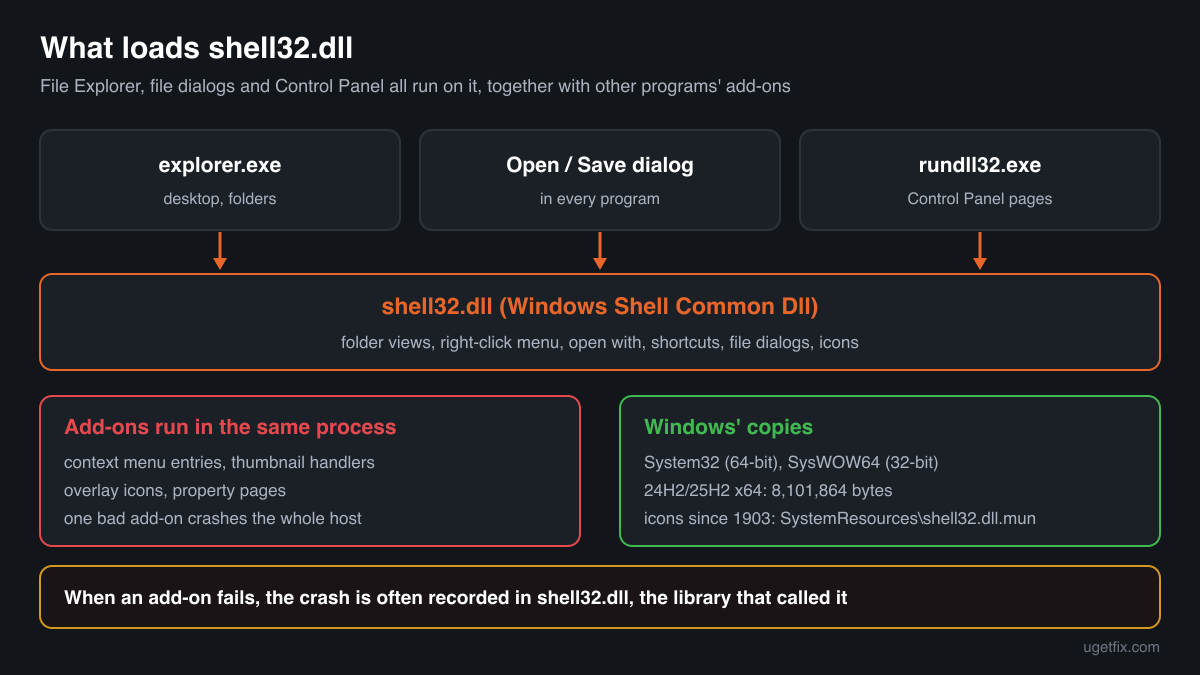
shell32.dll is the Windows Shell Common Dll, the library behind File Explorer, the desktop, the Open and Save dialogs, the right-click menu and many Control Panel pages. It is part of Windows and cannot be installed or replaced on its own. When it shows up in an error, the file itself is rarely damaged: most often an add-on that plugs into File Explorer crashed inside it, or a program needs a function your Windows does not have.

Prefer to fix it yourself? The manual steps follow.
How to fix shell32.dll errors
Start with what crashes and when. If File Explorer closes or restarts when you right-click a file, open a folder with pictures or videos, or use Open and Save in a program, the cause is almost always a shell extension: a context menu entry, thumbnail handler or overlay icon that another program added to File Explorer. Event Viewer shows the crash; uninstall or update the program that added the extension, or turn its entries off, and test again. If the error says a procedure entry point could not be located in SHELL32.dll, the program was built for a newer Windows than yours. Only when File Explorer fails even in Safe Mode, or System File Checker reports damage, is the Windows file itself the problem: then run Windows Update, sfc /scannow and DISM.
Never copy shell32.dll from another computer, an older Windows or a download site into System32, SysWOW64 or a program folder. It is built for one exact Windows build, Windows loads its own copy for every program, and a replaced copy in the Windows folders can leave you without a desktop or a working File Explorer.
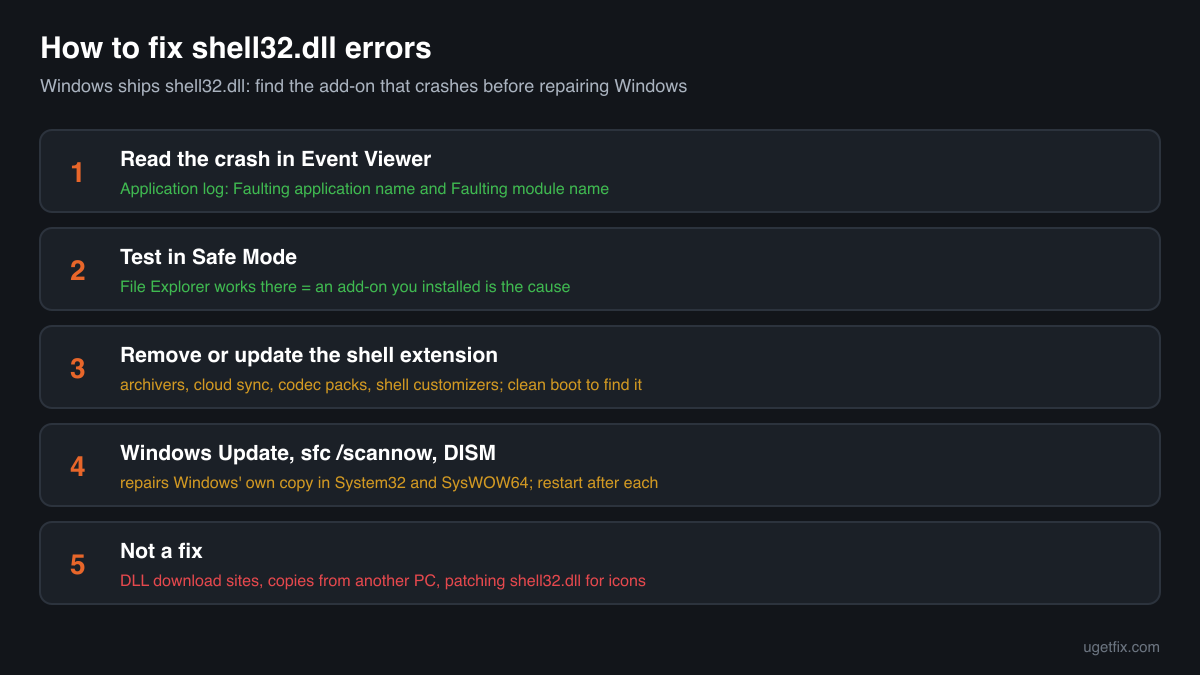
Step by step
- Read the crash in Event Viewer. Right-click Start, choose Event Viewer, then Windows Logs, Application. Find the Error event with the source Application Error at the minute of the crash. Faulting application name tells you which program crashed (explorer.exe for File Explorer and the desktop), and Faulting module name tells you which library it was running. If the module is not shell32.dll but a DLL from another company, that DLL's program is the cause and you can skip straight to updating or removing it.
- Remember what you were doing when it crashed. A crash on right-click points to a context menu extension, one in folders full of pictures or videos to a thumbnail handler (often from a codec pack or a photo or video program), and one only in Open and Save dialogs to an add-on loaded into the program that opened the dialog. Think about what you installed shortly before the crashes began: archivers, cloud storage clients, file sync tools, codec packs and shell customizers all add themselves to File Explorer.
- Test in Safe Mode. Hold Shift while you click Restart, then choose Troubleshoot, Advanced options, Startup Settings, Restart, and press 4. Safe Mode loads Windows with only Microsoft's drivers and without most third-party add-ons. If File Explorer works there, Windows' own shell32.dll is fine and a program you installed is the cause. If File Explorer crashes in Safe Mode too, go on to the repair steps below.
- Remove, update or turn off the shell extension. Open Settings, Apps, Installed apps, and update or uninstall the program you suspect, starting with the newest one. Many programs have their own setting to remove their entries from the right-click menu, so look in their options first. A clean boot is another way to find it: run msconfig, on the Services tab tick Hide all Microsoft services and click Disable all, turn off startup apps in Task Manager, restart, and switch items back on in small groups until the crash returns.
- Reset thumbnails and the folder view. If crashes happen only in certain folders, a damaged thumbnail cache can be the trigger. Open Disk Cleanup, choose drive C:, tick Thumbnails and click OK. In File Explorer, open Options, View, and click Reset Folders. You can also tick Always show icons, never thumbnails on the same tab to test whether a thumbnail handler is involved.
- Entry point error: match the program to your Windows. A message that names a function in SHELL32.dll means the program wants a Windows function your release lacks. Look the function up on Microsoft Learn: its Requirements table lists the Minimum supported client. Press Windows key + R, type winver and press Enter to see your version. Use a program release that supports your Windows, or update Windows.
- Install Windows updates and restart. Open Settings, Windows Update, install everything that is offered, including optional quality updates, and restart. Updates replace shell32.dll with the current build for your Windows release, so a damaged copy is fixed in the same pass.
- Run System File Checker. Type cmd in the Start menu, right-click Command Prompt and choose Run as administrator. Run sfc /scannow and wait until it reaches 100%. It compares protected Windows files, shell32.dll in System32 and SysWOW64 included, with the stored originals and repairs any that were damaged or replaced. Restart afterwards.
- If System File Checker cannot repair everything, run DISM. In the same administrator window run DISM /Online /Cleanup-Image /RestoreHealth. It repairs the component store that System File Checker copies its originals from, using Windows Update. When it finishes, run sfc /scannow once more and restart.
- Still crashing everywhere: repair Windows in place. On Windows 11, Settings, System, Recovery offers Fix problems using Windows Update, which reinstalls the current version of Windows and keeps your files, apps and settings. On Windows 10 the same result comes from running Microsoft's installation media and choosing to keep personal files and apps. Programs you install afterwards can add the same extension again, so leave out the one you found.
Download the genuine shell32.dll for your Windows version
Each file below is Microsoft's own shell32.dll for one Windows release, fetched from Microsoft's own server and checked against Winbindex, the index of the files in Windows images and updates. These files are for comparison: to confirm that a shell32.dll you have is genuine, or to see which build your release should have. Copying one into Windows or into a program folder does not stop File Explorer crashes, because the add-on that crashes stays the same, and replacing the file in System32 or SysWOW64 can leave Windows without a working desktop. Repair the real file with the steps above.
Older Windows releases
A free uGetFix account is needed to download. Sign in, or create one in a minute, and you come straight back here.
What not to do
Do not copy shell32.dll from another PC or another Windows build.
The file is built together with the rest of one Windows build: File Explorer, windows.storage.dll, the shell's other libraries and their resource files. A copy from Windows 11 on Windows 10, or from one update on another, does not match them. At best Windows keeps using its own copy, at worst the desktop and File Explorer stop starting.
Do not put shell32.dll in a program's folder.
For many libraries Windows looks in the program's folder first. shell32.dll is one of the known DLLs that Windows takes from its own folder, so a copy next to the .exe does not fix the program's error. It only leaves an unneeded system file in a place where nothing should load it.
Do not download shell32.dll from a DLL collection site.
You cannot tell which Windows release, build or architecture the file comes from, or whether it was changed. A copy that matches nothing Microsoft has published has no place on a PC. Use the genuine files above only to compare, and the checker below for a file you already have.
Do not edit shell32.dll to change icons.
Guides that take ownership of System32 and replace or patch shell32.dll to change the system icons remove the protection Windows puts on its files, and the next update or sfc /scannow puts Microsoft's copy back. Change a shortcut's or a folder's icon in its Properties window instead; that only points to an icon and changes no Windows file.
Do not blame shell32.dll before you read the crash event.
Reinstalling Windows to fix a File Explorer crash usually brings the crash back as soon as you reinstall the program whose extension caused it. The Event Viewer entry and a test in Safe Mode take a few minutes and tell you whether Windows is involved at all.
Check the copy on your PC
Choose the shell32.dll you are unsure about, for example one you found outside the Windows folders. Its checksum is calculated in your browser and compared with 1,765 Microsoft builds of the file from Windows releases and updates.
The file stays on your computer. Nothing is uploaded: the checksum is computed locally.
9 genuine programs have been documented loading a planted copy of shell32.dll. Found a shell32.dll outside System32, SysWOW64 and System32\forwarders, for example in Downloads, Temp, AppData or a program folder? Windows never puts it there. That is a security question, not an error one. Is the shell32.dll you found genuine? On 2-Spyware
The error messages and what each one means
The wording tells you which problem you have. These are the texts Windows shows, as written, with the file and a typical function name filled in.
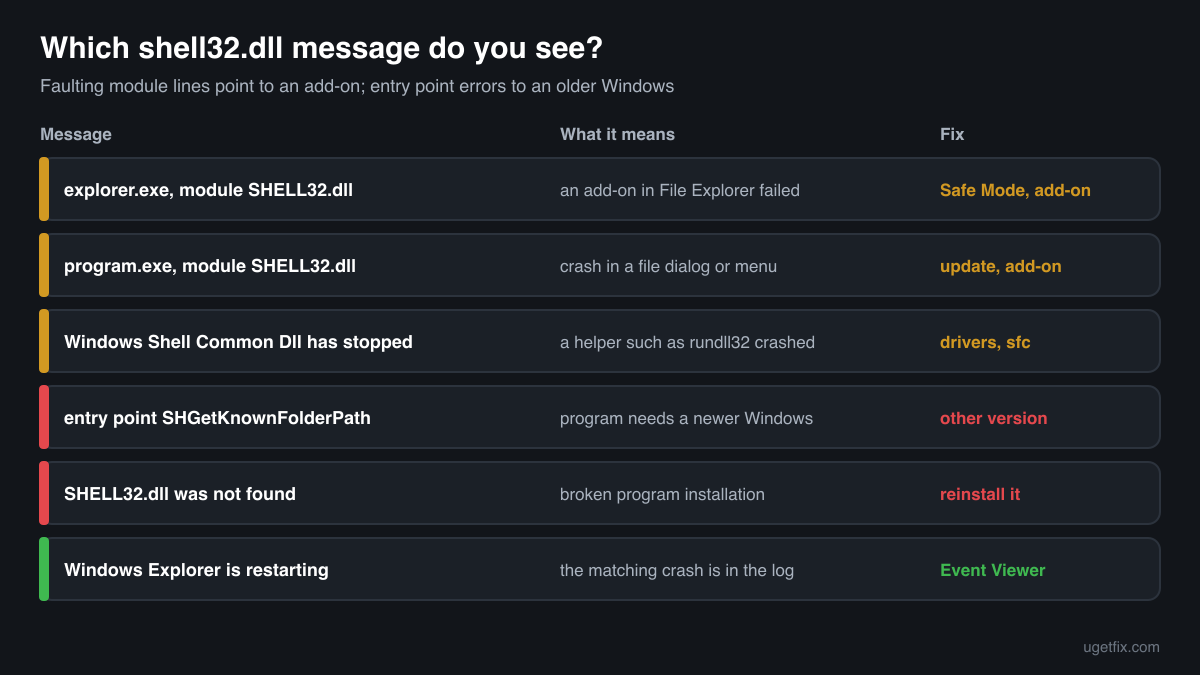
Faulting application name: explorer.exe, Faulting module name: SHELL32.dll
A line from the Application log in Event Viewer. File Explorer crashed while running shell32.dll code, which happens when an add-on it called handed back bad data, or when a damaged file, thumbnail or network folder made it fail. Use Safe Mode and a clean boot to find the add-on; if it crashes in Safe Mode too, run sfc /scannow and DISM.
Faulting application name: program.exe, Faulting module name: SHELL32.dll
Another program crashed inside shell32.dll, most often while it showed an Open or Save dialog, a file icon or a right-click menu. The shell extensions that File Explorer loads also load into that program, so the cause is the same kind of add-on. Update the program first, then look for the extension.
Windows Shell Common Dll has stopped working
Windows names a crashed process by its file description, and Windows Shell Common Dll is the description of shell32.dll. You see this title when a helper process that runs shell32.dll code, such as rundll32.exe opening a Control Panel page, crashes. Note what you opened, then update the drivers or programs that add pages to that window, and run sfc /scannow.
The procedure entry point SHGetKnownFolderPath could not be located in the dynamic link library SHELL32.dll.
The program asked Windows for a function that your shell32.dll does not provide. This function needs Windows Vista or later, so the message appears on Windows XP. Other function names appear in the same place on other old systems; look each up on Microsoft Learn and compare the Minimum supported client with your Windows. Fix: a program version that supports your Windows, or a newer Windows.
The code execution cannot proceed because SHELL32.dll was not found.
Rare, because Windows does not start its desktop without this file. On a working PC it usually means a broken program installation or a program for another system run through a compatibility layer. Reinstall the program; if Windows itself misbehaves, run sfc /scannow and DISM.
Windows Explorer has stopped working / Windows Explorer is restarting
The desktop and taskbar flicker or disappear and come back. The Application log shows the matching explorer.exe crash; whether it names SHELL32.dll or another module, the steps are the same: Safe Mode, the add-on you installed last, then Windows Update, sfc and DISM.
File facts
shell32.dll describes itself as Windows Shell Common Dll. It holds much of the Windows shell: the code that shows folders and files, runs the right-click menu, opens files with the right program, draws the common Open and Save dialogs, creates shortcuts, and loads the shell extensions that other programs register. Programs call it whenever they show a file dialog, an icon or a folder picker. What Windows reports for the genuine file:
- Description in the file
- Windows Shell Common Dll
- Where the genuine shell32.dll belongs
C:\Windows\System32C:\Windows\SysWOW64- Signed by
- Microsoft Windows, with a Windows catalog signature: the file's Properties show no Digital Signatures tab, which is normal. Check it in PowerShell: Get-AuthenticodeSignature <path to the file> (Status: Valid).
On 64-bit Windows, System32 holds the 64-bit file and SysWOW64 the 32-bit one used by 32-bit programs; the folder names are historical. Winbindex also lists a small shell32.dll of about 44 to 117 KB in System32\forwarders on many Windows 10 and 11 builds: it is part of Windows too. The genuine file is signed by Microsoft and shows Windows Shell Common Dll under Properties, Details, File description. Sizes depend on the release: in Windows 11 24H2 and 25H2 the 64-bit file is 8,101,864 bytes and the 32-bit file 6,825,184 bytes; in Windows 10 22H2 they are 7,914,584 and 6,237,928 bytes. Up to Windows 10 1809 the 64-bit file was over 20 MB (22,151,888 bytes in 1809) and in 1903 it dropped to 7,275,384 bytes, because the icons and other resources moved into a separate file, C:\Windows\SystemResources\shell32.dll.mun. Windows still accepts shell32.dll as the icon file in Change Icon dialogs and finds the icons there.
shell32.dll versions by Windows release
Every Windows release has its own build of shell32.dll, updated together with Windows almost every month. Winbindex lists 1727 distinct Microsoft builds; the table shows the newest one indexed for each release and the update that delivered it.
| Windows release | File version | Delivered by | Size, 64-bit |
|---|---|---|---|
| Windows 11 26H1 | 10.0.28000.3231 | KB5127646, October 13, 2026 | 8,122,704 bytes |
| Windows 11 25H2 | 10.0.26100.9711 | KB5127648, October 13, 2026 | 8,101,864 bytes |
| Windows 11 24H2 | 10.0.26100.9711 | KB5127648, October 13, 2026 | 8,101,864 bytes |
| Windows 11 23H2 | 10.0.22621.7649 | KB5126653, October 13, 2026 | 9,181,376 bytes |
| Windows 11 22H2 | 10.0.22621.7649 | KB5126653, October 13, 2026 | 9,181,376 bytes |
| Windows 11 21H2 | 10.0.22000.3147 | KB5044280, October 8, 2024 | 8,203,600 bytes |
| Windows 10 22H2 | 10.0.19041.7802 | KB5126657, October 13, 2026 | 7,914,584 bytes |
| Windows 10 21H2 | 10.0.19041.7802 | KB5126657, October 13, 2026 | 7,914,584 bytes |
| Windows 10 21H1 | 10.0.19041.7802 | KB5126657, October 13, 2026 | 7,914,584 bytes |
| Windows 10 20H2 | 10.0.19041.7802 | KB5126657, October 13, 2026 | 7,914,584 bytes |
| Windows 10 2004 | 10.0.19041.7802 | KB5126657, October 13, 2026 | 7,914,584 bytes |
| Windows 10 1909 | 10.0.18362.2274 | KB5013945, May 10, 2022 | 7,275,384 bytes |
Older copies of shell32.dll found on PCs
Public DLL catalogues have collected 38 copies of shell32.dll uploaded from PCs, from version 4.72.3812.600 to 10.0.19041.572. Many come from Windows XP, Vista, 7 and 8.1, some with a translated file description. The table lists each with its checksums, so you can tell which one you have.
None of these replaces the file your Windows ships: the newest build indexed for Windows is 10.0.28000.3231, and each release keeps its own. If the check on this page finds your file in this list, it is most likely an older Microsoft build that was copied somewhere by hand. Remove the copy, and let Windows use its own.
| Version | Build | Size | MD5 | SHA-1 |
|---|---|---|---|---|
10.0.19041.572 | 64-bit | 7.3 MB | d4592f28928b55c207539837485619f2 | 09c50c5067e9830233a9655fcf4e9205081a5e8f |
10.0.18362.1049 | 64-bit | 6.9 MB | 14500f0cbaa1e523a1b695e3bd582000 | eb21d4919dbf6310400d04d81c2752209e53bcc2 |
10.0.18362.815 | 64-bit | 6.9 MB | eb19cefa3c7b5d59c01ee9cd5299808c | 3ebd8693ca1feaa1bc8c0c90452b14f8dbd42407 |
10.0.18362.719 | 64-bit | 6.9 MB | 4718d9c9c4157b952452c7656e1e7e2c | 21f8222f23a631472dbeb7f0c889f5cae5109918 |
10.0.18362.628 | 32-bit | 5.5 MB | b9cd84daf7dfbf1f4b2db2f4ea0e41f8 | 0e6688ccfdc48acdd6841adfd131f5f069f4c0be |
10.0.18362.356 | 64-bit | 6.9 MB | f7bbc2373308854f797e77fcc857a06b | 0afa35b8b9a2f33887fdb814255481096d47c0d3 |
10.0.18362.145 | 32-bit | 5.5 MB | 96eec1e154a7c1d0688c876995ff2624 | 77b54f38cb48a435708a0eca102d1cfcc6daf852 |
10.0.18362.1 | 64-bit | 6.9 MB | 6c7e0ff897da1bab52474665716b1e2d | 0d14f1608d67ef5007789c7f23dca145c7b3a11c |
10.0.17763.1007 | 64-bit | 21.1 MB | 96cd831c046fb870c723f981bca3972d | 7bafd3fd408102f203ac02f83d62abeb0e1a60bd |
10.0.14393.0 | 64-bit | 21.2 MB | 7b09e93615fec7ee8d3d12a133a3ffda | 121b83858da1101ee17149debc913be40e93e189 |
10.0.14393.0 | 32-bit | 20.0 MB | 8f8d7c273b8eadb4aeab29726ff21a5f | 93e0d2233754d79e69fa4216e24eeba1215d1ab2 |
10.0.10586.494 | 64-bit | 21.5 MB | 6adfa862eda342f416c05c9e88a69899 | 36a4d21b2cc73d54c875a479ed9966c1e54ec98f |
10.0.10586.494 | 32-bit | 20.1 MB | 3eeac377d273abb2b6fb02dbfe8e307e | 1f4b53e027bfa7328885b45fb65fa69debf8f3a3 |
10.0.10586.11 | 64-bit | 21.5 MB | 44699ed0b4d39d109d1baeef0db66a9e | bb42e36e167e64d2d0caf7f2c02ab4b5c50aa38e |
10.0.10586.11 | 32-bit | 20.1 MB | f2d9ab28744983980e6bce08da077528 | 372643f85407f88866137932a7a26902e68d4696 |
10.0.10240.16542 | 32-bit | 19.9 MB | d6bf254925fd35955c99f402f8df4773 | 0d7a5690ea24b6f0c6199fb07a2479e2658336ff |
10.0.10240.16384 | 32-bit | 19.9 MB | 8cdc8a8175e825eff7d0b5dfbcb8bdea | 1aebba394fc7df19f3c1cab6e469b08ed6e08aa1 |
6.3.9600.17055 | 32-bit | 17.8 MB | e7cce55b7b97fc832f50104f1b889de8 | ef4413b7bd9a8c0663037bf59569dfd7fd9fee57 |
6.3.9600.16474 | 64-bit | 20.2 MB | 5f9799975eab95431bf78428b26b4ff6 | b7059b36c31148a96f34633cde2d94653835ec16 |
6.3.9600.16474 | 32-bit | 17.8 MB | e0c156e4380ce5c64cfbf2650895038d | 41d3e135205c615d8e2cd71a923248e0c931ef43 |
6.2.9200.16882 | 32-bit | 16.8 MB | 5c1611e2b668727ff22150d108fcb06f | 79d7770373cf522230a3eb566db2159b1442c492 |
6.2.9200.16680 | 32-bit | 16.8 MB | 594c715f554206032fe8c8ac9ff8f440 | 19faeb71c7ad798f4b578479a9d8aa4b1e19a31b |
6.1.7601.23893 | 64-bit | 13.5 MB | e09bb3e24ebe86816b09b5aeaf991378 | 1b9e23270c82e7d7a0f859eb3acf7fa8d331c8a4 |
6.1.7601.18429 | 32-bit | 12.3 MB | e9d88493fbdb36d4b65c6f2f7f122c95 | 3b1ba0fcbbb9f551100f350f7d9f1b578c2f76c6 |
6.1.7601.18222 | 32-bit | 12.3 MB | e02781d4871844dcd30df1d69a650f78 | c82c5fcafd4d25693898aedabd8ebd2b0a30ed13 |
6.1.7601.18103 | 64-bit | 13.5 MB | 1bfc94665bca35f9001adc7bfb167c63 | 9b9a11fe5add3b8513f1c0ee1dd864c11bfe0dca |
6.1.7601.18103 | 32-bit | 12.3 MB | 565d78187494fb5f08b5a52deb2aea7a | 47e26aa323075cd4edd63e60b6777f821ddeaecf |
6.1.7601.17859 | 64-bit | 13.5 MB | c6689007b3a749c49a5438dcf36e0ce4 | bfb396ee24bb44f34a91fe0c854f6e1bad3db20e |
6.1.7601.17859 | 32-bit | 12.3 MB | 29e9794708df51db5dc89fb2e903a0f6 | 8173f42b4b91225b44cdaa1ddedea11955cc94a5 |
6.1.7600.16385 | 32-bit | 12.3 MB | 518c6116079414e7074e726925d07a41 | cc82028c9d8791ce8413e05a70b8b2cc8c757076 |
6.0.6002.18646 | 32-bit | 11.0 MB | aaf101900a23d75ae1ae00840fa6f3b8 | 1cd6cf2d5274124fb3e170b6ad7d4fb93d1627d2 |
6.0.6001.18588 | 64-bit | 12.3 MB | 8d5f673564f28a84e4c1774733fd85b0 | f7f6236456c49b1976854823fcd24b3b2ae0597d |
6.0.6001.18588 | 32-bit | 11.0 MB | 048b65ec931a39a5f42016be04775274 | b216fca285e718337f4199bba2ff521168187163 |
6.0.2900.6242 | 32-bit | 29.8 MB | 7e594624ba56574cab08b91634f32b99 | 675b9d8dc46b78455e97771d00bca72ebf630e5d |
6.0.2900.6072 | 32-bit | 29.7 MB | 98f2e089891cae87147f74948f694565 | 4fee298a34d3719ce22df68b9b21fee99d9f08f9 |
6.0.2900.5512 | 32-bit | 8.1 MB | 3b4f845d1a85014a98d6c86987526a8c | ee5b99f81926cd995c7d6ca7edfbfdcd763976c3 |
6.0.2900.2180 | 32-bit | 8.0 MB | c1c1d5e36f383433f706d2168bcb4fdf | cdaf92431f04f9ab79ec9c46a663566f19e04568 |
4.72.3812.600 | 32-bit | 1.3 MB | 15b7e5b24a6d49cf63ac39248f74e5ae | b4268b02aab65518ce616d30766107632fb0f6fe |
Copies uploaded by users to a public DLL catalogue. We list their checksums so you can identify a file; we do not offer them for download and we did not verify each one against Microsoft's signature.
Questions people ask
Why does File Explorer crash with SHELL32.dll as the faulting module?
Because File Explorer runs the add-ons that other programs register: right-click menu entries, thumbnail handlers, overlay icons and property pages. When one of them fails, the crash is often recorded in shell32.dll, the library that called it. If File Explorer works in Safe Mode, the add-on is the cause; update or uninstall the program that added it.
Can I download shell32.dll to fix the error?
No. shell32.dll is part of Windows and works only with the rest of the same Windows build. Windows always loads its own copy, so a downloaded file in a program folder is ignored, and one forced into System32 can break the desktop. Download a genuine copy only to compare it with a file you have.
How do I find which shell extension crashes File Explorer?
Check the Application log in Event Viewer: sometimes the faulting module is the extension's own DLL, which names its program. If it says SHELL32.dll, use Safe Mode or a clean boot, then turn programs back on in small groups until the crash returns. Archivers, cloud storage clients, codec packs and shell customizers are the usual suspects.
Where are the icons in shell32.dll?
In a shortcut's or folder's Properties, Change Icon, type %SystemRoot%\System32\shell32.dll and press Enter to see them. Since Windows 10 1903 the icons are stored in C:\Windows\SystemResources\shell32.dll.mun, which is why the DLL itself is much smaller, but the Change Icon dialog still finds them through shell32.dll. Many more Windows icons are in imageres.dll.
What does "procedure entry point could not be located in SHELL32.dll" mean?
The program asked Windows for a function by name, and the shell32.dll of your Windows release does not contain it, because the function was added in a newer Windows. Look up the function on Microsoft Learn: its Requirements table shows the minimum Windows version. Then use a program version that supports your Windows, or update Windows.
Why are there two or three shell32.dll files on my PC?
On 64-bit Windows, System32 holds the 64-bit file and SysWOW64 the 32-bit one for 32-bit programs. Many Windows 10 and 11 builds also have a small shell32.dll in System32\forwarders, which is part of Windows as well. All of them are genuine and have different sizes and hashes. Copies anywhere else are not Windows' own.
Is shell32.dll a virus?
The copies in System32 and SysWOW64 are genuine Windows files and essential: the desktop and File Explorer do not work without them. A shell32.dll in another folder, such as Downloads, AppData or a program folder, is not Windows' copy: check it with the tool on this page and read the security page linked above.
Related guides
shell32.dll error: why File Explorer and programs crash in it and how to fix it
FixHow to fix black squares behind folder icons in Windows?
Sources
- Winbindex, the Windows binaries index (m417z)
- Microsoft Learn: Use the System File Checker tool to repair missing or corrupted system files
- HijackLibs: shell32.dll
File data read on October 17, 2026.

The editors who write and check uGetFix guides and reference pages. File facts are read from Microsoft's own installers and documentation, and every page shows the date its data was read.
Questions and experiences
Ask about this page: members and our editors answer. Reading is open; writing needs a free account.
…