
How to fix black squares behind folder icons in Windows?

Prefer to fix it yourself? The manual steps follow.
- 7methods
- 2 to 15 minutes
- Easy
Applies to Windows 11 and Windows 10 desktop, File Explorer and shortcut icons (Windows 10 support ended on 14 October 2025)
7 methods in this guide
Hello. Black squares have appeared behind every folder on my Windows PC. How do I fix this?
Black squares on desktop icons or behind folders are not a virus and not a broken screen. Windows is showing a stored picture of the icon that went wrong: a damaged icon or thumbnail cache, or a registry tweak that hid the shortcut arrows. Look where the square sits, then rebuild the matching cache.
Close File Explorer, run ie4uinit.exe -show, then delete the icon cache files in %LocalAppData%\Microsoft\Windows\Explorer and start Explorer again (Fix 1). If the square sits only in the lower-left corner of shortcuts, someone removed the shortcut arrows: delete or repair the 29 value under Shell Icons in the registry (Fix 2). Black backgrounds behind folders in File Explorer need the thumbnail cache cleared (Fix 3).
| Error | Black squares or black boxes on desktop icons, on shortcuts or behind folder icons. Windows shows no error code or message. |
|---|---|
| Where it appears | On the desktop, in File Explorer in Medium, Large or Extra large icons view, and in the lower-left corner of shortcut icons. |
| Main cause | A damaged icon cache (iconcache_*.db), a damaged thumbnail cache (thumbcache_*.db) or a shortcut arrow tweak in the registry value Shell Icons\29. |
| Fastest fix | Rebuild the icon cache with ie4uinit.exe -show and by deleting iconcache* files while Explorer is closed (Fix 1). |
| Also written as | Black boxes around desktop icons, black box around folder icon, desktop icons are black squares, shortcut icon black square, black background behind folder icons. |
| Affects | Windows 11 (all current versions) and Windows 10 22H2. The same reports go back to Windows Vista and 7. |
| Vendor status | We found no Microsoft article for this symptom. A report on the Icaros project, open since September 2023, shows folder icons with black backgrounds on Windows 11 23H2 and Windows 10 22H2. |
| Data at risk | None. The cache files hold only pictures of icons. Windows builds them again the next time Explorer starts. |
| Time to fix | 2 to 5 minutes for the cache fixes, about 10 minutes for the registry fix. |
Facts checked on 14 October 2026. Steps written for Windows 11 (25H2 and 26H2) and Windows 10 22H2.
What the black squares on desktop and folder icons are
Windows does not draw every icon from scratch each time you open the desktop or a folder. File Explorer reads the icon or preview once, stores a ready copy in a cache file in your user profile, and shows that copy afterwards. A black square is a stored copy that went wrong: the transparent parts of the picture were saved or drawn as solid black.
The square looks different depending on which stored picture is broken, and that look is the best clue you have. There is no error code to search for, so check where the black sits before you try anything:
| What you see | What is broken | Start with |
|---|---|---|
| A small black square in the lower-left corner of shortcuts only, where the curved arrow used to be. Folders and real files look normal. | The picture drawn over shortcuts, set by the registry value 29 under Shell Icons | Fix 2, then Fix 1 |
| A black box covering the whole icon or most of it, on the desktop, the taskbar or in folders, on many icons at once. | The icon cache, the iconcache_*.db files | Fix 1 |
| A black background behind folder icons in File Explorer, often on folders that hold pictures or videos, in large icon views. | The thumbnail cache, the thumbcache_*.db files, which also holds the folder previews | Fix 3, then Fix 4 |
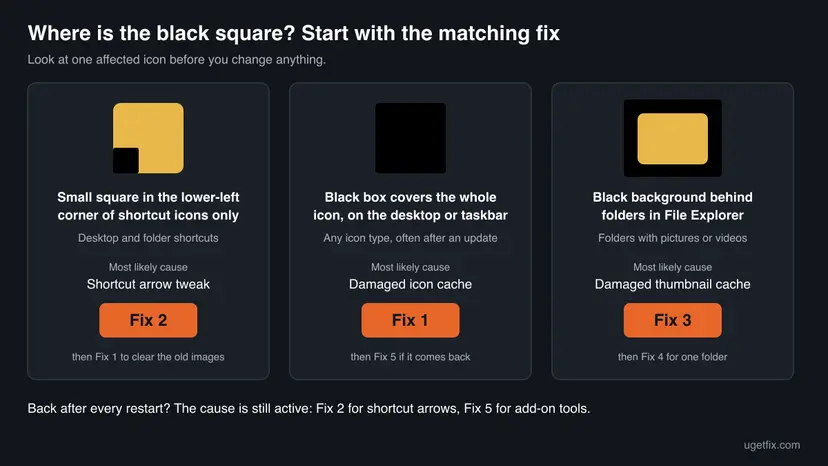
Nothing in this list is a sign of malware, and no file has been lost. The icons look wrong, but the programs, shortcuts and folders behind them work as before. You can double-click a black icon and it opens what it always opened.
Why desktop icons have black squares: causes ranked
The forum threads and Microsoft Q&A questions on this symptom go back more than fifteen years, and the causes have stayed the same. In the order we see them most often in those reports:
| Cause | Typical sign | Fix |
|---|---|---|
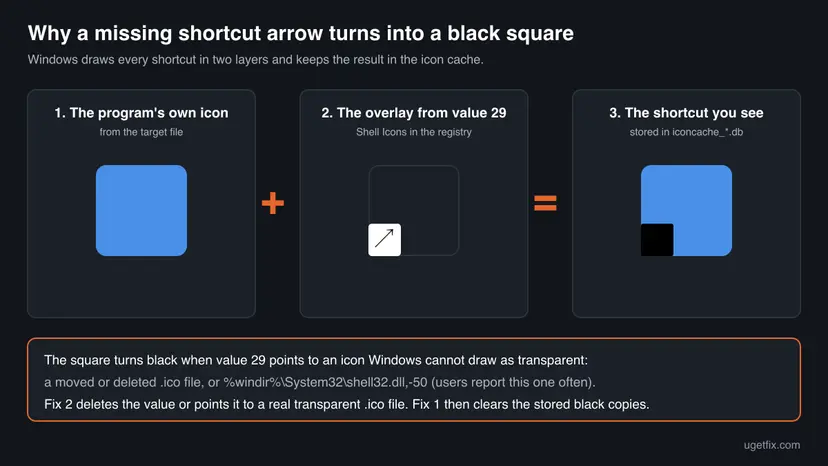
Shortcut arrow removed with a registry tweak or a tweak app. The value 29 points to a picture Windows cannot draw as transparent, or to an .ico file that was moved or deleted. | Black square only in the lower-left corner of shortcuts. Often returns after every restart or Explorer restart. | Fix 2 |
| Damaged icon cache. Explorer was closed in the middle of writing the cache, for example during an update, a crash or a forced shutdown. | Whole icons black, many at once, appeared suddenly with no change you made. | Fix 1 |
| Damaged thumbnail cache. Folder previews are built from the pictures inside the folder and stored with the other thumbnails. | Black background behind folders in File Explorer. Clearing thumbnails helps, sometimes only for a while. | Fix 3, Fix 4 |
| An add-on that draws icons or previews. Icon packs, theme tools, thumbnail extensions and codec packs plug into File Explorer. | Started after you installed such a tool. Comes back after every cache rebuild. | Fix 5 |
| The display driver. Transparency in the Windows interface is drawn with the graphics card's help. | Other drawing faults at the same time, such as black menus or flicker. | Fix 6 |
| Damaged system files. Rare for this symptom alone. | Other Windows parts misbehave too. | Fix 7 |
Two of these causes repair themselves for a while and then come back, which confuses many readers. When the black squares return after every restart, the cache is not the real problem. Something keeps writing a bad picture into it: the arrow tweak or an add-on. Rebuild the cache only after you remove that source.
Where Windows keeps icon and thumbnail pictures
Every fix below clears or changes one of four places. They all belong to your own user account, except the registry value for the shortcut overlay, which applies to every account on the PC. Knowing them helps you check that a fix really ran:
| Store | Location | Holds | Cleared by |
|---|---|---|---|
| Icon cache | %LocalAppData%\Microsoft\Windows\Explorer\iconcache_*.db | Icons of programs, shortcuts and file types, one file per size | Fix 1 |
| Older icon cache file | %LocalAppData%\IconCache.db | The single cache file of older Windows versions; the rebuild deletes it too if it exists | Fix 1 |
| Thumbnail cache | %LocalAppData%\Microsoft\Windows\Explorer\thumbcache_*.db | Previews of pictures, videos and documents, and the folder previews built from them | Fix 3 |
| Shortcut overlay | HKEY_LOCAL_MACHINE\SOFTWARE\Microsoft\Windows\CurrentVersion\Explorer\Shell Icons, value 29 | The picture drawn over the corner of every shortcut; it does not exist on a default Windows | Fix 2 |

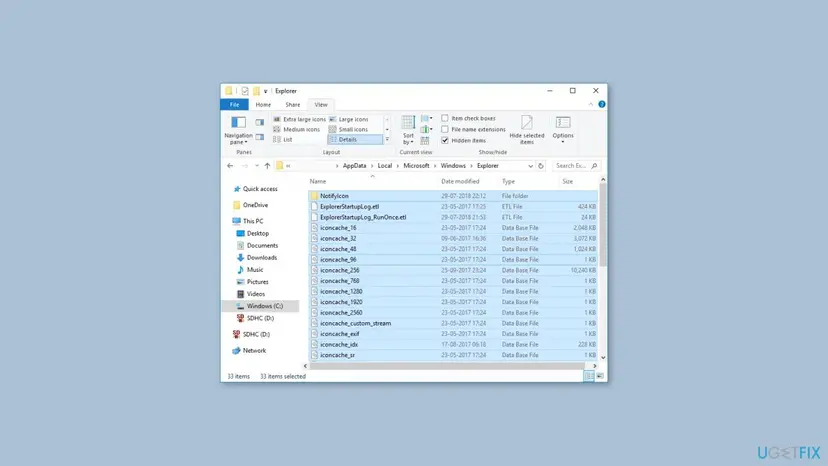
The AppData folder is hidden by default. You do not need to open it to run the fixes: the commands below find the files themselves. To look at them in File Explorer, paste the path with %LocalAppData% into the address bar and press Enter.
How to fix black squares on desktop icons and folders
Fix 1 repairs most cases in two minutes and is safe to try first. Fix 2 is for black squares in the corner of shortcuts. Fixes 3 and 4 are for folders in File Explorer. Fixes 5 to 7 are for squares that keep coming back.
| What you see or have | Start with |
|---|---|
| Whole icons turned black on the desktop or taskbar, suddenly, with no change you remember. | Fix 1 |
| A small black square only in the lower-left corner of shortcuts, and you or a tweak app once removed the shortcut arrows. | Fix 2, then Fix 1 |
| Black background behind folder icons in File Explorer, on many folders. | Fix 3 |
| One or two folders keep a black background after Fix 3. | Fix 4 |
| The squares come back after every restart, or started after you installed an icon pack, theme tool or thumbnail add-on. | Fix 5 |
| Menus, windows or the taskbar also show black areas or flicker. | Fix 6 |
Fix 1. Refresh and rebuild the icon cache
2 minutesLow riskAnyone with black icons on the desktop, taskbar or in folders; also the second half of Fix 2.
The icon cache holds the ready pictures that Explorer shows. Deleting the cache files while Explorer is closed forces Windows to draw every icon again from the program files, so a stored black copy cannot be reused.
Start with the light refresh. ie4uinit.exe is a Windows program that tells Explorer to reload its icons without closing anything. If the squares stay, delete the cache files with the commands that follow. Save your work first: the taskbar and desktop disappear for a few seconds while Explorer is closed.
- Press Win + R, type
cmdand press Enter. Use Command Prompt, not PowerShell: thedeloptions below are written for Command Prompt. - Type the light refresh and press Enter. Look at the desktop for a few seconds.
ie4uinit.exe -show - If the squares are still there, close Explorer. The taskbar and desktop icons disappear; the Command Prompt window stays open.
taskkill /IM explorer.exe /F - Delete the old single cache file. If it does not exist, the command says it could not find it, which is fine.
DEL /A /F /Q "%localappdata%\IconCache.db" - Delete the current cache files.
DEL /A /F /Q "%localappdata%\Microsoft\Windows\Explorer\iconcache*" - Start Explorer again. The taskbar and desktop come back and the icons are drawn fresh.
start explorer.exe - If some icons still look wrong, restart the PC once. Windows writes a new cache while it signs you in.
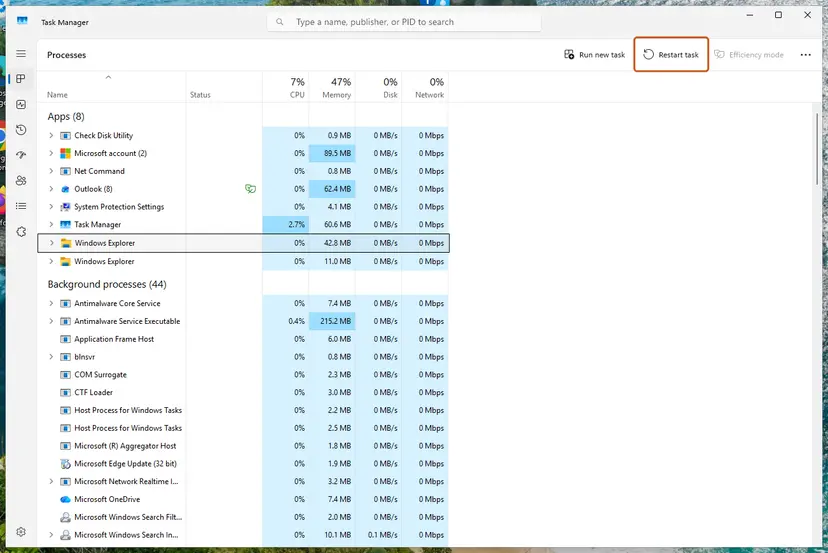
Press Ctrl + Shift + Esc to open Task Manager, choose Run new task, type explorer.exe and press Enter. The same Task Manager also has Restart task for Windows Explorer, described in Restart File Explorer.
A message that a file is in use means Explorer was still running when you ran DEL. Run the taskkill line again, wait two seconds and repeat the two DEL lines.
It worked if: After Explorer starts again, the desktop and folder icons show their normal pictures without black boxes, and they stay normal after a restart.
If not: If the black squares sit in the corner of shortcuts, or they return after the next restart, go to Fix 2. For black folder backgrounds, go to Fix 3.
Fix 2. Repair or undo the shortcut arrow tweak in the registry
10 minutesRead the warningBlack squares sit in the lower-left corner of shortcuts, where the shortcut arrow used to be.
Hiding the shortcut arrow works by replacing the overlay picture through the registry value 29. When that value points to a picture Windows cannot draw as transparent, every shortcut gets a black square instead of no arrow, and the icon cache stores it again after each restart.
A wrong change under HKEY_LOCAL_MACHINE affects every account on the PC. Export the Explorer key before you change anything, as shown in Back up the registry before editing it. The export is a small .reg file; double-clicking it later puts the old values back. Nothing else is at risk in this fix.
If a tweak app removed the arrows for you, turn that option off in the same app first and restart Explorer. That writes the same change as the steps below, and the app will not put its own value back later. Otherwise, check the registry by hand:
- Press Win + R, type
regeditand press Enter. Select Yes in the User Account Control prompt. - Click the address bar at the top of Registry Editor, paste this path and press Enter:
HKEY_LOCAL_MACHINE\SOFTWARE\Microsoft\Windows\CurrentVersion\Explorer\Shell Icons - If Registry Editor cannot find Shell Icons, nobody changed the shortcut overlay on this PC. Close Registry Editor and use Fix 1 and Fix 5 instead.
- In the right pane, look at the Data column of the value named 29. Note what it says before you change it.
- To get the normal arrows back and end the squares for good, right-click 29, select Delete and confirm with Yes.
- To keep shortcuts without arrows, double-click 29 instead and type the full path of a fully transparent
.icofile that really exists, for exampleC:\Windows\blank.ico. Select OK. - Close Registry Editor and run Fix 1 from step 3 on, so the black copies leave the icon cache.
A Data value of %windir%\System32\shell32.dll,-50 is the one most often reported with black squares. Many older guides gave that line to hide the arrows. Users on Microsoft Q&A and Super User report that it works at first and the black squares follow after a restart or an Explorer restart.
The ElevenForum tutorial for Windows 11 uses a separate file instead: blank.ico, a 24 x 24 pixel transparent icon placed in C:\Windows. Its author notes that the file can live in another folder, as long as every user account can read it, or the icon may not work for them.
| Data of value 29 | What it means | What to do |
|---|---|---|
%windir%\System32\shell32.dll,-50 or ,50 | The old trick that borrows an empty picture from a system file | Delete the value, or point it to a real transparent .ico file |
A path to an .ico file | Hidden arrows with a separate icon file | Open the path in File Explorer. If the file is gone, renamed or on a removed drive, copy it back or delete the value |
| Empty | Users report missing or vanishing icons with an empty value | Delete the value or set a real .ico path |
| The value does not exist | The overlay is the Windows default | This is not your cause; use Fix 1 and Fix 5 |
The ElevenForum restore file also writes an empty IsShortcut value back under HKEY_CLASSES_ROOT\lnkfile and five other shortcut file types. If an old guide told you to delete IsShortcut, restore it from your backup or from that tutorial's file.
It worked if: After the cache rebuild, shortcuts show either the normal small arrow or no arrow at all, with no black square, and they stay that way after a restart.
If not: If you set a new .ico path and the squares return, delete value 29 to confirm the cause. If the squares stay with no value 29, go to Fix 5.
Fix 3. Clear the thumbnail cache for black folder backgrounds
3 minutesNo riskFolders in File Explorer show a black background, mostly in Medium, Large or Extra large icons view.
File Explorer builds a folder's icon from previews of the pictures and videos inside it and stores the result in the thumbnail cache. Clearing that cache makes Windows build each folder preview again, without the black background.
Disk Cleanup is the simplest way and works on Windows 11 and Windows 10. Microsoft's page on freeing up drive space notes that Thumbnails is one of the boxes that is ticked by default, so most of the work is already set up for you:
- Type
disk cleanupin the search box on the taskbar and select Disk Cleanup. - Select the C: drive and select OK.
- Make sure Thumbnails is ticked. Untick anything else you want to keep, such as Recycle Bin.
- Select OK, then Delete Files to confirm.
- Restart the PC so Explorer starts with an empty thumbnail cache.
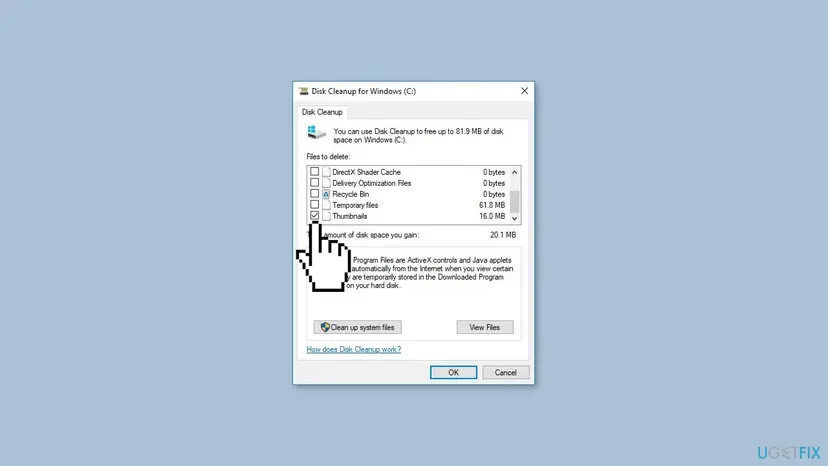
If Disk Cleanup does not remove every file, or you want it done without a restart, delete the cache files with commands. These are the same commands the ElevenForum thumbnail tutorial uses. Save your work first:
Run in Command Prompt, one line at a time
taskkill /f /im explorer.exe
DEL /F /S /Q /A %LocalAppData%\Microsoft\Windows\Explorer\thumbcache_*.db
start explorer.exe
The first time you open a large folder afterwards, the previews take a moment to appear. That is Windows building them again, and it happens once.
It worked if: Folders show their normal yellow icon, with or without small previews of their contents, and no black square behind them.
If not: If only a few folders stay black, use Fix 4 for them. If all folders turn black again within minutes or days, go to Fix 5.
Fix 4. Reset the picture of one folder and test the icon setting
3 minutesNo riskOne or a few folders keep a black background after Fix 3, or you want to prove the previews are the cause.
A folder can carry its own chosen picture, and that picture is used for its preview. Restoring the default makes Windows build the folder icon again from scratch, and turning previews off for a moment shows whether thumbnails are the cause at all.
- In File Explorer, right-click the folder with the black background and select Properties.
- Open the Customize tab.
- Under Folder pictures, select Restore Default, then OK.
- Press F5 in the File Explorer window to redraw the folder.
Then run a short test that tells you whether the problem lives in the previews or in the icons themselves. You turn previews off for a moment and back on afterwards:
- On Windows 11, open File Explorer, select See more (the three dots) and then Options. On Windows 10, select View > Options > Change folder and search options.
- Open the View tab.
- Under Advanced settings, tick Always show icons, never thumbnails and select Apply.
- Look at the folders. If the black backgrounds are gone, the thumbnail side is at fault: run Fix 3 once more, then Fix 5.
- Untick Always show icons, never thumbnails and select OK to get your previews back.
Leaving the box ticked also hides the black backgrounds for good, but you lose all picture and video previews in every folder. Use it as a test or as a stopgap, not as the repair.
One user on the Icaros issue tracker reported that Restore Default did not help and that removing some files from the folder made the black background go away. We could not confirm why, so treat it as a last resort for a single folder.
It worked if: The folder shows its normal icon or preview again after F5, and the test shows clearly whether previews or icons are the problem.
If not: If the black background stays even with Always show icons, never thumbnails ticked, the icon cache is involved: run Fix 1. If it returns after Fix 3, go to Fix 5.
Fix 5. Remove the add-on that keeps redrawing the black squares
15 minutesLow riskThe squares come back after every cache rebuild or restart, or started after you installed a customization tool.
Icon packs, theme tools, tweak apps, thumbnail extensions and codec packs plug into File Explorer and supply their own pictures. If one of them hands Explorer a picture without transparency, every rebuilt cache gets the same black squares again.
Think back to what you installed or changed shortly before the squares appeared. These are the kinds of tools that touch icons and previews:
- Tools that remove the shortcut arrow, change system icons or apply icon packs and themes. Undo their changes inside the tool before you uninstall it, or the registry change stays behind.
- Thumbnail extensions that add previews for more video, audio or archive types. The Icaros project has an open report since September 2023 of folder icons with black backgrounds on Windows 11 23H2, later also on Windows 10 22H2.
- Codec packs that bring their own thumbnail extension along with the codecs.
- Cloud storage and backup apps that draw status badges over icons. These were not named in the reports we read, so test them only if the steps above find nothing.
Uninstall the suspect tool, restart, and repeat Fix 1 and Fix 3 once. Step by step: Uninstall a program or app in Windows. If you cannot tell which program it is, a clean boot starts Windows without third-party services and startup apps. If the squares stay away after a cache rebuild in a clean boot, one of them is the source. Step by step: How to perform a clean boot in Windows.
- Open System Configuration. Select Search on the taskbar, type msconfig and select System Configuration from the results.
- Hide Microsoft services. On the Services tab, select the Hide all Microsoft services check box. Only services from other companies stay in the list.
- Disable the remaining services. Select Disable all, then select Apply.
- Open Task Manager. On the Startup tab of System Configuration, select Open Task Manager.
- Disable the startup apps. On the Startup apps tab in Task Manager, select each item whose status is Enabled and select Disable. Write down or take a screenshot of the items you disable: you need the list to turn them back on.
- Confirm the changes. Close Task Manager. On the Startup tab of System Configuration, select OK.
- Restart and test. Restart the PC. Windows now starts in a clean boot environment: try again the thing that failed (run the app, install the update, uninstall the program).
These steps were written for Windows 11 25H2 and 26H2. The full page with the other versions and what each result means: How to perform a clean boot in Windows
Its developer explains that thumbnails and properties are handled by two separate parts. If file types lose their previews after you turn off the Icaros thumbnail part, use Reset thumbnail filetypes on the Tools page of IcarosConfig. The same developer later tested a fresh Windows without Icaros and saw the black folder backgrounds too, so Icaros makes it more visible but is not the only cause.
It worked if: The black squares stay away after a restart and a cache rebuild, even when you use the PC normally for a day.
If not: If the squares return in a clean boot as well, no add-on is to blame. Go to Fix 6 for the display driver.
Fix 6. Update or reinstall the graphics driver
10 minutesLow riskBlack squares come together with other drawing faults, or Fixes 1 to 5 did not hold.
Windows draws icons and their transparent edges with help from the graphics driver. A collaborator on the Icaros project pointed to this and suggested testing with Microsoft's basic display driver, so a faulty driver is worth ruling out.
Get the current driver for your graphics card through Windows Update or Device Manager. A driver installed fresh from the card maker's own site is the best test. If the problem started right after a driver update, roll that driver back instead. Step by step: Update, roll back or reinstall a driver.
- Open Device Manager. Right-click Start and select Device Manager.
- Open the device's Driver tab. Expand the category (for example Display adapters), right-click the device, select Properties and open the Driver tab. Driver Date and Driver Version show what is installed now.
- Update the driver. Select Update Driver and let Windows search automatically. To use a driver you downloaded from the device maker, select Browse my computer for drivers instead and point to the unpacked folder.
These steps were written for Windows 11 24H2 and later. The full page with the other versions and what each result means: Update, roll back or reinstall a driver
After the new driver is in, restart the PC and run Fix 1 once more. The cache may still hold pictures drawn by the old driver, so a new driver alone does not always clear squares that are already there.
It worked if: After the restart and the cache rebuild, icons are drawn without black areas, and other drawing faults are gone too.
If not: If nothing changes, the driver is not the cause. Run Fix 7, then read the section on what to do when the squares are still there.
Fix 7. Repair Windows system files with SFC and DISM
20 minutesNo riskOther parts of Windows also misbehave, or every fix above failed.
The icons and the transparent overlay pictures come from Windows system files such as shell32.dll and imageres.dll. If one of those files is damaged, SFC replaces it with a good copy and DISM repairs the store SFC copies from.
This is the method the old version of this guide put first. It rarely helps with black squares alone: one user on ElevenForum ran SFC and DISM every week and still had black folder backgrounds. Use it when the symptom comes with other faults. Step by step: Run DISM and SFC to repair Windows system files.
- Open an elevated command window. Right-click Start and select Terminal (Admin), or type cmd in the search box, right-click Command Prompt and select Run as administrator. Select Yes when Windows asks for permission.
- Run DISM first. Type the command below and press Enter. DISM downloads clean copies of damaged components from Windows Update, so it can take several minutes. Wait until it says The operation completed successfully.
DISM.exe /Online /Cleanup-Image /RestoreHealth - Run System File Checker. In the same window, type the command below and press Enter. Do not close the window until the verification reaches 100%.
sfc /scannow - Read the result and restart. Compare the last message with the table below this guide, then restart the PC so that repaired files are loaded.
These steps were written for Windows 11 24H2 and 25H2. The full page with the other versions and what each result means: Run DISM and SFC to repair Windows system files
Restart the PC after the repair and run Fix 1 again, so the icons are drawn from the repaired files.
It worked if: SFC reports that it found and repaired files, or found no problems, and after the cache rebuild the icons look normal.
If not: If SFC cannot repair files or the squares remain, follow the steps in the next section on what to do when the squares are still there.
Black squares still there: narrow it down
Windows writes no error message, error code or Event Viewer entry for black icons that we could find, so the checks below take the place of a log. Each one rules out a whole group of causes in a few minutes:
| Check | Result | What it means |
|---|---|---|
| Take a screenshot with Win + Shift + S and look at it on another device. | The squares are in the picture. | Windows itself draws them. Keep working through the fixes. |
| Same screenshot. | The squares are not in the picture. | The monitor, cable or display hardware is at fault, not Windows. |
| Sign in to a second user account, or create a test one. | Icons look normal there. | Your own profile holds the cause: its caches or an app that starts with your account. Repeat Fix 1, Fix 3 and Fix 5. |
| Same test account. | Black squares there too. | The cause applies to the whole PC: value 29 under HKEY_LOCAL_MACHINE (Fix 2), a shell add-on (Fix 5) or the driver (Fix 6). |
If the squares appeared after a recent change and none of the fixes held, System Restore can take Windows back to a point before that change. It keeps your documents but removes programs and drivers installed after the point. Step by step: Undo recent changes with System Restore.
- What to send to support: your Windows version from
winver, a screenshot of the squares, the Data of value 29 if it exists, and the list of tools you use to change icons or previews. - When it is hardware: only when the squares are missing from a screenshot, or when they also show on the startup screen before Windows loads.
- What not to do: reset or reinstall Windows for this. The old version of this guide offered it, but it erases far more than the problem needs.
Keep black squares from coming back
Most returns of the black squares come from the same few habits. These steps keep the caches clean and the overlay valid:
- Hide shortcut arrows, if you want that, only with a real transparent
.icofile in a folder every account can read. - Note any registry change you make and keep the exported
.regbackup. - Restart Explorer with Restart task in Task Manager instead of ending it in the middle of work.
- Let Windows Update and driver installs finish before you shut down.
- Undo a tweak inside the tool that made it before you uninstall that tool.
- Do not use
%windir%\System32\shell32.dll,-50as value 29; it is the setting most often reported with black squares. - Do not delete
IsShortcutvalues to hide arrows. - Do not install several icon, theme or thumbnail tools at the same time.
- Do not leave Always show icons, never thumbnails ticked as a permanent fix; it hides previews everywhere.
- Do not reset Windows over black icons.
If you use a thumbnail extension for extra video or archive types, keep it updated and clear the thumbnail cache once after each update. A cache built by an older version of the extension can keep old black previews.
Frequently asked questions
Why do my desktop icons have black squares on them?
Windows is showing a damaged stored copy of the icon. Explorer keeps ready pictures of icons in a cache, and when that copy is saved or drawn wrongly, the transparent parts turn black. The three usual sources are a damaged icon cache, a damaged thumbnail cache and a registry tweak that removed the shortcut arrows. The position of the square tells them apart: a square in the lower-left corner of shortcuts points to the arrow tweak, a fully black icon to the icon cache, and a black background behind folders to the thumbnail cache. None of these is a virus or a sign of lost files.
Why are my desktop icons black squares after a Windows update?
An update often restarts Explorer or the whole PC while Explorer is writing its cache. If that write is cut off, the icon cache can keep black pictures. Fix 1 deletes the cache and makes Windows draw every icon again. If you had hidden the shortcut arrows before the update, the update may also have made Windows rebuild the cache with the bad overlay picture from value 29. In that case Fix 2 is the lasting repair. Updates do not change your files, so nothing needs restoring.
Is the black square on desktop icons a virus?
No, not on its own. Black squares come from how Windows stores and draws icon pictures, and the forum reports on this symptom go back to Windows Vista. The programs behind the black icons still open normally. If you also see pop-ups, new programs you did not install or a changed browser home page, run a scan anyway. Step by step: How to scan for malware with Microsoft Defender. A scan will not remove the squares, though; the fixes on this page do.
How do I fix black squares on desktop icons in Windows 10?
The fixes are the same as on Windows 11. The commands of Fix 1 and Fix 3, the registry path of Fix 2 and Disk Cleanup work the same way on Windows 10 22H2. Only the way to Folder Options differs: on Windows 10 select View > Options > Change folder and search options in File Explorer. Windows 10 stopped receiving support on 14 October 2025, so a damaged system file will not be fixed by a later update there.
What is the black square in the corner of my shortcut icons?
It sits where the small curved shortcut arrow normally is. Someone, or a tweak app, replaced that arrow through the registry value 29 under Shell Icons, and Windows cannot draw the replacement as transparent. The value %windir%\System32\shell32.dll,-50 is the one most often reported with this. Delete value 29 to get the normal arrows back, or point it to a real transparent .ico file, then rebuild the icon cache. Fix 2 has the steps.
Why is there a black box around my folder icons in File Explorer?
Folder icons in File Explorer are previews built from the pictures and videos inside the folder, and they are stored in the thumbnail cache. When that cache keeps a broken preview, the folder gets a black background. Clear the thumbnail cache with Disk Cleanup or with the commands in Fix 3. For a single stubborn folder, use Properties > Customize > Restore Default in Fix 4. If the backgrounds keep returning, a thumbnail extension or codec pack is the usual suspect (Fix 5).
Is it safe to delete IconCache.db and the thumbcache files?
Yes. These files hold only pictures of icons and previews, not your files or settings. Windows creates them again the next time Explorer needs an icon. Expect the first opening of large picture folders to be a little slower while previews are built again. Delete them only while Explorer is closed, as the commands in Fix 1 and Fix 3 do; otherwise Windows reports that the files are in use and keeps them.
Why do the black squares come back after every restart?
Because something keeps writing a bad picture into the cache. Rebuilding the cache only clears the result, not the source. The two usual sources are the shortcut arrow value 29 pointing to an unusable picture, and an add-on that supplies icons or previews, such as an icon pack or thumbnail extension. Check value 29 first (Fix 2), then remove or undo customization tools one by one (Fix 5). A clean boot helps you find a hidden one.
What about a black square on the Windows screen, not on icons?
This page covers black squares on icons and behind folders. A black box that floats over the screen, a window or the taskbar is a different problem, and we did not research it for this page. Two checks from this guide still help: a screenshot shows whether Windows draws it or the monitor does, and a clean boot shows whether an app draws it. If a third-party app is not the cause, update the display driver as in Fix 6.
Sources
- Microsoft Support: Free up drive space in Windows (Disk Cleanup, Thumbnails ticked by default) (support.microsoft.com)
- Microsoft Support: File Explorer in Windows (See more > Options, Change folder and search options) (support.microsoft.com)
- Icaros issue #70: Windows 11 23H2, folder icon gets a black background (developer and collaborator replies) (github.com)
Did this fix work?
One click, no account. It tells the next reader which guides are worth their time.
Questions and experiences: fix black squares behind folder icons in Windows
Still broken, or found a fix we did not cover? Ask here: members and our editors answer. Reading is open; writing needs a free account.
…