How to fix
Can’t change default apps
on Windows
Struggling to change default apps on Windows 10 or 11? Discover effective fixes to regain control, with expert-tested solutions that work fast.


What causes Can’t change default apps on Windows. How to fix?
- User accounts and permissions issues
- Malware infection
- Software bugs
- Corrupted user profile
- Incompatible applications
Repairs Windows system files, removes malware, and restores a clean OS state — without reinstalling.
Hello, I used to use the default Windows app to open pictures for a long time. Recently, a friend of mine showed me another program that is much better than the default one. However, I can not set it as my default app to use for pictures and similar files. Is there anything I could do to change this? Thanks in advance.
There are hundreds of file types available that are designed for a particular function - play music, show video, display pictures, mount images, and much more. Each of such files can be opened with various applications, some of which can be built-in[ref en-1] or installed from third-parties (in general, Windows systems are known to be extremely flexible, as they allow high customization options when it comes to user experience).
However, some users noticed a bug within their systems - they cannot change default apps on Windows. They claim that, when attempting to switch apps, the default program simply remains the same, regardless of which option is picked. This can be either a small or huge problem, depending on user goals and PC operation principles. Regardless, it is obvious that such an issue should not be occurring in the first place, so there is a need to fix it.
In most cases, inability to change default apps is directly related to user accounts and permissions within them. Nonetheless, several other scenarios can exist, one of which is malware[ref en-2] infection with interferes with normal computer functions and prevents you from regaining access to your Windows machine.
Due to this, we highly suggest you check your computer for malware before you proceed with the below fixes that would help you change default apps. Additionally, we also recommend scanning the device with a repair tool [d1] - it is a unique software capable of repairing various Windows issues automatically and ensuring its best operation. Besides, it can also remove most malware infections and fix virus damage.[ref en-3]
If you can't change default apps on Windows, check each of the solutions provided below individually, as each of the fixes might either work or not in a particular case. Note that each of the systems is unique, so there is no universal solution to all the problems, including the inability to change default apps.
Fix 1. Update Windows
The issue with default apps can be caused by Windows updates. It is not a secret that Windows updates tend to mess up things for some users upon applications, and Microsoft later ships the fixes to patch these bugs. Therefore, if you have not been updating your operating system, it can cause you not to be able to set default apps.
- Right-click on Start button and select Settings
- Go to Update & Settings
- Click on Check for Updates
- Select Download and install updates
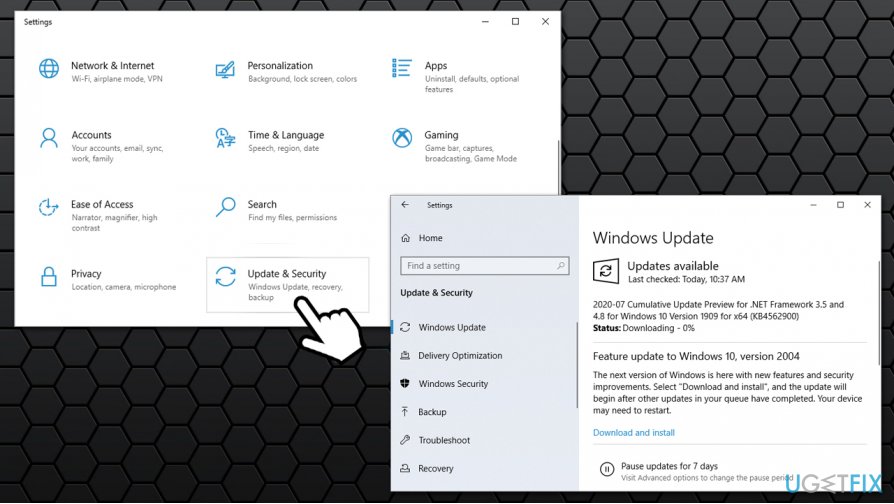
Cant change default apps on windows fix update windows - Wait till the process is complete and then reboot your PC.
Fix 2. Set default apps manually
Essentially this workaround allows you to assign particular file types with an app. Obviously, this might take some time, so if you are not willing to try this, you can skip to the next method.
- Right-click on one of the file types you would like to assign to a particular app (for example, .jpg)
- Go to Open with > Choose another app
- In the newly opened window, select an app you would like to use
- Tick the Always use this app to open .jpg files and then click OK
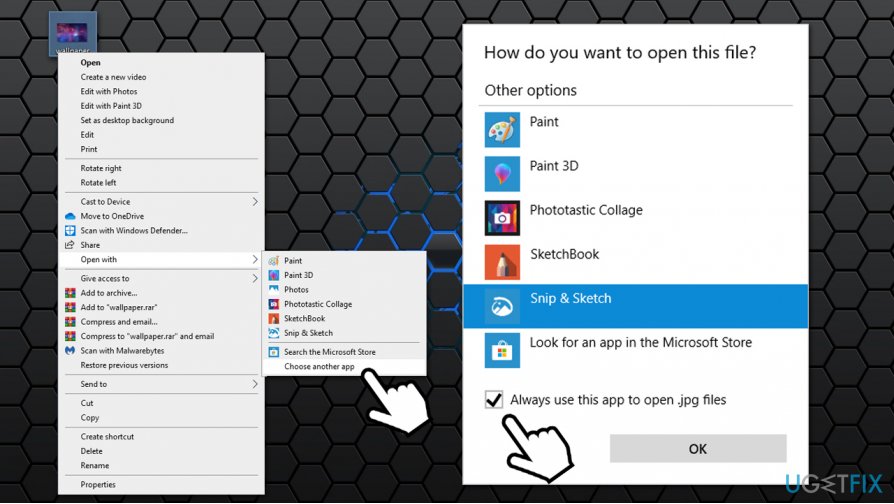
Cant change default apps on windows fix set default apps manually
Fix 3. Login with Microsoft account
Some users do not attempt to connect their Microsoft account to a particular computer but instead, use a local account. However, certain problems might arise due to this preference. Thus, try to log in with Microsoft account and see if this allows you to change default apps once again.
- Right-click on Start and select Settings
- Go to Accounts section
- On the right side of the window, pick Sign in with a Microsoft account instead
- Type in your email, phone number, or Skype name and click Next
- Enter your Microsoft password and proceed to log into your account
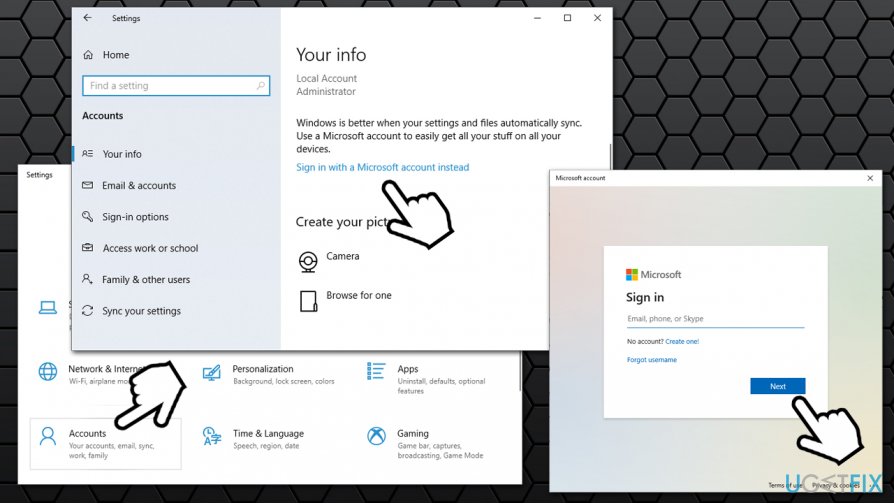
Cant change default apps on windows fix sign in with microsoft account
If you were already using Microsoft account, proceed with the next step.
Fix 4. Re-ad your Microsoft account
- Go back to Settings > Accounts as explained above
- Pick the Sign in with a local account instead
- Remove your Microsoft account and reboot your PC
- Go back to Accounts section once again and repeat the process explained in the solution No. 3.
Fix 5. Reset Windows
Finally, if you still can't set default apps after applying fixes as explained above, you can reset your Windows 10 without losing files.
- Right-click on Start and pick Settings
- Go to Updates & Security section
- Select Recovery on the left
- Under Reset this PC, click the Get started button
- Pick Keep my files and proceed with on-screen instructions to finalize the process.
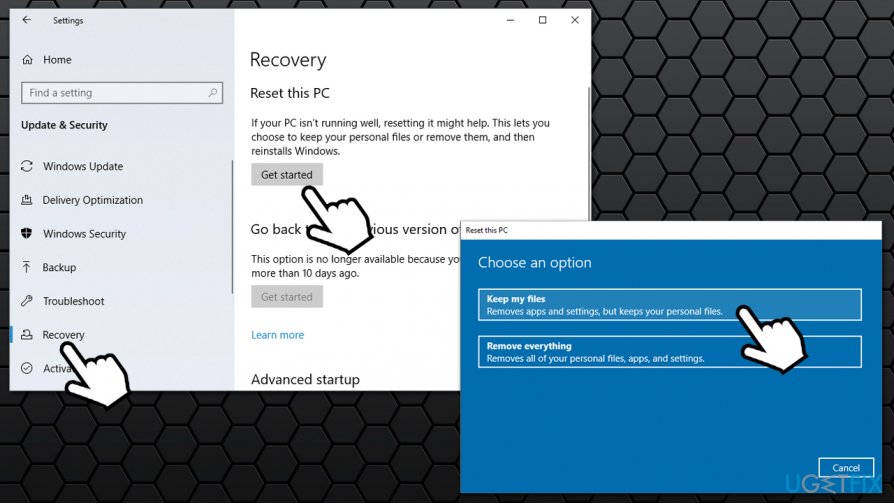
Cant change default apps on windows fix reset pc
Bottom line
To fix the issue of not being able to change default apps on Windows, check for malware infections, ensure your user account has the necessary permissions, and consider using a repair tool to resolve any underlying software issues. If none of these solutions work, further investigation into system settings or a complete system restore may be necessary.
Frequently asked questions
You may encounter issues due to corrupted system files or incorrect settings. Running the Windows Troubleshooter for apps can help resolve these problems.
If the settings are greyed out, ensure that your user account has administrative privileges and try restarting your PC. Additionally, check for any group policies that may restrict changes to default apps.
You can reset default apps by going to Settings > Apps > Default apps and clicking on 'Reset' under the 'Reset to the Microsoft recommended defaults' section.




Report an issue
What's wrong with this guide? We review every report and update or remove content.
Report received — thank you. We'll review and fix it.
You need a free account to submit a report.
Be the first to comment