How to fix
Computer is locking automatically – how to fix
on Windows
Is your Windows 10 or Windows 11 computer locking unexpectedly? Discover effective fixes to regain control, expert-tested for quick results.


What causes Computer is locking automatically – how to fix?
- Operating system issues
- Improper installations of drivers
- OS update problems
- Cyber infections
- Malware presence
- Corruption of processes
Repairs Windows system files, removes malware, and restores a clean OS state — without reinstalling.
Hello. I am frustrated. My computer is locking automatically and keeps doing that all the time. I even get a blue screen that states about locking and the PC shut down. The blue screen gives no information or error code. I have no idea why this happens. Can you help?
When the computer is locking automatically the issue can trigger other problems. If this happens randomly and you are taken from an important task and this happens to often machine can suffer from additional problems. Users[ref en-1] state that this issue appears on windows 10 devices, mainly, and has no other links to programs or actions.
Computer is locking automatically can be the issue triggered by operating system issues, improper installations of drivers, or the OS update. Malfunctions like this can trigger various problems, so checking for the latest updates might help to solve the problem.
Also, corruption of processes, sudden crashes, and poor performance overall often is caused by cyber infections and malware.[ref en-2] That is unfortunate, but if the cyber intruder is the issue, you can fix the Computer is locking automatically by running a tool from a third-party or the security program, your in-built anti-malware scan.
The computer is locking automatically also triggers the error window that scares users the most. Blue Screen of Death[ref en-3] is a critical indication of operating system issues. This automatically out of a sudden lock is annoying because it appears in the middle of various processes on the computer. However, the issue is not a bug or OS error, so it is possible to fix the problem.
It might be possible to fix Computer is locking automatically by running a quick scan to determine that malware or cyber threats, potentially unwanted programs are not the ones triggering the problem on the machine. You should run a tool like anti-malware programs or security applications, so the machine is checked thoroughly.
However, some PC issues might be the results of PUP and malware leftovers, corruption. So run a [d1] tool or a similar app and repair any needed OS parts. This tool can also be an alternate application for registry editing when fixing the Computer is locking automatically issue since it checks and repair altered pieces in various directories.

Fix #1 Modify the Windows registry to fix Computer is locking automatically
- Click Start button and type Run to open the window.
- Type in regedit snd press Enter.
- Locate key HKEY_LOCAL_MACHINE\\SOFTWARE\\Policies\\Microsoft\\Windows
- Right-click Windows and choose New, then Key.
- Set Personalization as the name.
- Right-click the new key and choose New, then DWORD (32-bit) Value.
- Set NoLockScreen as the name.
- Double-click it and open properties.
- Change the value data for 1 and choose OK to save.
Fix #2 Add system unattended sleep timeout via PowerShell
- Use Win and X keys to open PowerShell with administrative rights.
- Type the following in and hit Enter powercfg -attributes SUB_SLEEP 7bc4a2f9-d8fc-4469-b07b-33eb785aaca0 -ATTRIB_HIDE
- Restart the PC.
Fix #3 Update drivers to fix Computer is locking automatically
You can automatically update various drivers with the help of [rev id="DriverFix"]. Such tools automatically check online databases for the needed driver pieces and install compatible versions. The tool is great because it quickly improves performance and solves various issues. Damage caused by incorrect versions of drivers can lead to various error messages. The computer is locking automatically issue might be related to system data issues too. This application recommends new drivers, updates outdated ones for you without any additional risk of compatibility issues.
- Press the Win and R keys to open the Run window.
- Enter devmgmt.msc.
- Hit Enter and open Device Manager.
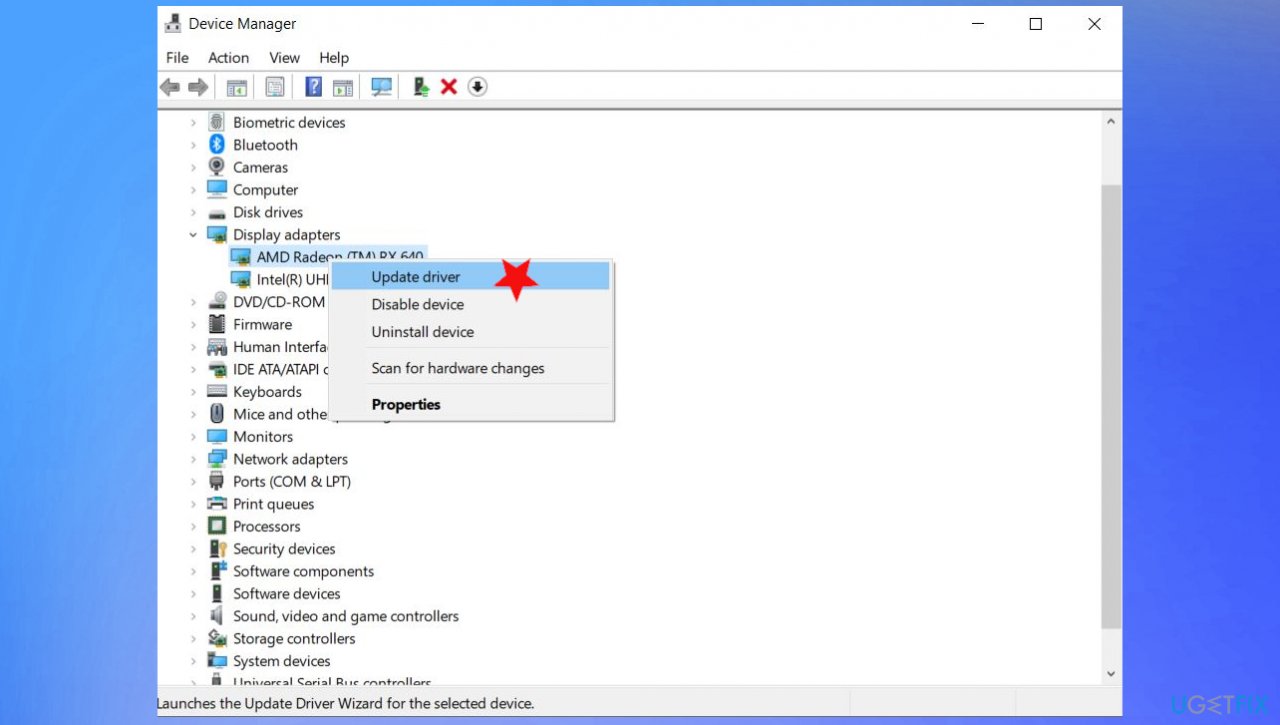
Computer automatically locks fix drivers - Double-click on the display driver, f.e, and right-click the display adapter.
- Choose to Update driver.
- Select the option to search online.
- You can update various drivers that you think may trigger problems with computer screen and lockdowns.
Fix #4 Disable Lock Screen to fix Computer is locking automatically
- Open Run box by clicking Win and R keys.
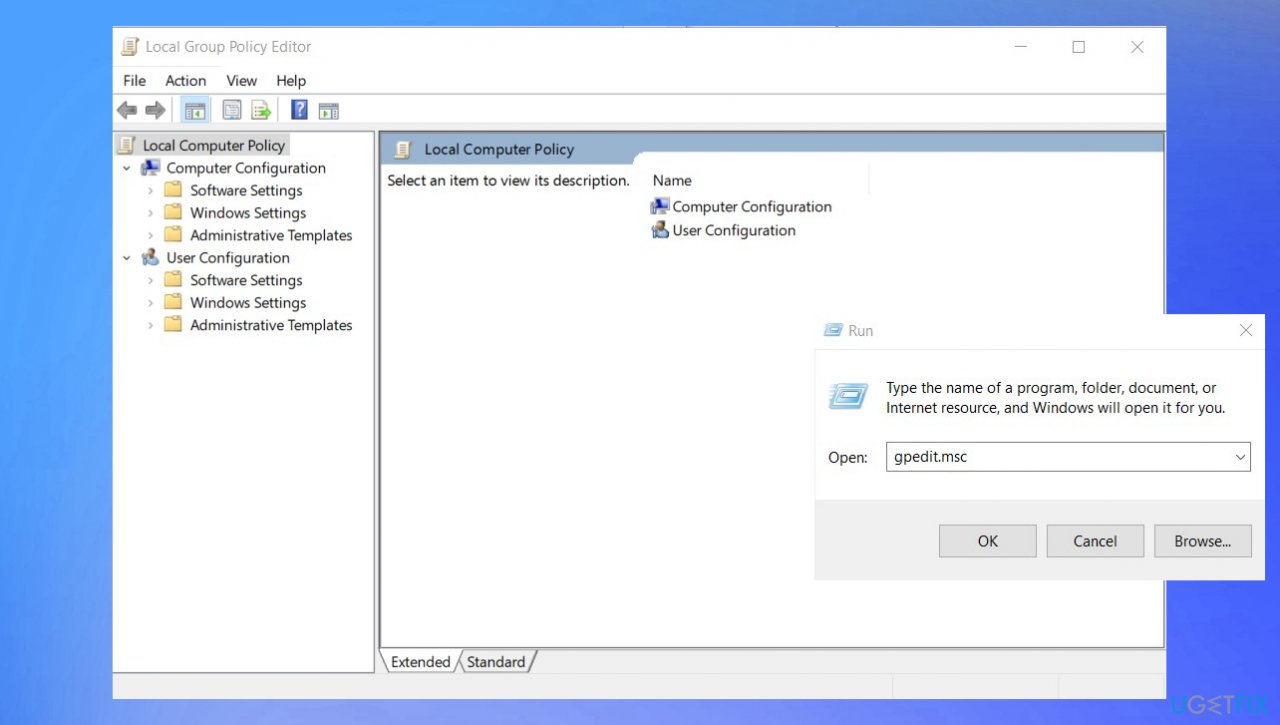
Computer automatically locks fix local group - Type gpedit.msc. Hit OK.
- Go to Administrative Templates and double-click it to expand.
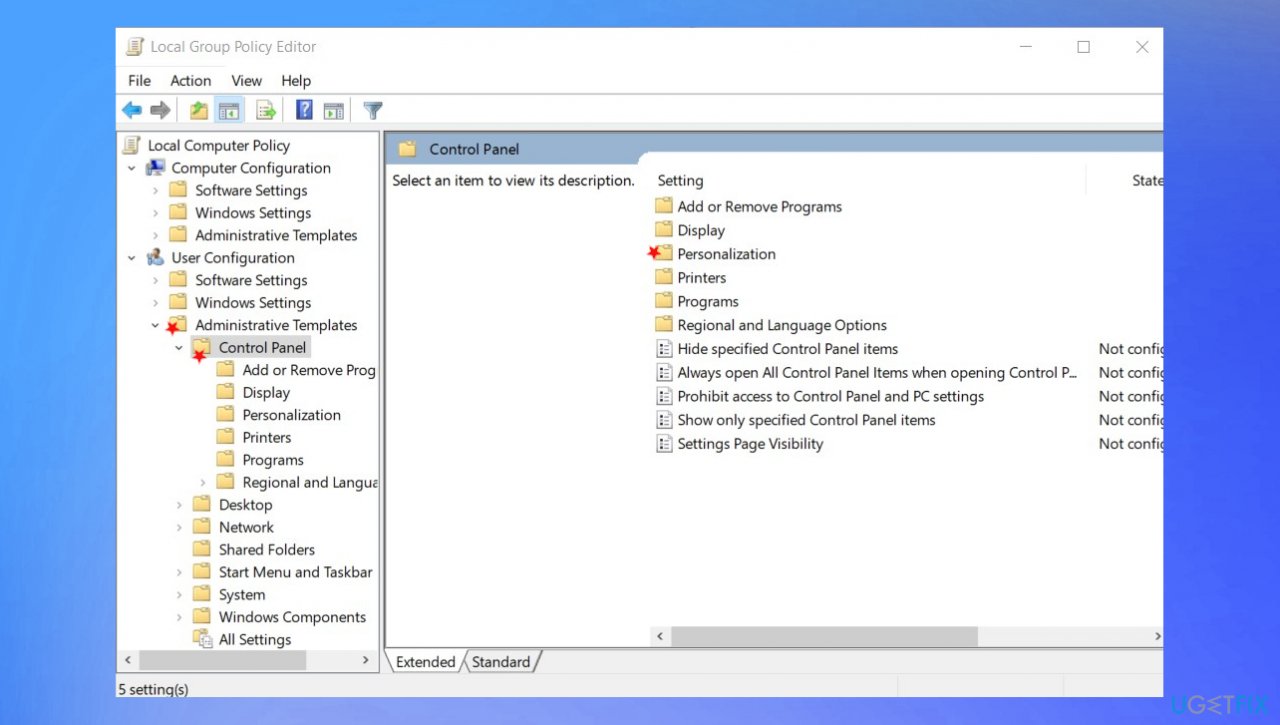
Computer automatically locks fix group settings - Double-click on Control Panel and click Personalization.
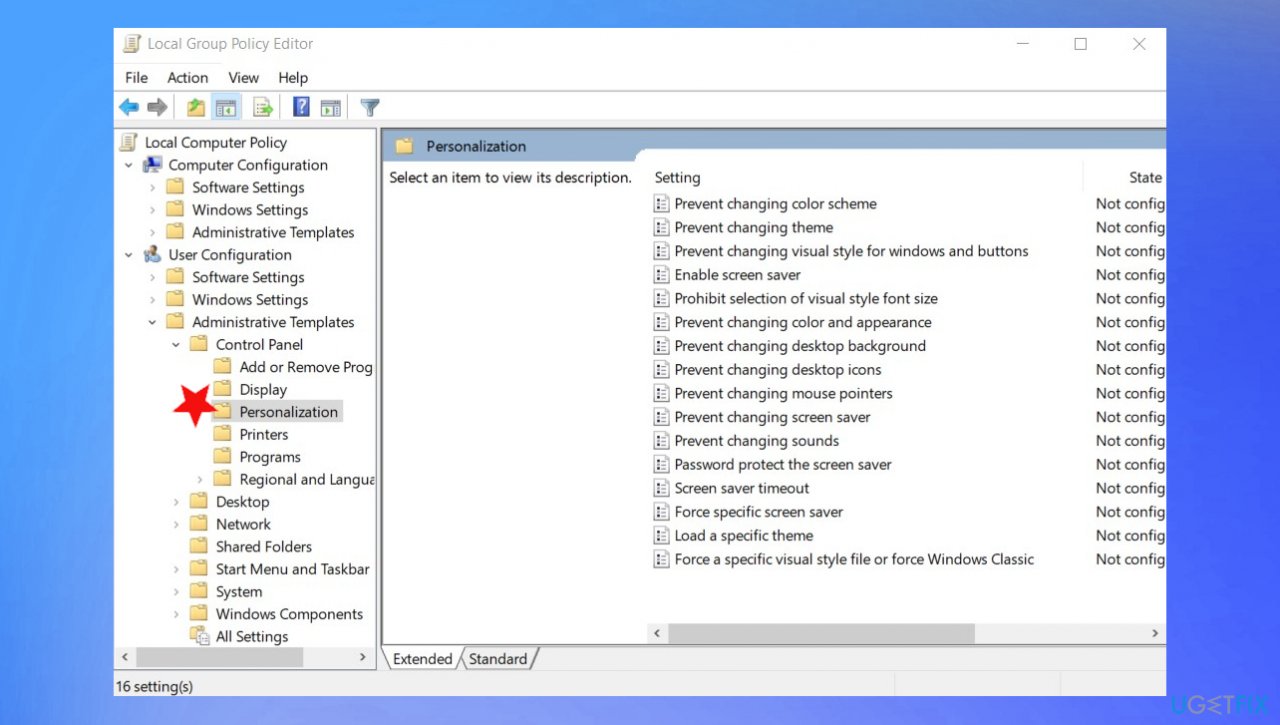
Computer automatically locks fix personalization - Go to Do not display the lock screen and double-click.
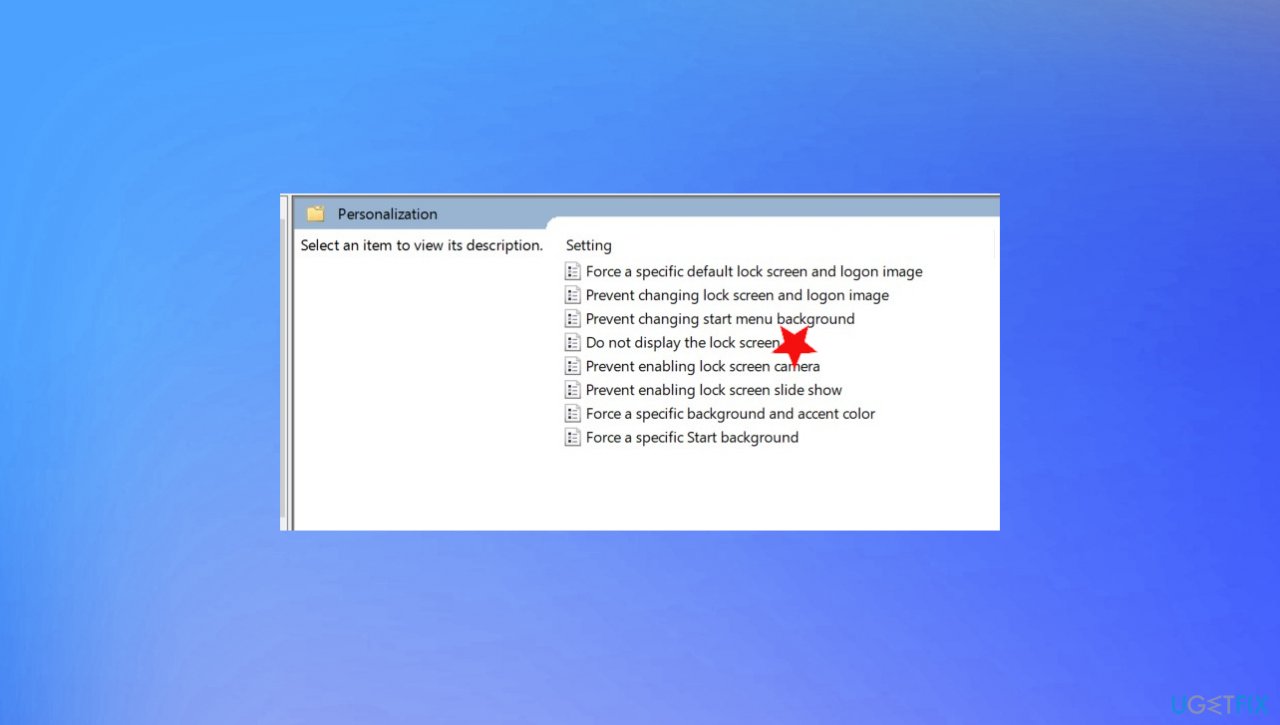
Computer automatically locks fix do not display - Choose Enabled and press Apply.
- Confirm with ok.
Bottom line
To fix the issue of the computer locking automatically, check for the latest updates, run a quick scan with anti-malware programs, and repair any corrupted OS parts. If these solutions do not resolve the problem, consider using third-party tools to address potential malware or PUP issues.
Frequently asked questions
Your computer may be set to lock automatically due to power settings or screen timeout configurations that trigger after a period of inactivity.
To change the settings, go to Settings > Accounts > Sign-in options, and adjust the 'Require sign-in' option or modify the power settings under Settings > System > Power & sleep.
If the issue persists, check for any third-party software that might enforce auto-lock policies or consider updating your graphics drivers, as outdated drivers can sometimes cause unexpected behavior.




Report an issue
What's wrong with this guide? We review every report and update or remove content.
Report received — thank you. We'll review and fix it.
You need a free account to submit a report.
Be the first to comment