How to fix
Error code 224003 – this video file cannot be played – how to fix
on Windows
Fix the error code 224003 on Windows 10 or 11 and enjoy seamless video playback again. Solutions backed by experts, with screenshots included!


What causes Error code 224003 – this video file cannot be played – how to fix?
- Connectivity issue on the machine
- Interference from other processes
- Browser settings blocking video playback
- Third-party extension or add-on problems
- Outdated video player or browser version
Repairs Windows system files, removes malware, and restores a clean OS state — without reinstalling.
Hello. I need some help. I get this Error code 224003 - this video file cannot be played on the browser. It appears when I try to watch videos. Various ones. Unfortunately, it occurs on Chrome and on Edge. What can I do?
Error code 224003 is the issue that users report encountering on various web browsers. The problem is with video playback, and the content cannot load and gets blocked. There are various issues with the system and the connection that can lead to this Google Chrome, Safari, Microsoft Edge problem that people continuously report online.[ref en-1]
The common reason behind the Error code 224003 - this video file cannot be played the connectivity issue on the machine. Another root cause of such a playback issue could be other processes that interfere with the video playing and settings inbuilt in the browser that block the video for you.
Error code 224003 - this video file cannot be played also can be the result of the third-party extension, add-on problems. Various antivirus applications and outdated versions of programs trigger video player interference. The video player itself might be out of date and display errors with the procedure because of it.[ref en-2]
Since the Error code 224003 appears on various popular web browsers, we cannot state that this is the particular application error or the problem with the operating system[ref en-3] itself. The problem appears on JW Player that is a popular embedded Media Player. It is used by at least tens of millions of platforms. Diagnosing the root cause of the problem is important here.
We can try to list possible issues that lead to Error code 224003 - this video file cannot be played and solutions for various scenarios. You might want to turn off any add-ons or applications in the browser or check the connection, updates for the web browser. These are quick fixes, so you may save time and solve the problem before employing any of the fixes from the list.
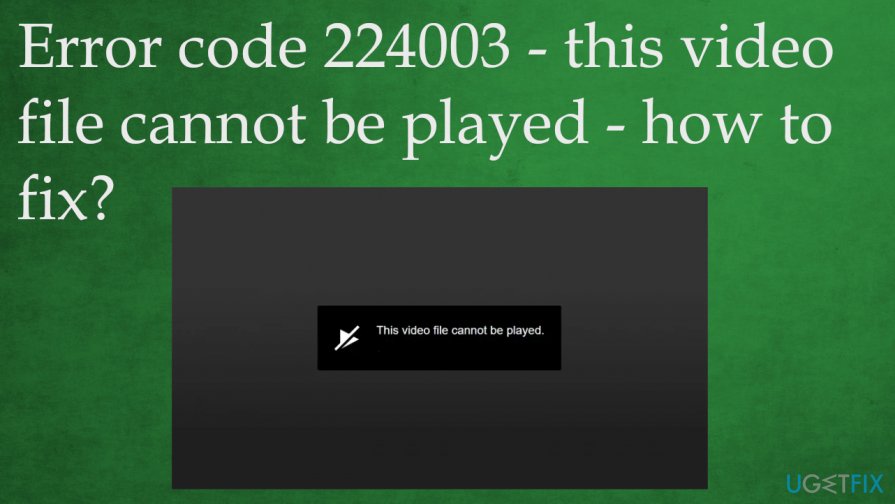
How to fix 224003 - this video file cannot be played error
Error code 224003 is the browser issue, so you may need to reset some settings on Google Chrome, Mozilla Firefox, Microsoft Edge, Internet Explorer, or any other browsers. Make sure to have the programs up-to-date to avoid any issues with the machine. Incompatibility and old applications are common reasons why people encounter various problems on their devices. If you need some more difficult pieces to update - rely on [rev id="DriverFix"] that is the tool for driver updates.
As for the solutions and tips on how to fix Error code 224003 - this video file cannot be played, sites these days can get blocked, as well as various videos. However, when you encounter these errors continuously, you need to tackle the root cause of the issue. You may have other symptoms besides the error, so when system performance is annoying you - run [d1] to fix additional OS problems yourself. You can find a few solutions for particular browsers and more general fixes.
Disable add-ons and extensions
Chrome
- Click the dots at the top to open the menu.
- Choose More Tools.
- Then Extensions.
- On the list, find apps that may be triggering issues and toggle the button to disable them or remove them entirely.
Safari
- Open the browser and go to the menu.
- Find Safari Extensions and uninstall any from the browser.
Firefox
- Open menu.
- Find Add-ons section.
- Look for applications, antivirus programs.
- Disable them.
Edge
- Go to the menu by clicking on those dots.
- Click Extensions and find the ones you want to disable.
Disable Hardware Acceleration to fix Error code 224003 - this video file cannot be played
- Go to Advanced Settings on the Chrome browser.
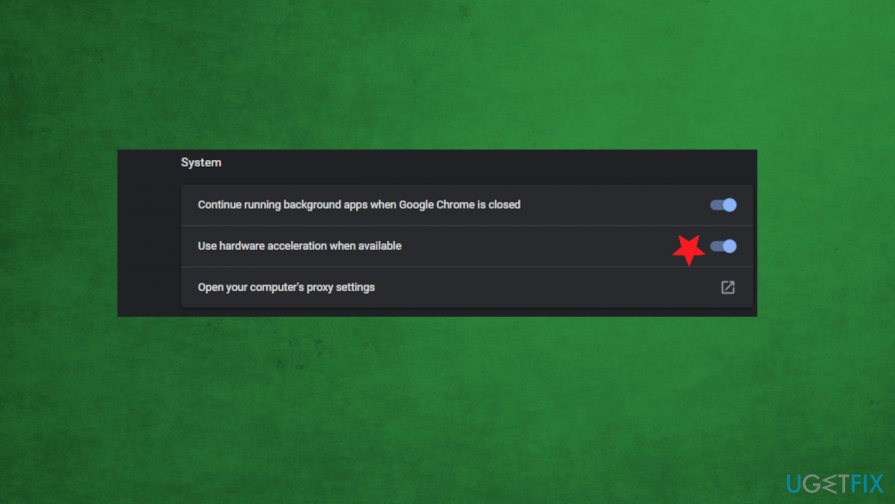
Error code 224003 fix hardware acceleration settings chrome - Under System find Use Hardware Acceleration option.
- Turn the feature off.
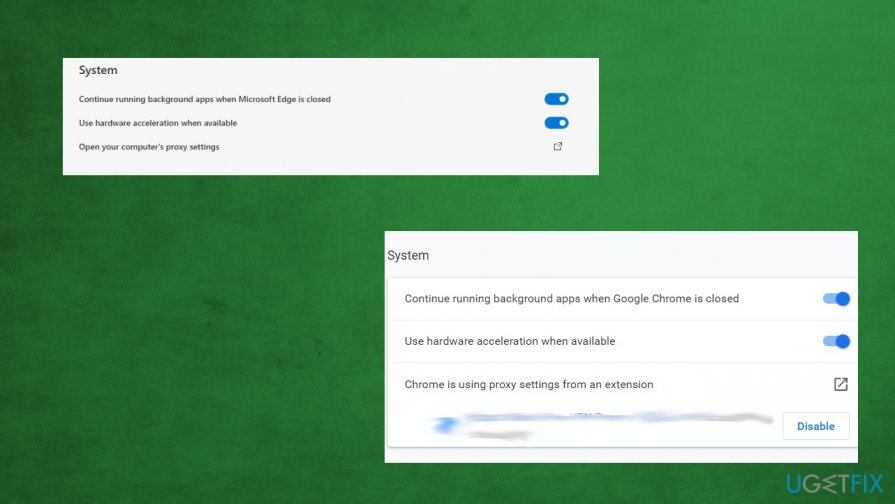
Error code 224003 fix hardware acceleration settings
You can find the same feature on Firefox under the Performance section and under System options on Edge.
Turn the System Firewall off
- Go to Settings.
- Find Update & Security.
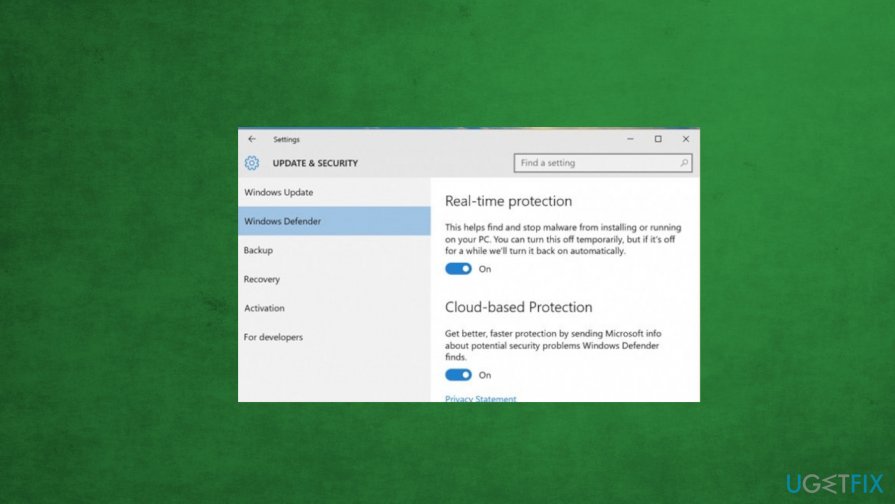
Error code 224003 fix firewall off - Go to Windows Defender and switch the real-time protection scanning.
Clear browsing data and cached files to fix Error code 224003
- Go to Chrome settings and find Privacy and security section.
- Choose the arrow and find Clear browsing data.
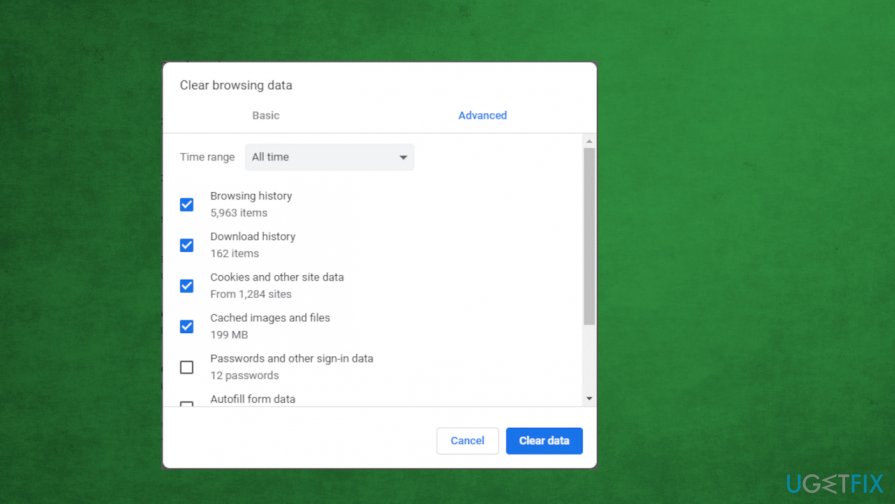
Error code 224003 fix cache clearing - Click on Advanced and tick wanted data.
- Clear data.
Disable Proxy server
- Open Run dialog box and type inetpl.cpl, hit OK.
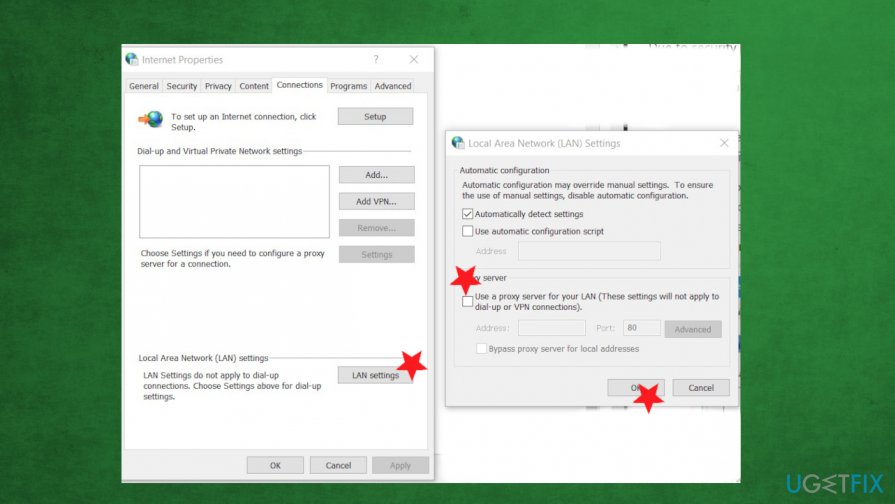
Error code 224003 fix lan settings - In the Internet properties, choose the Connection tab and click LAN settings.
- Uncheck Use a proxy server for your LAN.
- Hit OK.
Bottom line
To fix Error code 224003, you can try turning off any browser add-ons, checking your internet connection, and ensuring your web browser is up to date. If these quick fixes do not resolve the issue, consider exploring more in-depth solutions or seeking further assistance.
Frequently asked questions
Error code 224003 indicates that the video file cannot be played due to various reasons such as codec issues, corrupted files, or network problems.
You can fix this error by checking your internet connection, clearing your browser cache, or updating your video player to the latest version.
Yes, certain video formats may not be supported or require specific codecs, which can lead to error code 224003 on Windows 10.




Report an issue
What's wrong with this guide? We review every report and update or remove content.
Report received — thank you. We'll review and fix it.
You need a free account to submit a report.
Be the first to comment