How to fix
100% Disk Usage after Windows Updates fail to install
on Windows
Resolve 100% disk usage issues after Windows 10 or 11 updates fail to install. Follow our expert-tested tips for quick fixes and smooth performance.

![[Fix] 100% Disk Usage after Windows Updates fail to install](https://ugetfix.com/wp-content/uploads/articles/askit/100-disk-usage-after-windows-updates-fail-to-install_en-768x432.jpg)
What causes [Fix] 100% Disk Usage after Windows Updates fail to install?
- Windows updates can fail to install properly
- Installation process may get stuck at a certain percentage
- Extreme disk usage can occur after failed updates
- High disk usage can slow down the device and prevent normal operation
- Corrupted files or registry issues may contribute to the problem
Repairs Windows system files, removes malware, and restores a clean OS state — without reinstalling.
Hello. I downloaded a Windows feature update and tried to install it but it is stuck at 20% and the Task Manager shows 100% Disk Usage. How can I fix this issue?
Windows is the first choice for many people when choosing operating systems. It has a user-friendly interface, customization abilities, and built-in troubleshooters that can fix common system problems. One of the most problematic things, however, is Windows updates. Even though they are meant to fix bugs, glitches and provide security patches,[ref en-1] sometimes they become the culprits of system malfunctions.
Some users are experiencing their disk usage[ref en-2] being at 100% after attempting to install the latest feature updates. People affected by the issue managed to download the updates but failed to install them because the process got stuck at about 20%. Even though the installation process failed, the extreme disk usage did not disappear which can prevent people from using their operating system normally.
100% disk usage can cause the device to become extremely slow, buggy, and unable to execute any simple tasks, like opening a browser, and other software. There are a couple of methods you can try to fix 100% disk usage after Windows Updates fail to install but first, we strongly recommend scanning your machine with a maintenance tool like [d1]. It can fix most system errors, BSODs,[ref en-3] corrupted files, and registry issues. Otherwise, proceed with the steps provided below carefully.
Method 1. Uninstall the latest Windows Updates
- While holding the Left Shift key, click the Power icon and then Restart
- This will bring you to Windows Recovery Environment
- Select Troubleshoot > Advanced Options > Uninstall Updates
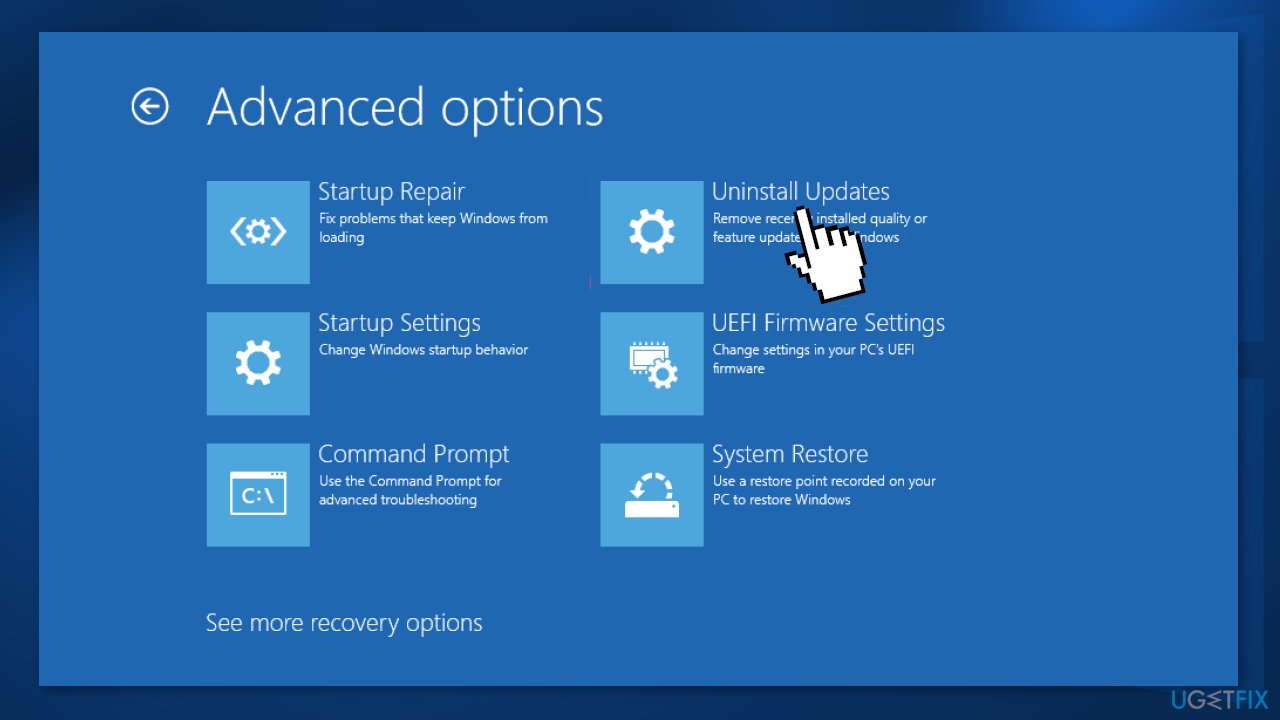
- Uninstall the latest quality or feature updates
Method 2. Use System Restore
- While holding the Left Shift key, click the Power icon and Restart
- Select Troubleshoot > Advanced Options > System Restore
- Choose the restore point at an earlier date when the issue was not present
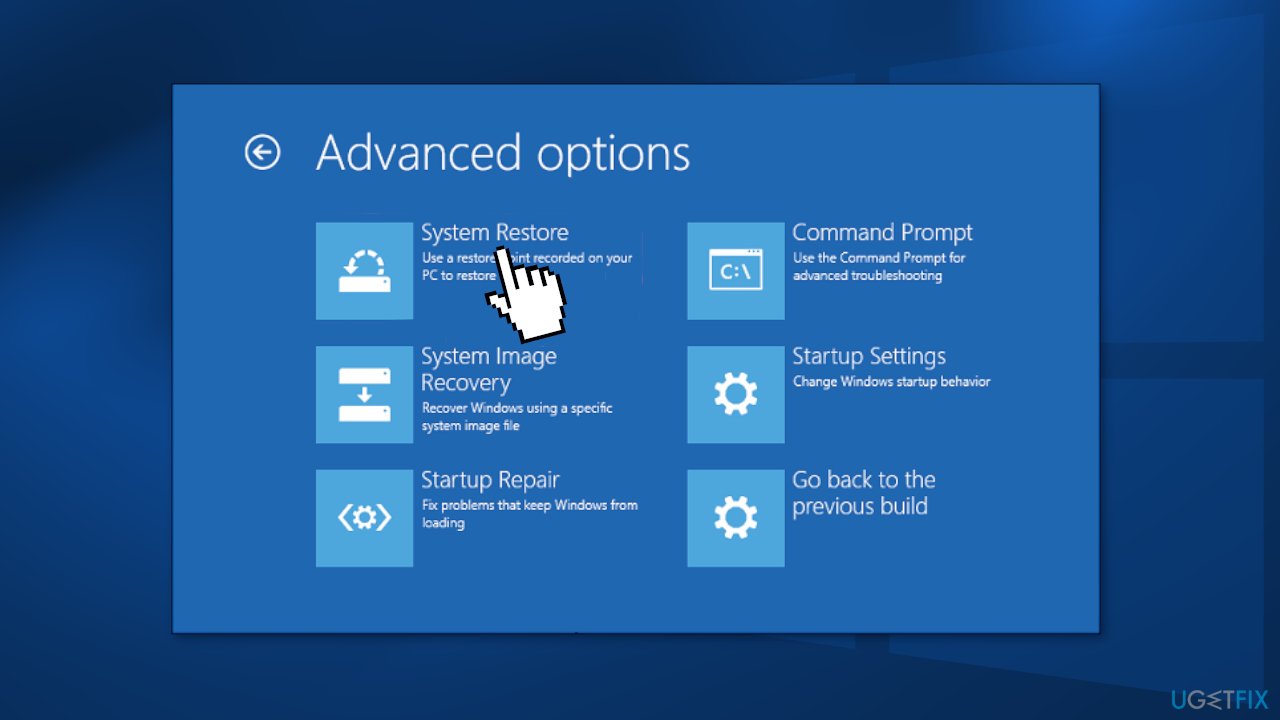
- Click Next and Finish
Method 3. Reset Windows Update Components
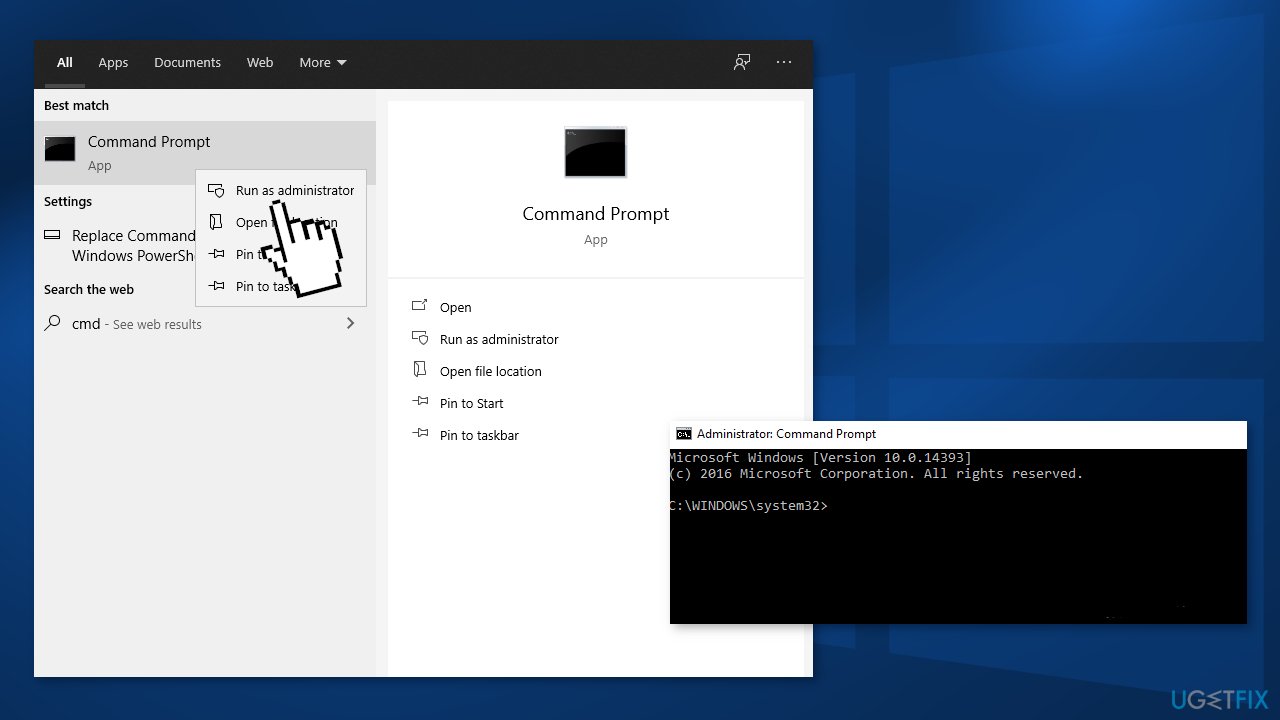
- Open Command Prompt as administrator again
- Copy and paste the following commands, pressing Enter after each:
net stop bits
net stop wuauserv
net stop appidsvc
net stop cryptsvc
Del “%ALLUSERSPROFILE%\\Application Data\\Microsoft\\Network\\Downloader\\*.*”
rmdir %systemroot%\\SoftwareDistribution /S /Q
rmdir %systemroot%\\system32\\catroot2 /S /Q
regsvr32.exe /s atl.dll
regsvr32.exe /s urlmon.dll
regsvr32.exe /s mshtml.dll
netsh winsock reset
netsh winsock reset proxy
net start bits
net start wuauserv
net start appidsvc
net start cryptsvc
- Restart your PC
Method 4. Reset Windows
- Right-click on the Start button and pick Settings
- Go to Update & Security and access the Recovery panel
- Click on Reset This PC section
- Choose between Keep my files, and Remove everything
- If you choose the Remove everything option, we suggest saving needed information and files on a USB, CD, removable hard drive, or another data storage device beforehand
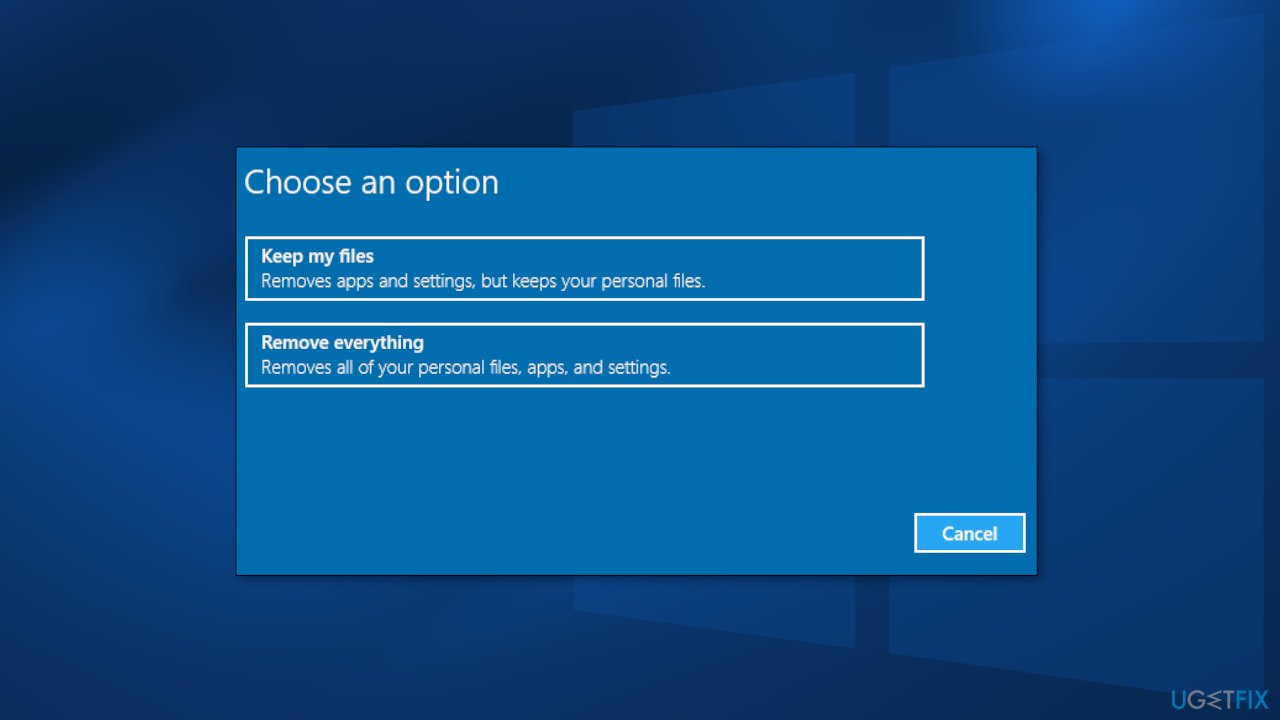
- Click on the Reset button and follow the on-screen instructions
Method 5. Upgrade Windows using the Media Creation Tool
Those who tried most of the solutions available online and nothing has worked said that they could fix the error after using Media Creation Tool's upgrade feature. Before you begin, make sure that all the external devices (printers, phones, cameras, etc.) are disconnected from your system. Also, backup your files just in case something goes wrong.
- Download the installer from the official Microsoft website
- Launch it, agree to terms and click Next
- From the available options, select Upgrade this PC now and click Next
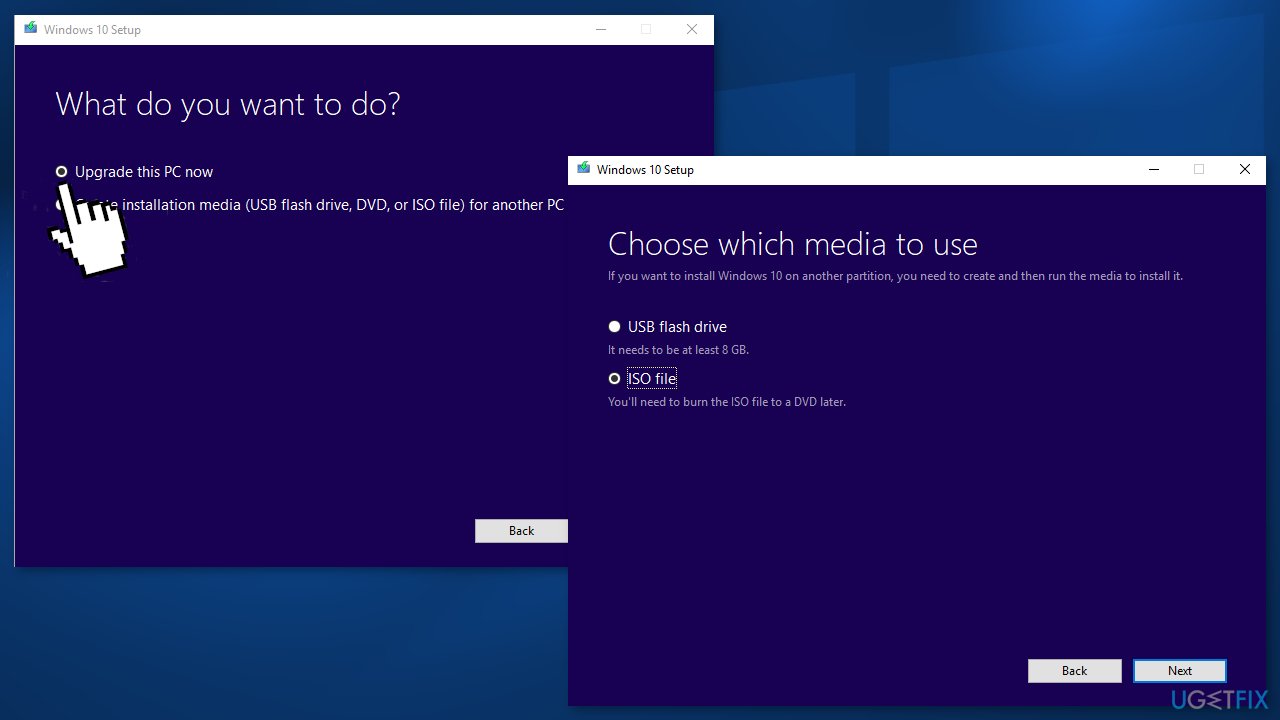
- The necessary files should be then downloaded
- Once the installation is complete, reboot your system
Bottom line
To fix the 100% disk usage issue after failed Windows updates, you can try uninstalling the latest updates, using System Restore to revert to a previous state, or resetting Windows Update components. If none of these methods work, consider scanning your machine with a maintenance tool to address potential system errors.
Frequently asked questions
First, try restarting your computer to see if it resolves the issue. If not, consider running the Windows Troubleshooter for updates and checking for any pending updates that may be causing the problem.
You can reduce disk usage by disabling unnecessary startup programs and background processes through the Task Manager. Additionally, clearing temporary files and optimizing your disk can help improve performance.
Yes, you can reset Windows Update components by running a series of commands in the Command Prompt as an administrator, which may help lower disk usage after failed updates.




Report an issue
What's wrong with this guide? We review every report and update or remove content.
Report received — thank you. We'll review and fix it.
You need a free account to submit a report.
Be the first to comment