
Fix: Allow the computer to turn off this device to save power grayed out in Device Manager

Prefer to fix it yourself? The manual steps follow.
- 6methods
- 5 to 20 minutes
- Easy to medium
Applies to Windows 11 and Windows 10 PCs and laptops: keyboards, mice, USB Root Hubs, network adapters and other devices with a Power Management tab
6 methods in this guide
When I went to Device Manager and opened the Power Management tab, I noticed that "Allow computer to turn off this device to save power" was grayed out. I can't change the setting. Please advise on what to do.
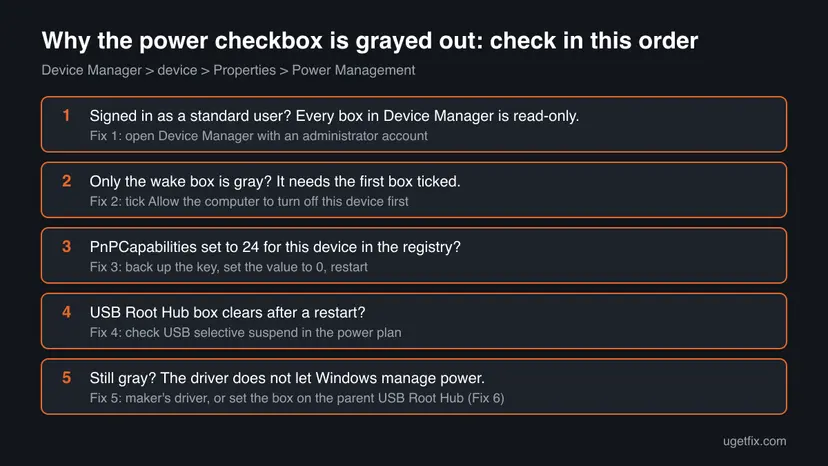
When the checkbox Allow the computer to turn off this device to save power is gray, Windows is either running Device Manager without administrator rights or has been told not to manage this device's power. Check your account first, then the PnPCapabilities value in the registry, then the driver.
Most often Device Manager was opened from a standard account, so every setting is read-only. Sign in with an administrator account and try again (Fix 1). If only Allow this device to wake the computer is gray, tick the first box (Fix 2). If the first box itself stays gray, the device's PnPCapabilities registry value is probably 24; set it to 0 and restart (Fix 3).
| Error | No message. The checkbox Allow the computer to turn off this device to save power is gray and cannot be ticked or unticked. |
|---|---|
| Where it appears | Device Manager > a device > Properties > Power Management, most often on keyboards, mice, USB Root Hubs and network adapters. |
| Main cause | No administrator rights, or the device's PnPCapabilities registry value is set to 24, which turns the option gray. |
| Fastest fix | Open Device Manager from an administrator account (Fix 1). Then check PnPCapabilities under the device's driver key (Fix 3). |
| Also written as | "allow computer to turn off this device", "allow the computer to turn off this device to save power greyed out", "allow windows to turn off this device", "power off this device". |
| Wake box gray too | Allow this device to wake the computer stays gray until the first box is ticked, or when the device cannot wake the PC at all. |
| Affects | Windows 11 and Windows 10. The setting and the registry value are the same on both. |
| Vendor status | Microsoft documents the checkbox on the USB Root Hub and ties it to the USB selective suspend plan setting. We found no Microsoft page that lists every reason it turns gray. |
| Time to fix | 2 minutes for Fixes 1 and 2, 10 minutes for the registry fix, up to 20 minutes for a driver install. |
Facts checked on 15 October 2026. Steps written for Windows 11 25H2 and 26H2 and Windows 10 22H2, Device Manager, Registry Editor and Power Options.
What the grayed out Allow the computer to turn off this device to save power option means
Windows can cut power to a device while it is idle. In Device Manager, the Power Management tab of many devices holds that choice: Allow the computer to turn off this device to save power. Ticked, Windows may power the device down. Unticked, the device stays on. Most readers want to untick it because a keyboard, mouse or Wi-Fi adapter drops out, as in a Microsoft Q&A thread where a keyboard kept turning off during games.
A gray checkbox means Windows shows you the setting but will not let you change it. That is different from a missing tab. When there is no Power Management tab at all, the driver does not offer the setting, and our guide to the missing Power Management tab covers that case.
- The three checkboxes: Allow the computer to turn off this device to save power, Allow this device to wake the computer and, on network adapters, Only allow a magic packet to wake the computer.
- How they depend on each other: the second box is only available when the first is ticked, and the third only when the second is ticked.
- Same setting, other names: people search for "allow windows to turn off this device", "power off this device" and "turn off this device". They all mean this checkbox.
Why the power option is grayed out: causes from most to least common
Most often the cause is the account: a standard user can open Device Manager and read every tab, but cannot change anything. Less often a registry value set by a tweak tool, a script or an admin locks the box. Rarely the driver itself does not let Windows manage the device's power.
| How often | Cause | Sign | Fix |
|---|---|---|---|
| Most often | Device Manager runs without administrator rights. | Every button and box in every device is gray, not just this one. | Fix 1 |
| Often | You are looking at the wake box, not the first box. | The first box is unticked and Allow this device to wake the computer is gray. | Fix 2 |
| Less often | PnPCapabilities set to 24 for this device. | Only this device is gray; others can be changed. | Fix 3 |
| Less often | USB selective suspend is disabled in the power plan. | The box on a USB Root Hub clears itself after a restart. | Fix 4 |
| Rarely | A generic or old driver does not support power management. | The box turned gray after a driver or Windows update. | Fix 5 |
| Rarely | The device's own box is locked but its parent hub is not. | A USB keyboard or mouse is gray, the USB Root Hub above it is not. | Fix 6 |
In a Microsoft Q&A answer, a moderator explains that when PnPCapabilities under the device's driver key is set to 24, the option gets grayed out, and that setting it to 0 gives the choice back. The value lives under HKEY_LOCAL_MACHINE\SYSTEM\CurrentControlSet\Control\Class\ followed by the device's driver key.
How to fix the grayed out Allow the computer to turn off this device to save power option
Work from Fix 1 down. Fixes 1 and 2 take a minute and solve the most cases. Fix 3 changes the registry for one device, with a backup first. Fixes 4 to 6 deal with USB hubs and drivers. Paths are the same on Windows 11 and Windows 10 22H2, although Windows 10 left support on 14 October 2025.
| What you see | Start with |
|---|---|
| Every setting of every device is gray, including Update driver. | Fix 1. |
| Only Allow this device to wake the computer is gray. | Fix 2. |
| Only one device is gray, others can be changed. | Fix 3. |
| The box on a USB Root Hub clears after each restart. | Fix 4. |
| The box went gray after a driver or Windows update. | Fix 5. |
| A USB keyboard or mouse stays gray after Fixes 1 to 5. | Fix 6. |
Fix 1. Open Device Manager with an administrator account
2 minutesNo riskEvery reader, first. Above all on work or school PCs and on family PCs where your account is a standard user.
Device Manager shows every tab to any user, but changes to a device need administrator rights. Without them, the power checkbox and every other setting is gray, which looks exactly like this problem.

- Press Win + I, open Accounts > Your info and read the line under your name. It says Administrator or Standard user. On Windows 10 the same page is Accounts > Your info.
- If it says Standard user, sign out and sign in with an administrator account, or ask the person who manages the PC.
- Right-click Start and select Device Manager.
- Expand the device's category, right-click the device and select Properties.
- Open Power Management and tick or untick Allow the computer to turn off this device to save power. Select OK.
On a managed PC, an admin may have set this value on purpose, for example to keep network adapters awake for remote access. Ask your IT team before you change it. They can also tell you if a policy sets it again after every restart.
It worked if: The checkbox turns black and you can change it. Update driver and Disable device are no longer gray either.
If not: If you are an administrator and only this one box is gray, check whether it is the wake box in Fix 2.
Fix 2. Tick the first box to unlock Allow this device to wake the computer
1 minuteNo riskAllow this device to wake the computer or Only allow a magic packet to wake the computer is gray, and the box above it is unticked.
The three power checkboxes are a chain. Windows can only let a device wake the PC while it is allowed to manage the device's power, so the wake box stays gray until the first box is ticked.
- In Device Manager, right-click the keyboard, mouse or network adapter and select Properties.
- Open Power Management.
- Tick Allow the computer to turn off this device to save power. The box below it becomes available.
- Tick Allow this device to wake the computer. On a network adapter, tick Only allow a magic packet to wake the computer if you want Wake on LAN only.
- Select OK and test by putting the PC to sleep and pressing a key.
Then the device cannot wake the PC on this hardware. On many desktops, USB wake must also be on in the BIOS or UEFI settings, often called USB wake support or wake on LAN. The name differs by maker; check the PC's manual.
It worked if: The wake box can be ticked and the device wakes the PC from sleep.
If not: If the first box itself is gray, look at the registry value in Fix 3.
Fix 3. Set the PnPCapabilities registry value to 0
10 minutesRead the warningYou are an administrator and the box is gray on one device while other devices can be changed.
Value 24 in PnPCapabilities under the device's driver key grays the option out, according to the Microsoft Q&A answer on this problem. Tweak tools and admin scripts set it to keep adapters awake. Setting it to 0 hands the choice back to Device Manager.
A wrong change under Control\Class can stop a device from working. Export the key you are about to change before you edit it, so you can import it back: Back up the registry before editing it. Change only PnPCapabilities and nothing else in the key.
- In Device Manager, right-click the device and select Properties.
- Open the Details tab and select Driver key in the Property list.
- Right-click the value, for example
{4d36e96b-e325-11ce-bfc1-08002be10318}\0005, and select Copy. - Press Win + R, type
regeditand press Enter. Select Yes in the User Account Control prompt. - Paste
HKEY_LOCAL_MACHINE\SYSTEM\CurrentControlSet\Control\Class\into the address bar, then paste the driver key after it and press Enter. - Select File > Export and save the key as a backup.
- Double-click PnPCapabilities. If its value is 24 (hexadecimal 18), change it to 0 and select OK.
- Restart the PC and open the device's Power Management tab again.
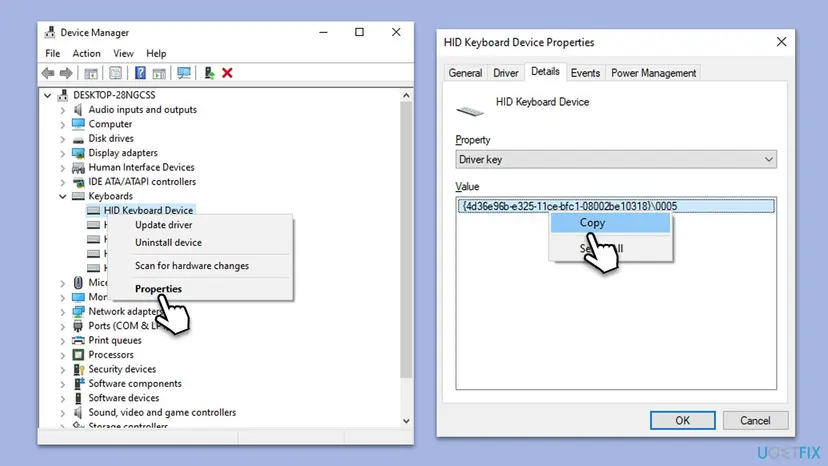

If the value does not exist, the registry is not what grays the box; do not create it, go to Fix 4. On some network adapters it holds other numbers, such as 272 or 280 reported by one user in Microsoft Q&A. We could not confirm what each of those numbers means, so leave them alone.
It worked if: After the restart the checkbox is black and can be changed. The PnPCapabilities value reads 0.
If not: If the value goes back to 24 after a restart, a policy or tool on the PC sets it: ask the admin or remove the tweak tool. If the box is still gray, go to Fix 4.
Fix 4. Turn USB selective suspend back on for USB Root Hubs
3 minutesLow riskThe checkbox on a USB Root Hub will not stay ticked, or clears itself after a restart.
Microsoft ties the checkbox on the USB Root Hub to the power plan's USB selective suspend setting. Its support article says the box does not remain selected after a restart, and the workaround is to set selective suspend to Enabled.
- Press Win + R, type
control powercfg.cpland press Enter. Power Options opens. - Next to the plan that is selected, select Change plan settings.
- Select Change advanced power settings.
- Expand USB settings, then USB selective suspend setting.
- Set On battery and Plugged in to Enabled and select OK.
- Open Device Manager, expand Universal Serial Bus controllers, right-click USB Root Hub, select Properties and set the box on Power Management.
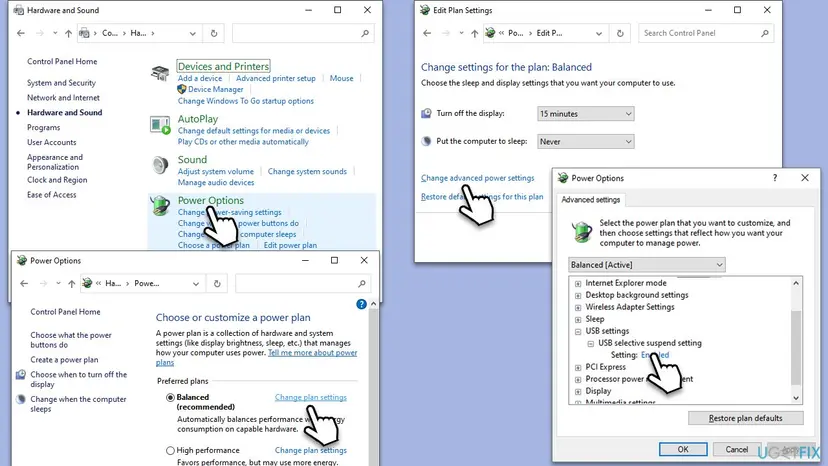
If USB devices drop out and you want Windows to stop powering them down, set USB selective suspend setting to Disabled instead. That keeps every USB device powered and costs a little battery on a laptop. Some laptops hide USB settings; then this fix does not apply.
It worked if: The box on the USB Root Hub keeps the state you set after a restart.
If not: If a device other than a hub is still gray, its driver is the next suspect: Fix 5.
Fix 5. Install the device maker's driver or roll the driver back
15 minutesLow riskThe box turned gray after a Windows or driver update, or the device uses a generic Microsoft driver.
The driver tells Windows which power states the device supports. A generic or changed driver can report that Windows may not manage the device's power, and then the box is gray or missing. The maker's driver for your model can bring it back.
- In Device Manager, right-click the device, select Properties and open Driver.
- Note Driver Provider and Driver Version. If the problem began after an update and Roll Back Driver is available, select it.
- Otherwise download the driver for your exact PC or device model from the maker's support page.
- Install it, restart the PC and open the Power Management tab again.
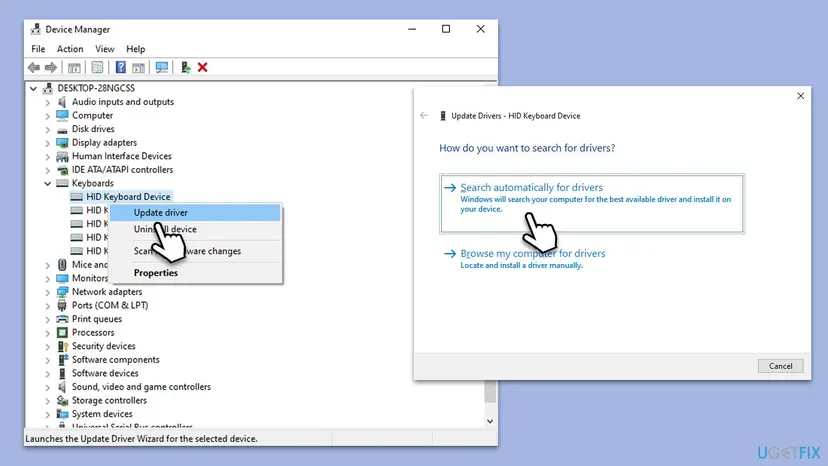
Update, roll back and reinstall a driver step by step, with Windows 11 screenshots: Update, roll back or reinstall a driver. Get drivers from Windows Update or the maker, not from driver updater programs.
It worked if: The device shows the maker's name under Driver Provider, and the power checkbox can be changed.
If not: If no driver unlocks it, set the power choice one level up, on the hub, in Fix 6.
Fix 6. Set the checkbox on the device's parent USB Root Hub
5 minutesLow riskA USB keyboard, mouse, receiver or adapter stays gray after Fixes 1 to 5, and you only want it to stop dropping out.
A USB device gets its power through a USB Root Hub. When Windows may not turn off the hub, it cannot turn off the devices on it either, so unticking the box on the hub has the same effect as the gray box would have.
- In Device Manager, select the gray device, then select View > Devices by connection. The tree jumps to the device.
- Note the USB Root Hub directly above it.
- Right-click that hub, select Properties and open Power Management.
- Untick Allow the computer to turn off this device to save power and select OK.
- Select View > Devices by type to return to the usual list and restart the PC.
The hub also powers other devices on the same ports. They will stay on too, which costs a little battery on a laptop. Ticking the box on the hub again restores the old behaviour.
It worked if: The device no longer drops out after idle time, even though its own box is still gray.
If not: Read the section below to see whether more work is worth it.
If the option is still grayed out
A gray box on its own is not a fault. Many devices, such as some touchpads, card readers and system devices, never let Windows manage their power. If the device works well and does not drop out, you can leave it. Keep going only when it causes a real problem.
| What you see | What it means | Next step |
|---|---|---|
PnPCapabilities returns to 24 after each restart. | A policy, script or tweak tool sets it. | Ask the PC's admin, or remove the tool that set it. |
| Every device is gray, and you are an administrator. | Device Manager may run in a restricted remote session. | Open it on the PC itself, signed in locally. |
| The device drops out even with the hub box unticked. | Not a power setting. | Try another USB port, cable or receiver; update the device's firmware. |
| The device shows a yellow warning sign. | Driver or hardware error. | Read the code on its General tab and contact the maker. |
- Where Windows logs it: the device's Properties > Events tab lists driver installs and device starts with dates. A new driver entry on the day the box turned gray points to Fix 5.
- What to send to support: your PC model, Windows version (Win + R,
winver), the device name, its Driver Version and thePnPCapabilitiesvalue you found.
How to keep the power setting under your control
- Avoid tweak tools that "optimize" power settings for all devices at once. They often write
PnPCapabilitiesvalues that lock the box. - Write down the values you change in Fix 3, and keep the exported
.regfile until you are sure all devices work. - After a major Windows upgrade or a new driver, check the Power Management tab of the devices you changed. A reinstalled device can return to its default.
- Use a day-to-day standard account if you like, but do driver and power changes from an administrator account.
Frequently asked questions
What does Allow the computer to turn off this device to save power do?
It lets Windows cut power to the device while it is idle and turn it back on when needed. Ticked, a laptop saves a little battery. Unticked, the device always stays powered, which helps when a keyboard, mouse or Wi-Fi adapter drops out or reacts late after idle time. The setting is per device, in Device Manager > Properties > Power Management.
Should I turn off Allow the computer to turn off this device to save power?
Only if the device causes trouble. If a mouse, keyboard, controller or network adapter drops out, lags after idle time or loses the connection after sleep, untick the box on that device. If everything works, leave the default. Unticking it on a laptop costs a little battery, because the device never powers down. On a desktop the difference is small.
Why is Allow this device to wake the computer grayed out?
Because the box above it is unticked. Allow this device to wake the computer only becomes available when Allow the computer to turn off this device to save power is ticked (Fix 2). If both are ticked and it is still gray, the device or the PC cannot wake from this device. Check the BIOS or UEFI for a USB wake or wake on LAN option.
Where is Allow the computer to turn off this device in Device Manager?
Right-click Start, select Device Manager, expand the category of the device, right-click it and select Properties. Open the Power Management tab. The checkbox is the first line there. If the tab is missing, the driver does not offer it. Then look on the USB Root Hub the device is connected to, as in Fix 6.
Is there a GPO for Allow the computer to turn off this device to save power?
We found no Group Policy setting for this checkbox. Admins usually set the PnPCapabilities value for the device's driver key through a script or a registry item in Group Policy Preferences. The driver key differs between devices and PCs, so one fixed path does not fit all. In Microsoft Q&A, one user reports that value 24 had no effect on a Windows 10 network adapter.
How do I uncheck the box on many network adapters at once?
There is no single switch in Windows for that. The usual way is a script that finds each adapter's driver key and sets PnPCapabilities, run with administrator rights and tested on one PC first. Because adapters and their values differ, read the current value before changing it, and keep a backup of each key as in Fix 3.
Will setting PnPCapabilities to 0 break anything?
Setting it to 0 only gives the power choice back to Device Manager, so Windows may manage the device's power again. It does not remove the device or its driver. The risk is in editing the wrong key or value, which is why Fix 3 exports the key first. If anything goes wrong, double-click the exported .reg file to restore it and restart.
Can you show me pictures of the steps?
Yes. The picture under each fix shows the screen of that step: Device Manager's Details tab with the driver key, the PnPCapabilities value in Registry Editor, the USB selective suspend setting and Update driver. Some are taken on Windows 10; the screens look the same on Windows 11. This answers the short requests for pictures people type, such as "gambar", "hình ảnh" or "show me pics".
Does this work on Windows 10?
Yes. Device Manager, the Power Management tab, PnPCapabilities and USB selective suspend work the same way on Windows 10 22H2 and Windows 11. Only the Settings path to your account type is laid out differently. Windows 10 left support on 14 October 2025, so new drivers for it may no longer come from some makers.
Sources
- Microsoft Learn: The Allow the computer to turn off this device to save power option doesn't remain selected (KB 930312) (learn.microsoft.com)
- Microsoft Q&A: Keyboard properties, can't check Allow the computer to turn off this device to save power (learn.microsoft.com)
- Microsoft Q&A: Power management, Allow the computer to turn off this device to save power on network adapters (learn.microsoft.com)
Did this fix work?
One click, no account. It tells the next reader which guides are worth their time.
Questions and experiences: Fix: Allow the computer to turn off this device to save power grayed out in Device Manager
Still broken, or found a fix we did not cover? Ask here: members and our editors answer. Reading is open; writing needs a free account.
…