How to fix
Apple pencil connected but not working
on Windows
Is your Apple Pencil connected but not working on Windows 10 or 11? Discover expert-tested solutions to get it back in action, fixed in minutes!

![[Fix] Apple pencil connected but not working](https://ugetfix.com/wp-content/uploads/articles/askit/fix-apple-pencil-connected-but-not-working_en-768x432.jpg)
What causes [Fix] Apple pencil connected but not working?
- Apple Pencil may need to be charged
- Apple Pencil could be faulty
- iPad settings may be configured incorrectly
- iPad may be missing important updates
- Second-generation Apple Pencil may have wear and tear issues
Repairs Windows system files, removes malware, and restores a clean OS state — without reinstalling.
Hello. I used my Apple pencil for a couple of weeks until it suddenly stopped working. It shows that the Apple pencil is connected but not working. I have no idea what could have happened as it is fully charged and still nothing. Hope someone knows how to fix it.
Apple Pencil was introduced together with the iPad Pro in 2015.[ref en-1] It is focused on digital artists and note-takers. The Apple Pencil is meant to work the same as a traditional pencil, but instead of writing on paper, users can write on the iPad's display. You can even put your hand right on the iPad while you write, which, for a long time, was not possible with other digital pencils.
This handy tool can not only be beneficial for drawers. The Apple Pencil can also be a replacement for a finger when navigating through iOS.[ref en-2] You can do things like open apps, scroll, and more. Of course, as with everything else, some complaints come from users who are struggling with the new gadgets.
Lately, people are having issues with their Apple Pencil being connected but not working. This could be happening because of many reasons. For example, the second-generation Apple Pencil was revealed to have some wear and tear issues. The rounded tip seems to get easily stained. Other reasons include the possibility that the pencil needs to be charged or is faulty.
Besides the issues with the pencil itself, the cause could be hiding in the iPad that users are trying to use it with. It may be configured wrong, or there could be something wrong with the settings. We cannot exclude the possibility that the iPad could be missing important updates,[ref en-2] so you should rule those out.
One good way to make sure that it is not your iPad's fault is by using a maintenance tool like [d1]. It can fix serious system errors, and optimize the machine. By using it you could potentially avoid a lengthy manual troubleshooting process so it is highly recommended. If you are ready to proceed with our suggested solutions, you can look below for instructions.
Solution 1. Charge it
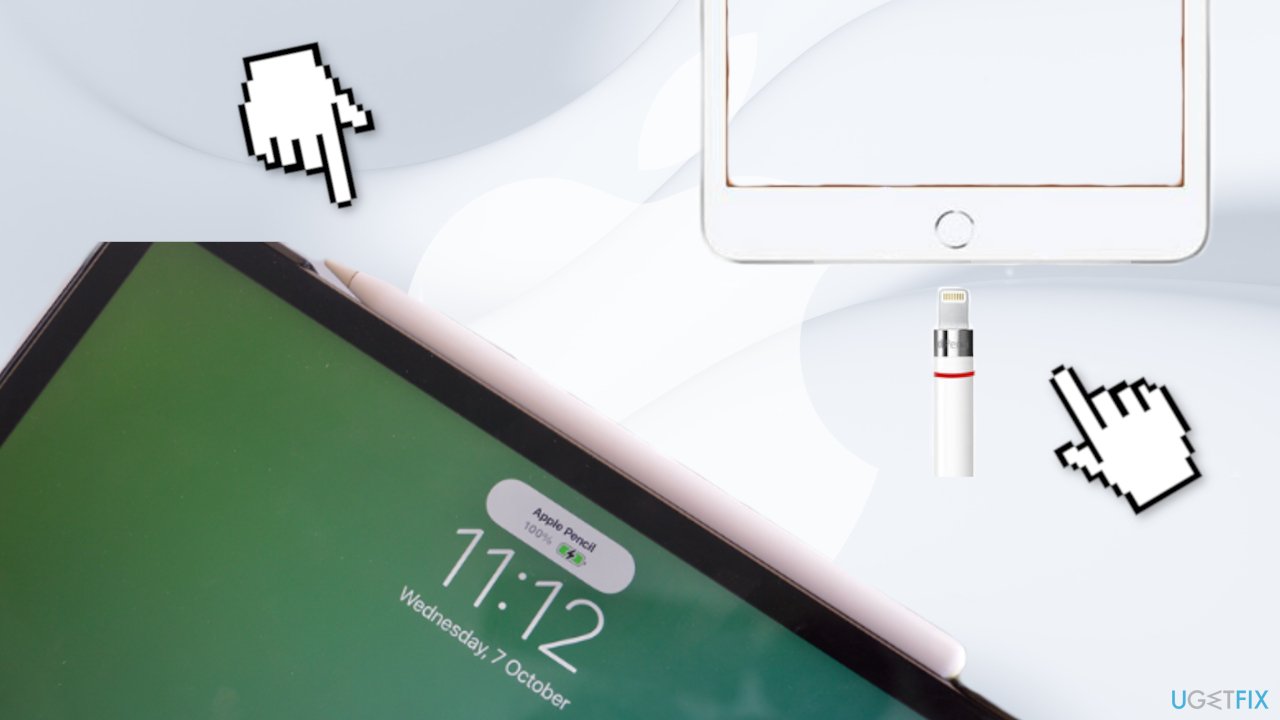
First-generation with iPad Pro:
- Remove the cap from your Apple Pencil. (If you're worried about losing the cap during the charging process, you can magnetically attach it to the iPad next to the Home button.)
- Insert your Apple Pencil's Lightning connector into your iPad or iPad Pro's Lightning port
With Lightning adapter:
- Remove the cap from the back of your Apple Pencil
- Insert your Apple Pencil's Lightning connector into the Lightning adapter
- Plug the Lightning adapter into your Lightning cable
Second-generation:
- Place the Apple Pencil on the wide side of the iPad Pro with the magnetic strip
Solution 2. Tighten the tip

The Apple Pencil's tip comes off. It can wear down over time, and you will need to swap in the replacement that comes in the box. It also means it can come loose and you will need to tighten it to get it working again. Just make sure it's on and tightened properly.
Solution 3. Reboot
- You can either turn your iPad Pro on and off as normal or perform a hard reset if you think you need it
Solution 4. Re-pair
- Launch the Settings app from your iPad's Home screen
- Tap Bluetooth
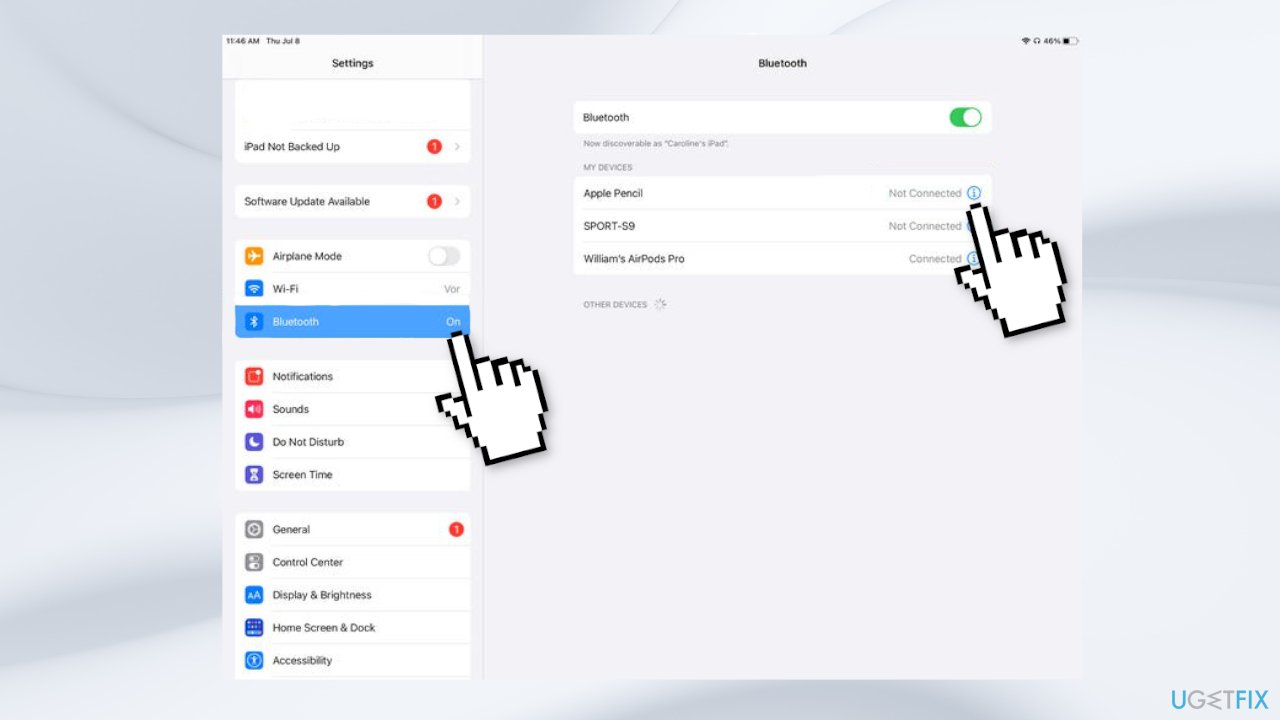
- Tap the Info button to the right of Apple Pencil under My Devices
- Tap on Forget
- To re-pair the first-generation Apple Pencil, simply plug it back into the Lightning port on your iPad or iPad Pro
- To re-pair the second-generation Apple Pencil, simply place it on the magnetic charging strip of your iPad Pro again
Solution 5. Check Pencil and iPad compatibility
The first-generation Apple Pencil works with:
- iPad Pro 12.9-inch (first and second generations, released in 2015 and 2017)
- iPad Pro 9.7-inch (released in 2016)
- iPad Pro 10.5-inch (released in 2017)
- iPad (sixth generation, released in 2018)
- iPad (seventh generation, released in 2019)
- iPad Air (third generation, released in 2019)
- iPad mini (fifth generation, released in 2019)
- iPad (eighth generation, released in 2020)
The second-generation Apple Pencil works with:
- iPad Pro 11-inch (first, second, and third generations; released in 2018, 2020, and 2021)
- iPad Pro 12.9-inch (third, fourth, and fifth generations; released in 2018, 2020, and 2021)
- iPad Air (fourth generation, released in 2020)
Bottom line
To address the issue of the Apple Pencil being connected but not working, consider checking the charge level, ensuring the iPad settings are correct, and updating the iPad if necessary. If these steps do not resolve the problem, using a maintenance tool could help fix system errors.
Frequently asked questions
If your Apple Pencil is connected but not responding on Windows 10, ensure that the Bluetooth connection is stable and that your device supports Apple Pencil functionality. You may also need to restart your Bluetooth or check for any pending Windows updates.
To troubleshoot this issue on Windows 11, try disconnecting and reconnecting the Apple Pencil in the Bluetooth settings and ensure that the device drivers are up to date. Additionally, check if any other apps are interfering with the input.
If your Apple Pencil won't respond after connecting, try resetting the Bluetooth on your Windows device and re-pairing the Pencil. Also, verify that your Windows version supports the features you are trying to use.




Report an issue
What's wrong with this guide? We review every report and update or remove content.
Report received — thank you. We'll review and fix it.
You need a free account to submit a report.
Be the first to comment