How to fix
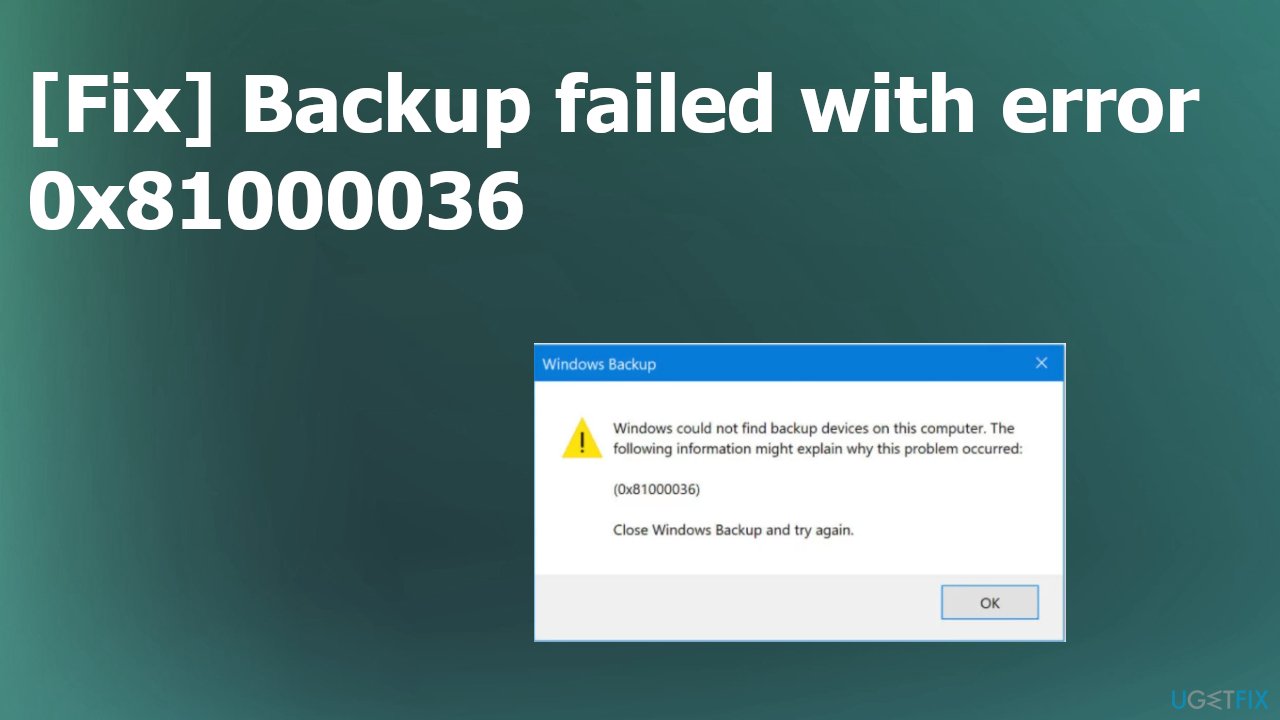
Backup failed with error 0x81000036
on Windows
Resolve the 0x81000036 backup error on Windows 10 or 11 quickly and easily. Expert-tested solutions for seamless backups await you. Fixed in minutes!

![[Fix] Backup failed with error 0x81000036](https://ugetfix.com/wp-content/uploads/articles/askit/backup-failed-with-error-0x81000036-fix_en-768x432.jpg)
What causes [Fix] Backup failed with error 0x81000036?
- Operating system cannot find the backup device
- Collision of Windows Backup and Hyper-V services
- Incorrect configurations of system settings
- Damaged or irregular Windows Registry entries
- Installation or uninstallation of software causing system malfunction
Repairs Windows system files, removes malware, and restores a clean OS state — without reinstalling.
Hello. I get the error while the backup should happen. Backup failed with error 0x81000036 for me. In Windows 10. I have the latest updates. Everything seems okay and working fine. It is crucial for me to have these backups because I work constantly on various projects. Help!
Backup failure or the 0x81000036 error can occur when the operating system cannot find the backup device on the computer. This issue is triggered during the attempt to create the system image backup in most cases. The failure also occurs during simple backup attempts, according to user complaints online.[ref en-1]
Sometimes the collision of the Windows Backup and Hyper-V, Windows Sandbox services creates issues. This is commonly the major reason causing the error. Other causes can be incorrect configurations of the system settings or damaged, affected, irregular Windows Registry entries.[ref en-2]
If you encountered the backup failed error with the code 0x81000036, you could solve the issue by checking all the particular configurations and settings, solving compatibility and the file damage problems. Those altered files can be a real threat and create major issues with the system. It is common for cyber threats to leave leftovers and alter these settings registry entries and files in system folders.
Other possible reasons why the issue with failed backup occurs could be the installation or uninstallation software, data that lead to system malfunction. Such problems can get fixed with particular applications designed to repair files and preferences like that. This backup failed error 0x81000036 issue can be solved by fixing the data issue and repair those affected files using [d1], for example.
Other options also exist, so follow the guide. But the full system scan is a great first step since altered or damaged files can create problems with many functions and can interfere with the solutions and further performance of the computer. It is crucial to solving this problem since data backups can be very needed and helpful in different instances like recovery after the infection.[ref en-3]
1. Disable Windows Sandbox
- Launch Control Panel.
- Go to Programs.
- Then choose Programs and Features.
- Or hit Win + R to open Run box and type appwiz.cpl there.

Backup failed with error 0x81000036 appwiz - If you do not find this option on your system, type Programs and Features in the search.
- Click on the Turn Windows features on or off option on the left pane.
- In the Window Features window, de-select the checkbox near the Windows Sandbox feature.
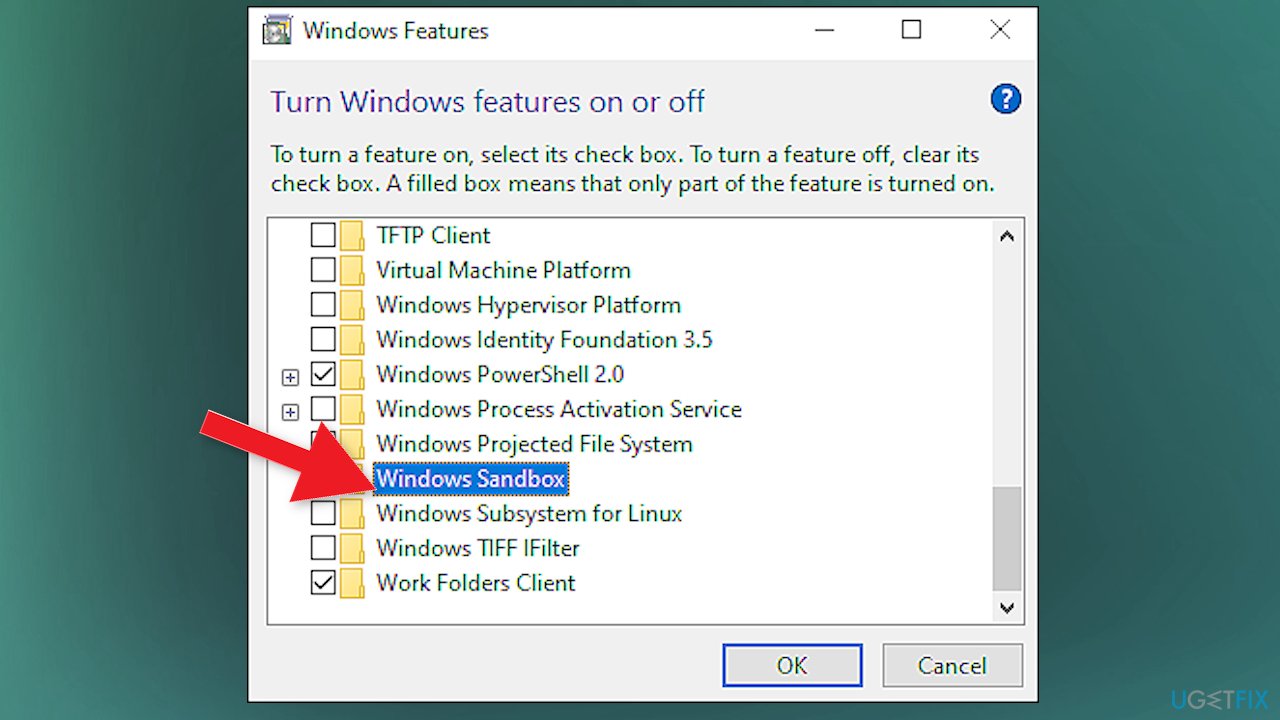
Backup failed with error 0x81000036 sandbox - Click Yes in the User Account Prompt (UAC) to proceed.
- Click OK to save the changes.
2. Disable Hyper-V
- Launch Control Panel and go to Programs.
- Programs and Features again.
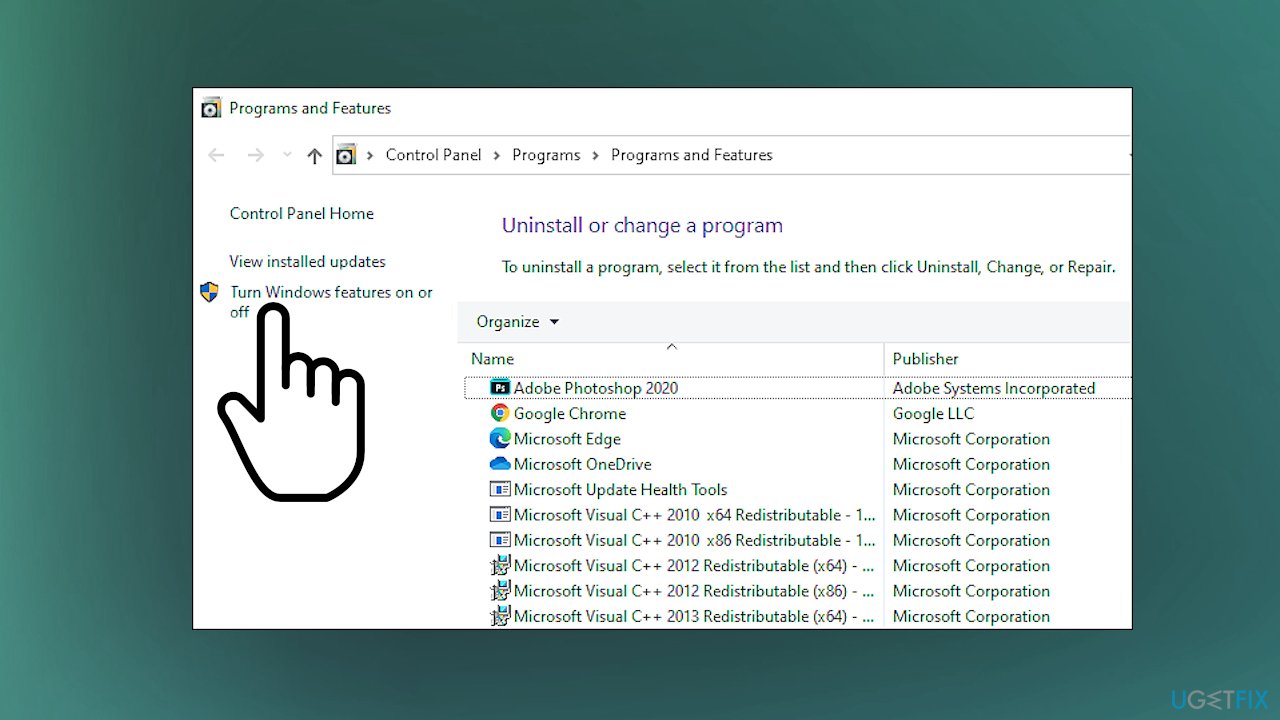
Backup failed with error 0x81000036 turn off on - Click on the Turn Windows features on and or off on the left side.
- De-select the checkbox related to the Hyper-V feature.
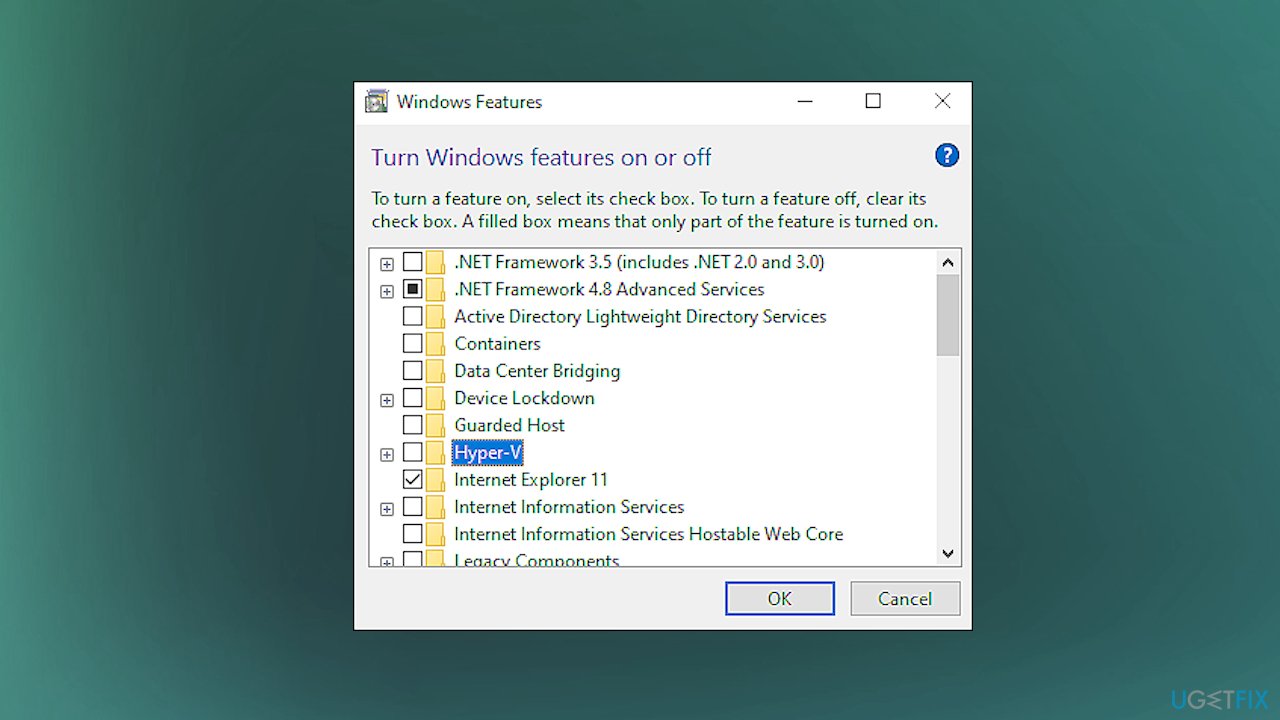
Backup failed with error 0x81000036 hyper v - Click OK to save the settings.
- Reboot your computer.
3. Run the file check
- Search for CMD in the bottom bar and choose the Admin Command Prompt.
- Run commands:
chkdsk /r
sfc /scannow - Hit enter after each one and wait for the process to end.
- Reboot the machine after all checks.
4. Enable the File History service
- Click on the search bar, type service.msc.
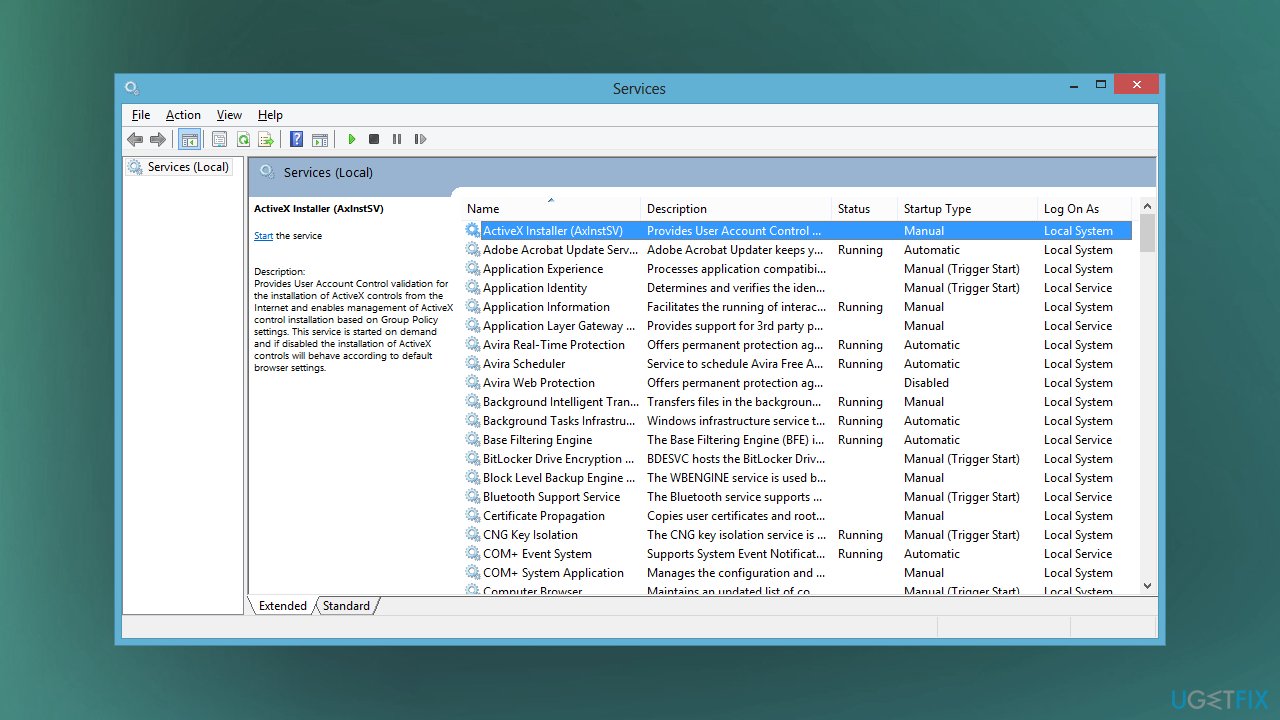
Backup failed with error 0x81000036 services - Then click Services to open it.
- Find File History Service.
- Double-click on the service and go to Properties.
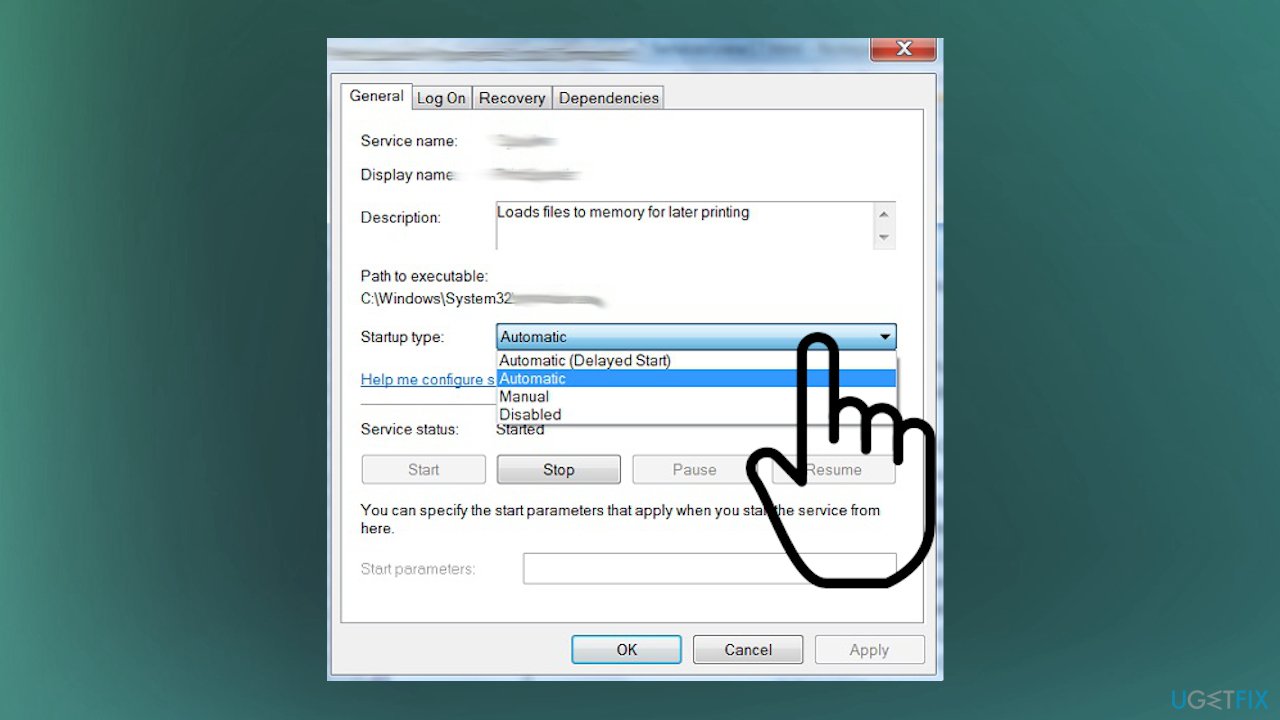
Backup failed with error 0x81000036 services properties - There change the Startup type to Automatic.
Bottom line
To resolve the backup failed error 0x81000036, you should check configurations and settings, disable Windows Sandbox, and perform a full system scan to repair affected files. If these solutions do not work, consider using applications designed to repair files and preferences.
Frequently asked questions
Error 0x81000036 typically indicates a problem with the backup process, often related to insufficient disk space or issues with the Volume Shadow Copy Service.
To resolve this error, ensure that there is enough free space on the backup drive and try restarting the Volume Shadow Copy Service from the Services app.
If the error persists, consider running the System File Checker (SFC) scan to repair corrupted system files, and check for any pending Windows updates that might resolve the issue.




Report an issue
What's wrong with this guide? We review every report and update or remove content.
Report received — thank you. We'll review and fix it.
You need a free account to submit a report.
Be the first to comment