How to fix
Can’t access any folder outside of “Desktop”
on Windows
Struggling to access folders outside the "Desktop" in Windows 10 or 11? Discover quick fixes to regain full access. Expert-tested solutions await!

![[Fix] Can’t access any folder outside of “Desktop” in Windows](https://ugetfix.com/wp-content/uploads/articles/askit/fix-cant-access-any-folder-outside-of-desktop-in-windows_en-768x432.jpg)
What causes [Fix] Can’t access any folder outside of “Desktop” in Windows?
- Insufficient permissions to access folders
- User logged in with a limited account
- Administrator restricted access to certain folders
- System infected with malware or malicious software
- Hardware or software failure preventing access
Repairs Windows system files, removes malware, and restores a clean OS state — without reinstalling.
Hello. I encountered a weird problem. Windows does not let me access any folders outside of Desktop. Is there any way to fix this?
If a user is unable to access any folders outside of their Desktop in Windows, it could be due to a number of different issues. One possible explanation is that the user does not have sufficient permissions to access the other folders on their system. This could be due to the user being logged in with a limited account, or because the administrator has restricted access to certain folders.
Another reason could be that the user's system is infected with malware or other malicious software that is preventing them from accessing other folders. In this case, the user may need to scan their system for viruses and other threats and remove them before they will be able to access the other folders on their system.
It is also possible that the user's system is experiencing a hardware or software failure that is preventing them from accessing the other folders. In this case, the user may need to troubleshoot the issue or seek the assistance of a technical expert to resolve the problem.
Overall, if a user is unable to access any folders outside of their Desktop in Windows, it is important to identify the cause of the issue and take the appropriate steps to resolve it. This may involve checking the user's permissions, scanning for malware, or troubleshooting hardware or software issues.
In this guide, you will find 6 steps that should help you fix an issue where users can't access any folder outside of "Desktop" in Windows. You can also use a maintenance tool like [d1] if you want to avoid a lengthy process. It can fix most system errors, BSODs,[ref en-1] corrupted files, and registry[ref en-2] issues. It can also clear cookies and cache[ref en-3] which should optimize the performance. Otherwise, follow the step-by-step instructions below.
Solution 1. Repair Corrupted System Files
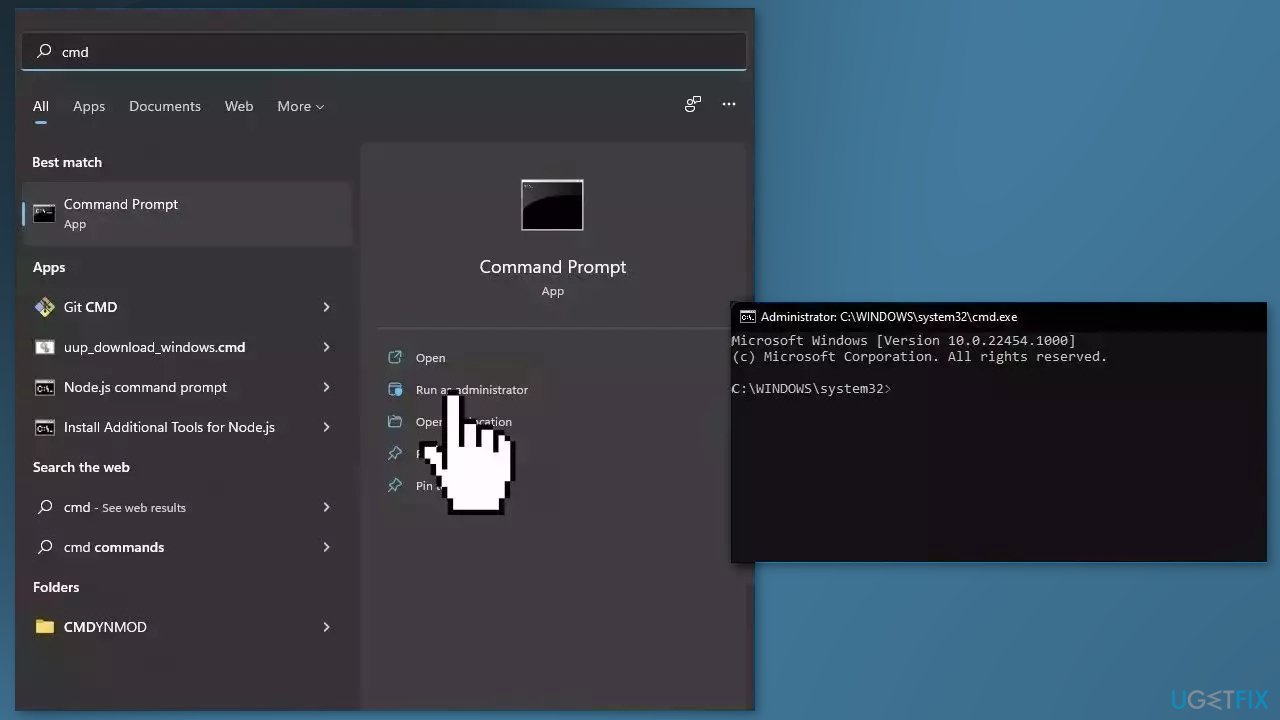
Use Command Prompt commands to repair system file corruption:
- Open Command Prompt as administrator
- Use the following command and press Enter:
sfc /scannow
- Reboot your system
- If SFC returned an error, then use the following command lines, pressing Enter after each:
DISM /Online /Cleanup-Image /CheckHealth
DISM /Online /Cleanup-Image /ScanHealth
DISM /Online /Cleanup-Image /RestoreHealth
Solution 2. Take Ownership of Files and Folders
- Right-click on the file or folder you cannot open and click Properties
- Click the Security tab at the top
- Now, click on the Advanced button
- Press on the Change option before Owners
- Type the name to give ownership and click Check Names
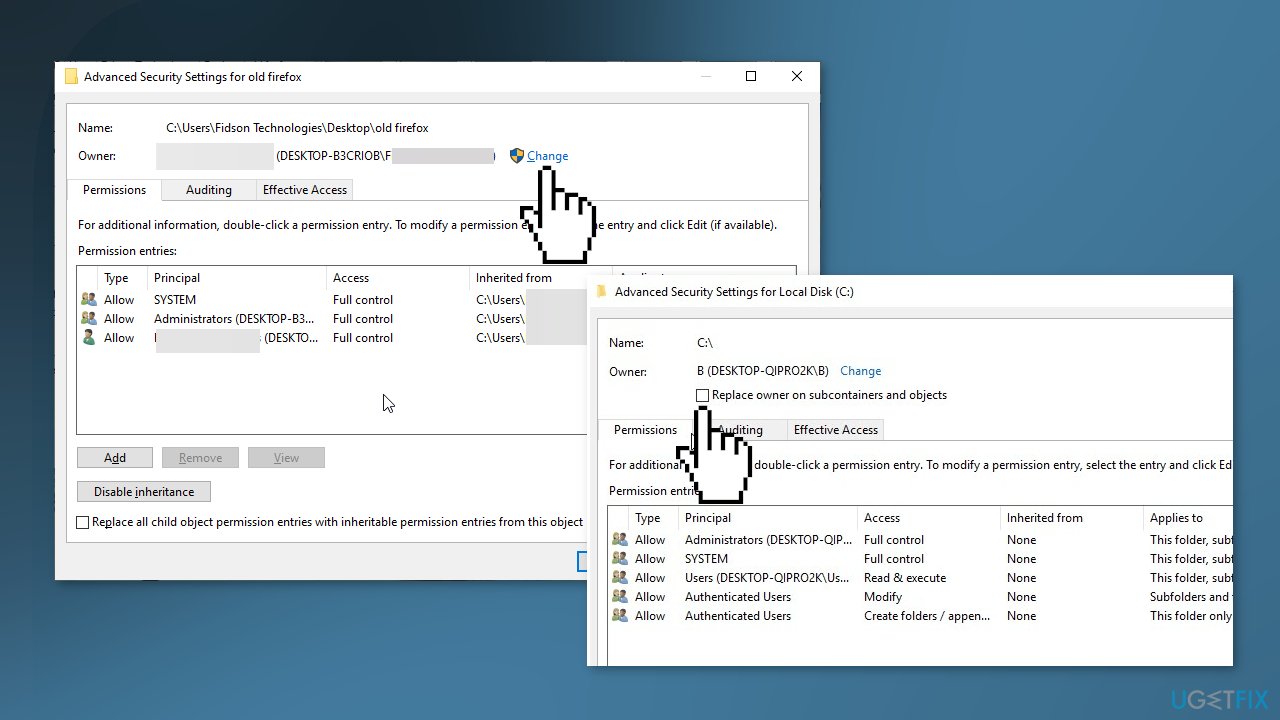
- Press the OK button
- If you want this person to be the owner of the files and subfolders in this folder, select the Replace owner on the subcontainers and objects check box
- Finally, click the OK button
Solution 3. Allow Read and Execute Permissions
- Right-click on the problematic file or folder and click Properties
- Click the Security tab
- Under Group or user names, tap or click your name to see your permissions
- To open a file, you need to have Read permission
- If you do not have it, log on as an administrator
- Right-click the file or folder, and then select Properties
- Click the Security
- Under Group or user names, click your name to see your permissions
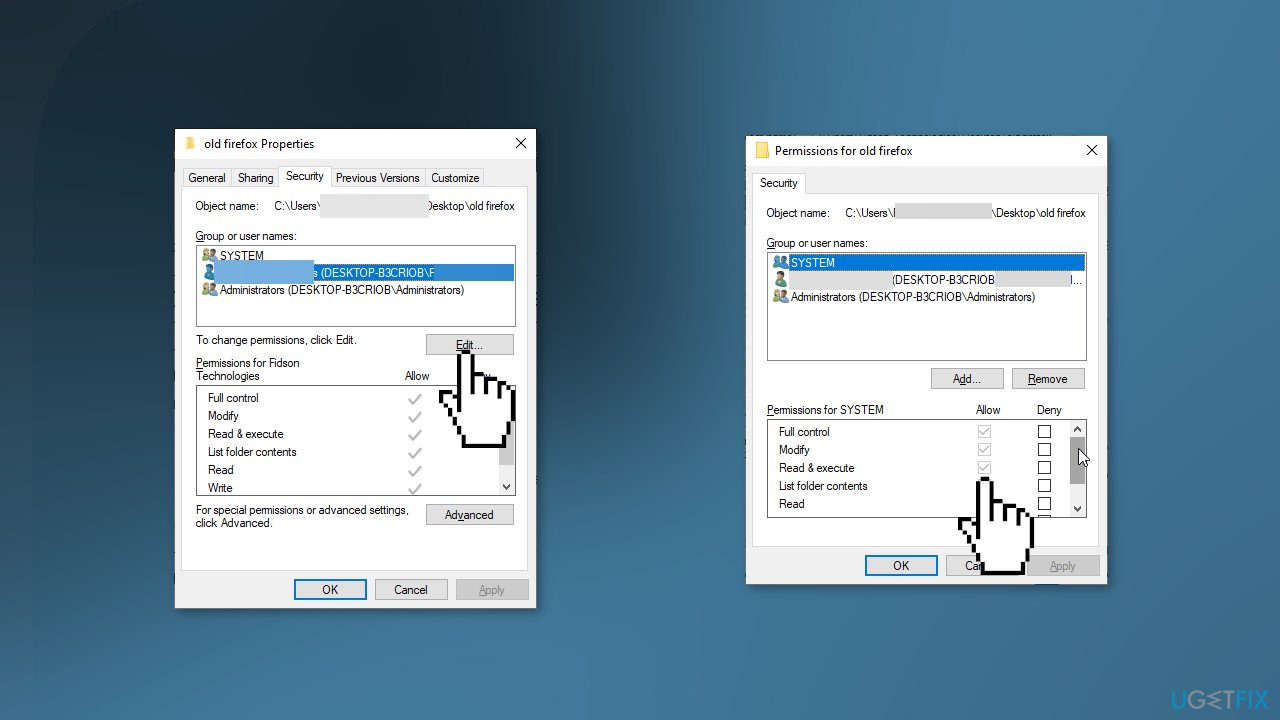
- Click the Edit button
- Click your name, and select the checkboxes for the permissions that you must have
- Click OK
Solution 4. Enable SMBv1
- Press the Windows key + I to open the Settings app
- Choose the Apps option
- Select Programs and Features under the Related Settings
- Click Turn Windows features on or off in the left pane of the new window
- Scroll down and click on the + sign next to SMB 1.0/CIFS File Sharing Support to expand it
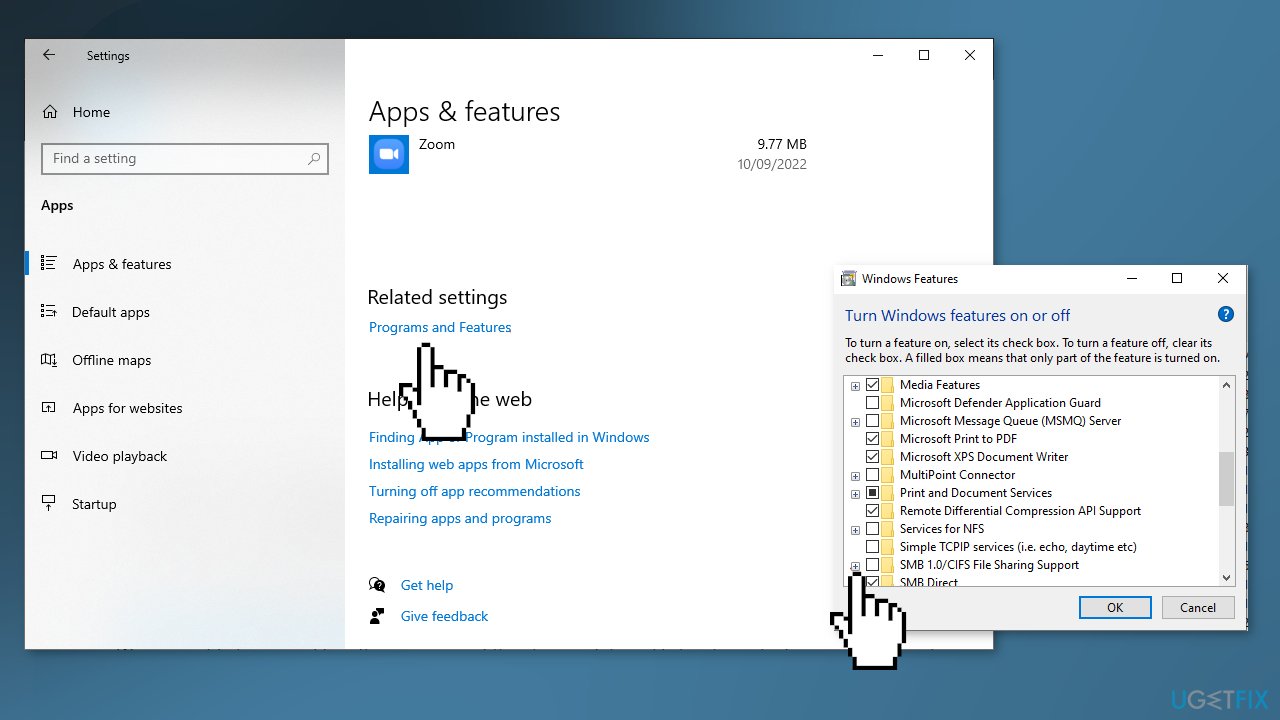
- Check the box for SMB 1.0/CIFS Server and click OK
- Restart your computer
Solution 5. Recover Files from Windows.old Folder
If you recently upgraded your machine it is possible that it caused the malfunctions.
- Open File Explorer and double-click the drive that Windows is installed on (usually it's drive C)
- Select the Windows.old folder
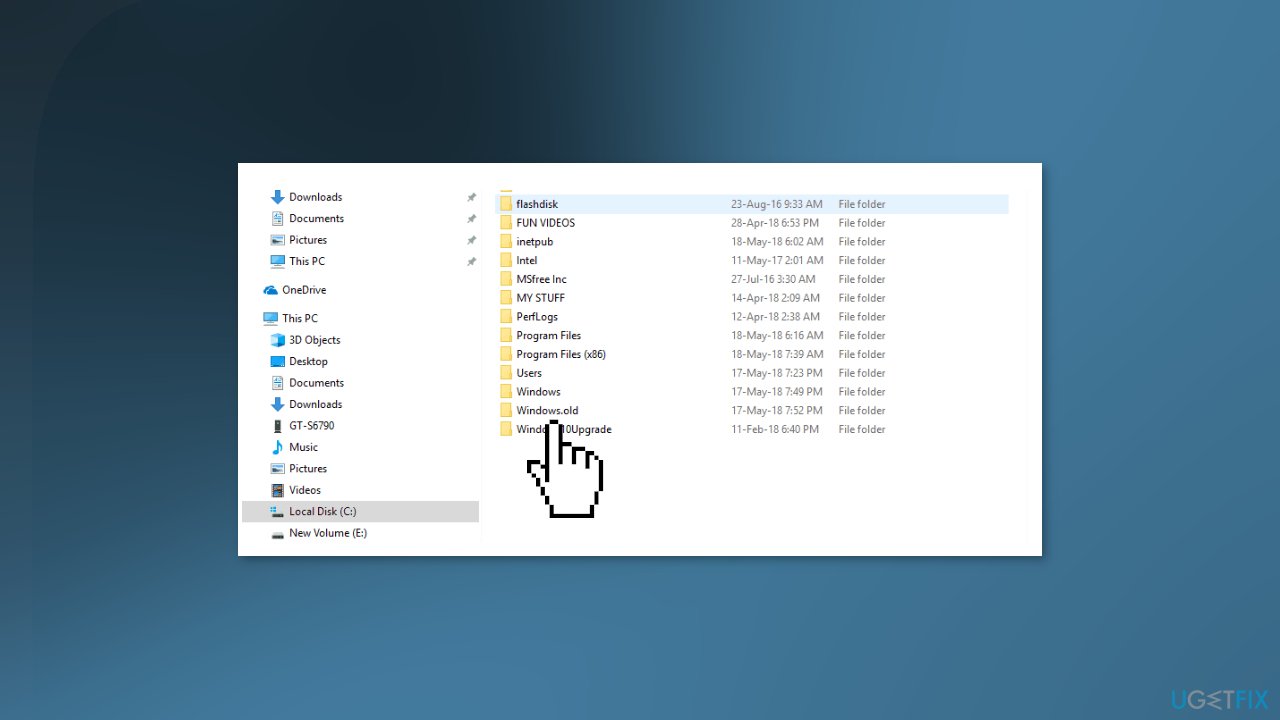
- Double-click the Users folder
- Double-click on your user name
- Open the folders that contain the files that you want to access
- Copy the files you want from each folder and paste them to a folder in the new Windows version, e.g. Windows 10 or 11
Solution 6. Create a Local Administrator Account
- Select the Start menu and go to Settings
- Click on Accounts
- Under Family & other users select Add someone else to this PC
- Select I don't have this person's sign-in information, and on the next page, select Add a user without a Microsoft account
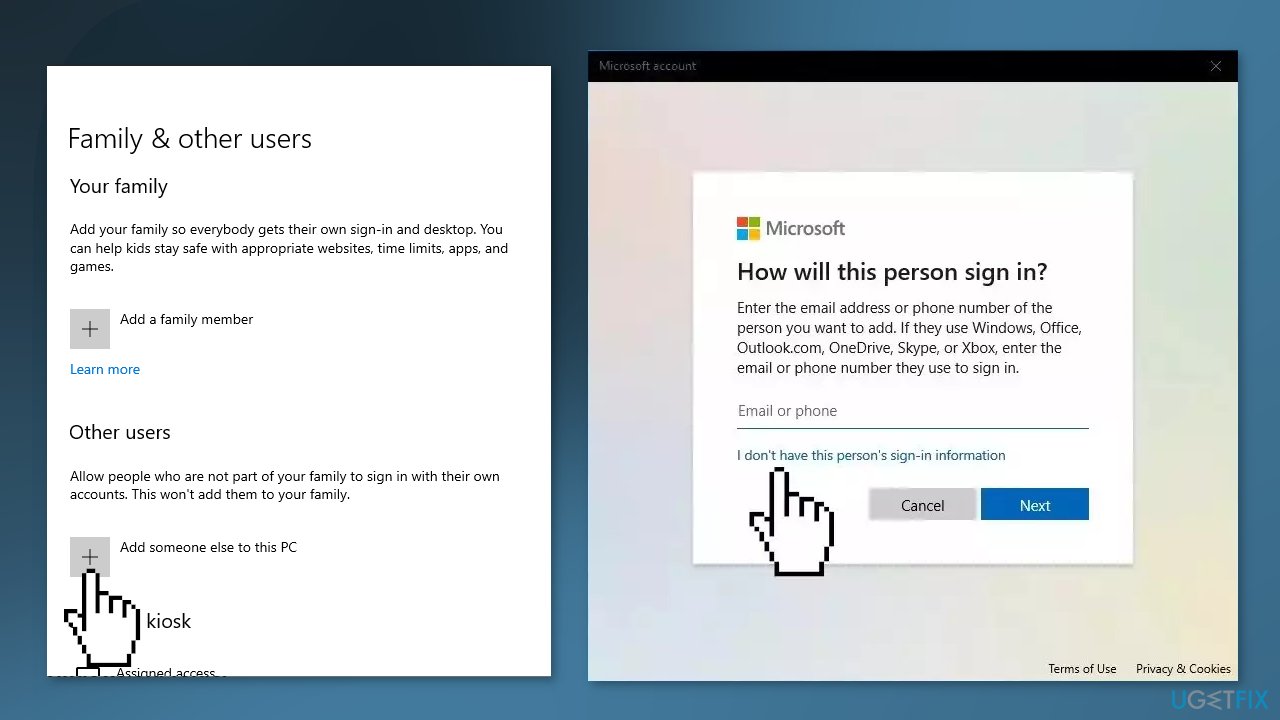
- Enter a user name, password, or password hint, or choose security questions and then select Next to finish the process
- Now, select Change account type
- Under Account type, select Administrator, and then select OK
- Sign in with the new administrator account and check if the issue is resolved
Bottom line
To resolve the issue of not being able to access folders outside of Desktop, users can check their permissions, scan for malware, and troubleshoot any hardware or software issues. If these steps do not work, consider seeking assistance from a technical expert or using a maintenance tool to fix system errors.
Frequently asked questions
This issue may be caused by corrupted user profiles or specific folder permissions. You can try creating a new user account to see if the problem persists.
If the problem continues, you may need to perform a system restore or reset your Windows 11 settings to resolve any deeper system issues.
Yes, ensure that your user account has the necessary permissions to access the folders; right-click the folder, select Properties, then check the Security tab.




Report an issue
What's wrong with this guide? We review every report and update or remove content.
Report received — thank you. We'll review and fix it.
You need a free account to submit a report.
Be the first to comment